
ProdQueue allows your WooCommerce store to turn made-to-order order items into individual production jobs, giving your team a dedicated production queue inside WooCommerce.
Installation
↑ Back to topTo start using a product from WooCommerce.com, you can use the “Add to store” functionality on the order confirmation page or the My subscriptions section in your account.
- Navigate to My subscriptions.
- Find the Add to store button next to the product you’re planning to install.
- Follow the instructions on the screen, and the product will be automatically added to your store.
Alternative options and more information at:
Managing WooCommerce.com subscriptions.

Setup and Configuration
↑ Back to topGetting started
↑ Back to topTo set up your store with ProdQueue:
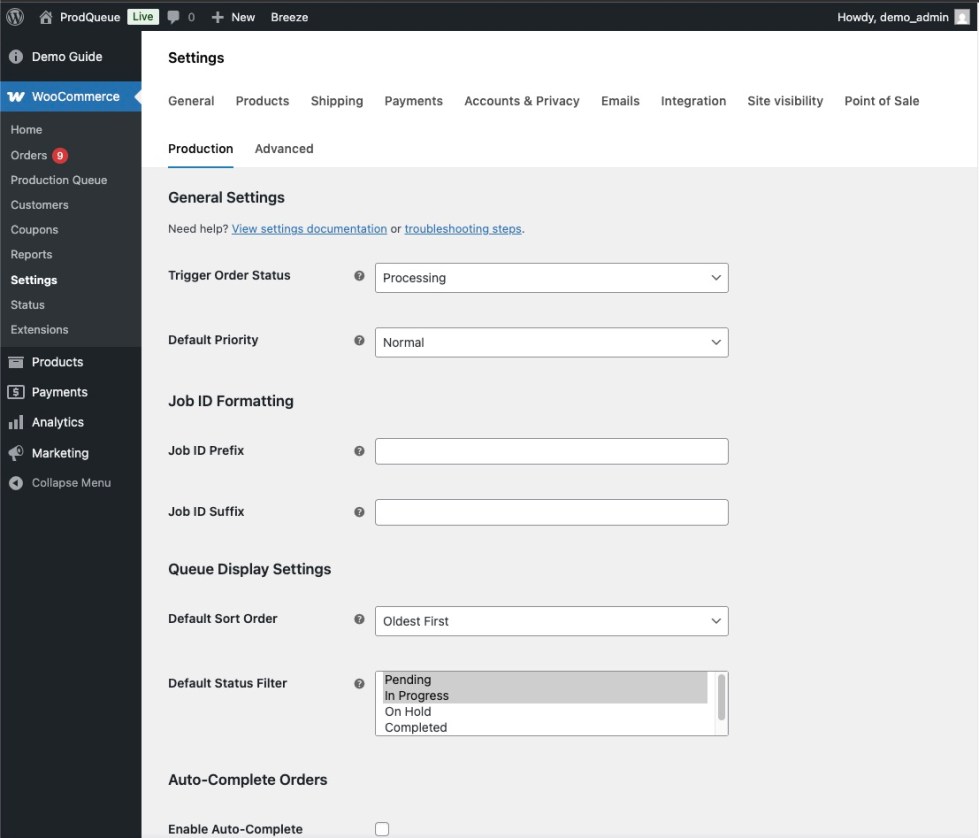
- Go to: WooCommerce > Settings > Production.
- Select the order status that should trigger job creation. Most stores use Processing.
- Set your default priority and job ID format.
- Save changes.
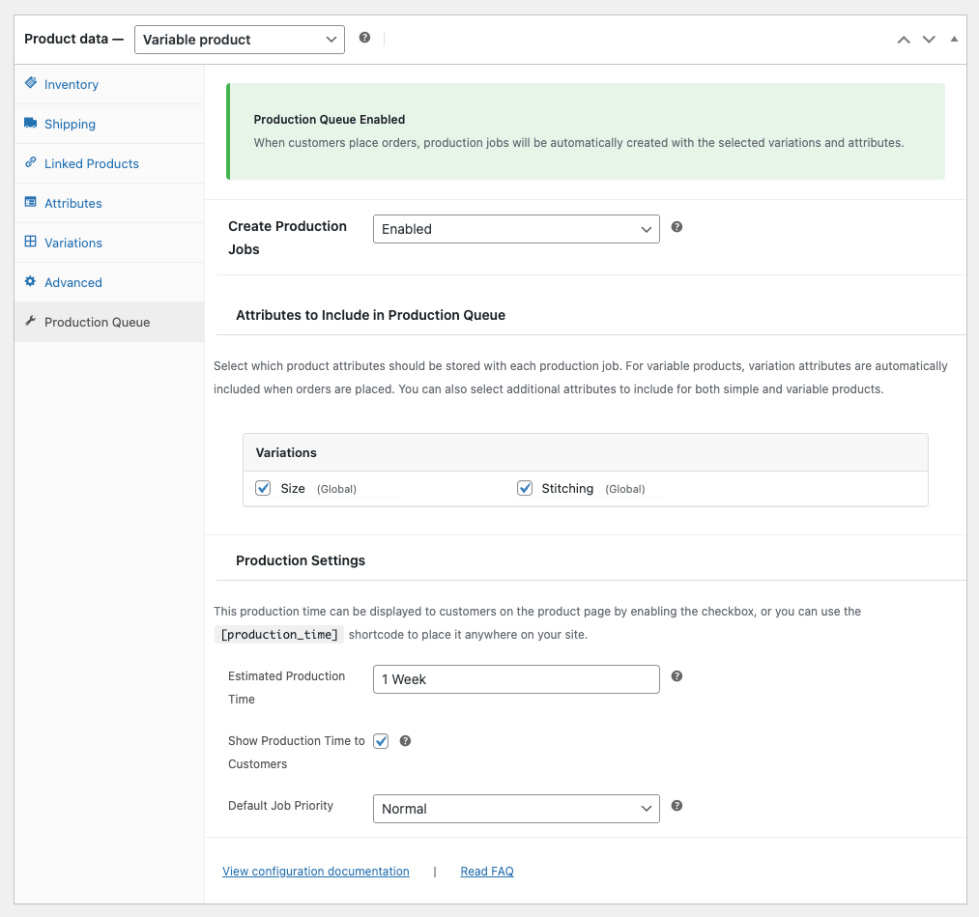
- Edit a product, open the Production Queue tab, and enable production tracking for that product.
- Select which attributes or variations should be included on jobs.
- Place a test order and move it to the configured trigger status.
Global settings
↑ Back to topGlobal settings control when jobs are created and how the queue behaves by default.
- Trigger status: the order status that creates jobs.
- Default priority: the default priority applied when a product does not specify one.
- Job ID prefix and suffix: format job IDs for your workflow.
- Default filters: choose which jobs staff see first when opening the queue.
- Auto-complete behaviour: optionally mark an order complete when all linked jobs are completed.
- Debug logging: enable only while troubleshooting.
- Delete Data On Uninstall: optionally remove ProdQueue data when uninstalling the plugin.
Product configuration
↑ Back to topProdQueue is configured per product, so you can control exactly which products create jobs.
- Enable or disable production tracking per product.
- Select which attributes should be attached to jobs.
- Use variable product attributes to help staff batch similar work.
- Set an estimated production time and optionally show it to customers.
Advanced configuration
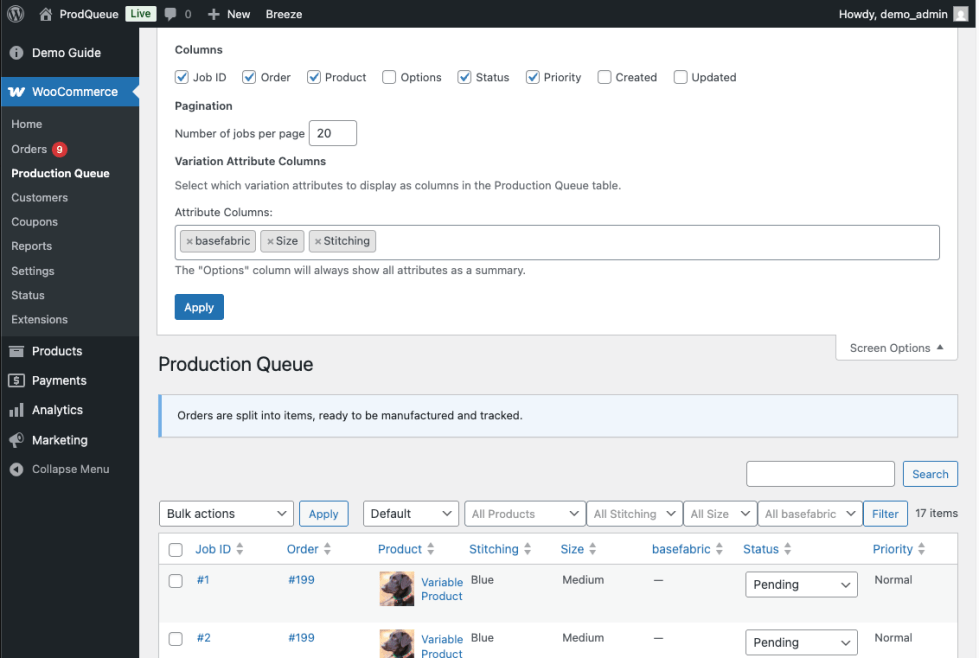
↑ Back to topYou can further tailor ProdQueue by setting default queue filters, choosing visible columns with Screen Options, and adjusting pagination to suit your team’s workflow.
Usage
↑ Back to topProdQueue is primarily an admin-side workflow tool. Staff use it inside WooCommerce to track production work after an order is placed.
Working in the Production Queue
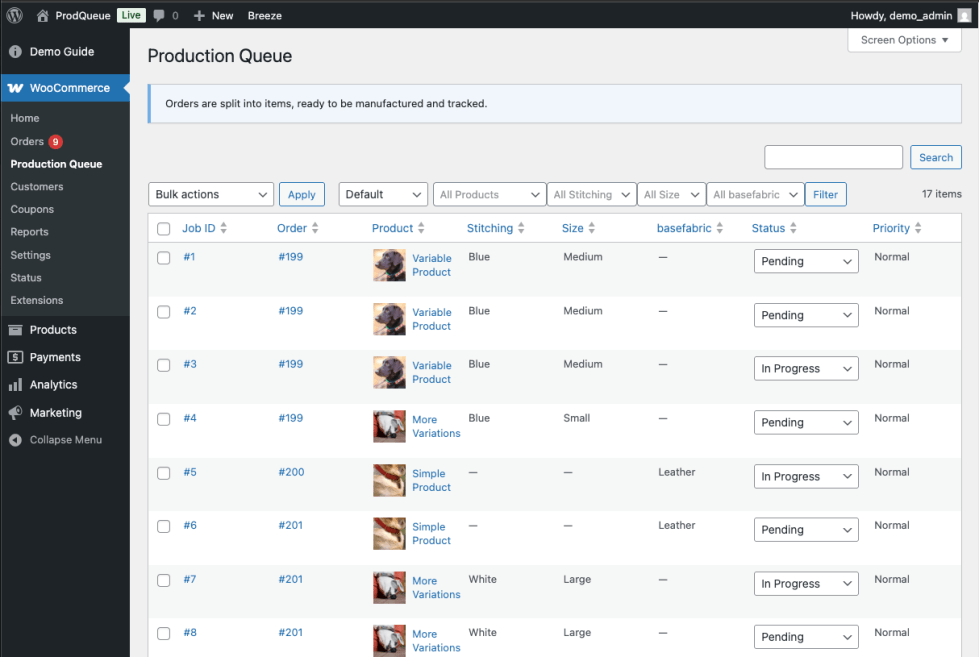
↑ Back to topGo to WooCommerce > Production Queue to manage day-to-day work.
- Filter jobs by status, priority, and configured attributes.
- Search by order number, product name, or job ID.
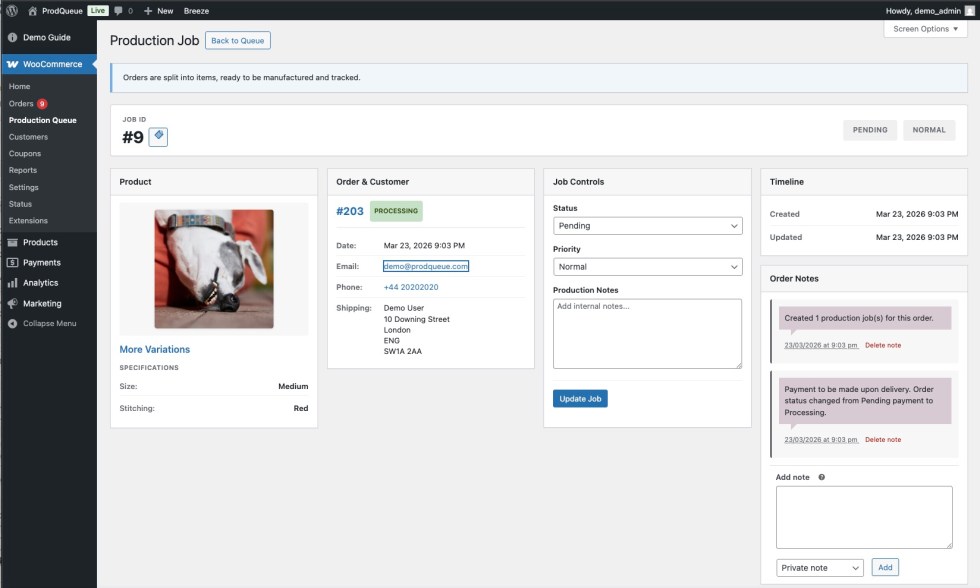
- Open a job to update status and priority.
- Sort columns and paginate the queue for faster staff workflows.
- Job lifecycle events are recorded using WooCommerce order notes.
Working from the order screen
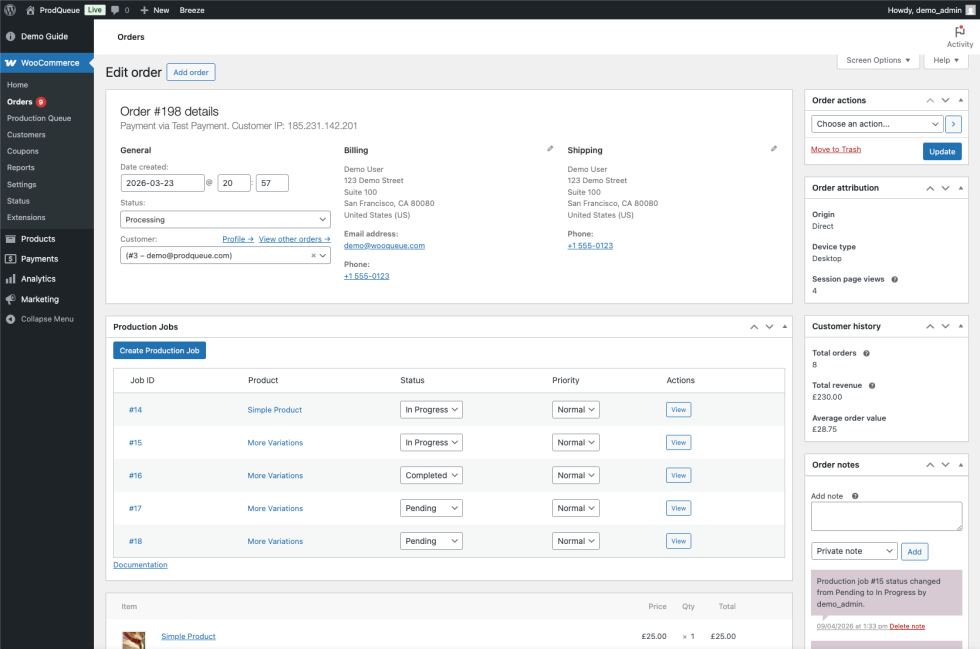
↑ Back to topEach order includes a Production Jobs panel so staff can work without leaving the order.
- See all jobs linked to the order.
- Update job status and priority from the order screen.
- Create jobs manually when needed.
- If quantity is greater than 1, ProdQueue splits work into multiple jobs.
What customers see
↑ Back to topCustomers do not interact directly with the production queue. If you enable production time display on a product, customers can see the estimated production time on the product page or wherever you place the production time shortcode.
Compatibility
↑ Back to topProdQueue is designed for made-to-order WooCommerce workflows and supports the following:
- WooCommerce High-Performance Order Storage (HPOS).
- Configurable trigger statuses, including custom order statuses.
- Simple products.
- Variable products via selected attributes.
- Single-site WooCommerce stores.
ProdQueue focuses on production tracking and does not modify checkout, payment, shipping, or stock flows.
Troubleshooting
↑ Back to topMost issues come down to trigger status, product configuration, or cached admin views.
Jobs are not being created
↑ Back to top- Confirm the order status matches the trigger status in WooCommerce > Settings > Production.
- Confirm production tracking is enabled for the product.
- Place a new test order after making changes.
- Check whether the order contains products that are not configured for tracking.
Jobs are created, but attributes are missing
↑ Back to top- Confirm the correct attributes are selected for inclusion on the product.
- Confirm the order line item actually includes those attribute values.
- Check Screen Options to ensure the relevant attribute columns are visible.
Status or priority updates do not save
↑ Back to top- Confirm you are logged in as an administrator or shop manager.
- Try a hard refresh of the admin page.
- If you use a security plugin, confirm it is not blocking AJAX requests.
The queue feels slow
↑ Back to top- Reduce the jobs-per-page setting.
- Use filters to narrow the list.
- Check that your server resources are adequate for WooCommerce admin usage.
If you still need help, temporarily enable debug logging while reproducing the issue, then disable it again once you are done.
FAQs
↑ Back to top
How are jobs created?
ProdQueue creates jobs automatically when an order reaches your configured trigger status. Jobs can also be created manually from the order screen.
Is it one job per order?
No. ProdQueue creates one job per unit. If a customer orders a quantity of 3, three separate jobs are created.
Can I enable ProdQueue only for some products?
Yes. Production tracking is enabled per product, so you can choose exactly which products should create jobs.
Does ProdQueue change checkout, payments, shipping, or stock?
No. ProdQueue focuses on production tracking. It does not change your checkout, payments, shipping, or stock flows.
What happens if an order is cancelled, refunded, or changed?
ProdQueue reconciles jobs against updated order items and cancellations or refunds. Reconcilable jobs are cancelled while completed or already-cancelled jobs are kept as history where appropriate.
Why are jobs not being created?
First check that the order reached the configured trigger status and that production tracking is enabled for the product. After changing settings, place a fresh test order rather than relying on older orders.
Does ProdQueue support HPOS?
Yes. ProdQueue declares compatibility with WooCommerce High-Performance Order Storage.

