
Smart Dynamic Pricing is a powerful WooCommerce plugin that helps store owners move beyond fixed pricing and adopt intelligent, rule-based price automation.
Instead of manually changing prices, you can create dynamic pricing rules that automatically adjust product prices based on real-world conditions such as product selection, stock levels, customer location, date and time, and more.
The plugin is built with flexibility in mind, offering advanced rule logic using AND/OR conditions and grouped configurations.
System Requirements
↑ Back to top- PHP 7.4 and above
- WordPress 5.0 and above
- WooCommerce is installed 5.0 and above
- HPOS compatible
Installation
↑ Back to topTo start using a product from WooCommerce.com, you can use the “Add to store” functionality on the order confirmation page or the My subscriptions section in your account.
- Navigate to My subscriptions.
- Find the Add to store button next to the product you’re planning to install.
- Follow the instructions on the screen, and the product will be automatically added to your store.
Alternative options and more information at:
Managing WooCommerce.com subscriptions.

Manually Installation
↑ Back to top- Download the smart-dynamic-pricing.zip file from your WooCommerce account.
- Go to WordPress Admin Dashboard > Plugins > Add New and upload the downloaded zip file.
- Click Install Now, and once installed, activate the plugin.
Once activated, check the left-hand side of the admin dashboard for WooCommerce > Settings > Smart pricing, confirming its successful installation.
How does the Smart Dynamic Pricing Plugin work?
↑ Back to topSmart Dynamic Pricing Plugin works by automatically adjusting product prices based on rules you define, instead of relying on fixed pricing. You create pricing rules using a structured rule builder where you select the products the rule should apply to and define the conditions that must be met.
These conditions can include factors like stock levels, customer location, date and time, device type, and more. Once a rule’s conditions are satisfied, the plugin calculates the adjusted price in real time.
Each rule follows a clear evaluation flow. Rules are checked based on their priority order, and within a rule, condition groups are evaluated using logical AND/OR combinations.
Types of Pricing Rules with Examples
↑ Back to topProduct-Based Rules
↑ Back to topWhat it does:
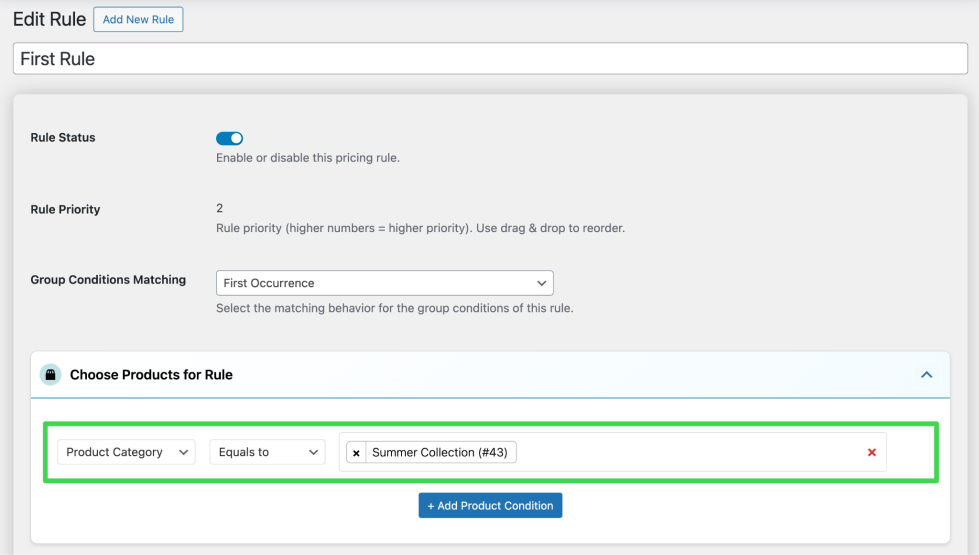
Apply pricing rules only to selected products, categories, tags, or brands.
Example:
- Apply 10% discount on all products in the “Summer Collection” category.
- Increase price by ₹100 for products under the “Premium Brand”.
- Exclude Gift Cards from all pricing rules.
Use case:
Perfect for category sales, brand-specific promotions, or excluding sensitive products.
Stock-Based Rules
↑ Back to topWhat it does:
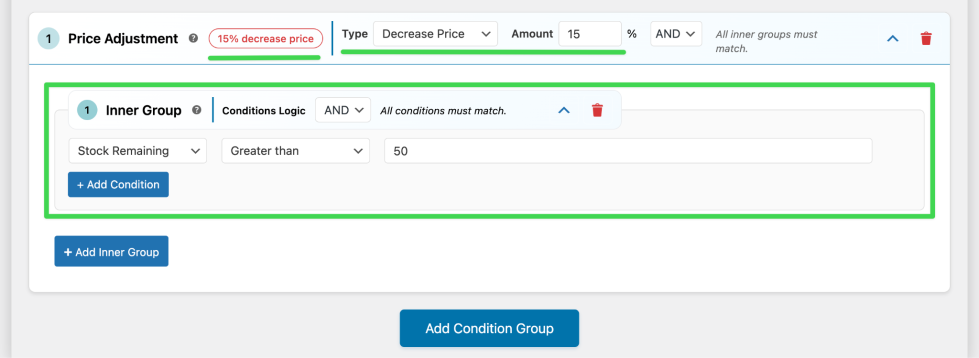
Adjust pricing automatically based on product stock availability.
Example:
- If stock > 50, apply 15% discount to clear inventory.
- If stock < 5, increase price by 10% to protect margins.
- Apply a discount only when the stock is between 20 and 40.
Use case:
Ideal for inventory management and demand-based pricing.
Location-Based Rules
↑ Back to topWhat it does:
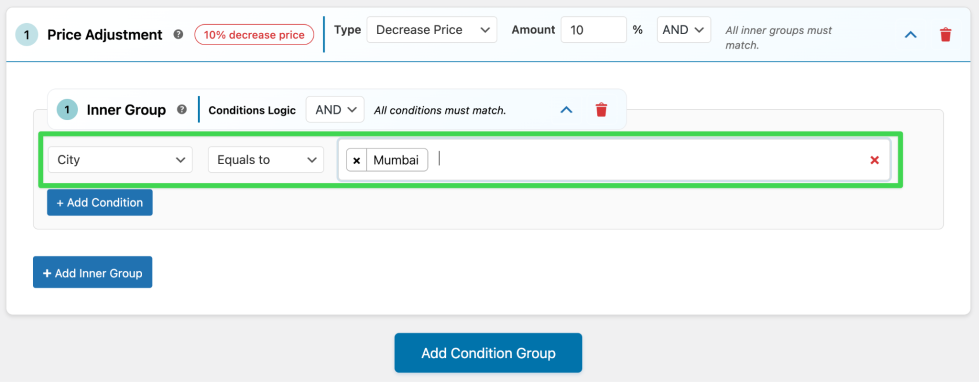
Change prices based on the customer’s location.
Example:
- Offer a 10% discount to customers from Mumbai.
- Apply 5% higher pricing for international customers.
- Run a state-specific promotion during a local festival.
Use case:
Useful for regional pricing strategies and local campaigns.
Date-Based Rules
↑ Back to topWhat it does:
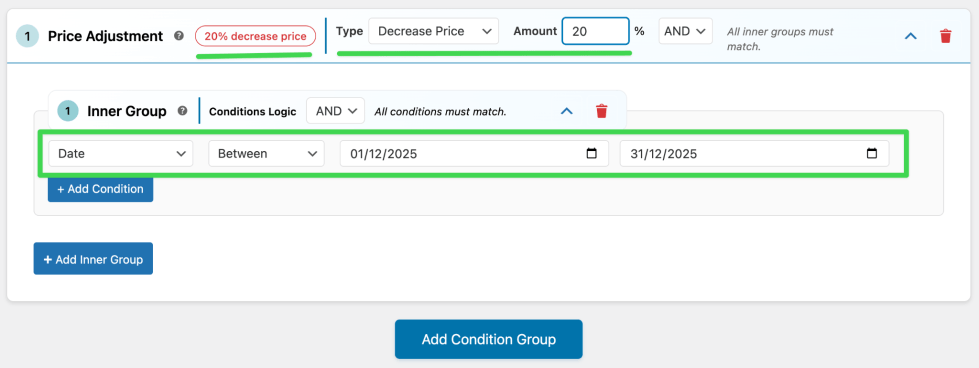
Schedule pricing changes for specific dates or periods.
Example:
- Apply 20% discount from December 1st to December 31st (holiday sale).
- Enable special pricing only during Diwali week.
- Offer discounts on the first day of every month.
Use case:
Perfect for seasonal offers and scheduled promotions.
Time-Based Rules
↑ Back to topWhat it does:
Adjust prices based on time of day or day of the week.
Example:
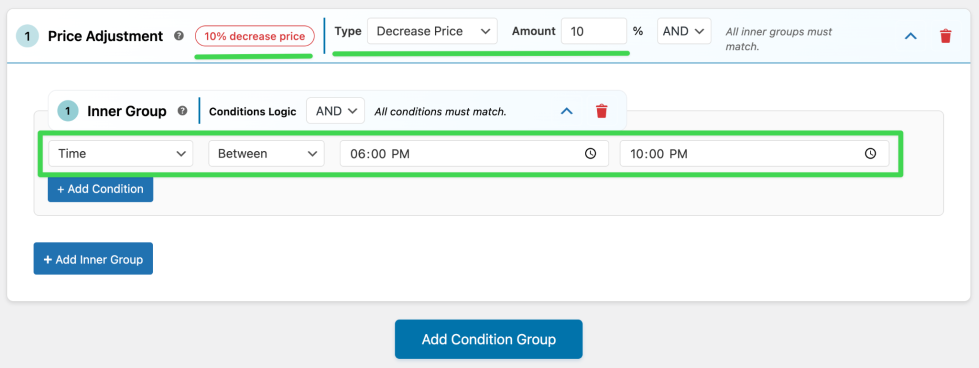
- Offer 10% off between 6 PM to 10 PM.
- Increase prices during peak business hours.
Use case:
Great for flash sales, happy hours, and peak-time pricing.
Device / OS-Based Rules
↑ Back to topWhat it does:
Apply pricing based on the customer’s device or operating system.
Example:
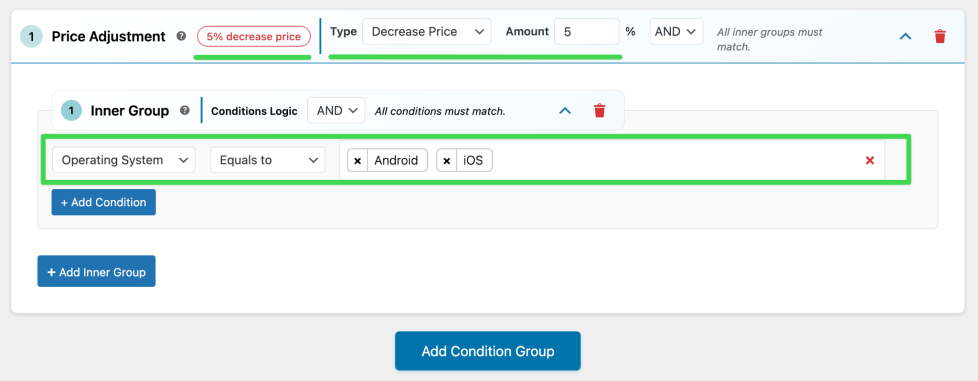
- Give mobile users an extra 5% discount.
- Run an Android-only promotion.
- Offer app-exclusive pricing logic via OS targeting.
Use case:
Ideal for mobile-first marketing and device-specific campaigns.
Advanced Condition Group Rules (AND / OR Logic)
↑ Back to topWhat it does:
Combine multiple conditions using AND/OR logic with grouped conditions.
Example:
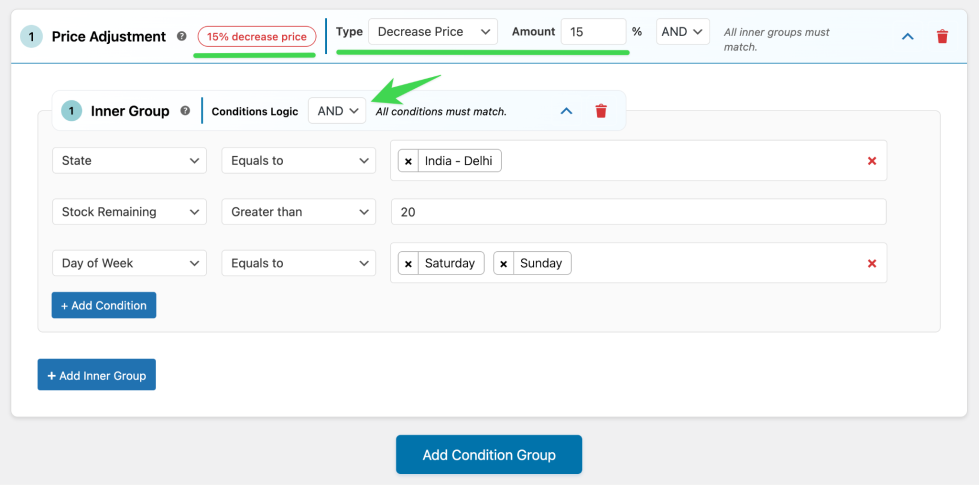
- Apply 15% discount if:
- Customer is from Delhi AND
- Stock is greater than 20 AND
- Today is Saturday or Sunday
Use case:
Best for complex pricing scenarios that depend on multiple factors.
Getting Started with Smart Dynamic Pricing
↑ Back to topSmart Dynamic Pricing Plugin is designed to be powerful yet easy to use. Follow the steps below to start creating, managing, and controlling pricing rules in your WooCommerce store.
Creating Your First Pricing Rule
↑ Back to topCreating a pricing rule is the core of how the plugin works.
Step 1: Add a New Rule
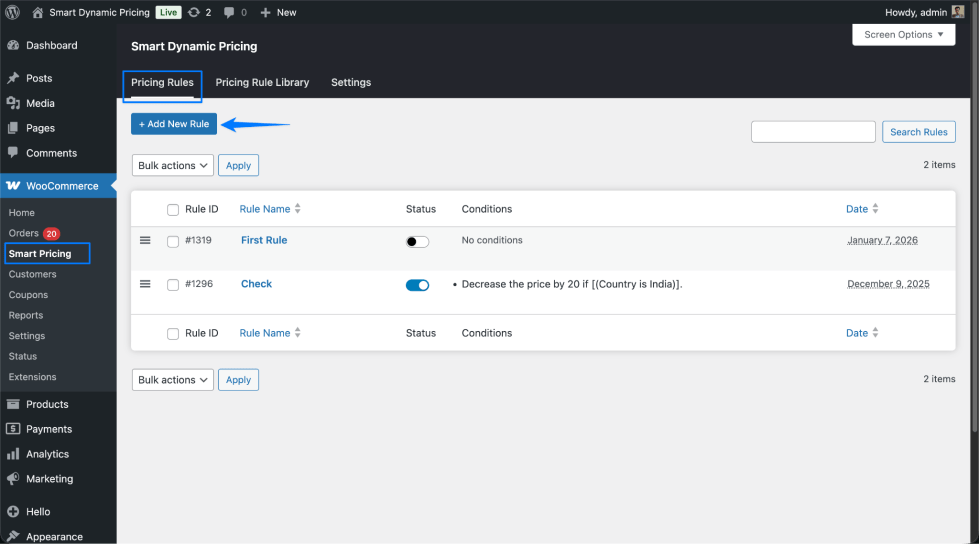
- Navigate to Smart Dynamic Pricing → Pricing Rules
- Click Add New Rule
- Enter a Rule Title to identify it later easily
Step 2: Configure Rule Settings
In the Rule Configuration section:
- Enable or disable the rule using the Rule Status
- Check the Rule Priority to control evaluation order
- Choose how condition groups should be matched (First Occurrence, Highest Adjustment, or Lowest Adjustment)
Edit page rule basic configuration section
Step 3: Choose Products for the Rule
Select which products the rule should apply to:
- Specific products
- Categories
- Tags
- Brands
Note: If nothing is selected, the rule applies to all products.
Product selection section for the rule to apply to the front side
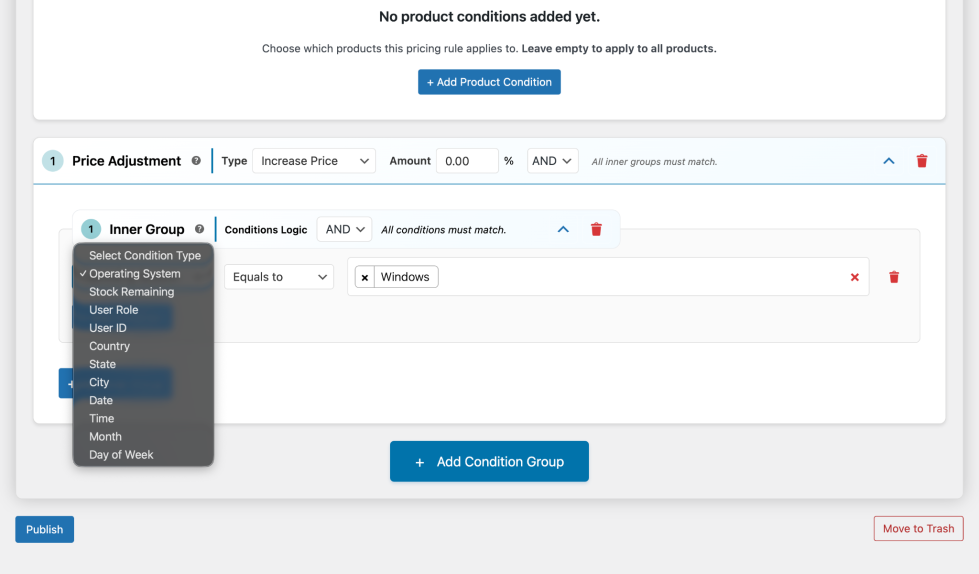
Step 4: Define Pricing Conditions
Create conditions using AND / OR logic, and group them as needed:
- Stock level
- Location (country, state, city)
- Date, time, day, or month
- Device or operating system
Note: You can add inner groups to build advanced pricing logic.
Step 5: Set Price Adjustment
Define how the price should change:
- Increase or decrease the price
- Fixed amount or percentage
- AND/OR logic for inner groups
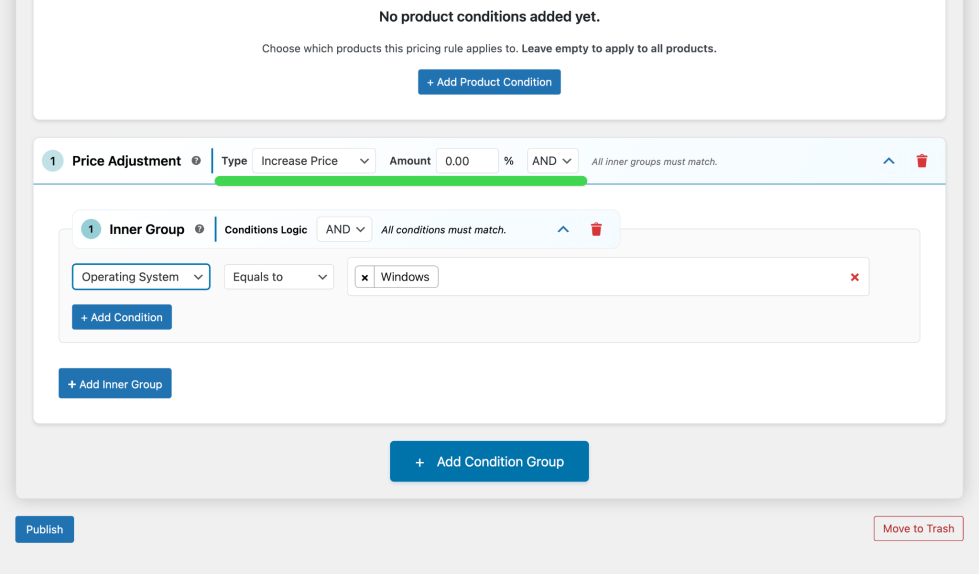
Save the rule, and pricing will update automatically across your store.
Importing Pricing Rules
↑ Back to topImporting rules helps you quickly set up pricing without starting from scratch.
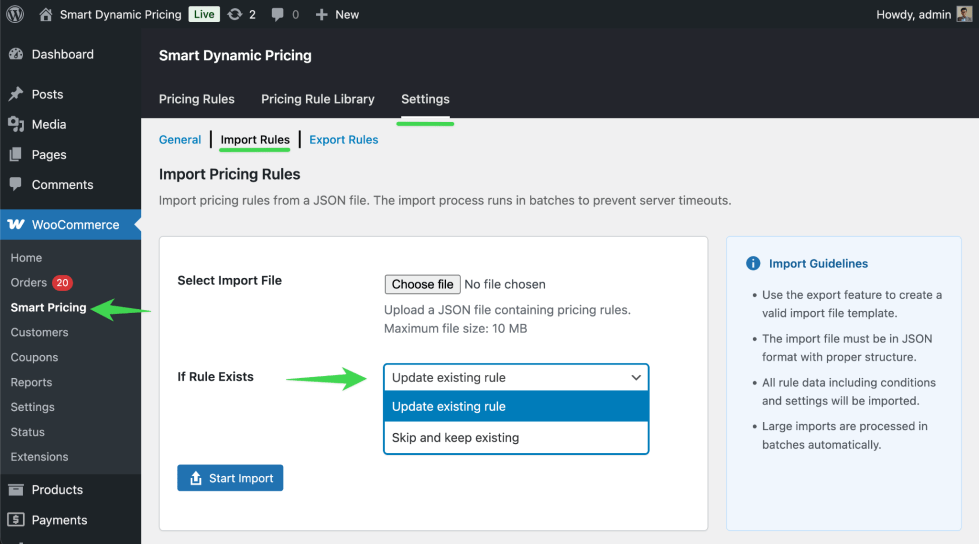
How to Import Rules
- Go to Smart Dynamic Pricing → Settings → Import Rules
- Upload a JSON file containing pricing rules
- Choose what should happen if a rule already exists:
- Update existing rule
- Skip and keep the existing rule
Key Benefits
- AJAX-powered import prevents server overload
- Large rule files are processed in batches
- Invalid rules are skipped safely with error reporting
This is ideal for migrating rules between sites or restoring backups.
Exporting Pricing Rules
↑ Back to topExporting rules allows you to back up or reuse pricing strategies.
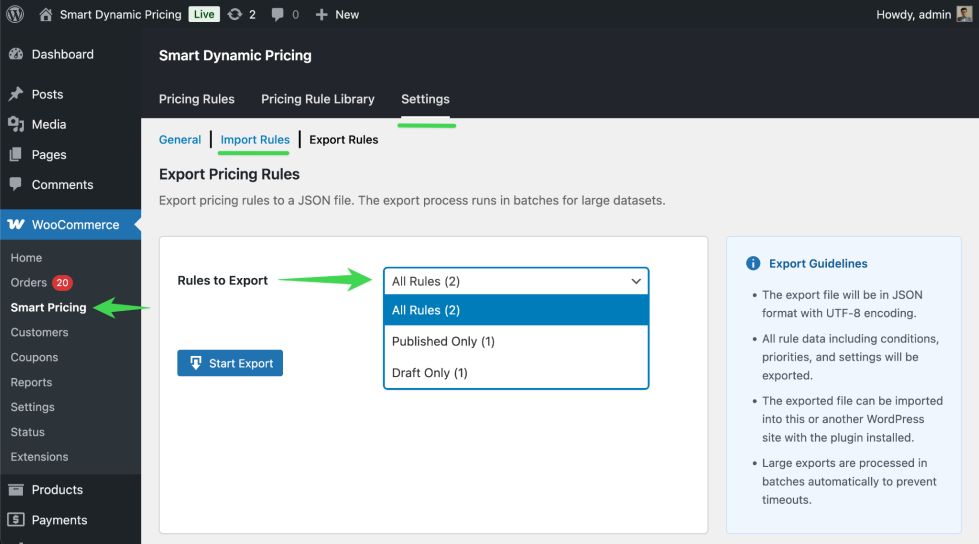
How to Export Rules
- Go to Smart Dynamic Pricing → Export Rules
- Choose which rules to export:
- Published rules
- Draft rules
- Start export and download the file
Why Export Rules?
- Create backups
- Move rules between staging and live sites
- Share pricing configurations across stores
Exports are optimised to handle large rule sets efficiently.
General Settings Overview
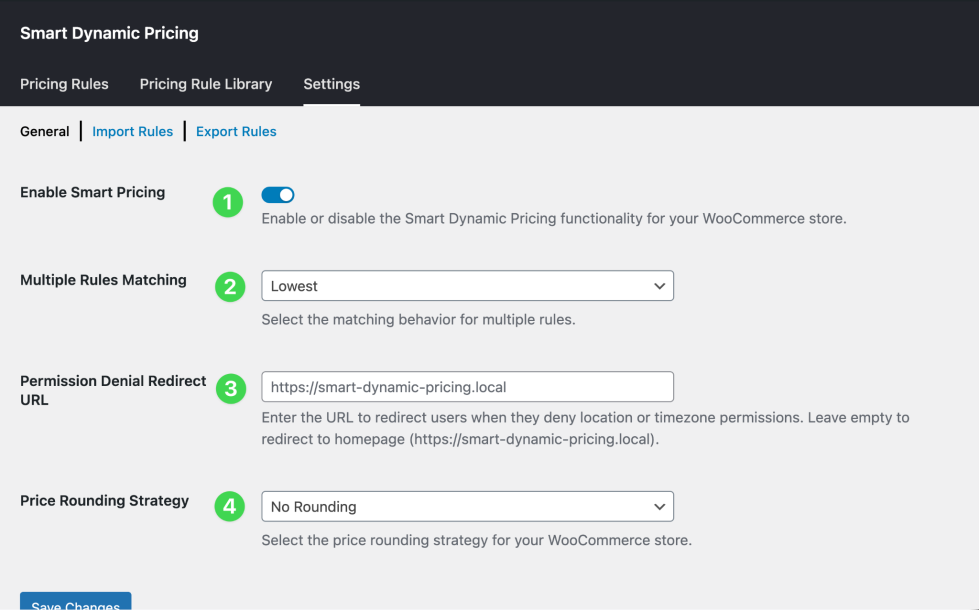
↑ Back to topThe General Settings page controls the global behaviour of the plugin.
Key settings explained
- Enable functionality – Control the plugin’s price adjustment to the store
- Multiple Rules Matching – Defines how the plugin selects one rule when multiple rules match the same product, ensuring predictable pricing.
- Price Rounding Strategies – Controls how prices are rounded after adjustments for a clean and consistent pricing display.
- Location Permission Denial Redirect URL – Set a redirect URL for users who deny location access when location-based rules are active.
These settings help you fine-tune how pricing behaves across your store.
FAQs
↑ Back to topHelp customers by answering commonly asked questions.
Will dynamic pricing affect my entire store or only the cart?
Dynamic pricing applies across your entire store — including shop pages, product pages, cart, checkout, thank-you page, and order details. Customers always see consistent prices everywhere.
What happens if multiple pricing rules match the same product?
You stay in control. The plugin allows you to choose how multiple rules behave:
– First matching rule
– Highest discount
– Lowest discount
If no option is selected, the system safely defaults to First Occurrence.
Can I apply rules only to specific products?
Yes. You can target pricing rules by:
– Individual products
– Categories
– Tags
– Brands
Note: You can also exclude specific products using “not equals” conditions.
How does location-based pricing work?
The plugin detects location differently for logged-in and guest users:
– Logged-in users: Combines saved address and browser location
– Guest users: Uses browser location (permission required)
If permission is denied, the plugin can redirect users to a configurable URL (which you can set from the plugin setting page).
Is customer privacy respected?
Yes. Location and device data are used only for pricing logic, not for tracking or analytics. All data handling follows WordPress and WooCommerce standards.
Where can I request new features?
You can email us at hello@thedotstore.com or click here to add a new request

