
Customer Reach Map helps WooCommerce store owners visualize where their customers come from — privately for insight, publicly for trust.
Inside your WooCommerce dashboard, the private Sales Analytics Map gives you a visual overview of your store’s geographic performance. Use the heatmap to spot strong regions, discover untapped markets, and better understand where your orders are coming from.
On the frontend, the public customer map turns this data into trust-building social proof. Show visitors that real customers buy from your store — without exposing any personal data. All public locations are anonymized and aggregated, so no customer names, addresses, or order details are ever displayed.
Choose from different frontend map styles to match your brand and embed the public map anywhere on your site with a simple shortcode.
Installation
↑ Back to topTo start using a product from WooCommerce.com, you can use the “Add to store” functionality on the order confirmation page or the My subscriptions section in your account.
- Navigate to My subscriptions.
- Find the Add to store button next to the product you’re planning to install.
- Follow the instructions on the screen, and the product will be automatically added to your store.
Alternative options and more information at:
Managing WooCommerce.com subscriptions.

Setup and Configuration
↑ Back to top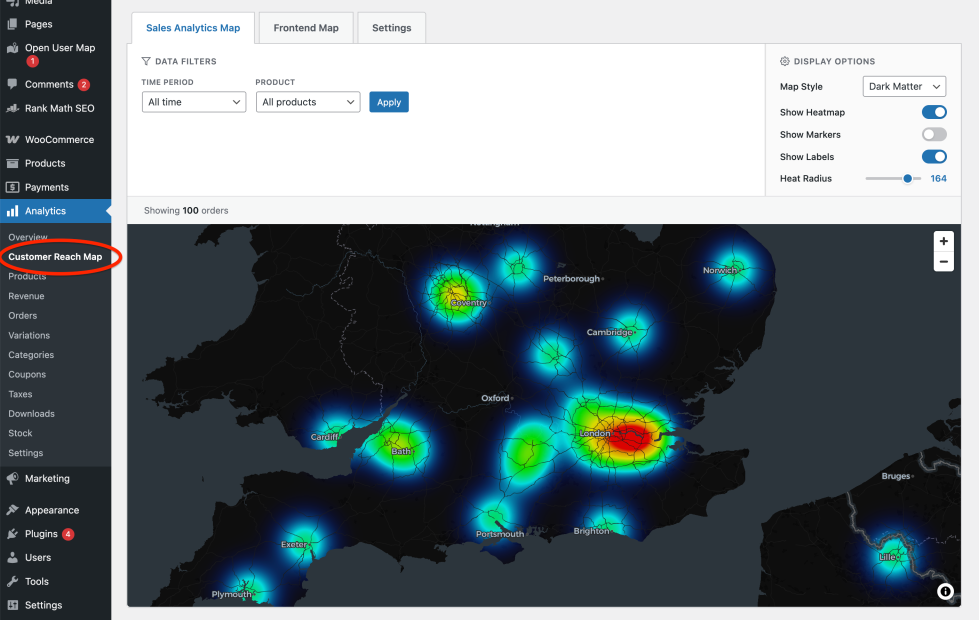
Getting started
↑ Back to topAfter activating the plugin you will find the plugin interface either under WooCommerce > Customer Reach Map or (if WooCommerce Analytics Feature is enabled) under Analytics > Customer Reach Map.
From now on new orders will automatically be processed (their geo-coordinates will be determined in the background) and appear on the Sales Analytics Map. To visualize existing orders as well you can start the Bulk Geocoding.
Initially the Frontend Map might show first markers already for Countries that existing orders were coming from.
How it works
↑ Back to topThe core functionality of the plugin is to geocode the order addresses of your WooCommerce shop. By default this uses the freely available Nominatim geocoding service by sending the address data and receiving geo-coordinates in return. The geo-coordinates are stored as meta fields with the order.
Bulk Geocoding
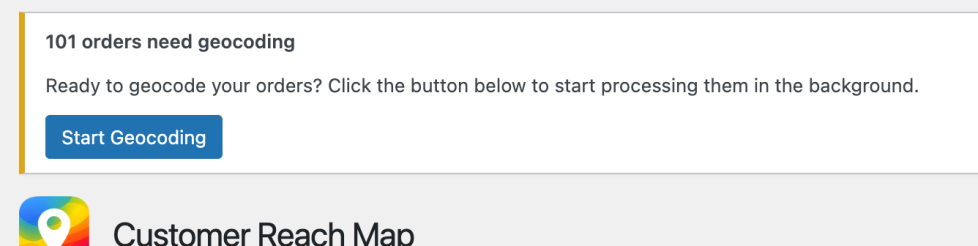
↑ Back to topIf you have existing orders a notification will show up that allows you to initiate the geocoding for these orders. This process will run in the background and you can leave the page. Eventually your orders will show up on the Sales Analytics Map as well as on the Frontend Map (aggregated by Cities or Countries).
Usage & Features
↑ Back to topSales Analytics Map (Heatmap)
↑ Back to top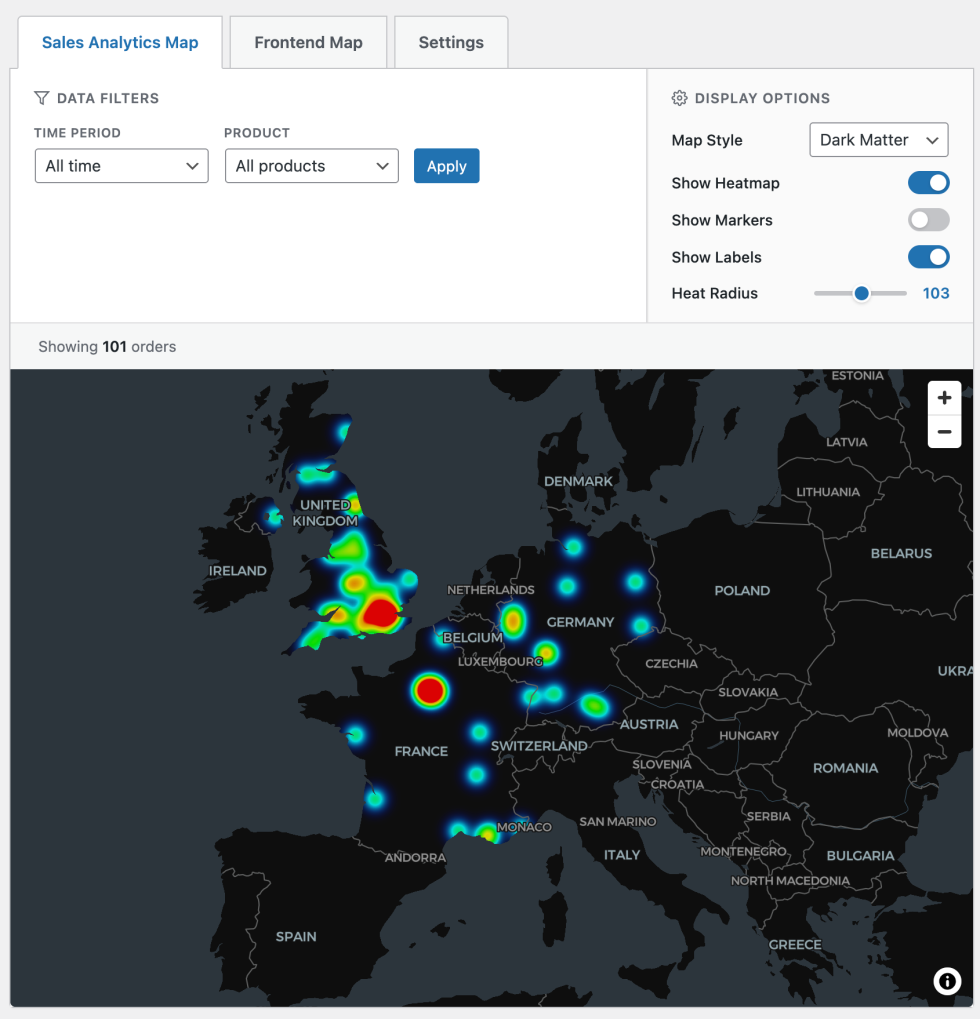
The map will show your sales in form of a Heatmap. Red areas are areas with a high density of orders.
Data Filters
Time Period
Use this filter to limit the orders on the map by time.
Product
Use this filter to limit the orders on the map by a specific product.
Display Options
Map Style
You can choose between “Dark Matter”, “Positron” and “Voyager”.
Show Markers
Enable this option to display markers for each order on the map.
Show Labels
Enable this option to show or hide all geographical labels like country and city names
Heat Radius
You can adjust the sensitivity of the heat map. This depends on the number of total orders. Try it out.
Frontend Map
↑ Back to top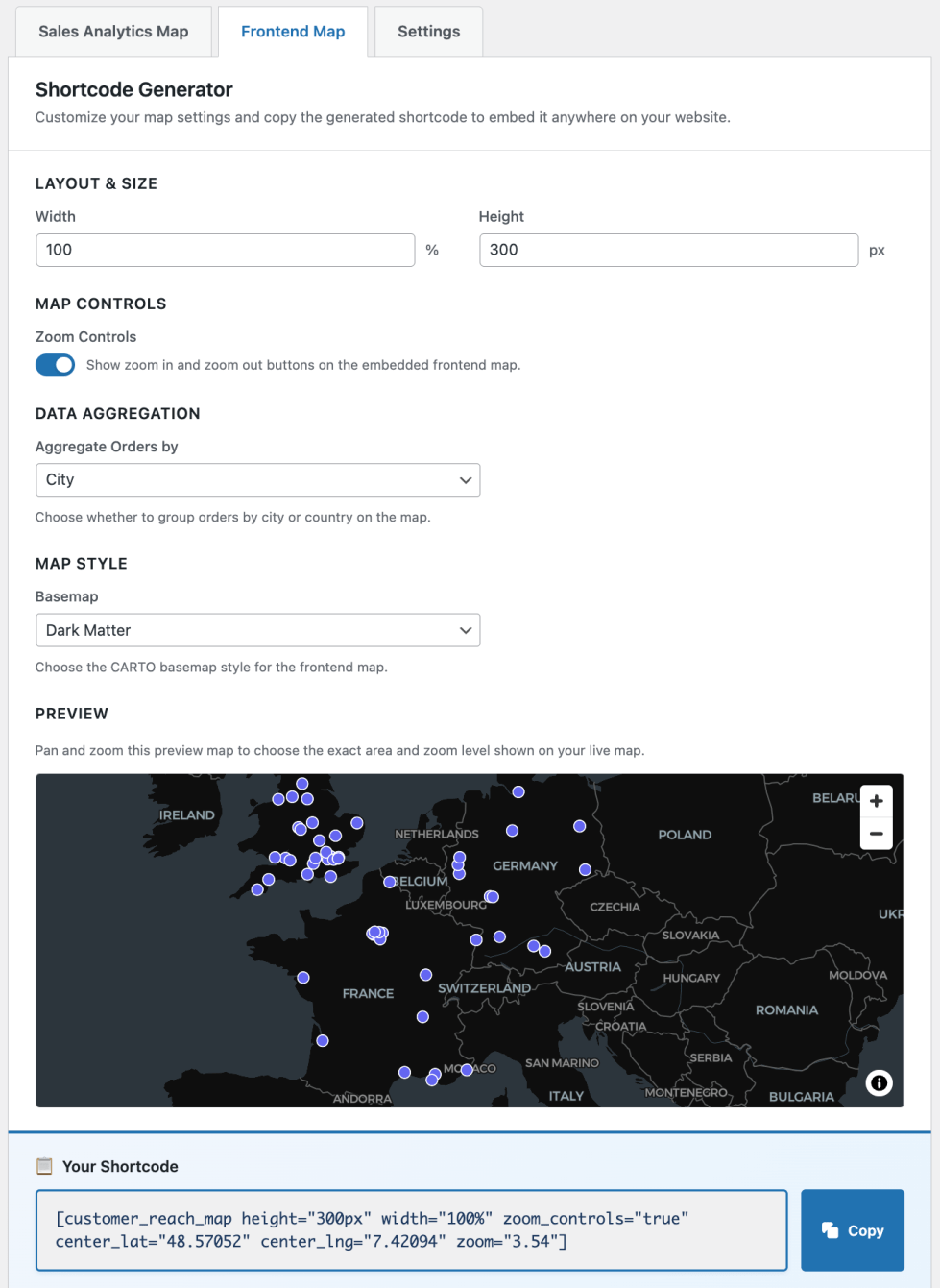
Use this interface to generate a shortcode for a public map. Copy and paste the shortcode into your content to display a map that showcases your orders on a map. The order addresses will always be abstracted and aggregated by city or by country, so that no personal data of your customers will be exposed to the public.
Layout & Size
Customize the Width (in percentage) and the Height (in pixel) of the map.
Map Controls
Show or hide Zoom-In and Zoom-Out buttons on the public map.
Data Aggregation
To prevent accidental exposition of customer data to the public the order addresses will always be abstracted and aggregated. You can choose between City or Country.
Map Style
Select the map style that fits your website design best. Currently available map styles are “Dark Matter”, “Positron” and “Voyager”
Preview
This is what your public map will look like. Pan and zoom this preview map to choose the exact area and zoom level shown on your live map.
Your Shortcode
The shortcode will be auto-generated in realtime based on the above settings. Copy and paste the shortcode anywhere on your website to display the map.
Settings
↑ Back to top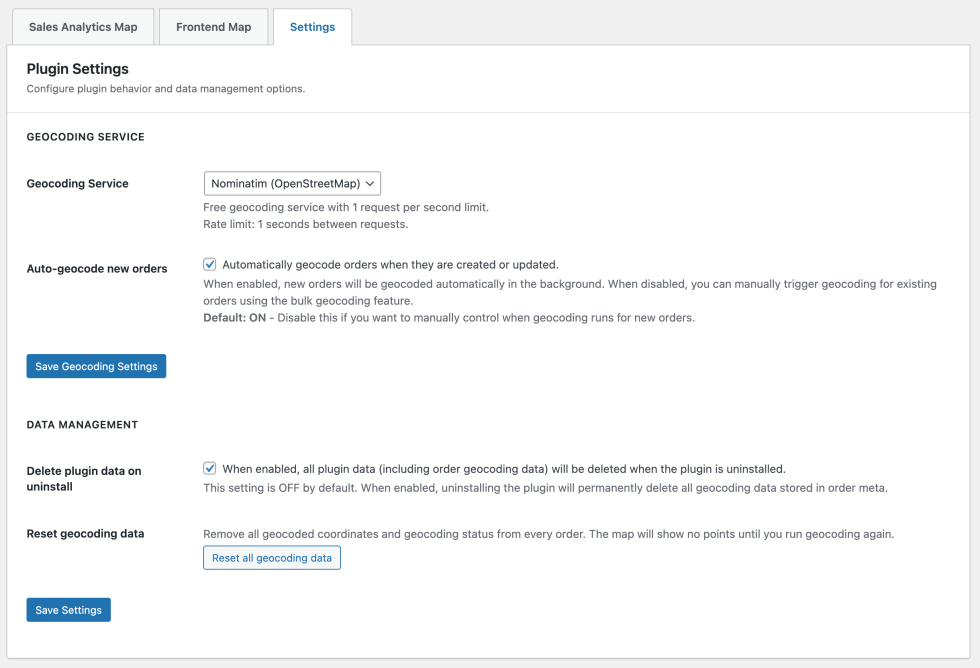
Configure plugin behaviour and data management options.
Geocoding Service
↑ Back to topGeocoding Service
Select the geocoding service API that should be used. At the moment only Nominatim is available. Other service providers will follow in the future.
Nominatim is a free geocoding service that needs no API key or registration. It has a request limit of 1 request per second. This limitation is implemented when existing orders get processed. Therefore the bulk geocoding of a high number of existing orders takes some time. This process runs in the background.
Auto-geocode new orders
When enabled (default), new orders will be geocoded automatically in the background. When disabled, you can manually trigger geocoding for existing orders using the bulk geocoding feature.
Data Management
↑ Back to topDelete plugin data on uninstall
When enabled, all plugin data (including order geocoding data) will be deleted when the plugin is uninstalled. This option is disabled by default.
Reset geocoding data
Remove all geocoded coordinates and geocoding status from every order. The map will show no points until you run geocoding again.
FAQs
↑ Back to topHelp customers by answering commonly asked questions.
Will this slow down my site?
No. Processing happens during scheduled background tasks or on-demand in the admin dashboard. Your storefront performance remains entirely unaffected.
Do you store my customer data?
All data stays on your server. We do not transmit or store any of your customer data on our external servers.
Can I import historical data?
Yes! You can run a sync to map every historical order in your WooCommerce database.

