
Recurring Sale allows your WooCommerce store to automatically schedule repeating sales for products based on daily, weekly, or monthly intervals — with optional countdown timers and flexible timing controls.
Installation
↑ Back to topTo start using a product from WooCommerce.com, you can use the “Add to store” functionality on the order confirmation page or the My subscriptions section in your account.
- Navigate to My subscriptions.
- Find the Add to store button next to the product you’re planning to install.
- Follow the instructions on the screen, and the product will be automatically added to your store.
Alternative options and more information at:
Managing WooCommerce.com subscriptions.

Setup and Configuration
↑ Back to topGetting started
↑ Back to topYou can configure recurring sales directly from the product edit page.
Go to:
Products → Edit Product → Product Data → Recurring Sale
Enable the Recurring Sale option to start configuring scheduled sale cycles for the product.
Enable Recurring Sales
↑ Back to topToggles recurring sales on or off for this product. When enabled, the plugin automatically applies the configured sale price on each scheduled cycle and restores the regular price when the cycle ends.
Note: Disabling this option stops all future sale cycles for the product. Any active sale at the moment of disabling will be removed on the next background check.
Recurring Sale Type
↑ Back to topDetermines the repeating schedule pattern for this product’s sale.
| Type | Description | Example |
|---|---|---|
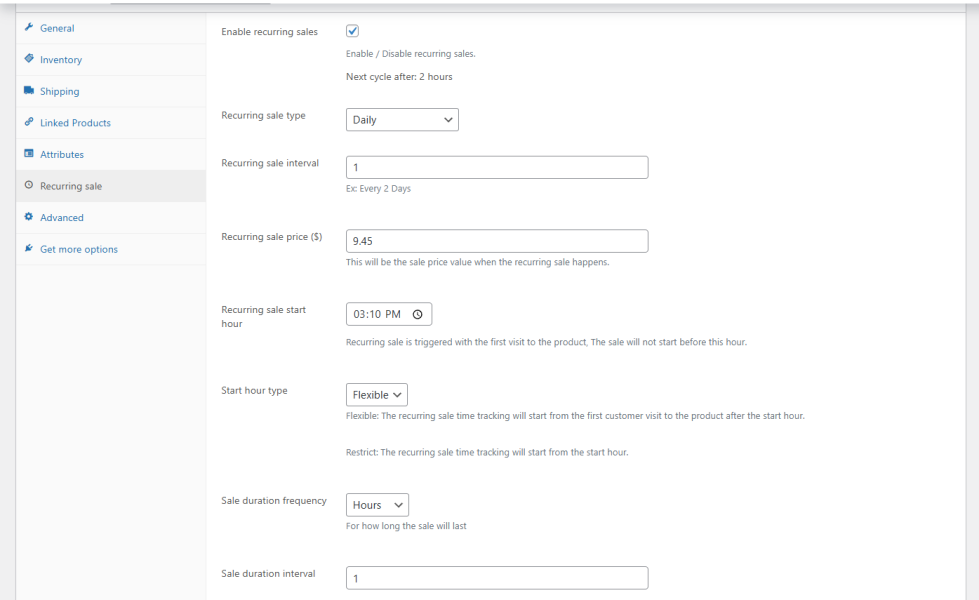
| Every X Days | Sale repeats every N days starting from when it was first configured. | Every 3 days |
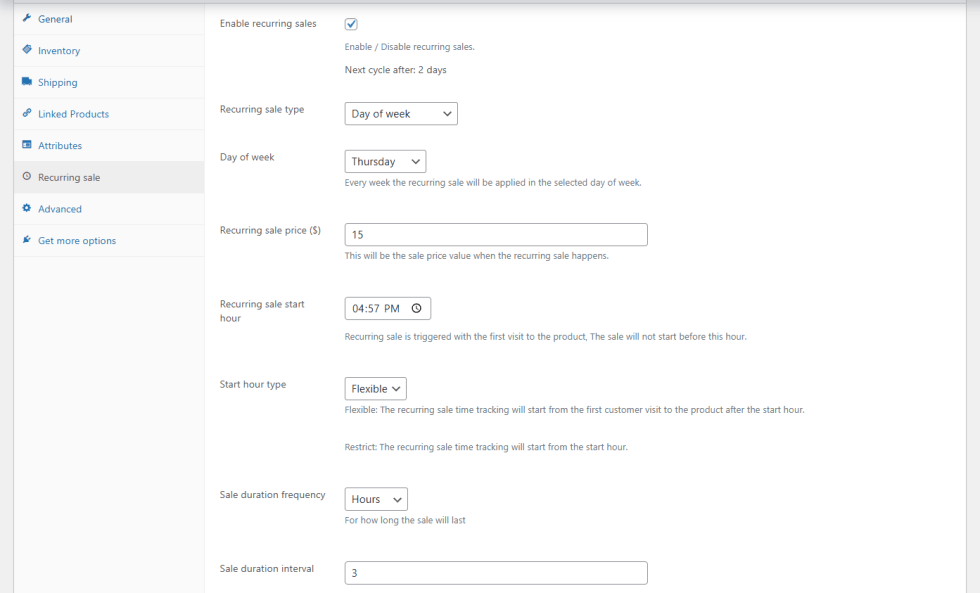
| Day of the Week | Sale runs on a specific weekday each week. | Every Friday |
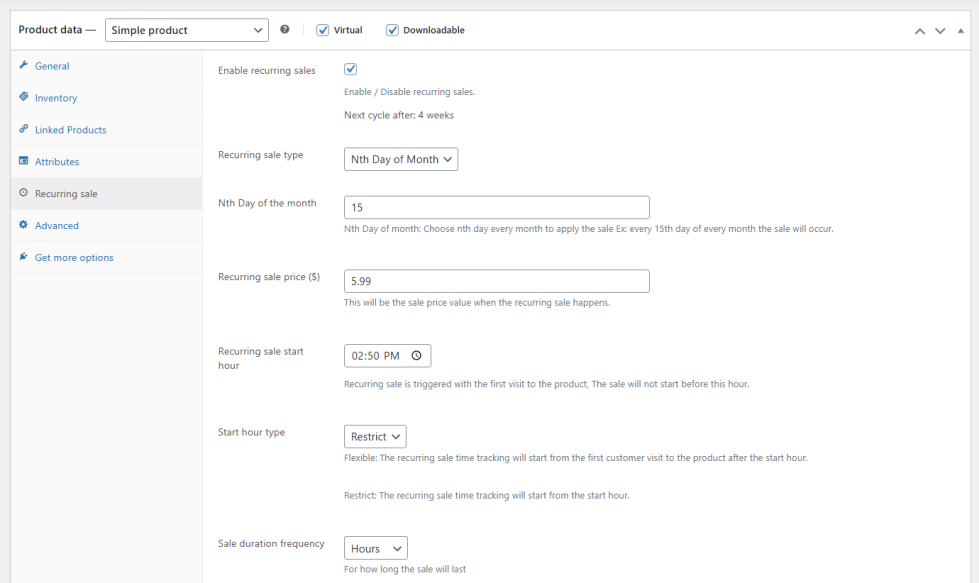
| Nth Day of Month | Sale runs on a chosen calendar day every month. | 15th of each month |
Every X Days — Settings
Day of the Week — Settings
Nth Day of Month — Settings
Recurring Sale Price
↑ Back to topThe price applied to the product when the recurring sale is active. Must be lower than the product’s regular price.
The regular price is restored automatically when the sale duration ends. No manual action is required between cycles.
Recurring Sale Start Hour
↑ Back to topSets the earliest hour of day at which the recurring sale is allowed to begin. The sale will not activate before this time.
Combined with the Start Hour Type setting, this lets you control whether the sale fires at a hard clock time or adapts to the first customer visit after that hour.
Start Hour Type
↑ Back to top| Mode | How tracking begins | Best for |
|---|---|---|
| Flexible | The sale countdown starts from the moment the first customer visits the product page after the configured start hour. The background process sets up the schedule but does not start the timer — only a real page visit does. | Stores where you want each customer’s experience to feel like a “just started” sale |
| Restrict | The sale countdown starts exactly at the configured start hour, regardless of when customers visit. The window is fixed: start hour → start hour + duration. | Flash sales with a precise, store-wide end time |
Example — Flexible: Start hour: 2:00 PM, duration: 2 hours. A customer visits at 2:45 PM → their sale runs until 4:45 PM.
Example — Restrict: Start hour: 2:00 PM, duration: 2 hours. The sale is active for everyone from 2:00 PM to 4:00 PM, no matter when they visit.
Sale Duration
↑ Back to top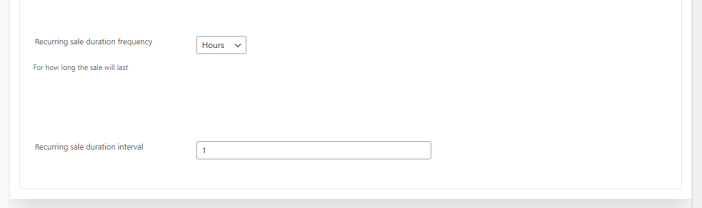
Controls how long the recurring sale stays active after it begins. Supported units:
- Hours — e.g. 3 hours
- Days — e.g. 2 days
After the duration elapses, the product price automatically reverts to its regular price and the plugin waits for the next scheduled cycle to begin.
Restart Recurring Sale Tracking
Resets the sale cycle history for this product, as if no sale has ever run. Check this and save when you want the timing to start completely fresh — for example, after changing the start hour or duration.
Sale Countdown Timer
The plugin includes a built-in countdown timer shortcode that displays the remaining sale time to customers.
Shortcode:
[gpls_worcrgsle_sale_price_end_countdown]
You can place the shortcode:
- Inside product descriptions
- In short descriptions
- Inside page builders
- In custom hooks or templates
Countdown Title
Customize the text shown above the countdown timer.
Example:
Sales ends in:
Usage
↑ Back to topAutomatic Scheduled Sales
↑ Back to topOnce configured, the plugin automatically:
- Applies the recurring sale price
- Starts the sale based on the configured cycle
- Removes the sale after the duration ends
- Repeats the cycle automatically
No manual scheduling is required.
WooCommerce Compatibility
↑ Back to topRecurring Sale uses the native WooCommerce sale system, making it compatible with:
- Most WooCommerce themes
- Product pages
- Sale badges
- Sale price displays
- WooCommerce pricing logic
What Customers See on the Front End
↑ Back to top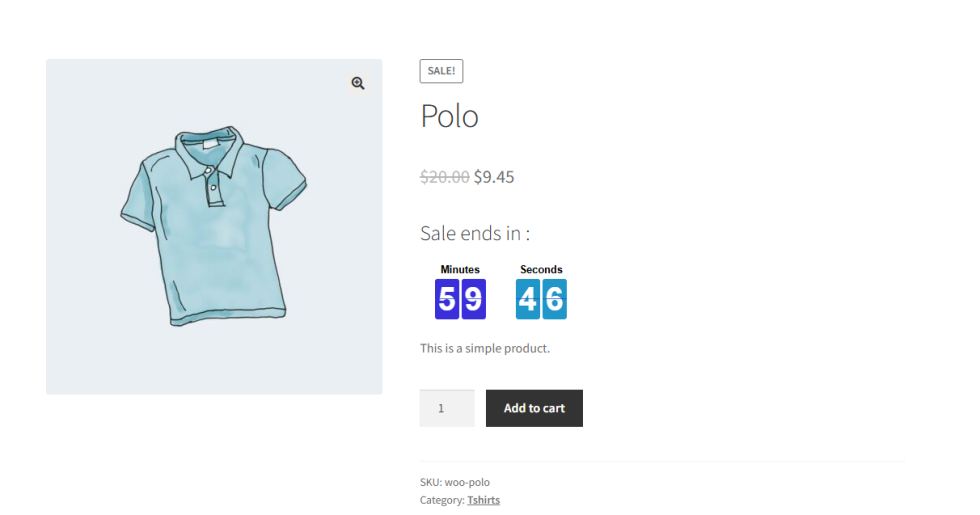
Customers will see:
- Normal WooCommerce sale prices
- Sale badges
- Optional countdown timer
- Automatically activated sale periods
The shopping experience remains fully native to WooCommerce.
FAQs
↑ Back to topCan I create weekly recurring sales?
Can I create weekly recurring sales?
Yes. You can configure recurring sales to run on specific weekdays.
Can I create monthly recurring sales?
Yes. You can configure recurring sales for specific days of the month.
Does the plugin support countdown timers?
Yes. The plugin includes a built-in countdown shortcode for displaying the remaining sale time.

