
Installation
↑ Back to topTo start using a product from WooCommerce.com, you can use the “Add to store” functionality on the order confirmation page or the My subscriptions section in your account.
- Navigate to My subscriptions.
- Find the Add to store button next to the product you’re planning to install.
- Follow the instructions on the screen, and the product will be automatically added to your store.
Alternative options and more information at:
Managing WooCommerce.com subscriptions.

Features
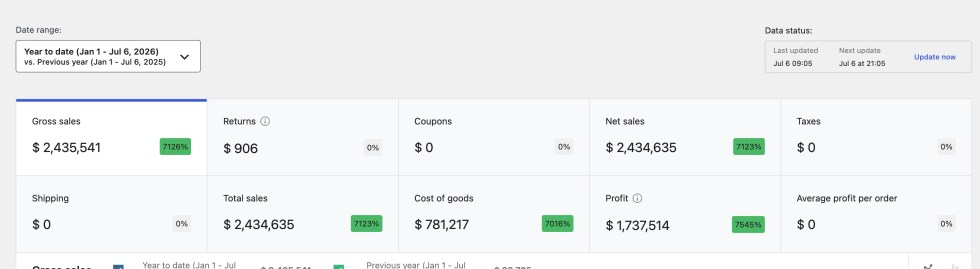
↑ Back to top- Real-Time Profit Dashboard: revenue, cost, net profit, and margin for any date range, with a revenue-vs-profit trend chart and cost breakdown.
- Native COGS Integration: reads and writes WooCommerce’s own Cost of Goods Sold field, so cost data is never locked into a proprietary format.
- Manual and Automatic COGS Rules: edit cost per product, or apply a formula across a whole catalog scoped by category, tag, attribute, keyword, or stock status.
- Order-Level Profit Ledger: revenue, COGS, gateway fee, shipping cost, and net profit tracked per order, synced automatically as orders change.
- Manual Per-Order Overrides: override any calculated cost for a specific order directly from the order edit screen.
- Gateway Fee Rules: fixed and percentage fee rules per payment gateway, including gateways that are currently disabled.
- Shipping Cost Rules: true fulfillment cost per shipping method and per shipping class, independent of what the customer was charged.
- Trend Analytics: best day, lowest day, average daily profit, and a margin-distribution breakdown across your order history.
- Expense Tracking: one-time, daily, weekly, monthly, or yearly recurring expenses, prorated automatically into any reporting period.
- Scheduled Email Reports: daily, weekly, and monthly profit summary emails, each independently schedulable, with a live preview.
- CSV and PDF Export: CSV exports for products, orders, expenses, and rule configuration, plus print-ready PDF reports.
- Internal Alerts and Webhooks: configurable thresholds for low margin, negative profit, high shipping cost ratio, and low stock, with optional webhook delivery.
- WooCommerce Analytics Integration: Cost of Goods, Profit, and Average Profit per Order appear as native columns inside WooCommerce Analytics.
- Multi-Currency Support: per-currency fee and cost adjustments for stores selling in more than one currency.
Getting Started
↑ Back to topOnce ProfitSync is active, you will find it under WooCommerce > ProfitSync in your WordPress admin menu. The plugin adds its own set of tabs: Dashboard, Products, Orders, Trends, COGS Manager, Gateway Fees, Shipping, Expenses, Email Reports, Export, and Settings.
Dashboard
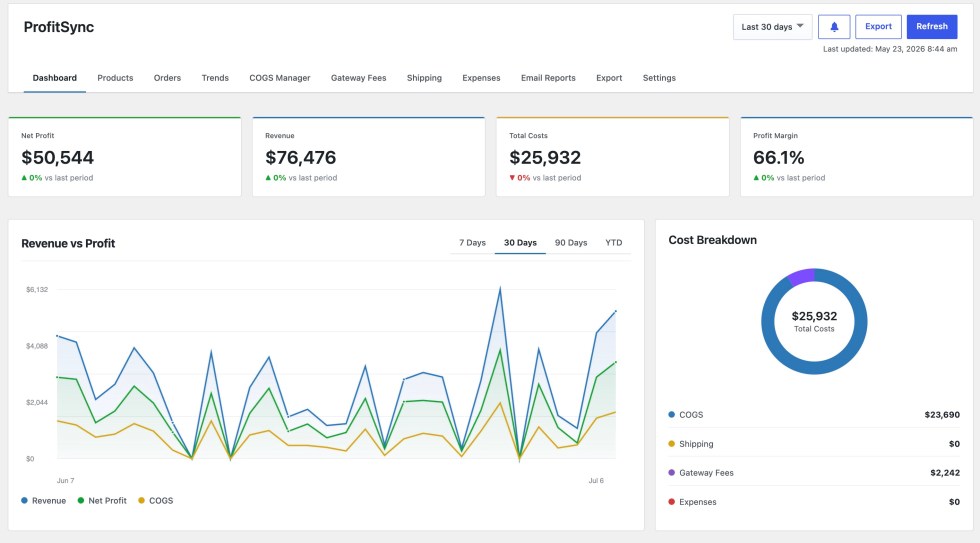
↑ Back to topThe Dashboard tab is the default screen and gives you an at-a-glance view of store profitability.
- Net Profit, Revenue, Total Costs, and Profit Margin cards, each compared against the previous period.
- A Revenue vs Profit trend chart, switchable between 7 Days, 30 Days, 90 Days, and Year to Date.
- A Cost Breakdown donut chart showing COGS, Shipping, Gateway Fees, and Expenses as a share of total cost.
- A date range selector, a Refresh button to recalculate on demand, an Export shortcut, and a notification bell.
Settings
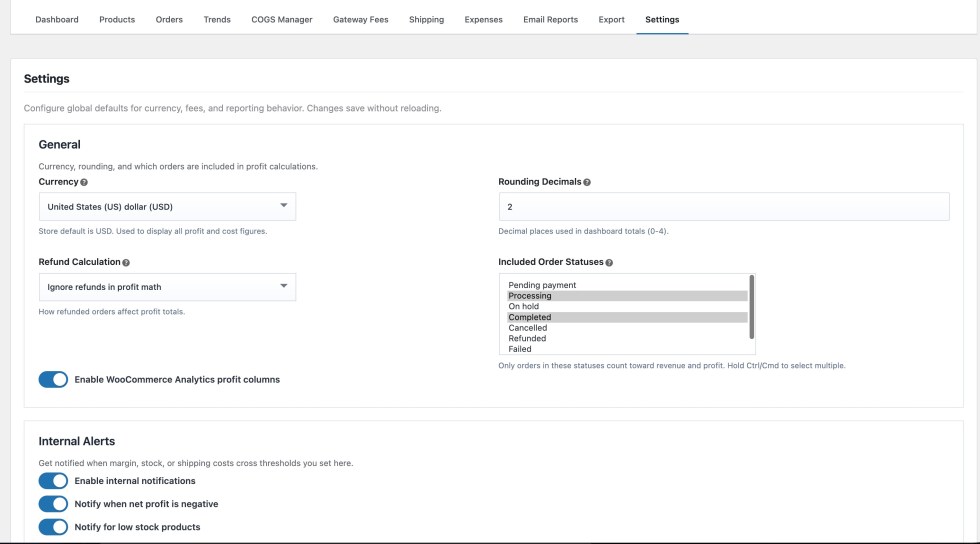
↑ Back to topThe Settings tab controls global defaults for currency, fees, and reporting behavior. Changes save instantly, with no page reload required.
General
- Currency: the currency used to display all profit and cost figures. Defaults to your store currency.
- Rounding Decimals: how many decimal places are used in dashboard totals (0 to 4).
- Refund Calculation: choose whether refunded orders are ignored, deducted from the order total, or deducted at the line-item level.
- Included Order Statuses: only orders in the statuses you select here count toward revenue and profit. Hold Ctrl or Cmd to select more than one.
- Enable WooCommerce Analytics profit columns: turns on the Cost of Goods and Profit columns inside WooCommerce > Analytics.
NOTE: Only orders in the statuses selected under Included Order Statuses are counted toward revenue and profit across the whole plugin, including the Dashboard, Orders, and Trends tabs.
Internal Alerts
↑ Back to top- Enable internal notifications: turns the alert system on or off.
- Notify when net profit is negative.
- Notify for low stock products, with a configurable stock threshold.
- Margin Threshold and Shipping Threshold percentages, used to flag low-margin products or high shipping-cost orders.
COGS Manager
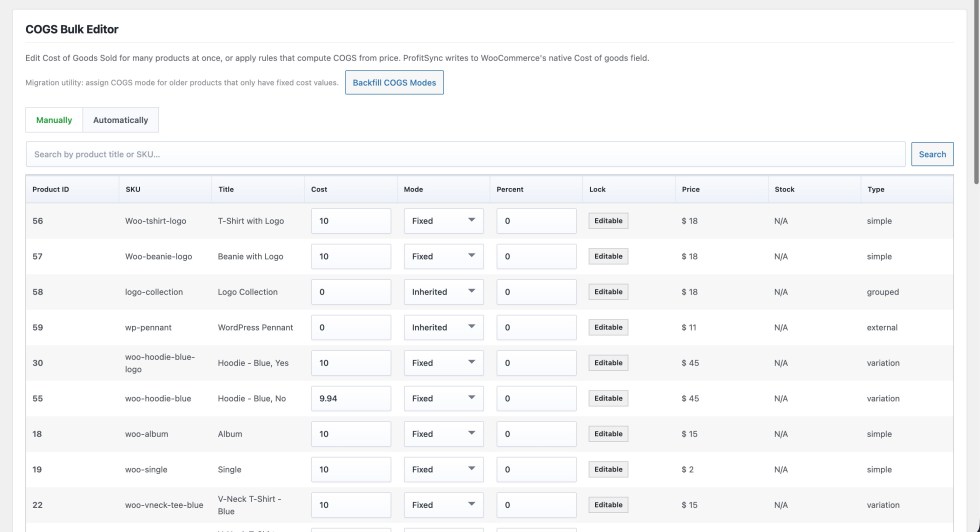
↑ Back to topThe COGS Manager is where you set what each product actually costs you. ProfitSync writes this value to WooCommerce’s native Cost of Goods field, so it stays compatible with any other tool that reads the same field.
Manually
Search by product title or SKU, then edit Cost, Mode, and Percent directly in the table. Each row can be set to Fixed (a flat cost), Percent (a percentage of the product’s price), or Inherited (pulled from the parent product, for variations). Use the Lock column to protect a manually-set cost from being overwritten by a bulk update.
Automatically
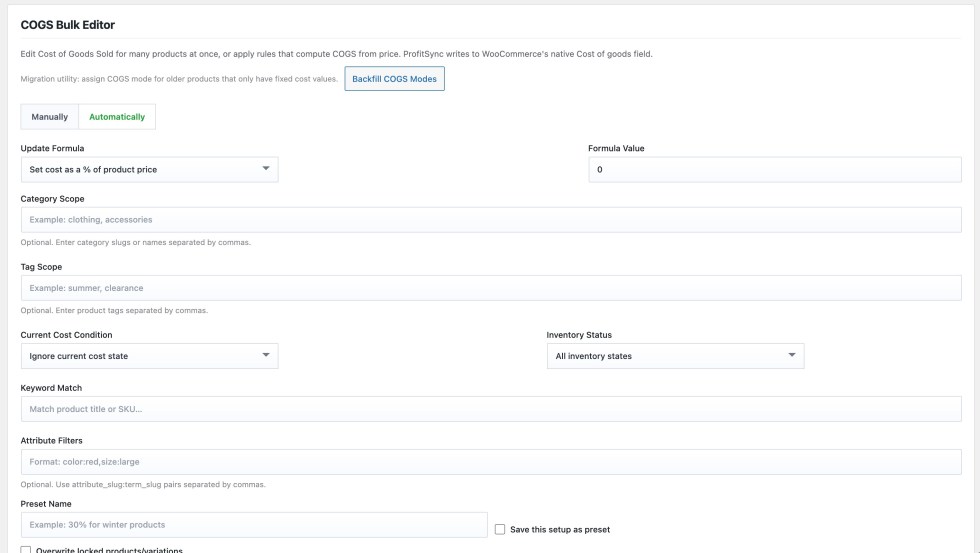
Apply a formula across many products at once:
- Update Formula: set cost as a percent of product price, target a specific margin, apply a fixed value, or increase existing costs by a percentage.
- Category Scope and Tag Scope: limit the rule to specific categories or tags, entered as comma-separated slugs or names.
- Current Cost Condition: apply only to products with no cost set, only to products that already have a cost, or ignore the current cost entirely.
- Inventory Status: limit to products that are in stock, out of stock, on backorder, or any status.
- Keyword Match and Attribute Filters: further narrow the rule by product title, SKU, or attribute and term pairs (for example, color:red,size:large).
- Save this setup as preset: name the rule and reuse it later without re-entering every field.
Use Backfill COGS Modes once after upgrading, to assign a cost mode to older products that only have a plain fixed cost value stored.
Products
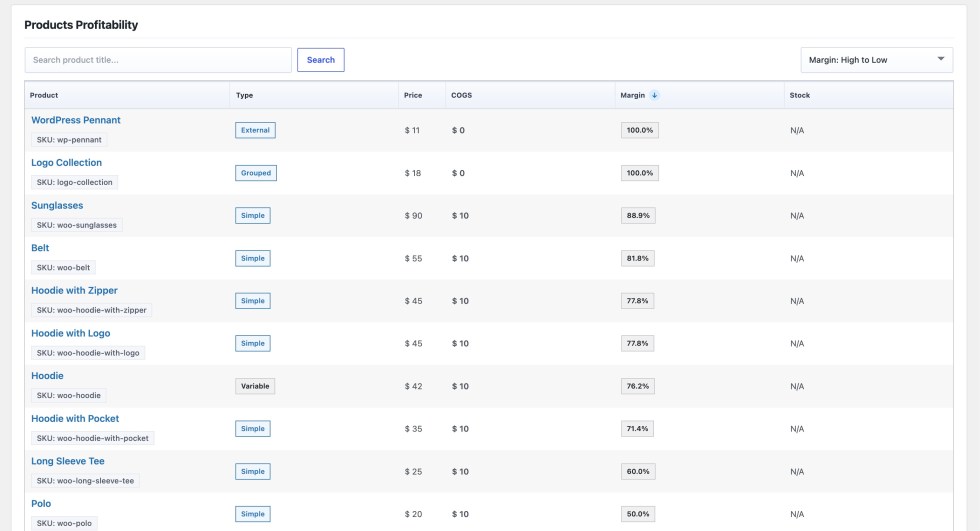
↑ Back to topThe Products tab lists price, cost, and margin for every product side by side. Search by product title, and sort by margin, price, or cost. This makes it easy to spot low-margin products before they quietly cut into a month’s profit.
Orders
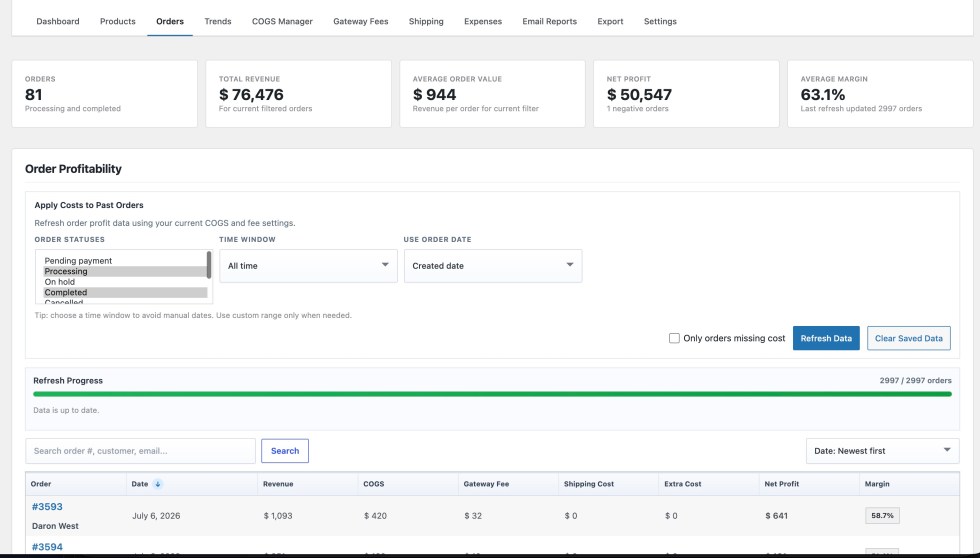
↑ Back to topThe Orders tab shows order count, total revenue, average order value, net profit, and average margin for the current filter, followed by a searchable, sortable order-level profit table.
Apply Costs to Past Orders
Whenever you change a cost rule, gateway fee, or shipping rule, use this tool to recalculate historical orders so they reflect the new rule:
- Order Statuses: choose which statuses to recalculate.
- Time Window: choose a preset range, or use a custom date range.
- Use Order Date: recalculate based on the order’s created date or completed date.
- Only orders missing cost: limit the recalculation to orders that do not already have a cost recorded.
NOTE: Recalculation runs in the background in batches, so refreshing your whole order history never times out or blocks the WordPress admin. A progress bar shows how many orders have been processed.
Trends
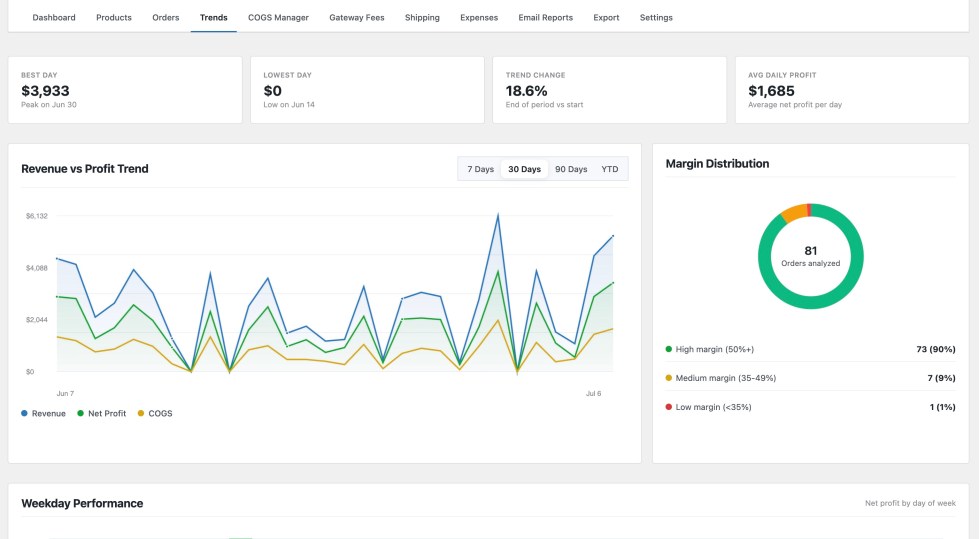
↑ Back to topThe Trends tab turns your order history into a story: best day, lowest day, trend change over the period, and average daily profit, alongside a Revenue vs Profit Trend chart and a Margin Distribution donut showing how many orders fall into high, medium, and low margin bands.
Gateway Fees
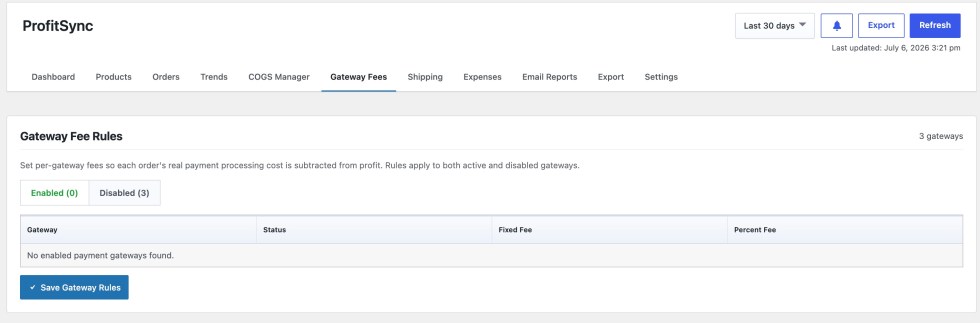
↑ Back to topThe Gateway Fees tab pulls your payment gateway list directly from WooCommerce and lets you set a Fixed Fee and a Percent Fee for each one. Rules apply to both enabled and disabled gateways, so historical orders placed on a gateway you have since turned off still calculate correctly. Switch between the Enabled and Disabled tabs to manage each group, then select Save Gateway Rules.
Shipping
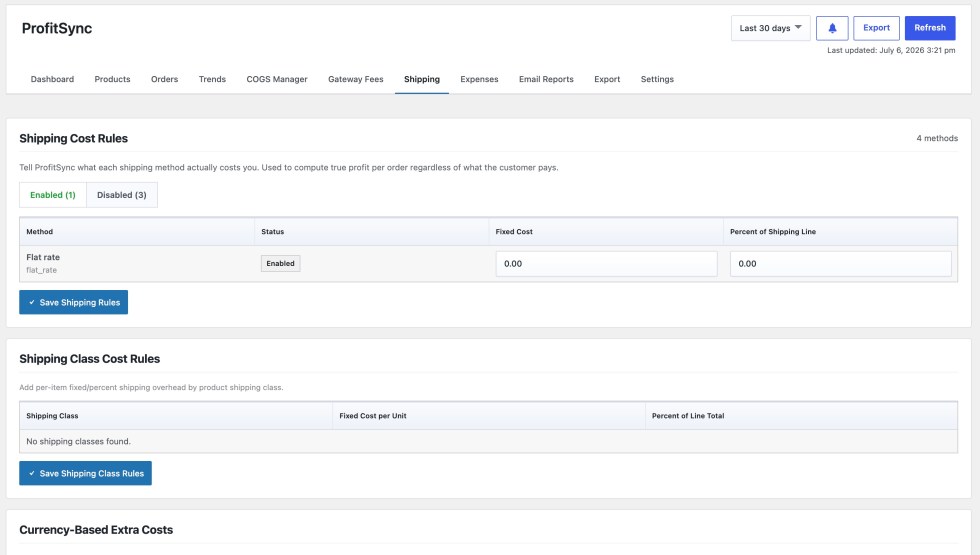
↑ Back to topThe Shipping tab lets you tell ProfitSync what each shipping method actually costs you to fulfill, separate from what the customer was charged.
- Shipping Cost Rules: a Fixed Cost and Percent of Shipping Line value per shipping method, split into Enabled and Disabled tabs.
- Shipping Class Cost Rules: an additional per-item Fixed Cost and Percent of Line Total overhead by product shipping class.
- Currency-Based Extra Costs: further adjustments for orders placed in a specific currency.
Expenses
↑ Back to topThe Expenses tab is a dedicated ledger for costs that do not belong to any single product, such as rent, software subscriptions, or ad spend.
- Add an expense with a Name, Amount, Frequency (One Time, Daily, Weekly, Monthly, or Yearly), a Start Date, and optional Notes.
- Recurring expenses are automatically prorated into whatever date range you are viewing on the Dashboard, Orders, and Trends tabs.
- The Expense Ledger table lists every entry with Edit and Delete controls.
Email Reports
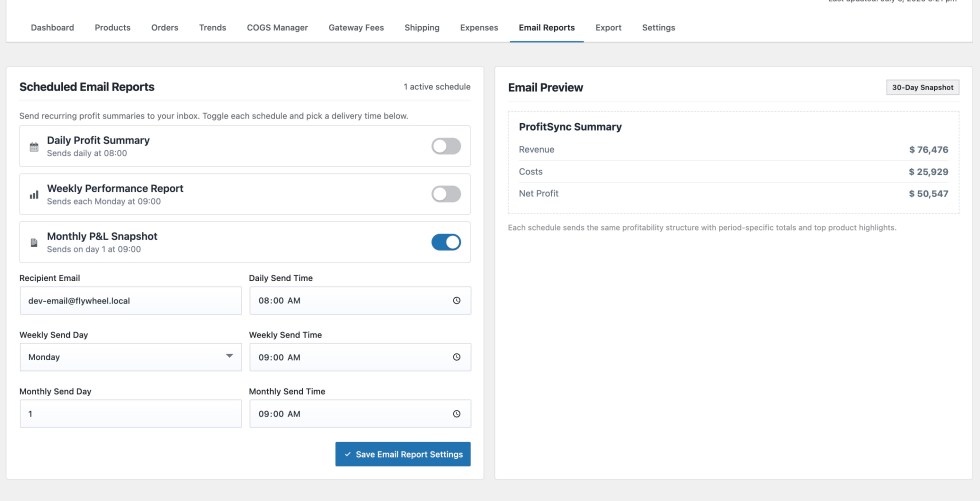
↑ Back to topThe Email Reports tab lets you schedule recurring profit summaries straight to an inbox, without anyone needing to log in to WordPress.
- Daily Profit Summary, Weekly Performance Report, and Monthly P&L Snapshot, each toggled on or off independently.
- Recipient Email, plus a send day and send time for each schedule.
- An Email Preview panel on the right shows exactly what the email will contain, using your most recent totals, before you turn a schedule on.
Export Center
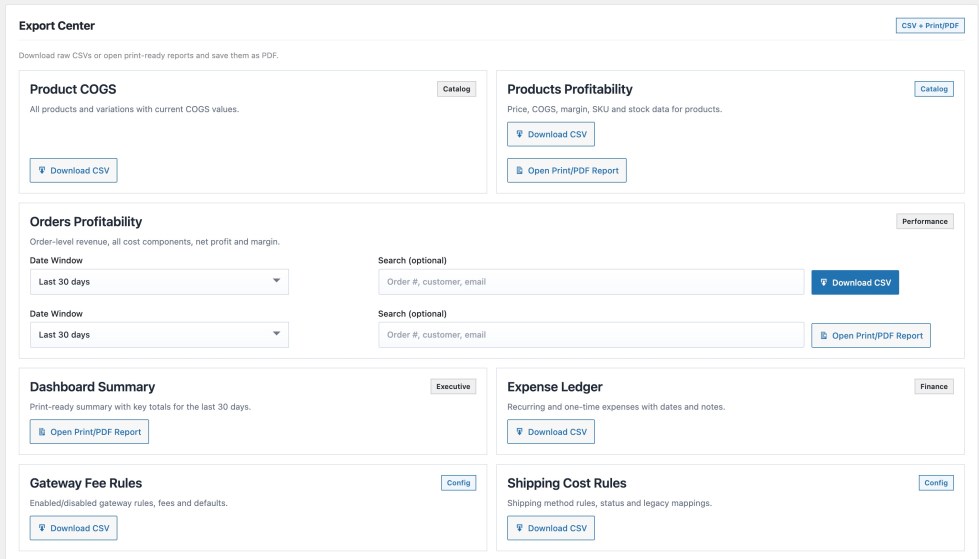
↑ Back to topThe Export tab is the single place to download raw data or open print-ready reports.
- Product COGS and Products Profitability: CSV exports of all products and variations, including current cost, margin, and stock data.
- Orders Profitability: CSV export or a print-ready PDF report, filterable by date window and by order number, customer, or email.
- Dashboard Summary: a print-ready PDF of key totals for the selected period.
- Expense Ledger, Gateway Fee Rules, and Shipping Cost Rules: CSV exports of your recurring costs and rule configuration.
Alerts and Notifications
↑ Back to topThe bell icon in the top toolbar opens ProfitSync’s internal notification feed. Alerts are generated based on the thresholds configured under Settings > Internal Alerts, and can also be delivered to an external system such as Slack or Zapier by enabling a webhook URL in Settings.
Frequently Asked Questions
↑ Back to top
Does this replace WooCommerce's built-in Cost of Goods Sold feature?
No. It uses it. ProfitSync reads and writes to WooCommerce’s native COGS field, so your cost data is portable and compatible with any other tool that supports it, not locked into ProfitSync.
Will this slow down my store or my checkout?
No. It uses it. ProfitSync reads and writes to WooCommerce’s native COGS field, so your cost data is portable and compatible with any other tool that supports it, not locked into ProfitSync.
Can I back-apply new cost rules to orders I already have?
Yes. Use the Apply Costs to Past Orders recalculation tool on the Orders tab to re-price any date range, the whole store or just the orders missing a cost, using your current rules.
Does it handle variable products and variations?
Yes. Costs can be set per-variation, inherited from the parent product, or driven entirely by an automatic rule scoped to category, tag, attribute, or stock status.

