
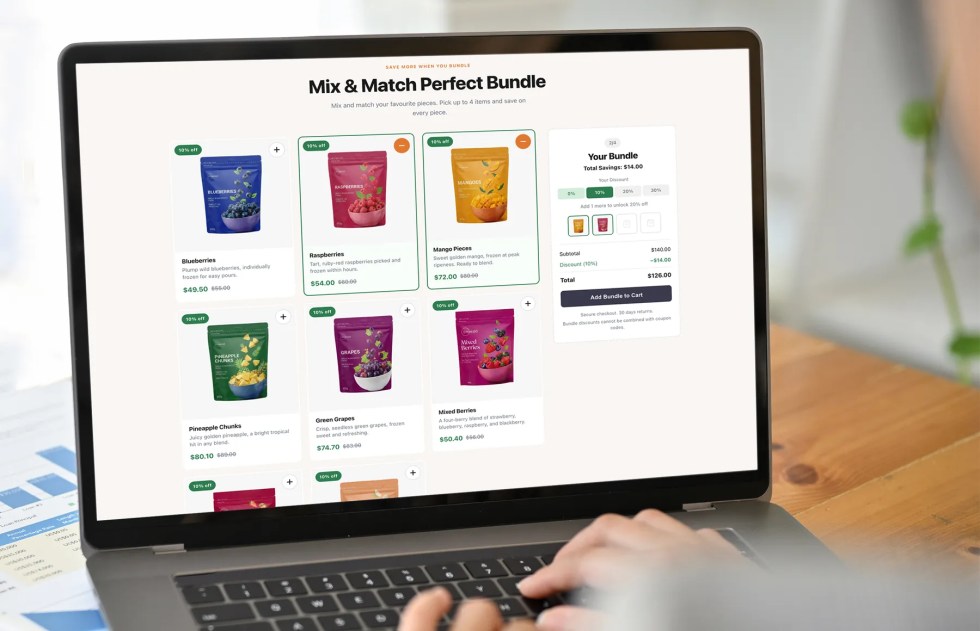
Thank you for choosing Mix & Match Bundle Builder with Tiered Discounts for WooCommerce. This extension lets your customers build their own product bundle from a list of items you choose, and unlock a larger discount automatically as they add more to the bundle. You configure the products, discount tiers, colors, and cart behavior, and the bundle updates in real time with no page reloads.
- Build-your-own-bundle experience with a responsive product grid
- Tiered discounts that increase automatically as customers add more items
- Per-bundle colors, copy, minimum items, and cart behavior
- Works with both classic (shortcode) and block (Gutenberg) themes
Installation
↑ Back to topBefore you begin, make sure WooCommerce is installed and active, because the extension requires it to run.
- Download the extension from your WooCommerce.com account, under My Subscriptions.
- In your WordPress dashboard, go to Plugins > Add New > Upload Plugin and choose the ZIP file you downloaded.
- Select Install Now, and then Activate.
- Go to Bundle Builder > Add New Bundle to create your first bundle.
More information is available at Install and Activate Plugins/Extensions.
Creating a bundle
↑ Back to topGo to Bundle Builder > Add New Bundle. Give the bundle a title, then configure it using the meta boxes on the edit screen: Bundle Settings, Bundle Products, and Discount Tiers. Select Publish to save. Each bundle is independent, so you can create as many bundles as you need and display them on different pages of your store.
Bundle settings
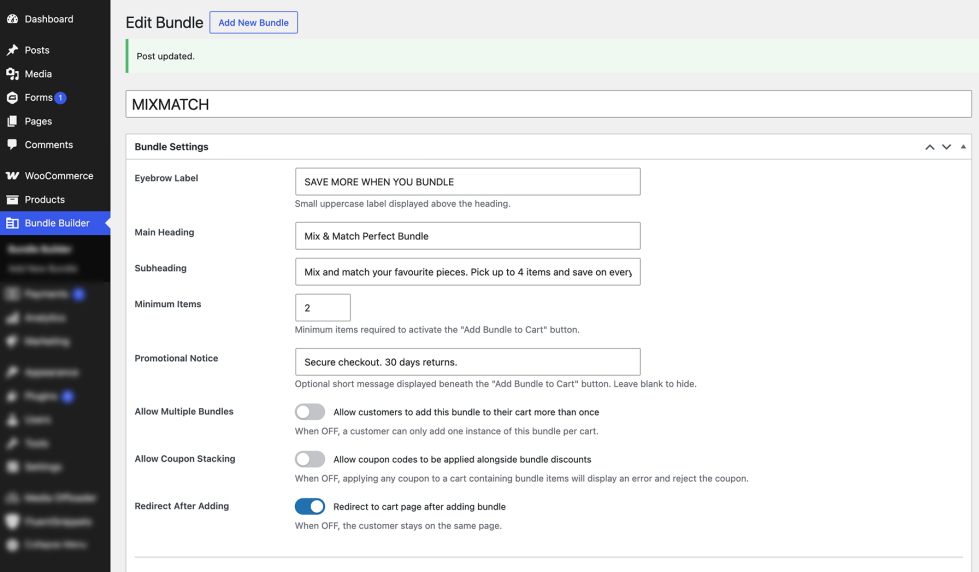
↑ Back to topThe Bundle Settings meta box controls what a bundle says and how it behaves.
Content
↑ Back to top| Setting | Description |
|---|---|
| Eyebrow label | A small uppercase label that appears above the main heading, useful for a short tagline. Default: SAVE MORE WHEN YOU BUNDLE. |
| Main heading | The main heading at the top of the bundle section. Defaults to the bundle title. |
| Subheading | A longer descriptive line beneath the heading. |
| Minimum items | The number of items a customer must select before the “Add Bundle to Cart” button becomes active. Default: 2. |
| Promotional notice | An optional short line that appears beneath the “Add Bundle to Cart” button, useful for trust signals such as “30-day returns, secure checkout.” Leave it blank to hide it. |
Behavior
↑ Back to top| Setting | Description |
|---|---|
| Allow multiple bundles | When enabled, customers can add the bundle to their cart more than once. When disabled, the cart permits only one instance. |
| Allow coupon stacking | When enabled, customers can apply coupon codes alongside bundle discounts. When disabled, WooCommerce rejects coupons if the cart contains bundle items. |
| Redirect after adding | When enabled, the customer goes straight to the cart page after adding the bundle. When disabled, they stay on the current page, which suits themes that use a side-cart drawer. |
Select Update to save your settings.
Adding products to a bundle
↑ Back to topThe Bundle Products meta box is where you choose which products customers can select from when building their bundle.
- Select the search box and start typing a product name or SKU. Live results appear after two characters.
- Select any result to add it. Your selected products appear as tags below the search field.
- To remove a product, select the × on its tag.
- Select Update on the bundle to save your selection.
Products on sale show their sale price in the grid, and the bundle discount applies on top of the sale price. Out-of-stock products appear dimmed, and customers cannot select them.
Setting up discount tiers
↑ Back to topDiscount tiers determine the percentage discount a customer receives based on the number of items in their bundle. Configure them in the Discount Tiers meta box. Each row has two fields, Items in Bundle (≥) and Discount (%), and at each item-count threshold the matching discount applies to every item in the bundle. Select + Add Tier to add a row, or Remove to delete one.
New bundles include the following default ladder:
| Items in bundle | Discount |
|---|---|
| 1 | 0% |
| 2 | 10% |
| 3 | 20% |
| 4 | 30% |
The highest tier’s item count also sets the maximum bundle size, so customers cannot select more items than the top tier allows.
For example, with tiers of 2 items = 10%, 3 items = 20%, and 4 items = 30%, a customer who bundles three items priced at $20 each has a subtotal of $60. The 20% tier applies, the total discount comes to $12, and the bundle costs $48. Each item shows its own discounted price of $16 in the cart, rather than a single lump-sum discount.
Customizing colors
↑ Back to top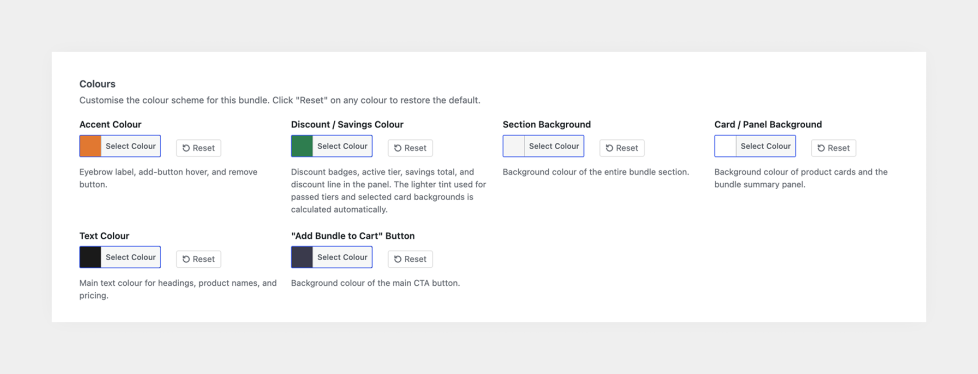
Each bundle has its own color scheme, so you can match the widget to your brand or run different schemes across different bundles. The extension calculates lighter tints and darker hover states automatically from the colors you choose, and each color row has a Reset button that restores its default value.
| Setting | Applies to | Default |
|---|---|---|
| Accent color | The eyebrow label, add-button hover state, and the remove (×) button. | #e07930 |
| Discount / savings color | Discount badges, the active tier indicator, the savings total, and the discount line in the summary panel. | #2e7d4f |
| Section background | The background of the entire bundle section. | #f9f6f2 |
| Card / panel background | The background of individual product cards and the summary panel. | #ffffff |
| Text color | The main text color for headings, product names, and pricing. | #1a1a1a |
| “Add Bundle to Cart” button | The background of the main call-to-action button. The hover state darkens automatically. | #3a3a4c |
Adding a bundle to a page
↑ Back to top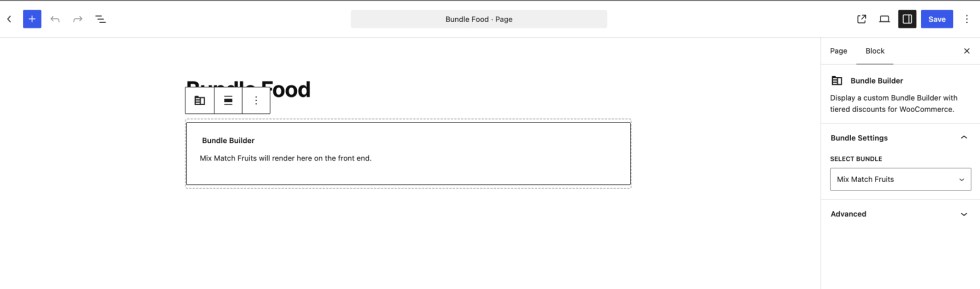
Once you publish your bundle, add it to any page using either the shortcode or the Gutenberg block. You can place multiple bundles on a single page, and each instance works independently.
Shortcode (classic themes)
↑ Back to topPaste the following into any page or post, replacing 42 with your bundle’s ID:
[bundle_builder id="42"]
The bundle edit screen pre-fills the correct shortcode in the Usage panel. For best results, set the page template to Full Width, or your theme’s equivalent, under Page Attributes.
Block (block themes)
↑ Back to topIn the block editor, select the add-block button and search for Bundle Builder. Insert the block and choose your bundle from the sidebar panel. The block supports wide and full alignment for immersive layouts.
Cart and checkout
↑ Back to topWhen a customer adds a bundle to their cart, each selected product becomes its own cart line item. The line item shows the original price struck through alongside the discounted price, a small Bundle label appended to the product name for visual grouping, and a meta row that shows the discount percentage applied.
The extension locks quantities on bundle line items to 1, because the discount applies per item rather than per unit. If a customer removes an item, the extension revalidates the bundle automatically: the discount adjusts to the next applicable tier, or checkout stops with a clear message if the remaining items fall below the bundle’s minimum.
Bundle details carry through to the completed order and appear in WooCommerce > Orders, including the bundle name and the discount percentage applied to each line item.
Using coupons with bundles
↑ Back to topBy default, WooCommerce does not allow coupons on a cart that contains bundle items. When a customer tries to apply one, they see the message: “Coupon codes cannot be applied to bundled items. Bundle discounts are already applied at the best available rate.”
To allow coupon stacking for a specific bundle, edit the bundle and enable Allow coupon stacking in the Bundle Settings. The setting works per bundle, so you can run coupon-stackable bundles alongside protected ones on the same site.
Frequently Asked Questions
↑ Back to top
Does this work with variable products?
The current version supports only simple products. As a workaround, add the individual variations you want as separate simple products.
Can I have multiple bundles on the same page?
Yes. Each shortcode or block instance works independently, so customers can interact with each one and add them to the cart separately.
Will bundle discounts apply at checkout?
Yes. The extension applies discounts through WooCommerce’s native price hooks, and they appear in the cart, at checkout, in order confirmation emails, and in the admin order view.
How is tax calculated on bundled items?
WooCommerce handles tax using your existing settings. The bundle discount applies to each item’s price before WooCommerce calculates tax, so WooCommerce charges tax on the discounted price. Each product’s tax class and your settings under WooCommerce > Settings > Tax continue to work as configured.
What happens if a bundled product sells out after a customer adds it to the cart?
The extension revalidates the bundle during cart updates. If the remaining in-stock items still meet the minimum, the discount adjusts to the applicable tier. If not, checkout stops with a clear message that asks the customer to restore or replace the affected item.
Is it compatible with WooCommerce High-Performance Order Storage (HPOS)?
Yes. The extension declares HPOS (custom order tables) compatibility on activation.
Does it work with the block-based cart and checkout?
Yes. The extension works with both the classic shortcode checkout and the WooCommerce block-based checkout, and bundle items render correctly in the mini-cart, cart, and checkout blocks.
Can I translate the extension?
Yes. The extension includes a translation template (.pot file) in its
/languages/folder, which works with standard translation tools.
Will this plugin slow down my site?
No. The plugin’s CSS and JavaScript load only on pages that contain a bundle, not site-wide, and the front end has no jQuery or third-party framework dependencies.
Troubleshooting
↑ Back to topThe bundle does not appear on the page
↑ Back to topConfirm that you published the bundle, and that the shortcode ID matches the bundle’s ID (or that you selected the correct bundle in the block’s sidebar panel). If the layout looks cramped, set the page template to Full Width under Page Attributes.
The “Add Bundle to Cart” button stays inactive
↑ Back to topThe button activates only once the customer selects at least the minimum number of items. Check the Minimum items value in the Bundle Settings.
No discount applies
↑ Back to topDiscounts begin at the lowest tier that carries a discount above 0%. If the customer selects fewer items than that tier requires, no discount applies yet. Confirm that your discount tiers match what you intend.
A coupon is rejected at the cart
↑ Back to topThis is expected. WooCommerce blocks coupons on carts that contain bundle items unless you enable Allow coupon stacking for that bundle in the Bundle Settings.
A product cannot be added to the bundle
↑ Back to topThe extension supports only simple products, so you cannot select variable products, and it disables out-of-stock products. Add the individual variations you need as separate simple products.

