
Bulk Search & Replace helps store owners find and update WooCommerce data in bulk product names, SKUs, image alt text, order addresses, coupon codes, and more without editing records one by one.
The tool lives inside WooCommerce. Open WooCommerce → Settings → Bulk Search & Replace to configure a search, preview every match, export results to CSV, and apply changes when ready. Nothing is saved until the store owner runs a replace.
Every update goes through WooCommerce APIs (wc_get_product(), WC_Order, WC_Coupon, and related CRUD methods). The plugin does not run raw database search-and-replace, which helps protect serialized product meta and order data.
What store owners use it for
↑ Back to top- Rebrand product names and descriptions after a company rename
- Change SKU or coupon prefixes across the catalog
- Fix old domain or CDN URLs in product content and image metadata
- Update billing or shipping company names on historical orders
- Bulk-edit image alt text for product featured, gallery, and variation images
- Swap one product image for another across many products
Core workflow
↑ Back to top- Preview (dry run) — See matching items with before/after values. No data is written.
- Export CSV (optional) — Download matches for review or sign-off.
- Run replace — Apply changes in batches. Undo snapshots are saved by default.
Always preview before running a replace. The admin screen shows a safety reminder on first visit.
Requirements
↑ Back to top| Requirement | Minimum version |
| WordPress | 6.5+ |
| WooCommerce | 7.2+ |
| PHP | 7.4+ |
| Required plugin | WooCommerce |
Compatibility:
- High-Performance Order Storage (HPOS) — yes, declared compatible
- Custom product types (Bookings, Subscriptions, etc.) — supported for product searches
Who can use the tool: Users with the stackwc_bsrfw_manage capability. Administrators and Shop Managers receive this capability when the plugin is activated.
Installation
↑ Back to topTo start using a product from WooCommerce.com, you can use the “Add to store” functionality on the order confirmation page or the My subscriptions section in your account.
- Navigate to My subscriptions.
- Find the Add to store button next to the product you’re planning to install.
- Follow the instructions on the screen, and the product will be automatically added to your store.
Alternative options and more information at:
Managing WooCommerce.com subscriptions.

Getting started with your first replace
↑ Back to topIntroduction
↑ Back to topThe safest way to learn the tool is a small, scoped job: for example, updating a SKU prefix on products in one category. Preview first, then apply.
Prerequisites
↑ Back to top- At least one product (or the entity type you plan to edit) in the store
- stackwc_bsrfw_manage capability
Step-by-step instructions
↑ Back to top- Open WooCommerce → Settings → Bulk Search & Replace.
- Under What to edit, choose an Entity (start with Products).
- Select one or more Fields to search (for example, SKU).
- Enter a Search for term and a Replace with value.
- Optionally narrow scope under Scope filters (category, status, product IDs, etc.).
- Click Preview (dry run).
- Review the modal: check before/after values and the match summary.
- If the results look correct, click Run replace and confirm.
- To roll back, open the Undo tab and restore the job.
Troubleshooting
↑ Back to top| Issue | What to check |
| No matches found | Widen scope filters. Confirm the search term exists in the selected fields. Try case-insensitive search. |
| Preview shows fewer items than expected | Preview lists up to 25 sample items; totals still reflect the full match count. For very large catalogs, preview scans up to 10,000 candidates — narrow filters if you see a truncation notice. |
| Permission denied | Confirm the user is Administrator or Shop Manager. |
Admin interface
↑ Back to top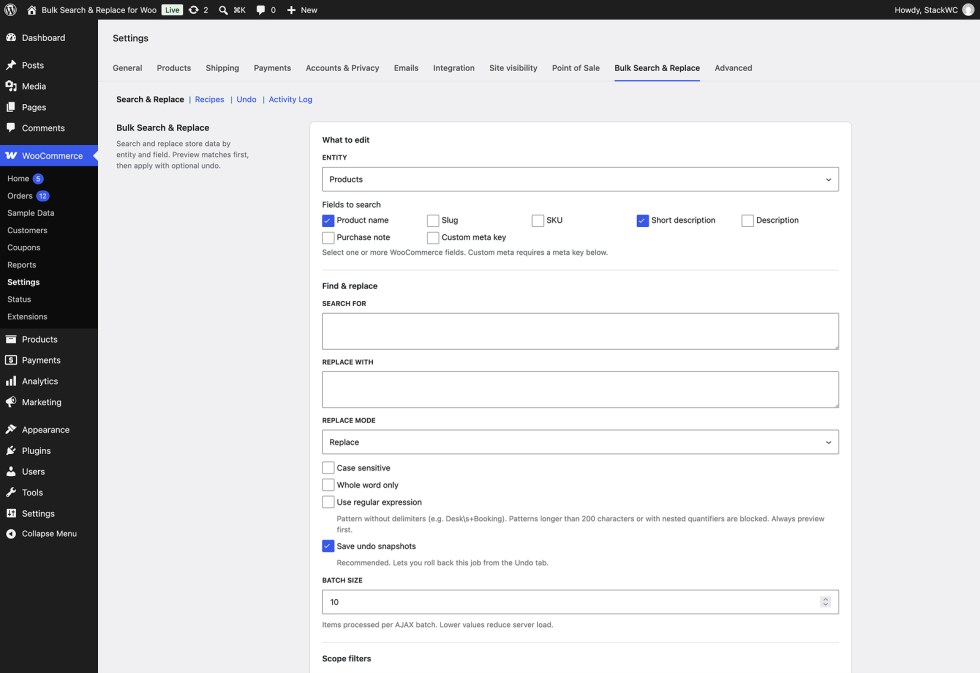
The tool has four tabs under WooCommerce → Settings → Bulk Search & Replace:
| Tab | Purpose |
| Search & Replace | Main form: entity, fields, find/replace, filters, preview, apply, export, save preset |
| Recipes | Built-in setups for common tasks |
| Undo | Roll back completed jobs |
| Activity log | History of replace and undo operations |
The screen does not use the standard WooCommerce “Save changes” button. Navigating away does not trigger an unsaved-settings warning.
Search & Replace form
↑ Back to topWhat to edit
↑ Back to topChoose which type of WooCommerce data to search:
- Products
- Variations
- Media & Images
- Categories & Tags
- Attribute Terms
- Coupons
- Orders
- Customers
Select one or more Fields to search. When Custom meta key is selected, enter the meta key in the field below.
Find & replace
↑ Back to top| Setting | Description |
| Search for | Text or pattern to find. Required for Replace and Clear modes. Optional for Prepend/Append when applying to all values. |
| Replace with | New text. Leave empty when using Clear matching text mode. |
| Replace mode | Replace, Prepend, Append, or Clear matching text |
| Case sensitive | Match exact letter case |
| Whole word only | Match complete words only |
| Use regular expression | Enable pattern matching. A dedicated pattern field appears. Patterns are entered without delimiters (example: Desk\s+Booking). |
| Save undo snapshots | On by default. Stores before/after values so the job can be undone. |
| Batch size | Items per AJAX batch (1–100). Lower values reduce server load on large stores. |
Recommended batch size (based on WP_MEMORY_LIMIT):
- 256 MB or more → 50
- 128 MB or more → 25
- Below 128 MB → 10
Scope filters
↑ Back to topFilters depend on the selected entity. See the entity sections below for full lists.
Replace modes explained
↑ Back to top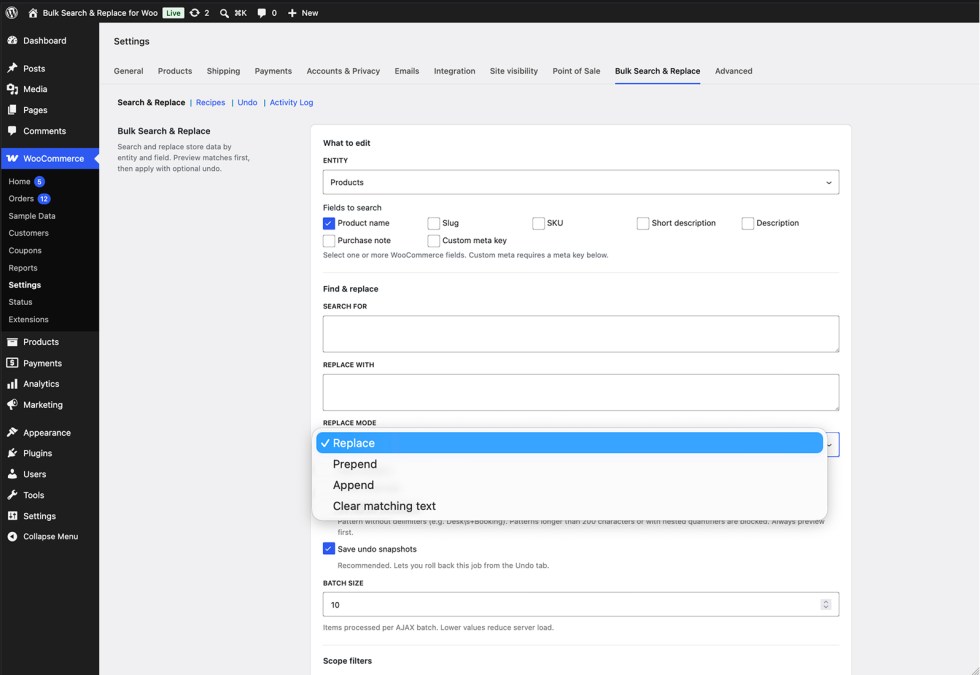
Replace
↑ Back to topStandard find and replace. Every occurrence of the search term in the selected fields is updated.
Prepend
↑ Back to topAdds text before the field value.
- If Search for is empty, the replace text is prepended to every value in scope.
- If Search for has a value, prepend runs only when the field contains that term.
Append
↑ Back to topAdds text after the field value. Same empty-search behavior as Prepend.
Clear matching text
↑ Back to topRemoves matched text. The Replace with field is ignored.
Regular expression mode
↑ Back to topWhen Use regular expression is enabled:
- Enter the pattern without slashes or delimiters.
- Example: OLD-\d+ to match OLD- followed by digits.
- Patterns longer than 200 characters are blocked.
- Patterns with nested quantifiers that can cause performance issues (ReDoS) are blocked.
- Invalid patterns fail safely without breaking the site.
Always preview regex jobs before applying.
Preview (dry run)
↑ Back to top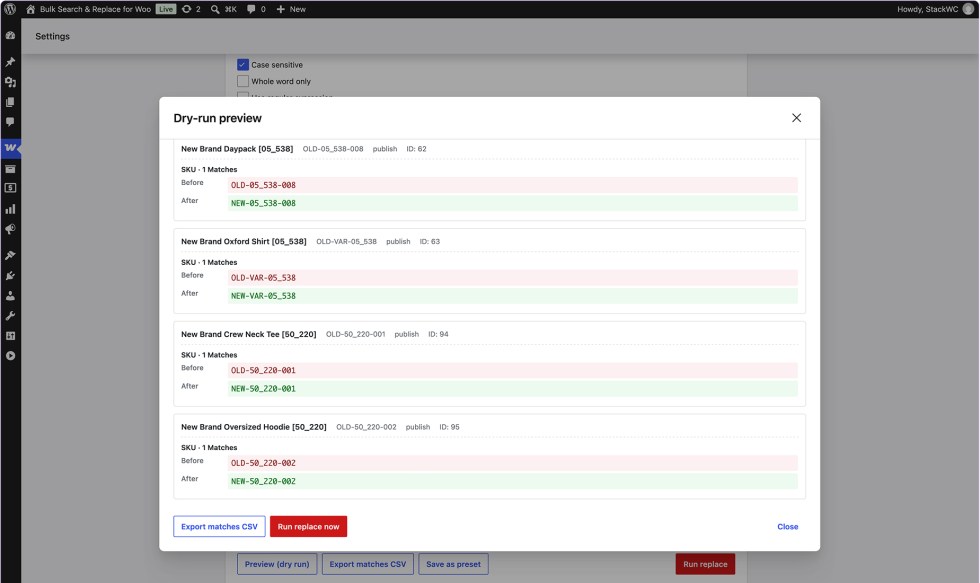
Preview shows what would change without writing to the database.
What preview includes:
- Up to 25 sample matching items in a modal
- Before and after values per field
- Total matching items and total match occurrences
- For media: thumbnails and attachment URLs
Limits:
- Preview scans up to 10,000 candidates. If the limit is reached, narrow scope filters for a fuller estimate.
- Regex and match options (case, whole word, mode) are respected in preview.
CSV export
↑ Back to topExport downloads matches from the current search criteria.
- Format: UTF-8 CSV with BOM (opens cleanly in Excel)
- Filename: bulk-search-replace-{entity}-{date}.csv
- Maximum: 5,000 rows per export
- If truncated, the download indicates how many rows were exported vs total matches
Use export for team review, audit trails, or sign-off before applying changes.
Undo
↑ Back to topWhen Save undo snapshots is enabled (default), each replace job stores field-level before/after values.
To undo a job:
- Open WooCommerce → Settings → Bulk Search & Replace → Undo.
- Find the job (shows entity, search/replace terms, item count, user, date).
- Click Undo and confirm.
Undo restores previous values through the same WooCommerce APIs used for the original replace. Each job can be undone once. After undo, the job is marked as undone and cannot be automatically re-done.
Undo works for text field changes and for product image remap (featured, gallery, variation assignments).
Activity log
↑ Back to topThe Activity log tab records replace and undo operations.
Each entry shows:
- Date and time
- Action type (replace or undo)
- Entity type
- Items updated and match count
- Search and replace terms
- User who ran the operation
Summary stats:
- Items updated in the last 30 days
- Total log entries
The log keeps the most recent 100 entries visible in the UI.
Recipes
↑ Back to top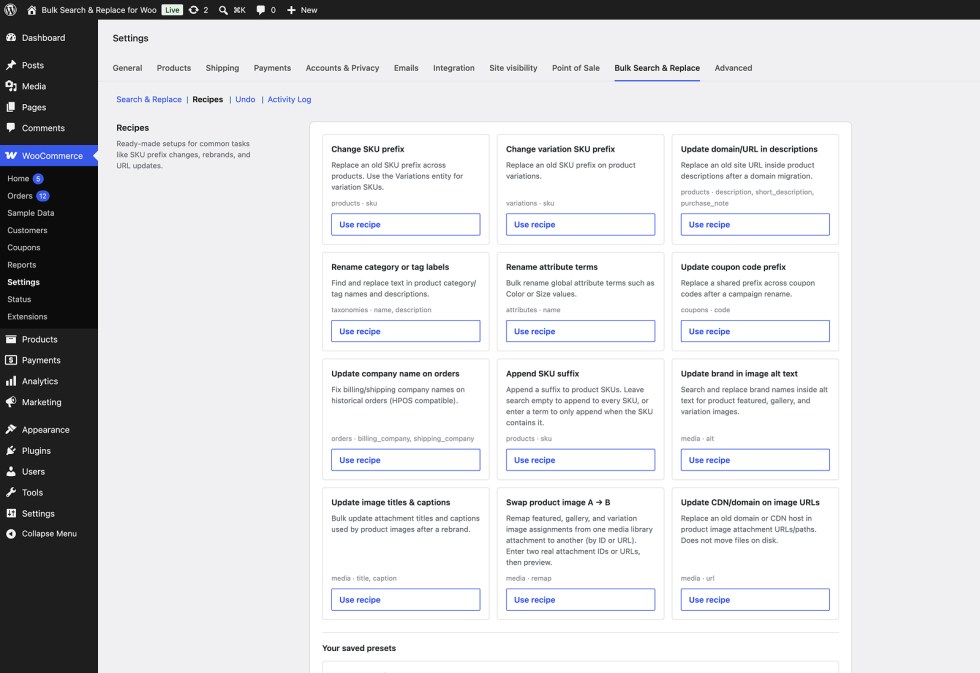
Recipes are built-in setups for common store tasks. Click Use recipe to load settings into the Search & Replace form. Review and preview before running.
Recipes that do not apply to the store are hidden automatically (for example, a brand-rename recipe when no brand taxonomy exists).
Available recipes
↑ Back to top| Recipe | Entity | Fields | Typical use |
| Change SKU prefix | Products | SKU | Rename OLD- to NEW- across product SKUs |
| Change variation SKU prefix | Variations | SKU | Same for variation SKUs (shown only if variable products exist) |
| Rename brand in product content | Products | Name, short description, description | Rebrand after company rename (shown only if a brand taxonomy exists) |
| Update domain/URL in descriptions | Products | Description, short description, purchase note | Fix URLs after domain migration |
| Rename category or tag labels | Categories & Tags | Name, description | Rename “Men” to “Menswear”, etc. |
| Rename attribute terms | Attribute Terms | Name | Standardize values like Grey → Gray |
| Update coupon code prefix | Coupons | Code | Change campaign prefix (SUMMER → FALL) |
| Update company name on orders | Orders | Billing company, shipping company | Fix historical order addresses (HPOS compatible) |
| Append SKU suffix | Products | SKU (append mode) | Add -V2 to SKUs |
| Update brand in image alt text | Media | Alt | SEO alt text rebrand on product images |
| Update image titles & captions | Media | Title, caption | Rebrand attachment metadata on product images |
| Swap product image A → B | Media | Remap | Replace one attachment with another by ID or URL |
| Update CDN/domain on image URLs | Media | File URL / path | Update CDN host in attachment metadata (does not move files) |
After loading a recipe, use Back to recipes to return to the list.
Saved presets
↑ Back to topStore owners can save their own configurations for reuse.
To save a preset:
- Configure the Search & Replace form.
- Click Save as preset.
- Enter a name (example: “Rebrand SKU prefix Q3”).
- Save.
To load a preset: Open the Recipes tab or use Load on a saved preset in the form.
To delete a preset: Use Delete on the Recipes tab.
Presets store entity, fields, search, replace, options, and filters. They persist until the plugin is uninstalled.
Products
↑ Back to topSearch and replace on WooCommerce products, including custom product types (Bookings, Subscriptions, etc.).
Editable fields
↑ Back to top- Product name
- Slug
- SKU
- Short description
- Description
- Purchase note
- Custom meta key (requires meta key input)
Scope filters
↑ Back to top- Product status (Published, Draft, Pending, Private)
- Product type (all registered types)
- Categories
- Stock status (In stock, Out of stock, On backorder)
- SKU contains
- Product IDs (comma-separated)
Notes
↑ Back to topProduct queries use WP_Query on the product post type so custom product types are not skipped. Category filters use term IDs, not slugs.
Variations
↑ Back to topSearch and replace on product variation records separately from parent products.
Editable fields
↑ Back to top- Variation SKU
- Variation description
- Custom meta key
Scope filters
↑ Back to top- Parent product status
- Parent product categories
- Parent product IDs (comma-separated)
- SKU contains
Preview shows the variation name, parent product name, and parent ID.
Media & images
↑ Back to top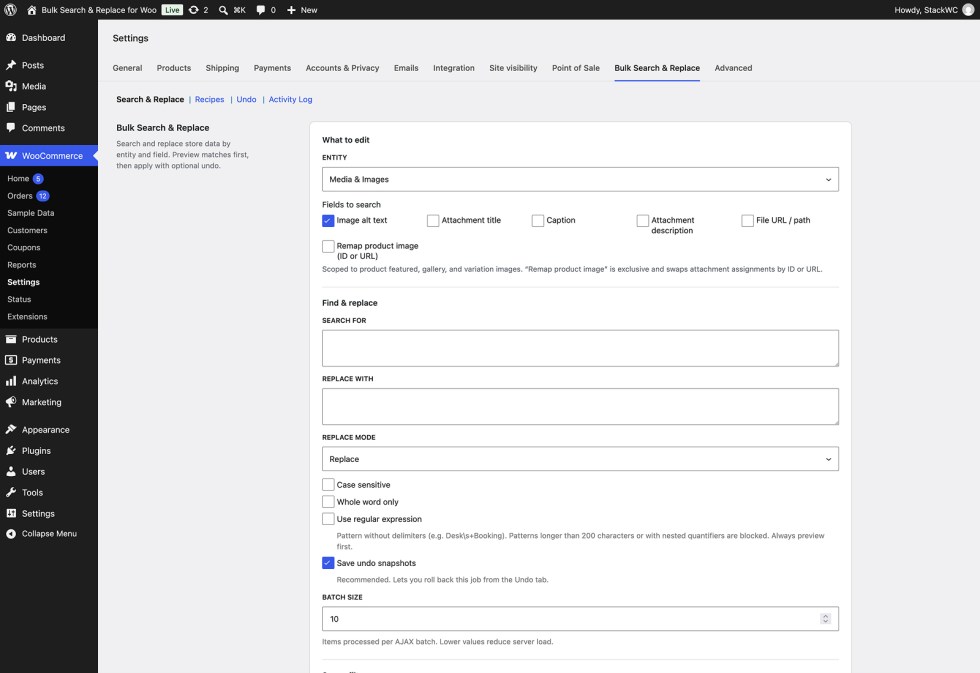
Media scope is limited to images assigned to products: featured images, gallery images, and variation images. The full WordPress Media Library is not searched.
Editable fields
↑ Back to top| Field | What it updates |
| Image alt text | Attachment alt meta |
| Attachment title | Attachment post title |
| Caption | Attachment caption |
| Attachment description | Attachment description |
| File URL / path | Attachment URL and path metadata. Does not move files on the server. |
| Remap product image (ID or URL) | Swaps which attachment is assigned to products. Exclusive mode — cannot combine with other media fields. |
Image source filter
↑ Back to top- Featured + gallery (+ variations) — default
- Featured image only
- Gallery only
- Variation images only
Image remap
↑ Back to topRemap replaces one media library attachment with another across product assignments.
- Select Remap product image (ID or URL) as the only field.
- Enter the old attachment ID or full file URL.
- Enter the new attachment ID or full file URL.
- Preview to see which products use the old image (featured, gallery, or variation).
- Run replace to update assignments.
Remap does not copy or move files. It only changes which attachment ID is linked to each product.
CDN and URL updates
↑ Back to topWhen updating File URL / path, the plugin changes attachment metadata (guid and _wp_attached_file). Physical files on the server are not relocated. Use this after a CDN or domain change where file paths in metadata need updating.
Categories & tags
↑ Back to topBulk edit product category and tag labels.
Editable fields
↑ Back to top- Name
- Slug
- Description
Scope filters
↑ Back to top- Taxonomy: Product categories, Product tags, or both (default: both)
Updates use the WordPress term API (wp_update_term()).
Attribute terms
↑ Back to topBulk edit global WooCommerce attribute term values (Color, Size, Material, etc.).
Editable fields
↑ Back to top- Term name
- Term slug
- Term description
Scope filters
↑ Back to top- Attribute taxonomy (optional — if none selected, all global attributes are included)
Coupons
↑ Back to topBulk edit WooCommerce coupon records.
Editable fields
↑ Back to top- Coupon code (formatted via WooCommerce coupon code rules)
- Description
Scope filters
↑ Back to top- Coupon code contains
Orders
↑ Back to topSearch and replace on order data. Fully compatible with High-Performance Order Storage (HPOS).
Editable fields
↑ Back to topBilling: First name, last name, company, address 1, address 2, city, state, postcode, country, email, phone
Shipping: First name, last name, company, address 1, address 2, city, state, postcode, country
Other: Customer note, custom order meta key
Scope filters
↑ Back to top- Order status
- Date from
- Date to
All updates use wc_get_orders() and WC_Order save.
Customers
↑ Back to top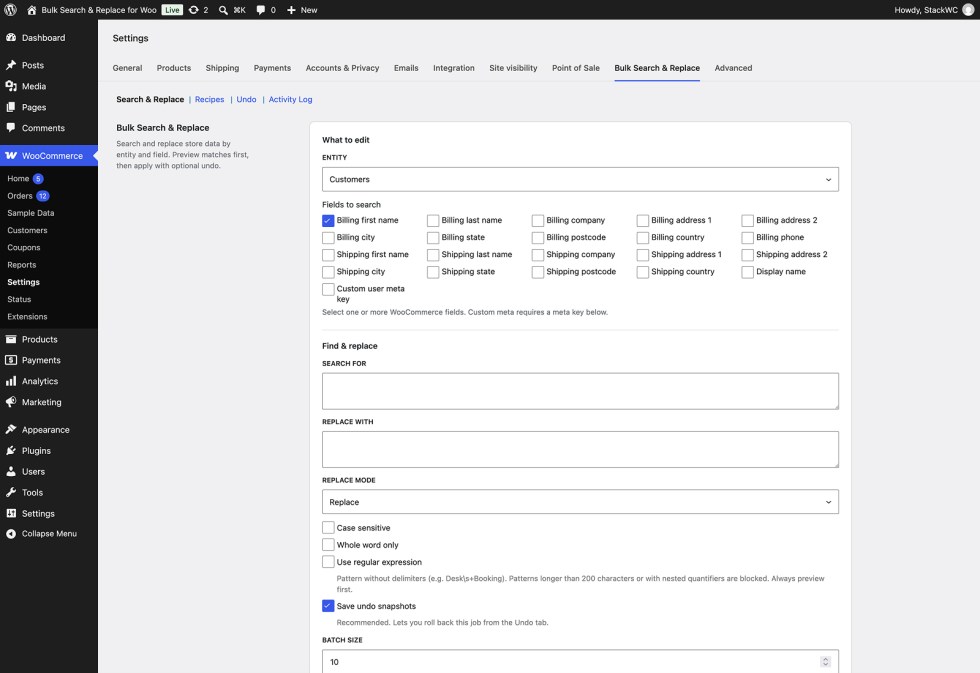
Search and replace on stored customer profile data (WooCommerce users).
Editable fields
↑ Back to topBilling and shipping: Same address fields as orders (no billing email field on customer profile)
Other: Display name, custom user meta key
Scope filters
↑ Back to top- User roles
- Emails (comma-separated, partial match supported)
By default, queries include users with the customer or subscriber role. Updates use WC_Customer CRUD.
Safety and permissions
↑ Back to top| Control | Detail |
| Capability | stackwc_bsrfw_manage — Administrators and Shop Managers |
| AJAX security | Nonce verification on all admin actions |
| Confirmation | Replace and undo require explicit confirmation |
| Data integrity | Updates via WooCommerce/WordPress entity APIs, not raw SQL |
| Sanitization | Field-appropriate sanitizers on every write |
| Regex safety | Length limits and ReDoS pattern guards |
Serialized product meta is not corrupted by plain-text database replacement because the plugin never uses that approach.
FAQs
↑ Back to topHelp customers by answering commonly asked questions.
Can I preview changes before applying them?
Yes. Preview (dry run) is the primary action and shows before/after values without writing anything.
Can I export matches to CSV?
Yes. Export matches CSV downloads the current match set (up to 5,000 rows).
Can I undo a replace?
Yes, when Save undo snapshots is enabled (default). Use the Undo tab to restore previous values.
Does media search cover the whole Media Library?
Yes, when Save undo snapshots is enabled (default). Use the Undo tab to restore previous values.

