
NotifyStore – Smart Store Alerts allows your WooCommerce store to dispatch real-time order and inventory notifications across Telegram, WhatsApp Business Cloud API, and Email, empowering you to fulfill orders, process refunds, and adjust stock directly from chat without logging into WordPress .
Installation
↑ Back to topTo start using a product from WooCommerce.com, you can use the “Add to store” functionality on the order confirmation page or the My subscriptions section in your account.
- Navigate to My subscriptions.
- Find the Add to store button next to the product you’re planning to install.
- Follow the instructions on the screen, and the product will be automatically added to your store.
Alternative options and more information at:
Managing WooCommerce.com subscriptions.

Setup and Configuration
↑ Back to topGetting started
↑ Back to topTo set up your store with NotifyStore – Smart Store Alerts:
- Go to: WooCommerce > NotifyStore.
- Tick the checkbox to Enable Notifications.
- Enter a description for Order Alert Markdown Template & Bot Credentials.
- Save changes.
Advanced configuration
↑ Back to topThis guide covers all advanced settings, options, dynamic template tokens, and background processes in NotifyStore – Smart Store Alerts (WooCommerce > NotifyStore > Settings).
Use these settings to customize message formatting, automate 2-way remote store actions, route team alerts, and connect official APIs.
1. General Settings (Settings > General)
The General Settings tab acts as the master routing controller for all store events and active messaging channels.
| Setting Field | Field Type | What It Does | Recommended Configuration |
|---|---|---|---|
| Enable Notifications | Checkbox | Master global switch. Enables or disables all background notification listeners, cron jobs, and webhook dispatches. | Checked (Enabled) |
| Active Services | Multi-Select | Controls which communication channels are active. You can select one, two, or all three: Telegram, WhatsApp, Email. | Select the services configured for your store |
| Abandoned Carts | Checkbox | Activates the hourly background cron scanner (CGNW_BGProcess) that identifies customer carts inactive for over 60 minutes and dispatches alert notifications. | Checked (Recovers lost revenue) |
| Inventory Alerts | Checkboxes | Low stock alert: Triggers on woocommerce_low_stock when inventory falls below minimum.Out of stock alert: Emergency dispatch on woocommerce_no_stock when inventory hits zero. | Both Checked (Prevents overselling) |
| Scheduled Reports | Checkboxes | Daily sales summary: Aggregates gross revenue and orders every 24 hours. Weekly sales summary: Aggregates 7-day revenue performance every 604,800 seconds. | Checked for executive store oversight |
2. Telegram Configuration & Dynamic Templates (Settings > Telegram)
NotifyStore connects to the official Telegram Bot API to provide instant alerts and 2-way remote store management.
A. Bot Credentials & Webhook Connection
- Bot API Token: Your secret authentication token generated by
@BotFatheron Telegram (format:123456789:ABCdefGhIJKlmNoPQRsTUVwxyZ). All credentials use masked password fields to prevent shoulder surfing. - Recipient Chat IDs: Comma-separated list of Telegram User IDs or Group Chat IDs.
- Individual Chat ID: e.g.
12345678 - Team / Warehouse Group ID: Begins with a negative hyphen, e.g.
-987654321.
- Individual Chat ID: e.g.
- Test Connection Button: Sends a verification payload to all configured Chat IDs to ensure token validity.
- Register Webhook with Telegram Button: Registers your WordPress site’s secure callback URL (
?cgnw_telegram_webhook=1) with Telegram’s cloud servers. Requires HTTPS. Enables 1-tap inline order action buttons and chat commands.
B. Markdown Order Notification Template
Customize the layout and wording of order alerts sent to your Telegram chat using standard Telegram Markdown.
Default Template:
*🛒 New Order #{order_id}*

*👤 Customer*: {customer_name}
*💳 Payment*: {payment_method}
*📦 Status*: {order_status}

{order_items}

*💰 Total*: {order_total}
Supported Template Tokens:
{order_id}: The unique WooCommerce order number.{customer_name}: Full billing name of the purchasing customer.{payment_method}: Payment gateway title (e.g., Stripe, PayPal, Cash on Delivery).{order_status}: Current order status (e.g., Processing, Pending Payment).{order_items}: Formatted bullet list of line items, SKU, quantity, and item pricing.{order_total}: Formatted currency total of the order.
C. Event Subscriptions & Action Controls
- Order alerts: Toggles notifications when new orders are created and when order statuses mutate.
- Interactive inline action buttons: Renders interactive buttons beneath order messages:
Processing&Completed(atomic WooCommerce order status mutation)Cancel(cancels order and restores inventory stock)Shipped(adds fulfillment timestamp note to order timeline)Add Note(prompts for admin note in chat and saves to private order notes)Refund(prompts for amount and reason, then creates officialwc_create_refund)
- Abandoned cart notifications: Pushes cart abandonment alerts to Telegram with shopper email and basket value.
- Stock alerts: Immediate low-stock and zero-stock warning dispatches.
- Daily sales summary reports: Formatted revenue recap sent directly to Telegram.
- Customer registrations: Alerts when a new user account is registered on your store.
- Product reviews: Immediate alerts with inline buttons to Approve, Trash, or mark as Spam.
D. Two-Way Telegram Email Bridge
- Enable Email Bridge: When enabled, incoming customer support emails detected by the IMAP poller are forwarded into Telegram with an 800-character preview and sender details.
- Reply to Email Button: Tapping the button in Telegram lets you type a reply that NotifyStore sends back to the customer’s email inbox via authenticated outbound SMTP.
- Forward Test Email to Telegram Button: Simulates an inbound customer email to verify bridge forwarding without sending an external message.
3. WhatsApp Business Cloud API Settings (Settings > WhatsApp)
NotifyStore connects directly to Meta’s official WhatsApp Business Cloud API, eliminating recurring third-party gateway subscriptions.
A. Meta Cloud Authentication
- Phone Number ID: The numerical ID of your registered WhatsApp Business phone number from Meta Developer Console (
WhatsApp > API Setup). - System User Access Token: A permanent System User token generated in Meta Business Manager with the
whatsapp_business_messagingpermission scope. - Notification Recipients: Multi-select list of WordPress store administrators and shop managers who should receive alerts (ensure phone numbers are formatted with international country codes in their user profile).
- Test API Connection: Enter any international mobile number (digits only, e.g.,
15551234567) and click Send Test WhatsApp Message to verify delivery.
B. Pre-Approved Meta Template Mapping
Meta requires pre-approved message templates for business-initiated outbound alerts. Enter the exact template identifier names registered in your Meta Business Suite:
| Alert Type | Template Setting Field | Supported Variable Tokens |
|---|---|---|
| New Order | whatsapp_new_order_template | {customer_name}, {order_number}, {order_date}, {order_total}, {order_status}, {site_name}, {site_url} |
| Status Change | whatsapp_order_status_change_template | {order_id}, {new_status}, {site_name} |
| Low Stock | whatsapp_low_stock_template | {product_name}, {current_stock}, {sku}, {site_name} |
| Abandoned Cart | whatsapp_abandoned_cart_template | {customer_email}, {cart_total}, {site_name} |
| Daily Sales Report | whatsapp_daily_report_template | Meta template name for daily revenue recap |
| Weekly Sales Report | whatsapp_weekly_report_template | Meta template name for 7-day revenue summary |
4. Email, Inbound IMAP & Custom SMTP (Settings > Email)
NotifyStore features a self-contained email delivery and polling engine that bypasses unreliable shared hosting mail() routines.
A. Authorized Admin Whitelist
- Recipient Email Address(es): Comma-separated list of email addresses authorized to receive alerts.
- Security Protection: Only emails originating from these authorized addresses can execute Inbound Email Bot queries (e.g.,
product [name],order [id],user [email]). Queries from unknown addresses are discarded.
B. Inbound IMAP Mailbox Polling
Enables automatic 5-minute polling of your store’s support mailbox:
- IMAP Host Server: Your mail server hostname (e.g.,
imap.gmail.com,mail.yourdomain.com). - IMAP Port:
993for SSL (recommended) or143for TLS/None. - IMAP Username & Password: Mailbox login credentials (for Gmail / Google Workspace, use a dedicated App Password).
- Encryption Method:
SSL,TLS, orNone. - Test IMAP Connection Button: Tests mailbox handshake and counts unread messages waiting in the inbox.
C. Custom Outbound SMTP Transport
Overrides the default WordPress PHPMailer transport to guarantee store alerts bypass spam folders:
- SMTP Host Server: Outbound server address (e.g.,
smtp.gmail.com,smtp.sendgrid.net,smtp.mailgun.org). - SMTP Port:
587(TLS – recommended),465(SSL), or25. - SMTP Username & Password: Authenticated mail server credentials.
- Encryption Method:
TLSorSSL. - From Email Address: Custom branded email header (e.g.,
orders@yourstore.com). - From Sender Name: Store brand name (e.g.,
YourStore Alerts). - Send Test Email Button: Dispatches a verification message to any specified inbox to confirm deliverability.
5. Performance & Security Best Practices (SEO & Operations)
- High-Performance Order Storage (HPOS): NotifyStore uses direct CRUD order objects compatible with WooCommerce Custom Order Tables (
custom_order_tables), ensuring lightning-fast database queries even with millions of orders. - Asynchronous Queue Processing: Background cron dispatches (
CGNW_BGProcess) prevent checkout latency during burst sales and promotional campaigns. - Audit Logging: Every alert is logged into
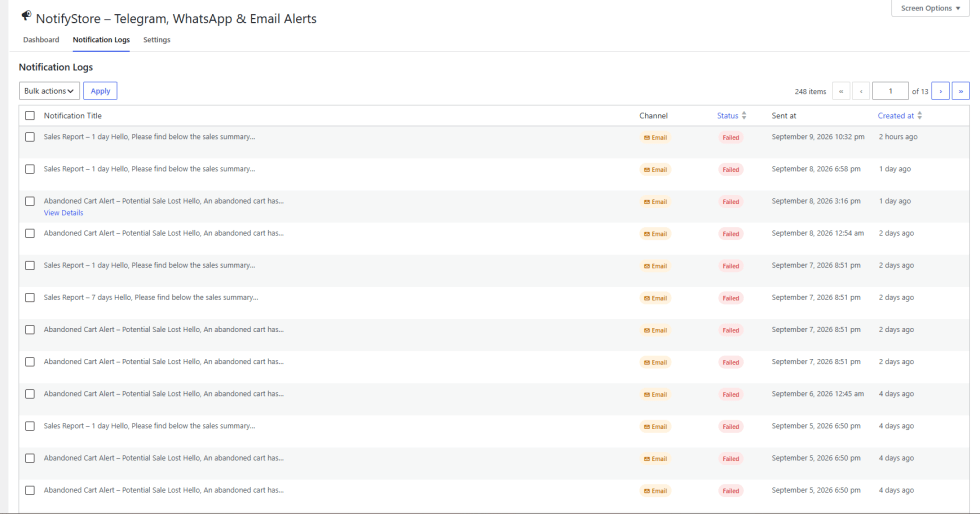
wp_cgnw_notificationswith raw JSON payloads, delivery status, and timestamps accessible via WooCommerce > NotifyStore > Notification Logs. - Zero Client-Side Overhead: Operates 100% on the server and admin back-end, ensuring zero impact on frontend Google Core Web Vitals, page speed, or mobile lighthouse scores.
Usage
↑ Back to topOnce configured, NotifyStore – Smart Store Alerts runs automatically in the background. Here is how to use it daily:
1. Manage Orders with 1-Tap Buttons
↑ Back to topWhen a new order arrives in Telegram, tap the inline buttons directly below the message:
- Processing / Completed: Update the WooCommerce order status instantly without logging in.
- Cancel: Cancel fraudulent or mistaken orders and restock items automatically.
- Add Note: Tap to type a private internal note that saves to the WooCommerce order timeline.
- Refund: Enter an amount and reason in chat to issue immediate customer refunds.
2. Run On-Demand Chat Commands
↑ Back to topType quick commands in Telegram anytime to query your store:
product [name or SKU]– Check live stock and tap Update Price or Update Stock to edit catalog values on the fly.order [ID]– Pull up complete order summaries, line items, and shipping details.user [name or email]– View customer lifetime orders and total spend./stats– View real-time revenue and order counts for Today, Yesterday, or This Week./recent– Summarize your last 5 store orders with quick management links.
3. Moderate Customer Reviews Remotely
↑ Back to topWhen a shopper leaves a product review, receive an instant alert in Telegram with one-tap buttons to Approve, move to Trash, or mark as Spam.
4. Reply to Support Emails via Telegram Bridge
↑ Back to topWhen customers email your support address, NotifyStore forwards the message preview to Telegram. Tap “Reply to Email”, type your response, and NotifyStore sends it directly back to the customer’s inbox via authenticated SMTP.
5. Track Logs & Delivery Health
↑ Back to topNavigate to WooCommerce > NotifyStore > Dashboard & Notification Logs to monitor real-time delivery rates, view 7-day volume trends, and inspect raw API payloads for full operational transparency.
Troubleshooting
↑ Back to top1. Telegram Issues
Error: Telegram Webhook Registration Fails (“HTTPS Required” or “Bad Webhook”)
- Root Cause: Telegram’s Webhook API strictly requires an active, valid SSL/TLS certificate (
https://). Local development environments (localhostorhttp://) cannot register webhooks directly. - Solution:
- Ensure your store URL uses
https://with a valid SSL certificate. - For local staging/development, use a secure tunnel such as ngrok or Cloudflare Tunnel to provide an HTTPS endpoint.
- Re-click Register Webhook with Telegram in Settings > Telegram.
- Ensure your store URL uses
Error: Test Message Fails (“Chat not found” or HTTP 400 / 403)
- Root Cause: The recipient has not initiated a conversation with the bot, or the Chat ID is invalid.
- Solution:
- Open Telegram on your phone, search for your bot username, and tap Start (or send
/start). Telegram blocks bots from sending messages to users who haven’t initiated contact. - For group chats, verify the Chat ID begins with a negative hyphen (e.g.
-987654321). - Confirm the Bot API Token in Settings > Telegram has no accidental leading or trailing spaces.
- Open Telegram on your phone, search for your bot username, and tap Start (or send
Error: Inline Buttons Not Responding to Taps
- Root Cause: Webhook is either not registered or your site’s security/firewall plugin is blocking incoming POST requests to
?cgnw_telegram_webhook=1. - Solution:
- Click Register Webhook with Telegram in settings and verify the green success badge appears.
- Whitelist the query argument
cgnw_telegram_webhookin Wordfence, Cloudflare, or your server firewall.
2. WhatsApp Business Cloud API Issues
Error: Meta API Error #190 (“Invalid or Expired Access Token”)
- Root Cause: You are using a temporary 24-hour developer token instead of a permanent System User Token.
- Solution:
- Go to Meta Business Manager > Business Settings > System Users.
- Create a System User with the Admin role.
- Generate a permanent token with the
whatsapp_business_messagingpermission. - Paste this token into System User Access Token in Settings > WhatsApp.
Error: Meta API Error #132000 / #100 (“Template Does Not Exist or Variable Mismatch”)
- Root Cause: The template name entered in NotifyStore settings does not match the exact approved template name in Meta Business Suite, or variable counts differ.
- Solution:
- Log in to Meta Business Suite > WhatsApp Manager > Message Templates.
- Copy the exact lowercase template name (e.g.,
new_order_alert_v1). - Paste it into the corresponding field in Settings > WhatsApp.
- Ensure your Meta template parameters align with the tokens provided by NotifyStore.
Error: Test Message Fails (“Invalid Phone Number Format”)
- Root Cause: Phone number is formatted with symbols (
+,-, spaces) or missing country code. - Solution:
- Enter digits only with country code (e.g., use
15551234567, not+1 (555) 123-4567).
- Enter digits only with country code (e.g., use
3. Email & SMTP Issues
Error: Outbound SMTP Authentication Failure or Connection Timeout
- Root Cause: Mismatched port and encryption settings, or incorrect mail server credentials.
- Solution:
- Port 587: Select TLS encryption.
- Port 465: Select SSL encryption.
- Gmail / Google Workspace: Google disables standard password logins for third-party apps. You must generate an App Password under Google Account > Security > 2-Step Verification > App Passwords and paste it into the SMTP Password field.
- Click Send Test Email to verify before saving.
Error: IMAP Polling Not Detecting Customer Support Emails
- Root Cause: The PHP
imapextension is not enabled on your server, or connection credentials are incorrect. - Solution:
- Check that the PHP
imapextension is installed on your hosting server (php -m | grep imap). - For IMAP Host, use port
993withSSLencryption. - Click Test IMAP Connection to view the live connection response.
- Check that the PHP
4. General Notification Triggers Not Firing
Checklist:
- Master Switch: Verify Enable Notifications is checked under Settings > General.
- Active Services: Ensure the service (Telegram, WhatsApp, or Email) is selected in the Active Services multiselect.
- WP-Cron Execution: If automated abandoned cart alerts or sales summaries are delayed, check if native WP-Cron is functioning or set up a real server cron job (
curl -I https://yourstore.com/wp-cron.php?doing_wp_cron > /dev/null 2>&1every 5–15 minutes). - Inspect Notification Logs: Go to WooCommerce > NotifyStore > Notification Logs. Click the View Payload link on any failed entry to inspect the raw JSON response returned by the API for immediate diagnostic details.
FAQs
↑ Back to topHelp customers by answering commonly asked questions.
Can I really fulfill orders and update statuses without logging into my computer?
Yes. The moment a customer completes checkout, you receive an instant alert on Telegram with live order details and clickable inline buttons. With a single tap on your phone.
What happens if a customer wants a refund or asks a question while I'm away from my desk?
Instant Refunds: Tap the “Refund” button in Telegram. The bot asks for the amount and reason in chat, then processes the refund through your supported payment gateway.
Add Private Order Notes: Tap “Add Note”, type your message in chat, and it saves directly to the WooCommerce private order timeline for your team to see.
Customer Email Bridge: Inbound support emails from shoppers are forwarded directly into your Telegram chat. Tap “Reply to Email”, type your solution, and NotifyStore emails the customer back immediately via authenticated SMTP.
Do I need technical skills, coding knowledge, or paid third-party apps to set this up?
No. NotifyStore is designed for non-technical store owners:
Telegram: Created in under 2 minutes using Telegram’s free
@BotFather. Simply paste your Bot Token and click “Register Webhook”.WhatsApp: Connects directly to Meta’s official WhatsApp Business Cloud API with your free Meta credentials—no expensive third-party monthly SaaS subscriptions (like Twilio or Zapier) required.
Pre-built Templates: All order alert templates come ready to use out of the box with dynamic tokens (
{order_id},{customer_name},{order_total}) that fill in automatically.

