
Overview
↑ Back to topPickup Location Stock allows you to manage a separate quantity for every collection location and show customers only the locations that can fulfill their order.
This guide takes you through the initial setup, from installing the extension to placing your first test pickup order.
Installation
↑ Back to topTo start using a product from WooCommerce.com, you can use the “Add to store” functionality on the order confirmation page or the My subscriptions section in your account.
- Navigate to My subscriptions.
- Find the Add to store button next to the product you’re planning to install.
- Follow the instructions on the screen, and the product will be automatically added to your store.
Alternative options and more information at:
Managing WooCommerce.com subscriptions.

Enable Pickup Location Stock
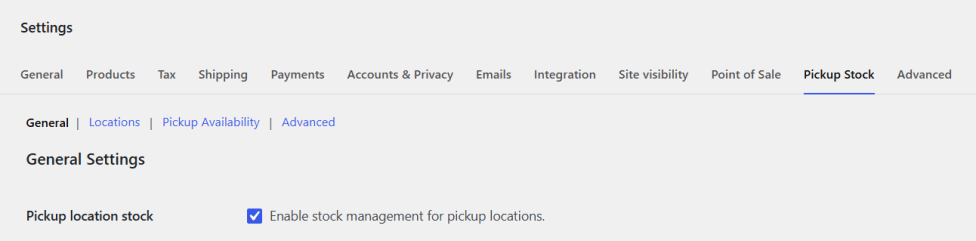
↑ Back to topTo enable the extension:
- Go to WooCommerce > Settings > Pickup Stock.
- Open the General section.
- Enable Pickup location stock.
- Save changes.
Configure WooCommerce Local Pickup
↑ Back to topPickup Location Stock works with WooCommerce’s Local Pickup options.
For Checkout Blocks:
- Go to WooCommerce > Settings > Shipping > Local Pickup.
- Enable Local Pickup.
- Create the WooCommerce pickup locations you want customers to use.
For classic checkout:
- Go to WooCommerce > Settings > Shipping > Shipping zones.
- Edit the appropriate shipping zone.
- Add or enable the Local pickup shipping method.
Your other delivery methods remain available according to your existing WooCommerce shipping configuration.
Create your first pickup location
↑ Back to topGo to WooCommerce > Settings > Pickup Stock > Locations and add your first location.
Enter the location name, code and address, then enable the location. If you use Checkout Blocks, link it to the corresponding WooCommerce Local Pickup location.
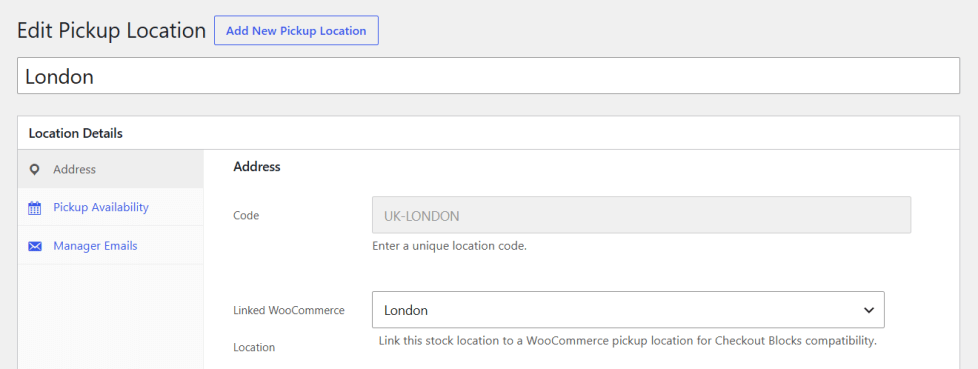
Save the location when you have finished.
Each pickup location can have its own collection availability and manager email addresses. These options can be configured now or added later.
Add pickup stock to a product
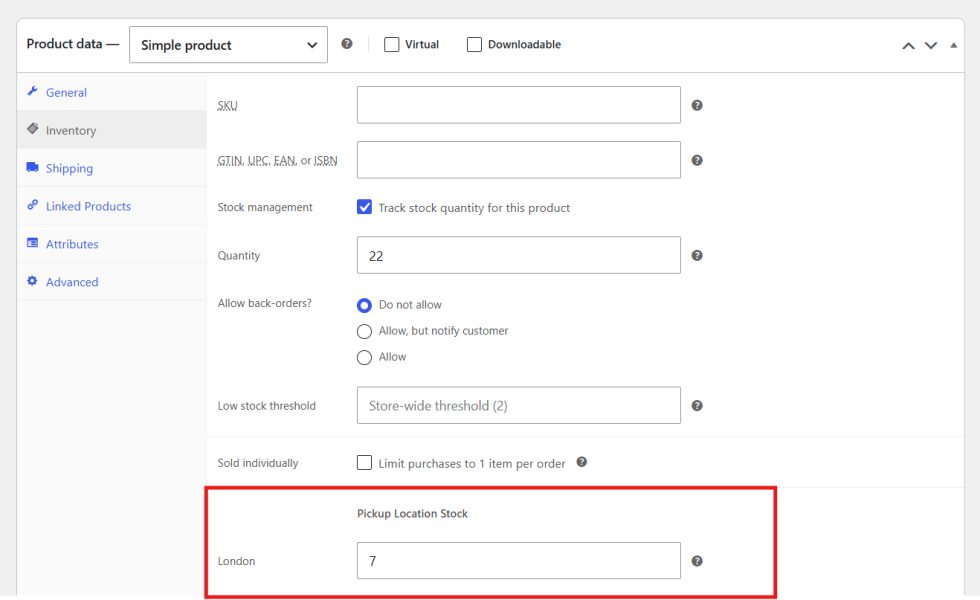
↑ Back to topTo add stock for a simple product:
- Go to Products and edit the product.
- Open Product data > Inventory.
- Find the pickup location stock fields.
- Enter the quantity available at each location.
- Update the product.
For variable products, open each variation and enter its pickup quantities separately.
Pickup stock works alongside the product’s standard WooCommerce inventory. The product must still be in stock and purchasable under WooCommerce’s normal rules.
Place a test pickup order
↑ Back to topAdd the configured product to your cart and proceed to checkout.
Select Local Pickup. The customer will only be offered enabled locations with enough available pickup stock to fulfill the complete cart.
Select a location and pickup date, if date selection is enabled, then place the order.
When the order is submitted, Pickup Location Stock checks availability again and reserves the required quantity. You can view the selected location, pickup details and stock activity from the WooCommerce order screen.
Your initial setup is now complete.
Main settings
↑ Back to topGo to WooCommerce > Settings > Pickup Stock > General to enable Pickup Location Stock and control its customer-facing behaviour.
After changing an option, select Save changes.
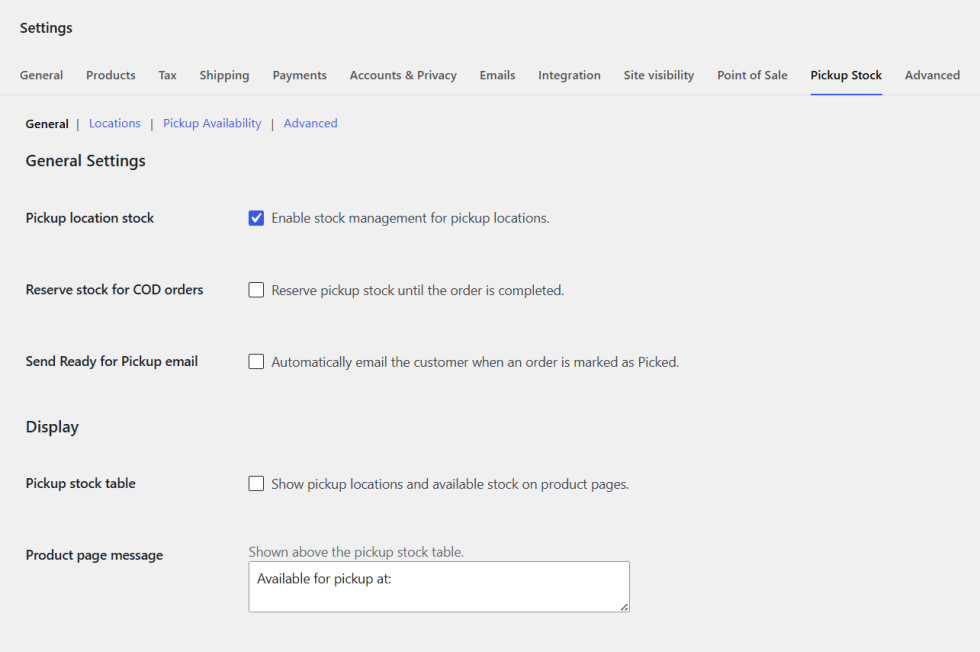
Pickup location stock
↑ Back to topEnable stock management for pickup locations.
This is the extension’s main on/off setting. It is disabled when Pickup Location Stock is first installed, allowing you to configure your locations and stock before changing the customer checkout experience.
Disabling the setting stops pickup-stock management but does not delete your locations, quantities or configuration.
Reserve stock for COD orders
↑ Back to topEnable this option if you accept Cash on Delivery orders and want the required pickup stock reserved while the order awaits completion.
The reservation prevents that stock from being offered to another pickup customer. If the order is cancelled or fails, the reserved quantity is released and becomes available again.
If your store does not accept Cash on Delivery orders, you can leave this option disabled.
Send Ready for Pickup email
↑ Back to topAutomatically email the customer when an order is marked as Picked, meaning it is ready for collection.
Disable this option if your store uses another method to notify customers. The order can still be moved to the Picked status without sending the Pickup Location Stock email.
Pickup stock table
↑ Back to topDisplay the enabled pickup locations and their available quantities on product pages.
For variable products, the displayed availability updates for the variation selected by the customer.
Leave this disabled if you only want customers to see pickup availability during checkout.
Product page message
↑ Back to topEnter the text displayed above the pickup stock table.
The default message is:
Available for pickup at
You can replace this with wording that better matches your store. This message is only displayed when the pickup stock table is enabled.
Pickup Location Stock displays two additional settings when your store uses classic checkout. These options are not required for Checkout Blocks, which uses WooCommerce’s native pickup-location display.
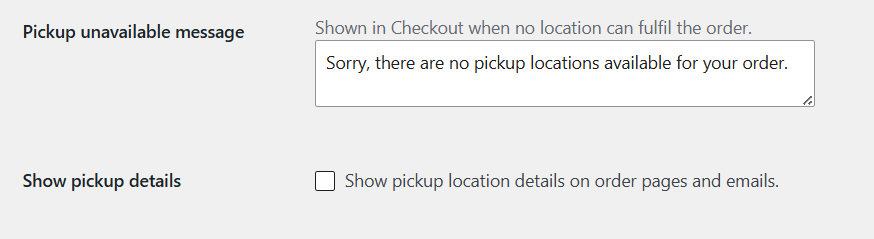
Pickup unavailable message
↑ Back to topEnter the message shown during classic checkout when no enabled pickup location has enough stock to fulfill the complete order.
The default message is:
Sorry, there are no pickup locations available for your order.
You can customise this text to match your store’s tone.
Show pickup details
↑ Back to topDisplay the selected pickup location details on order pages and in order emails created through classic checkout.
Enable this option to make the collection information easily available to customers after they place their order.
Managing Pickup Locations
↑ Back to topPickup locations represent the stores, branches or collection points where customers can collect their orders.
Go to WooCommerce > Settings > Pickup Stock > Locations to view and manage your locations.
View your locations
↑ Back to topThe Locations table displays:
- Name: The customer-facing location name.
- Code: The unique identifier used for stock management, CSV files and REST API requests.
- Postcode: The postcode or ZIP code entered for the location.
- Pickup Availability: Shows whether the location inherits the global collection settings or uses its own availability.
- Status: Shows whether the location is enabled or disabled.
Select a location name to edit it, or select Add New Location to create one.
Add a pickup location
↑ Back to topTo create a location:
- Select Add New Location.
- Enter the location name at the top of the page.
- Complete the fields under Address.
- Configure its pickup availability and manager emails if required.
- Select Publish.
The following address fields are available:
- Code: Enter a unique code used to identify the location. The code is set when the location is created and cannot be changed afterwards.
- Address 1: Enter the main street address.
- Address 2: Add any additional address information.
- City: Enter the town or city.
- County/State: Enter the relevant county, region or state.
- Postcode/ZIP: Enter the postal or ZIP code.
- Country: Enter the country where the location is based.
- Phone: Enter a customer-facing contact number if required.
- Sort Order: Controls the order in which locations are displayed. Locations with lower numbers appear before locations with higher numbers.
Link a WooCommerce pickup location for Checkout Blocks
↑ Back to topWhen Checkout Blocks are enabled, the location form displays an additional field for linking the location to a WooCommerce Local Pickup location.

Before creating the link, configure the corresponding location under WooCommerce > Settings > Shipping > Local Pickup.
Select the matching WooCommerce location from the linked-location field. This allows Pickup Location Stock to connect the customer’s native WooCommerce pickup selection with the correct location inventory.
A linked WooCommerce location is required for the pickup location to be offered through Checkout Blocks.
This field is not displayed when using classic checkout because classic checkout does not require the native location mapping.
Enable or disable a location
↑ Back to topUse Enable this pickup location in the Publish panel to control whether the location is available to customers.
Disabled locations are not offered at checkout. Disabling a location does not delete its settings or pickup stock, so it can be enabled again later.
Select Publish or Update after changing the status.
Configure pickup availability
↑ Back to topOpen Pickup Availability within the location editor.
Enable Inherit the global Pickup Availability settings to use the collection days configured under WooCommerce > Settings > Pickup Stock > Pickup Availability.
Disable inheritance when the location needs its own collection schedule. You can then select the days on which customers may collect orders from this location.
The Locations table shows Inherited when a location uses the global settings.
Add manager email addresses
↑ Back to topOpen Manager Emails within the location editor to add recipients for that location’s pickup-order notifications.
Enter one email address per line. Leave the field empty if no additional location managers need to receive notifications.
Select Publish or Update to save the addresses.
Edit or delete a location
↑ Back to topSelect a location name from the Locations table to edit its address, availability, manager emails, status or sort order.
Select Update to save your changes.
To remove a location, select Delete Permanently from the Publish panel. Deletion cannot be undone, so disable the location instead if you may need to use it again.
Managing Product Pickup Stock
↑ Back to topPickup stock is configured separately for each product and location. WooCommerce continues to manage the product’s standard inventory, while Pickup Location Stock manages the quantities available for collection.
A product must still be purchasable under WooCommerce’s normal rules. If WooCommerce stock management is enabled for the product, its standard stock quantity must be at least 1.
Pickup quantity and available stock
↑ Back to topThe quantity entered for a location represents the pickup stock held there.
When stock is reserved for an open pickup order, the available quantity is calculated as:
Pickup quantity minus reserved quantity
You cannot reduce a location’s quantity below the amount already reserved for existing orders. This prevents stock promised to customers from being removed accidentally.
Set pickup stock for a simple product
↑ Back to topTo manage pickup stock for a simple product:
- Go to Products > All Products.
- Select the product you want to edit.
- Open Product data > Inventory.
- Confirm that the product has sufficient standard WooCommerce stock.
- Find Pickup Location Stock.
- Enter the quantity held at each location.
- Select Update to save the product.
Each enabled pickup location has its own quantity field.
Leave a field blank or enter 0 when the product is not available for pickup at that location. Entering a quantity greater than zero makes the product available there, subject to existing reservations and the customer’s cart quantity.
Set pickup stock for a variable product
↑ Back to topPickup quantities are managed separately for each variation.
To configure a variation:
- Edit the variable product.
- Open Product data > Variations.
- Expand the variation you want to manage.
- Enable Manage stock? and enter its standard WooCommerce stock quantity.
- Find Pickup Location Stock within the variation.
- Enter the pickup quantity for each location.
- Select Save changes, then update the product.
Repeat these steps for every variation that should be available for pickup.
A quantity entered against the parent product is not used as the pickup quantity for its variations. Each variation must have its own location stock configured.
How pickup stock works with WooCommerce stock
↑ Back to topStandard WooCommerce inventory and pickup-location inventory are managed as separate quantities.
When a pickup order is placed:
- WooCommerce processes its standard product stock normally.
- Pickup Location Stock reserves inventory at the selected collection location.
- The reserved pickup quantity is deducted, released or restored as the order progresses.
Adding pickup stock does not make a product purchasable when it is out of stock under WooCommerce’s normal inventory rules.
Display pickup availability on product pages
↑ Back to topTo show pickup stock to customers before checkout:
- Go to WooCommerce > Settings > Pickup Stock > General.
- Enable Pickup stock table.
- Enter an optional Product page message.
- Select Save changes.
The table displays each available pickup location and its current available quantity.
For variable products, the table updates after the customer selects a variation, showing availability for that specific variation.
The product-page table is optional. If it is disabled, pickup availability is still checked and displayed during checkout.
Checkout and Pickup Dates
↑ Back to topPickup Location Stock filters collection locations according to the products, variations and quantities in the customer’s cart.
Customers are only offered enabled locations with enough available pickup stock to fulfill the complete order.
The extension can also allow customers to choose an eligible collection date. This provides straightforward date selection rather than appointment booking; it does not manage collection times or appointment capacity.
Configure global pickup availability
↑ Back to topGo to WooCommerce > Settings > Pickup Stock > Pickup Availability to configure the default collection schedule.
Enable pickup date selection
↑ Back to topEnable this option to let customers choose a pickup date during checkout.
When date selection is enabled for the selected location, choosing an available date is required before the order can be placed.
Default pickup days
↑ Back to topSelect the days of the week on which locations normally accept collections.
Only selected days are offered to customers. Locations that inherit the global settings use this schedule automatically.
Default lead time
↑ Back to topEnter the minimum number of days required before an order can be collected.
For example:
- Enter
0to allow same-day pickup when the current day is available. - Enter
1to require at least one day before collection. - Enter
2to require at least two days before collection.
If the first date after the lead time is not an available pickup day, the next eligible day is offered.
Same-day cutoff
↑ Back to topSet the latest time at which a customer can select same-day pickup.
This setting only applies when the lead time is 0. After the cutoff time has passed, the next eligible pickup date is offered instead.
Leave the field blank to allow same-day pickup without a cutoff.
Pickup dates shown
↑ Back to topChoose how many available pickup dates appear in the checkout field.
This controls the number of eligible dates offered, rather than the number of consecutive calendar days. Days that are not enabled for collection are skipped.
Select Save changes after configuring the global settings.
Configure availability for an individual location
↑ Back to topLocations inherit the global Pickup Availability settings by default.
To use a different schedule for a location:
- Go to WooCommerce > Settings > Pickup Stock > Locations.
- Select the location you want to edit.
- Open Pickup Availability.
- Disable Inherit the global Pickup Availability settings.
- Configure Pickup Date Selection, Pickup Days and Lead Time for the location.
- Select Update.
This allows individual locations to use different collection days or preparation times.
The same-day cutoff and number of pickup dates shown continue to use the global settings.
To return the location to the default schedule, enable Inherit the global Pickup Availability settings and update the location.
Location selection in Checkout Blocks
↑ Back to topWhen the customer selects Local Pickup, WooCommerce displays its native pickup locations.
Pickup Location Stock checks each linked location against the complete cart. A location is only offered when it is enabled and has enough available stock for every product and variation required.
After choosing a location, the customer can select an eligible pickup date if date selection is enabled for that location.
Each Pickup Location Stock location must be linked to its corresponding WooCommerce Local Pickup location for it to be offered through Checkout Blocks.
Position the pickup date field in Checkout Blocks
↑ Back to topThe Pickup Date field is displayed inside WooCommerce’s Order information block. This block may need to be repositioned manually so the date appears directly after the pickup-location choices.
To move it:
- Go to Pages > Checkout and edit the Checkout page.
- Open List View in the block editor.
- Expand the main Checkout block and locate Order information.
- Drag Order information below the shipping and pickup options and before the address sections.
- Select the Order information block to edit its visible heading if required.
- Select Save or Update.
For example, you can rename the heading from Order information to Collection Details. Renaming the heading does not change how the pickup date works.
If another extension adds fields to Order information, those fields may also appear within the same section.
Location selection in classic checkout
↑ Back to topIn classic checkout, the customer first selects the Local pickup shipping method.
Pickup Location Stock then displays a required Pickup Location field containing locations that can fulfill the complete cart.
When date selection is enabled, a required Pickup Date field appears beneath the location field. The available dates update according to the schedule and lead time configured for the selected location.
If no location can fulfill the order, the extension displays the unavailable message configured under WooCommerce > Settings > Pickup Stock > General.
Availability is checked again when ordering
↑ Back to topPickup availability is checked again when the customer submits the order.
If another order has claimed the remaining stock since the checkout page was loaded, the customer is asked to review their pickup selection. An unavailable pickup order is not accepted using stale availability.
Managing Pickup Orders
↑ Back to topPickup Location Stock adds collection information and a dedicated preparation workflow to WooCommerce orders.
Store managers can see the selected pickup location and date, prepare the order, notify the customer when it is ready and complete the order after collection.
Identify pickup orders
↑ Back to topGo to WooCommerce > Orders to view your orders.
Pickup Location Stock adds the following information to the Orders table:
- Pickup Location: The location selected by the customer.
- Pickup Date: The customer’s chosen collection date, when date selection is enabled.
- Picked: A dedicated order-status filter for orders that are ready for collection.
These columns allow store staff to identify and organise pickup orders without opening each order individually.
View pickup order details
↑ Back to topOpen a pickup order to view its selected location and pickup date.
The order also contains stock records and notes created as it progresses. These provide a history of important events such as reservation, deduction and preparation for collection.
Pickup stock during the order lifecycle
↑ Back to topWhen a pickup order is placed, the required location stock is reserved so it cannot be promised to another customer.
As the order progresses:
- Reserved pickup stock is deducted when the order reaches the appropriate paid or fulfillment stage.
- A reservation is released if the order fails or is cancelled before deduction.
- Cash on Delivery stock can remain reserved until completion when Reserve stock for COD orders is enabled.
- Refunded items can be restored to their original pickup location when they are restocked.
WooCommerce continues to process the product’s standard inventory separately through its normal order workflow.
Mark an order as ready for pickup
↑ Back to topWhen the order has been prepared:
- Open the order in WooCommerce > Orders.
- Find the Order actions panel.
- Select Mark as Ready for Pickup.
- Select the arrow button to apply the action.
The order status changes to Picked, and an order note confirms that the order was marked as ready for pickup.
In Pickup Location Stock, Picked means that the order is prepared and ready for the customer to collect. It does not mean the customer has already collected it.
Notify the customer
↑ Back to topPickup Location Stock can automatically send the customer a Ready for Pickup email when the order is marked as Picked.
To enable this:
- Go to WooCommerce > Settings > Pickup Stock > General.
- Enable Send Ready for Pickup email.
- Select Save changes.
- Go to WooCommerce > Settings > Emails.
- Find Ready for Pickup and select Manage.
- Confirm that Enable this email notification is selected.
Both settings must be enabled for the notification to be sent automatically.
Customise the Ready for Pickup email
↑ Back to topUnder WooCommerce > Settings > Emails > Ready for Pickup, you can customise:
- Subject: The email subject shown in the customer’s inbox.
- Email heading: The main heading displayed inside the email.
- Body text: The message displayed before the order details.
- Email type: The format used for the notification.
The following placeholders are available:
{order_number}inserts the customer’s order number.{pickup_location}inserts the selected pickup location.
The email includes the pickup location and a list of the items prepared for collection.
WooCommerce’s email preview uses sample order data, so some pickup details or placeholders may not be populated in the preview. They are populated from the actual pickup order when the live email is sent.
Pickup stock notification emails
↑ Back to topPickup Location Stock also adds the following emails to WooCommerce > Settings > Emails:
- Pickup stock reserved
- Pickup stock deducted
- Ready for Pickup
Select Manage beside an email to enable or disable it and review its configuration.
Manager email addresses entered against a pickup location are used for the applicable location stock notifications.
Complete the order after collection
↑ Back to topAfter the customer has collected the order, change its WooCommerce status from Picked to Completed and save the order.
This separates orders that are still waiting for collection from those that have been successfully handed to the customer.
Advanced Settings
↑ Back to topThe Advanced settings control diagnostic logging and determine whether plugin data is retained when Pickup Location Stock is deleted.
Go to WooCommerce > Settings > Pickup Stock > Advanced.
Diagnostic logging
↑ Back to topEnable Diagnostic logging to record detailed pickup stock activity in the WooCommerce logs. These records can help you investigate stock changes, reservations, releases and other pickup-related activity.
To view the logs:
- Go to WooCommerce > Status > Logs.
- Select the Pickup Location Stock log.
- Choose View to inspect its entries.
Diagnostic logging can be disabled when it is not required.
Remove all data on uninstall
↑ Back to topEnable Remove all data on uninstall only when you want all Pickup Location Stock data to be permanently removed when the extension is deleted.
This setting does not remove data when the extension is deactivated. Leave it disabled if you want to preserve your locations, settings and pickup inventory for a future reinstallation.
Important: Deleting the extension while this option is enabled permanently removes its stored data. Create a database backup first if you may need this information again.
CSV Import and Export
↑ Back to topPickup Location Stock extends WooCommerce’s standard product CSV importer and exporter with a separate stock column for each pickup location.
Export pickup stock
↑ Back to topGo to Products > All Products and select Export.
Complete the standard WooCommerce export process. The downloaded CSV file contains an additional column for every configured pickup location.
Exporting first is the safest way to obtain the correct column names and file structure.
Update pickup quantities
↑ Back to topOpen the exported CSV file in your preferred spreadsheet application.
Enter the required pickup quantity in each location’s column. Simple products and individual variations have their own rows and can be updated independently.
Do not rename the pickup-location columns. Pickup locations should be created in Pickup Location Stock before exporting the file.
Save the completed spreadsheet as a CSV file.
Import pickup stock
↑ Back to topGo to Products > All Products and select Import.
Upload the completed CSV file and follow the standard WooCommerce import process. When updating products already in the store, enable Update existing products.
WooCommerce uses the product ID or SKU to match each CSV row to the correct product or variation. The values in the pickup-location columns are then saved as that product’s location stock.
After the import completes, review a selection of products to confirm that their pickup quantities were updated correctly.
REST API Reference
↑ Back to topPickup Location Stock provides a REST API for managing locations, updating product and variation stock, retrieving pickup dates and marking orders as ready for collection.
Base URL
↑ Back to topAll Pickup Location Stock endpoints use the following namespace:
https://example.com/wp-json/pmp-pls/v1
Replace example.com with your store’s domain.
Authentication
↑ Back to topAll endpoints except the public pickup-dates endpoint require an authenticated user with the manage_woocommerce capability.
WooCommerce REST API consumer keys can be created under:
WooCommerce > Settings > Advanced > REST API
Use Read/Write permissions for integrations that need to create or update data. Always connect over HTTPS.
Example authenticated request:
curl -u "ck_your_consumer_key:cs_your_consumer_secret" \
  "https://example.com/wp-json/pmp-pls/v1/locations"
Available endpoints
↑ Back to top| Method | Endpoint | Purpose |
|---|---|---|
| GET | / | View API information and capabilities |
| GET | /locations | List all pickup locations |
| POST | /locations | Create a pickup location |
| GET | /locations/{id} | Retrieve a location by ID |
| POST, PUT, PATCH | /locations/{id} | Update a location by ID |
| DELETE | /locations/{id} | Delete a location by ID |
| GET | /locations/code/{code} | Retrieve a location by code |
| POST, PUT, PATCH | /locations/code/{code} | Update a location by code |
| DELETE | /locations/code/{code} | Delete a location by code |
| GET | /stock/product/{product_id} | Retrieve stock for a product |
| POST, PUT, PATCH | /stock/product/{product_id} | Update stock for a product |
| GET | /stock/product/{product_id}/variation/{variation_id} | Retrieve variation stock |
| POST, PUT, PATCH | /stock/product/{product_id}/variation/{variation_id} | Update variation stock |
| GET | /stock/location/{code} | Retrieve all stock held at a location |
| DELETE | /stock/location/{code} | Clear all stock held at a location |
| GET | /pickup-dates/{code} | Retrieve available dates for a location |
| POST | /orders/{order_id}/ready-for-pickup | Mark an order as ready for pickup |
API discovery
↑ Back to topUse the root endpoint to confirm that the extension and API are available:
GET /wp-json/pmp-pls/v1/
The response includes the installed plugin version, API version and supported capabilities.
Location fields
↑ Back to topLocation create and update requests support the following fields:
| Field | Type | Description |
|---|---|---|
name | string | Location name. Required when creating a location. |
code | string | Unique location code. Required when creating a location. |
address_1 | string | Main address. |
address_2 | string | Additional address information. |
city | string | Town or city. |
state | string | County, region or state. |
postcode | string | Postcode or ZIP code. |
country | string | Country name or code used by the integration. |
phone | string | Location telephone number. |
manager_emails | array | Manager email addresses. |
native_pickup_location_key | string | Linked WooCommerce Local Pickup location key. |
use_global_pickup_availability | boolean | Whether the location inherits global availability. |
pickup_date_selection_enabled | boolean or null | Enables date selection for a custom location schedule. |
pickup_days | array | Pickup days numbered 1 for Monday through 7 for Sunday. |
pickup_lead_time | integer or null | Minimum number of days required before collection. |
enabled | boolean | Whether customers can use the location. |
sort_order | integer | Display order. Lower numbers appear first. |
Location codes may contain letters, numbers, hyphens and underscores. Codes are permanent identifiers and cannot be changed after a location has been created.
Fields omitted from an update request retain their existing values.
List locations
↑ Back to topGET /wp-json/pmp-pls/v1/locations
A successful request returns an array containing every configured location, including disabled locations.
Create a location
↑ Back to topPOST /wp-json/pmp-pls/v1/locations
Content-Type: application/json
Example request:
{
  "name": "London",
  "code": "UK-LONDON",
  "address_1": "10 Example Street",
  "city": "London",
  "postcode": "SW1A 1AA",
  "country": "United Kingdom",
  "manager_emails": [
    "london@example.com"
  ],
  "use_global_pickup_availability": true,
  "enabled": true,
  "sort_order": 10
}
A successful creation returns the complete location with HTTP status 201 Created.
Update a location
↑ Back to topLocations can be updated using either their numeric ID or permanent code.
Example using the location code:
PATCH /wp-json/pmp-pls/v1/locations/code/UK-LONDON
Content-Type: application/json
{
  "enabled": false,
  "sort_order": 20
}
A successful update returns the complete updated location with HTTP status 200 OK.
A WooCommerce Local Pickup location key can only be linked to one Pickup Location Stock location.
Delete a location
↑ Back to topDELETE /wp-json/pmp-pls/v1/locations/code/UK-LONDON
A location cannot be deleted while it contains active stock reservations. Disable the location or resolve the affected orders before trying again.
Deleting a location is permanent.
Retrieve product stock
↑ Back to topFor a simple product:
GET /wp-json/pmp-pls/v1/stock/product/123
Example response:
{
  "product_id": 123,
  "variation_id": 0,
  "locations": [
    {
      "location_id": 1,
      "location_code": "UK-LONDON",
      "location_name": "London",
      "enabled": true,
      "quantity": "7",
      "available_quantity": "5"
    }
  ]
}
quantity is the total pickup stock held at the location.
available_quantity is the quantity remaining after active reservations have been deducted.
The response includes enabled and disabled locations.
Update product stock
↑ Back to topPATCH /wp-json/pmp-pls/v1/stock/product/123
Content-Type: application/json
Example using permanent location codes:
{
  "locations": [
    {
      "location_code": "UK-LONDON",
      "quantity": 10
    },
    {
      "location_code": "UK-BIRMINGHAM",
      "quantity": 6
    }
  ]
}
A location can be identified using either location_code or location_id, but not both in the same item.
Each item must include a non-negative quantity. Multiple locations can be updated in one request.
All quantities in the request are validated before changes are committed. If any item fails, no location quantities are changed.
Stock cannot be reduced below the quantity already reserved for open pickup orders. An attempt to do so returns HTTP status 409 Conflict.
Retrieve or update variation stock
↑ Back to topUse the variation endpoint when managing a variable product:
GET /wp-json/pmp-pls/v1/stock/product/123/variation/456
PATCH /wp-json/pmp-pls/v1/stock/product/123/variation/456
Content-Type: application/json
The request body uses the same locations structure as a simple product:
{
  "locations": [
    {
      "location_code": "UK-LONDON",
      "quantity": 4
    }
  ]
}
The variation must belong to the product specified in the URL.
Retrieve all stock at a location
↑ Back to topGET /wp-json/pmp-pls/v1/stock/location/UK-LONDON
The response contains the location details and every product or variation stock row held at that location.
Clear all stock at a location
↑ Back to topDELETE /wp-json/pmp-pls/v1/stock/location/UK-LONDON
This permanently clears all product and variation pickup stock at the location without deleting the location itself.
The request is rejected with HTTP status 409 Conflict when the location contains active reservations.
Retrieve available pickup dates
↑ Back to topPickup dates are public checkout data, so this read-only endpoint does not require authentication:
GET /wp-json/pmp-pls/v1/pickup-dates/UK-LONDON
Example response:
{
  "location_code": "UK-LONDON",
  "location_id": 1,
  "location_name": "London",
  "date_selection_enabled": true,
  "pickup_lead_time": 0,
  "dates": [
    {
      "value": "2026-09-16",
      "label": "16 September 2026"
    }
  ]
}
The machine-readable value uses YYYY-MM-DD. The label uses the date format configured in WordPress.
When date selection is disabled, the request still returns 200 OK, with date_selection_enabled set to false and an empty dates array.
Disabled or unknown locations return 404 Not Found.
Mark an order as ready for pickup
↑ Back to topPOST /wp-json/pmp-pls/v1/orders/789/ready-for-pickup
No request body is required.
Example response:
{
  "success": true,
  "message": "Order marked as Ready for Pickup.",
  "order_id": 789,
  "order_status": "picked",
  "ready_for_pickup": true,
  "email_queued": true
}
The order must:
- Exist in WooCommerce.
- Contain a Pickup Location Stock location.
- Have pickup stock reserved or deducted.
Calling the endpoint for an order that is already ready is safe. It returns 200 OK without queuing another customer email.
Pickup details in WooCommerce order responses
↑ Back to topPickup Location Stock adds the following fields to standard WooCommerce order REST responses:
{
  "pickup_location": {
    "id": 1,
    "code": "UK-LONDON",
    "name": "London"
  },
  "pickup_date": "2026-09-16"
}
These fields are available when retrieving orders through the standard WooCommerce REST API.
Error responses
↑ Back to topErrors use the standard WordPress REST API structure:
{
  "code": "quantity_below_reserved",
  "message": "Pickup stock for location UK-LONDON cannot be set to 1 because 2 units are currently reserved.",
  "data": {
    "status": 409,
    "location_code": "UK-LONDON",
    "requested_quantity": "1",
    "reserved_quantity": "2",
    "minimum_quantity": "2"
  }
}
Common errors include:
| HTTP status | Error code | Meaning |
|---|---|---|
| 400 | missing_location_name | A location name was not provided. |
| 400 | missing_location_code | A location code was not provided. |
| 400 | invalid_location_code | The code contains unsupported characters. |
| 409 | duplicate_location_code | The location code is already in use. |
| 409 | immutable_location_code | An update attempted to change a permanent code. |
| 404 | location_not_found | The specified location does not exist. |
| 400 | invalid_manager_emails | Manager emails were not provided as an array. |
| 400 | invalid_manager_email | An array item is not a valid email address. |
| 400 | duplicate_manager_email | A manager email appears more than once. |
| 400 | invalid_pickup_days | Pickup days were not provided as an array. |
| 400 | invalid_pickup_day | A pickup day is outside the range 1–7. |
| 400 | duplicate_pickup_day | A pickup day appears more than once. |
| 400 | pickup_days_required | Date selection is enabled without any pickup days. |
| 400 | native_pickup_location_not_found | The linked WooCommerce location does not exist. |
| 409 | duplicate_native_pickup_location | The WooCommerce location is already linked elsewhere. |
| 400 | missing_locations | A stock request does not contain locations. |
| 400 | invalid_locations | locations is not an array. |
| 400 | empty_locations | No location updates were supplied. |
| 400 | missing_location_identifier | An update has no location ID or code. |
| 400 | ambiguous_location_identifier | Both the location ID and code were supplied. |
| 400 | duplicate_location | A location appears more than once in the request. |
| 400 | missing_quantity | A stock quantity was not supplied. |
| 400 | invalid_quantity | A quantity is negative or not numeric. |
| 409 | quantity_below_reserved | Stock would be lower than the reserved quantity. |
| 404 | product_not_found | The specified product does not exist. |
| 404 | variation_not_found | The specified variation does not exist. |
| 400 | variation_product_mismatch | The variation does not belong to the specified product. |
| 409 | active_reservations_exist | Reserved stock prevents deletion or clearing. |
| 404 | order_not_found | The specified order does not exist. |
| 400 | order_not_pickup | The order does not contain a pickup location. |
| 409 | order_stock_not_secured | Pickup stock has not been reserved or deducted. |
Unexpected persistence errors return HTTP status 500. Integrations should log the returned error code, message and data when a request fails.
Troubleshooting
↑ Back to topNo pickup locations are available at checkout
↑ Back to topCheck that:
- Pickup Location Stock is enabled under WooCommerce > Settings > Pickup Stock > General.
- The required pickup locations are enabled.
- Every product and variation in the cart has enough stock at the same pickup location.
- The products remain purchasable under WooCommerce’s normal inventory rules.
- A compatible Local Pickup option is available to the customer.
For Checkout Blocks, each Pickup Location Stock location must also be linked to its corresponding WooCommerce Local Pickup location.
A location is only offered when it can fulfil the complete cart. Having sufficient stock for only some products is not enough.
A location still appears after its stock was reserved
↑ Back to topA checkout that was already open may continue to display its previously calculated pickup options until it refreshes or recalculates.
Pickup availability is checked again when the customer submits the order. If the required stock is no longer available, checkout displays an availability message and a second pickup reservation is not created.
Stock changes are not visible at checkout
↑ Back to topSave the updated product or variation and refresh the cart or checkout page. WooCommerce will then recalculate the available pickup options.
Make sure the quantity was entered against the correct product or variation and that the location is enabled.
Pickup stock is not displayed on product pages
↑ Back to topGo to WooCommerce > Settings > Pickup Stock > General and enable Pickup stock table.
Only enabled locations with configured pickup stock are displayed. For variable products, availability changes when the customer selects a variation.
Pickup date selection is not displayed
↑ Back to topCheck that:
- Enable pickup date selection is enabled under Pickup Stock > Pickup Availability.
- Pickup days have been selected.
- The location is using the global availability settings or has valid location-specific settings.
- The customer has selected an eligible pickup location.
When using Checkout Blocks, make sure the Order information block remains present on the Checkout page. Its visible heading can be renamed to something clearer, such as Collection Details.
The Ready for Pickup email was not sent
↑ Back to topCheck both of the following settings:
- Send Ready for Pickup email is enabled under Pickup Stock > General.
- The Ready for Pickup email is enabled under WooCommerce > Settings > Emails.
The email is sent when a pickup order is changed to Picked using the Mark as Ready for Pickup order action.
View diagnostic information
↑ Back to topEnable Diagnostic logging under WooCommerce > Settings > Pickup Stock > Advanced.
Logs can then be viewed under WooCommerce > Status > Logs by selecting the Pickup Location Stock log. These records can help identify stock changes, reservations, releases and other pickup activity.
FAQs
↑ Back to topHelp customers by answering commonly asked questions.
Does pickup stock replace standard WooCommerce inventory?
No. Pickup inventory adds location-specific availability alongside WooCommerce’s standard product inventory.
WooCommerce’s normal purchasing and stock-reduction rules continue to apply. Pickup stock is reserved and managed separately to determine which locations can fulfil a pickup order.
Does the extension support product variations?
Yes. Each variation can have its own pickup quantity at every location. This allows different sizes, colours and other variations to have independent local availability.
Can customers select a pickup date?
Yes. You can define available collection days, lead time, a same-day cutoff and the number of eligible dates displayed at checkout.
Individual locations can inherit the global rules or use their own availability settings.
Can customers book a collection time or appointment?
No. Pickup Location Stock provides eligible pickup-date selection rather than appointment or time-slot booking. It is not a full appointment scheduling extension.
When is pickup stock restored?
Reserved pickup stock is released when an applicable order is cancelled or fails.
If pickup stock has already been deducted, it can be restored through the normal WooCommerce refund process by selecting Restock refunded items when processing the refun
Can pickup stock be updated in bulk?
Yes. Pickup quantities can be managed using WooCommerce’s standard product CSV import and export tools. Each configured location is represented by its own pickup stock column.
The REST API can also be used to manage locations and stock from external systems
Does the extension work with Checkout Blocks and classic checkout?
Yes. Pickup Location Stock supports both WooCommerce Checkout Blocks and classic checkout.
Checkout Blocks use WooCommerce’s native Local Pickup locations. Each plugin location must be linked to its corresponding WooCommerce location.
Does the extension require an external service?
No. Pickup Location Stock runs within WordPress and WooCommerce and does not require an external account, subscription service or API key.
Will deactivating the extension remove its data?
No. Deactivating the extension preserves its settings, locations and pickup inventory.
Data is only permanently removed when the extension is deleted while Remove all data on uninstall is enabled under the Advanced settings.

