
Product and Order Change Log for WooCommerce allows your WooCommerce store to keep a complete audit trail of every product edit, price change, stock update, and order modification, with full user attribution, IP address, and timestamp on every entry.
Installation
↑ Back to topTo start using a product from WooCommerce.com, you can use the “Add to store” functionality on the order confirmation page or the My subscriptions section in your account.
- Navigate to My subscriptions.
- Find the Add to store button next to the product you’re planning to install.
- Follow the instructions on the screen, and the product will be automatically added to your store.
Alternative options and more information at:
Managing WooCommerce.com subscriptions.

Setup and Configuration
↑ Back to top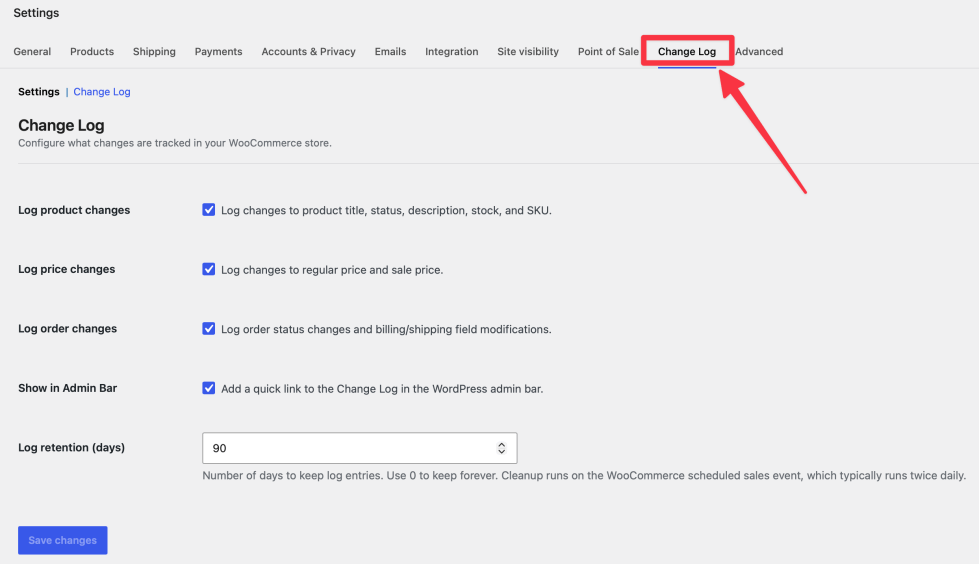
Getting started
↑ Back to topTo set up your store with Change Log:
- Go to: WooCommerce > Settings > Change Log.
- Tick the checkboxes to enable Log product changes, Log price changes, and/or Log order changes, depending on what you want tracked.
- Optionally enable Show in Admin Bar for a quick link to the log from anywhere in wp-admin.
- Set your preferred Log retention (days). Use 0 to keep entries forever.
- Save changes.
Advanced configuration
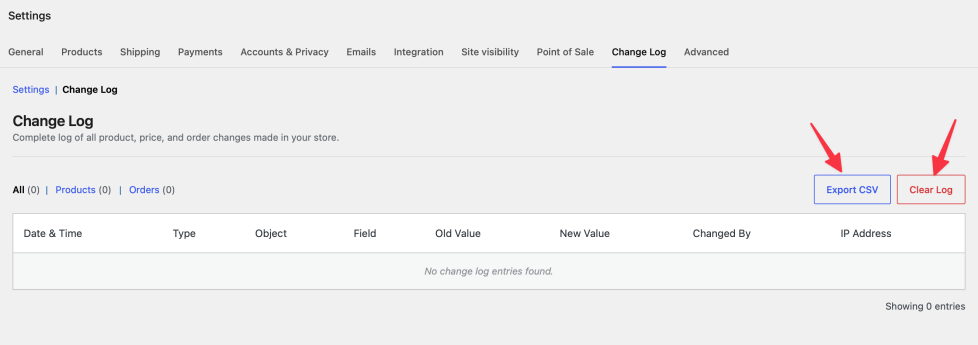
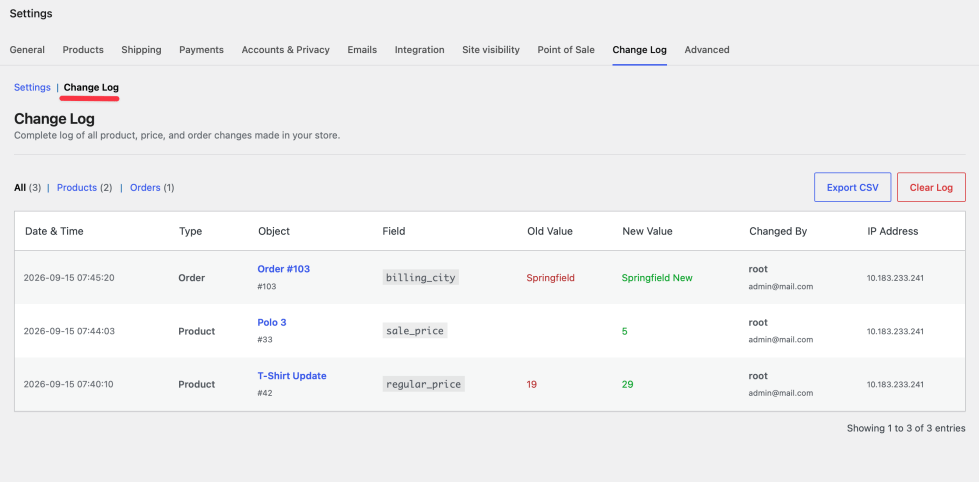
↑ Back to topOnce tracking is enabled, go to WooCommerce > Settings > Change Log and click the Change Log section link to review entries. Use the All / Products / Orders links at the top to filter the table by object type. Each link shows a live count of matching entries. From there you can:
- Export CSV: downloads all entries matching the current filter as a CSV file (UTF-8 with BOM, Excel-compatible).
- Clear Log: permanently deletes all log entries, after a confirmation prompt.
Product changes are captured on WooCommerce’s own product save hooks, so they’re recorded regardless of save path: classic editor, Product Block Editor, REST API, or programmatic WC_Product::save() calls. Order changes are captured on order status transition and order save hooks, and the plugin is fully compatible with High-Performance Order Storage (HPOS).
Usage
↑ Back to topChange Log runs entirely in the WordPress admin area. It doesn’t add anything to your store’s front end or change what customers see. Every time a product or order is saved through wp-admin, the plugin compares the before and after values and creates one log entry per changed field, recording the object, field name, old value, new value, editor’s name, email, user ID, IP address, and timestamp.
Troubleshooting
↑ Back to topChanges are not appearing in the log
↑ Back to top- Go to WooCommerce > Settings > Change Log and confirm the relevant tracking option is enabled.
- Confirm you’re saving changes through the WordPress admin. Programmatic changes and WP-CLI commands aren’t captured.
- Edits made before the plugin was activated won’t appear in the log.
Old entries are not being purged
↑ Back to top- Confirm Log retention (days) is not set to 0. 0 means “keep forever”.
- Retention runs on WooCommerce’s scheduled sales event, which typically runs twice daily. Check it’s active under WooCommerce > Status > Scheduled Actions.
- Make sure WP-Cron isn’t disabled, and that a server-side cron job is configured if it is disabled.
CSV export shows garbled characters
↑ Back to top- The CSV uses UTF-8 with a BOM so spreadsheet apps detect the encoding automatically. In Excel on Windows, use Data > From Text/CSV and select UTF-8 during import instead of double-clicking the file.
FAQs
↑ Back to top
Does this plugin work with HPOS (High-Performance Order Storage)?
Yes. The plugin declares full compatibility with WooCommerce Custom Order Tables, and all order data is accessed using WooCommerce’s order methods, so it works correctly on both legacy and HPOS setups.
Where is the log data stored?
All entries are stored in a custom database table in your WordPress database. No data is sent to external services.
What happens when I uninstall the plugin?
Deleting the plugin permanently removes the log database table and all plugin settings. Deactivating it without deleting keeps your data intact.
Does the plugin log changes made by the store owner (admin)?
Yes. Every user who saves a product or order through wp-admin is logged, regardless of role, including administrators.
Can I search the log by product name, order number, editor, or date?
The screen filters by object type only (Products / Orders). For more specific searches, export to CSV and use your spreadsheet’s filter tools.

