
Klikage Age Verification allows your WooCommerce store to check that customers meet the legal age before they buy age-restricted products. The facial age estimation runs in the customer’s browser, and only an “adult: yes” flag is stored on the customer account.
Requirements
↑ Back to top- WordPress 6.2 or later
- WooCommerce 6.0 or later (the extension requires WooCommerce to be active)
- PHP 7.4 or later
- HTTPS on your store: browsers only allow camera access on secure pages
Installation
↑ Back to topTo start using a product from WooCommerce.com, you can use the “Add to store” functionality on the order confirmation page or the My subscriptions section in your account.
- Navigate to My subscriptions.
- Find the Add to store button next to the product you’re planning to install.
- Follow the instructions on the screen, and the product will be automatically added to your store.
Alternative options and more information at:
Managing WooCommerce.com subscriptions.
Setup and configuration
↑ Back to top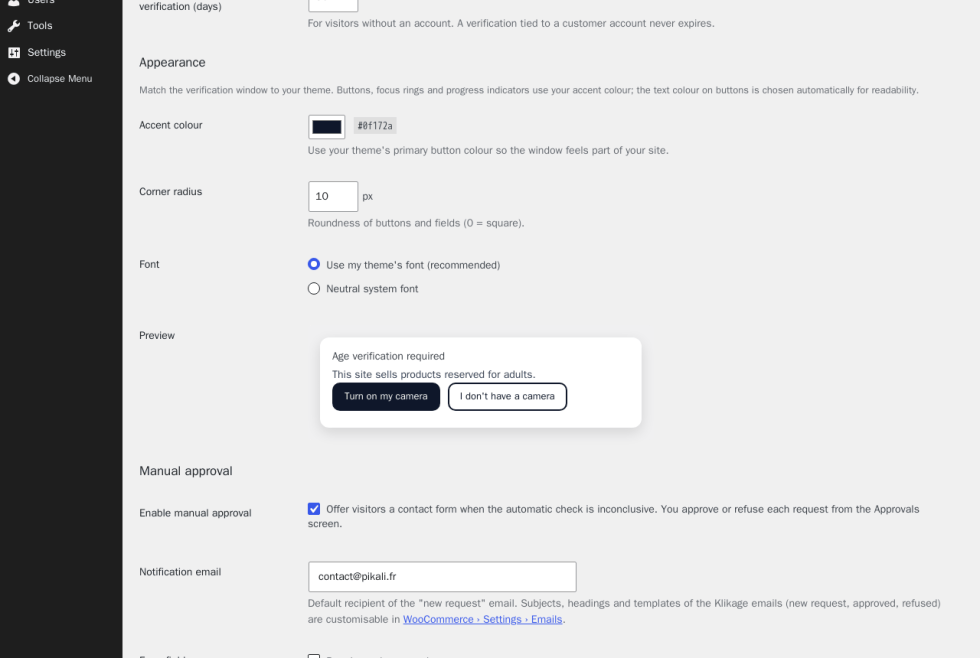
Getting started
↑ Back to topAfter activation, the age check is switched off so that activating the extension never locks your storefront before it is configured. Configure it, then enable it.
- Go to WooCommerce > Age verification.
- Review the settings described below.
- Tick Enable age verification on the storefront and click Save changes.
General
↑ Back to top- Legal age: the age your customers must have reached, for example 18 or 21.
- Safety margin: facial age estimation is approximate, so the margin is added to the legal age to obtain the threshold the automatic check must reach. With a legal age of 18 and a margin of 5, the automatic check passes customers estimated at 23 or older. Customers below the threshold are not rejected: they are offered the phone check and manual approval. The effective threshold is displayed under the field.
- When to verify:
- At account creation or login, and at checkout (recommended): customers browse freely. The check is requested when they create an account or log in, and a server-side safeguard blocks the order if the cart contains an age-restricted product and the customer is not verified. The cart page is never blocked.
- Only at checkout: the check is requested when the customer places the order.
- As soon as the visitor arrives: the check is requested on the first page visited. Use it for stores that are entirely reserved for adults.
- Scope: Whole site, or Only certain product categories. When you select categories, subcategories are included and the checkout is covered as soon as the cart contains one of those products.
- Validity of an anonymous verification: number of days a verification is remembered for a visitor without an account. A verification tied to a customer account never expires.
Appearance
↑ Back to top- Accent color: used for the main buttons, focus rings, and progress indicators. Use your theme’s primary button color.
- Corner radius: roundness of buttons and fields.
- Font: use your theme’s font (recommended) or a neutral system font.
The preview updates as you change these settings.
Manual approval
↑ Back to top- Enable manual approval: offers a contact form when the automatic check is inconclusive.
- Notification email: default recipient of the “new request” email.
- Form fields: require a phone number, and ask for an ID document (JPG, PNG, or PDF). Photos are resized in the customer’s browser before upload, and the maximum size allowed by your server is displayed.
- Privacy notice: shown above the form. Leave it empty to use the default notice, which is translated and worded according to whether you ask for a document.
Usage
↑ Back to topWhat customers see on the storefront:
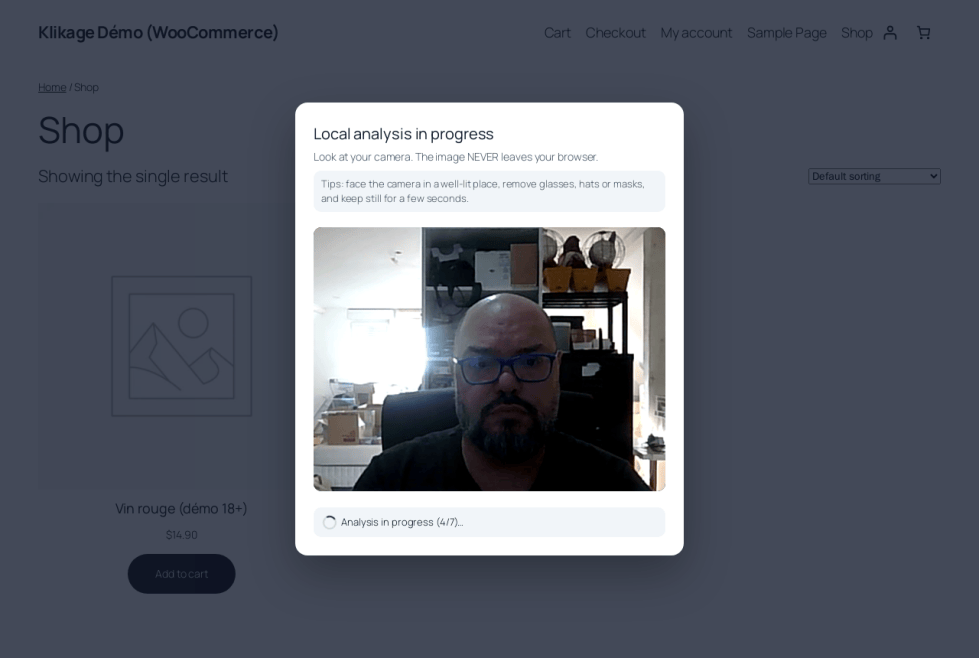
- When the check is requested, a window explains why and confirms that the analysis runs in the browser.
- Turn on my camera starts the automatic check. Seven measurements are taken over a few seconds and the median is compared to your threshold.
- I don’t have a camera shows a QR code. The customer scans it with their phone and finishes the check there. The phone page allows up to three attempts before reporting back to the computer.
- If the check is inconclusive, the customer sees the reason (no face detected, estimate below the threshold, or camera unavailable), gets tips, and can try again or request manual approval.
- After a successful check, the result is saved on the customer account. Visitors without an account can create one so they never have to verify again.
Manual approval requests
↑ Back to topGo to WooCommerce > Age approvals.
- Use the status links (All, Pending, Approved, Refused), the search box (name, email, phone), and the sortable columns to find requests.
- Approve marks the customer as an adult (an account is created if needed), destroys any ID document, and emails the customer.
- Refuse destroys any ID document and emails the customer.
- Use the checkboxes and Bulk actions to approve, refuse, or delete several requests at once.
- Download document is available until the request is processed.
Emails
↑ Back to topGo to WooCommerce > Settings > Emails to manage the three Klikage emails:
- Klikage: new manual approval request, sent to you. You can set additional recipients.
- Klikage: age approved, sent to the customer.
- Klikage: age not confirmed, sent to the customer.
Each email can be enabled or disabled, and you can change the subject, heading, and email type. To customize the layout, copy the template from klikage/templates/emails/ to your-theme/woocommerce/emails/.
The Age verification tab in My Account
↑ Back to topCustomers see an Age verification tab in My Account. It shows whether they are verified, the method and date, and what is stored. Customers can start the verification from this tab and delete their age-verification data at any time. Deleting the data removes the flag and any pending request, and the customer will be asked to verify again before ordering age-restricted products.
Privacy tools
↑ Back to topThe extension registers with the WordPress personal data exporter and eraser (Tools > Export Personal Data and Tools > Erase Personal Data), and adds a suggested paragraph to the privacy policy guide.
Troubleshooting
↑ Back to topThe verification window never appears
↑ Back to top- Check that Enable age verification on the storefront is ticked under WooCommerce > Age verification.
- In the recommended mode, the window appears at account creation or login and at checkout, not on every page. Switch to As soon as the visitor arrives to show it on the first page.
- If you are logged in as a customer who is already verified, the window does not appear. Open the store in a private window to test.
- The window is never shown on the My Account login page, so that customers can always reach the login form.
The camera does not start
↑ Back to top- Camera access requires HTTPS. Check that your store is served over HTTPS.
- Ask the customer to allow camera access in the browser permission prompt, or to use I don’t have a camera to finish on their phone.
The ID document cannot be uploaded
↑ Back to top- The maximum file size is set by your server’s PHP configuration. The limit is shown next to the file field and in the settings. Photos are resized before upload, so the limit mostly matters for PDF files.
- Only JPG, PNG, and PDF files are accepted.
Emails are not sent
↑ Back to topKlikage uses the WooCommerce email system. If other WooCommerce emails are not delivered either, configure an SMTP plugin for your site. Check that the Klikage emails are enabled under WooCommerce > Settings > Emails.
FAQs
↑ Back to top
Is the customer's image sent anywhere?
No. The analysis runs in the browser, on the customer’s device. Your store only receives the result.
Does the extension call an external service?
No. The verification engine and its models are bundled in the plugin and served from your own site, including the phone page. There is no account to create and no fee per check.
How accurate is facial age estimation?
It is an AI-based estimate, not a guarantee. Accuracy varies with lighting, camera quality, eyewear, and from one scan to the next, and it may not satisfy formal ID-verification requirements in every jurisdiction. Set a safety margin above the legal age and keep manual approval enabled to match your legal obligations.
What happens when a customer fails the automatic check?
Nobody is blocked without an alternative. The customer is told why, can try again, can switch to the phone check, or can request manual approval.
Does it work with the block-based checkout?
Yes. The window opens on the checkout page, and the server-side safeguard covers both the classic and the block-based checkout.
Can I translate the texts?
The extension ships in English, French, Spanish, German, Italian, Portuguese, and Dutch, and follows your site language. Any string can be changed with a translation plugin using the klikage text domain.

