
Sales by State Report Pro for WooCommerce allows your WooCommerce store to see revenue, tax, shipping and refunds for every state or province, by tax quarter, US IRS estimated-tax period or month. You can export any view to CSV, Excel or PDF, and get an alert when a state gets close to a sales amount you set.
Installation
↑ Back to topTo start using a product from WooCommerce.com, you can use the “Add to store” functionality on the order confirmation page or the My subscriptions section in your account.
- Navigate to My subscriptions.
- Find the Add to store button next to the product you’re planning to install.
- Follow the instructions on the screen, and the product will be automatically added to your store.
Alternative options and more information at:
Managing WooCommerce.com subscriptions.

Setup and Configuration
↑ Back to top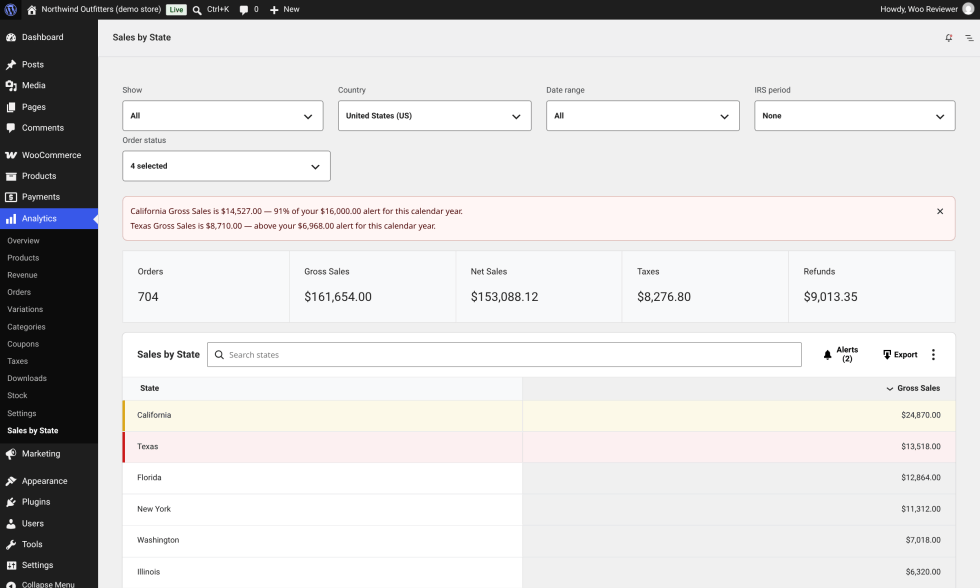
Getting started
↑ Back to topThere is no settings screen to fill in. To set up your store with Sales by State Report Pro:
- Install and activate the plugin. It needs WooCommerce 9.0 or later.
- Right after activation, the plugin records your existing orders in the background. The report shows its progress until this is done, and larger stores may take a few minutes.
- Go to: Analytics > Sales by State. If WooCommerce Analytics is switched off, go to WooCommerce > Sales by State instead. The Plugins screen also has a View Report link next to Deactivate.
- Pick the country you want to report on, and a date range.
If the free Sales by State Report for WooCommerce plugin is active, Pro switches it off, because Pro includes everything it does. The free plugin’s data and settings are left in place.
Advanced configuration
↑ Back to topFilters
- Show: All opens on Gross Sales, Tax only opens on the tax columns.
- Country: any country where WooCommerce has states or provinces.
- Date range: the same date picker as the other Analytics reports, including custom ranges.
- IRS period: the US estimated-tax windows (Jan to Mar, Apr to May, Jun to Aug, Sep to Dec). United States only.
- Order status: choose which order statuses count towards the totals.
Every filter is saved in the address bar, so you can bookmark a view or send the link to your accountant.
Quarters, months and IRS periods side by side
Show quarters, months or IRS periods as columns next to each other, with every measure or only the periods you pick. This is the view most sales tax filings need.
Columns, search and sorting
The table covers orders, gross sales, net sales, total sales, taxes, shipping, discounts, refunds, items sold and average order value. Use the column menu to choose which ones to show, search for a state in the table header, and sort by any column.
Exports
Click Export to save the full report or the current page as CSV, XLSX or PDF, as a download or by email. Exports run in the background, so you can keep working, and finished files are kept for 30 days.
Alerts
- Click Alerts in the table header.
- Choose a state, a Gross Sales amount and a time window: calendar year, IRS period, quarter or month.
- Save the alert. You can edit, pause or delete it at any time.
When a state reaches 80% of the amount the report shows a yellow banner and colours the matching rows. At 100% they turn red. An email is sent once at each step. To change who receives it, go to WooCommerce > Settings > Emails > Sales by State threshold alert. It goes to the site admin email by default.
Which address and date are used
Orders are grouped by their shipping address. The order date follows the Date type setting in Analytics > Settings, the same as the other Analytics reports, so the two agree for the same range.
Usage
↑ Back to topSales by State Report Pro only works in the admin. Customers see no change on the front end.
In the admin, open the report, pick a country and a date range, and read the summary cards (orders, gross sales, net sales, taxes, refunds) and the table of states below them.
Troubleshooting
↑ Back to topThe figures look incomplete
↑ Back to topAfter activation or an update, existing orders are recorded in the background, and the totals are incomplete until that finishes. To speed it up, go to WooCommerce > Status > Tools and run Sales by State Pro: build report table until nothing remains.
The figures or states look wrong
↑ Back to topGo to WooCommerce > Status > Tools and run Sales by State Pro: rebuild from scratch. It empties the report table and records every order again. Your orders are not changed.
Some orders are missing
↑ Back to topCheck the Order status filter first. Orders without a state in their address can’t be placed in a state, so they never appear. Run Sales by State Pro: data check under WooCommerce > Status > Tools to see how many orders are recorded, how many have no state, and which countries are present. It changes nothing.
My store sells in more than one currency
↑ Back to topTotals are not converted between currencies. The data check tool tells you which currencies are present, so you know when figures need converting before you add them together.
I see two “Sales by State” menu items
↑ Back to topThe older Business Bloomer WooCommerce Sales By State plugin is still active. It shows a different report with the same name. Deactivate and delete it from the Plugins screen. Pro shows a notice about this until you do.
FAQs
↑ Back to top
Do I need the free Sales by State plugin?
No. Pro works on its own and includes everything the free plugin does. If the free plugin is active, Pro switches it off and leaves its data in place.
Does it work with WooCommerce Analytics switched off?
Yes. Pro records every order and refund in its own table as it is saved, so the report is complete either way. With Analytics off, the report is under WooCommerce, Sales by State.
Will the figures match WooCommerce Analytics?
Yes. Pro works out sales, tax, shipping, discounts and refunds with the same definitions as WooCommerce Analytics, so for the same date range and order statuses the totals agree.
Which countries are supported?
Any country where WooCommerce has states or provinces, for example the United States, Canada, Australia, India or Italy. The IRS period filter is only available for the United States.
Does it work with HPOS?
Yes. It works with both High-Performance Order Storage and the older post-based order storage.
What data does it store?
One database table. For each order it holds the order ID, status, dates, currency, the billing and shipping country, state, city and postcode, and the order’s sales, tax, shipping and refund figures. It stores no names, email addresses or street addresses, and sends nothing to external services. Deleting the plugin removes the table and its settings.

