
Setting up automated WooCommerce WhatsApp Notifications is the single most impactful communication upgrade an e-commerce store can make to increase open rates, reduce customer support inquiries, and boost repeat sales.
With over two billion active users globally, WhatsApp offers open rates exceeding 98%—vastly outperforming traditional transactional emails and SMS.
When customers purchase from your store, they expect immediate confirmation and transparent shipping progress.
While email order receipts frequently land in spam folders or sit unread under promotional tabs, a direct WhatsApp message arrives instantly on the shopper’s lock screen.
Store managers can also route real-time order alerts straight to administrative WhatsApp accounts to ensure lightning-fast fulfillment.
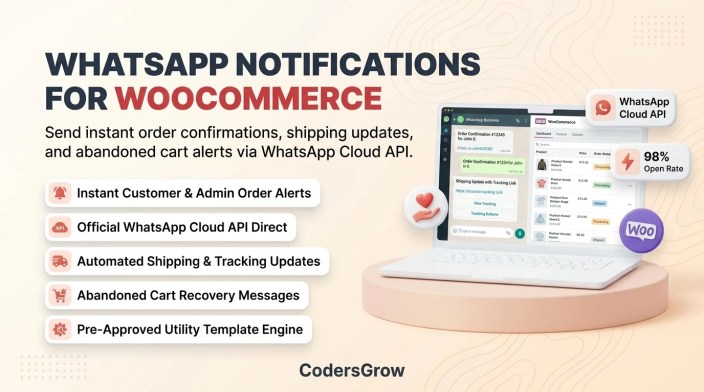
Figure 1: Sending automated WooCommerce WhatsApp notifications for instant order receipts, shipping tracking, and abandoned carts.
Why WooCommerce WhatsApp Notifications Drive 98% Open Rates
↑ Back to topTraditional e-commerce communication is undergoing a seismic shift away from cluttered inboxes toward conversational messaging. Analyzing performance metrics reveals clear reasons why merchants are rapidly adopting WhatsApp:
- Unrivaled Engagement & Open Rates: Industry benchmarks indicate WhatsApp messages achieve average open rates of 98% and click-through rates (CTR) upwards of 45-60%, compared to just 15-20% for standard e-commerce emails.
- Official Meta Cloud API Reliability: Using the official Meta WhatsApp Business Cloud API eliminates third-party gateway markups, monthly subscription penalties, and unreliable mobile SIM gateways.
- Two-Way Conversational Support: Shoppers can reply directly to order confirmation alerts with address corrections or shipping queries, allowing support teams to build authentic customer relationships without messy support tickets.
- Rich Media & Interactive Quick-Reply Buttons: WhatsApp templates support rich media headers, clickable tracking links, CTA phone calls, and interactive quick-reply buttons that make order confirmation effortless for the consumer.
Essential Store Events to Automate via WhatsApp
↑ Back to topTo deliver a world-class post-purchase journey, your WooCommerce store should trigger notifications across key customer milestones:
- Immediate Order Confirmation: Reassure shoppers with an itemized breakdown, order ID, payment confirmation, and estimated dispatch window immediately following checkout.
- Dispatch & Shipping Tracking Alerts: Broadcast automatic tracking numbers and carrier tracking links the instant an order status transitions to Completed.
- Abandoned Cart Recovery: Send automated, polite reminder pings with dynamic checkout links to shoppers who leave items behind in their shopping cart.
- Admin & Warehouse Alerts: Notify warehouse managers and dispatch staff whenever high-priority orders, custom customer notes, or bulk purchases are recorded.
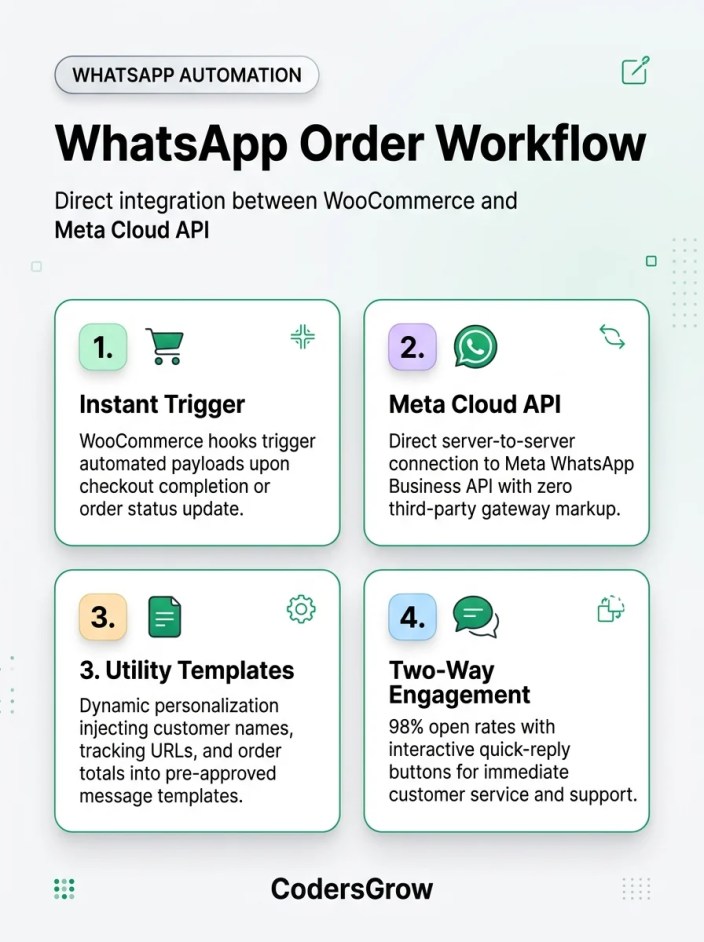
Figure 2: Architectural flow of WooCommerce WhatsApp notifications connecting checkout hooks with Meta Cloud API endpoints.
Step-by-Step Setup: WooCommerce WhatsApp Notifications with NotifyStore
↑ Back to topConnecting WooCommerce directly to Meta’s infrastructure used to require complex middleware and costly third-party aggregators. Using NotifyStore – Smart Store Alerts for WooCommerce, you can connect your store directly to the official Meta WhatsApp Cloud API in minutes. You can also explore our companion guide on how to send WooCommerce order notifications to Telegram for multi-channel operational redundancy.
Step 1: Set Up Your Meta Developer Account & WhatsApp Business App
↑ Back to topMeta provides direct API access through its developer console:
- Visit
developers.facebook.comand create or log into your developer account. - Create a new App, selecting Business as the app type.
- Under the App Dashboard, locate WhatsApp and click Set Up.
- Meta will provision a temporary access token and a test phone number ID. For production stores, register your official business phone number and complete Meta Business Verification.
Step 2: Obtain API Credentials & Phone Number ID
↑ Back to topIn your Meta App Dashboard under WhatsApp → API Setup, copy the following values:
- Phone Number ID (a unique numeric identifier for your sending number).
- WhatsApp Business Account ID (WABA ID).
- Permanent Access Token (generated via Meta Business Manager under System Users with
whatsapp_business_messagingpermissions).
Step 3: Create Utility Message Templates in Meta
↑ Back to topTo send outbound notifications outside the standard 24-hour service window, Meta requires pre-approved message templates categorized as Utility:
- Navigate to the WhatsApp Message Templates manager in Meta Business Manager.
- Create a new template named
order_confirmationunder the Utility category. - Define your message body with dynamic variables:
Hi {{1}}, thank you for your order #{{2}}! We have received your payment of {{3}} and are preparing your package. Track your order here: {{4}} - Submit the template for review. Meta typically approves Utility templates automatically within 2 to 15 minutes.
Step 4: Configure NotifyStore WhatsApp Gateway
↑ Back to topIn your WordPress dashboard, navigate to NotifyStore → Settings → WhatsApp:
- Select WhatsApp Cloud API as the provider.
- Enter your Phone Number ID, WABA ID, and Permanent Access Token.
- Map your WooCommerce order fields to your approved Meta template variables (e.g., Variable 1 → Customer First Name, Variable 2 → Order ID, Variable 3 → Order Total).
- Send a test message to your mobile number to verify immediate API handshake and message delivery.
Best Practices for WhatsApp Order Communication
↑ Back to topMaintaining high customer trust and high delivery quality scores on the WhatsApp network requires adherence to Meta’s commercial policies:
- Collect Clear Customer Opt-In: Ensure your checkout page includes a clear opt-in checkbox (e.g., “Send me order status updates and shipping notifications via WhatsApp”).
- Use Utility Templates for Operational Messages: Always categorize order confirmations, shipping alerts, and stock updates as Utility messages rather than Marketing messages to minimize Meta messaging fees and prevent spam reports.
- Format Phone Numbers with International Country Codes: NotifyStore automatically parses billing phone numbers into standard E.164 international format (e.g.,
+14155552671), preventing failed delivery from missing country prefixes. - Maintain Reliable Error Logging: Regularly monitor notification logs in your store dashboard to catch invalid phone numbers or template variable mismatches before they disrupt customer communications. For technical specs, consult the official NotifyStore Documentation.
Frequently Asked Questions
↑ Back to topAre WooCommerce WhatsApp notifications expensive?
↑ Back to topMeta provides every WhatsApp Business Account with 1,000 free Service (user-initiated) conversations each month. Outbound Utility messages (such as order confirmations and shipping receipts) cost only a fraction of a cent per conversation with zero third-party gateway markups when using NotifyStore’s direct Cloud API integration.
Can I send WhatsApp alerts to both customers and store administrators?
↑ Back to topYes. NotifyStore allows dual-channel routing: customers receive branded order receipts and tracking links, while administrators and warehouse managers receive detailed operational summaries including SKU breakdowns and internal customer notes.
Do I need to keep a mobile phone turned on with WhatsApp Web?
↑ Back to topNo. By connecting directly to the official Meta WhatsApp Cloud API, all messages are delivered server-to-server directly from WooCommerce. You do not need an active smartphone, Android emulator, or third-party web scraper.
What happens if a customer replies to an order alert?
↑ Back to topBecause notifications are sent from your registered WhatsApp Business number, customer replies appear in your WhatsApp Business app or CRM inbox, enabling immediate, high-touch support conversations.
Transform Your Post-Purchase Experience
↑ Back to topImplementing automated WooCommerce WhatsApp Notifications bridges the gap between order placement and fulfillment.
By providing transparent, instantaneous mobile updates, you decrease buyer anxiety, eliminate “Where Is My Order?” support tickets, and cultivate lasting brand loyalty.

