
SEO Product Filter for WooCommerce adds a product filter to your shop, category, tag, brand, attribute, and search pages. Shoppers can narrow products by attributes, categories, tags, brands, custom taxonomies, price, stock status, sale status, and rating, and the products can update without a page reload.
The extension can also turn filtered category pages into landing pages for search engines. It builds clean URLs such as /product-category/t-shirts/attribute-color-blue/, lets you give any combination of attribute and brand values in a category its own H1, page title, meta description, and description, creates those rules in bulk, sets default texts for filtered pages without a rule, controls which filter pages search engines index, and adds the landing pages to the XML sitemaps of Yoast SEO, Rank Math, and All in One SEO.
Requirements
↑ Back to top- WordPress 4.8 or later. Tested up to WordPress 7.1.
- WooCommerce 3.6.0 or later. Tested up to WooCommerce 11.1.2.
- PHP 5.6 or later.
- For clean filter URLs and SEO rules: WordPress permalinks set to any structure other than Plain, under Settings > Permalinks.
- Optional: Yoast SEO, Rank Math, or All in One SEO, to add SEO rule pages to an XML sitemap.
Compatibility:
- High-Performance Order Storage (HPOS): the extension declares compatibility.
- Cart and Checkout blocks: the extension doesn’t add anything to the cart or checkout.
You need the manage_options capability (Administrators have it) to open the extension’s settings.
Installation
↑ Back to topTo start using a product from WooCommerce.com, you can use the “Add to store” functionality on the order confirmation page or the My subscriptions section in your account.
- Navigate to My subscriptions.
- Find the Add to store button next to the product you’re planning to install.
- Follow the instructions on the screen, and the product will be automatically added to your store.
Alternative options and more information at:
Managing WooCommerce.com subscriptions.

Getting started
↑ Back to topThese steps add a working filter with two attributes to your shop and category pages. The screens are all under WooCommerce > SEO Product Filter.
- Go to WooCommerce > SEO Product Filter > Attributes. Every WooCommerce product attribute is listed and hidden by default. Click the eye icon in the Visibility column for each attribute you want to show, such as Color and Size.
- In the Field type column, choose how each attribute is shown, for example Label for Size and Color for Color. Each change saves straight away and the page reloads.
- Go to the Settings tab. Under “Show filter on pages”, check the pages the filter should appear on (shop, category, tag, brand, search, and attribute pages are on after activation), and under “AJAX” check “Use ajax” if you want products to update without a page reload. Click Save Changes.
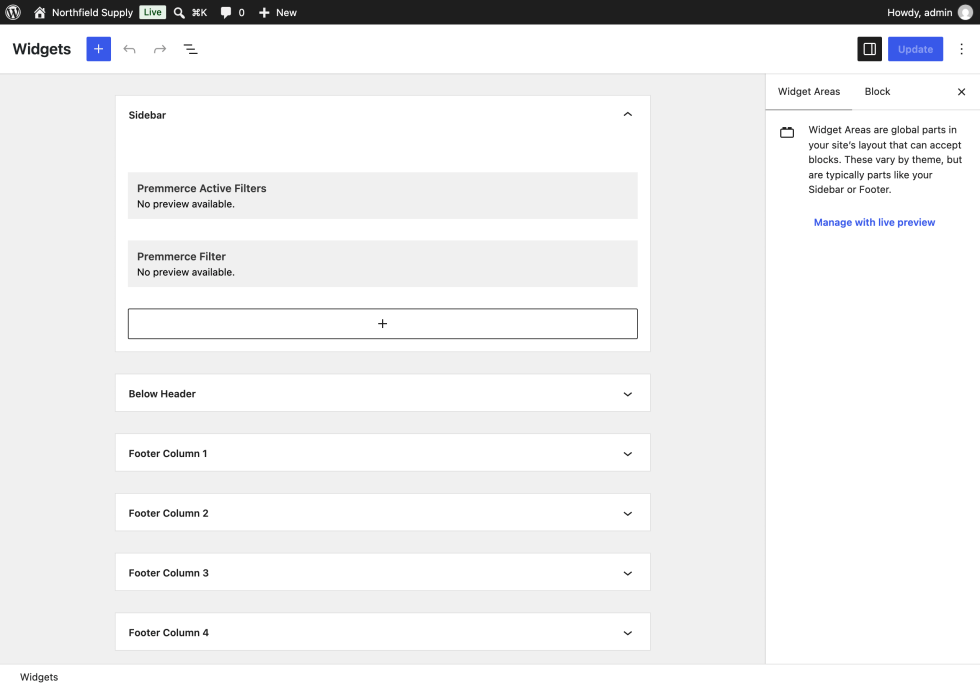
- Go to Appearance > Widgets and add the Premmerce Filter and Premmerce Active Filters widgets to the sidebar your shop pages use. If your theme has no widget areas, use the Premmerce Product Filter block or the [premmerce_filter] shortcode instead (see “Placing the filter”).
- Visit your shop page, tick a value, and check that the products and the active filters update.
The price filter is on after activation, so it shows as well when your products have more than one price.
In the screenshot below, a shopper has picked Blue and size L on the shop page. With “Use permalinks” on, the address is /shop/attribute-color-blue/attribute-size-large/, and the active filters list both choices with a “Reset filter” link.

To create your first SEO landing page, turn on “Use permalinks” on the Permalinks tab, then add a rule on the SEO Rules tab. See “SEO features”.
The settings screen
↑ Back to topWooCommerce > SEO Product Filter has these tabs, in this order. With categories and brands added under “Use taxonomies”, they are Attributes, Categories, Brands, Settings, Permalinks, SEO Rules, SEO Settings, and Cache.
| Tab | What it’s for |
|---|---|
| Attributes | Which filters show, their field type, display style, and order |
| One tab per taxonomy you add under Settings > Use taxonomies, such as Categories, Tags, or Brands | Which terms of that taxonomy show, and their order |
| Settings | Filter behavior, the pages it shows on, taxonomies, AJAX, custom CSS, and shortcode help |
| Permalinks | Clean filter URLs, the noindex option for filter pages, and URL prefixes |
| SEO Rules | Landing page rules for filtered category pages |
| SEO Settings | Default texts for filtered category pages that don’t have a rule |
| Cache | Clears the filter’s cached data |
Filter types
↑ Back to topSet a filter’s type in the Field type column of the Attributes tab. The same types are available for attributes and for any taxonomy you add.
Checkbox
↑ Back to topA list of values with a checkbox and a product count for each. Shoppers can tick several values, and products that match any of them are shown. This is the default type.
Radio
↑ Back to topA list of values where shoppers can pick one at a time, with a product count for each.
Select
↑ Back to topA dropdown with an “Any (filter name)” option first, then each value with its product count. Shoppers pick one value.
Label
↑ Back to topEach value shows as a button with its name. Shoppers can select several.
Color
↑ Back to topEach value shows as a color swatch, with its name as a tooltip. Shoppers can select several.
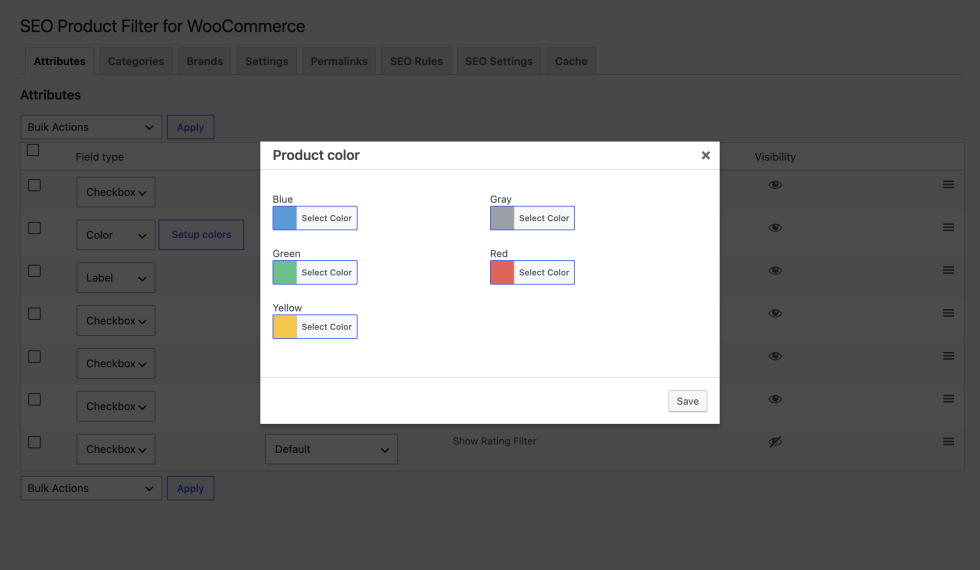
To set the colors, choose Color as the field type, then click Setup colors in that row. Pick a color for each term in the dialog and click Save. A term without a color shows as purple (#96588a).
Image
↑ Back to topEach value shows as a thumbnail image, with its name as a tooltip. Shoppers can select several.
To set the images, choose Image as the field type, then click Setup images in that row. Choose an image for each term from the Media Library and click Save.
Slider
↑ Back to topA range slider with min and max fields, for attributes whose values are numbers, such as screen sizes of 13, 15, and 17. The slider runs from the lowest to the highest value that has products, and shoppers drag the handles or type a number. The term slugs must be numbers for the slider to read them.
Price filter
↑ Back to topA range slider with min and max fields, from the lowest to the highest product price in the current page’s products. It always shows first in the filter. Turn it on or off with “Show price filter” on the Settings tab. It’s hidden when every product on the page has the same price.
Stock, on sale, and rating filters
↑ Back to topThese filters are turned on from the Settings tab, under “Behavior”:
- Show “In stock” adds a Stock filter with In stock, Out of stock, and On Back Order values (the ones that have products), each with its product count.
- Show “On sale” adds an On Sale filter. It includes grouped products when one of their child products is on sale.
- Show rating filter adds a Rating filter with one value for each star rating from 5 to 1 that has products.
After you turn one on, it appears as a row on the Attributes tab (for example “Show In Stock”). Set it to Display there. These rows can use the Checkbox, Radio, Select, or Label types.
Category, tag, brand, and custom taxonomy filters
↑ Back to topTo filter by a taxonomy:
- On the Settings tab, under “Taxonomies”, add it to “Use taxonomies” and click Save Changes. Every public product taxonomy is listed, such as categories, tags, brands, and taxonomies added by other plugins. Product attributes aren’t listed here because they’re on the Attributes tab already.
- A new tab for that taxonomy appears, such as Categories. Set the terms you want to Display. Terms are hidden until you do this.
- On the Attributes tab, set the taxonomy’s row to Display and pick its field type.
How filters combine
↑ Back to top- Values within one filter are combined with OR. Ticking Blue and Red shows products that are blue or red.
- Different filters are combined with AND. Ticking Blue and size L shows products that are blue and size L.
- Product counts follow the current page and the other filters the shopper has chosen.
Attributes tab
↑ Back to top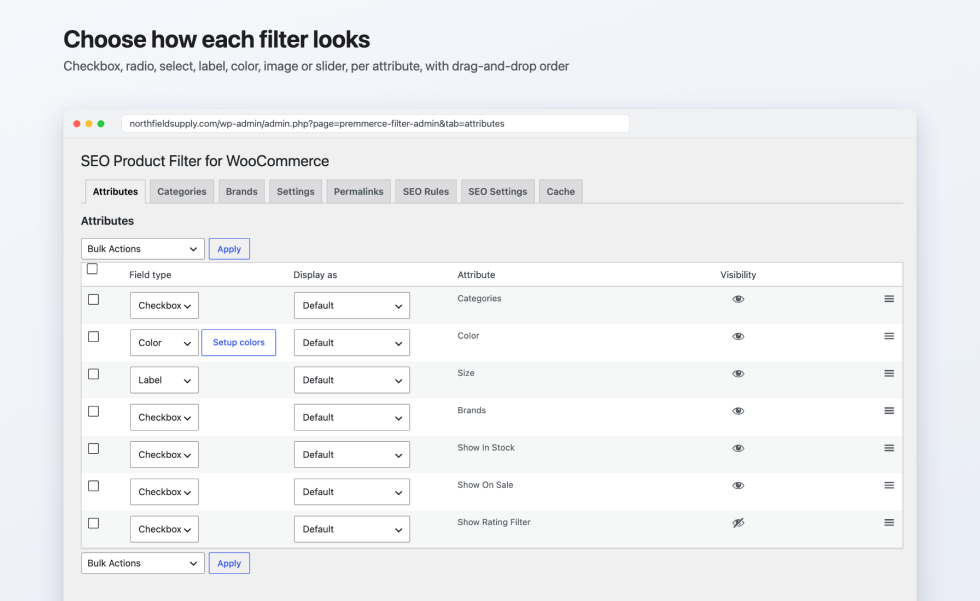
Each row is one filter: a product attribute, a taxonomy you’ve added under “Use taxonomies”, or the Stock, On sale, or Rating filter once it’s turned on. Changes save as soon as you make them.
| Column | What it does |
|---|---|
| Field type | Checkbox, Radio, Select, Color, Image, Slider, or Label. See “Filter types”. For Color and Image, a Setup colors or Setup images button appears in the row. |
| Display as | How the filter’s list is shown. See below. |
| Attribute | The attribute or taxonomy name. |
| Visibility | Click the eye icon to show or hide the filter. |
| Drag handle | Drag the row to change the order filters appear in. |
Display as options:
| Option | What shoppers see |
|---|---|
| Default | The full list, always open. |
| Dropdown | The filter’s title with a plus icon. The list opens and closes on click, and starts open when a value in it is selected. |
| Scroll | The full list in a fixed-height box that scrolls. |
| Scroll + Dropdown | A dropdown whose list scrolls. |
| Hoverable Dropdown | The list opens when the pointer is over the filter, unless a value in it is already selected. |
To change many rows at once, tick them, choose an option from Bulk Actions (Visibility, Field type, or Display as), and click Apply.
The tab shows 100 filters per page. Change this under Screen Options at the top of the screen (“Number of filters per page”). To move a row to another page, drag it onto “Move to previous page” or “Move to next page”.
The order of an attribute’s values follows its “Default sort order” in WooCommerce. To change it, go to Products > Attributes and click Configure terms.
Taxonomy tabs
↑ Back to topEach taxonomy you add under Settings > Use taxonomies gets its own tab, named after the taxonomy (for example Categories, Tags, or Brands).
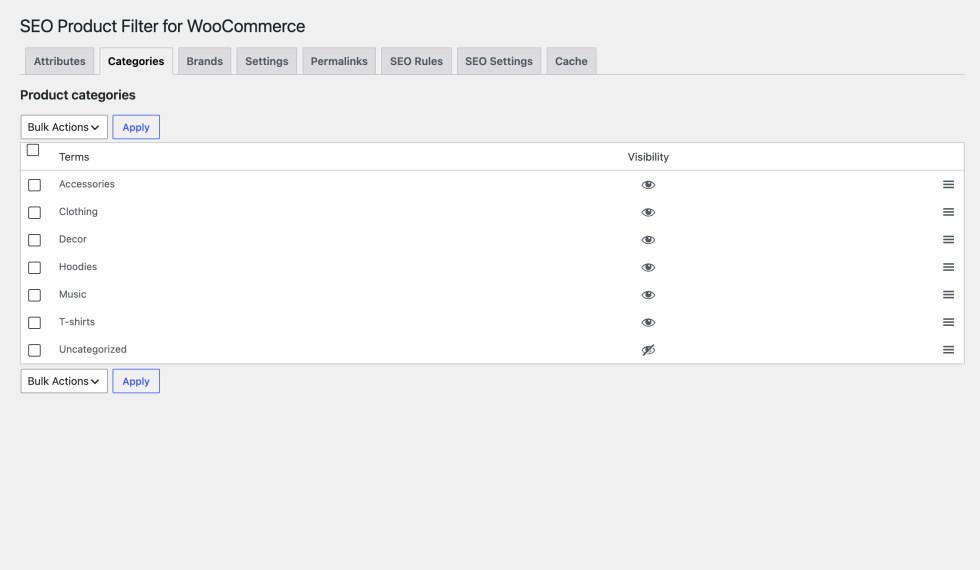
- Click the eye icon to show or hide a term in the filter. Every term starts hidden.
- Drag terms to set their order in the filter. With “Enable category hierarchy” on, child categories follow this order too.
- Use Bulk Actions to display or hide several terms at once.
Settings tab
↑ Back to top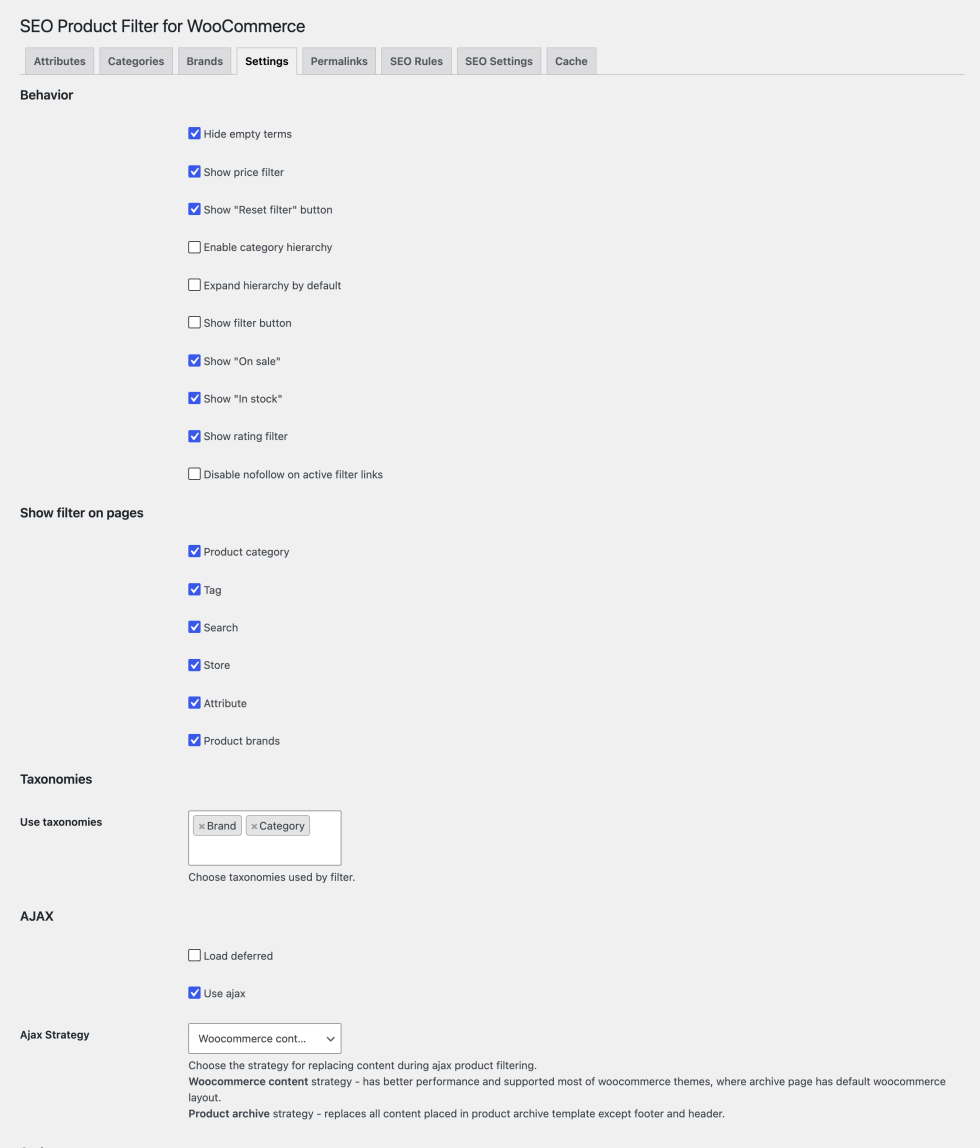
Click Save Changes at the bottom of the tab after changing any of these options.
Behavior
↑ Back to top| Option | What it does |
|---|---|
| Hide empty terms | Hides values that have no products on the current page. With it off, those values show grayed out with a count of 0 and can’t be clicked. On after activation. |
| Show price filter | Shows the price slider. On after activation. |
| Show “Reset filter” button | Adds a “Reset filter” link to the active filters list, which clears every filter. |
| Enable category hierarchy | Shows top-level categories in the category filter, with a plus button to open their child categories. A parent category’s count includes products in every subcategory level. |
| Expand hierarchy by default | Shows child categories open instead of collapsed. |
| Show filter button | Adds a Filter button. Shoppers can tick several values, and the filter’s own options and counts update as they go, but the products only change when they click Filter. |
| Show “On sale” | Adds the On Sale filter to the Attributes tab. |
| Show “In stock” | Adds the Stock filter to the Attributes tab. |
| Show rating filter | Adds the Rating filter to the Attributes tab. |
| Disable nofollow on active filter links | Active filter links and the “Reset filter” link have rel=”nofollow” by default. Check this to remove it. |
Show filter on pages
↑ Back to topCheck each type of page the filter, the active filters, and their shortcodes and block should appear on. The filter shows nowhere else.
| Option | Pages |
|---|---|
| Product category | Product category archives |
| Tag | Product tag archives |
| Search | Product search results |
| Store | The shop page, including when it’s set as your home page |
| Attribute | Attribute archives, for attributes with “Enable archives” turned on in WooCommerce |
| Brands (and other brand taxonomies) | Brand archives. One checkbox appears for each brand taxonomy on your site, such as WooCommerce Brands or YITH WooCommerce Brands. |
Taxonomies
↑ Back to top| Option | What it does |
|---|---|
| Use taxonomies | The taxonomies you can filter by, such as Product categories, Product tags, and Brands. Each one you add gets its own tab and a row on the Attributes tab. |
AJAX
↑ Back to top| Option | What it does |
|---|---|
| Load deferred | Loads the filter after the page has loaded, with a loading animation, so the filter’s counts don’t slow the first page load. |
| Use ajax | Updates the products, the filter, the active filters, the page heading, the category description, and the browser’s address bar without reloading the page. With an SEO rule, the rule’s H1, title, and description update too. |
| Ajax Strategy | How the page content is replaced during AJAX filtering. Woocommerce content (the default) replaces only WooCommerce’s product area and suits most themes with the standard WooCommerce shop layout. Product archive replaces everything in the product archive template except the header and footer. This option isn’t shown when your theme has its own built-in strategy. |
Styles
↑ Back to top| Option | What it does |
|---|---|
| Custom css | CSS added to every page the filter shows on. |
Shortcodes
↑ Back to topLists the two shortcodes. Click Shortcodes instruction to see every attribute of [premmerce_filter] with an example. See “Placing the filter” for the same list.
Placing the filter
↑ Back to topThe filter and the active filters only render on the pages checked under “Show filter on pages”. Anywhere else, the widget, block, and shortcodes output nothing.
Add the classic widgets
↑ Back to topGo to Appearance > Widgets and add these widgets to the sidebar your shop pages use:
- Premmerce Filter: the filter. Settings: Title and Style (Default, Premmerce, or Custom). Premmerce adds a border around each filter and shows filter titles in bold capitals.
- Premmerce Active Filters: the values the shopper has chosen, each with an x to remove it, and the “Reset filter” link if it’s turned on. Setting: Title. It shows nothing until a filter is chosen.
To set your own colors, font sizes, and checkbox style, use the block or the shortcode.
Add the block
↑ Back to topAdd the Premmerce Product Filter block, found in the Widgets category of the block inserter, to a widget area or to a block theme’s shop and category templates in the Site Editor.
When you insert it, choose a filter style (Default, Premmerce, or Custom) and click Done. With Custom, set the options listed under “Style attributes” below. To change the style later, click the pencil icon in the block toolbar.
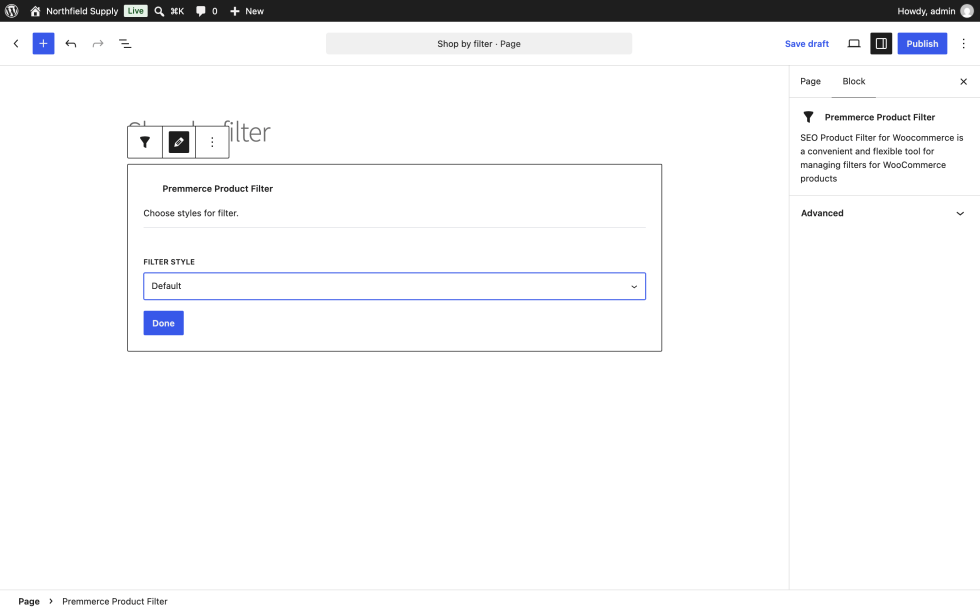
There’s no block for the active filters. Use the Premmerce Active Filters widget or the [premmerce_active_filters] shortcode.
Add a shortcode
↑ Back to top- [premmerce_filter] shows the filter.
- [premmerce_active_filters] shows the active filters, and the “Reset filter” link if it’s turned on. It takes no attributes, and it updates when the filters change with AJAX on.
Example with the most common attributes:
[premmerce_filter style="custom" bg_color="#fff" add_border="on" border_color="#000" bold_title="on"][premmerce_filter] uses the Custom style when you don’t give a style attribute.
Style attributes
↑ Back to topThese are the [premmerce_filter] shortcode attributes, and the block’s Custom style options. Every attribute except style only applies with style=”custom”.
| Attribute | What it sets | Example |
|---|---|---|
| style | default, premmerce, or custom | custom |
| bg_color | Filter background color | #fff |
| add_border | Border around each filter. Use on to turn it on. | on |
| border_color | Border color | #000 |
| bold_title | Bold filter titles. Use on to turn it on. | on |
| title_appearance | uppercase or default | uppercase |
| price_input_bg | Background of the price min and max fields | #fff |
| price_input_text | Text color of the price min and max fields | #000 |
| price_slider_range | Color of the price slider’s selected range | #000 |
| price_slider_handle | Color of the price slider’s handles | #000 |
| checkbox_appearance | The mark in a ticked checkbox: 0 (a filled box), 2713 (a check mark), or 2715 (an x) | 0 |
| title_size | Filter title font size, in pixels | 14 |
| title_color | Filter title color | #000 |
| terms_title_size | Value name font size, in pixels | 14 |
| terms_title_color | Value name color | #000 |
| checkbox_color | Checkbox and radio color | #000 |
| checkbox_border_color | Checkbox and radio border color | #000 |
SEO features
↑ Back to topThe SEO features need “Use permalinks” turned on, on the Permalinks tab. Until it is, the SEO Rules tab shows a notice with a link to turn it on.
How filter URLs are built
↑ Back to topWith “Use permalinks” off, filter links use WooCommerce’s query string format:
/product-category/t-shirts/?filter_color=blue,red&query_type_color=orWith it on, each filter becomes a part of the path:
/product-category/t-shirts/attribute-color-blue-or-red/
/product-category/t-shirts/attribute-color-blue/
/shop/attribute-color-blue/attribute-size-large/
Each value in the path is the term’s slug, so size L, whose slug is large, appears as attribute-size-large.
- Each filter’s part is its prefix, then its name and a hyphen, then its values. The default prefix is attribute-.
- Several values in one filter are joined with the value separator, -or- by default.
- Values and filters are put in alphabetical order, so each combination has one URL. A URL with its parts in another order, or with a value that doesn’t exist, isn’t treated as a filter page.
- The price, stock, on sale, rating, and slider filters stay as query string parameters, such as ?min_price=10&max_price=50.
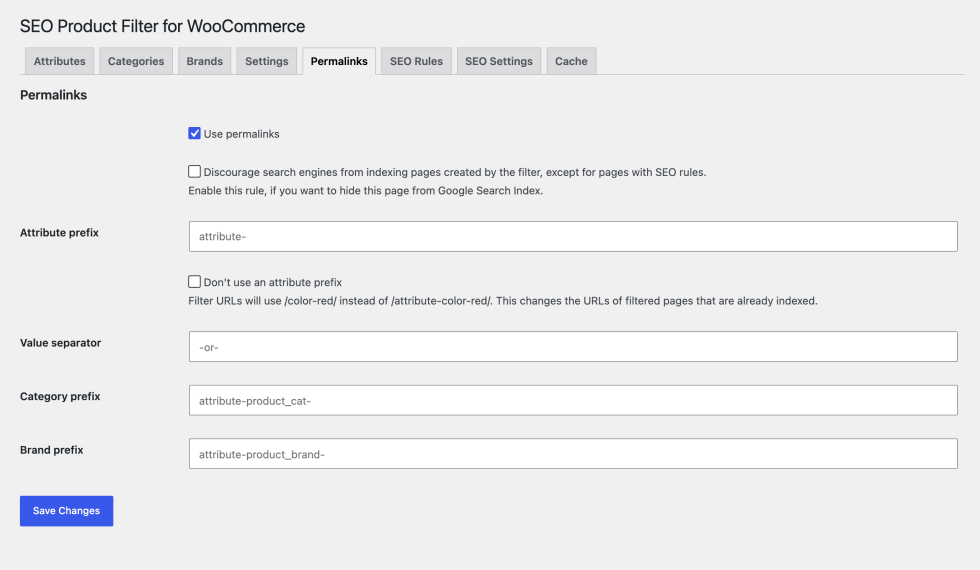
Permalinks tab options:
| Option | What it does |
|---|---|
| Use permalinks | Turns on clean filter URLs and the SEO features. |
| Discourage search engines from indexing pages created by the filter, except for pages with SEO rules. | Adds noindex, nofollow to every filtered page that doesn’t have an SEO rule. |
| Attribute prefix | The prefix before each filter’s name. Default: attribute-. |
| Don’t use an attribute prefix | Builds URLs such as /color-red/ instead of /attribute-color-red/. This changes the URLs of filter pages that may already be indexed, so old prefixed URLs are redirected to the new ones with a 301 redirect. |
| Value separator | The text between values of one filter. Default: -or-. |
| (Taxonomy) prefix | One field for each taxonomy under “Use taxonomies”, such as “Category prefix”. Replaces the attribute prefix and name for that taxonomy, so you can use category- instead of attribute-product_cat-. |
Prefixes and the separator are saved as lowercase slugs, and each prefix must be unique.
If you change a prefix or the separator after creating SEO rules, go to the SEO Rules tab and click Update paths so the rules match the new URLs.
Add an SEO rule
↑ Back to topAn SEO rule gives one filtered product category page its own texts. Rules apply to product category pages filtered by attributes or brands.
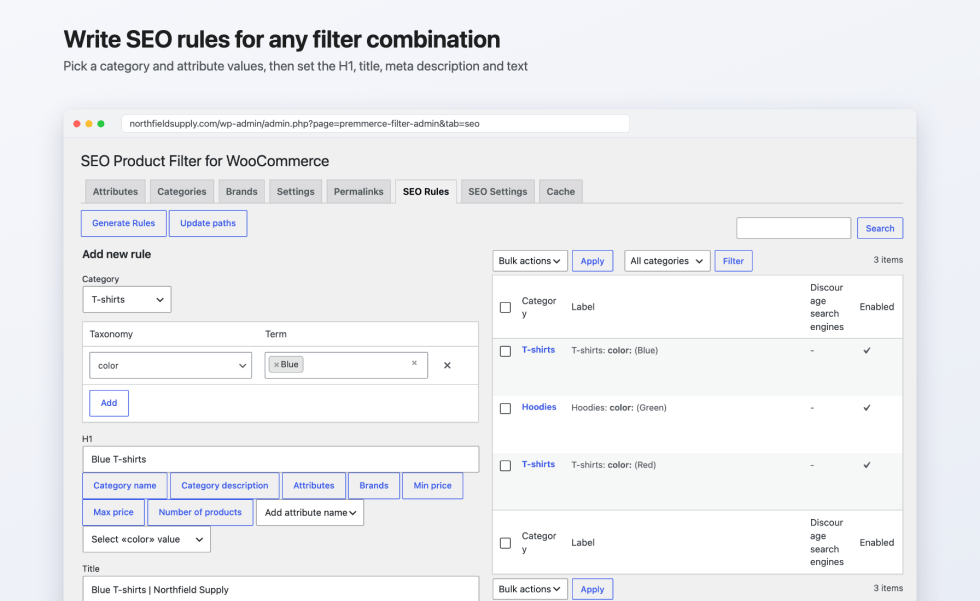
- Go to WooCommerce > SEO Product Filter > SEO Rules.
- In “Add new rule”, choose the Category.
- In the Taxonomy and Term table, choose an attribute or brand taxonomy and one or more of its terms. Click Add to add another taxonomy. Each taxonomy can be used once per rule.
- Fill in the texts. Each field has buttons that insert variables, described below.
- Click Add new rule.
The rule is saved for the URL that combination of category and values produces. A rule needs a category and at least one term, and it isn’t saved when:
- No published product is in that category with those values. The tab shows “Rule does not contains products”.
- A rule for the same URL exists already. The tab shows “The same rule already exists”.
Rule fields:
| Field | What it does |
|---|---|
| H1 | Replaces the page heading. |
| Title | Replaces the page’s title tag. |
| Meta description | Replaces the page’s meta description. |
| Description | Replaces the category description shown above the products. It uses the WordPress editor. |
| Discourage search engines from indexing this page | Adds noindex, nofollow to the page, adds a Disallow line for it to robots.txt, and leaves it out of sitemaps. |
| Enable | The rule only applies while this is checked. |
A rule also applies to the paginated pages of its URL, such as /page/2/.
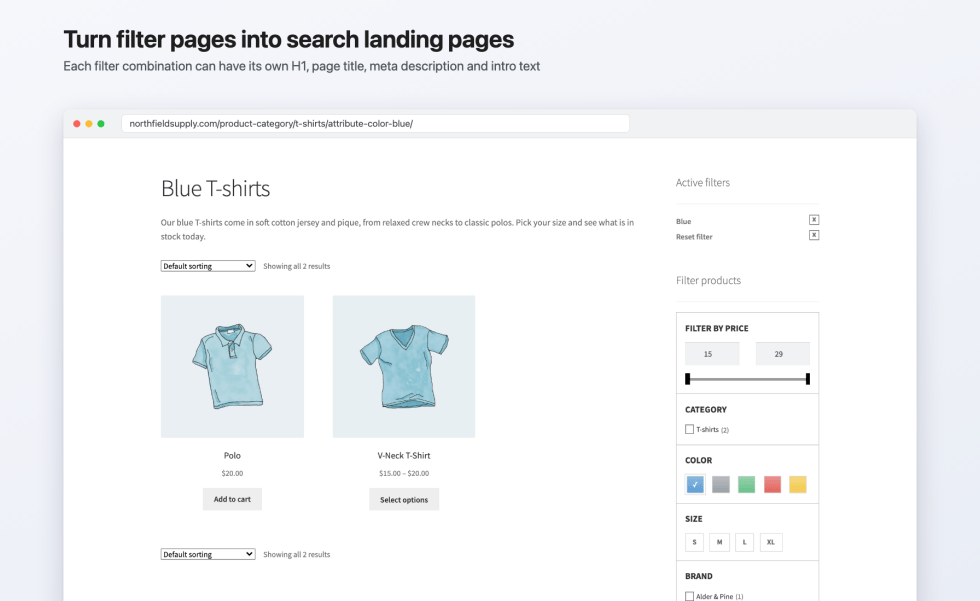
Example: a “Blue T-shirts” rule uses the T-shirts category and the color taxonomy with the term Blue, so it applies to /product-category/t-shirts/attribute-color-blue/. Its H1 is “Blue T-shirts”, its title is “Blue T-shirts | Northfield Supply”, and it has its own meta description and a short introduction in the Description field. Shoppers who filter the T-shirts category by Blue see that heading and introduction above the matching products.
Variables
↑ Back to topClick a variable’s button under a field to insert it where the cursor is. Variables are replaced with the page’s values when it’s shown.
| Variable | Replaced with |
|---|---|
| {name} | The category name |
| {description} | The category description |
| {attributes} | Each selected attribute with its values, such as Color (Blue), Size (L) |
| {brands} | The selected brands, separated by commas |
| {min_price} | The lowest price, or the shopper’s chosen minimum |
| {max_price} | The highest price, or the shopper’s chosen maximum |
| {count} | The number of products found |
| {attribute_name_color} | An attribute’s name, here Color. Choose it from “Add attribute name”. |
| {attribute_value_color} | All selected values of an attribute, separated by commas. Choose it from that attribute’s “Select «Color» value” list. |
| {attribute_value_color_123} | One value of an attribute, where 123 is the term ID. Choose it from the same list. |
The attribute name and value lists only offer the taxonomies you’ve picked in the rule’s Taxonomy and Term table.
Example H1: {attribute_value_color} {name}, which shows as “Blue T-shirts” on /product-category/t-shirts/attribute-color-blue/.
Generate rules in bulk
↑ Back to topGenerate Rules creates many rules at once from one set of texts.
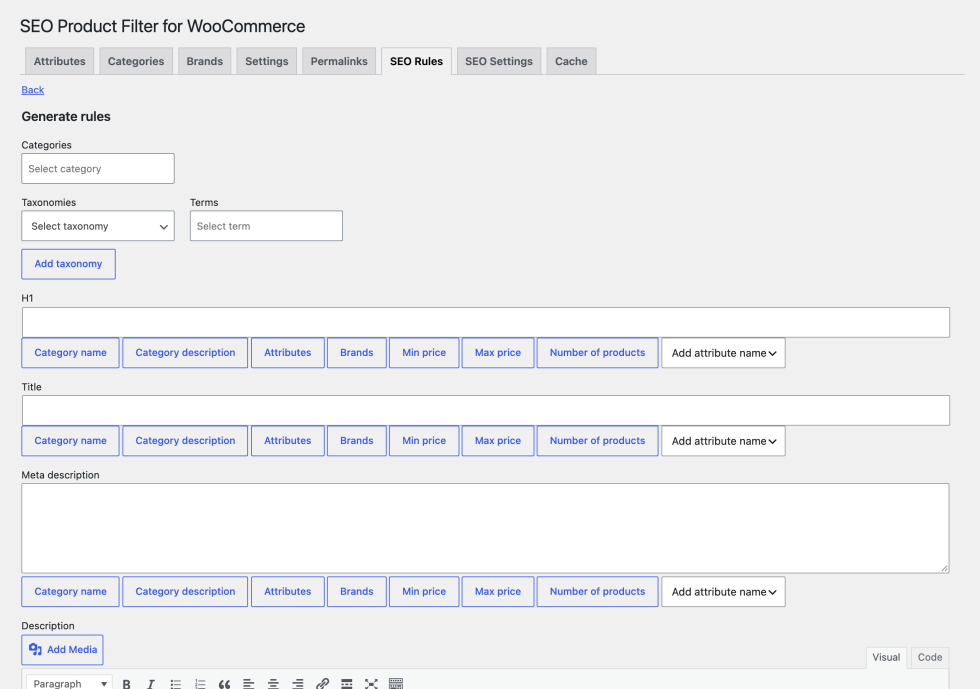
- On the SEO Rules tab, click Generate Rules.
- Choose one or more Categories.
- Choose a taxonomy and, optionally, some of its terms. Leave Terms empty to use every term. Click Add taxonomy to add another.
- Fill in the texts with variables, and set the “Discourage search engines” and “Enable” checkboxes for the new rules. “Enable” is checked by default.
- Click Generate. A progress bar shows while the rules are created, then you return to the SEO Rules tab.
For each category, a rule is created for every term on its own and for every combination of one term from each taxonomy. For example, Color (Blue, Red) and Size (M, L) give eight rules per category: Blue, Red, M, L, Blue and M, Blue and L, Red and M, and Red and L. Combinations with no products, and combinations that already have a rule, are skipped.
Manage rules
↑ Back to top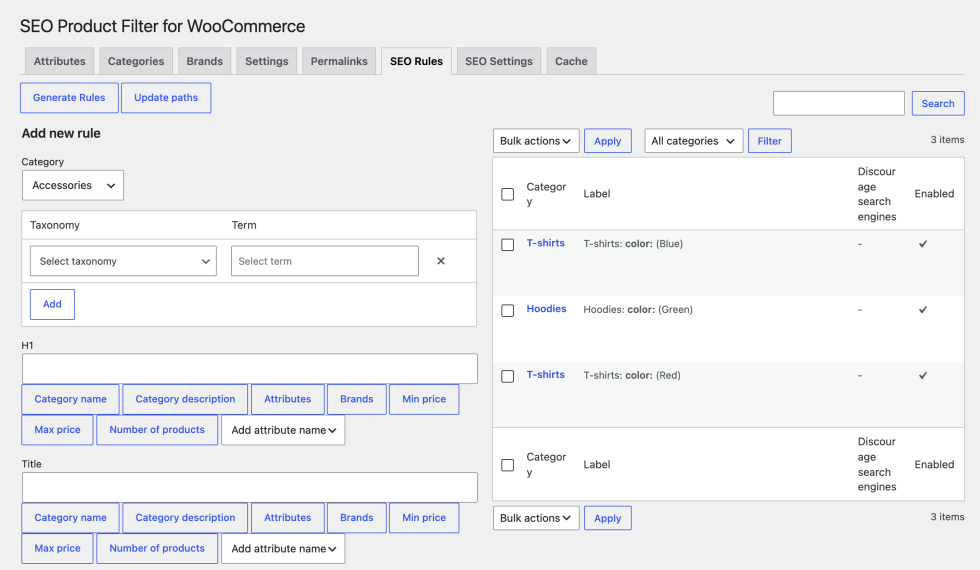
The rules table lists 20 rules per page with these columns: Category, Label (the category and the rule’s values), Discourage search engines, and Enabled.
- Hover over a rule for Edit, Delete, and View (opens the rule’s page). The edit screen also has a Visit page link.
- Filter the table by category, or search the labels.
- Tick rules and use Bulk Actions to Delete, Enable, or Disable them.
- Update paths rebuilds every rule’s URL. Use it after you change a prefix or the separator on the Permalinks tab, or the slug of a category or term used in a rule.
Default texts for pages without a rule
↑ Back to topThe SEO Settings tab sets the texts for filtered product category pages that don’t have an enabled SEO rule of their own. For example, if the Hoodies category has a rule for Green but not for Blue, the defaults are used on /product-category/hoodies/attribute-color-blue/.
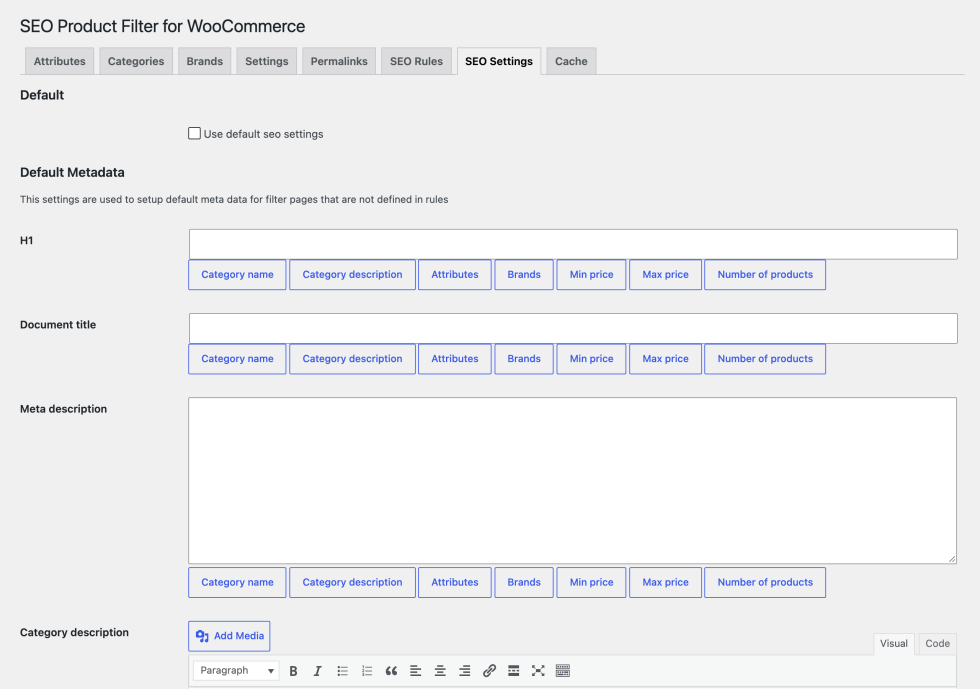
- Go to WooCommerce > SEO Product Filter > SEO Settings.
- Under “Default”, check Use default seo settings. The defaults are only used while this is checked.
- Under “Default Metadata”, fill in the fields. Each has buttons that insert the variables described above, except the attribute name and value lists, which need a rule’s Taxonomy and Term table.
- Click Save Changes.
| Field | What it does on a filtered category page without a rule |
|---|---|
| H1 | Replaces the page heading |
| Document title | Replaces the page’s title tag |
| Meta description | Replaces the page’s meta description |
| Category description | Replaces the category description shown above the products. It uses the WordPress editor. |
Fill in the H1 and the Category description. A field left empty doesn’t fall back to the category’s own heading or description, so the page shows none.
Default texts don’t make a page a rule page. They don’t change its robots meta or canonical URL, and the page isn’t added to sitemaps. A page with an enabled rule always uses the rule’s texts. With WPML String Translation, the default texts are registered for translation in the same way as a rule’s.
Indexing, noindex, and robots.txt
↑ Back to topOn filtered pages, with “Use permalinks” on:
| Page | Robots meta |
|---|---|
| A page with an enabled SEO rule | index, follow |
| A page whose rule has “Discourage search engines from indexing this page” checked | noindex, nofollow, and a Disallow line in robots.txt |
| A filtered page without a rule, with the Permalinks tab’s discourage option on | noindex, nofollow |
| A filtered page without a rule, with that option off | Left as your site or SEO plugin sets it |
The robots.txt lines are added to the robots.txt that WordPress generates. If your site has a robots.txt file on the server, WordPress doesn’t generate one, so add the lines yourself.
Canonical URLs
↑ Back to top- A page with an SEO rule gets a canonical URL that points to the rule’s URL. Its paginated pages point to the first page.
- Without Yoast SEO, All in One SEO, or Rank Math, a filtered category, tag, or brand page without a rule gets a canonical URL that points to the unfiltered archive.
- With one of those plugins active, a filtered page without a rule keeps the canonical URL the plugin gives it.
Sitemaps
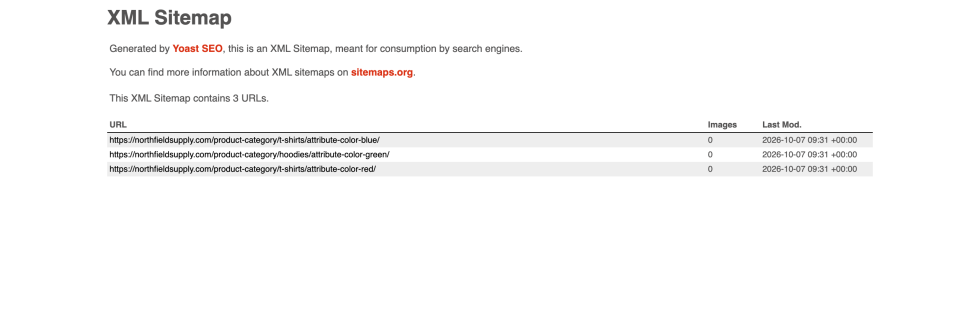
↑ Back to topEvery enabled rule that isn’t discouraged from search engines is added to the XML sitemap of:
- Yoast SEO, as filter_seo_rule-sitemap.xml in the sitemap index.
- Rank Math, as its own sitemap in the sitemap index.
- All in One SEO, as additional pages in its sitemap.
Each entry’s last modified date is the later of the rule’s last change and the newest product in its category. The extension doesn’t add rules to WordPress’s built-in sitemap, so use one of these plugins if you want rule pages in a sitemap.
Working with SEO plugins
↑ Back to topWith Yoast SEO, All in One SEO, or Rank Math active, on a page with an SEO rule:
- The rule’s meta description replaces the plugin’s. When the rule has no meta description, the plugin’s is kept.
- The rule’s canonical URL replaces the plugin’s.
- The robots settings above are passed to the plugin’s robots meta.
Without one of these plugins, the extension prints the rule’s meta description and the canonical tag itself, and sets WordPress’s own robots meta.
Multilingual stores
↑ Back to top- With WPML String Translation, each rule’s H1, title, meta description, and description are registered as strings in the premmerce-filter domain, to translate under WPML > String Translation. A rule’s strings are registered the first time its page is viewed. Polylang works through its WPML compatibility layer.
- With WPML, the rules table lists the rules for the categories in the current admin language.
- The extension’s own interface is translated into German, Spanish, French, Russian, and Ukrainian.
Caching and performance
↑ Back to topThe extension stores the results of its product lookups and price range queries as files in wp-content/uploads/cache/premmerce_filter/. The cache is cleared automatically when you update a product or a variation, and when you save any of the extension’s settings. Rating counts and the list of grouped products used by the On sale filter are stored for up to 24 hours.
Its scripts and styles load only on the pages checked under “Show filter on pages”.
To clear the cache yourself, go to the Cache tab and click Clear cache. This clears the cached files, the rating and on sale data, Rank Math’s sitemap cache, and, with Yoast SEO active, the last modified date used for the rule sitemap. Clear it after you import products or change product data directly in the database.
For large catalogs:
- Turn on “Load deferred”, so the filter loads after the rest of the page.
- Show only the filters and terms shoppers need, since the counts are worked out for every visible value.
Deactivating the extension deletes the cache folder. Your settings and SEO rules are kept.
Troubleshooting
↑ Back to topWhy isn’t the filter showing?
↑ Back to top- Check that the page type is checked under Settings > Show filter on pages. The filter only shows on product archives and search results, never on single product pages or ordinary pages.
- Check that the widget, block, or shortcode is in a sidebar or template that page uses.
- Check that each filter is set to Display on the Attributes tab. Attributes are hidden after activation.
- For a category, tag, or brand filter, check that its terms are set to Display on that taxonomy’s tab.
- With “Hide empty terms” on, a filter with no products on the page is hidden. The price filter is hidden when every product has the same price.
Why does a category, tag, or brand filter show no values?
↑ Back to topIts terms start hidden. Open the taxonomy’s tab, such as Categories, and set the terms you want to Display.
Why are the counts wrong or out of date?
↑ Back to topGo to the Cache tab and click Clear cache, then clear your page cache if you use one. The extension clears its cache when products are updated through WooCommerce, but not after imports or direct database changes.
Why don’t the products update when I use the filter with AJAX on?
↑ Back to topThe default AJAX strategy replaces the products between WooCommerce’s standard shop hooks. If your theme uses its own layout:
- On the Settings tab, set Ajax Strategy to Product archive and save.
- If it still doesn’t work, turn off “Use ajax” so filters reload the page.
- Check your browser’s console for JavaScript errors from other plugins.
Why does a filter URL return a not found page?
↑ Back to top- Check that “Use permalinks” is on, and that WordPress permalinks aren’t set to Plain.
- Use links from the filter rather than typing URLs. Filter parts must be in alphabetical order, and every value must exist.
- If you changed a prefix or the separator, old links stop working. Click Update paths on the SEO Rules tab so rules use the new URLs. Turning on “Don’t use an attribute prefix” redirects old prefixed URLs automatically.
Why doesn’t my SEO rule’s H1 or description show?
↑ Back to top- Check that the rule is enabled and “Use permalinks” is on.
- Check that you’re on the rule’s exact URL. Use View in the rules table to open it.
- Rules only apply to product category pages.
- The H1 and description replace WooCommerce’s page title and category description. If your theme prints its own heading or description instead, ask your theme’s developer whether it uses WooCommerce’s woocommerce_page_title and woocommerce_archive_description hooks.
Why can’t I save a rule?
↑ Back to top- “Rule does not contains products”: no published product in that category has those values. Pick other terms or another category.
- “The same rule already exists”: find the existing rule with the search box and edit it.
- “Terms are required” or “Category is required”: choose a category and at least one term.
Why aren’t my rule pages in my sitemap?
↑ Back to top- Rule pages are only added to the sitemaps of Yoast SEO, Rank Math, and All in One SEO.
- Only enabled rules without “Discourage search engines” checked are added.
- Click Clear cache on the Cache tab, then clear your SEO plugin’s sitemap cache if it has one.
Does a caching plugin cause problems?
↑ Back to topPage caching can show shoppers old counts or old filter pages. Clear your page cache after you change the filter’s settings or rules. AJAX filter requests are sent as POST requests, which most page caches don’t store.
Conflict test
↑ Back to topIf none of the answers above help, test for a conflict with your theme or another plugin, following How to test for conflicts. In short:
- Make a backup, or use a staging site.
- Switch to the Storefront theme.
- Deactivate every plugin except WooCommerce and SEO Product Filter for WooCommerce.
- Clear the filter’s cache on the Cache tab and any page cache.
- Test the filter again.
- If it works, reactivate your theme and plugins one at a time, testing after each, until the problem returns.
Frequently asked questions
↑ Back to topWhich pages can have SEO rules?
↑ Back to topProduct category pages filtered by one or more attribute or brand values. The shop page, tags, and other taxonomies can be filtered and noindexed, but they don’t take rule texts.
Can I use product tags or custom taxonomies in SEO rules?
↑ Back to topNo. Rules use product attributes and brand taxonomies. You can still filter by tags and custom taxonomies.
Can shoppers combine several filters?
↑ Back to topYes. Values within one filter are combined with OR, and different filters with AND.
Does it work with block themes?
↑ Back to topThe Premmerce Product Filter block can be added to a block theme’s templates in the Site Editor. The extension is tested with Storefront, and its AJAX strategies are built around WooCommerce’s classic shop templates, so test a block theme on a staging site first.
Does it work with WooCommerce Brands?
↑ Back to topYes. Brands can be added under “Use taxonomies”, the filter can show on brand archives, and brands can be used in SEO rules and the {brands} variable. YITH WooCommerce Brands works the same way.
What happens if I deactivate the extension?
↑ Back to topDeactivating it deletes its cache files and keeps your settings and SEO rules. While it’s inactive, WordPress doesn’t recognize the clean filter URLs, so they return a not found page.
Who can change the settings?
↑ Back to topUsers with the manage_options capability, which Administrators have.
Developer reference
↑ Back to topURL parameters
↑ Back to top| Filter | Parameters | Example |
|---|---|---|
| Attribute | filter_(attribute slug) and query_type_(attribute slug) | filter_color=blue,red&query_type_color=or |
| Taxonomy | filter_(taxonomy) and query_type_(taxonomy) | filter_product_cat=shirts&query_type_product_cat=or |
| Price | min_price and max_price | min_price=10&max_price=50 |
| Slider | min_(attribute slug) and max_(attribute slug) | min_screen-size=13&max_screen-size=15 |
| Stock | meta_stock | meta_stock=instock |
| On sale | meta_on_sale | meta_on_sale=on_sale |
| Rating | rating_filter | rating_filter=5 |
With “Use permalinks” on, the filter_ parameters are turned into path segments. The others stay in the query string.
Database tables and options
↑ Back to top- SEO rules are stored in the {prefix}premmerce_filter_seo table, and each rule’s terms in {prefix}premmerce_filter_seo_terms.
- Settings are stored in the premmerce_filter_settings, premmerce_filter_attributes, premmerce_filter_permalink_settings, premmerce_filter_colors, and premmerce_filter_images options, and each taxonomy’s terms in premmerce_filter_tax_(taxonomy)_options.
Template overrides
↑ Back to topTo change the front-end markup, copy a template from the extension’s views/frontend/ folder into a premmerce-woocommerce-product-filter folder in your theme or child theme, keeping its path. For example:
wp-content/plugins/seo-product-filter-for-woocommerce/views/frontend/types/checkbox.php
→ wp-content/themes/your-child-theme/premmerce-woocommerce-product-filter/types/checkbox.php| Template | What it renders |
|---|---|
| filter.php | The filter wrapper and each filter’s title |
| active_filters.php | The active filters list and the Reset filter link |
| types/checkbox.php, types/radio.php | Checkbox and radio lists |
| types/parts/checkbox.php, types/parts/radio.php | Child categories in a hierarchy |
| types/select.php | The Select type |
| types/slider.php | The price and Slider types |
| types/label__premium_only.php | The Label type |
| types/color__premium_only.php | The Color type |
| types/image__premium_only.php | The Image type |
| parts/dropdown-handle.php | The plus and minus icons of dropdown filters |
Check your copies when you update the extension, in case the originals have changed.
JavaScript event
↑ Back to topAfter every AJAX update, the extension triggers premmerce-filter-updated on the document, so you can rebind your scripts to the new products:
jQuery( document ).on( 'premmerce-filter-updated', function () {
	// Re-initialize your scripts for the new products.
} );
Filters
↑ Back to top| Filter | Arguments | What it changes |
|---|---|---|
| premmerce_product_filter_active | bool $active | Whether the filter loads on the current page. |
| premmerce_product_filter_items | array $items | The filters about to be rendered (FilterInterface objects). |
| premmerce_filters_register_items | array $items | The visible filters when they’re built. Add your own FilterInterface objects here. |
| premmerce_product_filter_active_items | array $items | The active filters list. Each item has title and link. |
| premmerce_product_filter_brand_taxonomies | array $taxonomies | The brand taxonomies. Default: product_brand and yith_product_brand. Taxonomies that don’t exist on the site are ignored. |
| premmerce_filter_taxonomies | array $taxonomies | The taxonomies the filter uses. |
| premmerce_items_load | bool $load | Whether filters are calculated on this request. False on the first page load with “Load deferred” on. |
| premmerce_filter_term_count_(taxonomy) | int $count, WP_Term $term, array $queriedProducts, array $taxonomyProducts | A value’s product count. |
| premmerce_filter_get_terms_(taxonomy)_query | array $query, array $selectedValues | The get_terms() arguments for a taxonomy filter (not attributes). |
| premmerce_filter_display_current_term_filter | bool $show | Return true to keep values that have no products on the current page when “Hide empty terms” is on. |
| premmerce_filter_get_selected_values | array $values, string $paramName | The selected values read from the URL. |
| premmerce_filter_get_reset_url_(taxonomy) | string $url | The URL that clears one taxonomy filter. |
| premmerce_filter_render_item_title | string $label, FilterInterface $filter | A filter’s title. |
| premmerce_filter_render_checkbox_title | string $name, WP_Term $term | A checkbox value’s label. |
| premmerce_filter_render_radio_title | string $name, WP_Term $term | A radio value’s label. |
| premmerce_filter_render_active_item_title | string $title | An active filter’s label. |
| premmerce_filter_render_active_item_close | string $close | The remove icon of an active filter. Default: x. |
| premmerce_filter_submit_button_label | string $label | The Filter button’s text. |
| premmerce_product_filter_form_action | string $action | The URL the price and slider forms submit to. |
| premmerce_product_filter_slider_include_fields | array $params, array $current | The query parameters kept as hidden fields in the price and slider forms. |
| filter_item_(type) | FilterInterface or null $item, array $config | The filter object created for a field type. |
| premmerce_filter_ajax_current_strategy | string or null $strategy | The AJAX strategy class to use. |
| premmerce_filter_ajax_theme_strategies | array $strategies | Strategy classes keyed by theme template (folder) name. |
| premmerce_filter_ajax_configurable_strategies | array $strategies | The strategies offered under Ajax Strategy, keyed by setting value. |
| premmerce_filter_ajax_response_reload | array $response, array $instance | The parts of the page sent back on an AJAX update. Each part has selector, callback, and html. |
| premmerce_filter_ajax_response_deferred | array $response | The parts sent back when the filter loads deferred, or when the Filter button updates it. |
| premmerce_filter_term_link | string $link, string $slug (filter value links only) | A filter link. With “Use permalinks” on, the extension uses this to build the clean URL. |
| premmerce_filter_permalink_filter_url_part | string $part, string $name, string $value, PermalinksManager $pm | One filter’s path segment, such as attribute-color-blue. |
| premmerce_filter_permalink_sort_url | array $sorted, array $parts, string $path | Return the segments in your own order. An empty array keeps alphabetical order. |
| premmerce_filter_permalink_base_path | string $path | The path the filter segments are added to. |
| premmerce_filter_permalink_filter_url | string $url, Generator $generator, PermalinksManager $pm | The finished clean URL. |
| premmerce_filter_permalink_sort_slug | array $sorted, array $values, string $path | The expected segment order when parsing a URL. Use with premmerce_filter_permalink_sort_url. |
| premmerce_filter_permalink_sort_slug_valid | bool $invalid, string $path, string $sortedPath | Return false to accept segments in any order. |
| premmerce_filter_permalink_pathinfo | string $path, RequestParser $parser | The request path before it’s parsed. |
| premmerce_filter_permalink_segments_early | array $segments, string $path, RequestParser $parser | Return [ $filterSegments, $extraSegments ] to parse the path yourself. |
| premmerce_filter_permalink_segments | array $segments, string $path, RequestParser $parser | The parsed filter and extra segments. |
| premmerce_filter_permalink_realpath | string $uri | The original request URI, restored after WordPress parses the request. |
| premmerce_filter_redirect_prefixed_urls | bool $redirect, string $location, string $path | Return false to stop redirecting old prefixed URLs when “Don’t use an attribute prefix” is on. |
| premmerce_filter_permalink_settings_list | array $settings | The fields on the Permalinks tab. |
| premmerce_filter_canonical_url | string $url, WP_Term $term | The canonical URL of a filtered archive without a rule, when no SEO plugin is active. |
| premmerce_filter_seo_sitemap_rules | array $rules, SeoModel $model, int $offset, int $maxEntries, int $currentPage, array $select | The rules listed on a sitemap page. Each rule has path, term_id, title, meta_description, and modified_at. |
| premmerce_filter_item_types | array $types | The Field type options on the Attributes tab. |
| premmerce_filter_display | array $display | The Display as options on the Attributes tab. |
| premmerce_filter_item_actions | array $actions | The Bulk Actions on the Attributes tab. |
| premmerce_filter_bulk_actions_attributes | array $bulkActions | What each bulk action saves on the Attributes tab. |
| premmerce-filter-table-attributes-columns-header | array $columns | Extra column headers on the Attributes tab. Each has label, and optionally width, align, and class. |
| premmerce-filter-table-attributes-columns-row | array $columns, array $config, string $id | Extra column cells on the Attributes tab. Each has content, and optionally align and class. |
Actions
↑ Back to top| Action | Arguments | When it fires |
|---|---|---|
| premmerce_filter_core_loaded | Filter $filter | After the extension loads, when WooCommerce is active. |
| premmerce_product_filter_render | array $data | When the filter renders. The extension includes filter.php here. |
| premmerce_product_active_filters_render | array $data | When the active filters render. The extension includes active_filters.php here. |
| premmerce_filter_render_item_before | FilterInterface $filter (by reference) | Before each filter’s markup. |
| premmerce_filter_render_item_after | FilterInterface $filter (by reference) | After each filter’s markup. |
| premmerce_filter_render_item_after_title | FilterInterface $filter | After a filter’s title. The extension adds the dropdown icons here. |
| premmerce_filter_render_item_(type) | FilterInterface $filter | Renders a filter’s values for a field type, such as premmerce_filter_render_item_checkbox. Add your own type here. |
| premmerce_filter_submit_button_before, premmerce_filter_submit_button_after | none | Around the Filter button. |
| premmerce_filter_render_active_item_before, premmerce_filter_render_active_item_after | array $item | Around each active filter. |
| premmerce_filter_rule_found | array $args, with the rule under rule | When a filtered category page matches an enabled SEO rule. |
| premmerce_filter_seo_rule_created | array $args | After a rule is created. |
| premmerce_filter_seo_rule_updated | array $args, with the rule ID under id | After a rule is updated. |
| premmerce_filter_seo_bulk_rules_removed | array $args, with the rule IDs under ids | After rules are deleted. |
| premmerce_filter_seo_bulk_rules_updated | array $args, with ids and values | After rules are enabled or disabled in bulk. |
| premmerce_filter_item_updated | string $id, array $config, array $update | When a filter’s visibility, field type, or display, or a term’s visibility, is changed on the Attributes or a taxonomy tab. |
| premmerce_filter_add_term_products_(taxonomy) | WP_Term $term, array $termProducts | After a term’s products are loaded for counting. |
Examples
↑ Back to topHide the filter on one category:
add_filter( 'premmerce_product_filter_active', function ( $active ) {
	if ( is_product_category( 'gift-cards' ) ) {
		return false;
	}
	return $active;
}, 20 );
Change the Filter button’s text:
add_filter( 'premmerce_filter_submit_button_label', function () {
	return __( 'Show products', 'your-textdomain' );
} );
Treat another plugin’s taxonomy as a brand, so it can be used on brand pages, in SEO rules, and in {brands}:
add_filter( 'premmerce_product_filter_brand_taxonomies', function ( $taxonomies ) {
	$taxonomies[] = 'my_brand_taxonomy';
	return $taxonomies;
} );
Keep one category’s rules out of sitemaps:
add_filter( 'premmerce_filter_seo_sitemap_rules', function ( $rules ) {
	return array_filter( $rules, function ( $rule ) {
		return 15 !== (int) $rule['term_id'];
	} );
} );
Stop redirecting old prefixed URLs after turning on “Don’t use an attribute prefix”:
add_filter( 'premmerce_filter_redirect_prefixed_urls', '__return_false' );
