
Product Search Analytics, Redirect and Synonyms for WooCommerce allows your WooCommerce store to see what shoppers search for and fix the searches that return nothing, with redirects to a product, category or page, or with synonyms, while keeping the search your store already has.
Installation
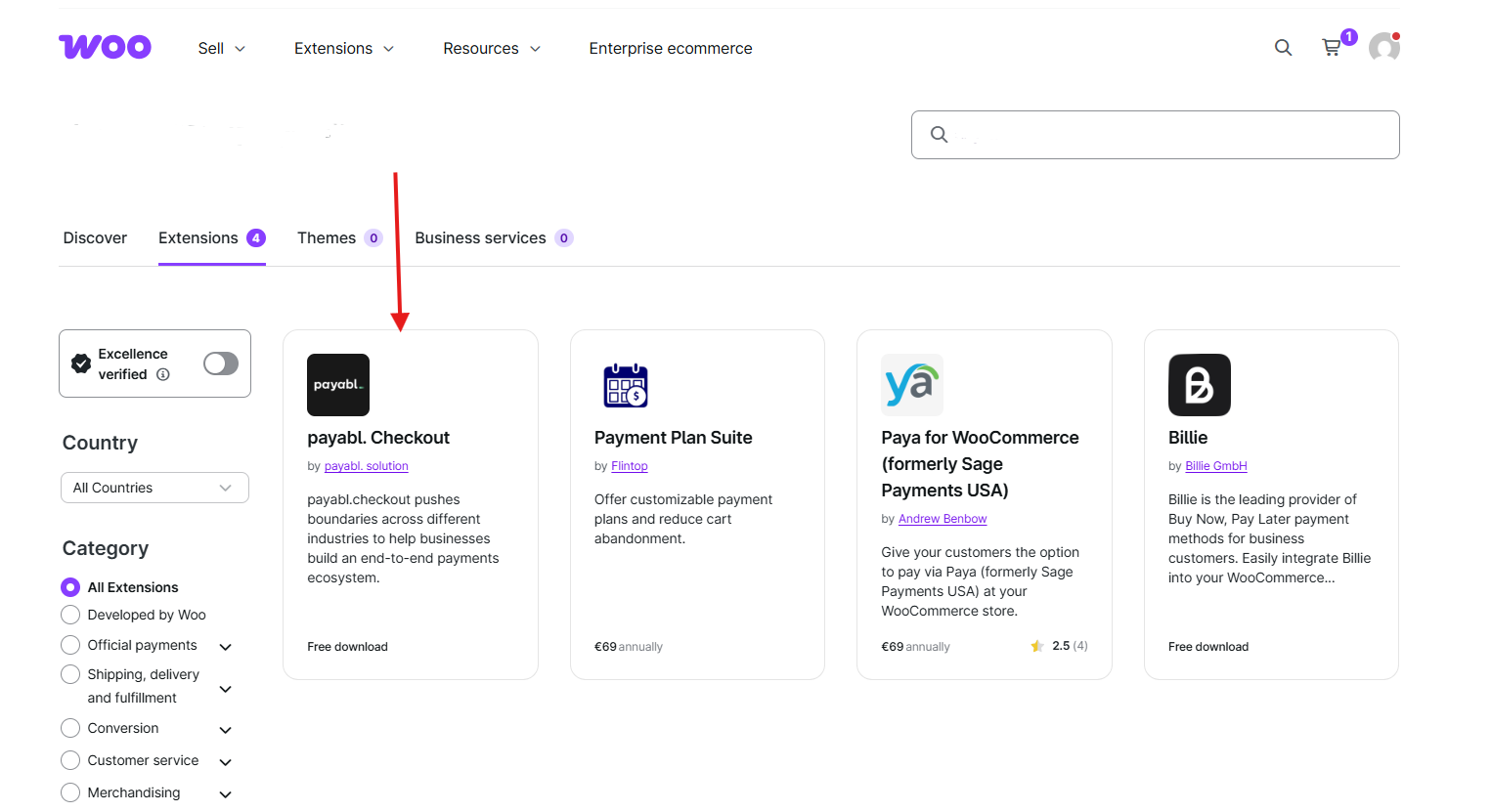
↑ Back to topTo start using a product from WooCommerce.com, you can use the “Add to store” functionality on the order confirmation page or the My subscriptions section in your account.
- Navigate to My subscriptions.
- Find the Add to store button next to the product you’re planning to install.
- Follow the instructions on the screen, and the product will be automatically added to your store.
Alternative options and more information at:
Managing WooCommerce.com subscriptions.
Setup and Configuration
↑ Back to top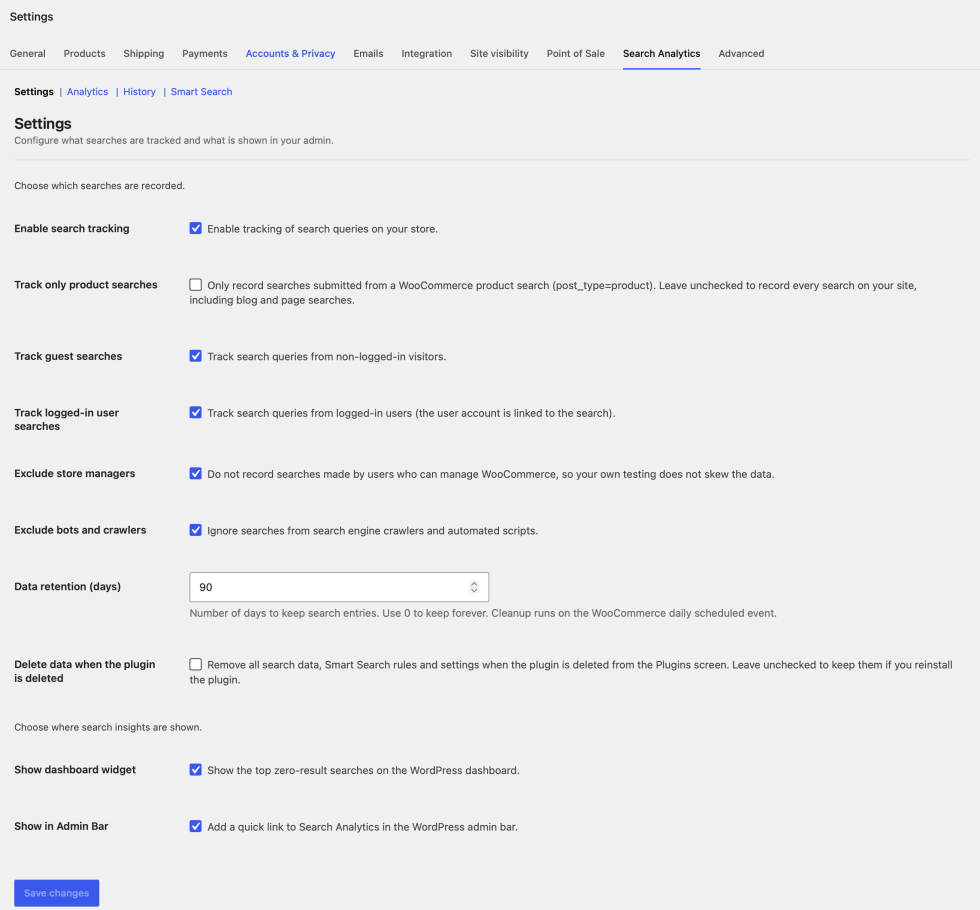
Getting started
↑ Back to topSearch tracking starts as soon as the plugin is activated. To review the settings for your store:
- Go to: WooCommerce > Settings > Search Analytics.
- Tick Enable search tracking, and choose whether to track guests and logged-in users.
- Choose whether to Track only product searches, and whether store managers and bots are excluded.
- Set your preferred Data retention (days). Use 0 to keep entries forever.
- Choose whether to show the dashboard widget and the Admin Bar link.
- Save changes.
| Setting | Default | What it does |
|---|---|---|
| Enable search tracking | Enabled | Master switch for all search tracking. |
| Track only product searches | Disabled | Records only WooCommerce product searches. Leave it unchecked to record every search on your site, including blog and page searches. |
| Track guest searches | Enabled | Records searches from visitors who are not logged in. |
| Track logged-in user searches | Enabled | Records searches from logged-in users. The user account is linked to the search. |
| Exclude store managers | Enabled | Ignores searches made by users who can manage WooCommerce, so your own testing does not skew the data. |
| Exclude bots and crawlers | Enabled | Ignores searches from search engine crawlers and automated scripts. |
| Data retention (days) | 90 | How long search entries are kept. 0 keeps them forever. |
| Delete data when the plugin is deleted | Disabled | Removes search data, rules and settings when the plugin is deleted from the Plugins screen. |
| Show dashboard widget | Enabled | Shows the top zero-result searches on the WordPress dashboard. |
| Show in Admin Bar | Enabled | Adds a quick link to Search Analytics in the admin bar. |
Advanced configuration
↑ Back to topThe plugin hooks into the main WordPress search query on the front end and records the result count after the query runs. It works with any theme that uses the standard search, and no JavaScript is added to your storefront. Each search is recorded with the term, result count, source page, user (if logged in) and date.
Searches made through the WooCommerce Store API (/wc/store/v1/products?search=) and the WordPress REST search (/wp/v2/search) are recorded from the response, using its total. Live search sends a request per keystroke, so a longer term from the same visitor within a few seconds replaces the shorter one: “ip”, “iph” and “iphone” count as one search. Refreshing a results page is not counted as a new search.
Developers can report searches from other sources with do_action( 'nuvirro_psars_log_search', $term, $result_count ), change the recorded REST routes with the nuvirro_psars_live_search_routes filter, turn REST recording off with add_filter( 'nuvirro_psars_track_rest_searches', '__return_false' ), or exclude more visitors with nuvirro_psars_is_excluded_visitor.
Usage
↑ Back to topFixing zero-result searches with Smart Search
↑ Back to topSmart Search does not index or replace your search. It works with the search your theme or search plugin already provides and gives you a to-do list of the searches that return nothing.
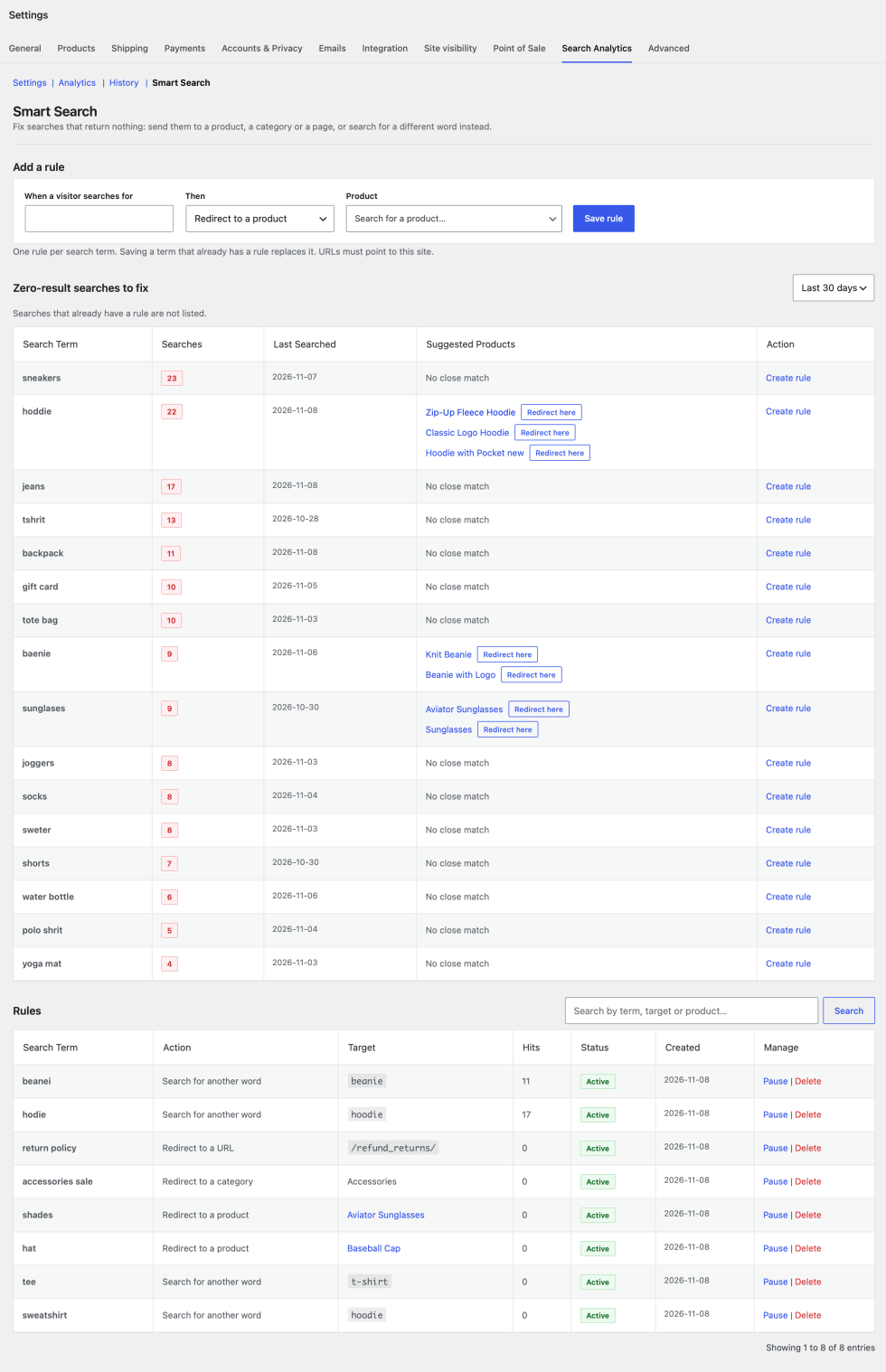
- Go to WooCommerce > Settings > Search Analytics > Smart Search.
- Next to a zero-result search, click Redirect here on a suggested product for a one-click rule, or create a rule yourself.
- Choose what the rule does: redirect to a product, a category or a page on your site, or search for another word.
- Choose how far back the to-do list looks: 7, 30, 90 days or all time. Searches that already have a rule disappear from it.
A rule applies to one search term. If the term already has a rule, you are warned that saving will replace it. The Rules table, which you can search, shows how often each rule was used and lets you pause, resume or delete it. Redirects are temporary (HTTP 302), so you can change them at any time.
Adding searches from a product
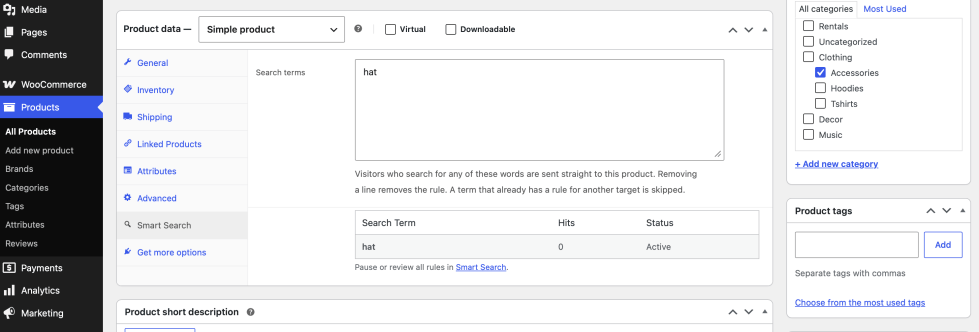
↑ Back to topOpen a product and use the Smart Search tab in the Product data box. Enter one search per line, and each one will lead to that product.
When a product or category is removed
↑ Back to top- Moving a product to the trash, or setting it to draft or private, pauses its redirects. Visitors see the normal search results. Publishing or restoring the product resumes them.
- Deleting a product or category permanently also deletes the rules that pointed to it.
Viewing analytics
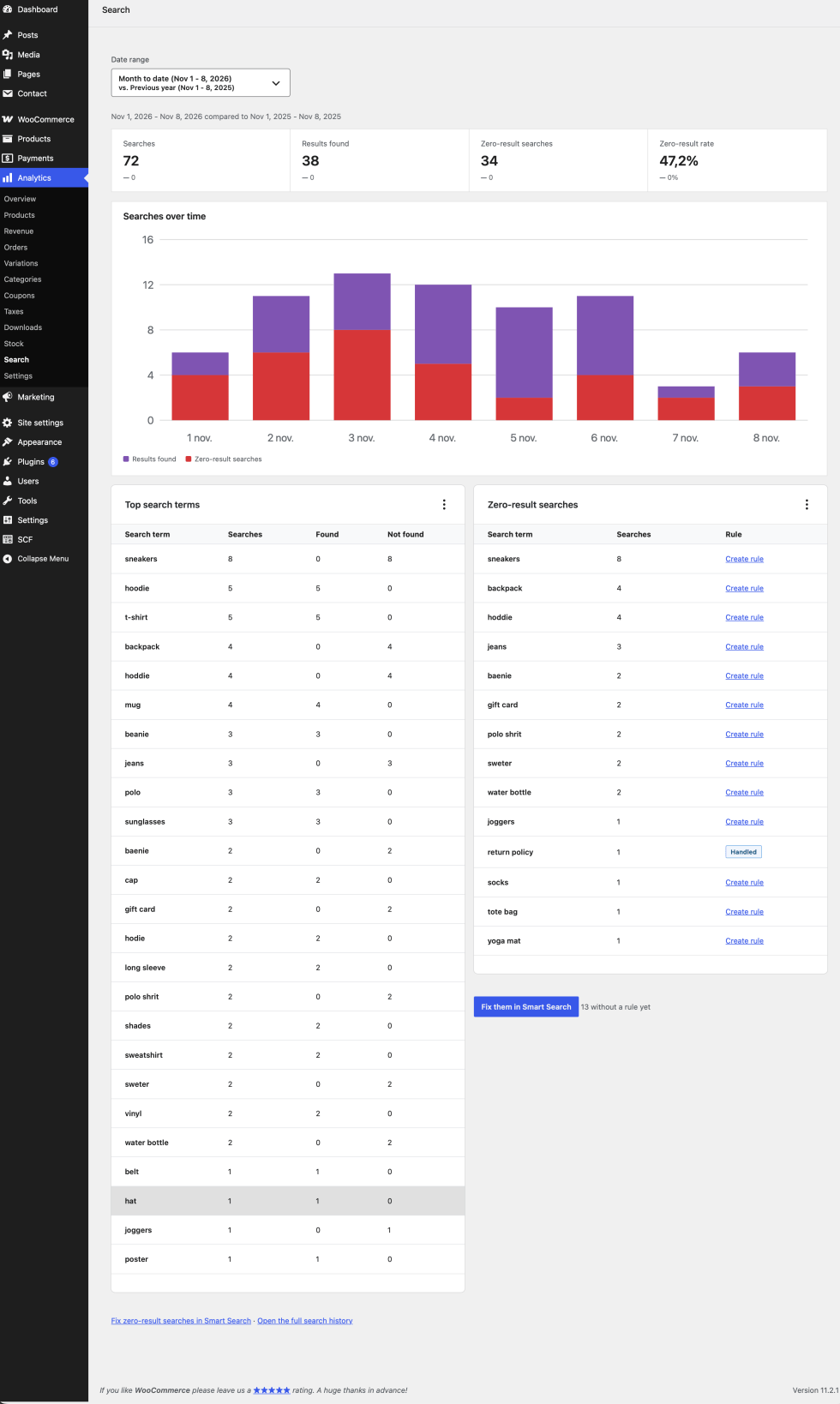
↑ Back to top- WooCommerce > Analytics > Search: a summary with the standard WooCommerce date range picker and comparison with the previous period or year, a chart, top terms and zero-result searches.
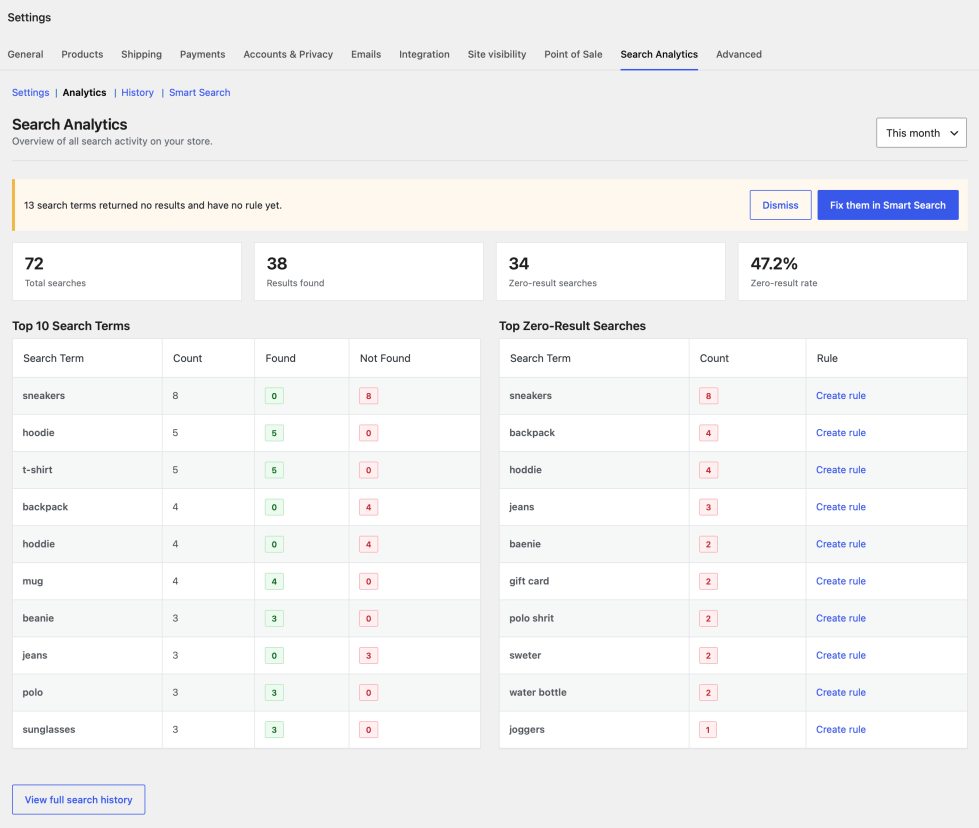
- WooCommerce > Settings > Search Analytics > Analytics: totals, top search terms and top zero-result searches for a range (today, this week, this month, last 90 days or all time).
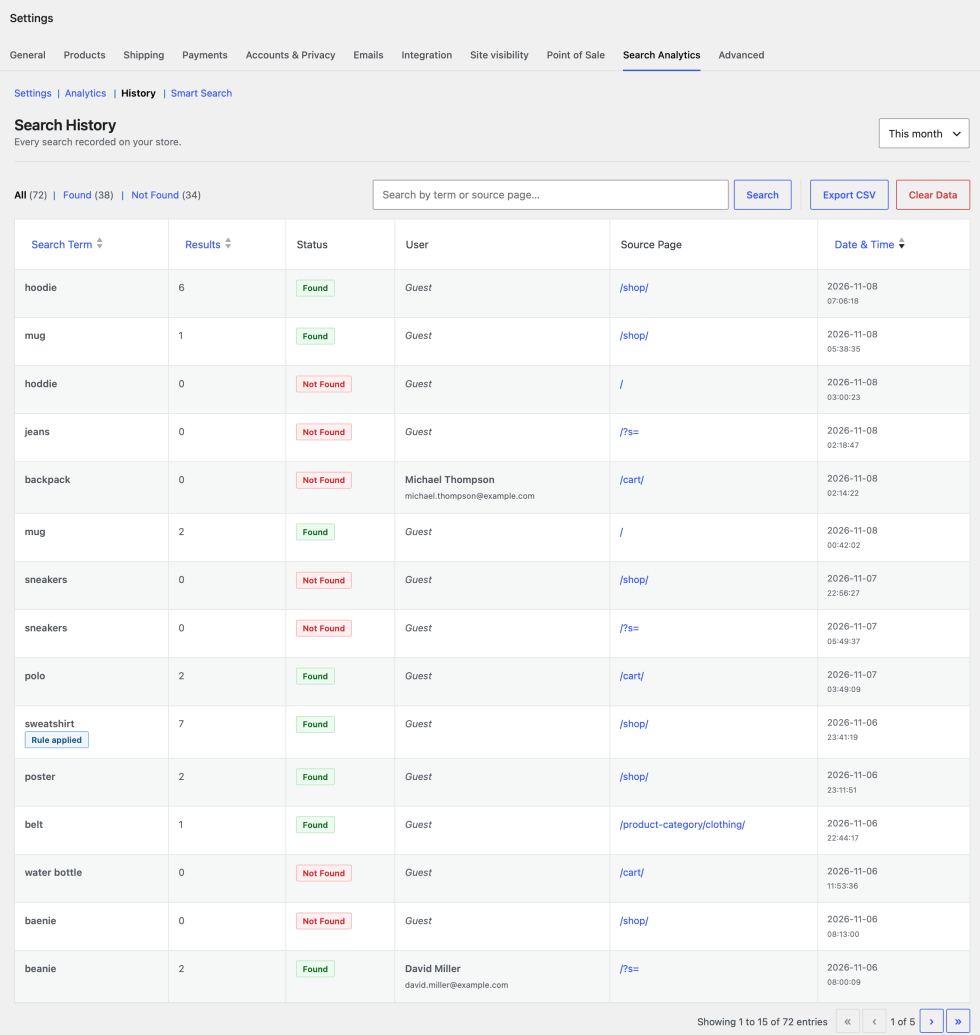
- WooCommerce > Settings > Search Analytics > History: every recorded search, with filters (All, Found, Not Found), search, sorting and pagination. Click Export CSV to download the entries matching the current filters.
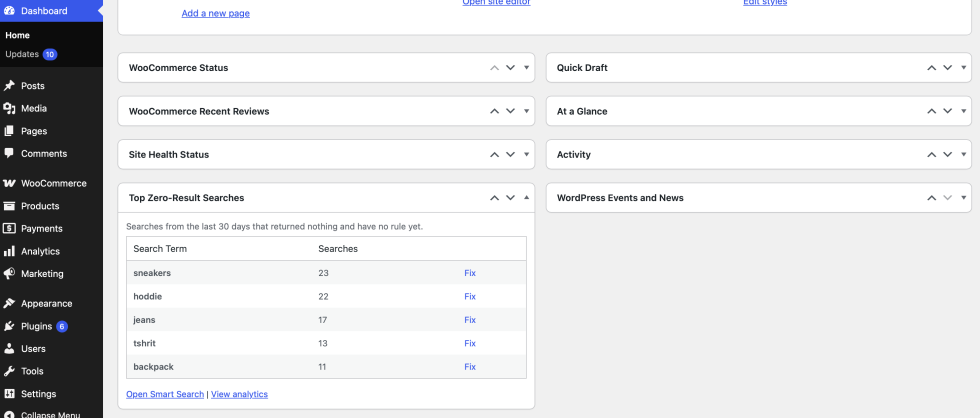
- Dashboard widget: the top zero-result searches that still need a fix, right on the WordPress dashboard.
- Clear Data on the History screen deletes the search entries after a confirmation prompt. Smart Search rules are kept.
Privacy and data
↑ Back to top- Stored: the search term, result count, source page URL, the user account for logged-in users (when enabled) and the date and time. IP addresses and email addresses are not stored.
- For a few seconds after a search, a short-lived identifier derived from a hash of the visitor’s IP address avoids counting a refresh twice. It cannot be reversed and is deleted automatically.
- Data is stored in two tables in your database,
{prefix}nuvirro_search_trackingand{prefix}nuvirro_search_rules. Nothing is sent to external servers. - Personal data can be exported or erased with Tools > Export Personal Data and Tools > Erase Personal Data. Erasing removes the link between the searches and the person and keeps the anonymous statistics.
Troubleshooting
↑ Back to topThe report is empty
↑ Back to top- Searches you make while logged in as a store manager are not counted by default. Test in a private window, or untick Exclude store managers.
- Go to WooCommerce > Settings > Search Analytics and confirm Enable search tracking is on.
- Choose All time as the date range to see older searches.
Searches from my live search plugin are not recorded
↑ Back to top- Searches through the WooCommerce Store API and the WordPress REST search are recorded automatically.
- Live search plugins that run their own AJAX request need to report searches with
do_action( 'nuvirro_psars_log_search', $term, $result_count ). - Searches submitted with Enter always reach the standard results page and are recorded, without being counted twice.
A redirect does not happen
↑ Back to top- Confirm the rule is active in the Rules table and that the search term matches the rule.
- Confirm the target product is published. Redirects pause for draft, private and trashed products.
- Browsers can cache a redirect while you test. Try a private window.
Old entries are not being purged
↑ Back to top- Confirm Data retention (days) is not set to 0. 0 means “keep forever”.
- Retention runs on WooCommerce’s scheduled sales event. Check it’s active under WooCommerce > Status > Scheduled Actions.
- Make sure WP-Cron isn’t disabled, and that a server-side cron job is configured if it is.
FAQs
↑ Back to top
Is Smart Search a search engine?
No. Smart Search does not index or replace your search. It works with the search your theme or search plugin already provides: it shows you the searches that return nothing and lets you redirect them to a product, category or page, or search for another word instead.
Does this plugin work with all themes?
Yes, with any theme that uses the standard WordPress or WooCommerce search form or block.
Does it track every search on my site or only product searches?
Every search on your site is tracked by default. Turn on Track only product searches to record only searches submitted with post_type=product, such as the WooCommerce product search form, widget and block.
What does a Smart Search rule do?
A rule applies to one search term. It can redirect the visitor to a product, a category or a page on your site, or run the search again with a different word. Redirects are temporary (HTTP 302), so you can change them at any time.
Will this slow down my site?
No. Tracking is a single database insert per search, with no JavaScript or third-party requests on your storefront. Reports are only calculated when you open the Analytics or Smart Search screens or the dashboard.
Is user data stored securely?
All data is stored in your WordPress database and nothing is sent to external services. For logged-in users the user account is linked to the search; guests are recorded as Guest. IP addresses and email addresses are not stored.
How long is search data kept?
90 days by default. Change Data retention (days) in the settings, or use 0 to keep entries forever.
Can I export the search data?
Yes. Use Export CSV on the History screen to download the entries matching the current filters.
What happens when I delete the plugin?
Nothing is removed by default, so deleting and reinstalling the plugin does not lose your search data, rules or settings. Turn on Delete data when the plugin is deleted to remove everything when the plugin is deleted from the Plugins screen. Deactivating the plugin always keeps your data.
How do I clear the data?
Use Clear Data on the History screen. Search entries are deleted and Smart Search rules are kept.

