
AfroIT Messaging Workflows for WooCommerce — Pro is a feature extension of the free plugin AfroIT Messaging Workflows for WooCommerce.
The free plugin can create workflows that sends WhatsApp, SMS, and email messages. This add-on extends the functionality of the free plugin by adding logical branching, conditional halting of workflows and shopping cart recovery. Install the free plugin first, then use the guides below to connect a channel and build a workflow.
What this add-on adds
↑ Back to top- Branch. Split a workflow into a true path and a false path. Each path can contain all supported actions: Wait, Send WhatsApp, Send SMS, Send Email, and Stop. Nested Branch actions are not supported but would be supported in future releases.
- Stop action. End the workflow immediately if a certain condition is met. No further actions run after Stop.
- Recovered carts. Review carts that were abandoned and later paid for, including recovered revenue, under WooCommerce → Messaging Workflows → Abandoned carts.
- Abandonment timeout. Choose how many minutes of inactivity mark a cart as abandoned. The default is 60 minutes, under Settings → Abandoned carts.
Requirements
↑ Back to top- WordPress 6.2 or later
- PHP 8.0 or later
- WooCommerce 8.6 or later
- AfroIT Messaging Workflows for WooCommerce 1.1.0 or later
- High-Performance Order Storage (HPOS) is supported
Installation
↑ Back to top- WooCommerce should already be installed and activated.
- Install and activate at least version 1.1.0 of the free plugin Afroit Messaging Worflows for WooCommerce
- Then install and activate this plugin on your WordPress site.
- Go to your Subscriptions and download the zip file.
- In WordPress Admin, go to Plugins → Add New → Upload Plugin and upload the zip file.
- Activate the plugin after it is installed.
- After a successful installation, you should see the menu item WooCommerce → Messaging Workflows
Setup
↑ Back to top1. Prerequisits
↑ Back to topGo to WooCommerce → Messaging Workflows → Settings and click on the Prerequisites tab
- Scroll down to Plugin settings and enable the consent rules necessary for sending out messages to customers. If enabled, the plugin adds a checkbox in the checkout form that allows the customer to explicitly consent to receiving WhatsApp and SMS messages. This is to ensure GDPR compliance.
- The plugin uses a cookie to track abandoned carts and it is your store’s responsibility to ask for consent before storing that cookie. Implement the filter
afromewo_customer_has_cookie_consentedto return TRUE or FALSE. If this setting is disabled, the plugin automatically tracks abandoned carts.
2. Meta (Facebook) app
↑ Back to topIf you do not intent to send WhatsApp messages in your workflows, you can skip this step.
Go to WooCommerce → Messaging Workflows → Settings and click on the Meta App tab. In order to be able to send WhatsApp messages to your customers, you must first complete a few setup steps inside Meta:
- Create a Meta App with the right permissions business_management, whatsapp_business_management and whatsapp_business_messaging
- Create and Approve your WhatsApp Business account under the Meta Business Suite.
- Once the above steps are completed you can configure Meta App’s ID and Secret and Connect to your Facebook App via the plugin.
3. WhatsApp account
↑ Back to topIf you do not intent to send WhatsApp messages in your workflows, you can skip this step.
Go to WooCommerce → Messaging Workflows → Settings and click on the WhatsApp Account tab.
If you successfully connected to your Facebook App in the previous step, all WhatsApp Accounts connected to your Facebook Meta Suite will be listed here and you can select and save the one that would be used for messaging.
Important: You pay the costs of using Meta’s WhatsApp Business API. These costs are not covered by the plugin license.
4. Twilio
↑ Back to topIf you do no intend to send SMS in your Workflows, you can skip this step.
Go to WooCommerce → Messaging Workflows → Settings and click on the Twilio Account tab.
- Visit the Twilio console and create an account with Twilio
- In the plugin, configure the Twilio Account SID, Token an Phone Number and that is it.
Important: You pay the costs of using Twilio’s SMS API. These costs are not covered by the plugin license.
5. E-mails
↑ Back to topThis plugin uses existing WooCommerce email templates to send out emails. If you do not see a template that best suites your needs, you can create your own email template and it would automatically be listed for selection in the plugin when configuring an email action.
Creating Workflows
↑ Back to topA workflow is an automation rule for your store: when something happens (the trigger), the plugin may evaluate conditions, then run one or more ordered steps (actions) – the Workflow. Workflows execute locally on your WordPress site.
The free version of the plugin can execute actions that send messages and the action that pauses for a delay. This Pro add-on adds Branching (where a series of actions can be executed based on a condition) and an action that can Stop a workflow based on a condition. The Pro add-on also adds the feature to recover abandoned carts and report recovered revenue.
To create a workflow, go to WooCommerce → Messaging Workflows and click on Create Workflow.
- Give it a name.
- Choose a trigger. Triggers are tied directly to WooCommerce hooks. This is what triggers the Workflow to execute when the particular event happens.
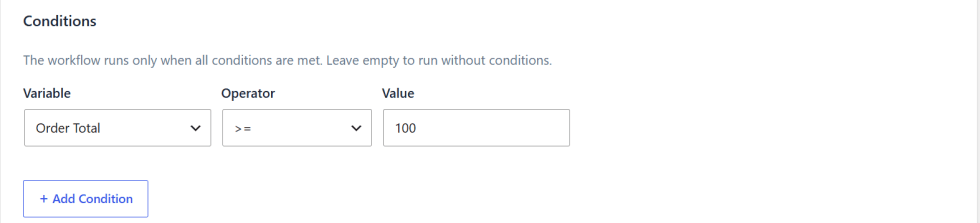
- Optionally, you can define conditions under which the workflow should execute. Conditions are based on the data associated with a WooCommerce order.
- Add the Action steps that would be executed in the Workflow.
Triggers
↑ Back to topTriggers represent store events, for example the order lifecycle, payment outcome, order status changes and cart related behavior. When a trigger fires, matching active workflows are queued on your site and processed by the local execution engine (WP-Cron).
A complete list of supported triggers is given below.
Conditions
↑ Back to topConditions are optional filters, often using order or store variables (totals, statuses, customer attributes, etc.). If conditions fail, the workflow does not proceed. A condition comprises a variable, an operator and a value.
A complete list of supported variables is given below.
Actions (steps)
↑ Back to topSteps run in order unless a branch changes the path. Below is what each action type is for and what you typically configure.
| Action | What it does | What to configure |
|---|---|---|
Wait |
Pauses the workflow for a duration before the next step. | Delay length (minutes, hours, days). Timing relies on WordPress cron and site scheduling — low-traffic sites may see delays; depends on server configuration. |
Branch(If / Else) |
Evaluates a condition and runs nested steps on the IF-TRUE path or IF-FALSE path. | The condition expression and the nested steps for each branch. |
Send WhatsApp message |
Sends a Meta-approved template message via WhatsApp. |
|
Send SMS |
Sends an SMS via Twilio. |
|
Send email |
Sends email using WooCommerce mail mechanics. |
|
Stop |
Ends the workflow immediately. No further actions run after it. | Optional per-step condition. Use after a Branch path or to avoid later sends. |
Workflow triggers
↑ Back to topTriggers are actions/events that happen in your WooCommerce store. Below is a list of actions that could trigger a workflow supported by the plugin.
| Trigger | Description |
|---|---|
| PAYMENT and COMPLETION | |
| Order Status Changed: Pending to Cancelled | Runs only for the transition pending → cancelled (`woocommerce_order_status_pending_to_cancelled`). Narrower than generic “status changed” when unpaid orders lapse. |
| Order Status: Completed | Runs when an order reaches completed (`woocommerce_order_status_completed`). Common for delivery confirmations and post-purchase messaging. |
| Payment Failed | Runs when the order enters the failed payment state (`woocommerce_order_status_failed`). Good for recovery flows or staff alerts. |
| Payment Complete | Runs when WooCommerce marks payment complete (`woocommerce_payment_complete`). Not every gateway updates status the same way; combine with status triggers if needed. |
| ABANDONED CART | |
| Shopping Cart Abandoned | Not a live storefront hook: the plugin detects abandonment on a schedule when a cart has been inactive for 60 minutes (hourly check). With Pro, Settings → Abandoned carts can raise that timeout up to 7 days. Use {{ cart_recovery_url }} and related template variables for recovery messages. |
| CHECKOUT and NEW ORDER | |
| Checkout Order Created | Runs when WooCommerce finishes creating the order during checkout (`woocommerce_checkout_order_created`). The order and line items exist; use this for automations that must run immediately after the order record is saved. |
| New Order | Runs on `woocommerce_new_order` whenever a new order is created—classic checkout, block checkout, admin, REST API, etc. Pair with conditions if you only want storefront checkout. |
| ORDER STATUS and CHECKOUT PROCESSING | |
| Checkout Update Order Meta | Runs while checkout persists extra order or item meta (`woocommerce_checkout_update_order_meta`). Useful when custom checkout fields must be present before downstream steps. |
| Order Status Changed | Runs for any status transition (`woocommerce_order_status_changed`). Arguments include previous and new status—ideal when one workflow should react to many transitions. |
| Order Status: Processing | Runs when an order moves to processing (`woocommerce_order_status_processing`), typically after successful payment for shippable orders. |
| Order Status: Cancelled | Runs when an order is cancelled (`woocommerce_order_status_cancelled`). Use for internal alerts or customer notices about cancellation. |
| Order Status: Refunded | Runs when an order is refunded (`woocommerce_order_status_refunded`). Aligns with WooCommerce’s refund lifecycle and follow-up messaging. |
| Order Status: Pending | Runs when an order’s status becomes pending (`woocommerce_order_status_pending`)—often right after checkout before payment is confirmed. |
| Checkout Order Processed | Fires after checkout handles the order and before payment fully settles (`woocommerce_checkout_order_processed`). Also runs in some error paths, so conditions help narrow behavior. |
| Store API Checkout Order Processed | Specific to the cart/checkout block and Store API flow (`woocommerce_store_api_checkout_order_processed`). Use when you only want block-based checkouts, not the legacy shortcode flow. |
| CART | |
| Add To Cart | Runs when a product is added to the cart (`woocommerce_add_to_cart`). Arguments include cart item data—useful for browse abandonment or upsell timing. |
| Cart Updated | Runs after the cart is recalculated (`woocommerce_cart_updated`), e.g. quantity changes, removals, or coupon application—broad signal that the cart contents or totals changed. |
| CUSTOMERS | |
| Created Customer | Runs when WooCommerce creates a customer record during checkout or registration (`woocommerce_created_customer`). Useful for welcome sequences tied to new accounts. |
| COUPONS | |
| Applied Coupon | Runs when a coupon is applied in the cart (`woocommerce_applied_coupon`). The coupon code is available to conditions or messaging. |
| ORDERS and THANK-YOU PAGE | |
| Order Item Added | Runs when a line item is added to an order (typically `woocommerce_new_order_item` during admin or programmatic edits). Use for automations tied to fulfillment or line-level changes. |
| Thank You Page | Runs on the order thank-you view (`woocommerce_thankyou`). Depends on the customer landing on that screen after payment—not all gateways guarantee it, so avoid as your only critical trigger. |
Abandoned cart recovery
↑ Back to topAn abandoned cart is a shopping cart a customer started and then left without paying. The plugin saves the cart while the customer is shopping, including the email or phone number entered at checkout. If the customer does nothing for a set time and does not complete the order, the cart is treated as abandoned and a workflow can send a reminder.
The abandoned cart recovery requires the customer to have at least entered an email (if you have Email sending in the workflow) or a phone number if you send WhatsApp messages or SMS in the workflow.
By default, a shopping cart is considered abandoned after 60 minutes of inactivity You can change this setting by going to WooCommerce → Messaging Workflows → Settings → Abandoned carts.
To send the reminder for an abandoned shopping cart, create a workflow and choose the Shopping Cart Abandoned trigger, then add the message steps you want. Turn the workflow on. It runs only after the timeout, and only when the cart still has an email address or phone number to send to. If “Check for cookie consent before tracking abandoned carts” is turned on under Settings → Prerequisites, carts are saved only after the customer has given cookie consent.
Template variables and logical operators
↑ Back to topTemplate variables
↑ Back to topInsert these placeholders into WhatsApp templates and SMS body text. At send time, the plugin replaces each variable with live data from the order, customer, or cart.
Use double curly braces and the exact key name, with spaces as shown: {{ firstname }}.
| Placeholder | Description |
|---|---|
{{ currency }}
Currency
|
Three-letter (or configured) currency code for the order or cart context, as WooCommerce stores it—used when you need the code without a symbol. |
{{ currency_symbol }}
Currency Symbol
|
Localized currency symbol for the active currency (e.g. €, $, £), suitable for amounts already numeric. |
{{ firstname }}
First Name
|
Customer first name from billing details when the workflow has a named customer. |
{{ lastname }}
Last Name
|
Customer last name from billing details. |
{{ fullname }}
Full Name
|
Combined given and family name for a short greeting line. |
{{ phone }}
Phone
|
Primary phone on the order or session—the plugin’s default “best” phone for messaging. |
{{ billing_phone }}
Billing Phone
|
Phone number saved on the order’s billing address—use when SMS must match the invoice contact. |
{{ user_email }}
User Email
|
Customer email from the order or account; useful in mixed channel copy. |
{{ cart_url }}
Cart URL
|
Link to the storefront cart page so shoppers can review items. |
{{ item_count }}
Item Count
|
Number of line items on the order or abandoned cart. |
{{ item_ids }}
Item IDs
|
JSON array of product IDs on the order or cart. Useful with the “contains” / “in” operators to target specific products. |
{{ order_id }}
Order ID
|
Internal WooCommerce order ID (numeric identifier in the database). |
{{ order_number }}
Order Number
|
Human-facing order reference (may respect custom order number plugins)—better for “your order #…” in customer-facing text. |
{{ order_total }}
Order Total
|
Grand total amount as a decimal string; pair with currency or currency_symbol in the same template. |
{{ order_status }}
Order Status
|
Slug of the current WooCommerce order status (processing, completed, on-hold, etc.). |
{{ order_date }}
Order Date
|
Timestamp when the order was created, in the site’s configured date/time style. |
{{ payment_method }}
Payment Method
|
Payment method title or identifier as WooCommerce records it for that order. |
{{ shipping_method }}
Shipping Method
|
Chosen shipping method label for the order, if any. |
{{ product_list }}
Product List
|
Compact list of line items with quantities—good for short SMS/WhatsApp lines. |
{{ product_list_full }}
Product List Full
|
Detailed lines with quantities and line prices; may include line breaks for longer messages. |
{{ coupon_codes }}
Coupon Codes
|
Comma-separated coupon codes applied to the order. |
{{ order_url }}
Order URL
|
Direct link for the customer to view order details (requires appropriate pages and permalinks). |
{{ store_name }}
Store Name
|
Merchant-facing shop name configured in WooCommerce or WordPress general settings context. |
{{ store_url }}
Store URL
|
Front-page URL of the site. |
{{ store_title }}
Site Title
|
WordPress site title (Settings → General). |
{{ store_tagline }}
Site Tagline
|
WordPress tagline string; optional branding line in footers. |
{{ admin_email }}
Admin Email
|
Store administrator email from WordPress settings—use only when the copy should reference the shop owner contact. |
{{ dummy }}
Dummy
|
Fixed test placeholder for previews or validation in the plugin UI; not a live customer field in production sends. |
{{ cart_recovery_url }}
Cart Recovery URL
|
Personalized link to recover an abandoned cart, including the token the plugin generates for that session. |
Logical operators
↑ Back to top| Operator | Meaning | Example | Value |
|---|---|---|---|
= |
The field must equal the given value. | Run only when order status is exactly “processing”. | processing |
!= |
The field must not equal the given value. | Skip when payment method is cash on delivery. | cod |
< |
Numeric (or comparable) field is strictly less than the value. | Order total is under €50 (compare using the same unit the workflow uses). | 50 |
> |
Numeric field is strictly greater than the value. | Order total is over 100. | 100 |
<= |
Field is less than or equal to the value. | Line item quantity is at most 3. | 3 |
>= |
Field is greater than or equal to the value. | Order total is at least 25.00. | 25 |
between |
Field falls within an inclusive lower and upper bound (two values). | Cart or order total is between €25 and €100 inclusive. | [25, 100] |
not_between |
Field is outside that inclusive range. | Order total is not in the staff discount band €100–€200. | [100, 200] |
in |
Field must be one of the listed values (membership). | Order status is pending, processing, or on-hold. | [“pending”, “processing”, “on-hold”] |
not_in |
Field must not be any of the listed values. | Order is not cancelled or failed. | [“cancelled”, “failed”] |
contains |
Text field contains the substring (typical for coupons, labels, or free-text). | Applied coupon codes contain the campaign token “SUMMER”. | SUMMER |
does not contain |
Text field does not contain the substring. | Applied coupon codes do not contain “STAFF”. | STAFF |
Workflow examples
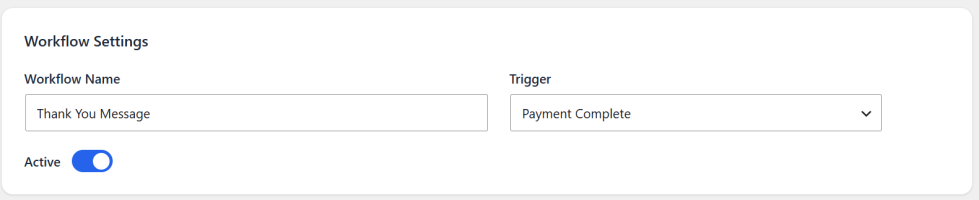
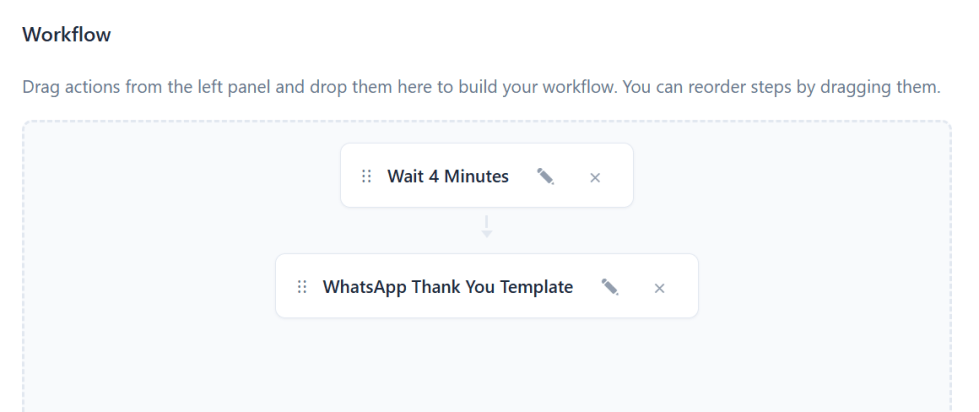
↑ Back to topEx.1 “thank-you” SMS/WhatsApp
↑ Back to topSend a simple Thank You WhatsApp message to the user. You can create WhatsApp templates in the plugin and they automatically get approved by meta. The approval status of each template also shows in the plugin.
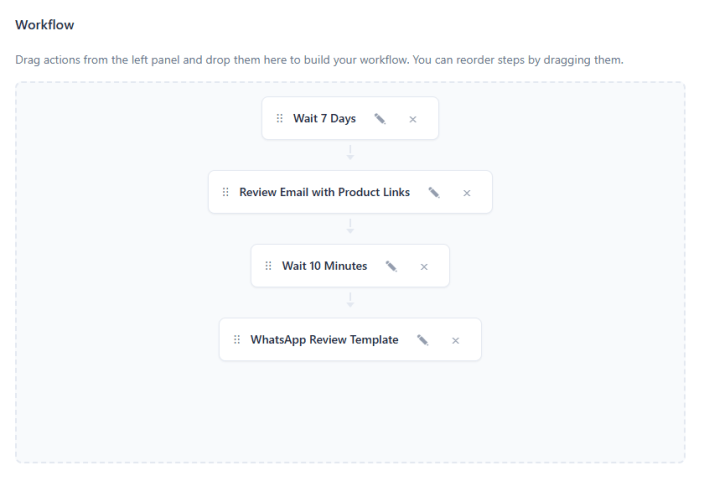
Ex.2 ask for a review after a number of days
↑ Back to topRemind a user to rate a service or review your product. You can send a message to both WhatsApp and Email to increase the chances of the user re-acting.
Ex3. Abandoned cart follow up
↑ Back to topDepending on the duration configured for a shopping cart to be considered abandoned, this workflow’s triggers a message (Email or WhatsApp or both) to be sent to the user when a cart is marked as abandoned. You can use the variable {{ cart_recovery_url }} in the message body that would insert a link to the abandoned shopping cart, permitting the user to continue where they left off.

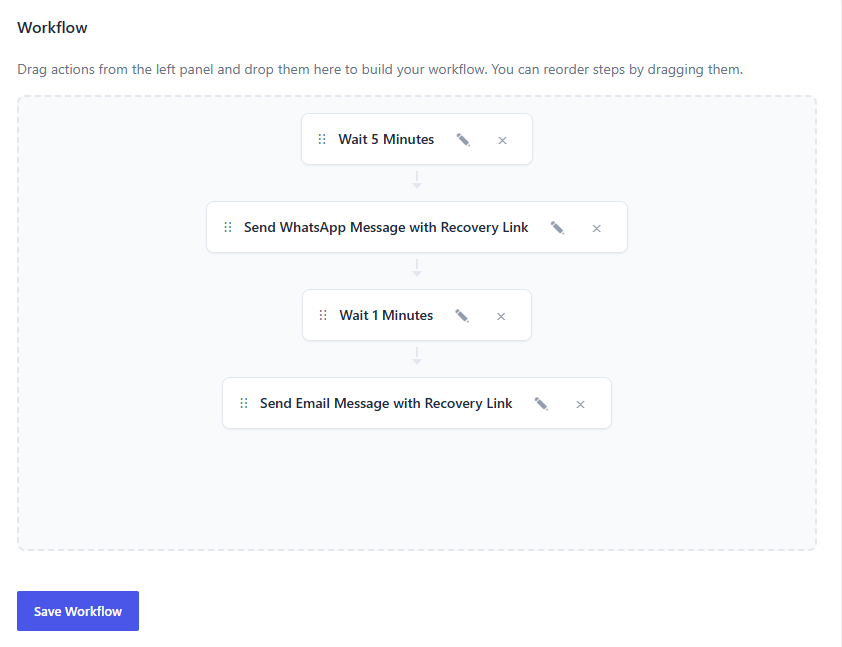
Ex4. failed payment follow up
↑ Back to topIf a payment fails, you can wait for a couple hours and check the order status. If it is not still paid, then you can remind the user with the user to try again.

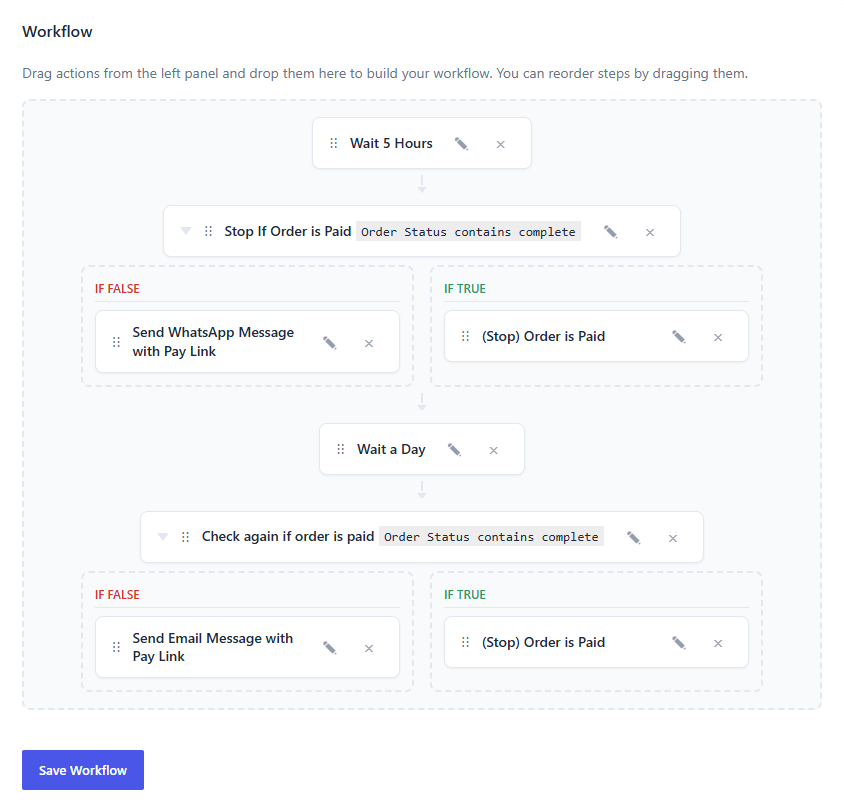
Ex5. Recommend (upsell) a product based on current order
↑ Back to topIf a user buy’s for example a product that you know would be needed again in two weeks, you can define a workflow to remind this user is two weeks. This can also be used to recommend the user to buy related products.

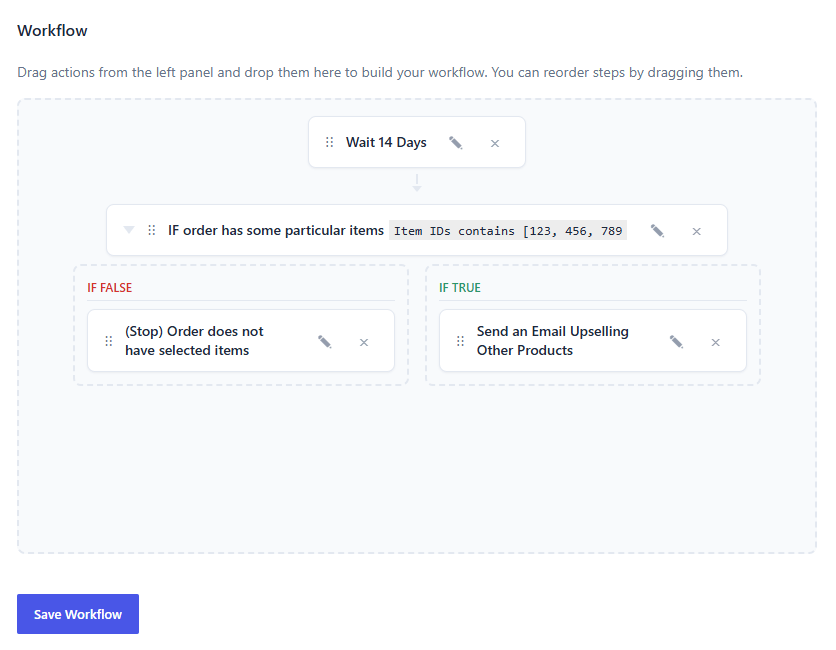
Ex6. Notify store owner when an order is placed
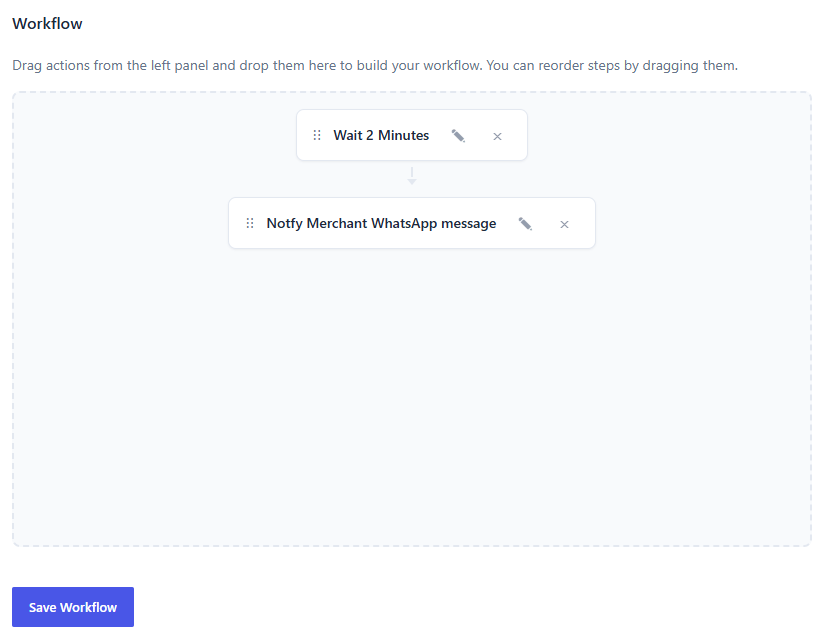
↑ Back to topThis plugin can also be used by merchants or store owners. It must not be used only for customers. For example, a merchant can create a Workflow to receive a simple WhatsApp message when an order is placed or when there is a change in status of an order and act immediately. Since WhatsApp messages are charged, you can add a condition to do this only for orders whose total are greater that a certain amount.

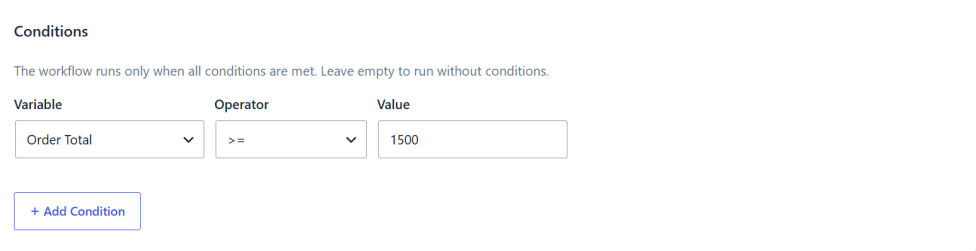
Ex7. send coupons based on order total
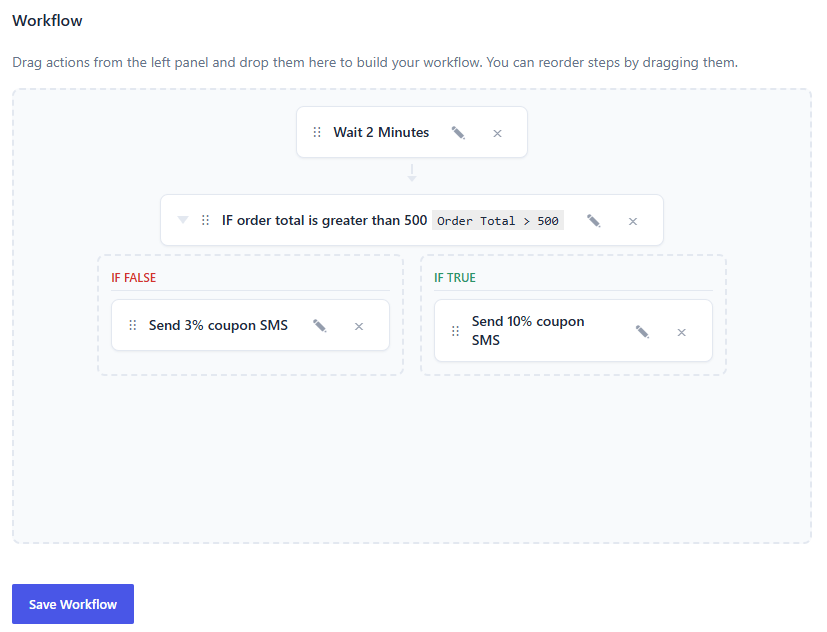
↑ Back to topYou can reward “high paying customers” with a 10% coupon for their next purchase and “low paying customers” with a 3% coupon.

Troubleshooting and FAQs
↑ Back to topTroubleshooting
↑ Back to topCheck a Workflow execution
Go to WooCommerce → Messaging Workflows → Workflows → Executions. Find the run and read its status: waiting means a Wait step has not finished, completed means every step finished, and action_failed or failed means a step stopped the run. Click Execution JSON for the time, step, and message. If the list stays empty, the workflow did not start: confirm it is Active and that the trigger and conditions match the order or cart.
Turn on debug logging
For the error behind a failed send, go to WooCommerce → Messaging Workflows → Settings → Prerequisites, check Enable debug file logging, and click Save. The checkbox starts checked, so logging is already on until you clear it and save. Reproduce the problem after saving, then open WooCommerce → Status → Logs, filter by source afroit-messaging-workflows, and open the newest file. Search for ERROR or WARNING. If that source is missing, turn logging on under WooCommerce → Status → Logs → Settings and set Level threshold to None. While WooCommerce logging is off, the plugin writes wp-content/uploads/afroit-messaging-workflows/afroit-messaging-workflows.log instead.
When you are finished
Logs can still contain customer names, message text, order details, and IP addresses. Clear Enable debug file logging, click Save, and review any excerpt before you send it to support.
FAQs
↑ Back to topIf you intend to send WhatsApp messages, you need an approved WhatsApp Business Account and approved templates.
Only if you use Send SMS actions.
Yes. Configure WooCommerce email templates and use Send Email actions only. Meta and Twilio are required only for WhatsApp and SMS.
Check that the workflow is Active, the trigger matches what happened, conditions pass, and any Wait steps have had time to complete. For abandoned carts, confirm tracking consent if that option is enabled, that an email or phone was captured, and that about 60 minutes have passed since the last cart activity. Use Workflows, then Executions, to inspect runs.
Placeholders such as {{ billing_phone }}, {{ phone }}, {{ user_email }}, and order-related data. For abandoned-cart emails, {{ cart_recovery_url }} links to cart restore. See the section “Template Variables and Logical Operators” in this documentation.
A Branch step evaluates a condition as true or false. Each path can contain Wait, Send WhatsApp, Send SMS, Send Email, and Stop actions. Nested Branch actions are not supported.
Open WooCommerce, then Messaging Workflows, then Abandoned carts. The report lists carts that were abandoned and later paid for, including recovered revenue. Each order is counted once, and only paid orders are included. On-hold and other unpaid orders are left out. Cancelling an order removes it from recovered carts and recovered revenue. A partial refund reduces that revenue to the amount still paid. A full refund removes the order.
On a default install, Check for cookie consent before tracking abandoned carts is turned on. No carts are captured until the afromewo_customer_has_cookie_consented filter returns true, or you turn that setting off under WooCommerce > Messaging Workflows, > Settings > Prerequisites.
Under Settings, then Abandoned carts, set how many minutes of inactivity should pass before a shopping cart is considered abandoned. The default is 60 minutes.

