
Quote Offer adds a request a quote button to WooCommerce, so customers can ask for a price instead of buying directly. Show “Price on request”, collect quote requests with your own quote form, reply from your dashboard, and turn the agreed quote into an order with a payment link. It’s for wholesale, made-to-order, bulk, and custom products where the price depends on the details. View the product page.
Quick start
↑ Back to topGet your first quote request in five steps:
- Go to WooCommerce > Settings > Quote Offer and check the Quote page and Quote form. New stores get a “Request a quote” page and a default form.
- Go to WooCommerce > Quote Rules and select Add New Quote Ruleset.
- In General, set Enable For to Guest Users or Registered Users and tick Hide Price and Hide Add To Cart Button.
- In Include Products, choose products or categories. In Quote Button, choose Quote Popup or Add to Quote and a quote form, then select Publish.
- Open a product in a private browser window and send a test request. It appears under WooCommerce > Quote Submissions and in your inbox.
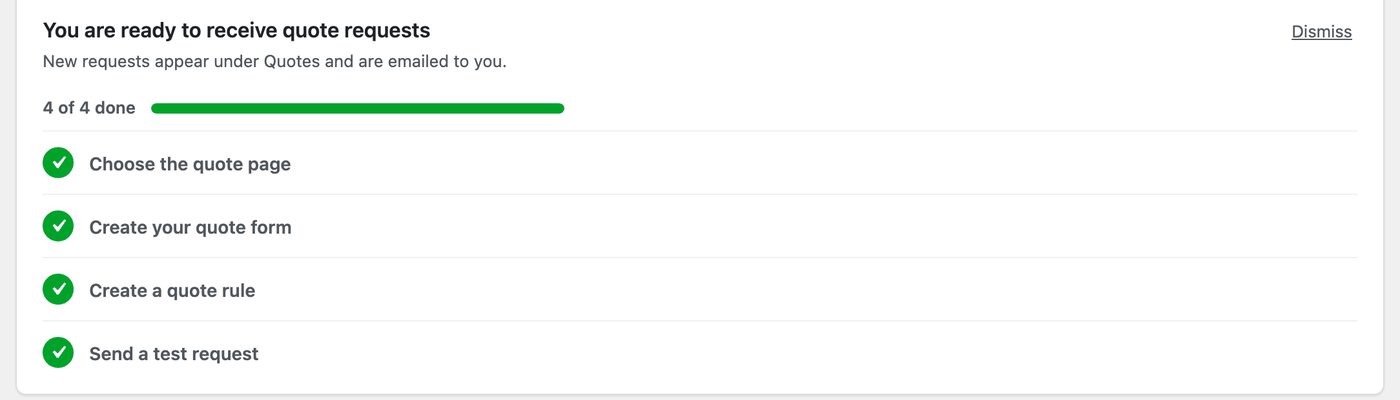
The checklist at the top of the settings tracks the same steps: choose the quote page, create your quote form, create a quote rule, and send a test request.
Installation
↑ Back to topTo start using a product from WooCommerce.com, you can use the “Add to store” functionality on the order confirmation page or the My subscriptions section in your account.
- Navigate to My subscriptions.
- Find the Add to store button next to the product you’re planning to install.
- Follow the instructions on the screen, and the product will be automatically added to your store.
Alternative options and more information at:
Managing WooCommerce.com subscriptions.
Requirements
↑ Back to top- WordPress 6.5 or later.
- WooCommerce 8.5 or later.
- PHP 7.4 or later.
- For rules with countries: WooCommerce geolocation (the country is detected by IP address).
The plugin works with block and classic themes, the Cart and Checkout blocks, High-Performance Order Storage (HPOS), and full-page caching. Texts can be translated with WPML and Polylang string translation, and a wpml-config.xml file is included.
Setup and configuration
↑ Back to topQuote Offer adds three screens under WooCommerce: Quote Rules, Quote Submissions, and Forms, plus WooCommerce > Settings > Quote Offer.
Quote rules
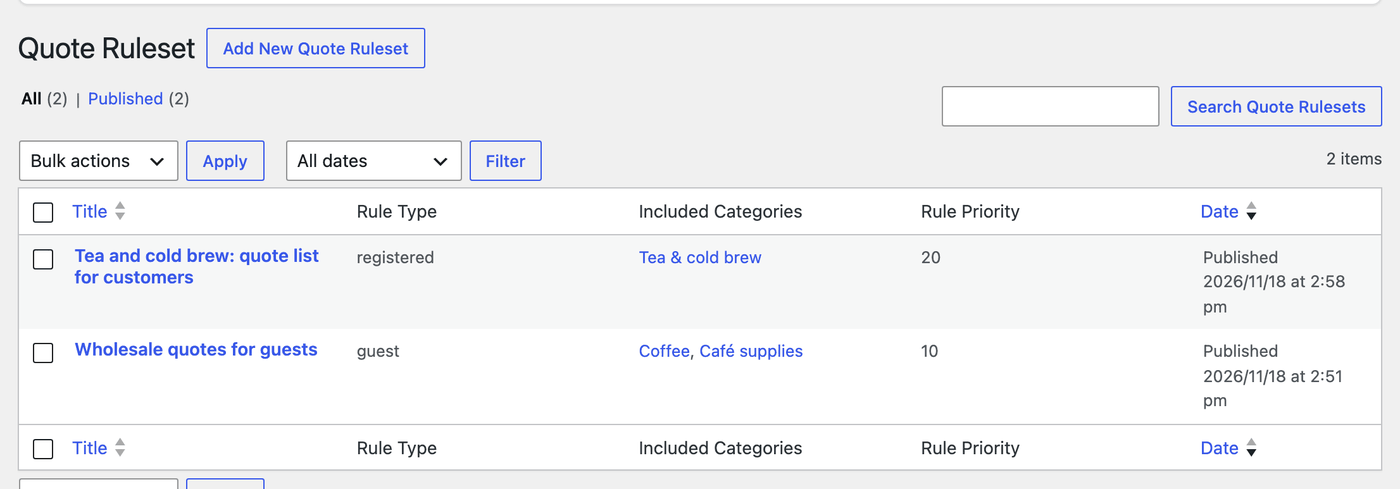
↑ Back to topA rule decides which products ask for a quote, for whom, and how.
General:
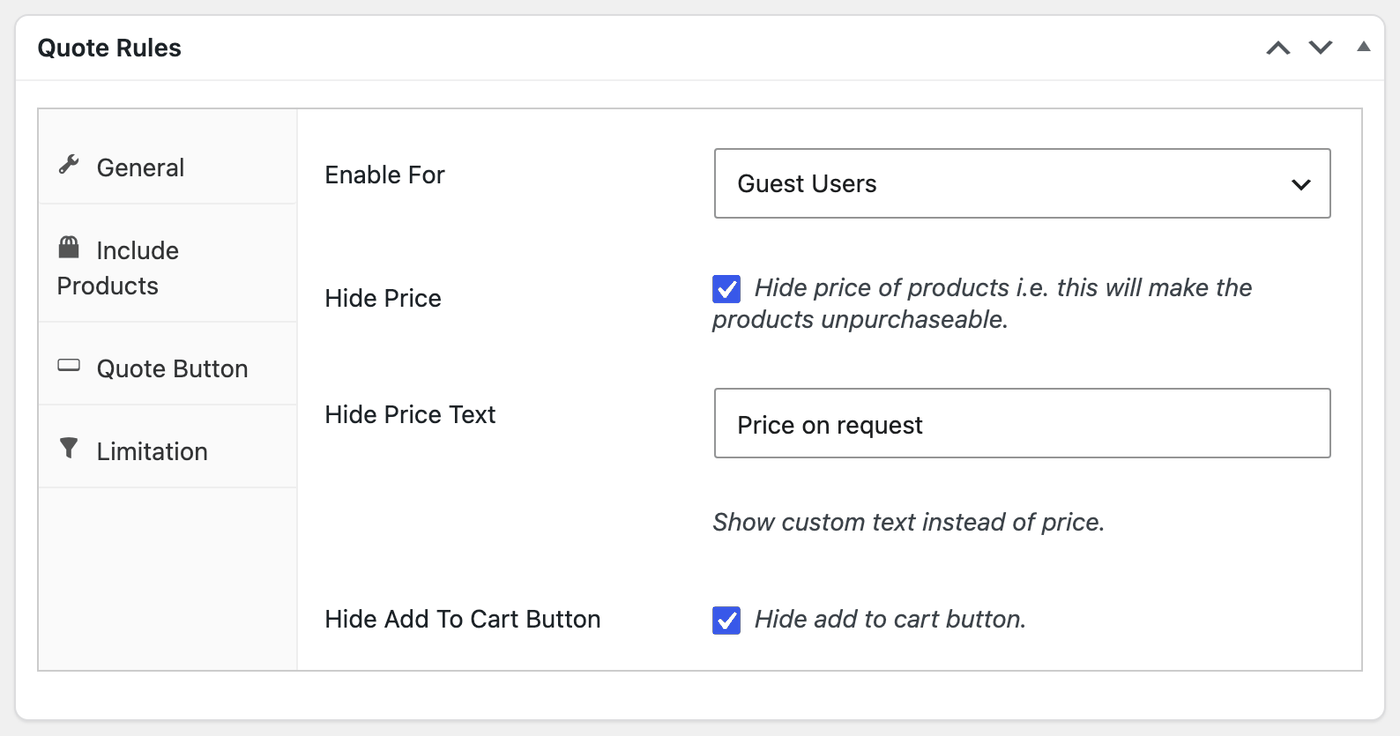
- Enable For: Registered Users or Guest Users. Create separate rules for each.
- Hide Price: Hide the price. This makes the products unpurchasable.
- Hide Price Text: Custom text shown instead of the price, such as “Price on request”.
- Hide Add To Cart Button: Hide the Add to cart button.
Include Products:
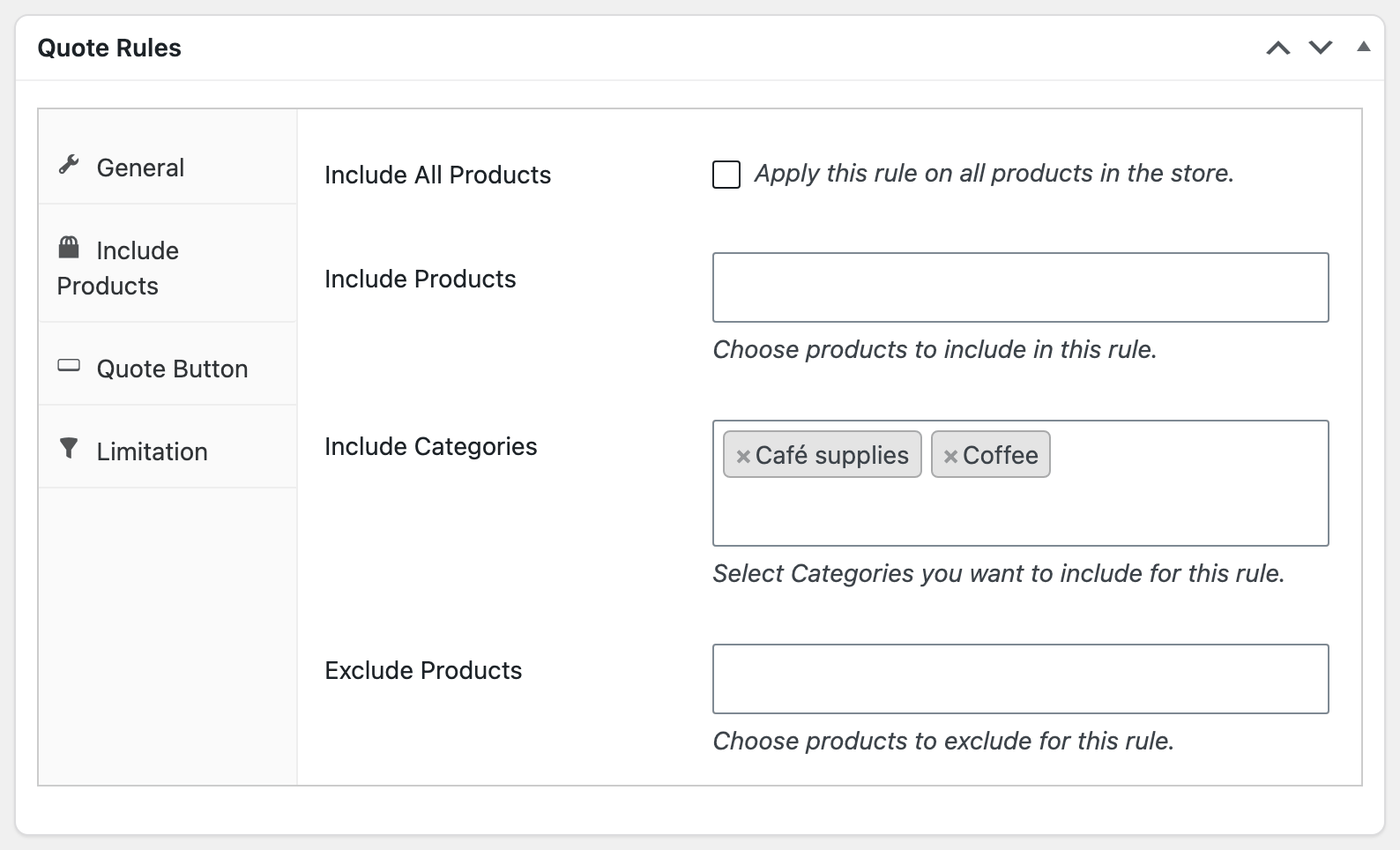
- Include All Products: Apply the rule to every product in the store.
- Include Products and Include Categories: The products and categories the rule applies to.
- Exclude Products: Products the rule never applies to.
Quote Button:
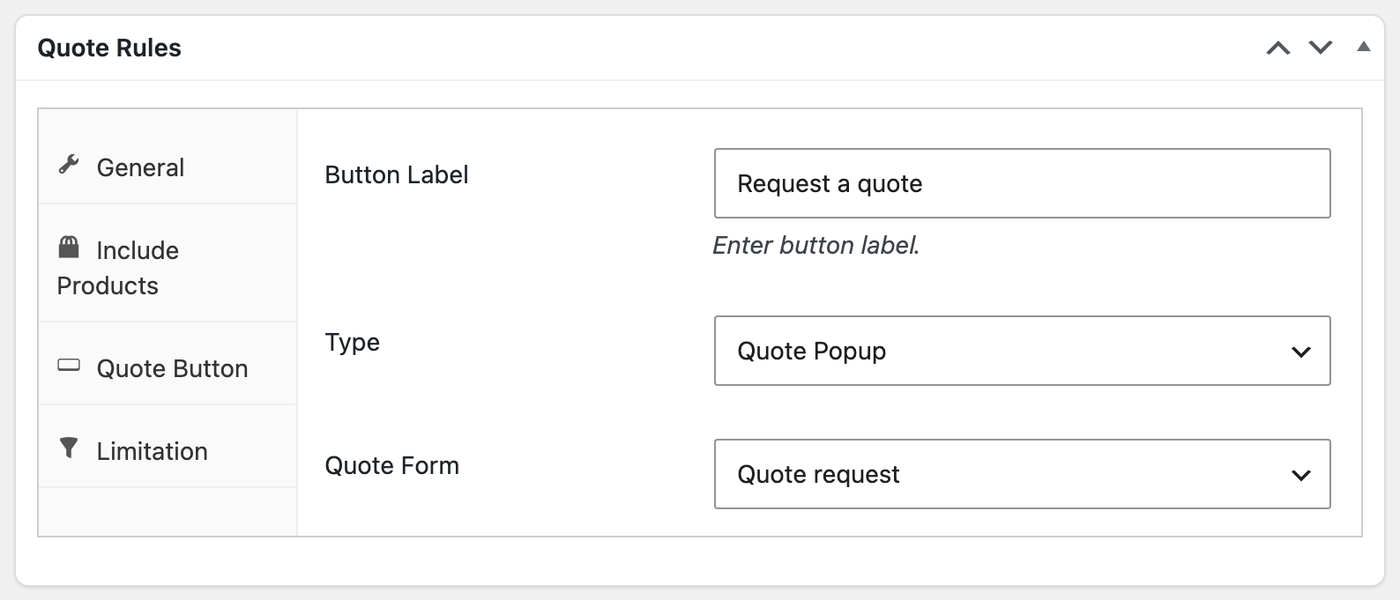
- Button Label: For example “Request a quote”.
- Type: Quote Popup (a form opens on the product) or Add to Quote (products are collected in a quote list).
- Quote Form: The form used by this rule.
Limitation:
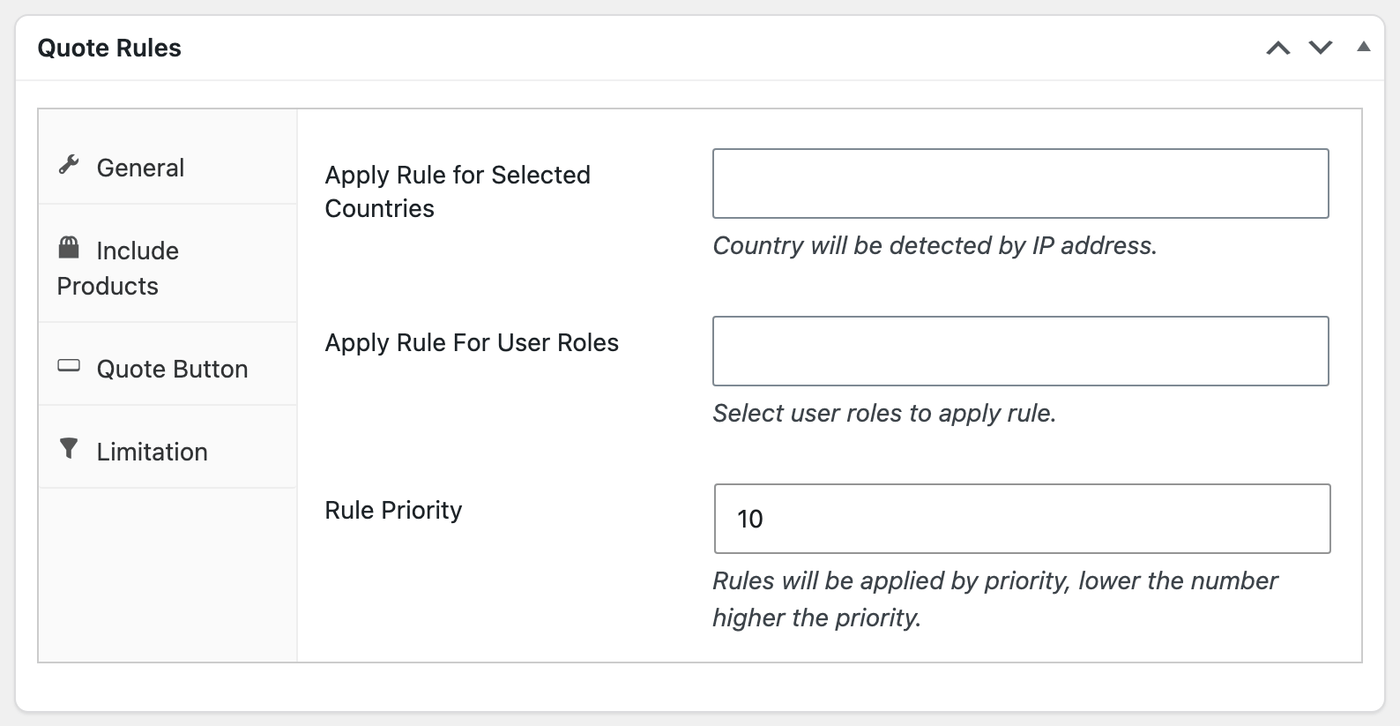
- Apply Rule for Selected Countries: The country is detected by IP address.
- Apply Rule For User Roles: Limit the rule to roles.
- Rule Priority: Lower numbers have higher priority.
Quote forms
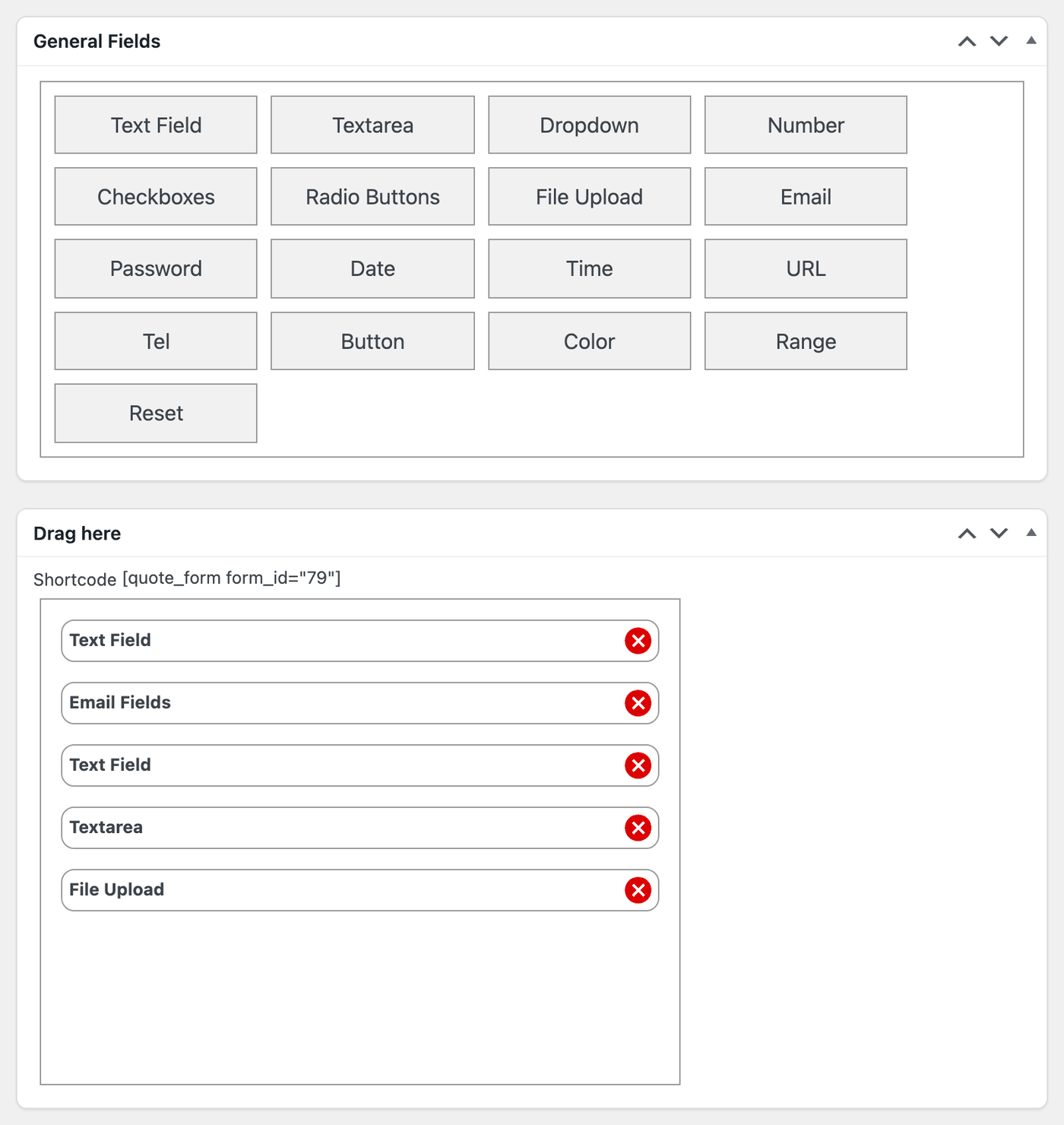
↑ Back to topGo to WooCommerce > Forms to build quote forms. Drag fields from General Fields into Drag here: text field, textarea, dropdown, number, checkboxes, radio buttons, file upload, email, password, date, time, URL, tel, button, color, range, and reset. For each field, set the Field Label, Field Width (Full or Half), description, placeholder, and Required?. The form’s shortcode is shown above the fields.
Uploaded files are stored privately and can only be downloaded by shop managers from the quote screen. Allowed file types are images, PDF, Word, Excel, text, and CSV files up to 5 MB.
Settings
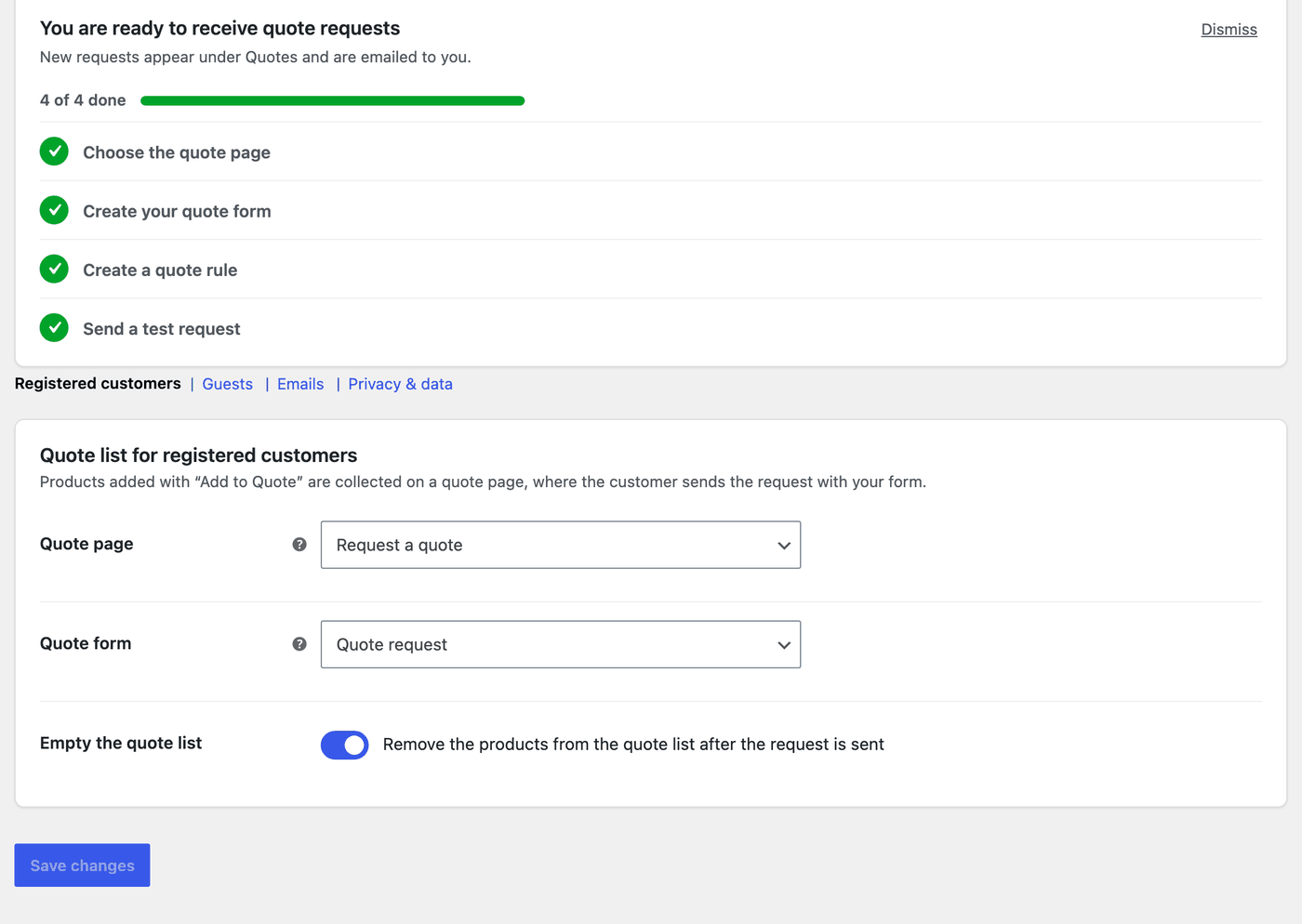
↑ Back to topGo to WooCommerce > Settings > Quote Offer. It has four sections: Registered customers, Guests, Emails, and Privacy & data.
Registered customers and Guests each have their own quote list settings:
- Quote page: The page that shows the quote list. Create an empty page, for example “Request a quote”, and choose it here.
- Quote form: The form shown under the quote list. Without a form, a simple name, email, and message form is used.
- Empty the quote list: Remove the products from the quote list after the request is sent.
Emails:
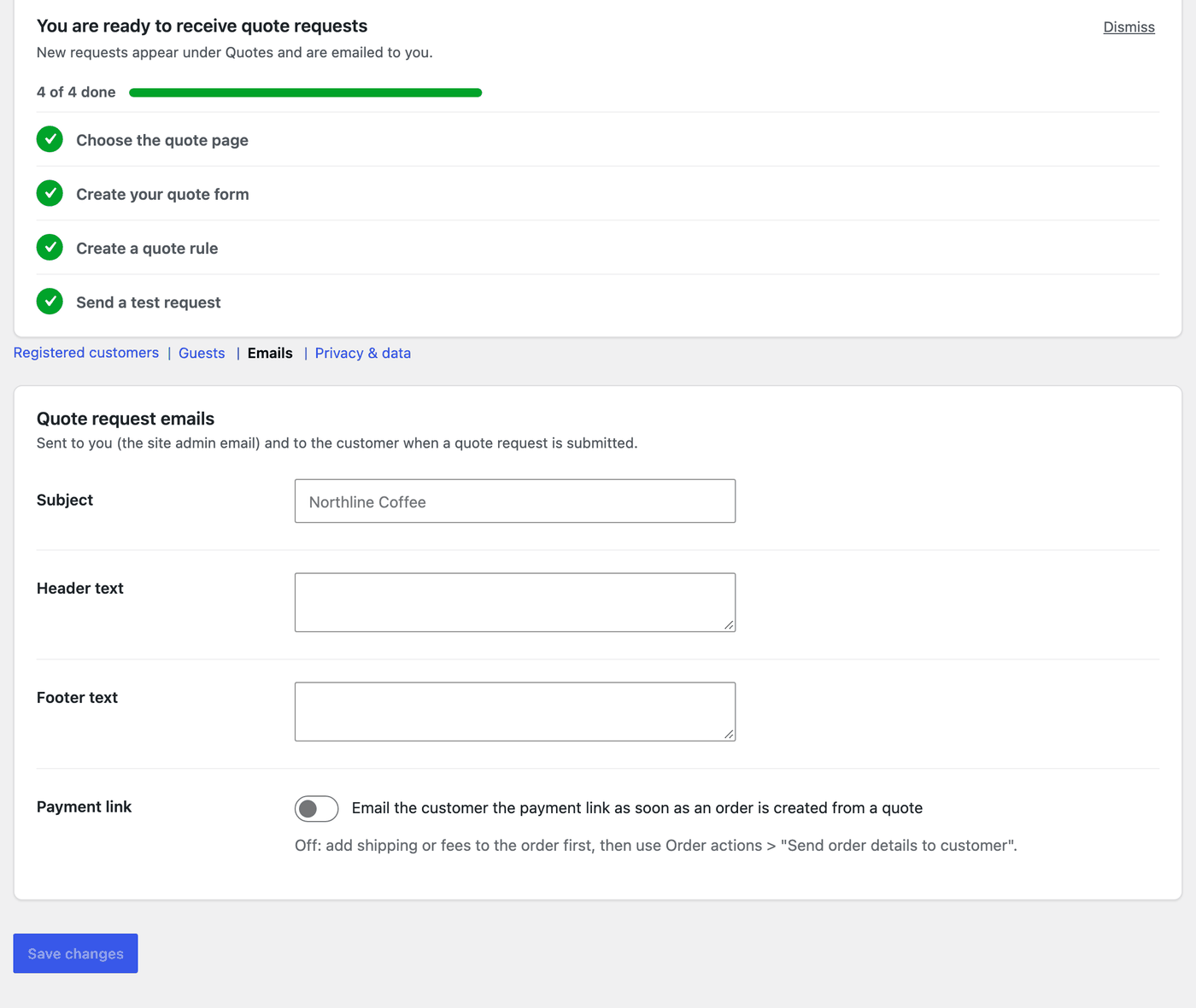
- Subject, Header text, and Footer text: The quote request email, sent to you (the site admin email) and to the customer when a request is submitted.
- Payment link: Email the customer the payment link as soon as an order is created from a quote. When it’s off, add shipping or fees to the order first, then use Order actions > Send order details to customer.
Privacy & data:
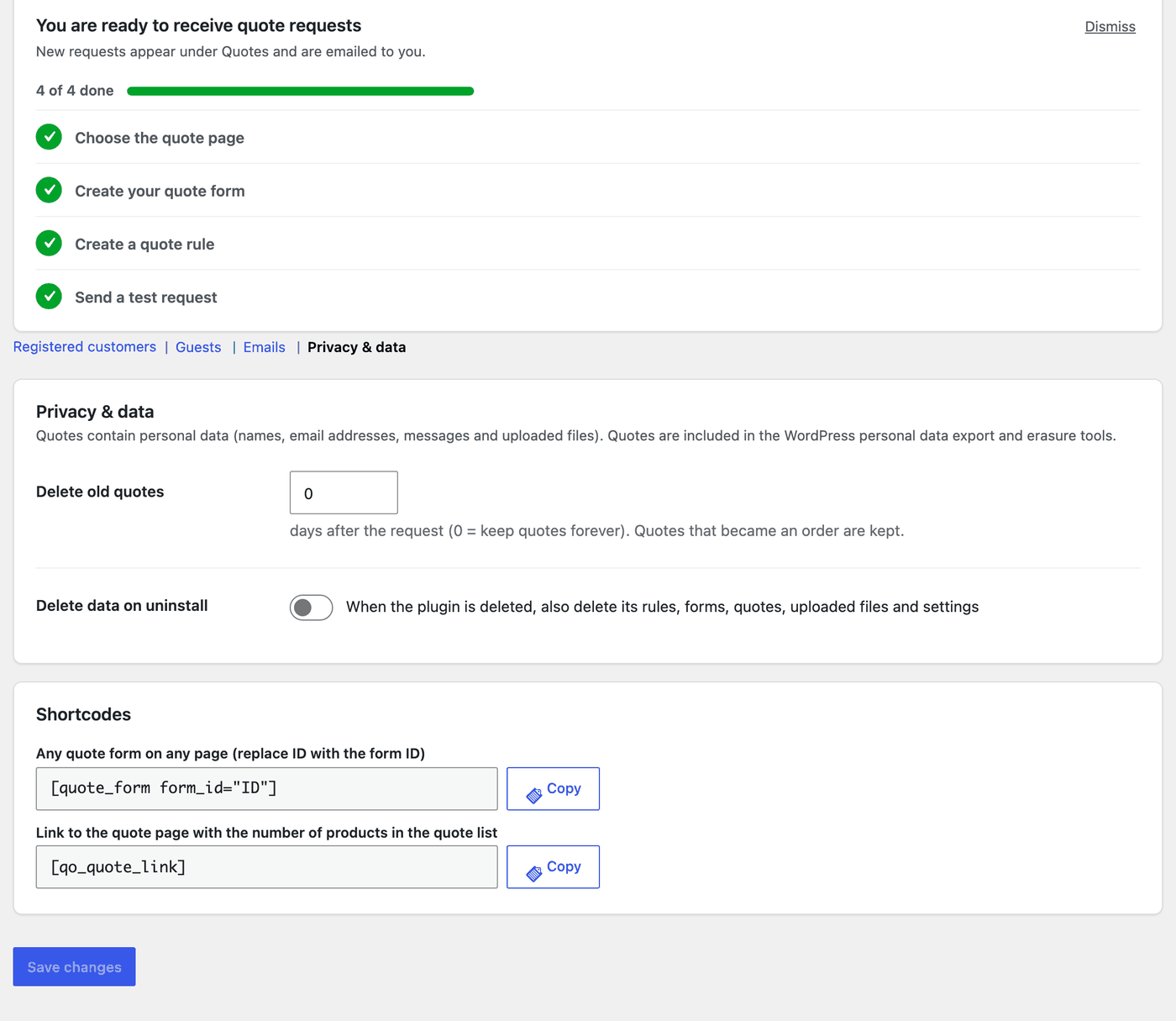
- Delete old quotes: Days after the request (0 keeps quotes forever). Quotes that became an order are kept.
- Delete data on uninstall: When the plugin is deleted, also delete its rules, forms, quotes, uploaded files, and settings.
- Shortcodes: Copy
[quote_form form_id="ID"]and[qo_quote_link].
Quotes are included in the WordPress personal data export and erasure tools.
How-to guides
↑ Back to topHow to add a request a quote button to WooCommerce products
↑ Back to top- Create a quote rule for the products, with Hide Add To Cart Button ticked.
- In Quote Button, enter the Button Label and set Type to Quote Popup.
- Choose the Quote Form and select Publish.
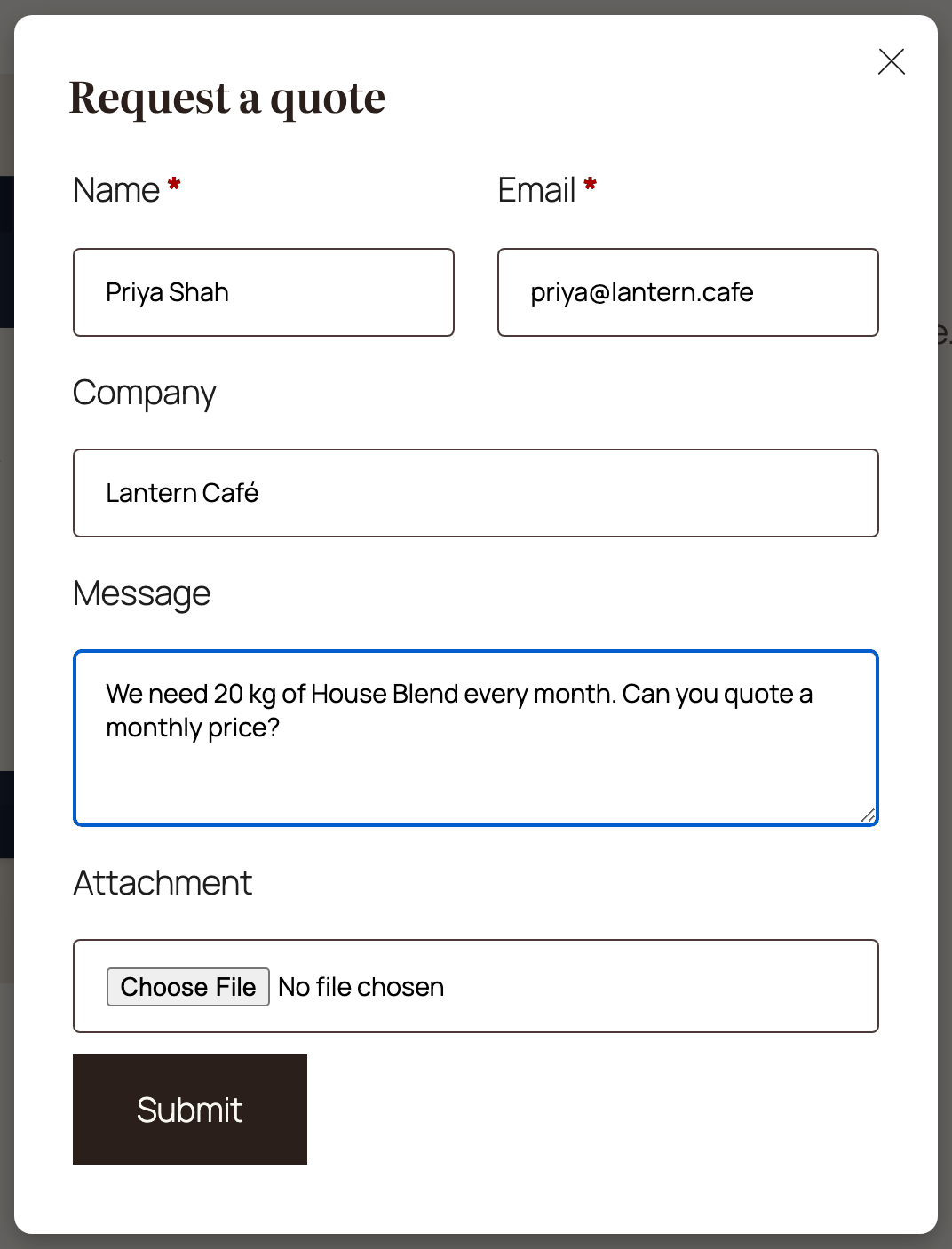
Customers see the button on the product page, with your price text if you hide the price.
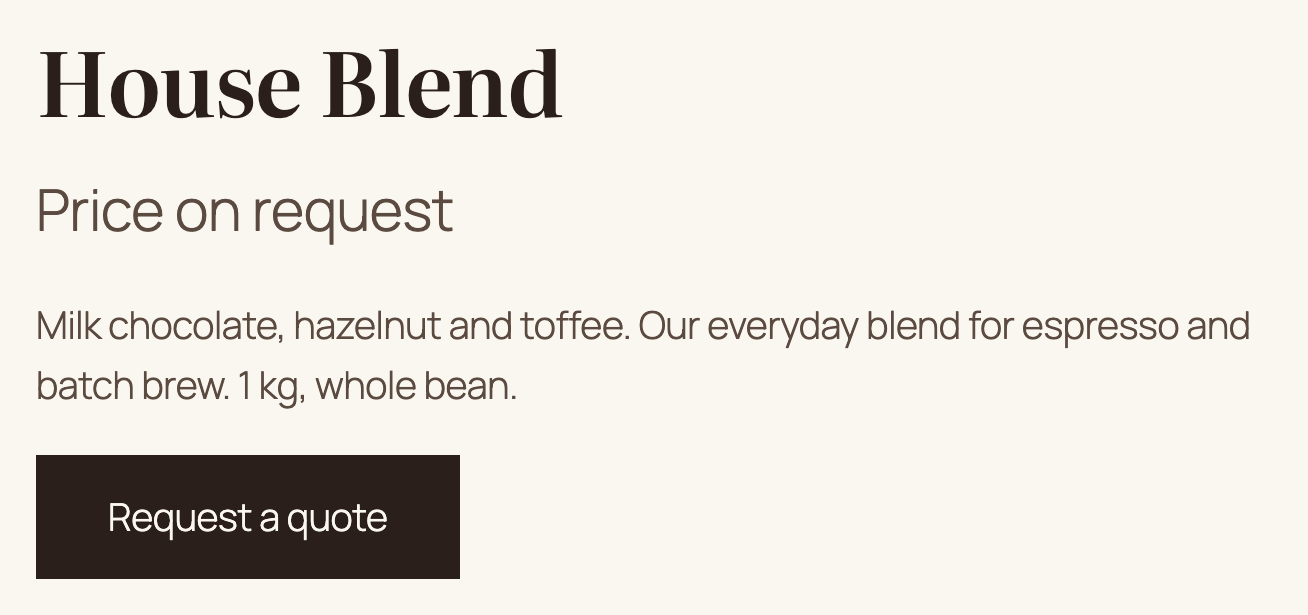
The form opens in a popup with the product already attached.
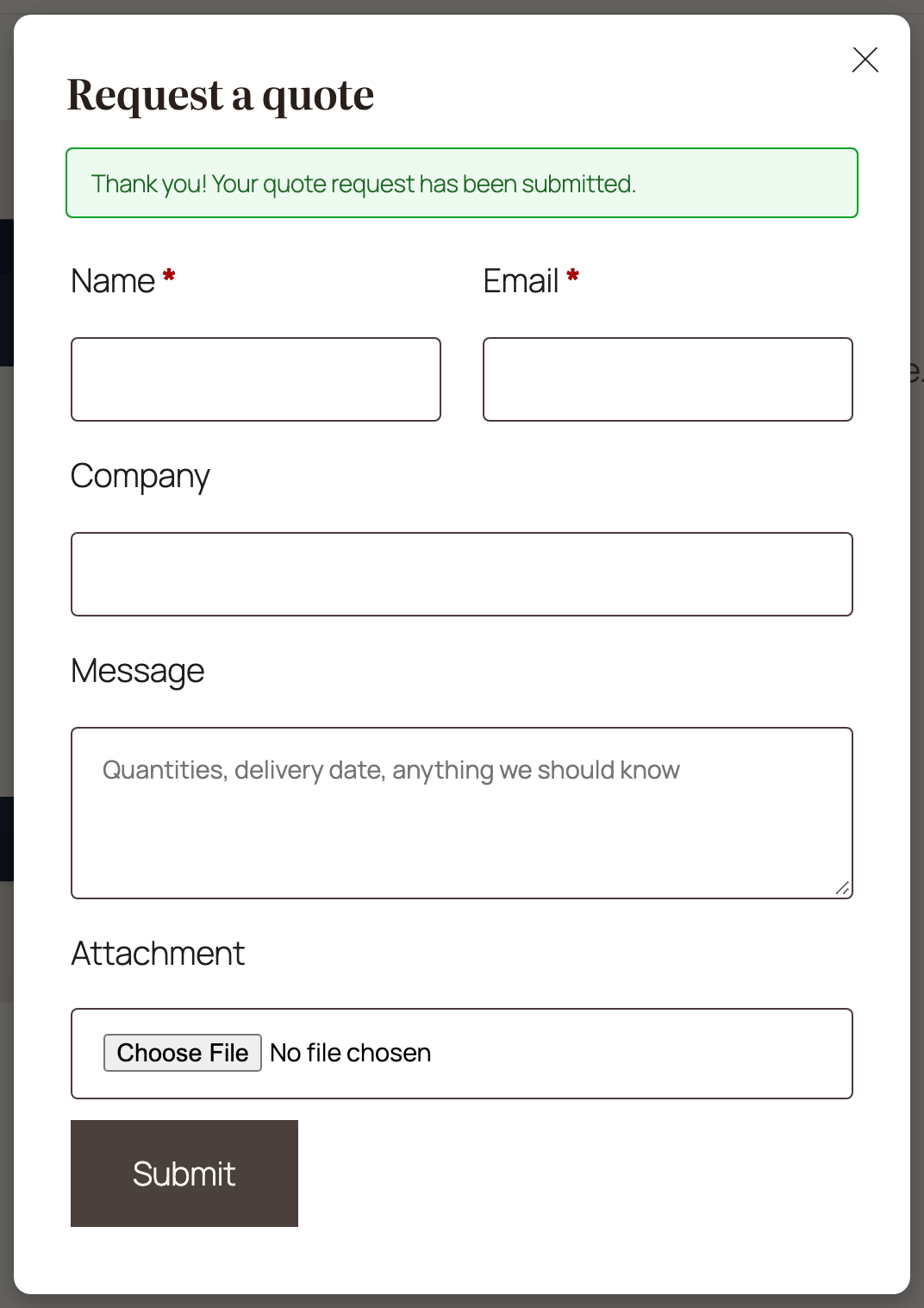
After sending, the customer sees a confirmation and gets a copy by email.
How to let customers add several products to one quote request
↑ Back to top- In the rule’s Quote Button tab, set Type to Add to Quote.
- Make sure the Quote page is set in the settings for that customer group.
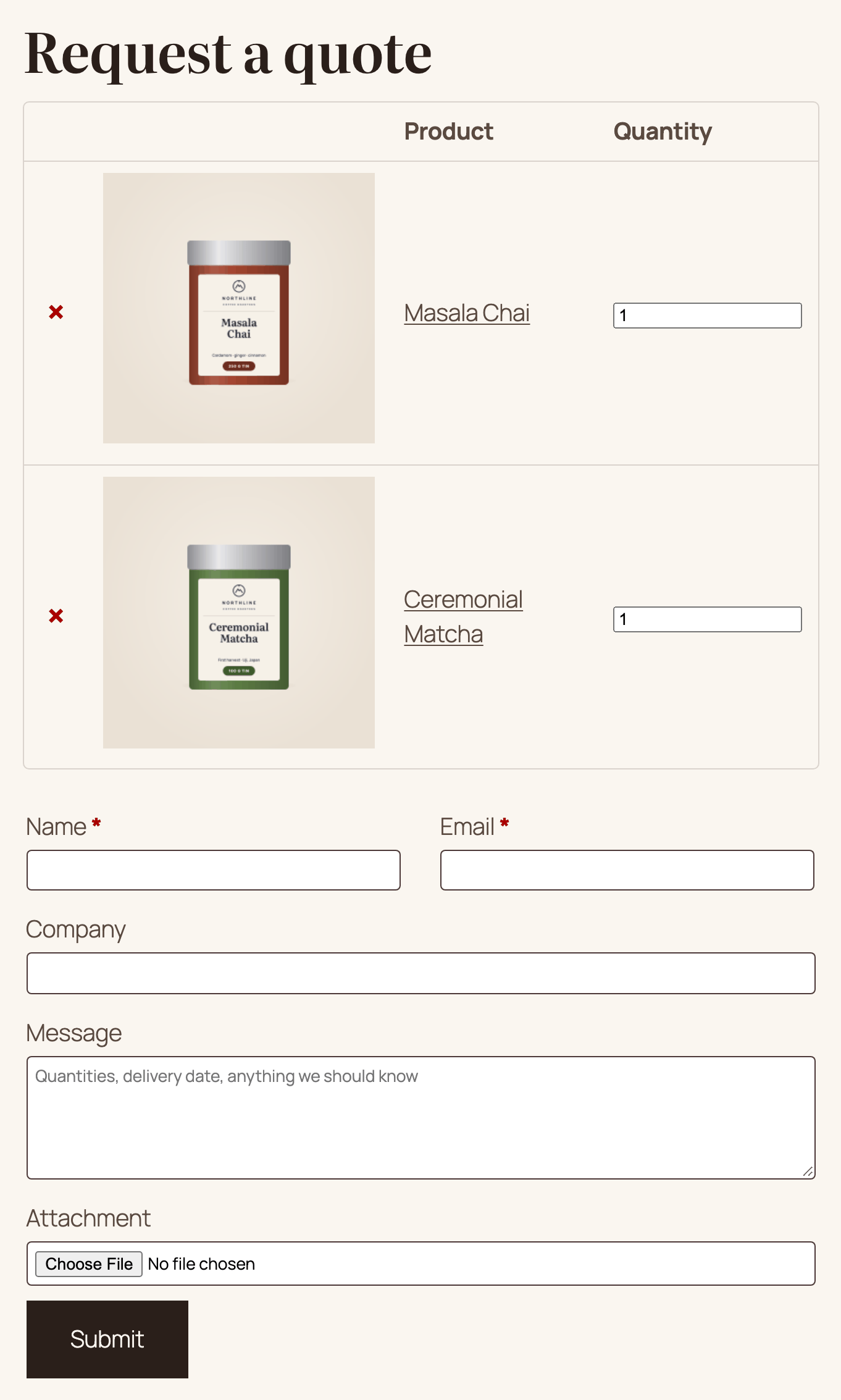
- Customers select Add to Quote on each product, then open the quote page, adjust quantities, and send one request.
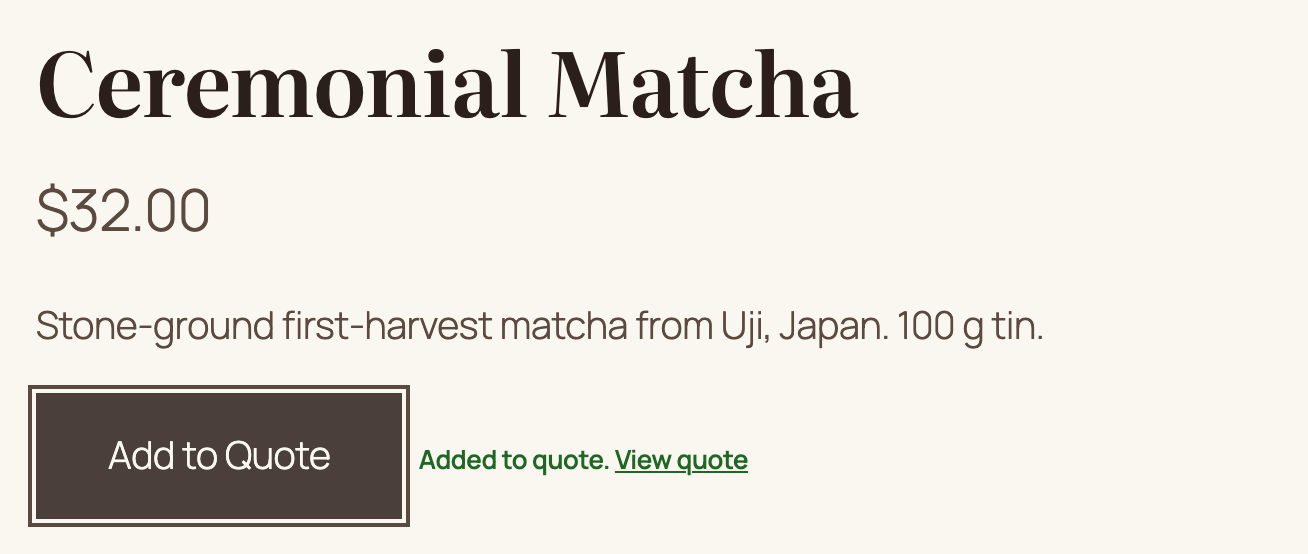
Use [qo_quote_link] in a menu or header to show a link to the quote page with the number of products in the quote list.
How to reply to a quote request
↑ Back to top- Go to WooCommerce > Quote Submissions. Filter by status or date, or search by email.
- Open the quote. Quote Data shows the products and everything the customer entered.
- Write your message in Quote Submission Conversation and select Send reply (emails the customer).
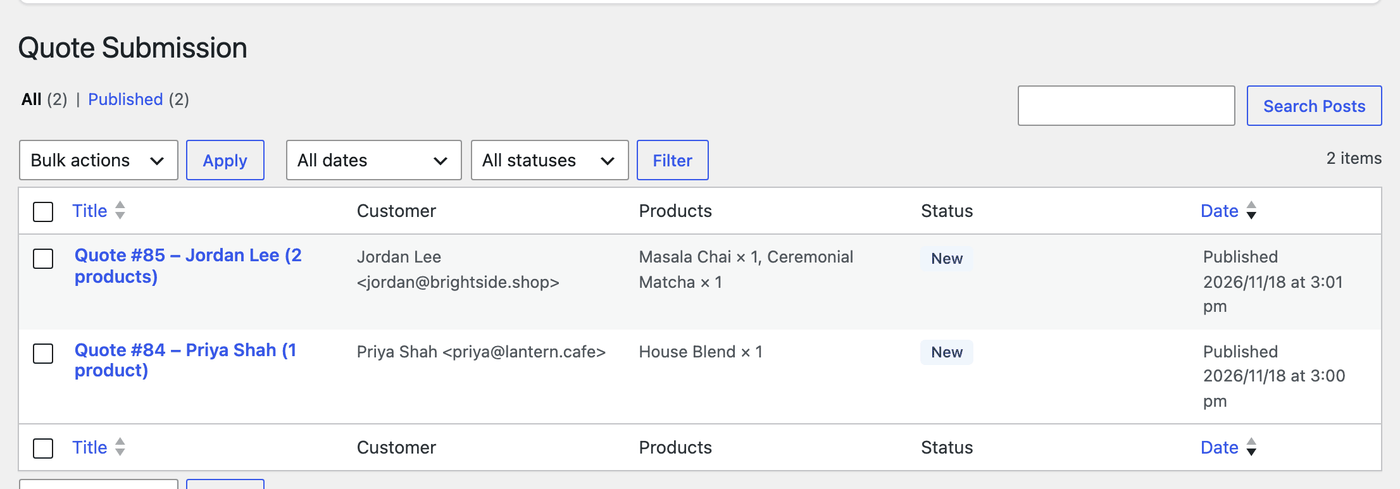
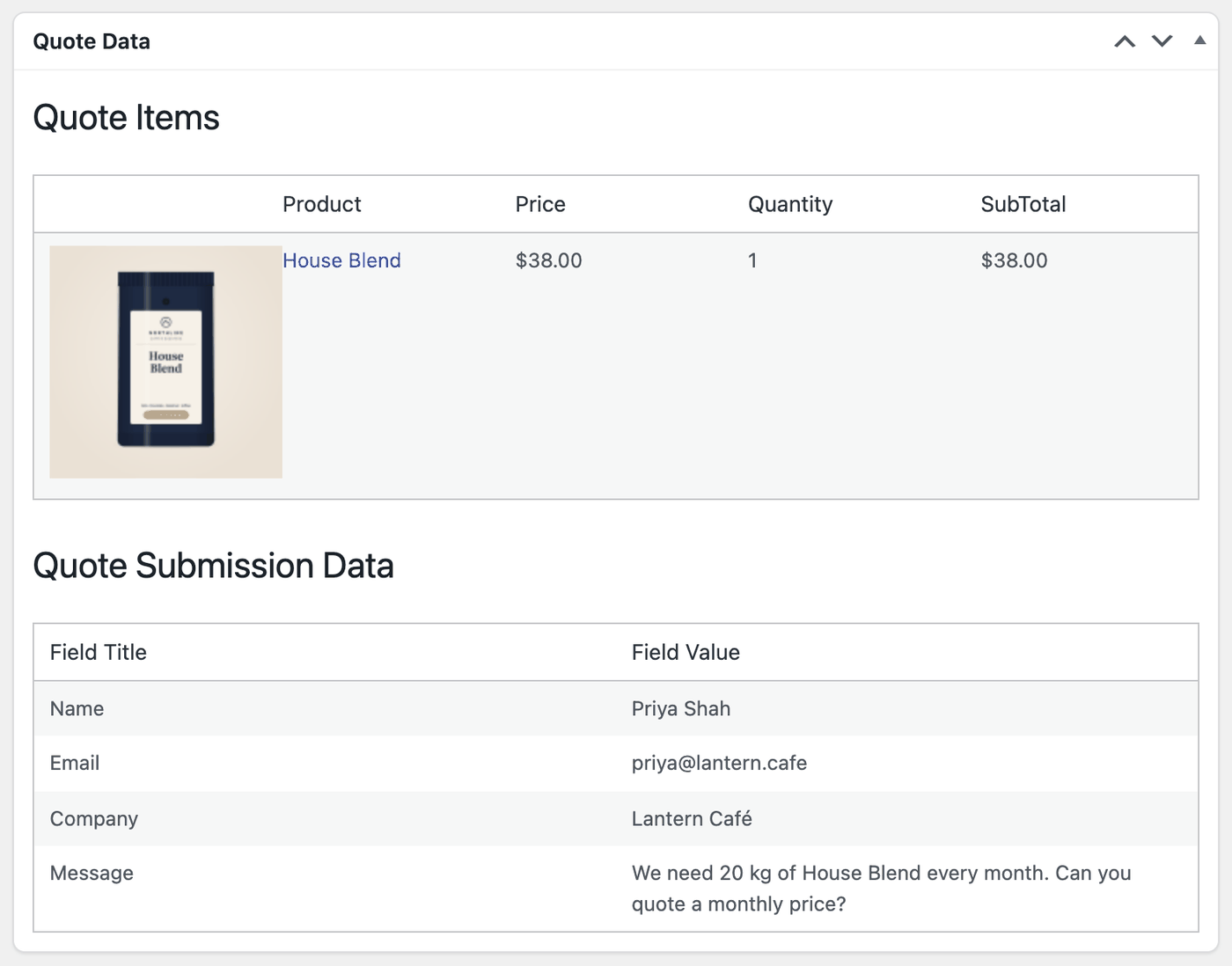
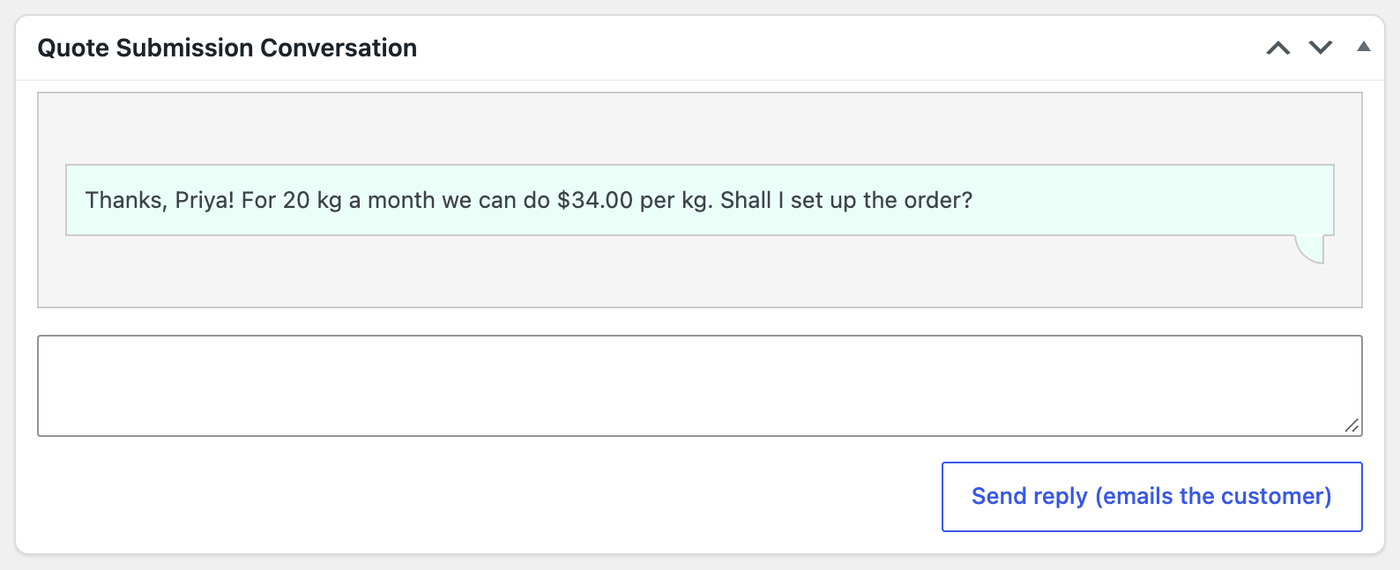
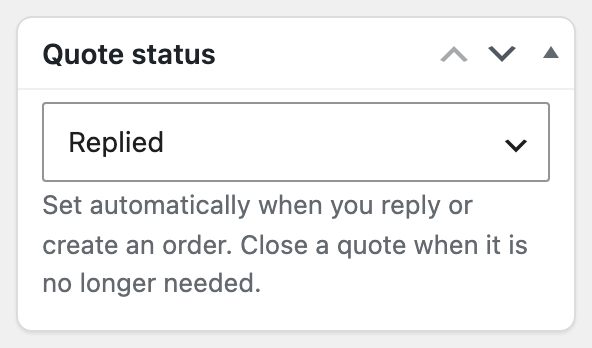
The Quote status box sets itself when you reply or create an order: New, Replied, Order created, or Closed. Close a quote when it’s no longer needed.
How to turn a quote into an order
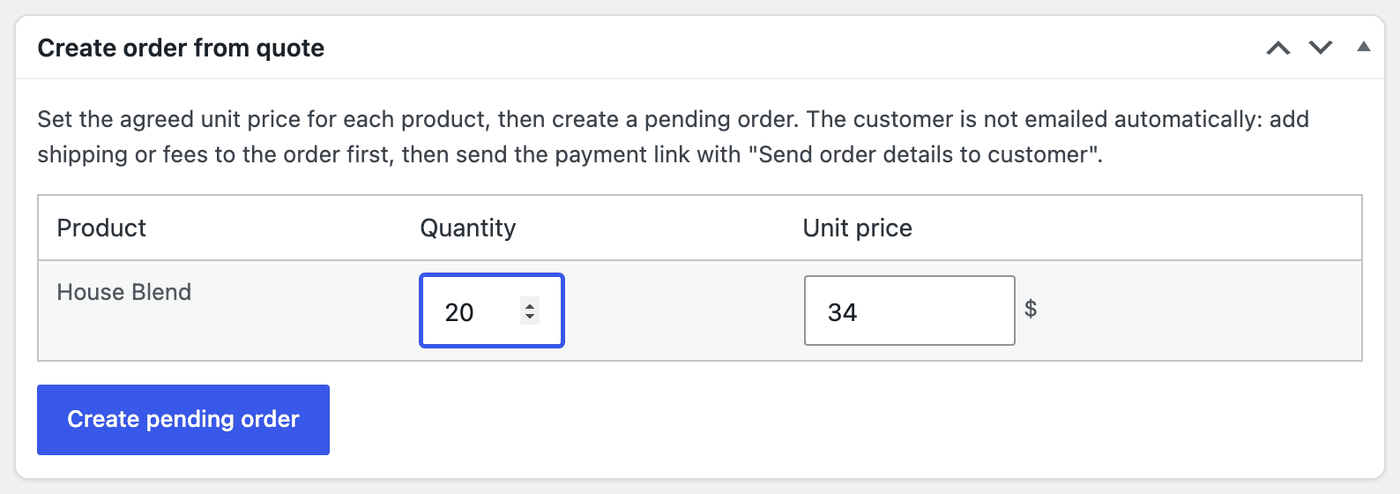
↑ Back to top- In Create order from quote, set the agreed Unit price and Quantity for each product.
- Select Create pending order.
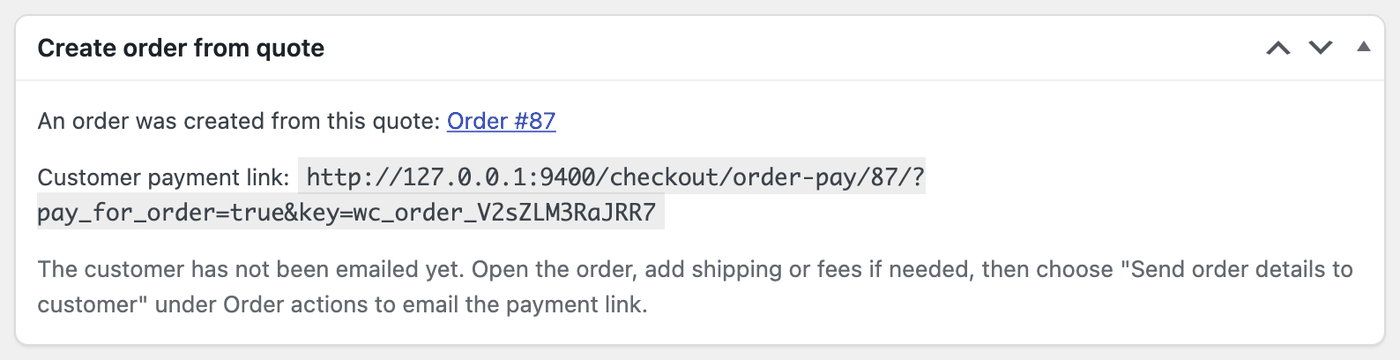
- Open the order, add shipping or fees if needed, then choose Send order details to customer in Order actions. Or turn on Payment link in the Emails settings to send it right away.
The box then shows the order number and the customer payment link.
How customers see their quotes
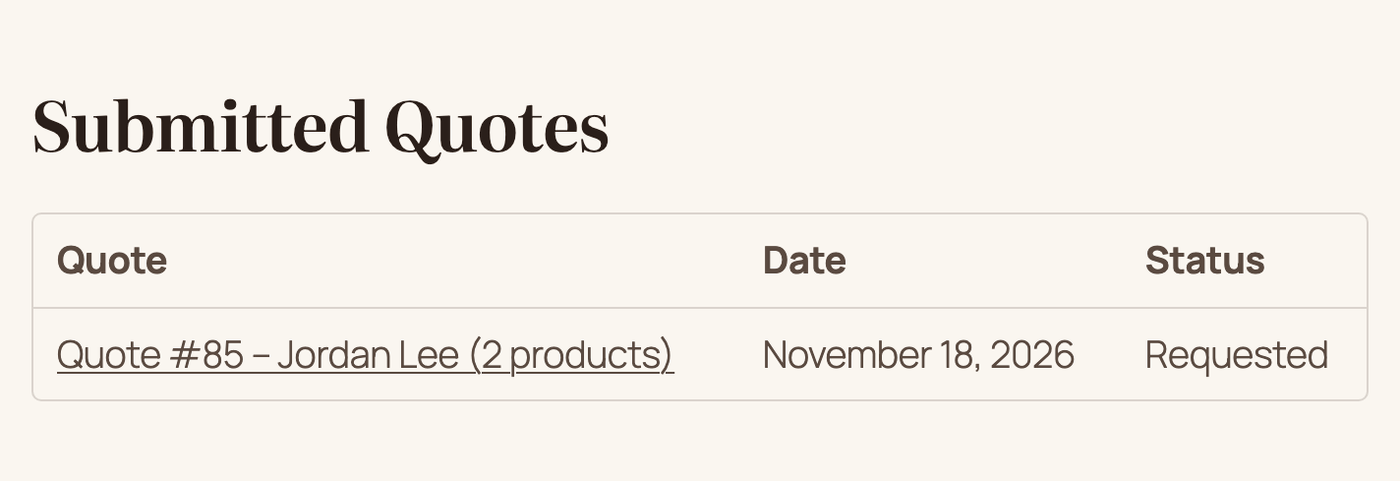
↑ Back to topLogged-in customers see their quotes and the conversation in My account > Submitted Quotes, and can reply there. When a quote becomes an order, they get a Pay now button.
Video
↑ Back to topFrequently asked questions
↑ Back to topDo customers get an email when I create an order from a quote?
↑ Back to topNot automatically, so you can add shipping or fees first. Open the order and choose Order actions > Send order details to customer. To email the payment link right away, turn on Payment link in the Emails settings.
Can I show “Price on request” instead of the price?
↑ Back to topYes. Tick Hide Price in the rule and enter “Price on request” in Hide Price Text. Hidden prices stay hidden on product pages, in blocks and the Store API, in structured data, and in price filters.
Does it work with variable products?
↑ Back to topYes. Customers choose the options first, and the chosen variation is recorded in the quote and in the order.
Can I put a quote form on any page?
↑ Back to topYes. Use [quote_form form_id="ID"] with the form’s ID. The shortcode is shown on the form screen and in the settings.
Does it work with page caching?
↑ Back to topYes. Quote buttons and forms refresh their security token when a cached page is older than WordPress allows. Country rules depend on the visitor’s location, so exclude product pages from the cache or vary it by country if you use them.
Should I use Quote Offer or Hide Price & Show Custom Button?
↑ Back to topUse Hide Price & Show Custom Button if you only need to hide prices or the Add to cart button and show a button or message. Use Quote Offer when customers should request a quote that you answer, negotiate, and turn into an order. Don’t target the same products with both.
Troubleshooting
↑ Back to topThe quote form says “Please enter a valid email address” for a real address
↑ Back to topIn version 1.1.0, the form only accepts email addresses whose domain ending has 2 to 4 letters and that don’t contain “+”. Addresses such as name@shop.coffee, name@studio.agency, or name+orders@example.com are refused. Customers with such an address can use another email address, or contact you directly.
Quote requests don’t arrive
↑ Back to top- Check your inbox and WooCommerce > Quote Submissions. Requests are saved even if the email doesn’t arrive.
- Requests are rate limited per visitor and per email address. Customers who send many requests in a short time are asked to wait.
The quote button doesn’t show
↑ Back to topCheck that the rule is published, that Enable For matches the visitor (rules for guests don’t apply while you’re logged in), and that the product is in the rule’s products or categories and not excluded. With Add to Quote, set the Quote page for that customer group.
Uploaded files and nginx
↑ Back to topFiles are stored in a folder with a random name that’s never linked. On nginx, you can also deny direct access to wp-content/uploads/qo-quote-files-* in the server configuration.
Known limitations
↑ Back to top- Email addresses with a domain ending longer than 4 letters or with “+” are refused by the quote form.
- On the quote page, quantities changed very quickly one after another may not all be saved. Pause briefly after each change before sending.
- In block themes, the quote page table shows large product images, and on phones the rows don’t show the column names.
- The quote screen in the admin uses some generic WordPress labels, such as “Edit Post” and “Search Posts”.
Developer notes
↑ Back to topShortcodes
↑ Back to top[quote_form form_id="ID"]: A quote form on any page.[qo_quote_link]: A link to the quote page with the number of products in the quote list.
Filters
↑ Back to topqo_validate_submission($valid, $submission, $form, $items): Return a WP_Error to reject a request, for example to check a CAPTCHA token.qo_submission_rate_limit($limits): Requests per IP address (default 10) and per email address (default 5) per hour.qo_is_quotable_product($quotable, $product): Whether a product can be quoted.qo_popup_title($title, $rule_id): The popup title. Default “Request a quote”.qo_submit_label($label): The submit button label.qo_accept_attr($types): Allowed file types for uploads.qo_max_upload_size($bytes): The maximum upload size. Default 5 MB.qo_files_dir($dir): The folder for uploaded files.qo_send_customer_copy($send, $quote_id, $email): Whether the customer gets a copy of their request.qo_email_customer_on_order_create($send, $order, $quote_id): Whether to email the payment link when an order is created.qo_cart_quote_title($title, $quote_id): The title of a saved quote.qo_cleanup_batch_size($size): Quotes deleted per batch by the cleanup. Default 50.qo_load_assets($load): Load the front-end assets on every page.qo_allowed_tags($allowed_html): HTML allowed in texts.qo_docs_url($url): The documentation link in the admin.
Actions
↑ Back to topqo_spam_blocked($product_id, $rule_id): After a request is blocked as spam.
Works great with
↑ Back to top- B2B Pricing: give trade customers their own prices for everyday orders, and use quotes for the big ones.
- PDF Invoice, Packing Slips & Credit Notes: a numbered PDF invoice for the order you created from a quote.
- Restrict Checkout: checkout rules such as minimum orders, regions, and payment methods.
- Hide Price & Show Custom Button: when you only need to hide a price and show a button or simple enquiry form. Use one plugin per product.
Support
↑ Back to topNeed help? Contact WooCommerce.com support for Quote Offer. Include your WordPress, WooCommerce, and plugin versions and the rule you’re testing.

