
This guide explains how to add custom sections to My Account → Data Privacy with Data Privacy Manager for WooCommerce. You can link each section to a page where your customers can read your privacy policy, contact your privacy team, or update their personal information. If your store already offers privacy tools elsewhere, you can link directly to the page where customers use them.
How custom privacy links work
↑ Back to topWhen you select Add section, the editor creates a link section. Choose an existing WordPress page or enter a custom URL. Your customers can open that page directly or see a short introduction and button first, depending on how you set up the section.
The page you link to handles any sign-in, form, and confirmation your customers need to complete the task.
For more section settings, see Privacy Center customization. Names in your customer list may differ because your store can change them.
Add a custom privacy link
↑ Back to topChoose a customer-facing page that your customers can access and that offers the task described in the link.
Open the section editor
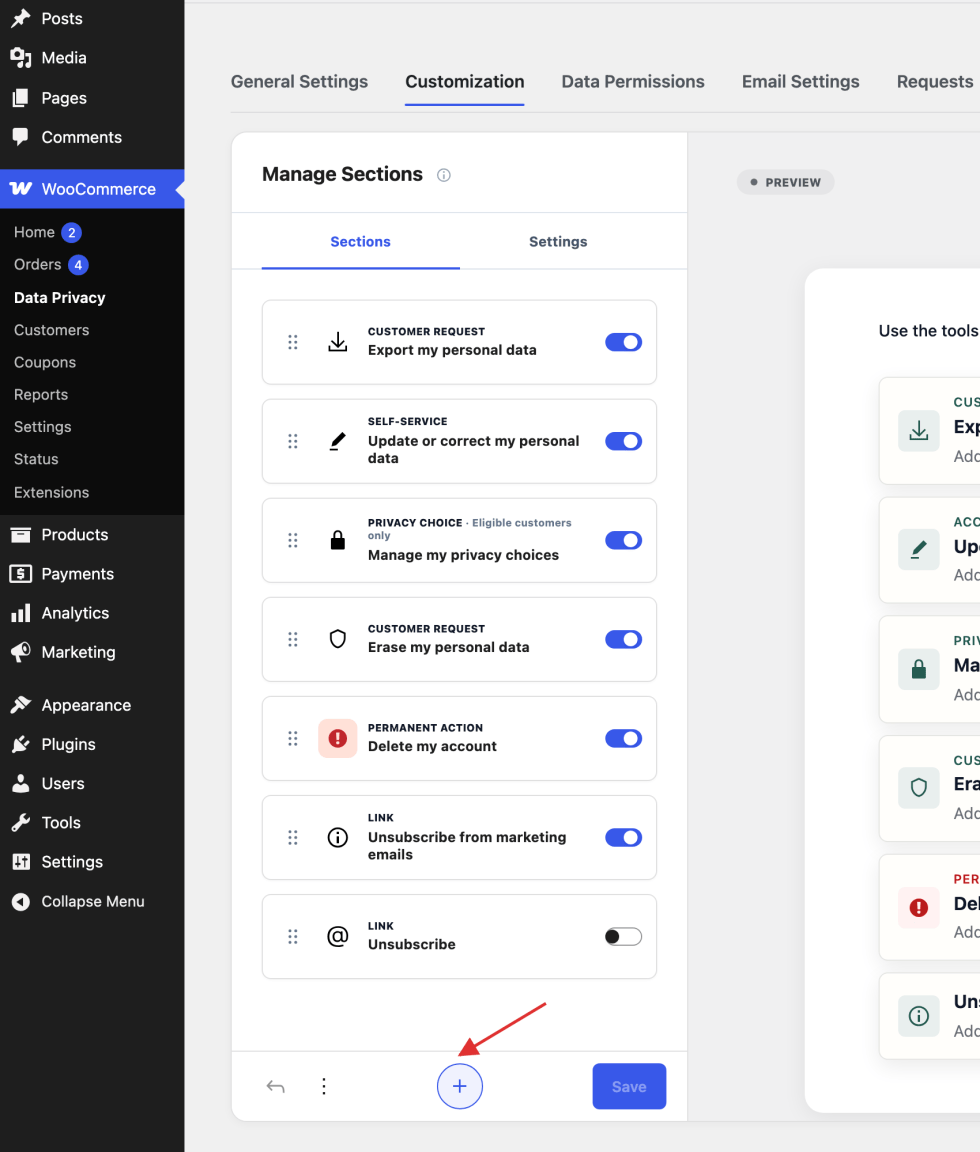
↑ Back to top- Open WooCommerce → Data Privacy → Customization → Sections.
- Select Add section (+) below Manage Sections. A hidden New link opens in the editor.
Choose an existing WordPress page
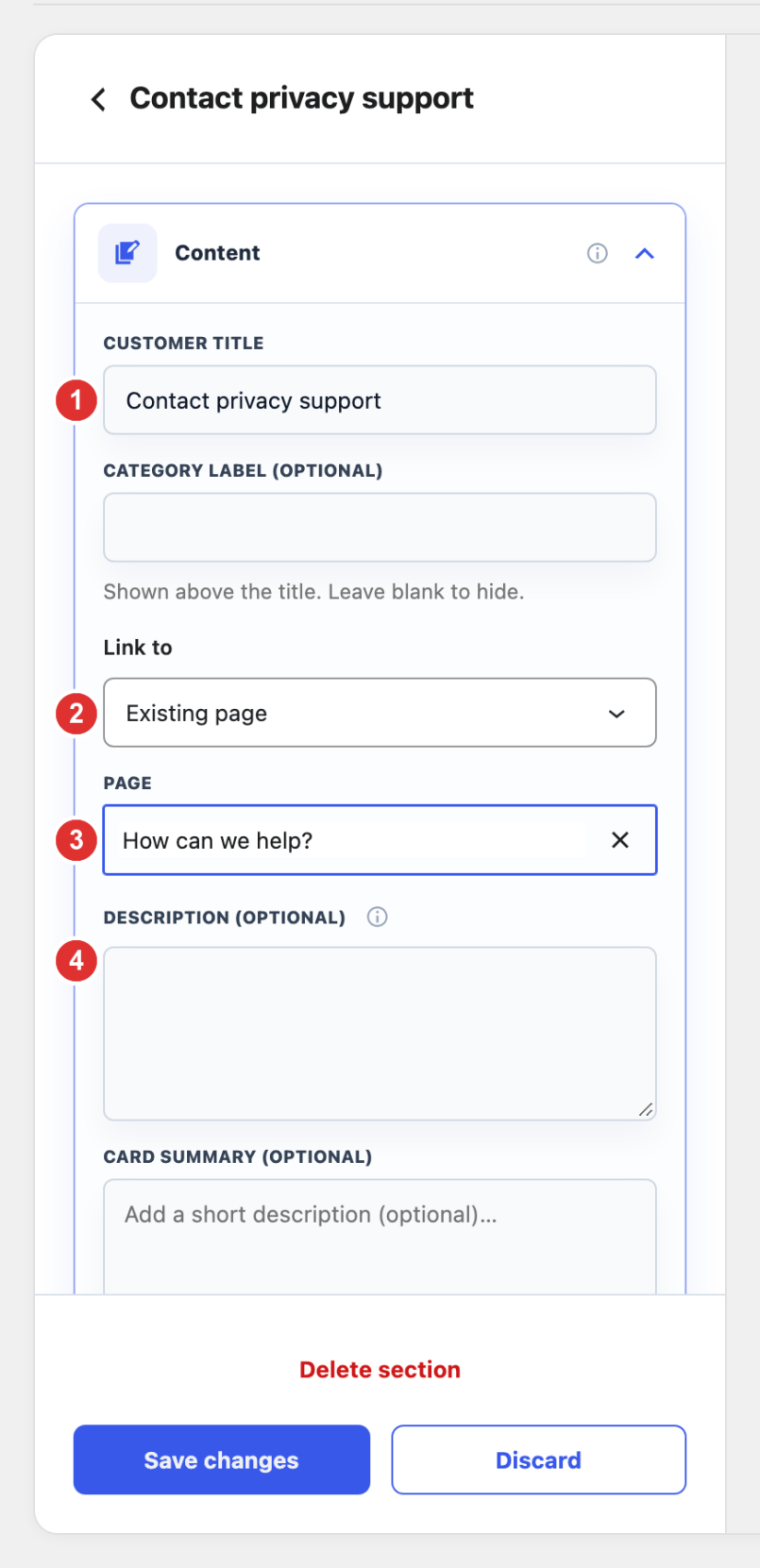
↑ Back to top- Enter a clear Customer title. In this example, the title is Contact privacy support. Add a category label or card summary if it helps explain the destination in the customer list.
- Under Link to, choose Existing page.
- Under Page, select the WordPress page customers should open. In this example, How can we help? is the store’s contact page at
/contact/. - Leave Description (optional) blank to take customers straight to that page when they select the section.
Enable and save the section
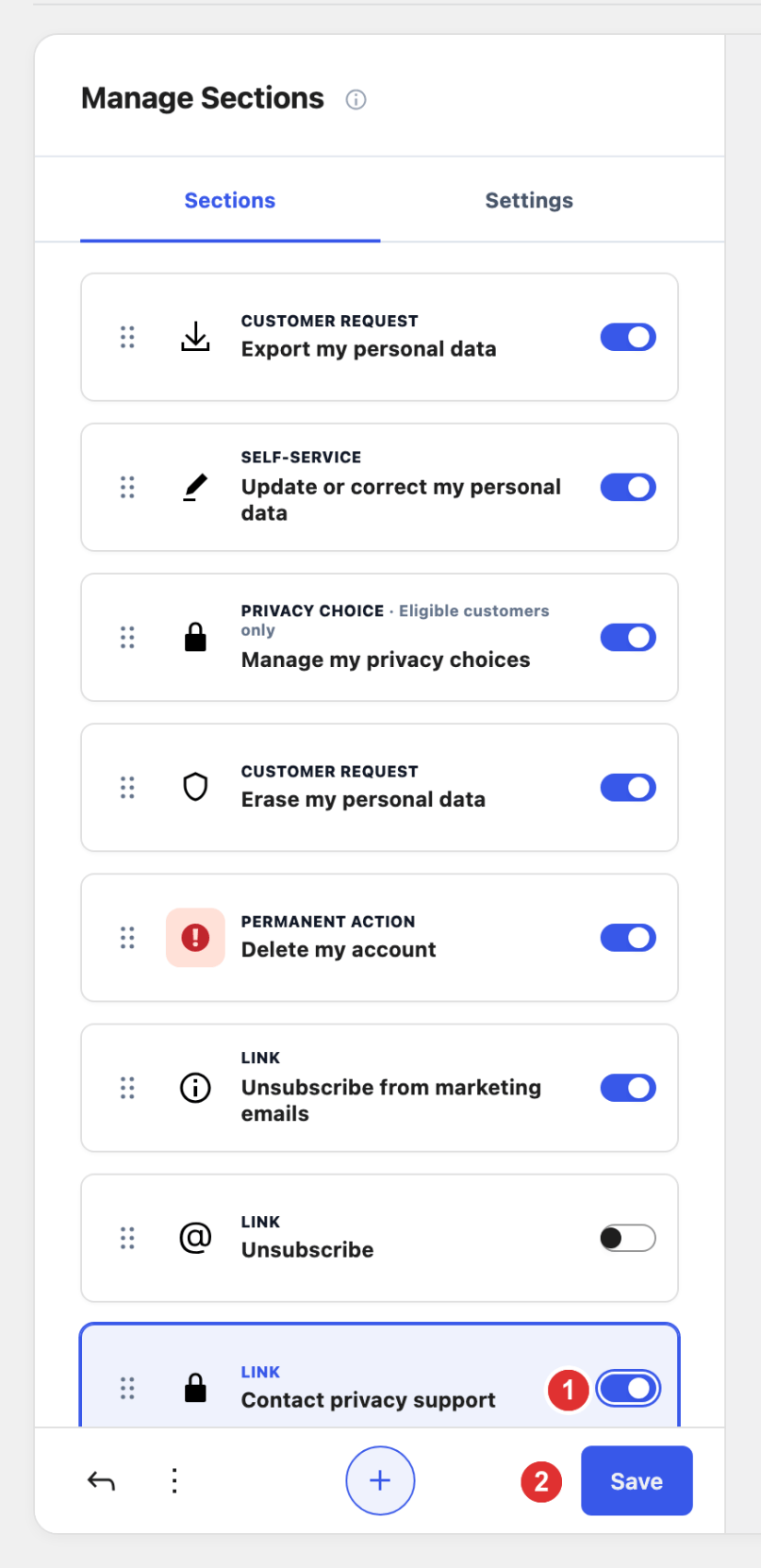
↑ Back to topReturn to Manage Sections using the back arrow beside the section name.
- Enable the visibility switch for Contact privacy support.
- Select Save and wait for the saved confirmation.
Check the direct link in My Account
↑ Back to topSign in with a customer account and open My Account → Data Privacy. Confirm that the section appears and follow it to the intended page.
Find the section in Data Privacy
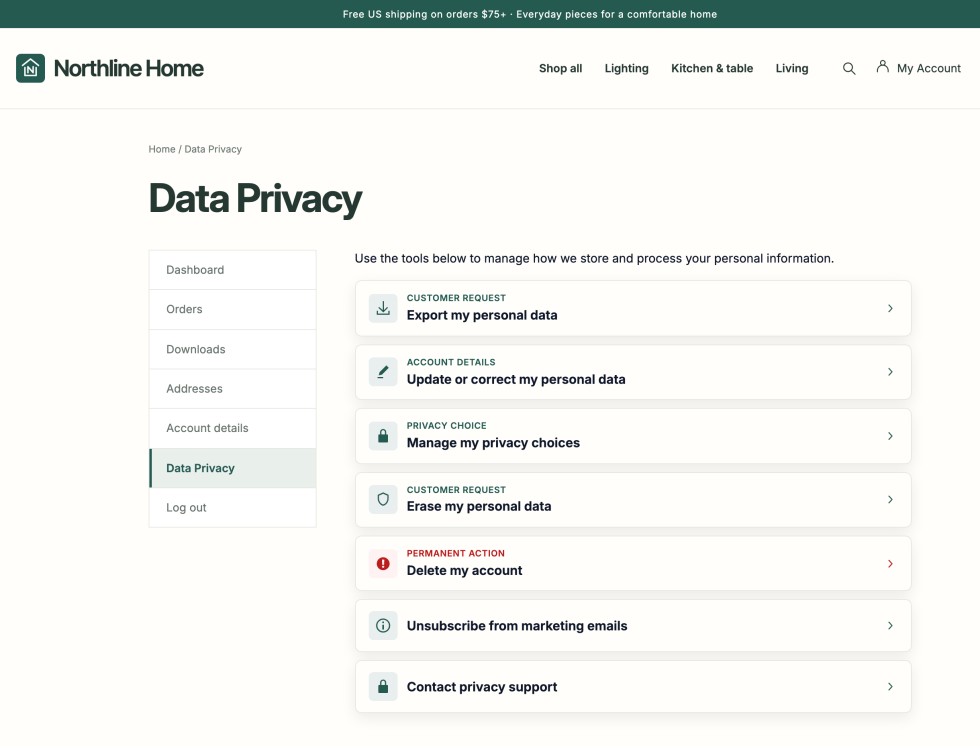
↑ Back to topYour customers sign in and open My Account → Data Privacy. The Contact privacy support link appears in the privacy area.
Open the destination directly
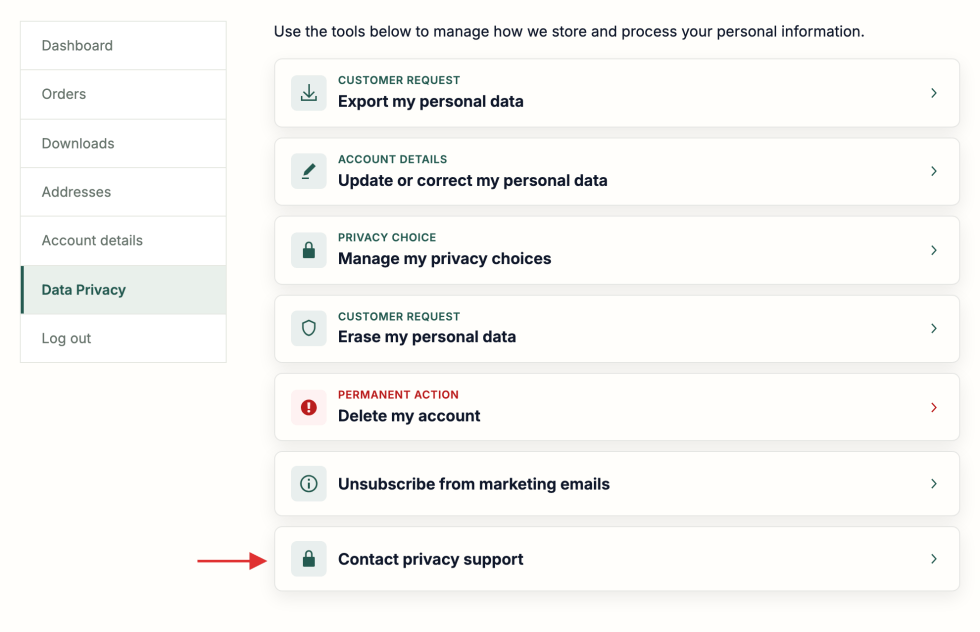
↑ Back to topYour customers select Contact privacy support from the list. Because this example has no description, it opens the contact page directly.
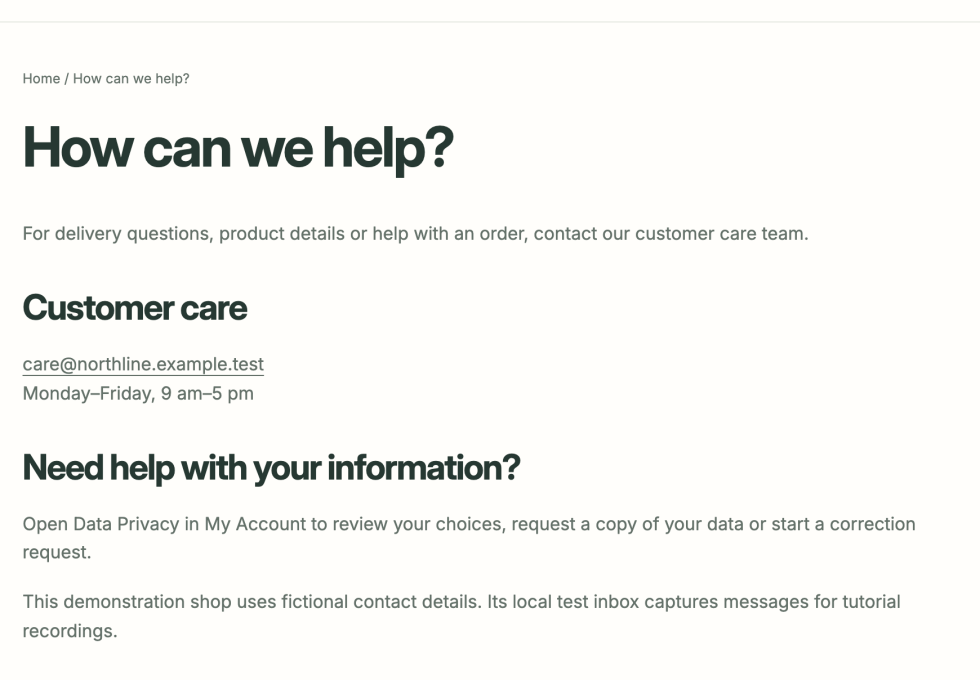
The How can we help? destination provides the store’s support information. Your customers follow that page’s instructions to ask for help. Selecting the privacy-area link has only opened the page; it has not submitted a support or privacy request.
Use a custom URL and introduction
↑ Back to topYou can add an introduction and button to either an existing WordPress page or a custom URL. This example uses a custom URL for the same support page.
Set the custom URL and introduction
↑ Back to topOpen the section in Manage Sections and configure the link.
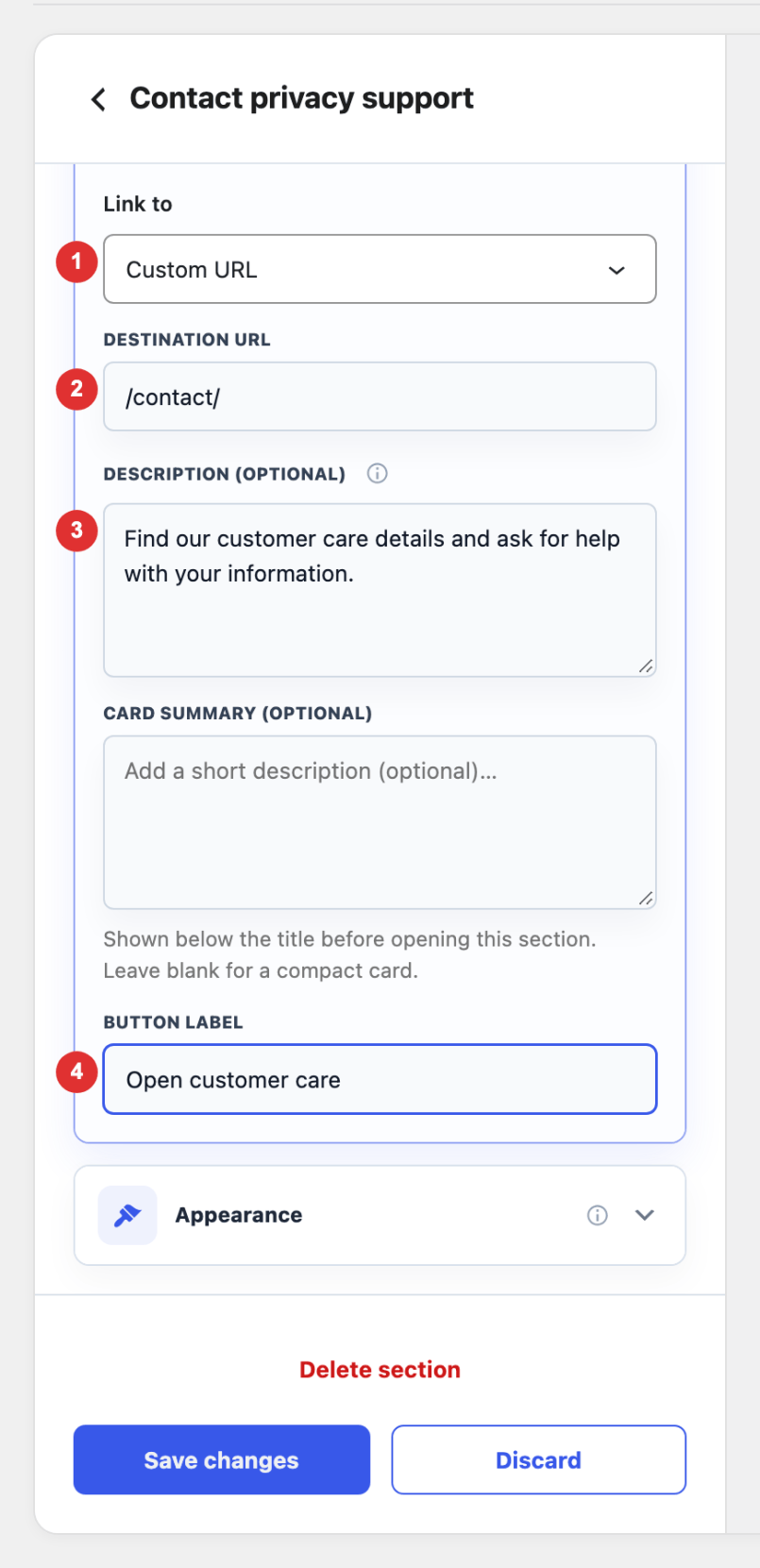
- Under Link to, choose Custom URL.
- Enter the Destination URL. This example uses
/contact/for the support page. - Enter a Description (optional) that explains what customers can do there. Here it is “Find our customer care details and ask for help with your information.”
- Set a useful Button label. This example uses Open customer care.
Select Save changes and check the customer page again.
A destination must be valid before the link can be enabled or saved. Changing between Existing page and Custom URL clears the previous destination, so choose or enter it again.
Open the destination from the introduction
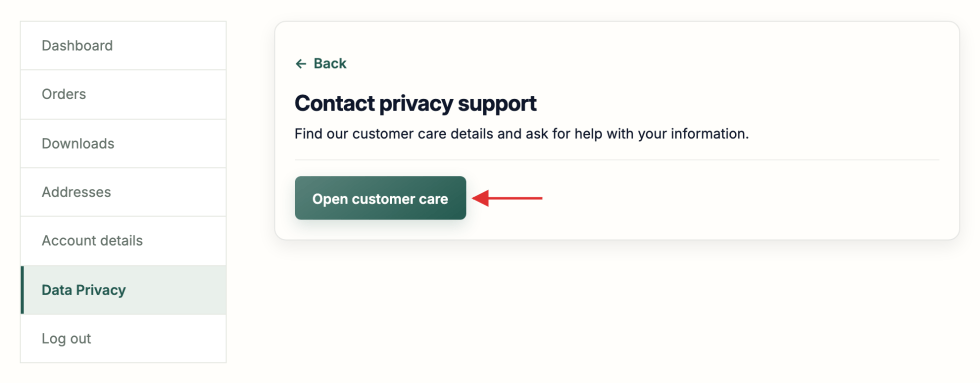
↑ Back to topNow your customers select Contact privacy support, read the introduction, and select Open customer care. The button opens the same contact page shown above. The introduction provides context; the destination still handles the actual task.
Troubleshooting
↑ Back to top| What you see | What to check |
|---|---|
| A link cannot be enabled or saved | Supply a valid destination. If you changed Link to, select the page or enter the URL again. |
| A section appears in preview but not in My Account | Check its visibility switch and save the changes, then reload the customer page. |
| A customer cannot open the destination | Check the address and test access as a customer. The destination may require its own sign-in. |
| An action at the destination is absent from privacy request history | Check the linked service’s own records or confirmation. Privacy request history does not record every action on another page. |
Use Case
↑ Back to topIf your store handles privacy questions through a support page or request form, use Contact privacy support to make that contact route easy to find. Your customers might need help correcting a detail they can’t edit, have a question about information in their data export, or want an update on a request they’ve already sent.
If your support page covers several topics, tell customers which option reaches your privacy team and what details will help your team respond. For a follow-up, that might be the reference number from their original request.
Making it easier to reach your team supports your store’s duty to help customers exercise their privacy rights under Articles 15–22, as set out in GDPR Article 12(2).

