
Paying affiliates in Affiliate and Referral Program for WooCommerce comes down to three steps: approved commission collects in each affiliate’s wallet, the affiliate requests a withdrawal, and you send the money from one screen — in bulk through PayPal, through Stripe, or as a bank transfer you make yourself. This guide covers each affiliate payment method — PayPal, Stripe and bank transfer — the payout states and withdrawal fees. Part of the Affiliate and Referral for WooCommerce documentation.
How paying affiliates works
↑ Back to top- An affiliate requests a withdrawal from the Payout tab of their dashboard, using the payment method and details they saved there. The requested amount leaves their wallet at that moment.
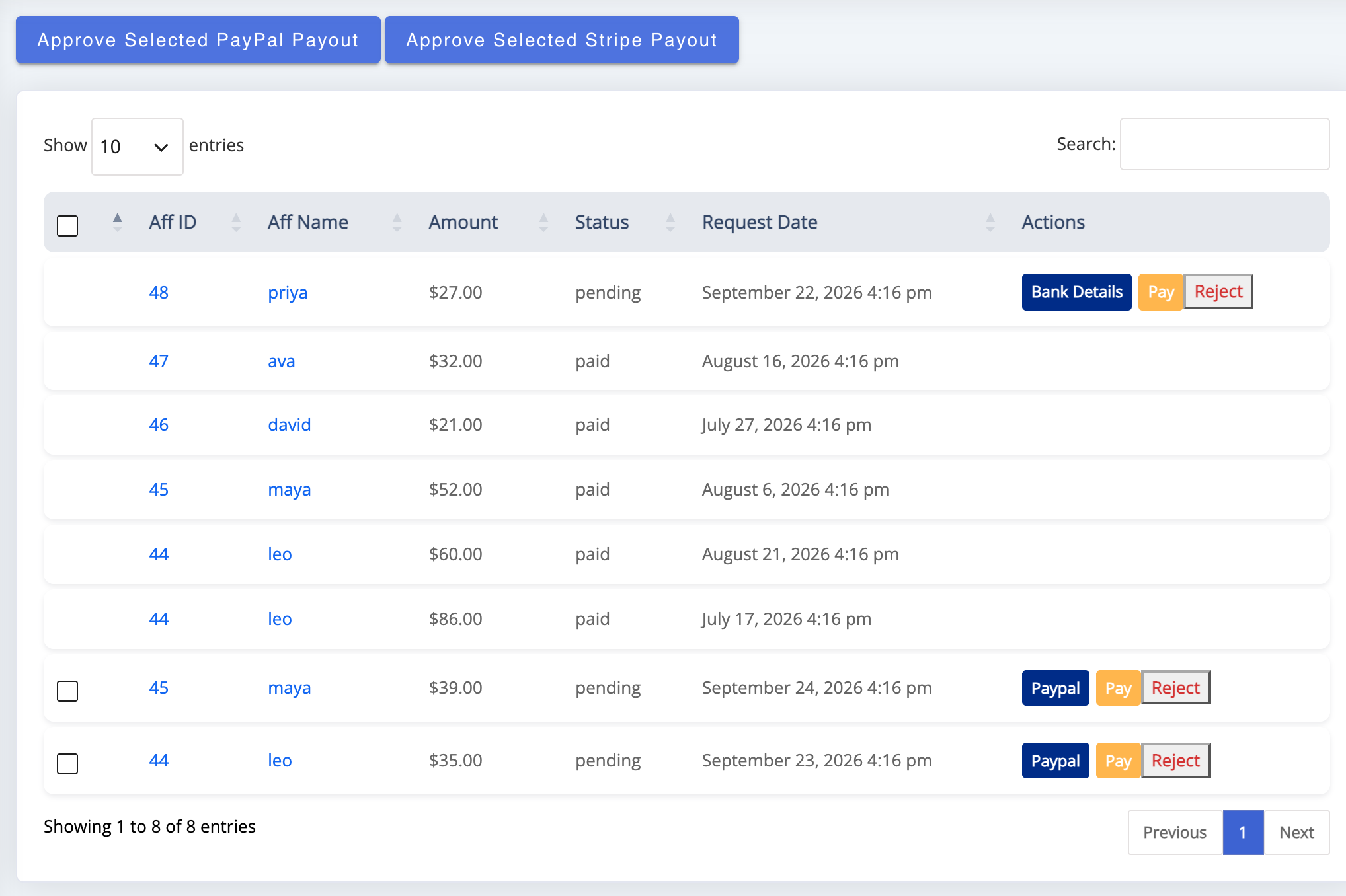
- The request appears under WooCommerce > Affiliate & Referral > Payouts with the affiliate, Amount, Status, Request Date and the method’s Pay and Reject buttons.
- You pay the requests — every selected PayPal request in one action, every selected Stripe request in one action, or bank transfers one by one.
Payouts are always started by you. There is no payout schedule running in the background — money leaves your accounts only when you press the button.
Payout states
↑ Back to top- pending – waiting for you to pay or reject it.
- processing – being sent to PayPal or Stripe, or sent without a confirmed result. The row offers no action, so it can never be paid twice. If a request stays in this state, check your PayPal or Stripe account to see whether the money went out.
- paid – sent, or recorded as sent for a bank transfer. No further action is offered.
- rejected – declined with Reject. The amount went back to the affiliate’s wallet.
Set up PayPal payouts
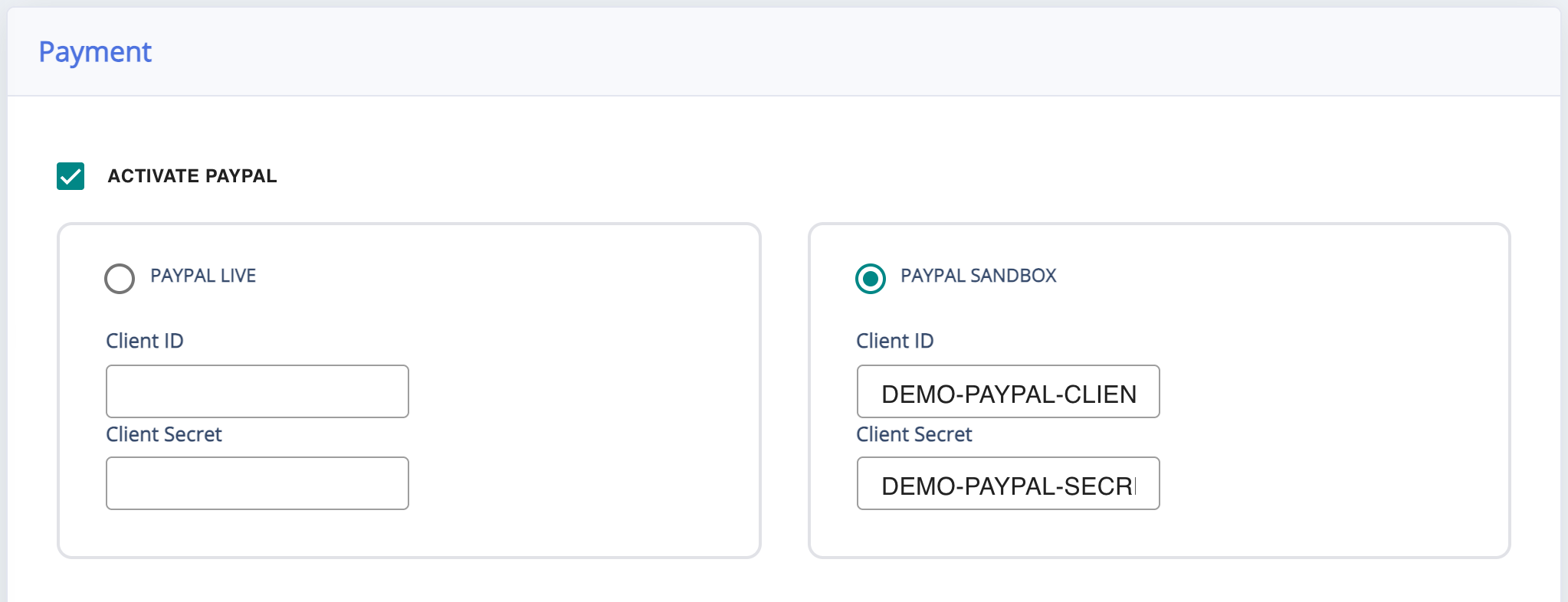
↑ Back to top- Go to: WooCommerce > Affiliate & Referral > Advanced Features > Payments.
- Turn on Activate Paypal and choose Paypal Live or Paypal Sandbox.
- Enter the Client ID and Client Secret of a PayPal REST app with Payouts enabled, created in the PayPal Developer dashboard, then click Save Changes.
- Affiliates choose PayPal and save their PayPal email on the Payout tab of their dashboard.
- On the Payouts screen, select the pending PayPal requests and click Approve selected PayPal payout. The selected payments go to PayPal as one batch, and each row is marked paid once PayPal confirms it.
Set up Stripe payouts
↑ Back to topStripe payouts are provided through our free Stripe add-on, because the WooCommerce Marketplace does not allow bundling the required SDK in the main package. Install the Affiliate and Referral Stripe add-on, then:
- Go to: WooCommerce > Affiliate & Referral > Advanced Features > Payments.
- Turn on Activate Stripe and choose Stripe live or Stripe Sandbox.
- Enter your Publishable Key and Secret Key for the chosen mode, then click Save Changes.
- On the Payouts screen, select the pending Stripe requests and click Approve selected Stripe payout.
Pay by bank transfer
↑ Back to topAffiliates paid by bank transfer save their bank details on the Payout tab, and you make the transfer from your own bank as usual. On the Payouts screen, click the request’s Bank Details button; the Payment Details popup shows where to send the money. After the transfer, click Pay on the row and confirm that the transfer is complete; the plugin records the request as paid.
The bank details form works for banks in any country:
- Account holder’s name, Bank name and either an Account number or an IBAN – required.
- Country of the bank – chooses which national bank code the form asks for, such as an IFSC code, sort code or routing number.
- SWIFT / BIC, Branch and Phone – optional; SWIFT / BIC is needed for most international transfers.
Withdrawal fees
↑ Back to topTo charge a fee on payouts, enter it in Withdrawal Fees on the Settings tab of WooCommerce > Affiliate & Referral > Commission. It is a fixed amount in your store currency; 0 means no fee.
- The affiliate’s wallet goes down by the full amount they request.
- When you pay a request through PayPal or Stripe, the fee is subtracted from what is sent: a $50 request with a $2 fee sends $48.
- Bank transfers are made by you outside the plugin, so no fee is applied to them automatically.
Tell affiliates about the fee in your program terms.
Which method pays whom
↑ Back to topEach affiliate picks their own payment method in the dashboard, so one Payouts screen can hold PayPal, Stripe and bank requests side by side. The bulk buttons act only on requests matching their method — selecting everything and clicking Approve selected PayPal payout pays the PayPal requests among them.
FAQ
↑ Back to topCan I schedule automatic payouts?
↑ Back to topNo — every payout run is started by you. What is automated is the sending: one action pays every selected PayPal request as a single batch.
Can I turn down a withdrawal request?
↑ Back to topYes. Click Reject on a pending request and confirm; the amount goes back to the affiliate’s wallet. Requests that are processing or paid cannot be rejected.
Can I limit how much affiliates withdraw?
↑ Back to topYes — set Minimum amount of money an affiliate needs to withdraw and Maximum amount of money an affiliate can withdraw on the Settings tab of the Commission screen. Requests outside the limits are refused when the affiliate makes them.
Can affiliates be paid in store credit instead?
↑ Back to topYes — affiliates can turn wallet balance into a store coupon themselves. See Pay Affiliates with Store Credit and Wallets.

