
Anti-Fraud Protection for WooCommerce helps you stop fake orders, block card testing attacks, and reduce chargebacks, combining Fraud Risk Scoring, Order Blacklisting, Smart Whitelisting, and Google reCAPTCHA into one checkout security solution.
Setup and Installation
↑ Back to topInstall the Plugin:
Purchase the product from WooCommerce.com
Download the ZIP file from your WooCommerce.com dashboard
Navigate to Plugins > Add New > Upload and select the ZIP file you just downloaded
Click on Upload Plugin and select the ZIP file.
Click Install Now and wait for the installation to complete.
Activate the Plugin:
After installation, click Activate to enable the Smartenizer Anti-Fraud Protection plugin on your site.
More information at Install and Activate Plugins/Extensions.
Getting started
↑ Back to topAfter activation, go to WooCommerce > Settings > Anti-Fraud Protection to access the plugin’s configuration screen. Settings are organized into four tabs, one for each module: Fraud Scoring Settings, Blacklisting Settings, Whitelisting Settings, and API Settings.
There is no required setup order, but for most stores, we recommend configuring modules in this sequence:
- reCAPTCHA, to add a bot-detection layer on top of the other three modules
- Fraud Risk Scoring, so you can start observing which orders look risky before you block anything
- Order Whitelisting, so your trusted customers and payment methods are protected from the start
- Order Blacklisting, once you have identified specific fraud patterns to block outright
Setup and Configuration
↑ Back to topGoogle reCAPTCHA settings
↑ Back to topThis module adds Google reCAPTCHA to your checkout, with no separate plugin required. It works with both WooCommerce Classic Checkout and Checkout Blocks.
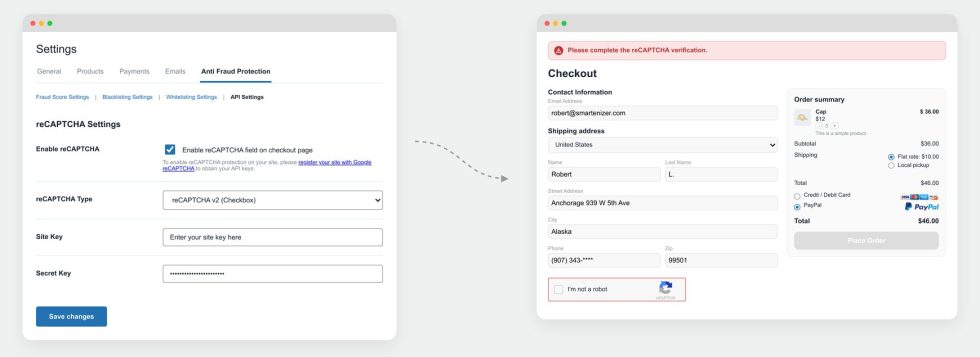
Navigate to WooCommerce → Settings → Anti-Fraud Protection → API Settings to access settings.
Enable reCAPTCHA on checkout
Why it matters: Many fake orders and card testing attempts are placed by automated bots, not people. reCAPTCHA blocks these before they ever reach your order list, reducing the load on your other fraud checks.
How to use it: Check the “Enable reCAPTCHA” checkbox, choose reCAPTCHA Type and add your Google reCAPTCHA site key and secret key, generated from your Google account. After enabling, visit your store’s checkout page to confirm reCAPTCHA displays correctly, whether you’re using Classic Checkout or Checkout Blocks.
Fraud Risk Scoring settings
↑ Back to topFraud Risk Scoring evaluates every order against a set of checks and calculates a Fraud Risk Score between 0 percent and 100 percent. This module identifies suspicious orders for manual review. It does not block orders on its own; use Blacklisting Settings if you want matching orders stopped automatically.
Navigate to WooCommerce → Settings → Anti-Fraud Protection → Fraud Score Settings to access settings.
Check weights (0–10)
Every fraud check below has an individual weight, from 0 to 10, that you configure. When a check is triggered, its weight contributes to the order’s overall risk score. A check set to 0 is effectively disabled. A check set to 10 has the strongest influence on the score.
Why it matters: Weighting lets you reflect your store’s real risk factors. For example, a store that sells almost exclusively to one country should weight international order detection heavily, while a global store should weight it lightly or disable it.
How to use it: Start with moderate weights (4–6) across all checks, monitor flagged orders for two to four weeks, then increase the weight of checks that consistently catch real fraud and lower the weight of checks that flag genuine customers.
International order detection
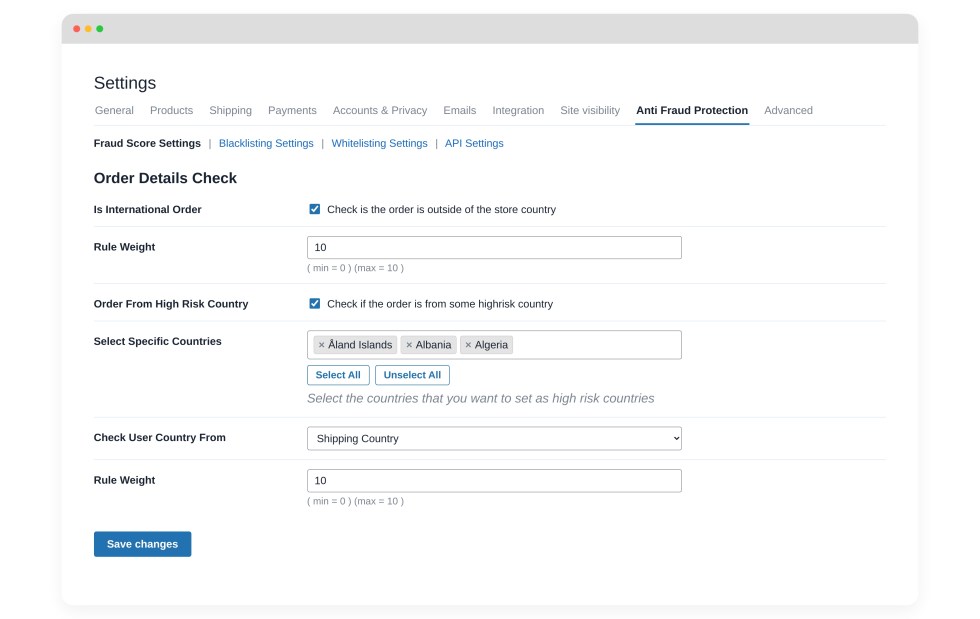
Flags orders where the customer’s country differs from your store’s primary country.
Why it matters: A sudden international order on a store that normally sells domestically is a common early signal of fraud, especially when combined with a mismatched shipping address.
How to use it: Enable this and set a moderate weight if you sell mainly to one country. If you already have significant international sales, keep the weight low so genuine international customers are not repeatedly flagged.
High-risk country detection
Flags orders originating from a merchant-defined list of countries.
Why it matters: Some regions are statistically associated with higher fraud rates for specific businesses. This setting lets you apply extra scrutiny only where your own order history shows it is warranted, rather than blocking entire regions outright.
How to use it: Add countries to the list based on your own chargeback history, not assumptions. Review this list periodically as fraud patterns shift.
Customer country verification method
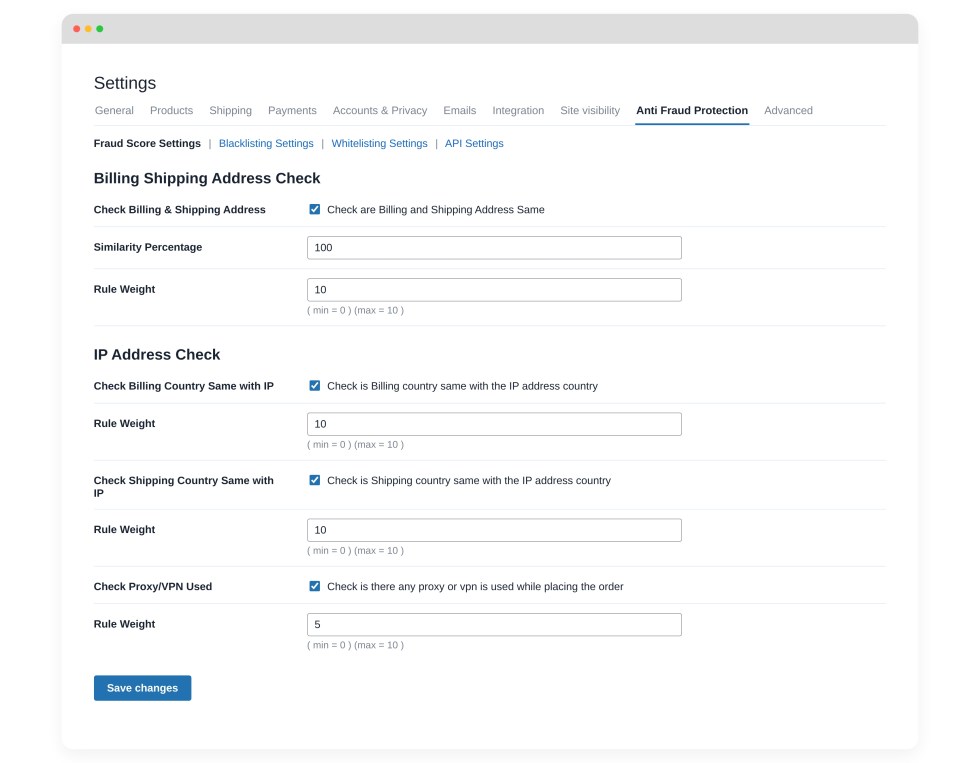
Determines which address the plugin uses to identify the customer’s country: billing country, shipping country, or IP address country.
Why it matters: Fraudsters often enter a billing address that does not match their actual location. Comparing multiple sources catches mismatches that a single check would miss.
How to use it: For the strongest protection, run country-based checks against IP address country, since it is the hardest for a fraudster to fake convincingly. Use billing or shipping country if your store has a strong reason to trust order form data over IP data.
High-risk email domain detection
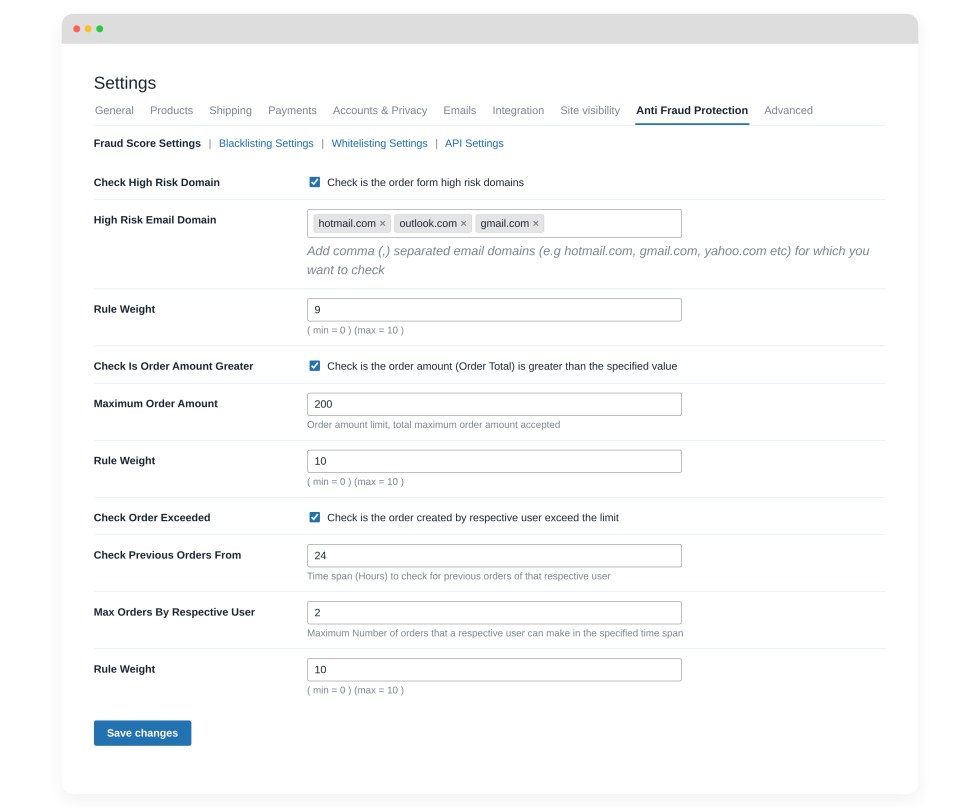
Flags orders where the customer’s email domain matches a merchant-defined list, entered as a comma-separated list, such as example.com, tempmail.com.
Why it matters: Disposable or throwaway email domains are frequently used in fraudulent orders because they are easy to generate and abandon.
How to use it: Add known disposable or temporary email providers to this list. Avoid adding major free providers like Gmail or Yahoo at a high weight, since blocking them broadly will also flag a large share of genuine customers.
High order amount detection
Flags orders that exceed a merchant-defined total.
Why it matters: Fraudsters using a stolen card often try to maximize a single purchase before the card is reported and canceled, so unusually large orders deserve a second look.
How to use it: Set the threshold above your store’s typical order value, based on your average order value and standard deviation, so the check catches outliers without flagging your normal customers.
Order velocity detection
Flags a customer who places more than a configured number of orders within a configured time period, measured in hours.
Why it matters: This is one of the most reliable signals for card testing and carding attacks, where a fraudster places many small or rapid orders in a short window to test stolen card numbers.
How to use it: Set the maximum allowed orders and the time window based on your normal customer behavior. A common starting point is three or more orders within one hour, then adjust based on what you observe in your own order data.
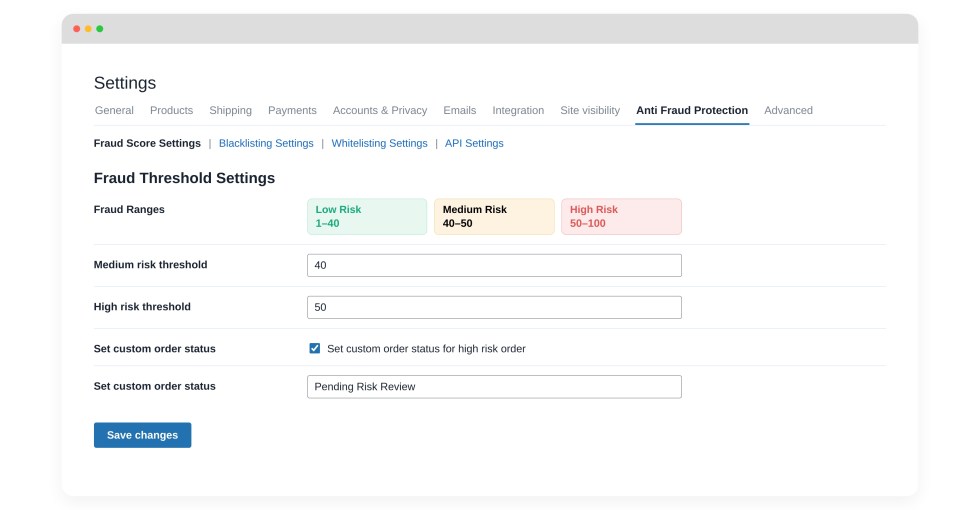
Risk level thresholds
Defines the percentage ranges for low, medium, and high risk, for example, low risk from 0 to 30 percent, medium risk from 31 to 55 percent, and high risk from 56 to 100 percent.
Why it matters: These ranges determine which orders get flagged for review and which are treated as safe.
How to use it: Start with the default ranges. If too many genuine orders are landing in your high-risk range, widen the low-risk range. If fraudulent orders are slipping through as low risk, narrow it.
Automatic high-risk order status
When an order reaches your configured high-risk threshold, its WooCommerce order status automatically changes to Pending Risk Review.
Why it matters: This surfaces risky orders in your order list automatically, so you do not have to manually check every order’s risk score.
How to use it: Check your Pending Risk Review orders daily. Fulfilling a flagged order before reviewing it defeats the purpose of this module.
Order Blacklisting settings
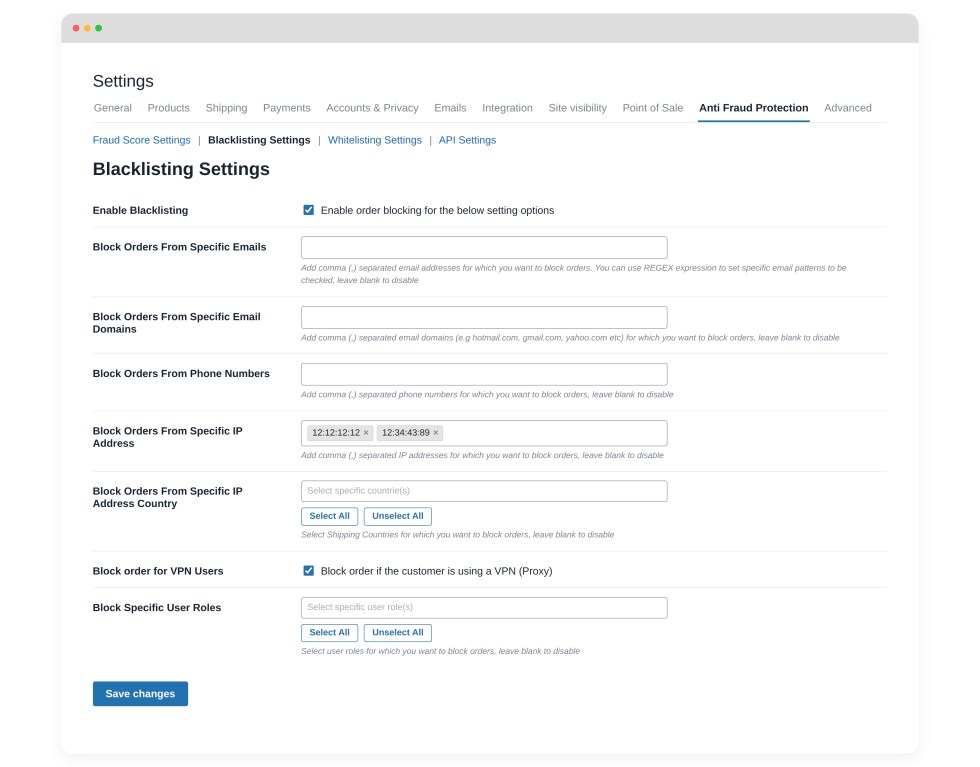
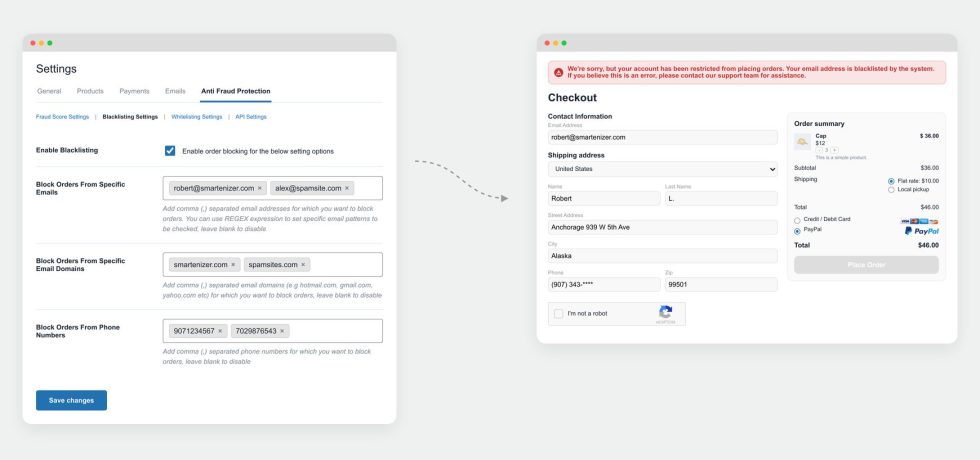
↑ Back to topBlacklisting stops checkout outright when an order matches a rule you have configured. Unlike Fraud Risk Scoring, blacklisting takes action immediately rather than flagging an order for later review.
Navigate to WooCommerce → Settings → Anti-Fraud Protection → Blacklisting Settings to access settings.
Block specific email addresses, email domains, or phone numbers
Why it matters: Once you identify a fraudulent customer’s email, domain, or phone number, this prevents them from checking out again under the same details.
How to use it: Add the exact email, domain, or phone number after confirming fraud, for example, from a chargeback notice or a Pending Risk Review order you have manually verified as fraudulent.
Block specific IP addresses or IP address countries
Why it matters: Blocking a fraudster’s IP address stops repeat attempts from the same connection. Blocking by IP country is a stronger, blanket-level control for regions where you do not do business at all.
How to use it: Use individual IP blocking for a confirmed fraud source. Use IP country blocking only for countries where you never intend to ship, since it blocks all customers from that country, not just fraudulent ones.
Block customers using VPN services
Why it matters: Fraudsters commonly use a VPN to disguise their real location and bypass country-based checks.
How to use it: Enable this setting if your store has no legitimate reason for customers to use a VPN. If you serve customers in regions where VPN use is common for privacy or access reasons, monitor for false positives before relying on this as a blocking rule.
Block selected WooCommerce user roles
Why it matters: Lets you prevent checkout entirely for specific account types, such as roles created for testing or roles you no longer want placing orders.
How to use it: Select the relevant role from the list. Use this setting carefully, since it applies to every account with that role.
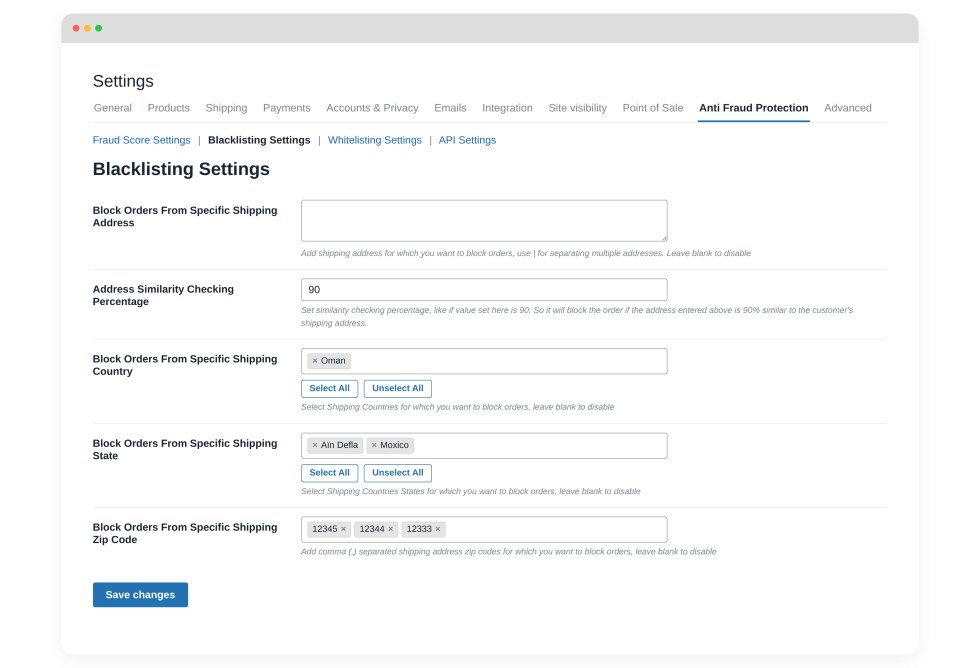
Block specific shipping addresses and shipping address similarity matching
Why it matters: Fraudsters frequently reuse the same shipping address, or a slightly altered version of it, across multiple orders placed with different stolen card details.
How to use it: Add confirmed fraudulent shipping addresses directly. Use the similarity percentage setting to catch near-duplicate addresses, such as the same address with a different unit number, without needing an exact match. Start with a similarity threshold around 80 to 90 percent and adjust based on results.
Block shipping by country, state, or ZIP/postal code
Why it matters: Useful when fraud is concentrated in a specific region and you have no genuine customers there.
How to use it: Apply these rules only after confirming a pattern in your own order and chargeback data, since they block every customer in the specified area, not just fraudulent ones.
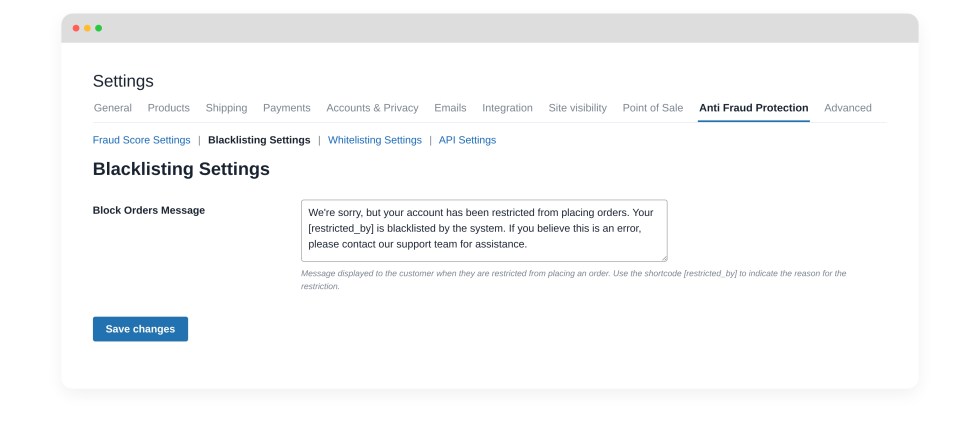
Custom validation message
Why it matters: This is the message shown to a customer whose order is blocked. A clear, neutral message avoids confusion for anyone incorrectly blocked, and avoids revealing your fraud detection logic to an actual fraudster.
How to use it: Use a generic, polite message, such as asking the customer to contact support to complete their order, rather than stating that fraud was detected.
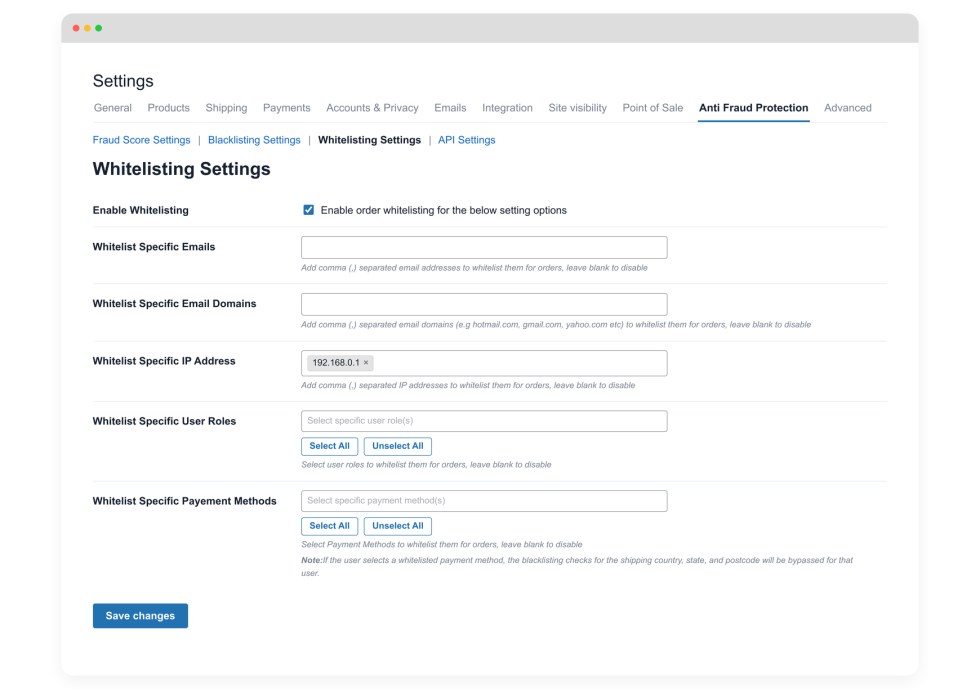
Smart Whitelisting settings
↑ Back to topWhitelisting always takes priority over blacklisting. If a customer matches both a whitelist rule and a blacklist rule, the order is allowed.
Navigate to WooCommerce → Settings → Anti-Fraud Protection → Whitelisting Settings to access settings.
Whitelist email addresses or email domains
Why it matters: Protects trusted customers, staff, or business partners from being caught by broader fraud rules.
How to use it: Add your own team’s email domain, along with any repeat customers or wholesale partners who might otherwise trigger a blacklist or high-risk score.
Whitelist IP addresses
Why it matters: Useful for office locations, staff placing test orders, or partners ordering from a known, fixed IP address.
How to use it: Add static IP addresses only. Avoid whitelisting broad IP ranges unless you are certain of who uses them.
Whitelist WooCommerce user roles
Why it matters: Ensures internal roles, such as shop managers placing test orders, are never blocked by fraud rules meant for public checkout.
How to use it: Whitelist administrative or internal roles that should never be subject to fraud screening.
Whitelist payment methods
Why it matters: Some payment methods, such as manual bank transfer or a trusted local payment gateway, may carry a lower fraud risk for your store than card payments.
How to use it: Whitelist a payment method only if your own order history shows it is rarely, if ever, associated with fraud.
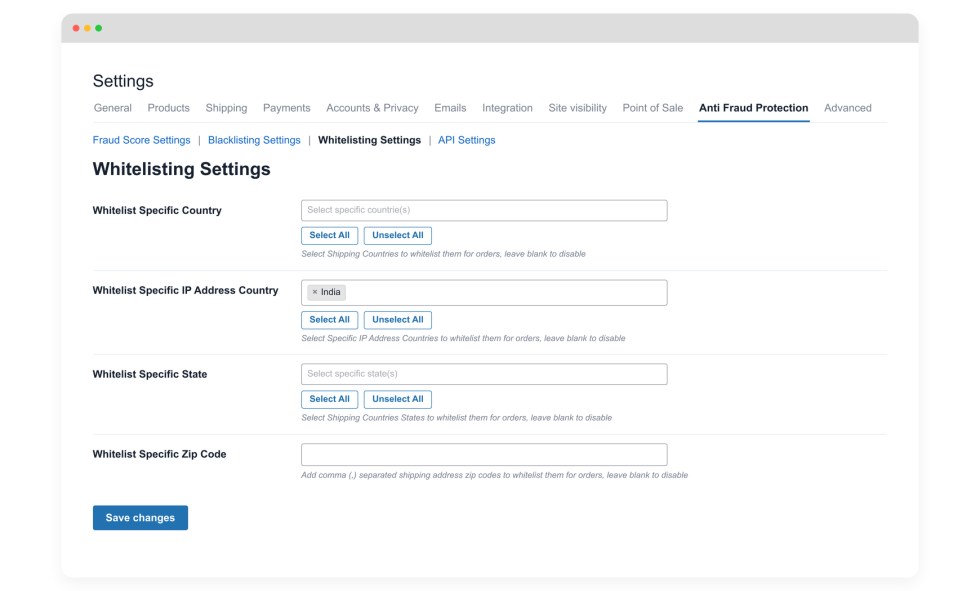
Whitelist countries, IP countries, states, and ZIP/postal codes
Why it matters: Protects genuine customers in a region that might otherwise be affected by a broader country or region-based blacklist rule.
How to use it: Use this to create exceptions within a blocked region, for example, allowing a specific state or ZIP code even though the surrounding country is on your blacklist.
Fraud scenario guides
↑ Back to topThe sections below walk through common fraud scenarios WooCommerce stores face and the specific settings to configure for each one.
Preventing card testing and carding attacks
↑ Back to topCard testing happens when a fraudster runs a batch of stolen card numbers through your checkout in small, rapid transactions to find which cards are still active, before using them for larger fraud elsewhere.
- Enable Order Velocity Detection and set a low threshold, such as three orders within one hour, with a high weight
- Enable reCAPTCHA on checkout, since card testing is frequently automated
- Review your Pending Risk Review orders daily during any period of increased attempts
- Once you confirm a fraudulent pattern, blacklist the associated email domain or IP address to stop repeat attempts
Preventing bot-driven fake orders
↑ Back to topBots can place large volumes of fake orders using scripted, automated submissions rather than manual checkout activity.
- Enable Google reCAPTCHA on checkout, which is the primary defense against automated submissions
- Enable Order Velocity Detection as a second layer, since bots often place multiple orders in quick succession
- Watch for repeated orders using near-identical or randomly generated email addresses, and blacklist the associated domain pattern if one emerges
Preventing velocity attacks
↑ Back to topA velocity attack is any pattern where a single customer, IP address, or card is used to place an unusually high number of orders in a short time.
- Set Order Velocity Detection thresholds based on your own store’s normal ordering behavior, not a generic default
- Assign a high weight to this check, since velocity is one of the strongest fraud indicators available
- Cross-reference flagged orders with IP address and shipping address to confirm whether the same source is placing multiple orders
- Blacklist the IP address once a velocity pattern is confirmed as fraudulent
Managing cross-border and international order fraud
↑ Back to topStores that sell internationally face a higher rate of country mismatches between billing, shipping, and IP data, some genuine and some fraudulent.
- Enable International Order Detection with a moderate, not maximum, weight, so genuine international customers are not overly penalized
- Use High-Risk Country Detection to apply extra scrutiny only to countries where your own chargeback history shows elevated risk
- Whitelist countries, states, or ZIP codes where you have a strong base of genuine repeat customers, to prevent them from being caught by broader rules
Handling disposable and suspicious email domains
↑ Back to topFraudulent orders often use temporary or disposable email addresses that are abandoned immediately after the order is placed.
- Block known disposable and temporary email domains.
- Keep major, legitimate free email providers off this list, or set their weight low, to avoid flagging genuine customers
- Review flagged orders periodically and update your domain list as new disposable providers appear
Reducing false positives and protecting genuine customers
↑ Back to topAggressive fraud settings can accidentally block or flag real customers, which costs you sales and damages customer trust.
- Whitelist repeat customers, wholesale partners, and known email domains before tightening any blacklist or scoring rule
- Introduce new or stricter rules gradually, monitoring Pending Risk Review orders for a period before increasing weights further
- Use a clear, neutral validation message on blocked checkouts so a genuine customer who is incorrectly blocked can contact you and complete their order
- Review your risk level thresholds periodically as your customer base and order patterns change
Troubleshooting
↑ Back to topOrders are not being flagged as expected
↑ Back to topConfirm that the relevant fraud check is enabled and that its weight is set above 0. A check with a weight of 0 does not contribute to the risk score.
A genuine customer was blocked or flagged
↑ Back to topReview which rule triggered the block or flag, then add the customer’s email, IP address, or shipping address to your whitelist to prevent it from happening again.
reCAPTCHA is not appearing on checkout
↑ Back to topConfirm that your Google reCAPTCHA site key and secret key are entered correctly, and that the module is enabled for the checkout type you are using, either Classic Checkout or Checkout Blocks.
High-risk orders are not changing status automatically
↑ Back to topConfirm your risk level thresholds are configured and that the order’s calculated score falls within your high-risk range. Also confirm that at least one fraud check with a non-zero weight is enabled, since a risk score cannot be calculated without active checks.
Questions & support
↑ Back to topHave a question about a setting, or run into an issue while configuring the plugin? We are here to help. Our support team is available 24/7, and we typically respond within 1–2 hours, so you are never left waiting long for an answer.
Whether it is a quick question about how a fraud check works, help fine-tuning your settings for a specific type of fraud, or a technical issue with the plugin itself, do not hesitate to reach out. No question is too small, and no issue is too complex.
Before reaching out, take a quick look at the FAQs on the Anti-Fraud Protection product page, since your question may already be answered there. If you need further help, open a support ticket by going to WooCommerce.com > My Account > My Subscriptions > Get Support.
We are committed to fast, reliable support, and we genuinely want your store to be well protected. Reach out any time.

