
Automatic Order Expiration for WooCommerce automatically expires pending orders after a configurable number of days, sends customer reminder emails before expiration, and notifies administrators with a batch summary when orders close.
Installation
↑ Back to topTo start using a product from WooCommerce.com, you can use the “Add to store” functionality on the order confirmation page or the My subscriptions section in your account.
- Navigate to My subscriptions.
- Find the Add to store button next to the product you’re planning to install.
- Follow the instructions on the screen, and the product will be automatically added to your store.
Alternative options and more information at:
Managing WooCommerce.com subscriptions.

Setup and Configuration
↑ Back to topExpiration Settings
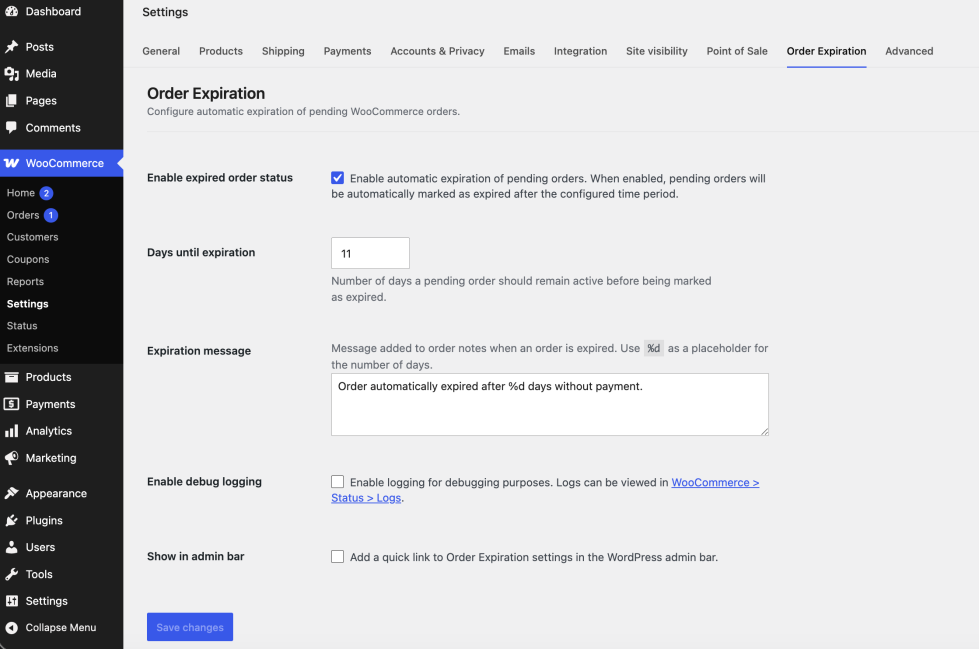
↑ Back to top- Go to WooCommerce → Settings → Order Expiration.
- Check “Enable expired order status” to activate automatic expiration — the rest of the settings on this screen only appear once this is checked.
- Set “Days until expiration” — the number of days a pending order remains active before being expired. Default is 10 days. Minimum is 1 day.
- Optionally customize the “Expiration message” — this text is added as an order note when an order expires. Use
%das a placeholder for the number of days. - Click Save changes.
Email Notifications
↑ Back to topEmail notifications are managed alongside every other WooCommerce transactional email, not in the plugin’s own settings tab.
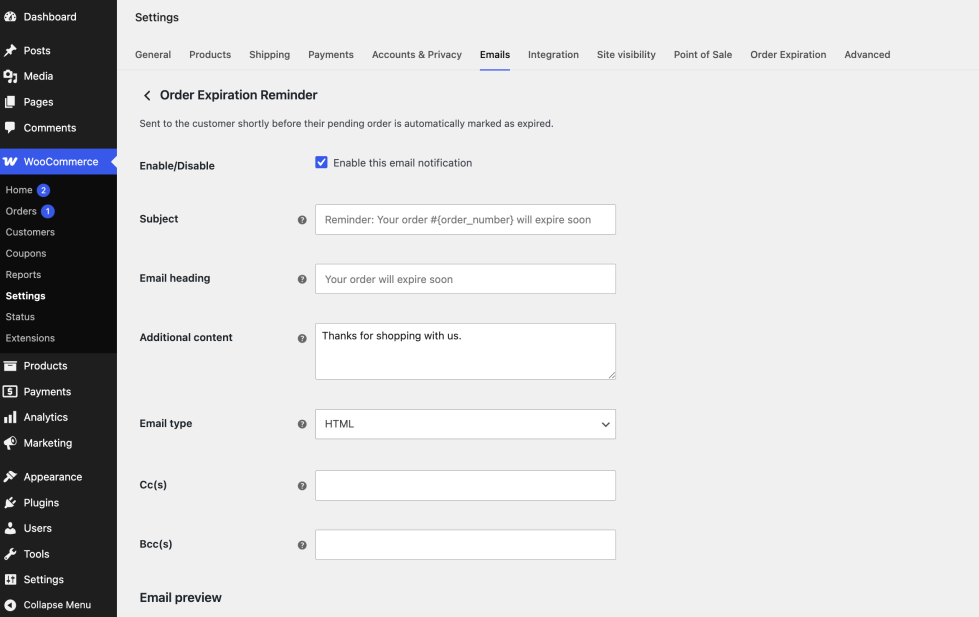
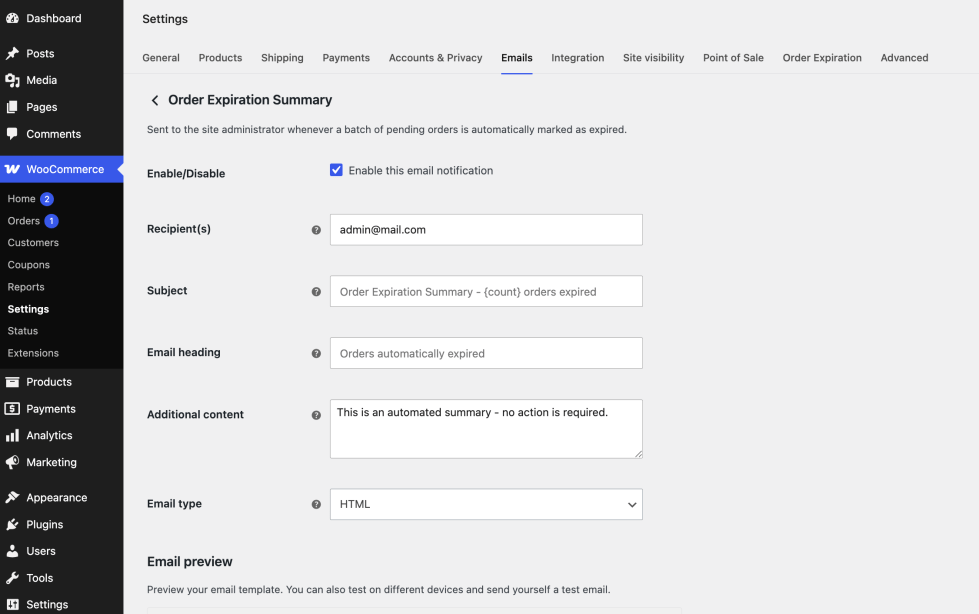
- Go to WooCommerce → Settings → Emails.
- Find “Order Expiration Reminder” in the list and click Manage to enable it and customize the subject, heading, and additional content for the email sent to customers 24 hours before their order expires.
- Find “Order Expiration Summary” and click Manage to enable it, set the recipient (defaults to your site’s admin email), and customize the subject and heading for the batch email sent to you whenever orders expire.
- Both emails support WooCommerce’s built-in Preview button, so you can check exactly what customers and admins will receive before saving.
- Click Save changes on each email’s screen.
The extension reuses WooCommerce’s existing scheduled sales task instead of adding a new cron job, running approximately twice daily to check for orders to expire and reminders to send. Developers who want to hook into these events — see the Developer Notes section near the end of this page.
Settings Reference
↑ Back to topGeneral Settings
↑ Back to topLocated at WooCommerce → Settings → Order Expiration. Everything below “Enable expired order status” is hidden until that checkbox is enabled, since it has no effect while expiration is off.
| Setting | Description |
|---|---|
| Enable expired order status | Master on/off switch. When disabled, no expiration checks run and no emails are sent. |
| Days until expiration | Number of days a pending order remains active before expiring. Default: 10. Minimum: 1. |
| Expiration message | Text added as an order note when an order expires. Use %d as a placeholder for the number of days. |
| Enable debug logging | When enabled, logs expiration activity to WooCommerce → Status → Logs (source: automatic-order-expiration). Useful for troubleshooting. |
| Show in admin bar | Adds a quick link to the Order Expiration settings in the WordPress admin bar. |
Email Settings
↑ Back to topLocated at WooCommerce → Settings → Emails, alongside every other WooCommerce transactional email — including support for the native Preview button. Click Manage next to either email to edit it.
| Description | |
|---|---|
| Order Expiration Reminder | Sent to the customer 24 hours before their pending order expires. One reminder per order — duplicate prevention is automatic. Subject and heading support the placeholders {order_number}, {order_date}, {customer_name}. The email body shows the standard WooCommerce order details table. |
| Order Expiration Summary | Sent to the recipient configured on the email’s settings screen (defaults to the site admin email) whenever a scheduled run expires one or more orders. Subject and heading support the {count} placeholder. The email body lists every expired order with its date, total, customer email, and a direct edit link. |
Troubleshooting
↑ Back to topOrders Are Not Expiring
↑ Back to topSolution:
- Confirm “Enable expired order status” is checked in settings.
- Go to WooCommerce → Status → Scheduled Actions and search for
woocommerce_scheduled_salesto confirm it’s scheduled to run. - Enable debug logging and check WooCommerce → Status → Logs for entries from
automatic-order-expiration.
Customer Reminder Emails Are Not Sending
↑ Back to topSolution:
- Confirm the “Order Expiration Reminder” email is enabled under WooCommerce → Settings → Emails.
- Check that the order’s billing email is set — orders without a billing email cannot receive reminders.
- Open the order and check its order notes — if you see “Expiration reminder email sent to customer”, a reminder was already sent for this order and won’t be sent again.
- Check your WordPress email delivery. Use a plugin like WP Mail SMTP to verify emails are being sent from your server.
“Expired” Status Doesn’t Appear in the Orders List
↑ Back to topSolution:
- Try deactivating and reactivating the plugin.
- Check for plugin conflicts by temporarily disabling other plugins that modify WooCommerce order statuses.
Settings Are Not Saving
↑ Back to topSolution:
- Ensure you have the manage_woocommerce capability (typically Shop Manager or Administrator role).
- Check for JavaScript errors in your browser console that might prevent the settings form from submitting.
- Verify no security plugin is blocking the WooCommerce settings POST request.
Frequently Asked Questions
↑ Back to topHow often does the extension run?
↑ Back to topThe extension runs on WooCommerce’s scheduled sales task, which fires approximately twice per day. Check WooCommerce → Status → Scheduled Actions for the exact next scheduled time.
Will expired orders affect my inventory?
↑ Back to topWhen an order moves to “Expired” status, WooCommerce releases the stock reservation (the same behavior as when an order is cancelled). Your available inventory updates automatically.
Can I restore an expired order?
↑ Back to topYes. Expired orders remain in your database. You can manually change an expired order’s status to any other status from the order edit screen in WooCommerce → Orders.
Does the extension work with HPOS?
↑ Back to topYes — the extension is fully compatible with WooCommerce High-Performance Order Storage (custom order tables). It only uses WooCommerce’s official order APIs to read and update orders, never direct database access.
Developer Notes
↑ Back to topThe information below is intended for developers customizing or integrating with this extension. Custom code built on these hooks and templates is not covered under our standard support policy.
Triggering a Run Manually (for Testing)
↑ Back to topThe expiration and reminder checks can be triggered on demand via WP-CLI, useful for testing or for a one-time cleanup of a large backlog of pending orders:
wp eval 'do_action("woocommerce_scheduled_sales");' --allow-rootHow HPOS Compatibility Is Implemented
↑ Back to topThe extension uses wc_get_orders() for all order queries, and $order->get_meta() / $order->update_meta_data() for order meta — no direct database table access, so it works identically with and without HPOS enabled.
Order Meta
↑ Back to topThe extension stores a single meta key on each order to prevent duplicate reminder emails:
_nuvirro_aoe_reminder_sent— set to the timestamp the reminder was sent, once per order.
Action Hooks
↑ Back to topThe extension fires the following actions for developers who want to hook into expiration events:
nuvirro_aoe_order_expired— fires after each individual order is expired (passes$order_idand$order)nuvirro_aoe_orders_expired— fires after all orders in a scheduled run are processed (passes array of$expired_orders)nuvirro_aoe_reminder_sent— fires after a customer reminder email is sent (passes$order_idand$order)nuvirro_aoe_admin_summary_sent— fires after the admin summary email is sent (passes array of$expired_order_ids)
Filter Hook
↑ Back to topnuvirro_aoe_settings — filters the Order Expiration settings fields array before it’s rendered, letting developers add or modify fields on the settings screen.
Overriding Email Templates
↑ Back to topBoth notification emails use standard WooCommerce email templates, which can be overridden from your theme the same way you’d override any WooCommerce email template — copy the file into your theme and edit it there:
yourtheme/woocommerce/emails/customer-reminder.phpandyourtheme/woocommerce/emails/plain/customer-reminder.phpyourtheme/woocommerce/emails/admin-summary.phpandyourtheme/woocommerce/emails/plain/admin-summary.php

