
Quick Order Grid turns your WooCommerce store into a fast B2B ordering workspace. It adds a spreadsheet-style product grid where buyers can search, filter, scan barcodes, import SKUs, enter quantities for many products, save repeat orders, and add everything to the WooCommerce cart in one action.
Installation
↑ Back to topTo start using a product from WooCommerce.com, you can use the “Add to store” functionality on the order confirmation page or the My subscriptions section in your account.
- Navigate to My subscriptions.
- Find the Add to store button next to the product you’re planning to install.
- Follow the instructions on the screen, and the product will be automatically added to your store.
Alternative options and more information at:
Managing WooCommerce.com subscriptions.

Requirements
↑ Back to top- WordPress 6.0 or newer.
- WooCommerce installed and active.
- PHP 7.4 or newer.
- Product SKUs, EAN/GTIN values, or product IDs if you want to use CSV import, Quick Paste, or barcode scanning.
- HTTPS for camera-based barcode scanning. Most browsers block camera access on non-secure pages.
Setup and Configuration
↑ Back to top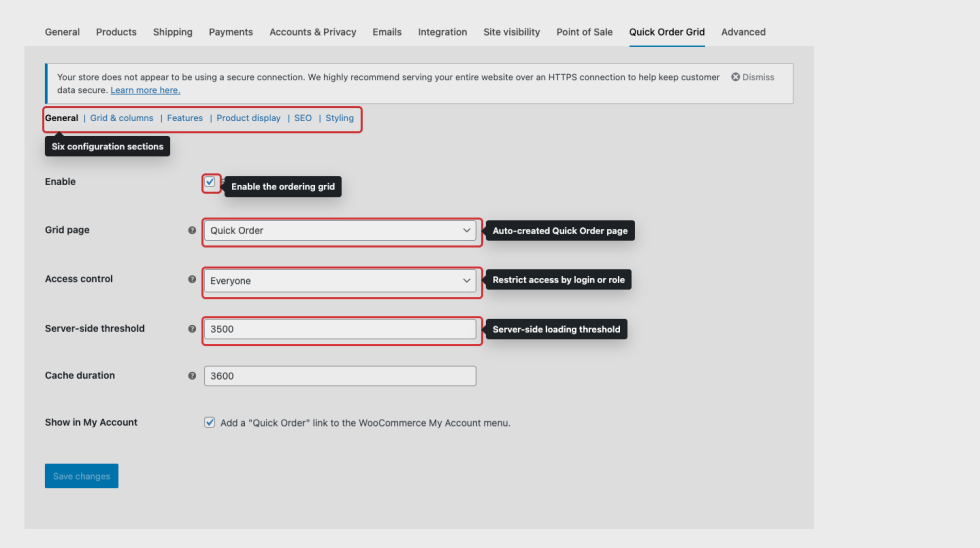
Getting started
↑ Back to topWhen Quick Order Grid is activated, it creates a published Quick Order page containing the grid shortcode. It also adds a dedicated settings tab under WooCommerce settings.
- Go to WooCommerce > Settings > Quick Order Grid.
- In the General section, confirm that Enable Quick Order Grid is checked.
- Confirm the Grid page is set to the auto-created Quick Order page, or choose another page.
- Choose who can access the grid: everyone, logged-in users only, or selected user roles.
- Visit the Quick Order page on the front end and test searching, setting a quantity, and adding a product to the cart.
You can also place the grid manually on any page, post, or template using the shortcode [b2b_quick_order_grid] or the Quick Order Grid block in the WordPress block editor.
Recommended first setup
↑ Back to top- Set Access control to Logged-in users only or Specific user roles if the grid is for wholesale buyers.
- Set the Server-side threshold based on catalog size. For small catalogs, client-side loading gives the fastest interaction after the first load. For larger catalogs, server-side loading keeps the initial page lighter.
- Open Grid & columns and decide which columns buyers need to order confidently. Common B2B columns are Name, Image, Attributes, SKU, EAN, Stock, Price, Qty, and Cart.
- Open Features and disable tools you do not want buyers to use, such as export, camera scanner, saved templates, or Quick Paste.
- Open Product display and choose how variable products and out-of-stock products should appear.
Settings reference
↑ Back to topAll settings are located under WooCommerce > Settings > Quick Order Grid. They are organized into six sections.
General
- Enable turns the grid output on or off. When disabled, the shortcode returns no grid.
- Grid page controls which page is treated as the main Quick Order page.
- Access control controls who can view the grid. Use Specific user roles for wholesale-only order forms.
- Server-side threshold controls when the grid switches from loading the catalog at once to paginated server-side loading.
- Cache duration stores product data for faster repeat loads. Set it to
0to disable product data caching. - Show in My Account adds a Quick Order link to the WooCommerce My Account menu before Logout.
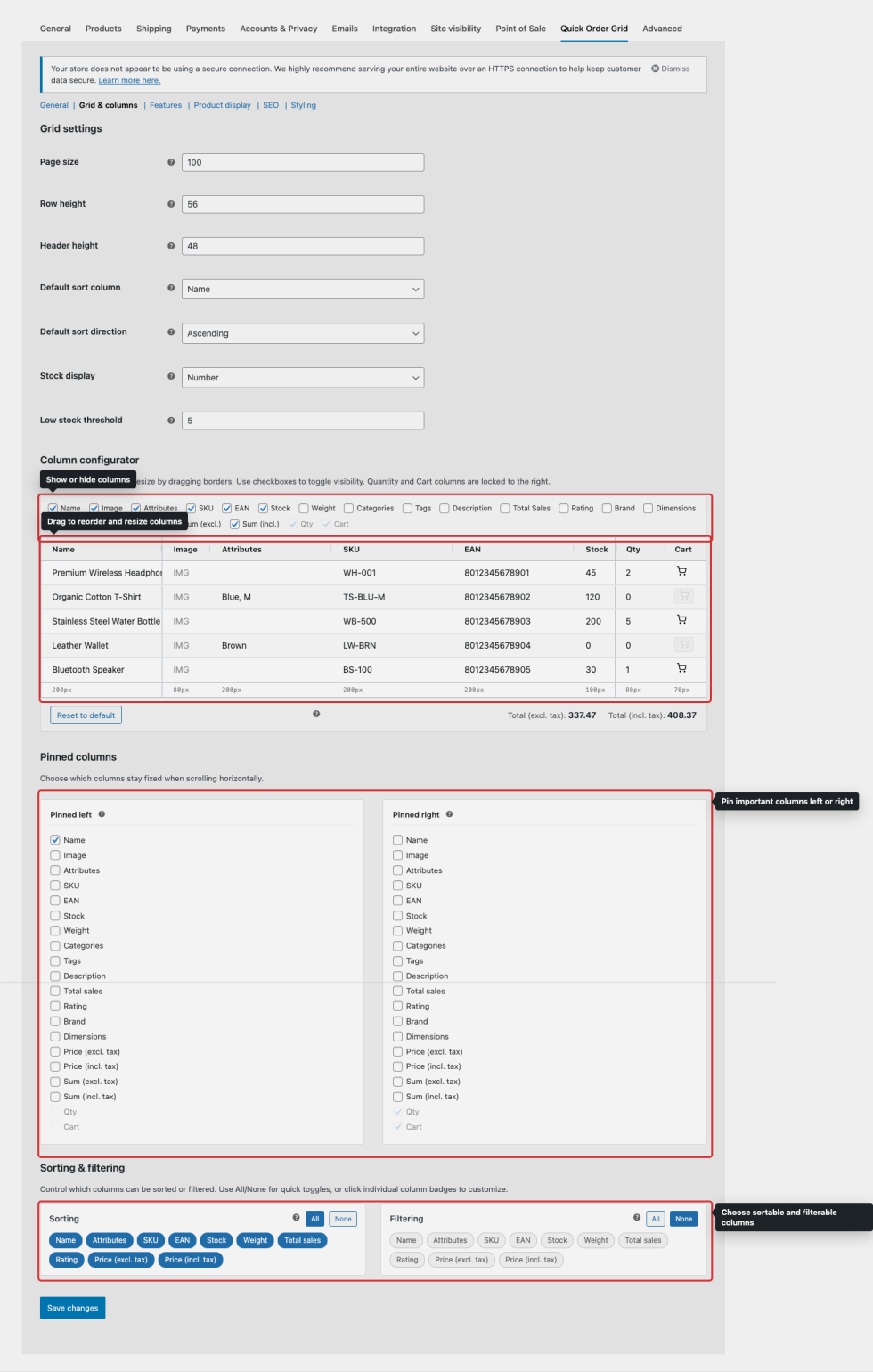
Grid & columns
Use this section to control the grid layout, default sorting, stock display, and which columns customers can sort or filter.
- Page size controls how many rows load per request in server-side mode.
- Row height and Header height control grid density.
- Default sort column and Default sort direction define the first product order before a buyer changes sorting.
- Stock display can show stock as a number or as a color indicator.
- Column Configurator lets you show, hide, resize, and reorder available columns including Image, Name, Attributes, SKU, EAN, Stock, Weight, Categories, Tags, Description, Total Sales, Rating, Brand, Dimensions, Price, Qty, and Cart.
- Pinned columns keep important columns visible when the buyer scrolls horizontally. Quantity and Cart stay available for ordering.
- Sorting & filtering controls which columns buyers can sort and filter in the grid header.
Features
Use feature toggles to simplify the buyer interface. If a workflow is not needed for your store, turn it off so buyers see only the tools they actually use.
- Search enables live product search.
- Category filter adds a category tree selector.
- Predefined filters adds New, On Sale, and Featured quick filters.
- CSV import lets buyers upload a CSV, TXT, or TSV file and map product identifiers and quantities.
- Quick paste lets buyers paste SKU, EAN/GTIN, or ID lists directly from an email, spreadsheet, or ERP export.
- Export lets buyers download grid data as CSV, Excel (XLSX), or XML files, or open a print-ready PDF view. Choose any combination of these formats.
- Barcode scanner enables hardware scanner lookup. Hardware scanners usually work like keyboard input.
- Camera scanner enables browser camera scanning when the site is served over HTTPS and the buyer grants camera permission.
- Saved templates lets logged-in buyers save reusable order templates. Set Max saved templates to limit how many each user can keep.
- Fullscreen, Column toggle, and Remember column layout give frequent buyers more control over their workspace.
Product display
- Out of stock can show out-of-stock products normally, show them with disabled cart buttons, or hide them completely.
- Variable products can show parent products only, individual variations only, or both parent products and variations.
- Image size controls product thumbnail size. Smaller images are better for very large catalogs.
- Image click action can open a magnified preview, open the product page, or do nothing.
- Price display can show excluding-tax prices, including-tax prices, or both. Including-tax values depend on WooCommerce tax settings.
- Badges and discounts control New/Sale badges and strikethrough original prices for discounted products.
SEO
The SEO section controls the Quick Order page title, meta description, and robots directive. For a private B2B catalog, use a noindex robots option so the order grid is not indexed by search engines.
Styling
Enable custom styling to match the grid to your brand. You can adjust colors, font size, button padding, grid cell padding, button margin, border radius, and custom CSS. The live preview widget shows how those changes affect the grid controls.
Usage
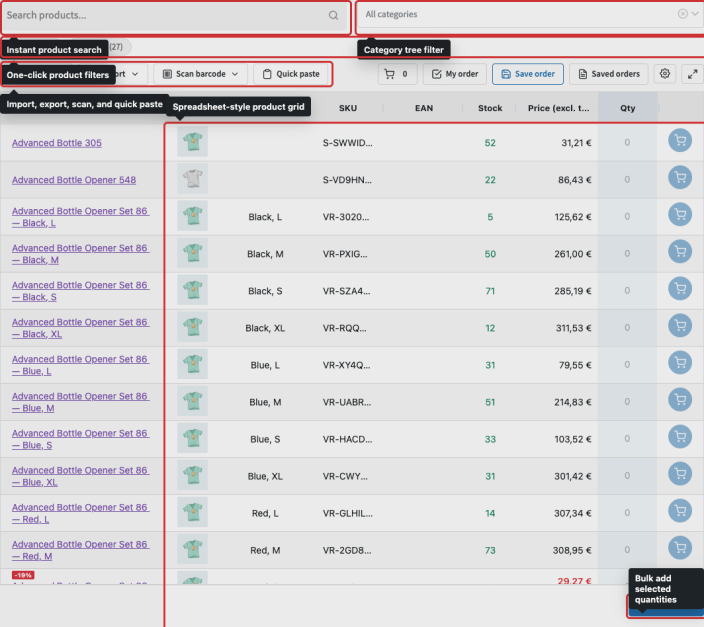
↑ Back to topBuyers use the Quick Order page as a one-page ordering interface. The grid is designed for repeat B2B workflows where customers already know what they need, often by SKU, barcode, category, or saved order pattern.
Search, filter, and sort products
↑ Back to top- Use the search field to find products quickly by product text supported by WooCommerce search.
- Use the category tree to narrow the grid to selected product categories.
- Use New, On Sale, and Featured filters when those filters are enabled.
- Click sortable column headers, such as Name, SKU, Stock, Price, Rating, or Total Sales, when sorting is enabled for those columns.
Add products to cart
↑ Back to top- Enter quantities in the Qty column for each product or variation.
- Use a row cart button to add one item, or use Bulk add to cart to add all rows with quantities.
- Stock is validated before products are added. If stock is managed and backorders are not allowed, the plugin checks the requested quantity plus any matching quantity already in the cart.
- Continue to the standard WooCommerce cart or checkout when the order is ready.
Import CSV, TXT, or TSV files
↑ Back to topCSV import is useful when buyers prepare orders in spreadsheets or export order lines from another system.
- Click Import CSV on the grid toolbar.
- Choose a
.csv,.txt, or.tsvfile. - Choose whether the first row is a header and select the separator if auto-detection is not enough.
- Map the identifier column and quantity column.
- Import the matched rows into the grid, review any unmatched identifiers, and then add products to the cart.
Product identifiers can be SKUs, EAN/GTIN values, or numeric product IDs. In automatic mode, the plugin checks SKU first, then EAN/GTIN, then product ID.
Example import file:
sku,quantity
WH-001,12
TS-BLU-M,6
8012345678901,24
Quick Paste
↑ Back to topQuick Paste is for fast, informal order entry. Buyers can paste up to 50 lines at once. Each line can contain only an identifier, or an identifier followed by quantity.
WH-001 12
TS-BLU-M;6
8012345678901,24
Supported separators include spaces, tabs, semicolons, and commas. If no quantity is provided, the quantity defaults to 1.
Barcode scanning
↑ Back to topBarcode lookup tries EAN/GTIN first, then SKU, then automatic matching. For best results, store barcode values consistently in product EAN/GTIN fields or product SKUs.
- Hardware scanner works with USB or Bluetooth scanners that send the scanned code as keyboard input.
- Camera scanner uses the buyer’s browser camera and requires HTTPS plus camera permission.
Saved order templates
↑ Back to topLogged-in buyers can save a current grid selection as a reusable template, load it later, and update quantities before adding items to the cart. Templates are stored per user, so each buyer sees only their own saved orders.
- Enter quantities for the products to save.
- Click Save order.
- Give the order a clear name, such as “Weekly Restock” or “Opening Order”.
- Use Saved orders to load or delete templates later.
Export grid data
↑ Back to topIf export is enabled, buyers can download the visible grid data as CSV, Excel (XLSX), or XML files in the formats selected by the store manager, or open a print-ready PDF view and print or save it as a PDF. The export excludes non-data columns such as image and cart button columns.
Performance and Large Catalogs
↑ Back to topQuick Order Grid supports two loading modes. The plugin chooses the mode based on the total number of visible product rows and the configured Server-side threshold.
- Client-side mode loads the product rows into the browser and is very fast for searching, sorting, and filtering after the first load.
- Server-side mode loads rows in pages. This is better for large catalogs because the browser does not need to load every product row at once.
If the grid feels slow with a large catalog, lower the Server-side threshold and reduce the Page size. If product changes do not appear quickly enough, lower Cache duration or set it to 0 while testing.
For the best buyer experience on large B2B stores, keep the visible columns focused, use smaller product thumbnails, hide out-of-stock products if they are not orderable, and avoid adding heavy custom CSS or scripts to the Quick Order page.
Troubleshooting
↑ Back to topThe grid page is empty or not showing. Make sure Quick Order Grid is enabled on the General tab and that a valid Grid page is selected. If you placed the shortcode manually, confirm [b2b_quick_order_grid] is on the page. If you inserted the block, confirm the page contains the Quick Order Grid block.
A buyer sees a login message instead of the grid. Check Access control. If access is limited to logged-in users or specific roles, the buyer must be logged in and assigned to an allowed WordPress role.
No products appear in the grid. Confirm products are published, visible in the catalog, and compatible with the selected out-of-stock setting. If the grid is restricted by category filters or search terms, clear filters and search again.
Products are missing or out of date. Product data may be cached. Wait for the cache duration to expire, lower the cache duration, or temporarily set it to 0 during setup. Product cache is also versioned when products are created, updated, or stock changes.
Variable products are not displayed as expected. Review Product display > Variable products. Choose parent only, individual variations only, or both depending on how buyers should order variations.
CSV import or Quick Paste cannot find products. Confirm the identifiers exist on the products or variations. Automatic matching checks SKU, then EAN/GTIN, then numeric product ID. If your file contains variation SKUs, make sure each variation has its own SKU.
Imported quantities are lower than expected. Quantities can be clamped by available stock when stock is managed and backorders are not allowed.
The camera scanner does not open. Camera scanning requires HTTPS and browser camera permission. Check that the Camera scanner feature is enabled and that the browser is not blocking camera access.
Saved orders are not available. Saved order templates require a logged-in buyer. Guest users can use the grid, but they cannot save reusable templates.
Export is missing from the toolbar. Confirm Export is enabled and at least one export format is selected under Features.
The catalog is slow to load. Lower the Server-side threshold, reduce the Page size, use smaller image sizes, reduce the number of visible columns, and keep cache enabled for production stores.
FAQs
↑ Back to top
Does this work with huge catalogs?
Yes. Quick Order Grid includes a Server-side threshold setting. Once your catalog grows beyond this number of product rows, the grid switches to paginated server-side loading so the browser does not need to load the full catalog at once.
Can I restrict the grid to wholesale customers only?
Yes. In General settings, set Access control to Specific user roles and select the roles that should be able to use the grid, such as Wholesale Buyer or B2B Customer.
Can I add the grid to a custom page?
Yes. Add the shortcode [b2b_quick_order_grid] to any page, post, or template, or insert the Quick Order Grid block in the WordPress block editor.
Does it support variable products?
Yes. You can show parent products only, individual variations only, or both parent products and variations. For B2B ordering, showing individual variations is often the clearest option because each size, color, or pack variation can have its own row, SKU, stock, price, and quantity.
Which identifiers work for import, Quick Paste, and barcode scanning?
The plugin can match products by SKU, EAN/GTIN, or numeric product ID. Automatic matching tries SKU first, then EAN/GTIN, then ID. Barcode scanning prioritizes EAN/GTIN, then SKU, then automatic matching.
What CSV format should buyers use?
Use one row per product. Include a product identifier column and a quantity column, for example sku,quantity followed by WH-001,12. The import tool can handle common CSV-style separators and lets buyers review matched and unmatched rows before adding products to the grid.
Can buyers paste SKUs instead of uploading a file?
Yes. Quick Paste supports up to 50 lines at once. Each line can contain an identifier only, or an identifier followed by quantity, separated by a space, tab, comma, or semicolon.
Can buyers save repeat orders?
Yes. Logged-in buyers can save their current quantities as named order templates and load them again later. Each buyer only sees their own saved templates.
Does barcode scanning require special hardware?
No special integration is required for most USB or Bluetooth barcode scanners because they usually behave like keyboard input. Camera scanning is also available when enabled, but it requires HTTPS and browser camera permission.
Which export formats are available?
Store managers can allow CSV, Excel (XLSX), and XML file downloads, plus a print-ready PDF view, or any combination of those. If no export formats are selected, the Export button is hidden.
Will it replace my normal WooCommerce cart and checkout?
No. Quick Order Grid is an ordering interface that adds products to the standard WooCommerce cart. Buyers still complete the order through the normal WooCommerce cart and checkout flow.
Which languages are included?
Quick Order Grid ships with translations for Spanish, German, French, Dutch, Portuguese, Swedish, Italian, Russian, Polish, Czech, Slovak, Hungarian, and Romanian.

