
Bulk Price Editor for WooCommerce updates the prices of many products in one action. You filter the products, choose how their prices should change, check the result in a preview and apply the update. The update runs in the background, keeps a snapshot of the previous prices and can be reverted in one click. Updates can also be scheduled, with an automatic revert at a later time.
Developers find the hooks, the command line interface and the extension points in the developer documentation.
Installation
↑ Back to top- Download the plugin .zip file from your WooCommerce.com account under My Subscriptions, or use Add to store there.
- In WordPress go to Plugins → Add New → Upload Plugin, choose the file and click Install Now.
- Click Activate.
The editor is under WooCommerce → Bulk Price Editor. It has four tabs: Editor, Scheduled, History and Settings. No configuration is needed before the first update.
Requirements: WordPress 6.2 or newer, WooCommerce 7.1 or newer and PHP 7.4 or newer. The plugin is compatible with High-Performance Order Storage and the new product editor. The editor is available to administrators; the developer documentation shows how to open it to other roles.
Quick start
↑ Back to top- In Filter Products, open a section and set a filter, for example the category Hoodies under Included Products. The preview table below lists every matching product.
- In Edit Prices, pick a method, for example Decrease by percent, and enter a value. The table now shows the current and the new price of every product.
- Click Apply changes, check the number of products in the dialog and confirm. The update runs in the background and a notification reports the result.
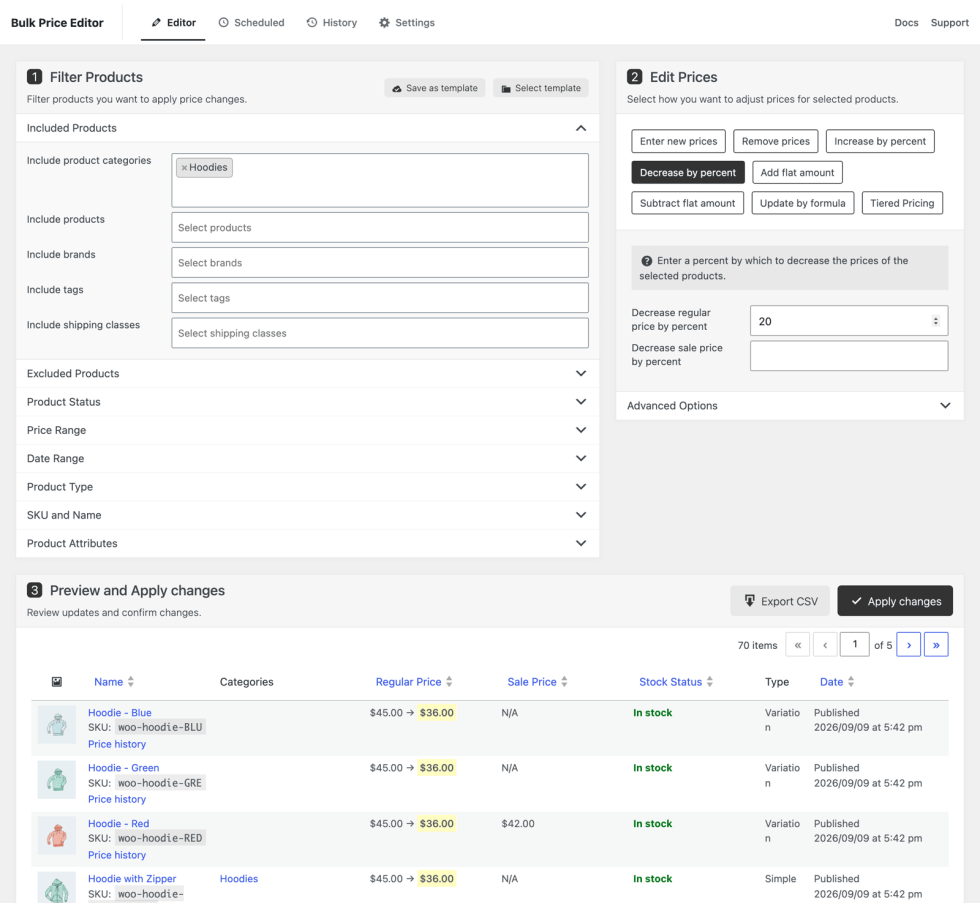
Every update is recorded in the History tab together with the previous prices, so a wrong update can be reverted.
Filters
↑ Back to topFilters are collapsible sections in the first widget. A product must match every filter you set. Sections that contain a value stay open.
| Filter | What it does |
|---|---|
| Included Products | Products, categories, brands, tags and shipping classes to include. A category or a parent brand includes its children. A variable product includes all of its variations. Products and categories together select both. |
| Excluded Products | The same selections, removed from the result. Exclusions win over inclusions. |
| Product Status | Stock status (in stock, out of stock, on backorder), sale status (on sale or not on sale) and featured products. |
| Price Range | A minimum and/or a maximum, applied to the regular price or to the sale price. In sale mode, products without a sale price never match. |
| Date Range | Date added or date modified, from and/or to. |
| Product Type | Simple, variable, variation and external products. By default simple products, variations and external products are selected, so every variation is listed with its own price. |
| SKU and Name | A partial SKU (the full SKU matches one product) and a text contained in the product name. |
| Product Attributes | One field per global attribute, for example Color or Size. Values of one attribute are combined with OR, different attributes with AND. Variations match through their own attribute values. |
Category, brand, tag and shipping class selections also match the variations of a matching variable product.
Price changes
↑ Back to topThe second widget offers one tab per method. Only the active tab is applied. Every method has separate fields for the regular price and the sale price; an empty field leaves that price unchanged. A value of 0 is a valid price.
| Method | Result |
|---|---|
| Enter new prices | Sets the same regular and/or sale price on every selected product. |
| Remove prices | Clears both prices, the regular price only or the sale price only. |
| Increase by percent, Decrease by percent | Changes existing prices by a percentage. Products without the price being changed are skipped. Decreases stop at zero. |
| Add flat amount, Subtract flat amount | Changes existing prices by a fixed amount. Products without the price are skipped. Subtraction stops at zero. |
| Update by formula | Calculates the new price of each product from its own current values. |
| Tiered Pricing | Appears when the Tiered Pricing Table plugin is active, see below. |
Formulas
↑ Back to topEach formula field accepts a number or an expression with + - * /, parentheses and the functions min() and max(). Variables: {regular_price}, {sale_price}, {price} (the active price) and {cost} (the product cost from WooCommerce Cost of Goods or a supported cost plugin).
{regular_price} * 0.8in the sale price field: a sale price 20 percent below the regular price, also on products that had no sale price.{cost} * 1.4: a 40 percent markup on the cost.max({regular_price} * 0.7, 9.99): 30 percent off, but never below 9.99.min({regular_price} + 5, 199): 5 more, capped at 199.
A product that lacks a value used in the formula, for example {cost} on a product without cost data, is skipped for that field. An invalid formula is ignored.
Advanced Options
↑ Back to topEvery method has the same two options:
- Rounding: 2 decimals, 1 decimal, whole number, or a price ending of .90, .95 or .99 (a calculated 63.74 becomes 63.99). To round existing prices without changing them otherwise, use Add flat amount with 0 and a price ending.
- Sale dates: set a start and/or an end date of the WooCommerce sale schedule on every selected product, or clear existing schedules. Sale dates can be applied on their own and are restored by a revert.
Preview and apply
↑ Back to topThe preview table
↑ Back to topThe table lists every product matching the filters with image, name and SKU, categories, regular price, sale price, stock status, type and date. As soon as a price change is entered, the price columns show the current and the new price, with the new value highlighted. Products whose price would not change show the current price only. Name, prices, stock status and date are sortable; the table is paginated and refreshes without a page reload. The preview is calculated by the same code that performs the update.
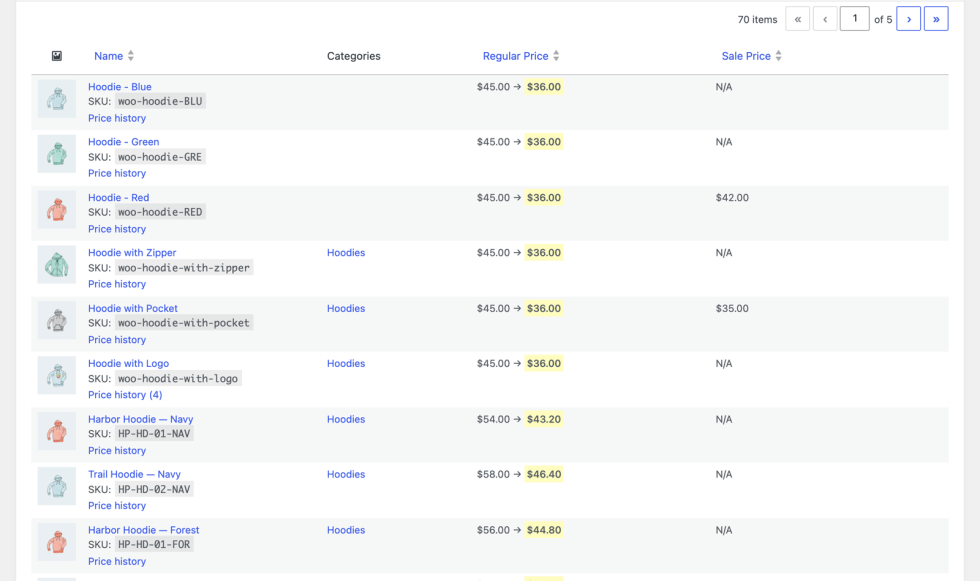
Export CSV downloads the whole preview: every matching product, variations included, with its current prices and the new ones.
Applying
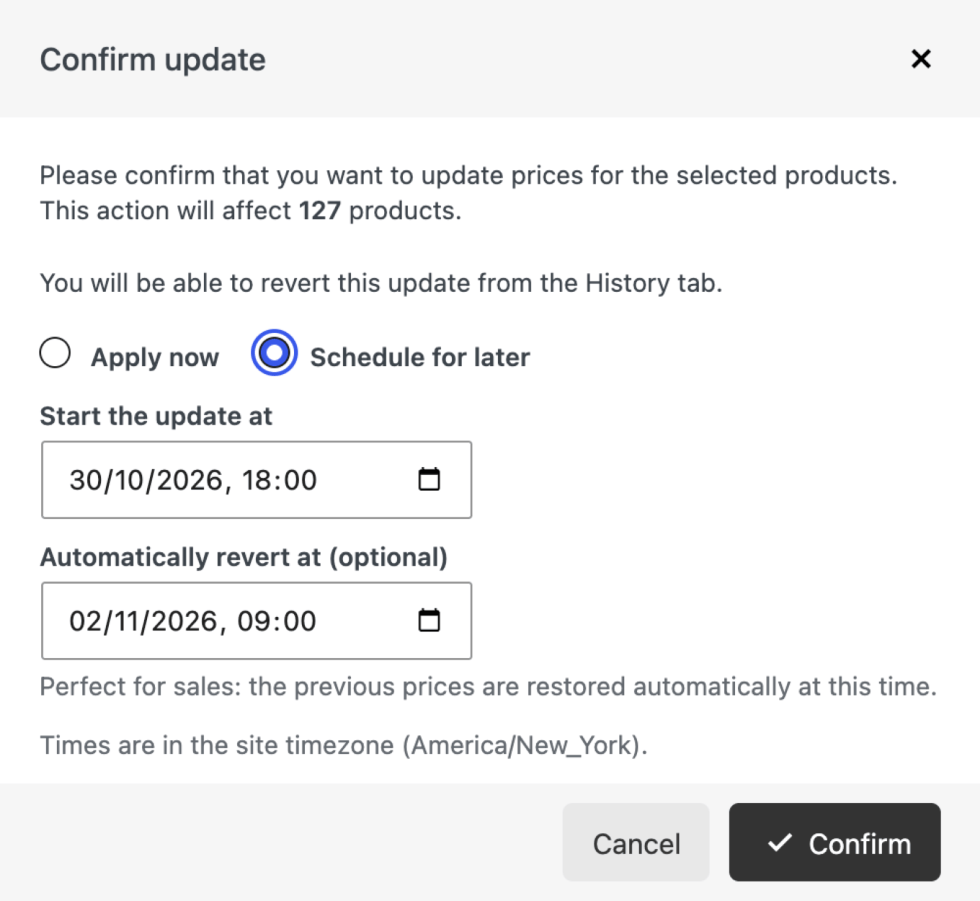
↑ Back to topClick Apply changes. The dialog states how many products are affected and offers:
- Apply now: the update starts immediately.
- Schedule for later: pick the date and time when the update should start.
- Automatically revert at (optional, for both modes): the previous prices are restored at the given time. A weekend sale is one action: start on Friday evening, revert on Monday morning.
Times are in the site timezone, shown in the dialog. The update always targets the full filtered set, not only the current page of the table.
Background processing
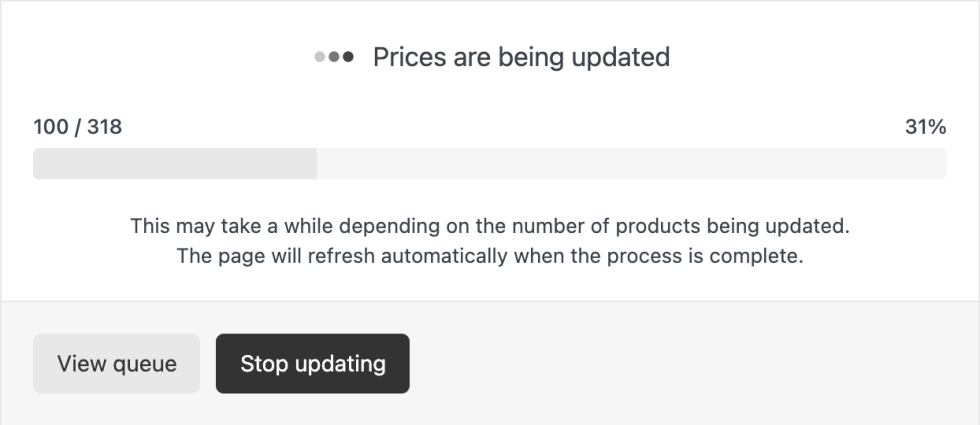
↑ Back to topProducts are processed in chunks of 100 through the WooCommerce Action Scheduler, so large catalogs are updated without timeouts. While an update runs, the editor shows the number of processed products and a progress bar with two buttons: View queue opens the Scheduled Actions screen filtered to the plugin’s jobs, and Stop updating cancels the remaining jobs. Products already processed keep their new prices; a stopped update appears in History and can be reverted. The page refreshes when the update completes.
Scheduled updates
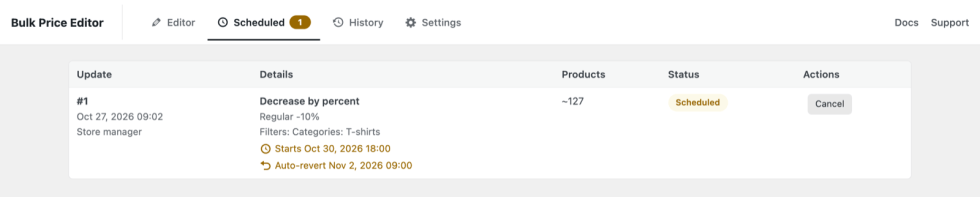
↑ Back to topA scheduled update is stored with its filters and price settings and listed in the Scheduled tab until it runs. The product count shown there is an estimate from the time of scheduling; the product list is resolved again when the update starts, so products added or changed in the meantime are included. Cancel removes the scheduled update and its automatic revert; the entry stays visible in History. Scheduled updates and automatic reverts run through the Action Scheduler and need the site cron, like other WooCommerce scheduled actions. Only one update processes at a time; a due update starts when the running one finishes.
History and revert
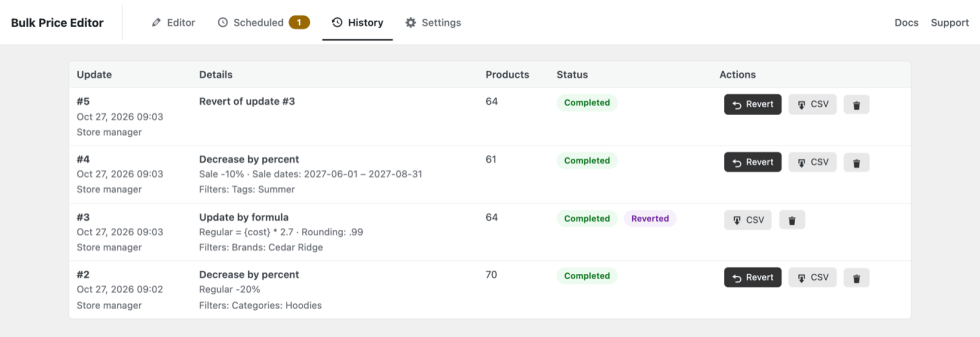
↑ Back to topEvery update is recorded in the History tab with a snapshot of the prices of each affected product before the change. An entry shows when it ran and by whom, what it did, the filters with their values, the number of products and the status. Actions:
- Revert restores the prices and sale dates of every product the update changed, using the snapshot. Only the fields the update touched are restored. A revert is recorded as its own entry and can be reverted again, which applies the update once more.
- CSV downloads the snapshot with the prices before and after the update.
- Delete removes the entry and its snapshot; the update can no longer be reverted.
Reverting runs in the background with the same progress screen. Stopped updates can be reverted; only the processed products are restored. The history keeps the 50 most recent updates.
Templates
↑ Back to topSave a set of filters, optionally together with the price change, as a template:
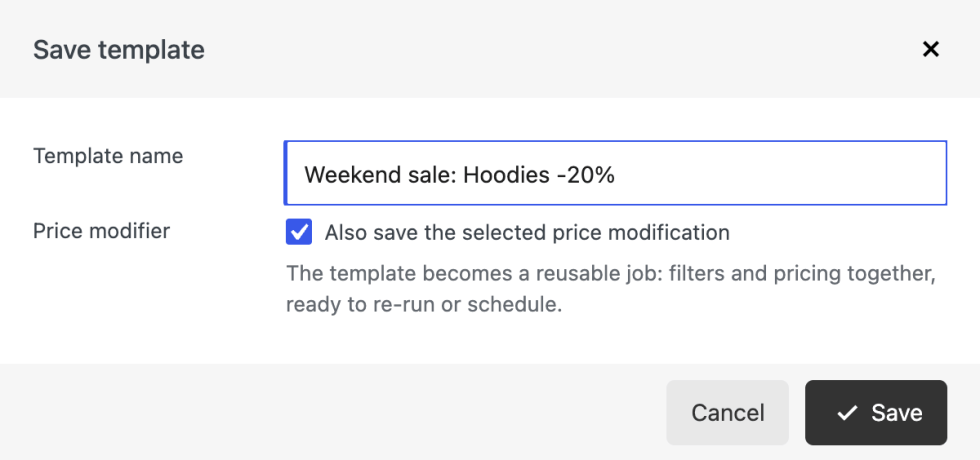
- Save as template saves the current filters under a name. With Also save the selected price modification checked, the method and its values are stored too, which makes the template a complete job that can be re-run or scheduled.
- Select template lists the saved templates; selecting one fills the filters and, for a job, the price change.
- Update template saves changes back to the active template. Remove deletes it.
Templates are shared by all administrators. The active template is part of the page URL, so it can be bookmarked. Jobs can also be run from the command line, see Tools.
Price change tracking
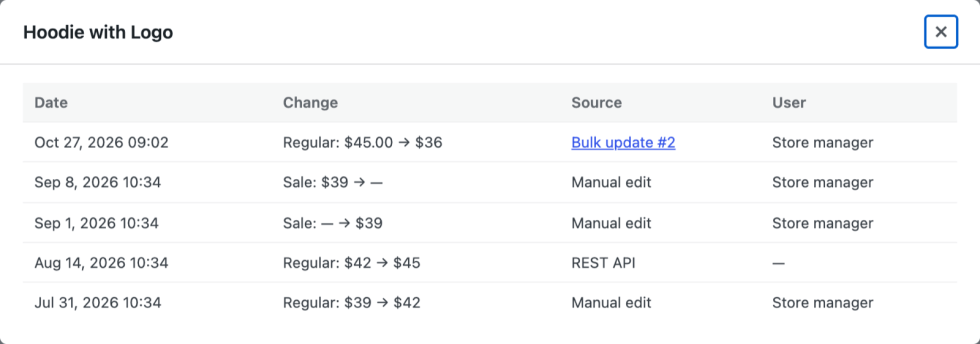
↑ Back to topIndependently of bulk updates, the plugin records every change of the regular or sale price of a product: manual edits on the product screen, imports, the REST API, other plugins and bulk updates, each with date, source and user.
- On the product edit screen a Price history link with the number of recorded changes sits next to the Schedule link under the sale price, and inside the pricing row of every variation.
- In the preview table the same link appears under each product.
- The list shows each change with its old and new value and its source; bulk updates and reverts link to their History entry.
Tracking is on by default. The Settings tab turns it off and sets how many changes are kept per product (100 by default).
Variable products
↑ Back to topWith the default product types, each variation appears as its own row with its own prices, so every change is visible per variation. If the Variable product type is selected and a variable product matches the filters, the change is applied to all of its variations. A variable product row shows its price range; the new prices appear on the variation rows.
Tiered Pricing Table
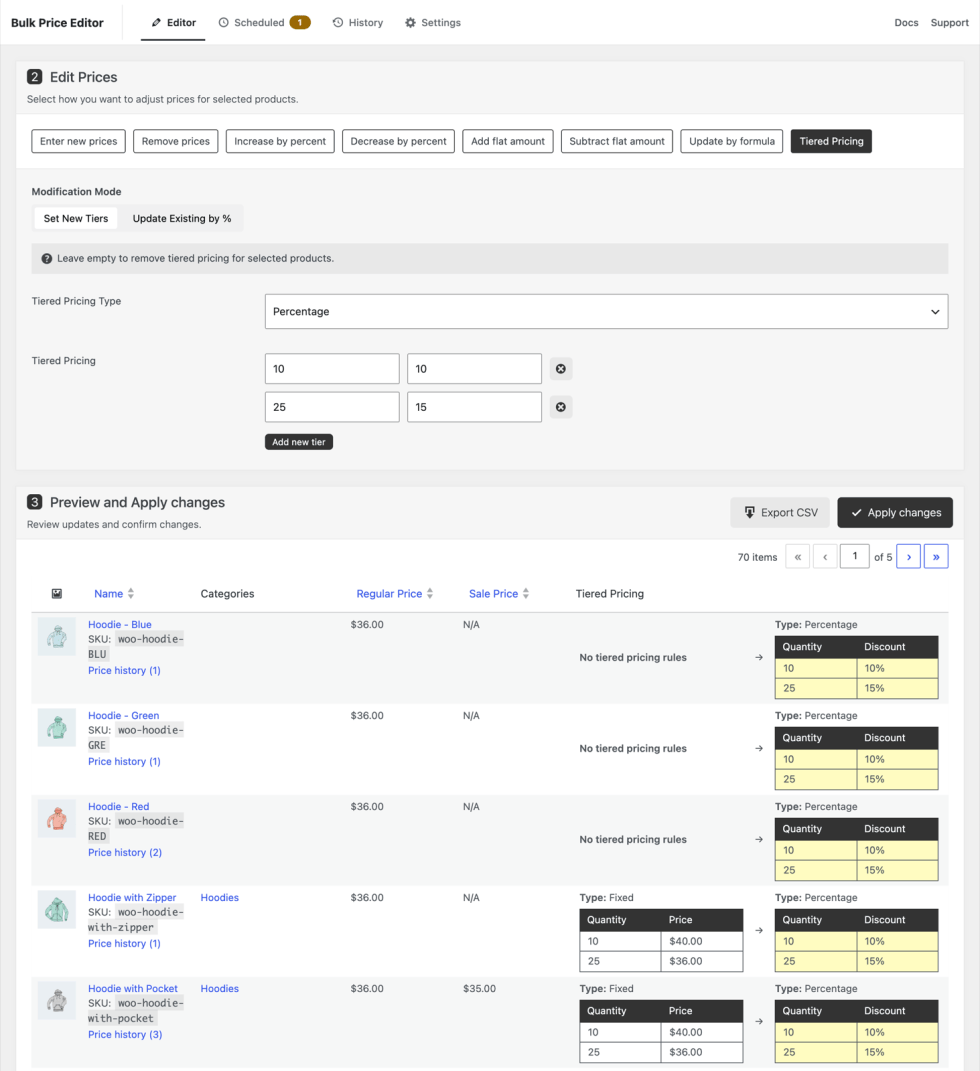
↑ Back to topWhen the Tiered Pricing Table plugin is active, a Tiered Pricing tab is added to the price methods and a Tiered Pricing column to the preview table.
- Set new tiers defines a set of quantity tiers, fixed prices or percentage discounts, and applies it to all selected products. An empty builder removes the tiered pricing from the selected products.
- Update existing by % scales existing tier prices by a percentage. Fixed prices are recalculated; percentage discounts are adjusted and capped at 100 percent. Products without tiers are left unchanged.
The preview column shows the current and the resulting tiers of each product. Regular and sale prices are not changed in this mode, and these updates have no price snapshot to revert.
Tools
↑ Back to topCommand line
↑ Back to topThe wp bulk-price-editor command runs the same code as the editor. Its runs appear in History with snapshots and can be reverted from either place.
| Command | Purpose |
|---|---|
wp bulk-price-editor templates | Lists the saved templates. |
wp bulk-price-editor run --template="Weekend sale" --dry-run | Shows what a job would change without changing anything. |
wp bulk-price-editor run --template="Weekend sale" --yes | Runs a job; --yes skips the confirmation. |
wp bulk-price-editor run --filters='{"bpe_included_category_ids":[15]}' --modifier=decrease_by_percent --args='{"bpe_regular_price_decrease_by_percent":10}' | Runs an ad hoc update from filters and a method given as JSON. |
wp bulk-price-editor history --limit=10 | Lists recent updates. |
wp bulk-price-editor revert 42 | Reverts an update by its id. |
Combined with a system cron, this runs recurring updates, for example a job every Monday night.
Settings
↑ Back to topThe Settings tab holds the price change tracking switch and the number of changes kept per product.
FAQ
↑ Back to topAn update went wrong. How do I undo it? Open the History tab and click Revert on the update. The previous prices and sale dates come back.
The update seems stuck. Background jobs run through the Action Scheduler, which depends on the site cron. Click View queue to see the pending jobs under WooCommerce → Status → Scheduled Actions. The same applies to scheduled updates and automatic reverts.
Some products did not change. Percentage and flat methods skip products that do not have the price being changed, usually products without a sale price. Use Enter new prices or Update by formula to set a price on products that have none.
Can the sale price end up above the regular price? The values you enter are applied as entered. WooCommerce does not display a sale price that is not lower than the regular price, so check the preview when changing both.
A scheduled update changed a different number of products than listed. The product list is resolved when the update starts; the number in the Scheduled tab is an estimate from the time of scheduling.
Does the plugin work with variations? Yes. Variations are listed and updated individually, or through their parent when the variable type is selected.
Is there a limit on the number of products? No. Updates run in chunks of 100 in the background.
Developers and support
↑ Back to topHooks, the command line, the data model and the extension points for custom filters, price methods and table columns are in the developer documentation.
For help with the plugin, open a ticket through WooCommerce.com support.

