The Country Based Pricing plugin for WooCommerce enables store owners to set different product prices depending on the customer’s country.
Installation
↑ Back to topTo start using a product from WooCommerce.com, you can use the “Add to store” functionality on the order confirmation page or the My subscriptions section in your account.
- Navigate to My subscriptions.
- Find the Add to store button next to the product you’re planning to install.
- Follow the instructions on the screen, and the product will be automatically added to your store.
Alternative options and more information at:
Managing WooCommerce.com subscriptions.

General Level Settings:
↑ Back to topConfiguration
↑ Back to topAfter installing and activating the plugin, go to WooCommerce > Price by Country Settings. Here you will find two tabs: Settings and Country Based Pricing.
Settings Tab
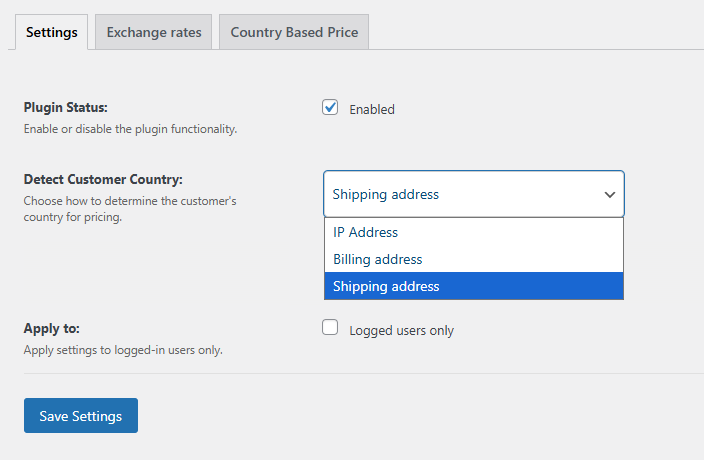
↑ Back to topPlugin Status: Enable or disable the plugin functionality.
Detect Customer Country: Select how the plugin should determine the customer’s country for pricing.
- IP Address
- Billing Address
- Shipping Address
Apply to:
Choose whether the pricing rules apply only to logged-in users.
Exchange Rates
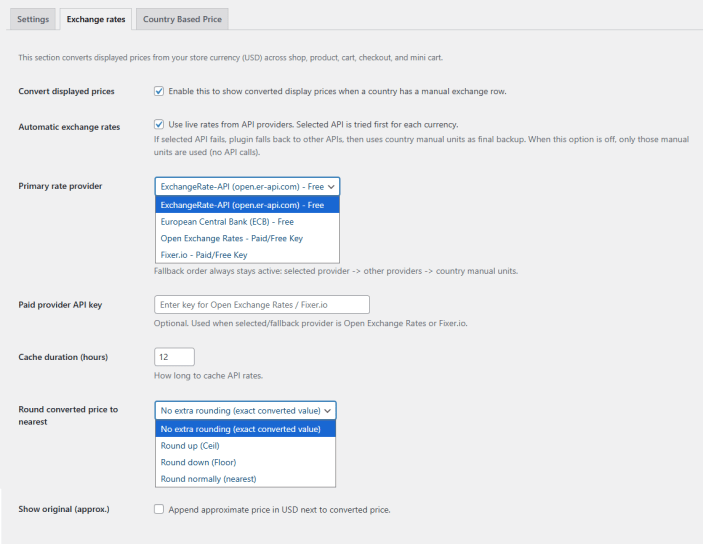
↑ Back to topIn this section, you can convert prices from USD across all store pages, including shop, product, cart, checkout, and mini cart. Go to WooCommerce > Country Based Price > Exchange Rates and configure the following settings.
- Convert Displayed Prices: Enable this to show converted prices for countries with a manual exchange rate.
- Automatic Exchange Rates: Use live rates from API providers. The selected API is tried first. Note: If it fails, the plugin falls back to other APIs, then to manual rates as a last resort. When off, only manual rates are used.
- Primary Rate Provider: Sets the first API provider to try. If it fails, the plugin falls back to other providers, then to manual rates. You can select the following from teh dropdown:
- ExchangeRate-API (open.er-api.com) – Free
- European Central Bank (ECB) – Free
- Open Exchange Rates – Paid/Free Key
- Fixer.io – Paid/Free Key
- Paid Provider API key: Enter the key in case the selected/fallback provider is Open Exchange Rates or Fixer.io
- Cache Duration (Hours): Configure how long to cache exchange rates in hours
- Round Converted Price To The Nearest: Choose how converted values should be rounded before displaying. You can select from the following options:
- No Extra Rounding (Exact Converted Value)
- Round Up (Ceil)
- Round Down (Floor)
- Round Normally (Nearest)
- Show Original (Approx.): Append approximate price in USD next to converted price
Country-Based Currency Settings
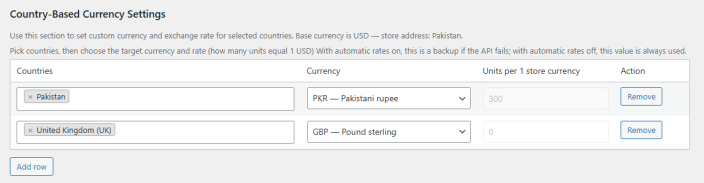
↑ Back to topUse this section to set a custom currency and exchange rate for specific countries. The base currency is USD. Select the countries, then choose a target currency and exchange rate (units per 1 USD). If automatic rates are on, this value is used as a fallback when the API fails. If off, this value is always used.
Country Based Pricing
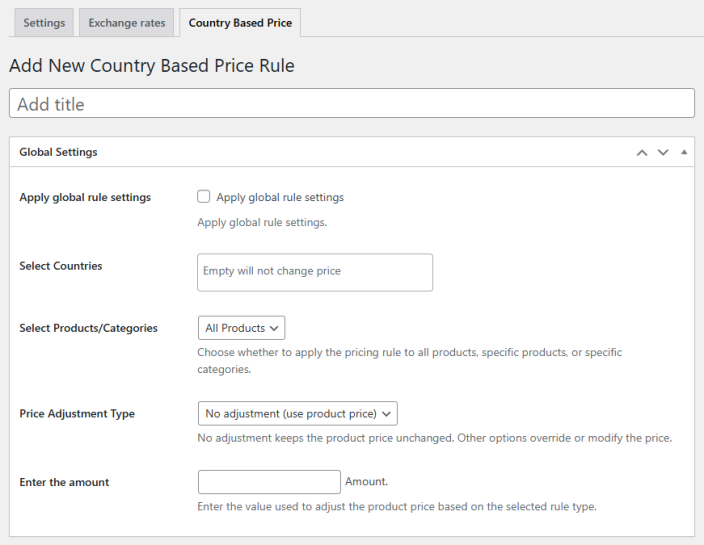
↑ Back to topIn this section, you can create and manage multiple country-based pricing rules. Click the Add New Rule button to configure a new rule using the following settings:
- Apply Global Rule Settings: Enable this option if you want to use default settings across all rules.
- Select Countries: Choose the countries this pricing rule should apply to.
- Include / Exclude: Determine how the rule targets products or categories:
- Select Products / Categories: Specify which items the rule applies to:
- All Products – Apply the rule to all products.
- Products – Choose specific products.
- Categories – Choose specific categories from:
- Price Adjustment Type: Choose how to modify product prices:
- Fixed: Set a specific price for selected products.
- Increase by Fixed Price: Add a fixed amount to the original price.
- Decrease by Fixed Price: Subtract a fixed amount from the original price.
- Increase by Percentage: Raise the original price by a percentage.
- Decrease by Percentage: Lower the original price by a percentage.
- Enter the Amount: Specify the value to adjust product prices based on the selected adjustment type.
Product Level Settings:
↑ Back to topProduct-level pricing rules can be applied to both simple and variable products.
For Simple Products:
↑ Back to top- Go to Products > Edit any simple product.
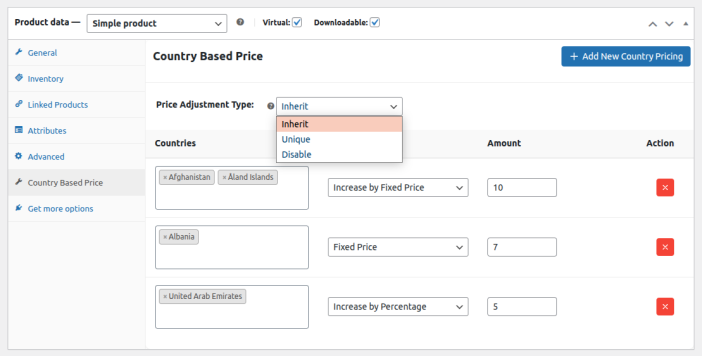
- In the Product Data section, navigate to the Country Based Pricing tab.
- Choose the Price Adjustment Type:
- Inherit: Use the global settings from the Country Based Pricing tab.
- Unique: Use custom settings for this specific product.
- Disable: Disable country-based pricing for this product.
- Click Add Your First Rule to begin adding pricing for selected countries:
- Select Countries – Choose one or more countries.
- Price Type:
- Fixed: Set a specific price.
- Increase by Fixed Price
- Decrease by Fixed Price
- Increase by Percentage
- Decrease by Percentage
- Enter Amount – Define the adjustment value.
- To add pricing for more countries, click Add New Country Pricing.
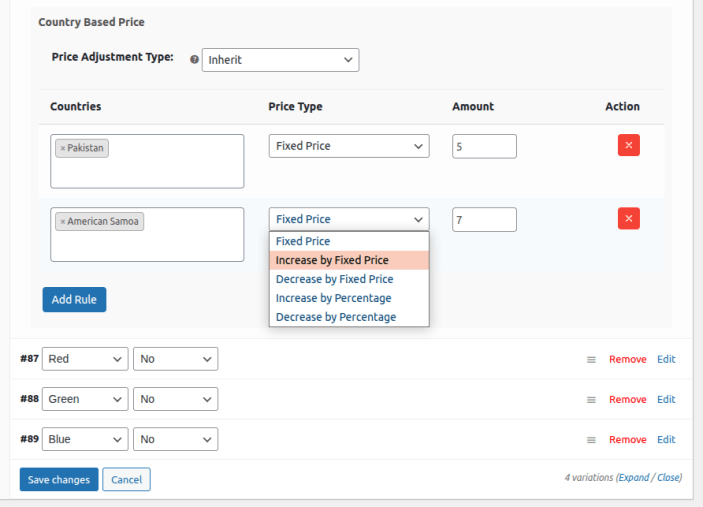
For Variable Products:
↑ Back to top- Go to Products > Edit any variable product.
- In the Product Data section, go to the Variations tab.
- Click on a specific variation to expand its settings.
- You will find the Country Based Pricing section for that variation.
- Set the Price Adjustment Type:
- Inherit: Use the global settings.
- Unique: Use custom settings for this variation.
- Disable: Disable pricing rules for this variation.
- Click Add Your First Rule to configure pricing:
- Select Countries
- Price Type:
- Fixed: Set a specific price.
- Increase by Fixed Price
- Decrease by Fixed Price
- Increase by Percentage
- Decrease by Percentage
- Enter Amount
To define pricing for additional countries, click Add New Country Pricing.