
Country Based Product Purchase Restriction lets you control exactly who can buy a product on your WooCommerce store, based on the customer’s country and user role. When a visitor doesn’t match the rules you’ve set, the price and Add to Cart button are automatically hidden.
- Restrict product purchases by selected countries
- Show a custom message or suggest an alternative product to restricted visitors
- Hide a restricted product completely, or show it with a message
- Let restricted visitors send you a message — instant email + saved for follow-up
- Built-in analytics dashboard with CSV export
- Assign allowed user roles for each selected country
- Only matching country + role users can purchase
- Block purchases if country matches but role is not allowed
- Optional guest purchase control by country
- Hide price and Add to Cart for restricted users
- Automatic customer country detection via IP
Installation
↑ Back to topTo start using a product from WooCommerce.com, you can use the “Add to store” functionality on the order confirmation page or the My subscriptions section in your account.
- Navigate to My subscriptions.
- Find the Add to store button next to the product you’re planning to install.
- Follow the instructions on the screen, and the product will be automatically added to your store.
Alternative options and more information at:
Managing WooCommerce.com subscriptions.

Setting Up Restriction on a Product
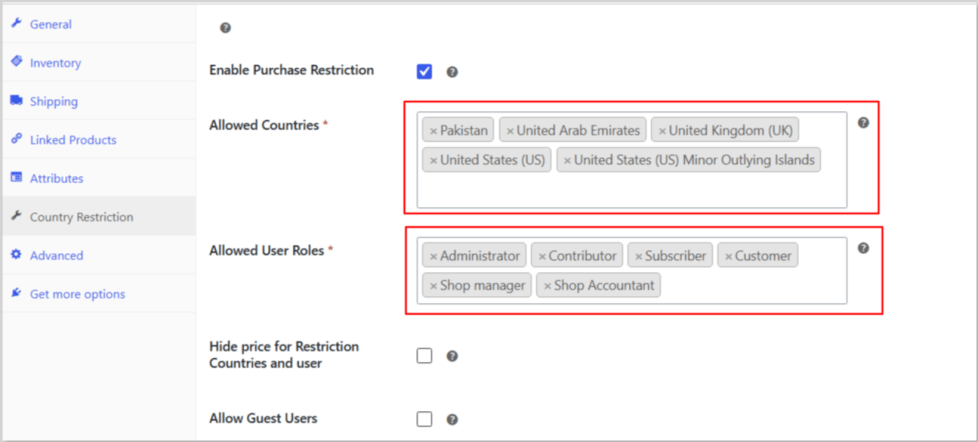
↑ Back to topGo to Products → [select a product] → Edit, then click the Country Restriction tab.
1. Enable Purchase Restriction
↑ Back to topCheck this box to turn restriction on for this product. If it’s unchecked, the product behaves normally and none of the settings below apply.
2. Allowed Countries
↑ Back to topSelect the countries you want to allow to purchase this product. Visitors from any other country will be restricted.
3. Allowed User Roles
↑ Back to topSelect which user roles (Customer, Wholesaler, or any custom role your store uses) are allowed to purchase. A visitor must match both the country and the role to complete a purchase — matching only one isn’t enough.
4. Hide Price
↑ Back to topOptionally, hide the price completely from restricted visitors instead of just blocking Add to Cart. Leave this off if you’d rather still show the price.
5. Allow Guest Users
↑ Back to topChoose whether guests (visitors who aren’t logged in) can purchase, as long as their country is allowed. Leave this off to require an account for purchase.
Message or Hide Completely
↑ Back to topRestricted Product Display: Message or Hide Completely
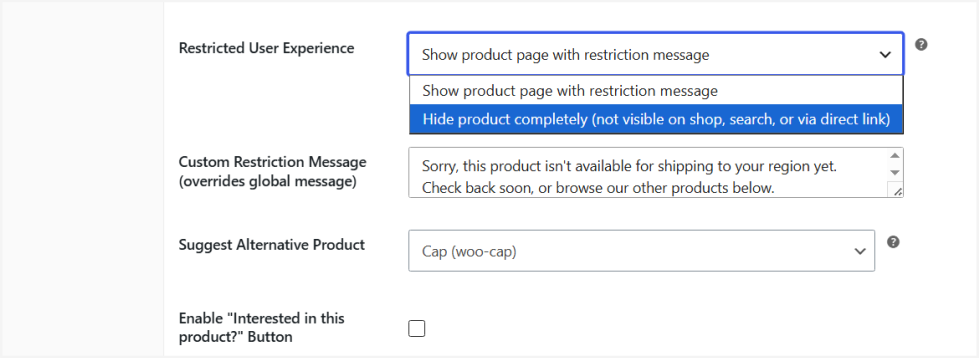
↑ Back to topStill on the same tab, choose how a restricted visitor experiences this product:
Show product page with a message — the product page still opens normally, but the price/Add to Cart are hidden and a message is shown instead.
Hide product completely — the product disappears entirely for a restricted visitor: it won’t show on the shop page, in category pages, in search results, or anywhere else on the site.
If you choose to show a message, you can set a global message (see the General Settings section below) that applies across all your restricted products, or write a custom message for this specific product.
Suggest Alternative Product
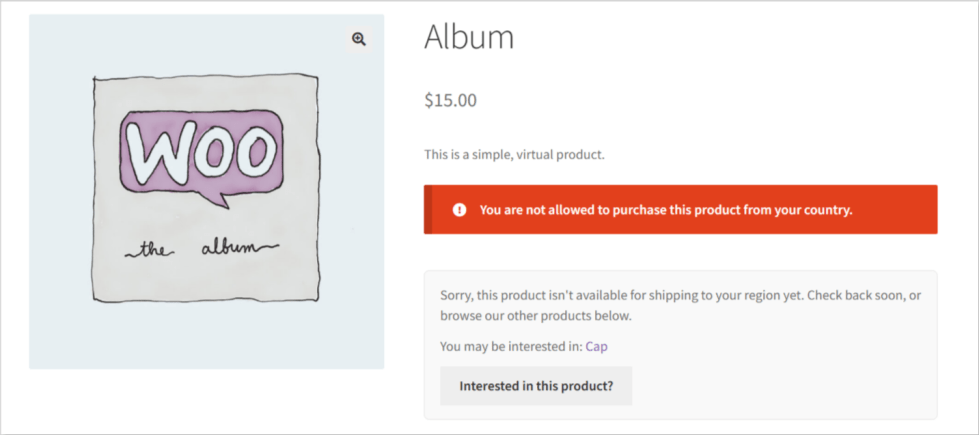
Choose another product from your store to recommend to restricted visitors instead of leaving them with nothing — it’s shown as “You may be interested in with a link.
Enable “Interested in this product?” Button
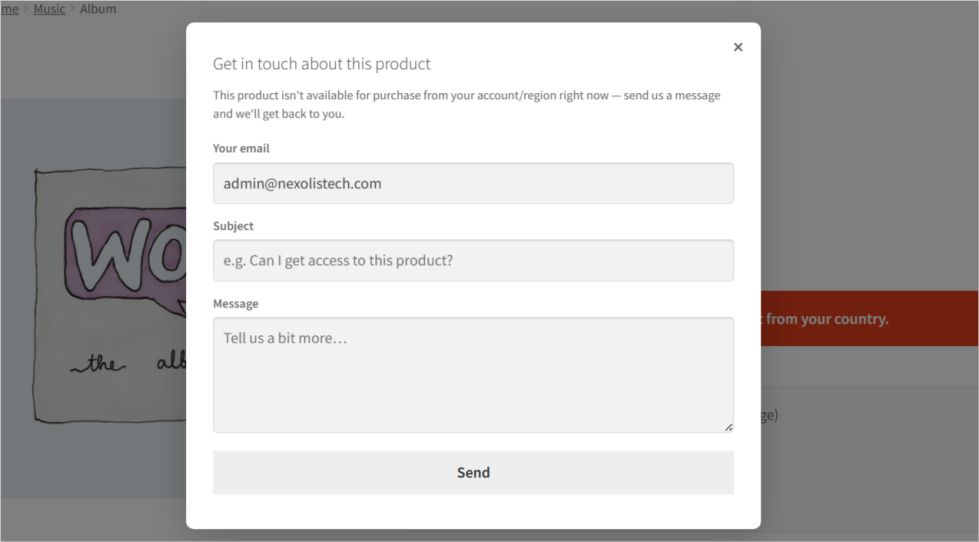
Turn this on to let restricted visitors reach out to you directly. A button appears on the restricted product page; when clicked, it opens a popup where the visitor can enter their email, a subject, and a message. Once submitted, the request is sent straight to your admin email, so you never miss a potential customer.
General Settings
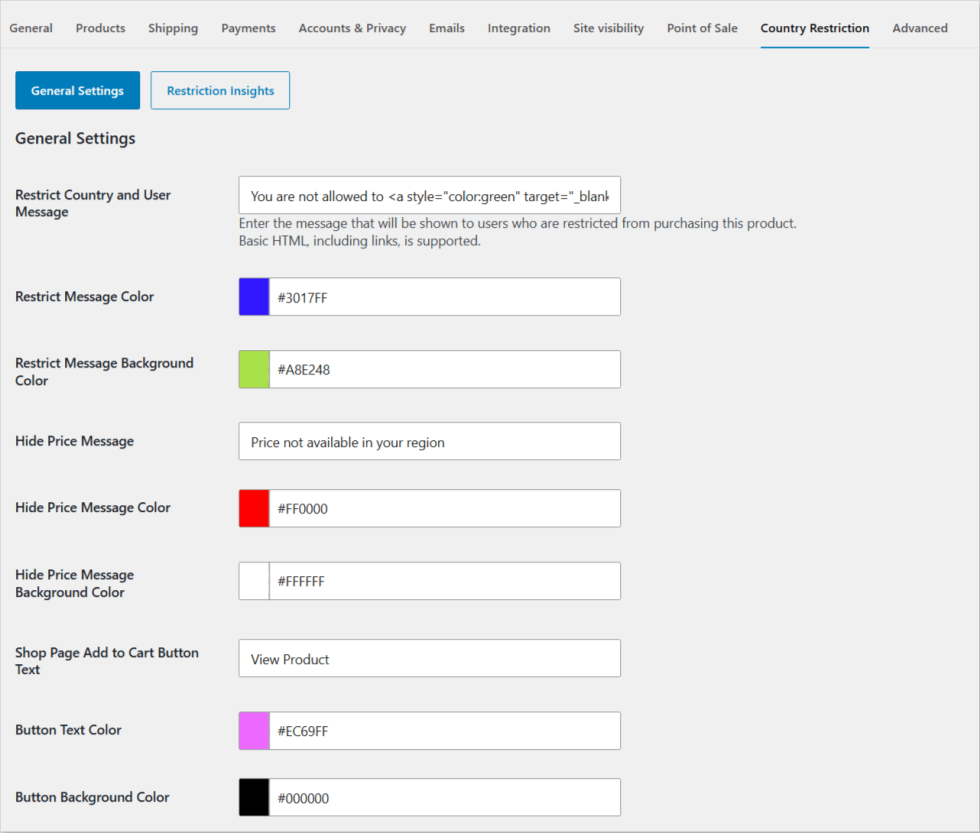
↑ Back to topGo to WooCommerce → Settings → Country Restriction. Inside this tab, you’ll see two buttons: General Settings and Restriction Insights.
General Settings controls the defaults used across every restricted product on your store:
Restriction Insights
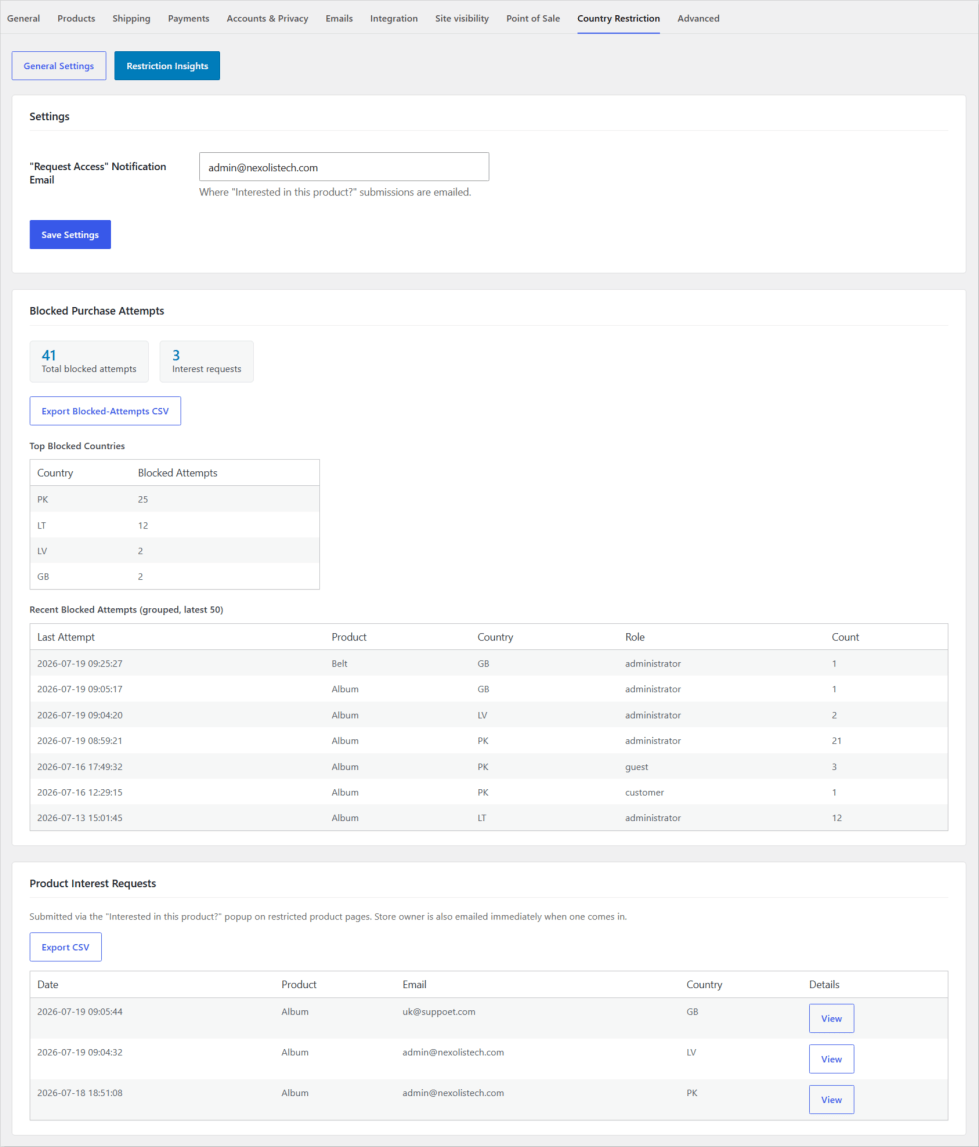
↑ Back to topClick the Restriction Insights button (next to General Settings, inside the same Country Restriction tab) to access:
Notification Email — set the email address where customer interest requests (from the “Interested in this product?” popup) should be sent.
Blocked Purchase Attempts — a log of how many times visitors have been blocked from purchasing, broken down by product, country, and user role.
Product Interest Requests — every message submitted through the “Interested in this product?” popup, including the visitor’s email, subject, and message — so you can follow up with anyone who couldn’t complete a purchase.
Best Use Cases
↑ Back to topThis plugin is best suited for stores that need controlled product access and region-based selling.
- Improve store professionalism with clear restriction messages
- Sell products only in selected countries
- Restrict purchases to specific user roles
- Control product access for wholesale or B2B customers
- Hide prices from users who are not allowed to buy
- Require login for restricted or members-only products
- Manage region-based compliance and licensing restrictions
- Prevent orders from unsupported shipping locations
- Offer exclusive products to selected customers
FAQs
↑ Back to top
Can I apply restrictions to specific products only?
Yes. Restrictions are applied per product, allowing you to control availability individually.
Is this plugin suitable for wholesale or B2B stores?
Absolutely. This plugin is ideal for wholesale, B2B, regional distributors, and stores that need controlled product access by location and user role.
Does this plugin affect site performance?
No. The plugin uses lightweight logic and WooCommerce’s built-in geolocation, ensuring minimal performance impact.

