
With Data Privacy Manager for WooCommerce, your customers can go to My Account → Data Privacy to request corrections to personal information they can’t edit themselves. Shop managers with access review and respond in WooCommerce → Data Privacy → Requests → Data corrections, and your team makes any needed changes to the original record.
How personal information correction works
↑ Back to topYour customers choose a general correction topic, explain what is inaccurate, and submit the correct information for your store to review. This route is useful when customers need your team’s help with a correction. They can follow the request and its conversation in Correction history. A request does not change the original information automatically.
If your team needs clarification, a shop manager sets the request to Needs information and writes a customer-visible question. The customer receives an update by email and can reply from My Account. Sending that reply returns the request to Under review.
Your team updates or verifies the original information in WooCommerce or the system that holds it, then records the outcome. The customer can return to My Account to read the response and final status. If a change cannot be made, the store can explain why and close the request as Unable to change.
Before you start. Customers need to sign in to their store account. For details they can edit directly, use Self-Service Personal Information Updates in WooCommerce instead. Corrections to information recorded on an order use the separate past-order correction guide. This guide follows an Other personal information request. In the example, your customer sees their surname spelled “Harte” on a bike repair status page. Your workshop team manages the underlying record, so the customer asks your team to correct it to “Hart.”
Submit a correction request
↑ Back to topA reference number helps your team find the exact record your customer wants corrected. If they have one, they can include it when they describe the correction.
Open the correction form
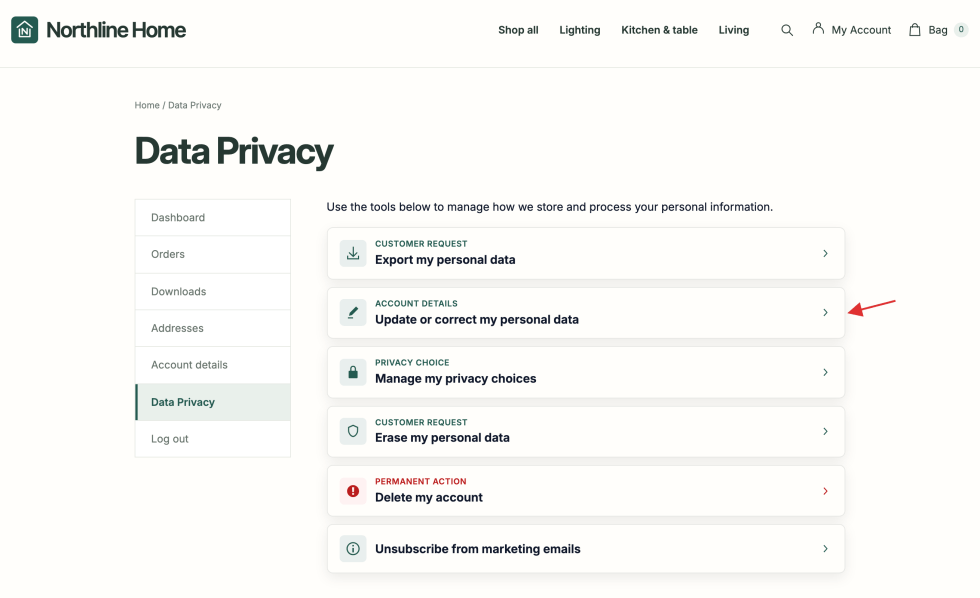
↑ Back to topFrom My Account in your store, your customers:
- Select Data Privacy in the account menu.
- Open Update or correct my personal data.
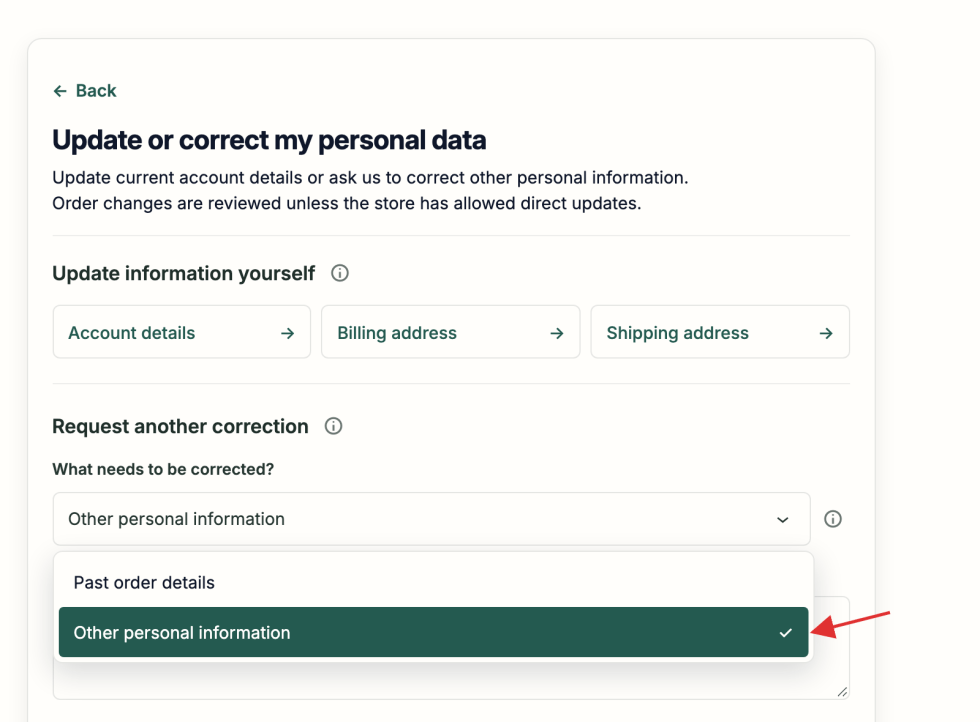
- Under Request another correction, open What needs to be corrected? and choose Other personal information.
The section name and available topics may differ because your store can customize them. Choose the general topic that describes the information needing correction.
Describe and submit the correction
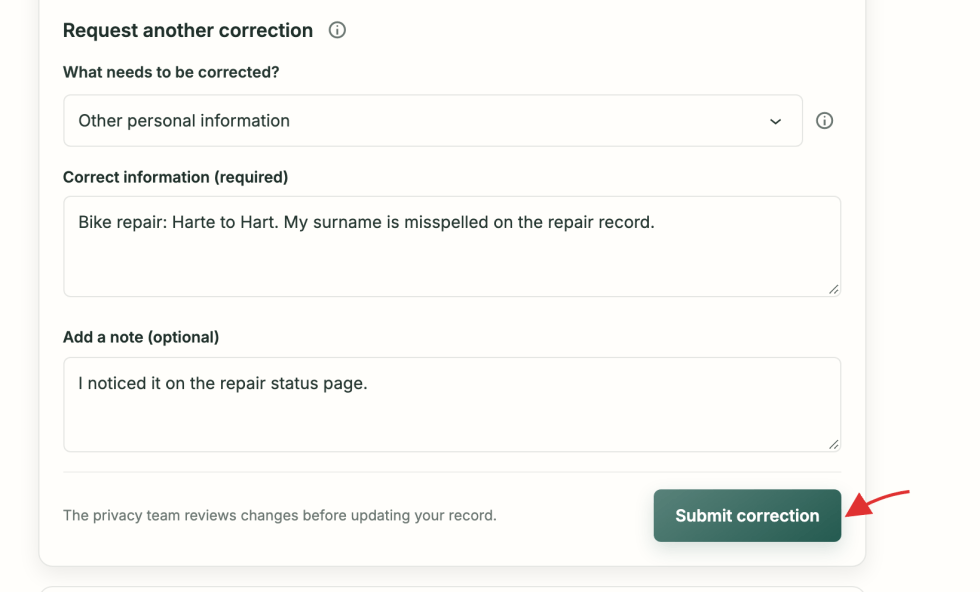
↑ Back to topYour customers enter the accurate information in Correct information (required). They should identify what is inaccurate, where the store holds it, and what it should say instead. Add a note (optional) can give staff context needed to find or verify the record. Each field accepts up to 5,000 characters. In this example, your customer writes “Bike repair: Harte to Hart. My surname is misspelled on the repair record.” In the optional note, they add “I noticed it on the repair status page.” Your team will need the repair reference to find the record.
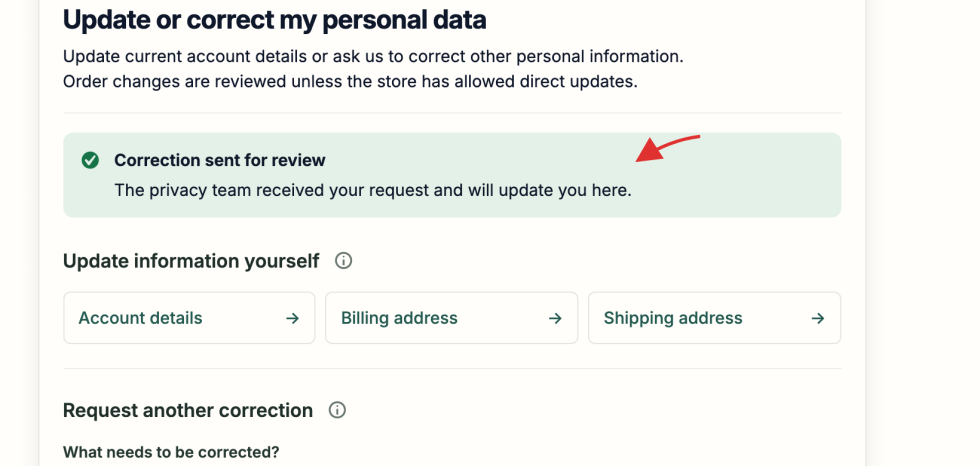
Select Submit correction to send the request for review. The confirmation Correction sent for review says The privacy team received your request and will update you here. This confirms receipt; it does not mean that the original record has changed.
Your customers expand Correction history to check that the repair correction is Submitted. Each request has its own number and Requested change, which helps them find the right one before selecting Details.
Review the request and ask for clarification
↑ Back to topA shop manager with access checks which record the request refers to and whether your team has enough information to review it. If you need a detail such as a repair reference, ask for it from the request so your customer can reply in My Account.
Find and open the request
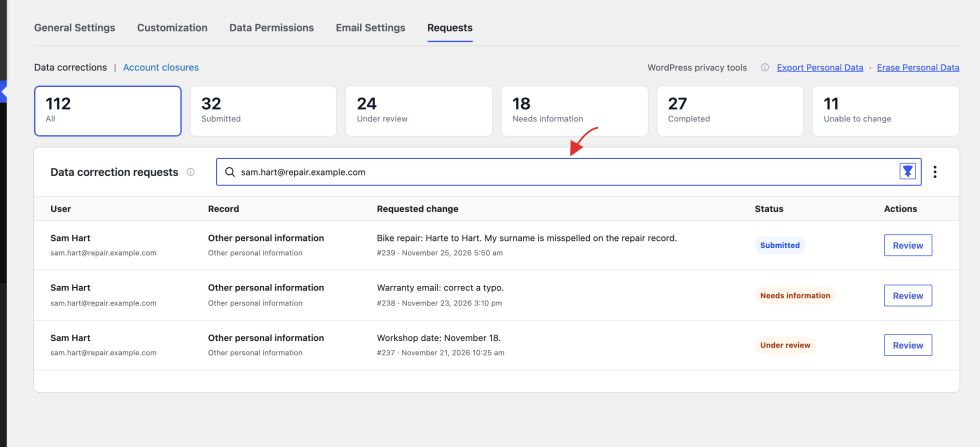
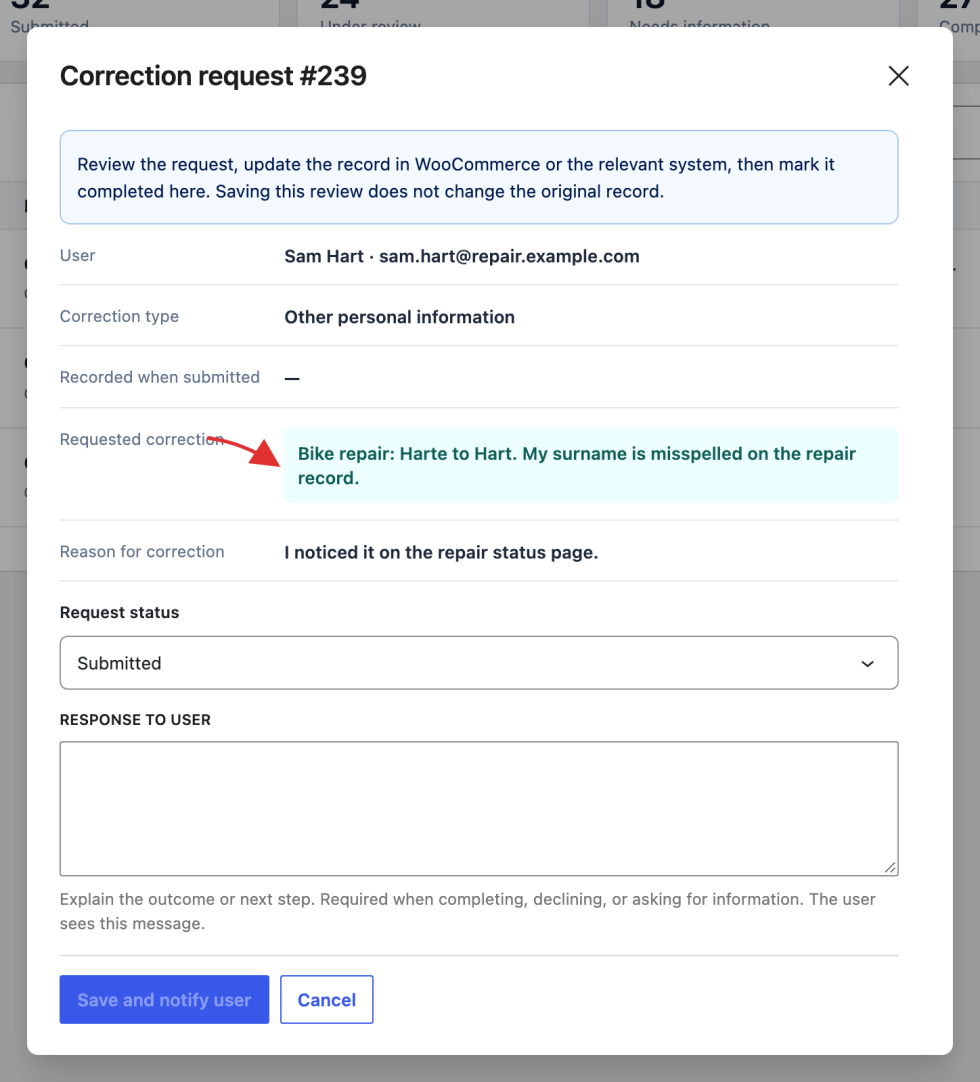
↑ Back to topShop managers with access open WooCommerce → Data Privacy → Requests → Data corrections, search for the customer’s email, and match the request number before selecting Review. Read the requested change and any supporting note.

Ask the customer for more information
↑ Back to topFor a general request that needs more detail:
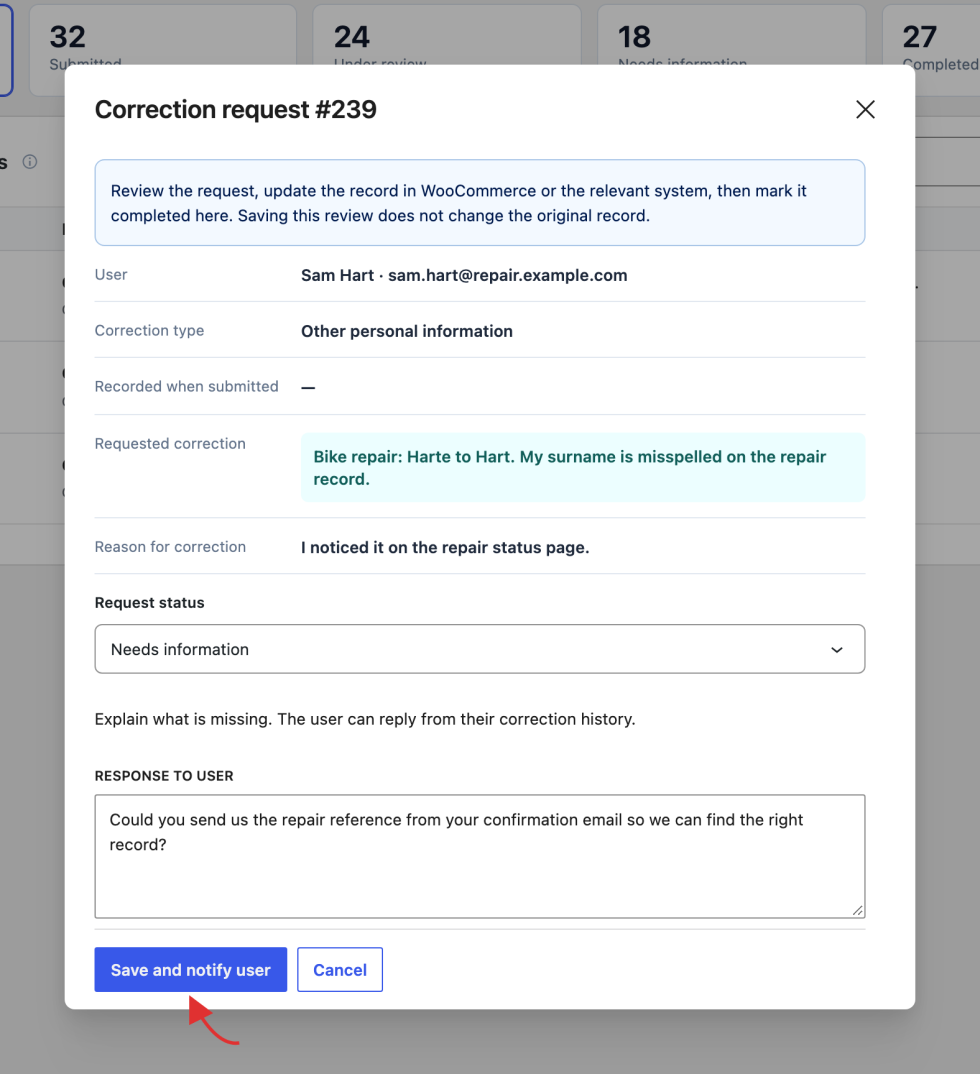
- Set Request status to Needs information.
- In Response to user, ask for the detail your customer needs to provide. Your customer can read your question in My Account.
- Select Save and notify user. The request moves to Needs information. Check the save notice to see whether the update email was sent.
How the customer reads and replies
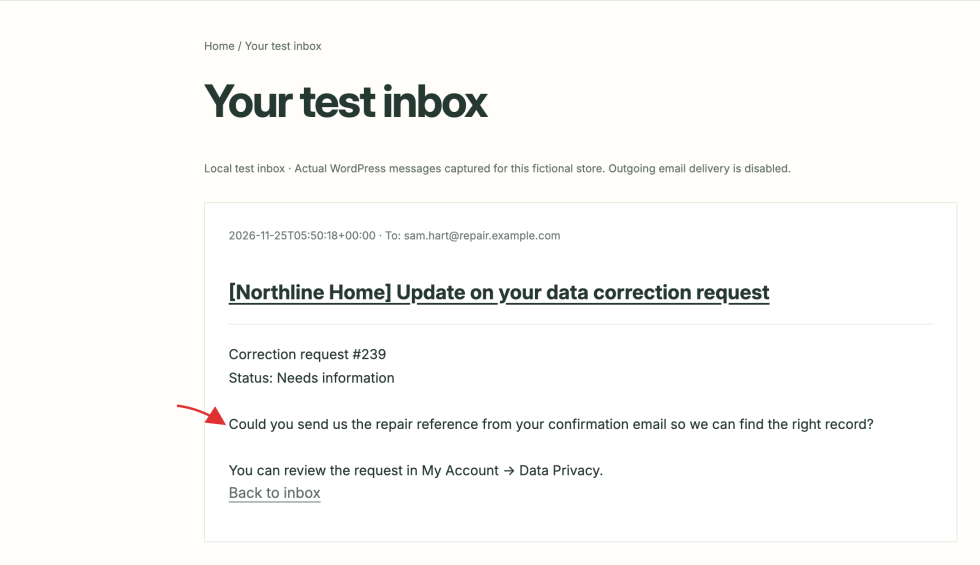
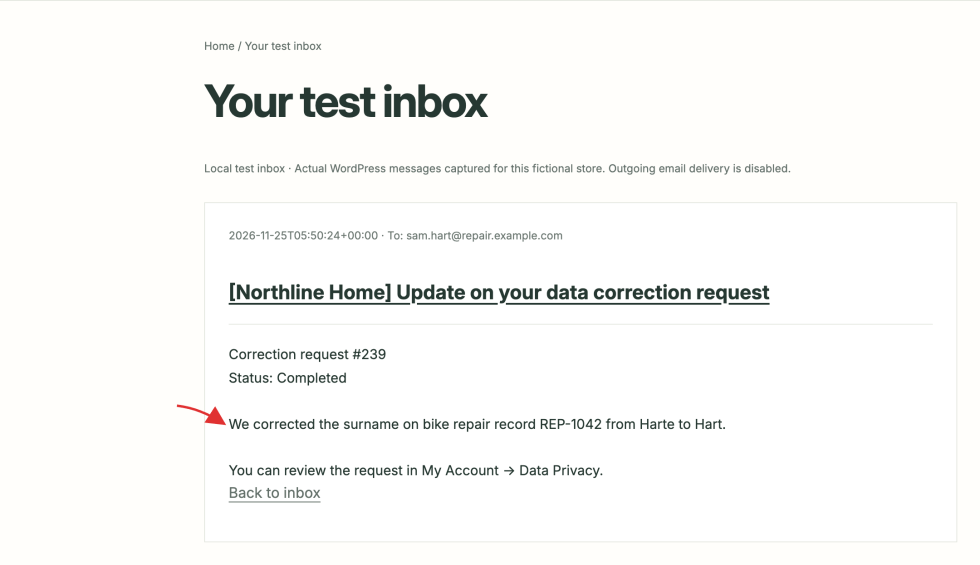
↑ Back to topYour customer receives an email titled Update on your data correction request. It shows the request status and your team’s response and directs your customer back to My Account → Data Privacy to reply. In this example, your team asks “Could you send us the repair reference from your confirmation email so we can find the right record?”
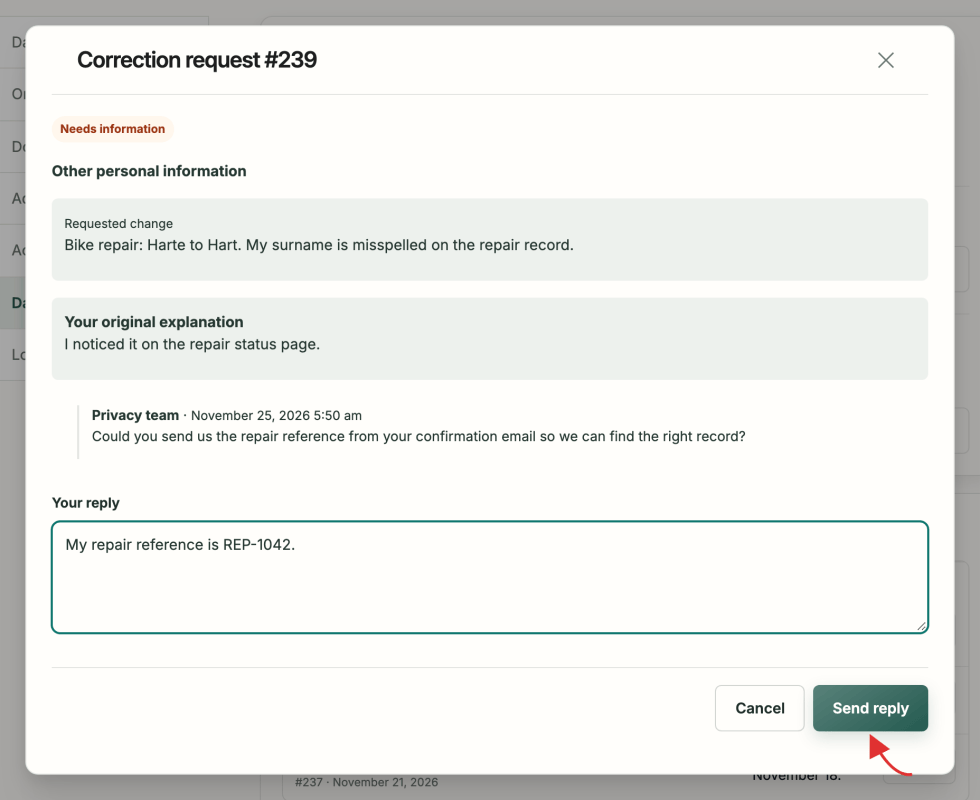
From My Account → Data Privacy → Update or correct my personal data, your customers find the request in Correction history. When it shows Needs information, they select Reply, enter the requested information in Your reply, and select Send reply. In this example, they reply “My repair reference is REP-1042.”
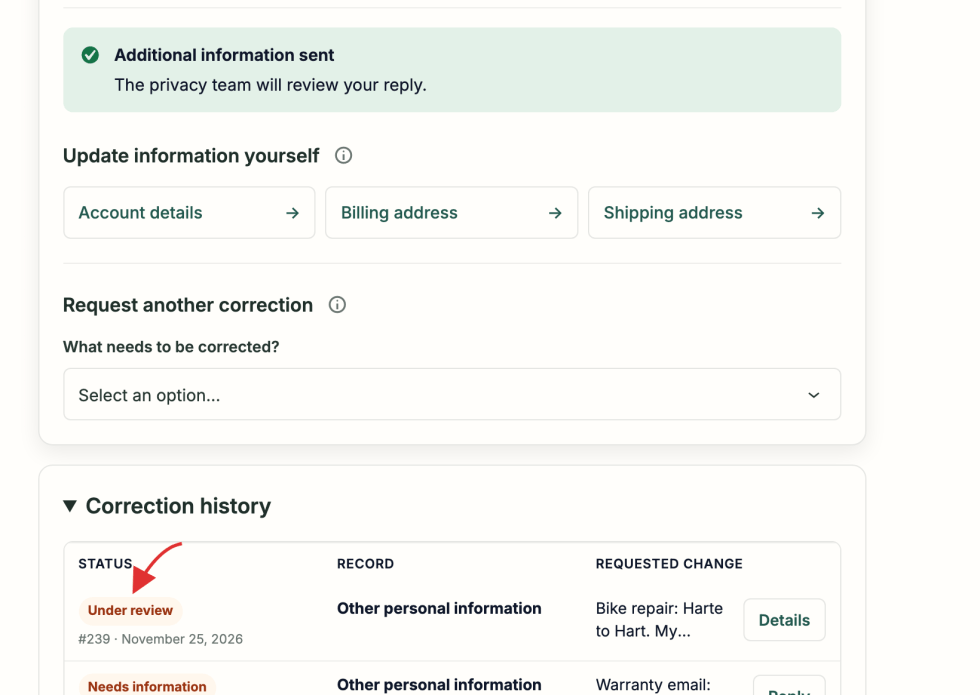
After the reply is sent, the customer sees Additional information sent and The privacy team will review your reply. The request returns to Under review and the conversation keeps the customer’s message. Your team can now continue the review.
Update the original record and close the request
↑ Back to topCheck the original record in the system where it’s stored and make any needed correction there. When you close the request, tell your customer what your team changed or explain why the correction couldn’t be made.
Read the reply and update the original record
↑ Back to topThe shop manager opens the matching request again and reads the customer’s reply.
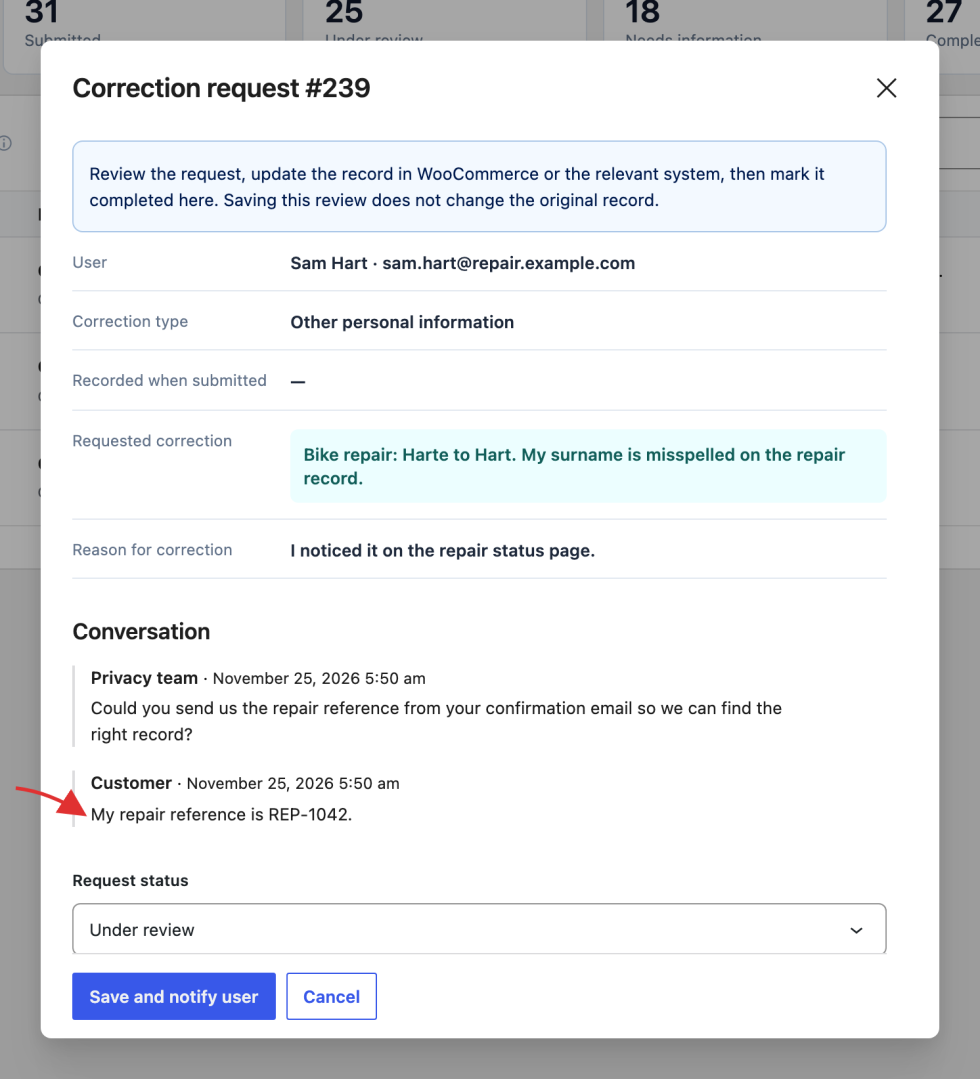
Update or verify the original information in WooCommerce or the appropriate system before completing the request here. A privacy reviewer can ask an authorized colleague to make that source change.
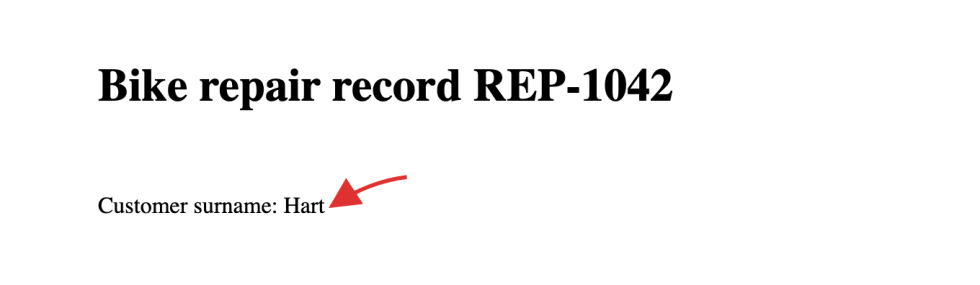
In this example, someone with access to the workshop’s records opens REP-1042, changes the surname from “Harte” to “Hart,” and checks the saved record. They can then record the outcome in Data Privacy Manager.
Record the outcome and notify the customer
↑ Back to topOnce that work is done:
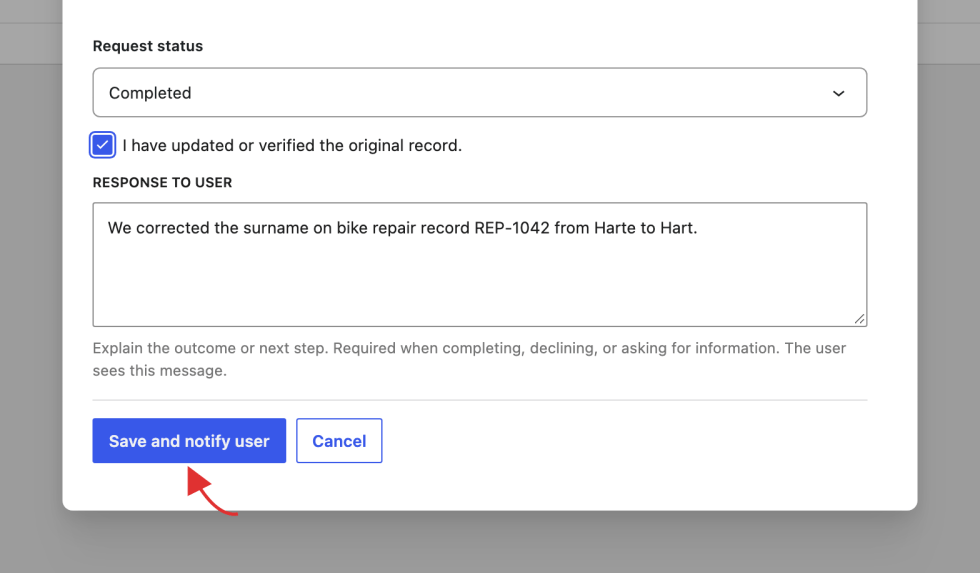
- Set Request status to Completed.
- Select I have updated or verified the original record.
- In Response to user, identify the record and explain what was changed or verified.
- Select Save and notify user, then read the result notice.
Saving the review records your response and closes the request.
If your team cannot make the requested change, set Request status to Unable to change, explain why in Response to user, and select Save and notify user. Your customer can read your explanation under Unable to change in Correction history. The update email shows Status: Declined.
Track requests in My Account
↑ Back to topIn Correction history, your customers can see which requests are waiting for their reply, which your team is reviewing, and which have an outcome they can read.
Check the outcome by email and in Correction history
↑ Back to topYour customer receives another Update on your data correction request email with Status: Completed. The response confirms that your team corrected the surname on bike repair record REP-1042.
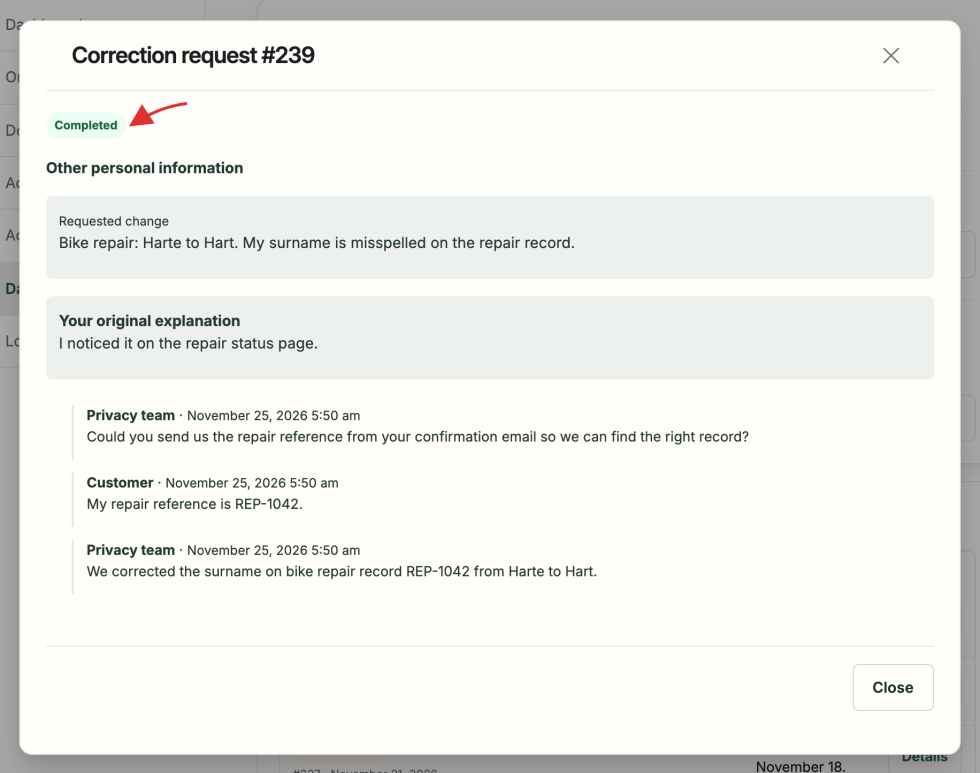
In Correction history, the matching request now shows Completed. Your customers select Details to read the staff response and saved conversation.
Track several requests in Correction history
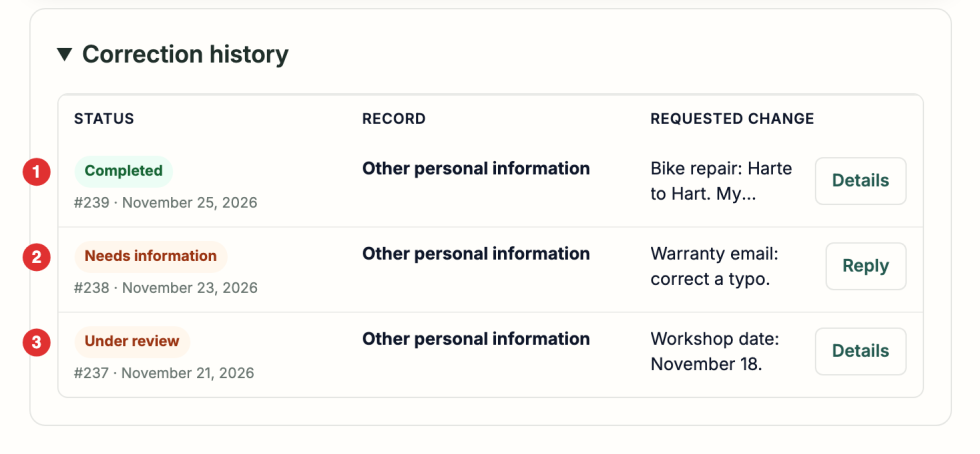
↑ Back to topYour customers can use the request number or the Requested change column to find the right entry. This example shows three requests from the same customer.
- Bike repair record. The surname correction is Completed. Details shows what your team changed.
- Warranty registration. The contact email correction is Needs information. Reply lets the customer provide the registration reference.
- Workshop booking. The date correction is Under review. Details shows the request while your team checks the booking.
Troubleshooting
↑ Back to topIf a customer is waiting for an update, check the current status and latest response in Correction history. Your team can compare these with the saved request in Data corrections.
- The general correction topic is missing. Customers can contact the store. You can check the section and request-type visibility in Correction settings.
- There is no Reply action. Replies are available when the request is Needs information. A request already under review or closed does not offer that action.
- An update email is missing. Customers can check their spam or junk folder and return to Correction history to look for the saved response. A missing email does not establish that the request failed.
- The request saved but email could not be sent. Shop managers should check the saved status and response before repeating the action. Correct the mail-delivery problem separately.
- The request changed while staff were reviewing it. Select Reload request, inspect the latest state, and check any retained draft response before saving again.
- The history says Completed, but the original information still looks wrong. Read the response to see which record was changed or verified. Contact the store if it does not match the requested correction.
Use Case
↑ Back to topIf your store manages records such as repair tickets, warranty registrations, or workshop bookings, your customers can use My Account → Data Privacy to ask you to correct inaccurate information in those records. Your team can ask for details, update the record, and explain the outcome in Correction history. This supports the right to rectification under GDPR Article 16.

