Control product visibility by either completely hiding products or selectively restricting only the price and “Add to Cart” button for chosen items, based on customer country, shipping methods, and payment methods.
InstallationGEO Restriction
↑ Back to top- Download the .zip file from your WooCommerce account.
- Go to: WordPress Admin > Plugins > Add New and upload the file you have downloaded.
- Install Now and Activate.
More information at Install and Activate Plugins/Extensions
Setup and Configuration
↑ Back to topAfter activating the Geo Restrictions for WooCommerce plugin, a new “Geo Restrictions” menu appears in the WooCommerce admin panel. From there, you can access the settings and configure the plugin to start creating and managing location-based restrictions for your store.
General Settings
↑ Back to topGo to Geo Restrictions > Settings > General Settings. Here you can configure the following settings:
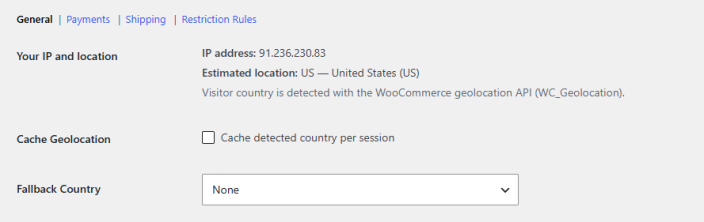
- Your IP and location: IP address and country automatically detected with the WooCommerce geolocation API.
- Cache Geolocation: Click the checkbox to enable cache detection per person.
- Fallback Country: Select the fallback country from the dropdown.
Global Restrictions
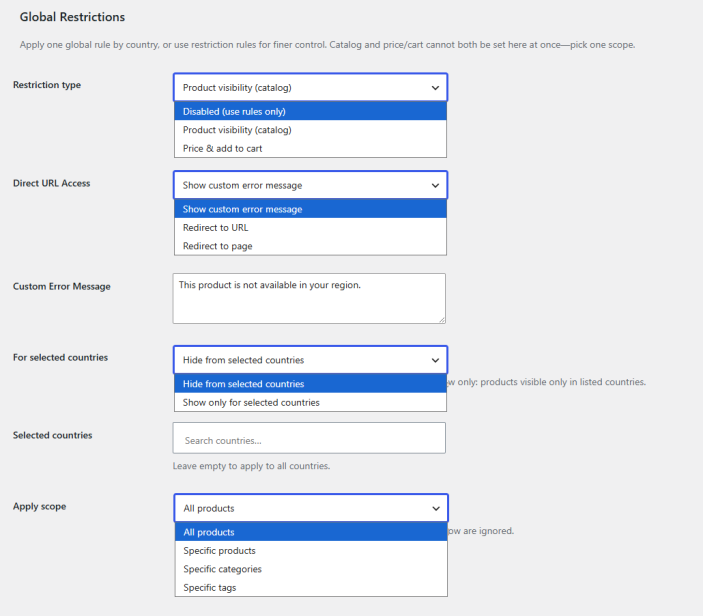
↑ Back to topApply one global rule by country, or use restriction rules for finer control. Catalog and price/cart cannot both be set here at once—pick one scope.
- Restriction Type: Choose how you want to restrict. You can choose the following:
- Disabled (Use Rules Only)
- Product Visibility (Catalog)
- Price and Add to Cart
If the restriction type is selected as “Product Visibility,” you will get the following settings to configure:
- Direct URL Access: Select how to direct customers. You can choose the following from the dropdown:
- Show Custom Error Message
- Redirect to URL
- Redirect to Page
- Custom Error Message: Enter a custom error message.
- For Selected Countries: Show the behaviour for selected countries. You can either hide for selected countries or only show the products for selected countries.
If the restriction type is selected as “Price and Add to Cart,” you will get the following settings to configure:
- Price: Click the checkbox to hide the price.
- Replace Price With: Enter what you want to replace the price with. Leave empty to show nothing.
- Add to Cart: Click to hide the ” Add to Cart” button. Uncheck to keep the normal add to cart button when only the price is hidden.
- Replace Add to Cart With: Replace the ” Add to Cart ” button with:
- Custom Text
- Custom Button with Link
- Nothing (Hide)
- Custom Text: Add the text for the “Add to Cart” button.
- Button Label: Set the label for the button.
- Button URL: Add a custom URL for the button.
- Button Background: Set the background color for the button.
- Button Text Color: Set the color for the button text.
- Button Border Radius: Adjust the radius of the border.
- Button Font Size: Adjust the button font size.
- For Selected Countries: Select if you want to show or hide the products/categories from the selected countries.
- Selected Countries: Select the countries for which you want to show or hide the products/categories.
- Apply Scope: Select if you want to apply the restriction on all products, specific products, specific categories, or specific tags.
- Include or Exclude: Choose if you want to include or exclude the selected products/categories/tags.
- Selected Items: Select the specific products or categories.
Global User Role Targeting
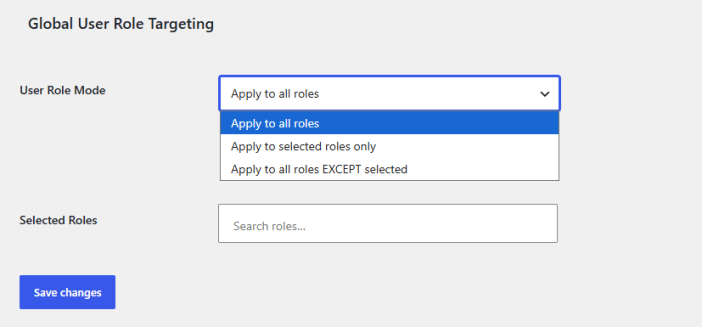
↑ Back to top- User Role Mode: Select how you want to apply the global settings to user roles. You can choose the following options:
- Apply to All Roles
- Apply to Selected Roles Only
- Apply to all Roles Except Selected
- Selected Roles: Select the user roles to apply the restriction to.
Payment Method Settings
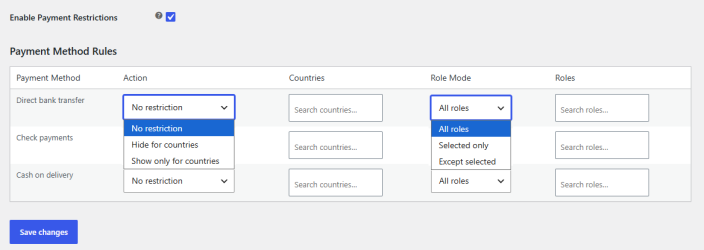
↑ Back to top- Enable Payment Restrictions: Click the checkbox to enable payment restrictions.
- Payment Method Rules: Manage the restriction rules for each payment method. You can configure the following:
- Payment Method
- No Restriction or Show/Hide for Countries
- Choose countries for restriction
- Apply to all or specific user roles
- Select the user roles
Shipping Method Settings
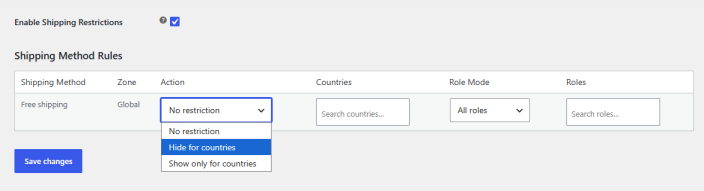
↑ Back to top- Enable Shipping Restrictions: Click the checkbox to enable shipping restrictions.
- Payment Method Rules: Manage the restriction rules for each shipping method. You can configure the following:
- Shipping Method
- No Restriction or Show/Hide for Countries
- Choose countries for restriction
- Apply to all or specific user roles
- Select the user roles
Restriction Rules Settings
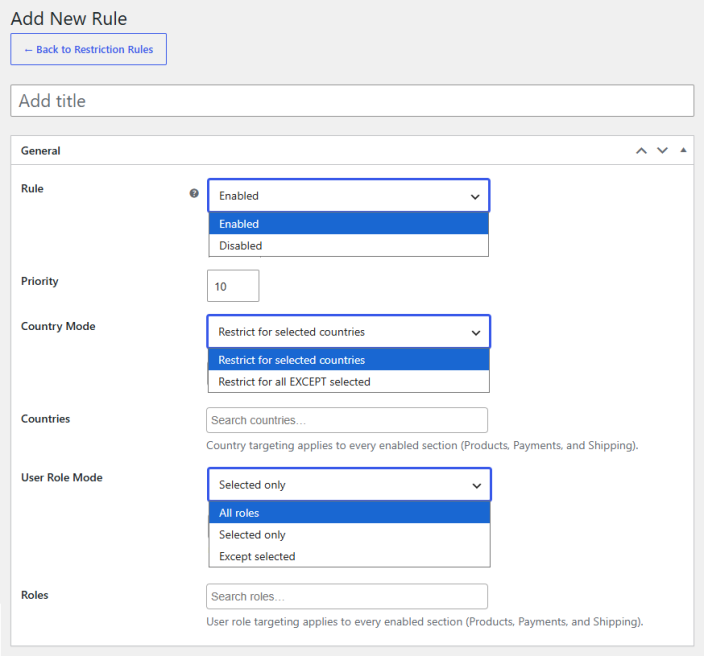
↑ Back to topClick on “Add New Rule” to create rules for restricting users based on their country. Here you can configure the following settings:
- Rule Name: Enter a name for the rule.
- Rule: Enable or disable the rule.
- Priority: Set the priority of the rule.
- Country Mode: Restrict for selected countries or exclude the selected countries.
- Countries: Select the countries you want to restrict.
- User Role Mode: Apply to all or selected user roles.
- Roles: Select the user roles on which you want to apply the rule.
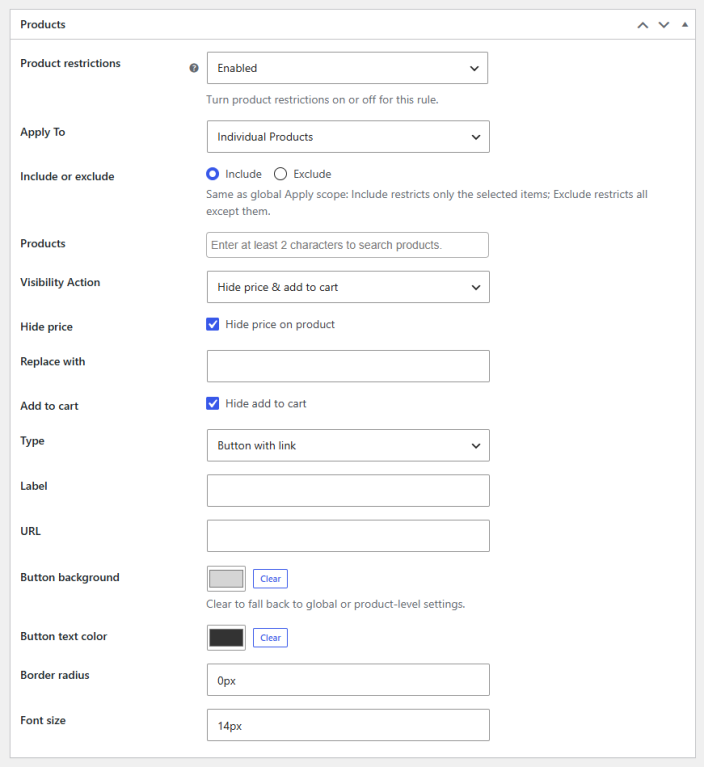
- Product Restrictions: Enable or disable product restrictions.
- Apply To: Apply to all products, specific products, categories, or tags.
- Visibility Action: Choose if you want to hide the product entirely or hide the price and add to cart button.
- Direct URL Access: When this rule hides the product and the visitor opens the URL directly, use these instead of the global Geo Restrictions setting.
- Show Message
- Redirect to URL
- Redirect to Page
- Redirect URL/Page: Add a custom URL to redirect or select a specific page.
- Hide Price: Hide price on the product page.
- Replace With: Enter text to replace the price.
- Add To Cart: Click the checkbox to hide the Add To Cart button. You can replace the button with the following:
- Text
- Button with Link
- Nothing
- Label: Enter the label to replace the add to cart button.
- Button Label: Set the label for the button.
- Button URL: Add a custom URL for the button.
- Button Background: Set the background color for the button.
- Button Text Color: Set the color for the button text.
- Button Border Radius: Adjust the radius of the border.
- Button Font Size: Adjust the button font size.
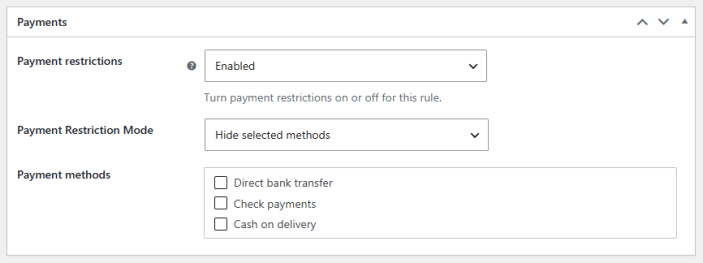
- Payment Restrictions: Enable or disable payment restrictions.
- Payment Restriction Mode: Select if you want to hide the selected payment methods or only show the selected payment methods.
- Payment Methods: Select payment methods to restrict.
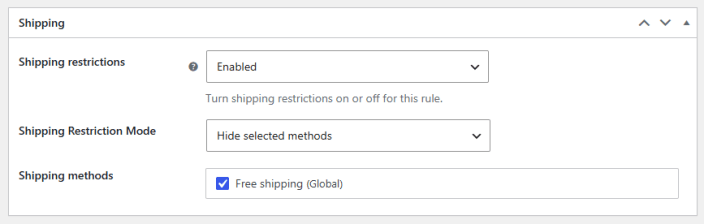
- Shipping Restrictions: Enable or disable shipping method restrictions.
- Shipping Restriction Mode: Select if you want to hide the selected shipping methods or only show the selected shipping methods.
- Shipping Methods: Select shipping methods to restrict.
Product Level Settings
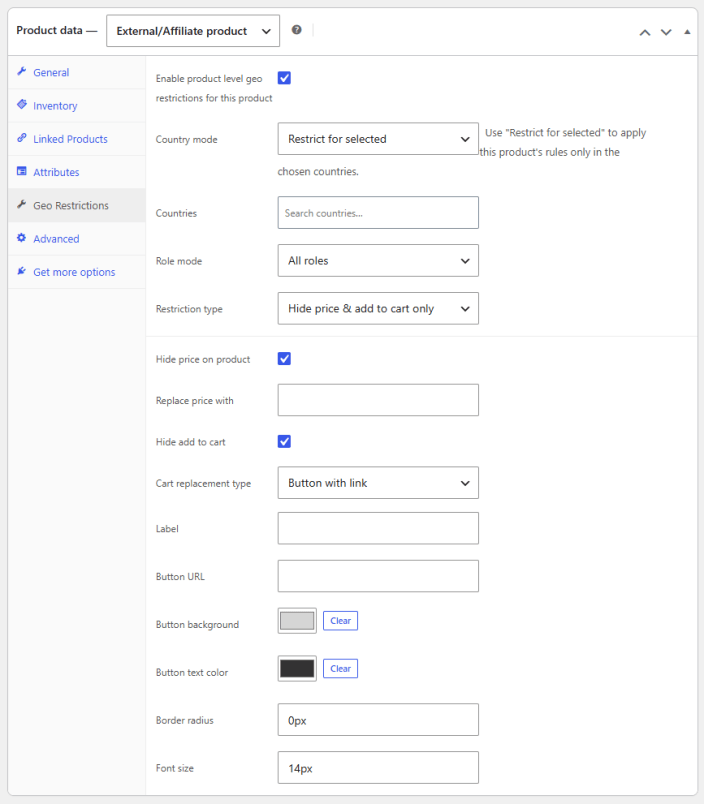
↑ Back to top- Enable Product Level Geo Restrictions For This Product: Click the checkbox to enable country restrictions for this product.
- Country Mode: Use “Restrict for selected” to apply this product’s rules only in the chosen countries. “Except selected” applies the restriction everywhere except those countries.
- Countries: Select the countries to restrict.
- Role Mode: Apply to all or selected user roles.
- Restriction Type: Enable or disable product restrictions.
- Direct URL Access: When this rule hides the product and the visitor opens the URL directly, use these instead of the global Country Restrictions setting.
- Show Message
- Redirect to URL
- Redirect to Page
- Error Message: Enter a custom error message
- Redirect URL/Page: Add a custom URL to redirect to or select a specific page.