
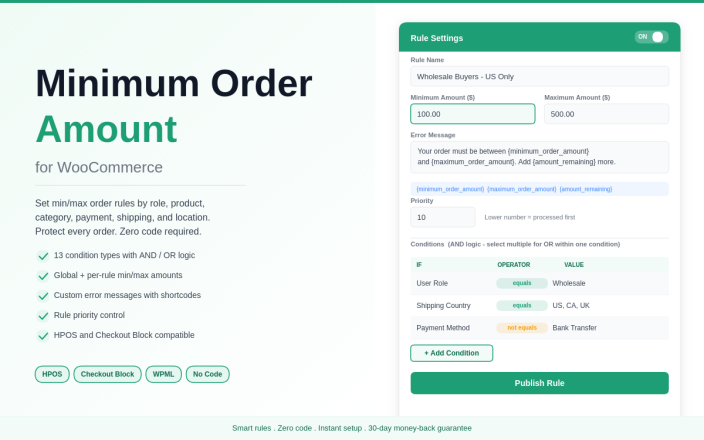
Minimum Order Amount lets you set minimum and maximum order amounts in WooCommerce — for the whole store, or only when specific products, categories, user roles, payment methods, shipping methods or locations are in play.
Requirements
↑ Back to top- WooCommerce 6.0 or higher
- WordPress 5.8 or higher
- PHP 7.4 or higher
- Compatible with the WooCommerce Cart and Checkout blocks and HPOS
Installation
↑ Back to top- Download the plugin .zip from WooCommerce.com → My Account → Downloads.
- In WordPress, go to Plugins → Add New → Upload Plugin, choose the .zip and click Install Now.
- Click Activate.
Two ways to set a minimum
↑ Back to top- Global Restriction — one minimum and maximum for every order in the store. Found under WooCommerce → Settings → Minimum Order.
- Rules — different minimums and maximums that apply only when conditions match. Found under WooCommerce → Minimum Order Rules.
Setting up Global Restriction
↑ Back to top- Go to WooCommerce → Settings → Minimum Order.
- Tick Enable Global Minimum Order Amount Restriction.
- Enter the Minimum Order Amount and Maximum Order Amount.
- Edit the Error Message. Use {minimum_order_amount} and {maximum_order_amount} to insert the amounts.
- Click Save changes.
Creating a rule
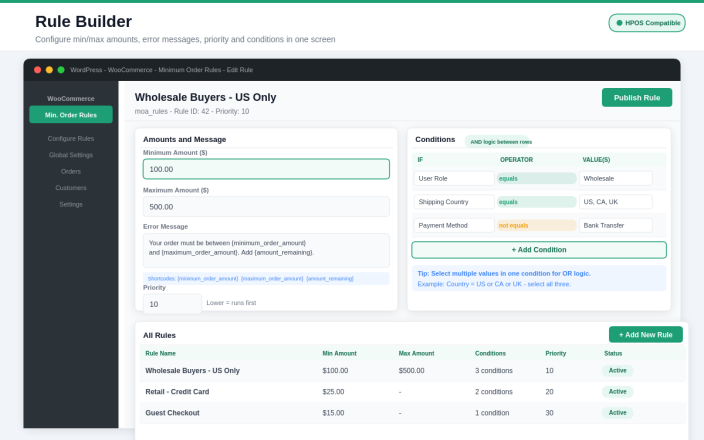
↑ Back to top- Go to WooCommerce → Minimum Order Rules → Add New Rule.
- Enter a title for your reference, for example “Wholesale minimum”.
- Enter the Minimum Order Amount and Maximum Order Amount (both required).
- Write the Error Message. Available placeholders: {minimum_order_amount}, {maximum_order_amount} and {amount_remaining}.
- Set the Rule Priority. Lower values are processed first.
- Click Add Condition and choose when the rule applies (see below).
- Click Publish.
Example message: “Orders with T-shirts need a minimum of {minimum_order_amount}. Add {amount_remaining} more to continue to checkout.”
Condition types
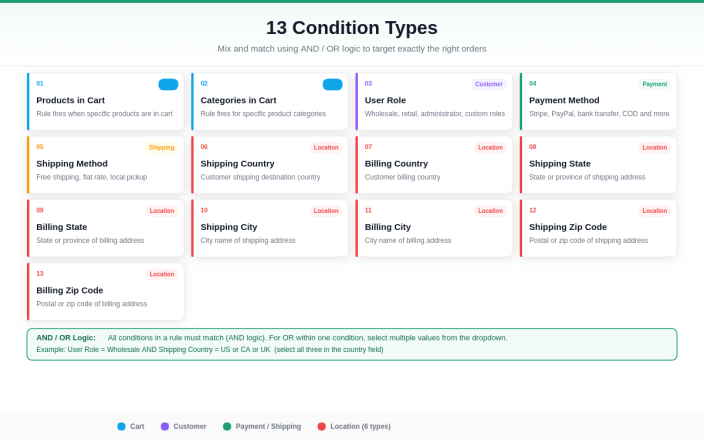
↑ Back to topEach condition uses Equals to or Not Equals to. You can select several values in one condition, for example several countries.
- Products in Cart
- Categories in Cart
- User Role
- Payment Method
- Shipping Method
- Shipping Country and Billing Country
- Shipping State and Billing State
- Shipping City and Billing City
- Shipping Zip Code and Billing Zip Code
Managing rules
↑ Back to topAll rules are listed under WooCommerce → Minimum Order Rules, showing each rule’s minimum amount and number of conditions. Edit, draft or trash a rule at any time.
What customers see
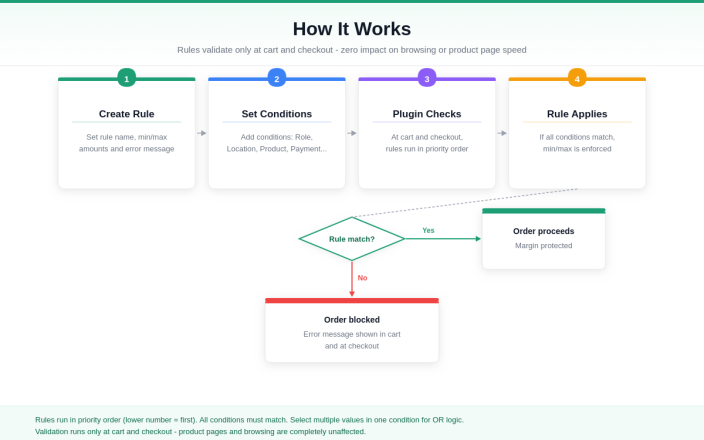
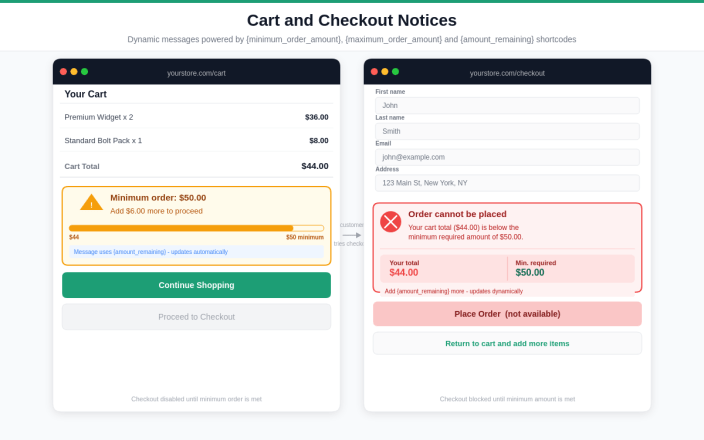
↑ Back to topWhen the cart does not meet a rule, your error message appears in the cart and at checkout, and the order cannot be placed until the amount is met. With {amount_remaining}, customers see exactly how much more to add.
Common setups
↑ Back to top- Wholesale minimum — rule with User Role equals Wholesale.
- Minimum for one category — rule with Categories in Cart equals [category].
- Minimum for card payments — rule with Payment Method equals [card gateway].
- Higher minimum for some countries — rule with Shipping Country equals [countries].
- Exempt a customer group — use User Role not equals [role].
- Cap very large orders — set the Maximum Order Amount on the rule.
Tips
↑ Back to top- Match your free shipping threshold so the minimum feels like part of the offer.
- Make the message helpful — use {amount_remaining} and suggest what to add.
- Start slightly below your average order value, then review it in WooCommerce Analytics and adjust over time.
- Test after every change by adding a product below the minimum to the cart.
Troubleshooting
↑ Back to topMy rules are not applying.
Check that Global Restriction is turned off under WooCommerce → Settings → Minimum Order — when enabled, it overrides all rules. Also confirm the rule is Published, not Draft.
The wrong rule applies.
Check the Rule Priority values. Lower values are processed first.
The message does not show the amounts.
Check the placeholder spelling, including the curly brackets, for example {amount_remaining}.
Frequently asked questions
↑ Back to topDoes it work with the WooCommerce Cart and Checkout blocks?
Yes, and with the classic shortcode cart and checkout.
Does it affect existing orders?
No. Rules only check new carts at cart and checkout.
Is it compatible with WPML?
Yes. Error messages can be translated with WPML.
Do coupons count toward the minimum?
The minimum is checked against the cart subtotal after discounts.
Does it affect store speed?
Checks run only on the cart and checkout pages.
Need help? Contact support from your WooCommerce.com account.

