
Print Products for WooCommerce allows users to export WooCommerce products directly from product and shop pages into PDF, DOCX, or CSV — including images, details, attributes, and reviews — with a single click..
Installation
↑ Back to topTo start using a product from WooCommerce.com, you can use the “Add to store” functionality on the order confirmation page or the My subscriptions section in your account.
- Navigate to My subscriptions.
- Find the Add to store button next to the product you’re planning to install.
- Follow the instructions on the screen, and the product will be automatically added to your store.
Alternative options and more information at:
Managing WooCommerce.com subscriptions.

Setup and Configuration
↑ Back to top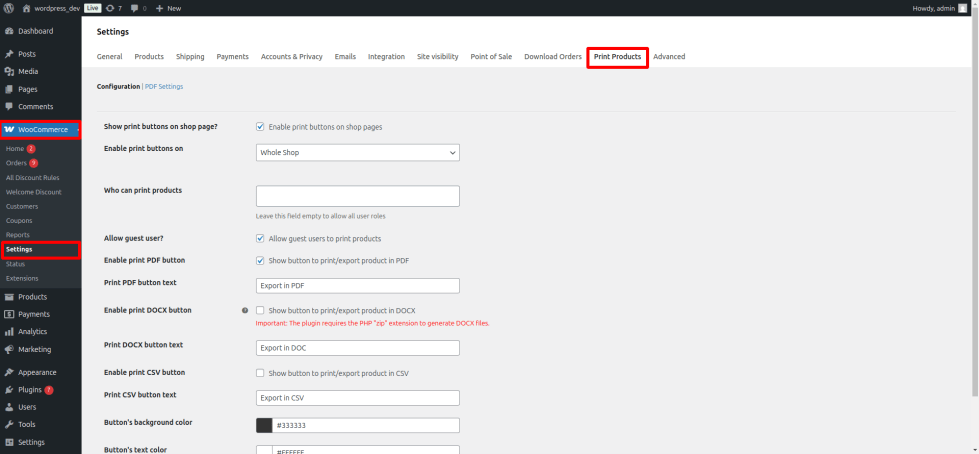
Getting started
↑ Back to topTo set up your store with Print Products for WooCommerce:
Go to: WooCommerce > Settings > Print Products.
Configuration (tab 1)
↑ Back to top- Show print buttons on shop page – Adds the buttons to category/archive pages so users don’t need to open a product detail page first.
- Who can print products – Restrict button access to specific user roles (e.g., Administrators, Customers). Leave empty to make the buttons visible to all logged-in users.
- Allow guest user? – Enable this if you want visitors who are not logged in to also download/print products. Useful for open catalogs.
Export Buttons
↑ Back to top- Enable PDF button – Lets users download product details as a PDF file. You can customize the button text (e.g., “Download PDF” or “Print to PDF”).
- Enable DOCX button – Exports product details into a Word (.docx) document. Requires the PHP
zipextension on your server. Button text is fully customizable. - Enable CSV button – Generates a CSV file containing product data (great for spreadsheets or bulk imports). You can also change the button label.
Button Styles
↑ Back to top- Background color – Sets the button’s background color.
- Text color – Sets the color of the button text.
PDF Settings (Tab 2)
↑ Back to topThese options control what shows in the product PDF and how the header, footer, and colors look.
- Include Product Info – Show or hide Price, Categories, Tags, Reviews, Attributes.
- Include QR Code – Adds a scannable product link.
- Include Descriptions – Include short and/or full product description.
- Header Left / Right Text – Add your custom text.
- Colors – Set header background and text color.
- Footer Left Text – Add your footer text.
- Colors – Set footer background and text color.
- Headings and texts Colors – Choose heading background and text colors.

Usage
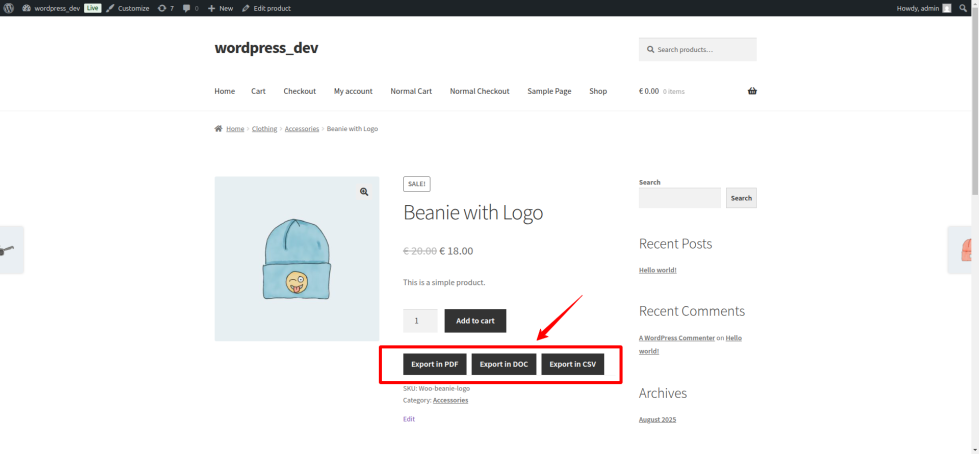
↑ Back to topOn the frontend, customers will see export/print buttons on your shop and product pages. These buttons let them instantly download product details in their chosen format.
- Shop Page – Each product in the listing can show buttons (e.g., PDF, DOCX, CSV). Clicking a button will download that product’s information immediately.
- Product Page – The same buttons appear on the product detail page, allowing users to download the full product description, attributes, and other details right away.
- One-Click Download – No extra steps are needed; once a user clicks, the file is generated and downloaded directly.
FAQs
↑ Back to top
Do I need to open the product detail page to print or export?
No, you can show print/export buttons directly on the shop/category page if enabled.
Can I restrict who sees the print/export buttons?
Yes, you can allow only specific user roles (like Administrators or Customers). You can also leave it open to all logged-in users.
Can guests (not logged in) download or print products?
Yes, if you enable the “Allow guest user” option. This is great for public catalogs.

