
Product 404 Redirects for WooCommerce gives old product links a useful destination. When a recognized product URL returns a 404, the plugin redirects shoppers to a relevant category or your chosen replacement on your store. Keep visitors from Google, backlinks, emails, and bookmarks connected to your current catalog.
Installation
↑ Back to topTo start using a product from WooCommerce.com, you can use the “Add to store” functionality on the order confirmation page or the My subscriptions section in your account.
- Navigate to My subscriptions.
- Find the Add to store button next to the product you’re planning to install.
- Follow the instructions on the screen, and the product will be automatically added to your store.
Alternative options and more information at:
Managing WooCommerce.com subscriptions.

How it works
↑ Back to topInstall and activate the plugin before your next catalog cleanup. When you trash or delete a product, it saves a mapping between the product URL and its category. It can also recognize unavailable products from remaining product records and slug history.
- Permanent removal: a permanently deleted product uses a 301 redirect.
- Temporary unavailability: a product in the trash or set to Private uses a 302 redirect.
- Relevant destinations: category matching prefers child categories, then categories with more products. Edit a saved rule when a replacement product or another page is a better match.
- Restored products: when the original URL loads normally again, the 404 redirect does not run.
- Visitor notice: an optional, dismissible message explains why the shopper has landed on another page.
Setup and configuration
↑ Back to topGetting started
↑ Back to top- Open WooCommerce > Product 404 Redirects > Settings and check that Enable redirects is on.
- Review the visitor notice and shop-page fallback settings, then save any changes.
- Keep your product categories useful and up to date. These provide the automatic destinations when products are removed.
- Use the Redirects tab to review saved rules and the Dashboard tab to see activity.
Test your first redirect
↑ Back to topUse a staging store and a test product for this check. You do not need to permanently delete a product to confirm that redirects work.
- Publish a test product and assign it to a relevant category containing other products. Copy its public URL.
- With Product 404 Redirects active, move that test product to the trash.
- Open the copied URL in a private browser window while logged out of WordPress. You should reach the category and see the visitor notice if it is enabled. This temporary move uses a 302 redirect.
- Check the saved rule in the Redirects tab. Visits to saved rules appear in the dashboard activity.
- Restore and republish the test product. Confirm that its original URL opens the product again.
Settings options
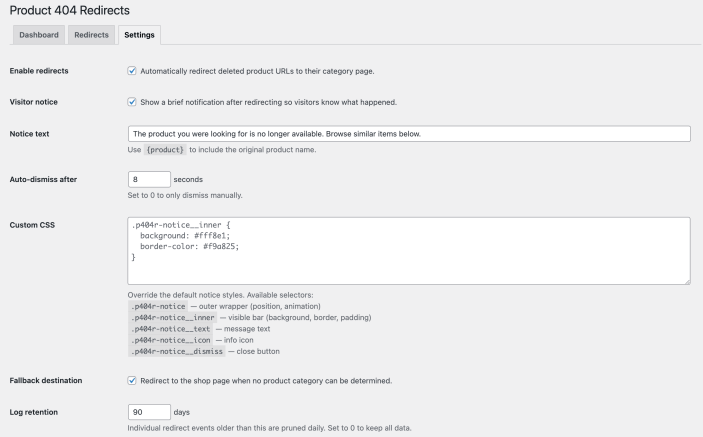
↑ Back to top- Enable redirects: turn automatic redirects on or off.
- Visitor notice: show or hide the message shown after a redirect.
- Notice text: write a message that fits your store. Use
{product}to include the original product name when available. - Notice duration: choose how long the message remains visible. The default is 8 seconds. Set it to 0 to keep it visible until the visitor dismisses it.
- Fallback to shop page: allow a shop-page destination when no product category can be determined. If a saved rule points to a category that has since been deleted, the plugin also falls back to the shop page when that page is available.
- Log retention: choose how many days redirect event logs are retained. The default is 90 days. A value of 0 keeps the logs without an age-based limit.
- Custom CSS: adjust the visitor notice to fit your theme.
Usage
↑ Back to topSend an old product link to its replacement
↑ Back to topA category is a useful automatic starting point. When you have a direct replacement, give that old link an even closer match.
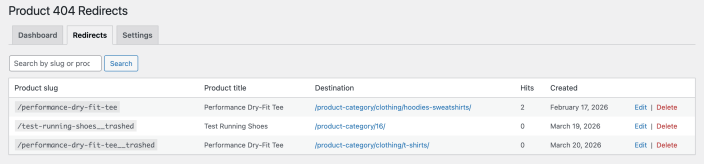
- Open WooCommerce > Product 404 Redirects > Redirects.
- Find the saved rule for the old product URL.
- Edit its destination to the replacement product, a relevant category, or another suitable page on the same store. Save the change.
- Open the old URL while logged out and check the destination. Choose a working page that does not redirect back to the original URL.
Put existing traffic to work
↑ Back to top- Discontinued products: point old links to a replacement product or the closest relevant category.
- Seasonal collections: keep clicks from last season’s campaigns connected to your current range.
- Private products: offer visitors a relevant destination while a product is unavailable publicly. Check the original URL again when you republish it.
Choose destinations that match what the visitor expected. A 301 tells search engines that a URL has moved permanently; a 302 indicates a temporary move. Relevant redirects support continuity for shoppers and search engines, but do not guarantee a particular ranking.
Understand the dashboard
↑ Back to topThe dashboard summarizes activity for saved redirect rules today, over the last 7 days, over the last 30 days, and all time. Hit counts represent redirect activity, not unique customers or completed orders. Use popular old URLs to identify destinations worth reviewing.
Troubleshooting
↑ Back to topRedirects are not working
↑ Back to top- Confirm that the plugin is active and Enable redirects is on.
- Test the original URL while logged out. The plugin handles 404 requests; a product page that still loads normally does not trigger it.
- Look for a saved rule or a remaining product record. A product permanently deleted before installation may have no information left to match.
- Clear the affected URLs from your page cache, server cache, and CDN. A cached 404 served before WordPress runs can prevent the plugin from handling the request.
- Check whether another plugin or server redirect is handling the same URL first. Avoid overlapping rules for the same old product link.
Visitor notice is not appearing
↑ Back to top- Check that Visitor notice is enabled and review its display duration.
- Start from the old product URL in a fresh private browser window. Opening the destination page directly does not reproduce a redirect notice.
- If the redirect works but the message is hidden, check theme styling and script optimization. Use the plugin’s Custom CSS setting if positioning or visibility needs adjusting.
Redirect goes to the shop page instead of a category
↑ Back to topThe original category may be missing, or no category could be determined and the shop-page fallback is enabled. If a saved rule’s category has been deleted, the plugin can also use the available shop page as its fallback. To choose a more relevant destination, edit the existing saved rule in the Redirects tab.
FAQs
↑ Back to top
Does it work with products deleted before installation?
It can match products using remaining records, including trashed products and available slug history. It cannot reconstruct a permanently deleted product when no usable record or saved mapping remains. Activate it before future deletions so those mappings can be captured.
Do I need to create a redirect for every deleted product?
No. Product-to-category mappings are captured automatically when you trash or delete products while the plugin is active. Review or edit saved rules when you want a different destination.
Can I use a replacement product instead of a category?
Yes. Edit an existing saved rule in the Redirects tab and choose a relevant URL on the same store.
Does it work with drafts?
Drafts are not included in the unavailable-product matching. The plugin handles recognized product URLs that return a 404, including deleted, trashed, and private products.
Will it check every normal product page for redirects?
The redirect handler exits when the request is not a 404. Matching uses local product data and saved rules, with no external redirect service required.
Does it support HPOS?
The plugin declares compatibility with WooCommerce High-Performance Order Storage. Redirect matching uses product data rather than order storage.
Need help with a specific URL? Contact support with the old product URL, the expected destination, the product status, and any caching or redirect plugins in use.

