
With Registry and Cart Toolkit, your customers can create gift registries, pool money for group gifts, and share or save their carts.
Overview
↑ Back to topRegistry and Cart Toolkit adds three gifting features to your WooCommerce store: gift registries, group gifting, and shareable and saved carts.
Customers create registries for weddings, baby showers, birthdays, holidays, and other events, and share them with family and friends. Guests buy gifts straight from the registry, or chip in together on bigger items, while the registrant’s address stays private. Any shopper can share their cart with a link, and logged-in customers can save carts for later.
Everything runs on standard WooCommerce products, orders, coupons, and emails. Customers work from product pages and My Account. You manage everything from the WooCommerce menu.
Features
↑ Back to top- Gift registries: customers create registries for weddings, baby showers, birthdays, holidays, and other events from My Account.
- Add to gift registry: a button on simple and variable product pages, with quantity and a note for guests.
- Find a registry page: created automatically, with search by name or title and filters for event type and date.
- Three visibility levels: public, unlisted, or private. Unlisted and private registries stay out of search, sitemaps, and feeds.
- Co-registrants: invite a partner by email to manage the registry together.
- Accurate quantities: purchases are counted when orders are paid and taken off again after cancellations and refunds.
- Private gift shipping: guests can ship to the registry address without ever seeing it.
- Gift messages and thank-you tracker: owners see who bought what and tick off thank-you notes.
- Group gifting: guests pool money toward a target, and the owner receives a one-time coupon when it’s reached.
- Store credit for unfunded gifts: optionally turn contributions into a coupon after the event date.
- Share cart: any shopper can share their cart by link, email, Facebook, X, or WhatsApp.
- Save cart for later: logged-in customers save named carts and load them from My Account.
- Store manager tools: registry reports, manual fulfillment for in-store purchases and four editable emails.
- Built for modern WooCommerce: HPOS and Cart and Checkout block compatible, with template overrides, hooks, and a REST API.
Installation
↑ Back to topTo start using a product from WooCommerce.com, you can use the “Add to store” functionality on the order confirmation page or the My subscriptions section in your account.
- Navigate to My subscriptions.
- Find the Add to store button next to the product you’re planning to install.
- Follow the instructions on the screen, and the product will be automatically added to your store.
Alternative options and more information at:
Managing WooCommerce.com subscriptions.
Quick start
↑ Back to topYou can have a working registry in about five minutes.
- Review the settings. Go to WooCommerce > Settings > Registry and cart toolkit. The defaults work for most stores.
- Create a registry. Log in as a customer, go to My Account > Gift registries, and select Create new registry. Fill in the three steps (Details, Visuals, Shipping) and select Create registry.
- Add products. Open a simple or variable product, select Add to gift registry, choose the registry and quantity, and confirm.
- Find it as a guest. In a private browser window, open the Find a registry page and search for the registrant’s name.
- Buy a gift. Select Add to cart on the registry page, then check out. Choose the gift address and add a gift message.
- Check the result. Once the order is Processing or Completed, the registry shows the item as purchased, and the owner receives the Registry gift purchased email.
Settings
↑ Back to topGo to WooCommerce > Settings > Registry and cart toolkit. The settings are split into three sections: Registry, Cart, and Group gifting.
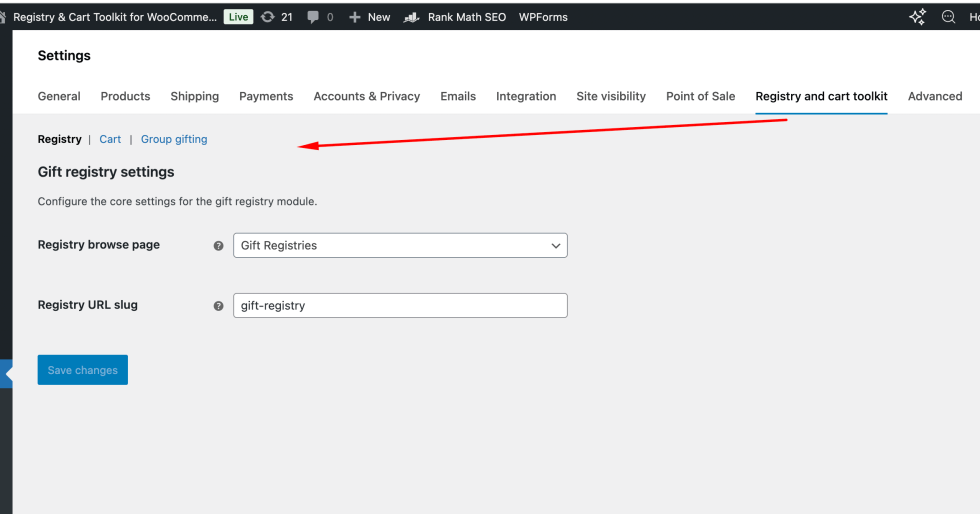
Registry
↑ Back to top| Setting | Default | What it does |
|---|---|---|
| Registry browse page | Find a registry | The page that contains [giftshare_registry_browse]. Links to “find a registry” point here. |
| Registry URL slug | gift-registry | The base of every registry address, for example example.com/gift-registry/emma-and-james/. Letters, numbers, hyphens and underscores only. |
Changing the slug changes every registry’s address, and links that were already shared stop working. Set it before customers start sharing registries.
Cart
↑ Back to top| Setting | Default | What it does |
|---|---|---|
| Link expiry (days) | 30 | How long a shared-cart link works. Enter 0 for links that never expire. Saved carts never expire. |
Group gifting
↑ Back to top| Setting | Default | What it does |
|---|---|---|
| Unfulfilled goal action | Do nothing | What happens to group gifts that aren’t fully funded when the event date has passed. Convert contributions to store credit emails the owner one coupon for the total contributed. |
Gift registries
↑ Back to topCustomers need an account and must be logged in to create and manage registries. Guests don’t need an account to buy from one.
Creating a registry
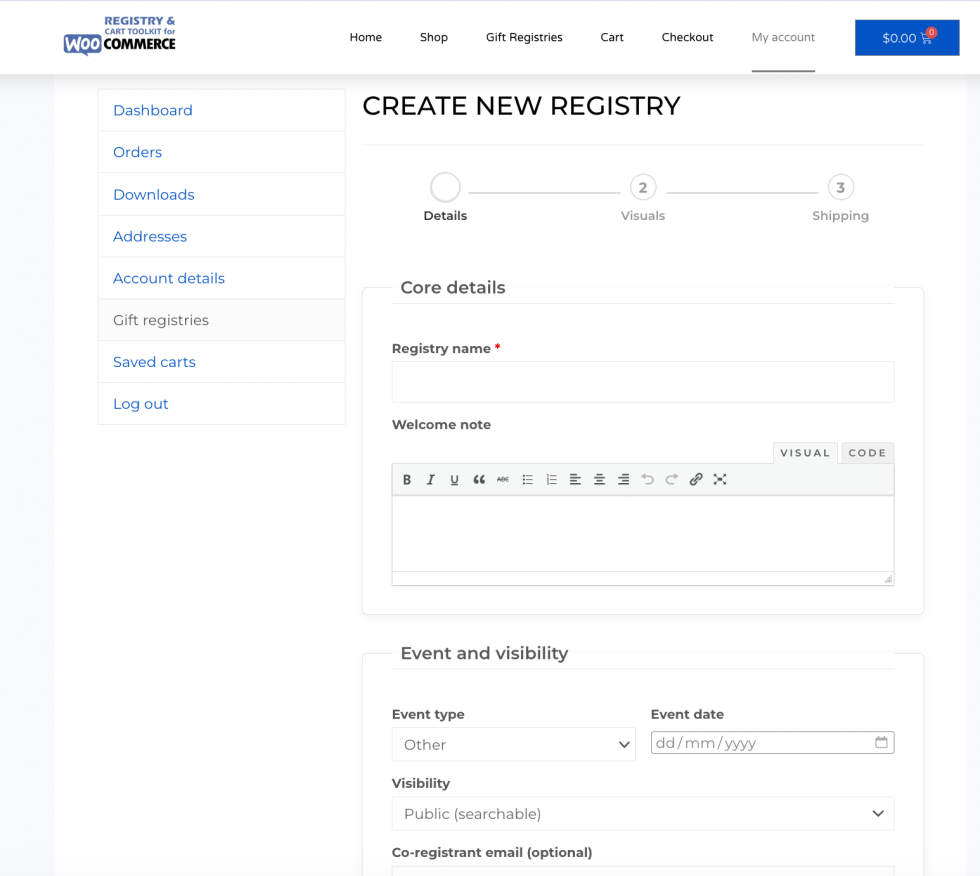
↑ Back to top- Go to My Account > Gift registries and select Create new registry.
- Details: enter the registry name (required), an optional welcome note, the event type, the event date, and the visibility. Optionally enter a co-registrant’s email.
- Visuals: upload a banner and up to 12 gallery images. Drag gallery images to reorder them.
- Shipping: enter the recipient’s shipping address. Guests can choose to ship gifts here, but never see the address.
- Select Create registry.
Images can be JPG, PNG, GIF, or WebP, up to 5 MB each. Customers don’t need media library access, and they can’t see other customers’ uploads.
Event types are Wedding, Baby shower, Birthday, Holiday, and Other.
Adding products
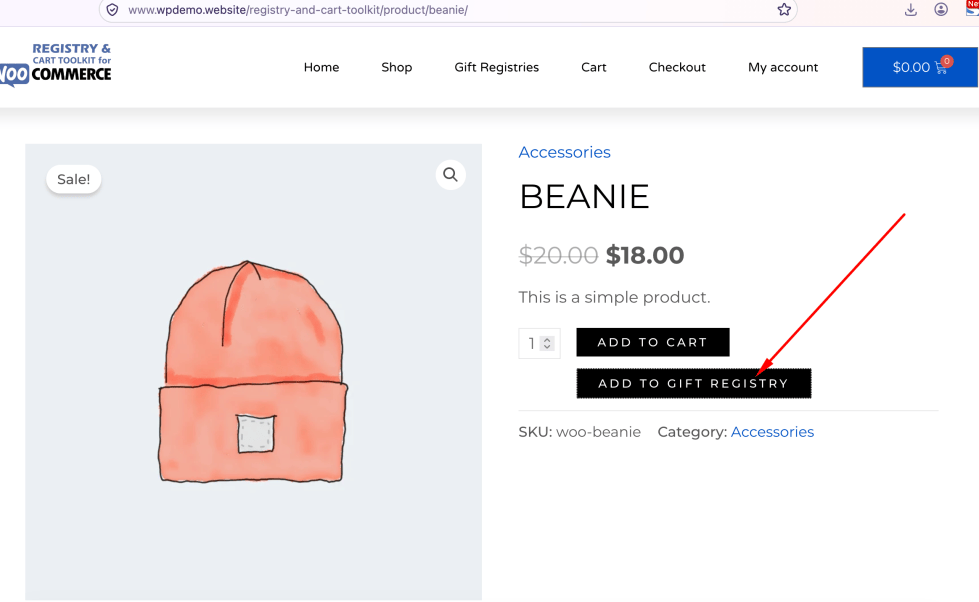
↑ Back to topLogged-in customers see an Add to gift registry button next to Add to cart on eligible product pages.
- For a variable product, choose the options (size, colour, and so on) first.
- Select Add to gift registry.
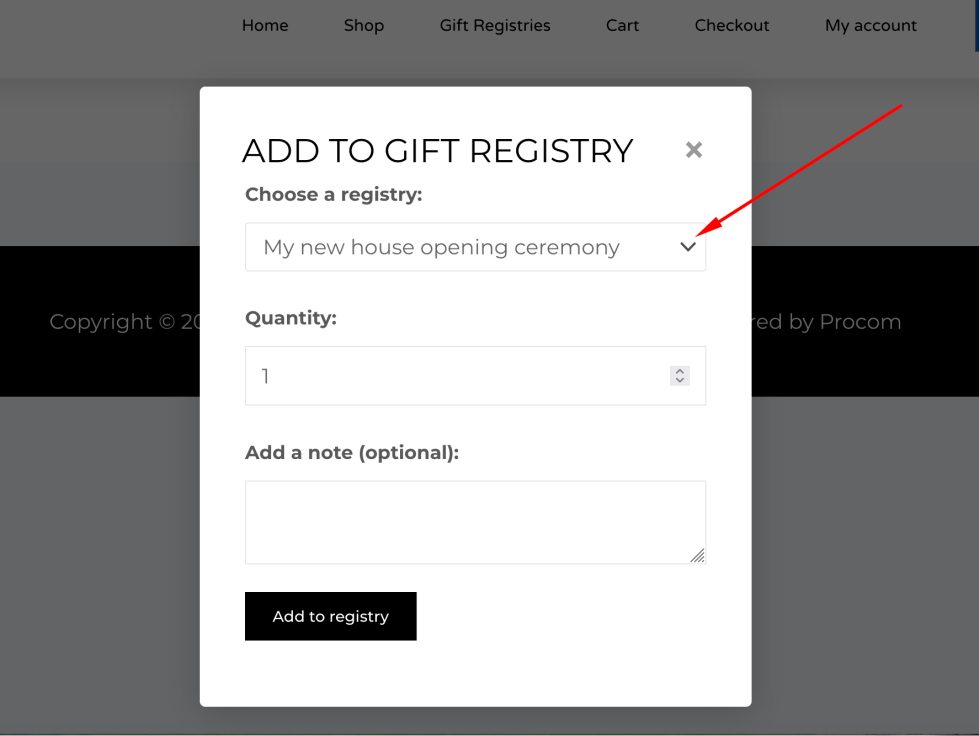
- Choose the registry, the quantity wanted, and an optional note for guests.
- Select Add to registry.
Eligible products are published, visible simple and variable products. Grouped and external/affiliate products don’t show the button because they can’t be bought from a registry.
Visibility
↑ Back to top| Visibility | Listed in Find a registry | Opens with the link | Who can view |
|---|---|---|---|
| Public (searchable) | Yes | Yes | Anyone |
| Unlisted (link only) | No | Yes | Anyone with the link |
| Private (owner only) | No | No | Owner, co-registrant and store managers |
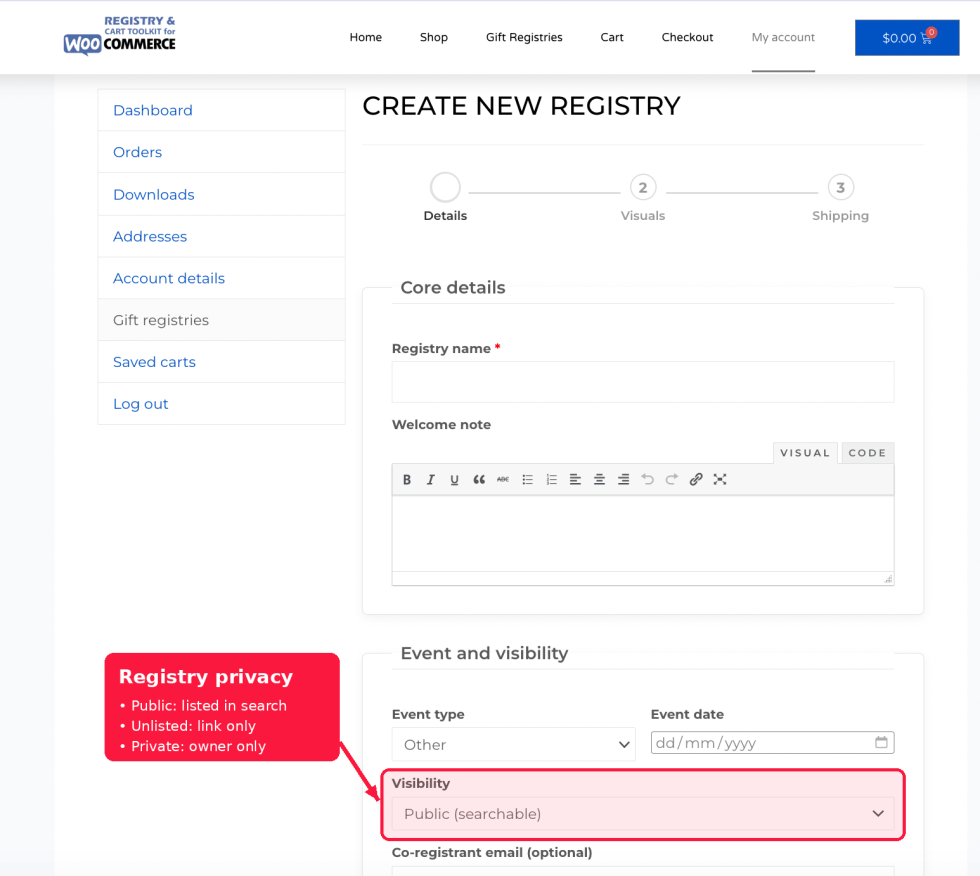
Unlisted and private registries are excluded from search results, feeds, the WordPress sitemap and Yoast SEO sitemaps, and are marked noindex for search engines.
Managing a registry
↑ Back to topFrom My Account > Gift registries, select Manage. For each item, the owner can change the Quantity wanted and Note for guests, turn on Allow group gifting with a Target amount, and select Update or Remove. Items with purchases or contributions can’t be removed.
If a product is later deleted or unpublished, the item shows a “no longer available” message.
Sharing a registry
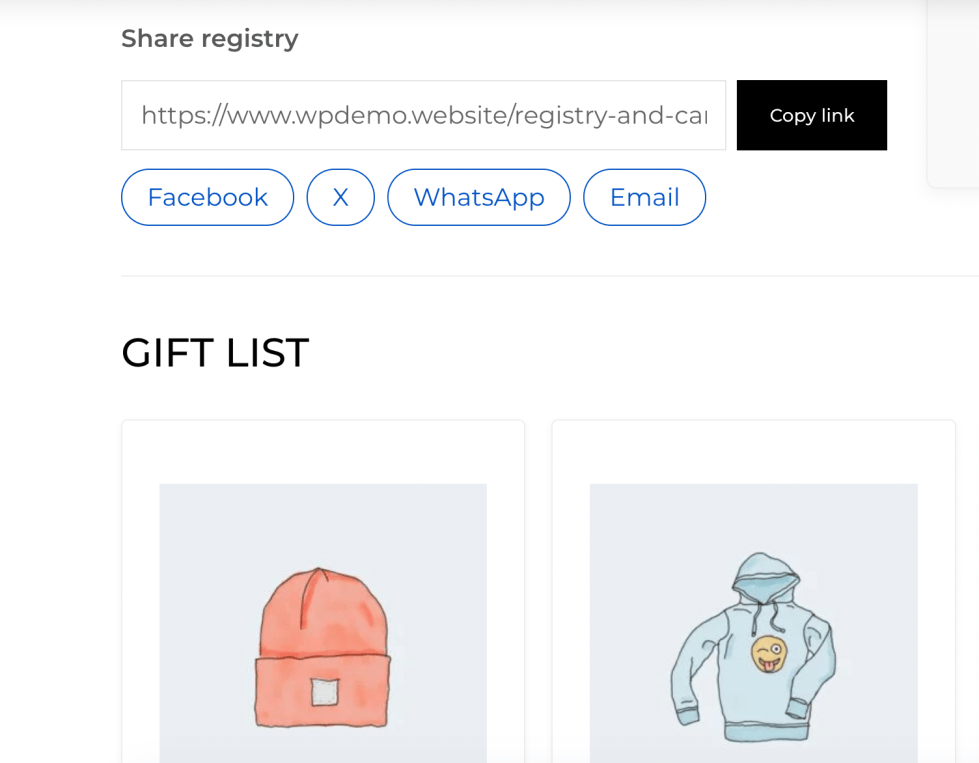
↑ Back to topOwners can copy the link to a public or unlisted registry, or share it on Facebook, X, WhatsApp, or by email. Guests can share public registries from the registry page. Private registries can’t be shared.
Co-registrants
↑ Back to topA co-registrant, such as a partner, can manage items, see purchases, and track thank-you notes alongside the owner.
- The owner enters the partner’s email in Co-registrant email and saves the registry.
- If the email belongs to a customer account on your store, that person receives the Co-registrant invitation email.
- They log in with that account and accept or decline. Invitations expire after 7 days.
Until they accept, the form shows Invitation pending with a Cancel invitation link. An expired invitation shows Send again. The owner sees the same message whether or not the email has an account, so the form can’t be used to find out who shops at your store. If the partner has no account, ask them to register first, then save the form again.
Only the owner can change the co-registrant, and each registry has one.
How guests find and buy gifts
↑ Back to topOn the Find a registry page, guests search by the registrant’s first or last name or the registry title, and filter by event type and event date. Only public registries appear.
The registry page shows the banner, welcome note, event details, a registry progress summary, the gallery, and the gift list. High-priority items appear first. Each item shows the Desired, Purchased, and Needed quantities, the owner’s note, and an Add to cart button.
Guests can’t add more than the remaining needed quantity, in either the classic cart or the Cart block.
When purchases are counted
↑ Back to top| Order status | Effect on the registry |
|---|---|
| Pending payment, On hold | Not counted yet |
| Processing, Completed | Counted, and the owner is emailed once |
| Cancelled, Refunded, Failed | Taken off again |
| Partial refund | Only the refunded quantity is taken off |
Purchases and thank-you notes
↑ Back to topFrom Manage, select View purchases. The owner sees each item purchased and each group gift contribution, with the purchaser, the gift message, and a Thank-you sent checkbox that saves immediately. Guests never see this page.
Group gifting
↑ Back to topGroup gifting lets several guests pay for one expensive registry item together.
Turning an item into a group gift
↑ Back to top- In My Account > Gift registries, select Manage and find the item.
- Tick Allow group gifting.
- Enter the Target amount, for example, the item’s price.
- Select Update.
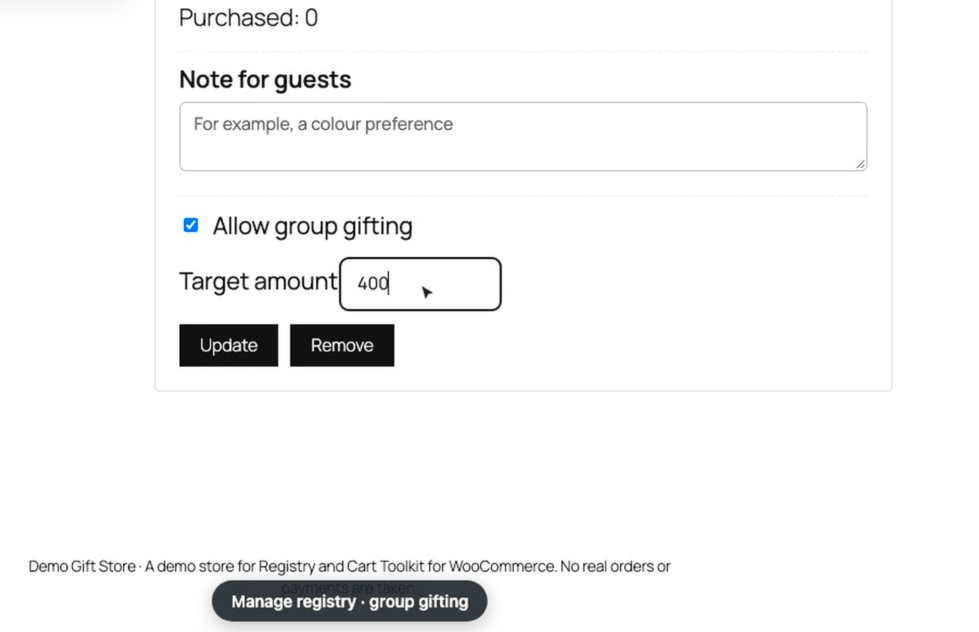
Until a target amount is set, the item shows Not accepting contributions yet.
Contributing
↑ Back to topOn the registry page, a group gift shows a Contribute box instead of Add to cart.
- The guest enters any amount greater than zero, up to what’s still needed.
- They select Contribute. A Gift contribution line is added to the cart for that amount, with no tax.
- They check out as usual.
When the target is reached
↑ Back to topContributions count when the order is Processing or Completed. Contributions paid by cash on delivery count only once the order is Completed.
When paid contributions reach the target:
- the item is marked Fully funded and stops accepting contributions,
- a one-time fixed cart coupon for the target amount is created, with a code starting
GIFT-, - the owner receives the Group gift fully funded email with the coupon code.
The coupon can be used once, only with the owner’s email address. It isn’t limited to the specific product.
Cancellations and refunds
↑ Back to topIf a contribution is cancelled or refunded and the total drops below the target:
- If the coupon hasn’t been used, it’s deleted, and the gift reopens for contributions;
- If the coupon was already used, the gift stays closed.
Unfunded gifts after the event
↑ Back to topWhen Unfulfilled goal action is set to Convert contributions to store credit, a daily task checks registries whose event date has passed. For each one, it:
- adds up the contributions to all group gifts that didn’t reach their target,
- creates one single-use coupon for that total (code starting
CREDIT-), limited to the owner’s email, - marks those gifts Contributions are closed,
- sends the owner the Registry store credit email.
Each registry is processed once. With Do nothing, contributions stay on the items and you can handle them manually.
Shareable and saved carts
↑ Back to topThe Share cart and Save cart for later buttons appear below the cart when it has at least one item. They work with the Cart block and the classic [woocommerce_cart] shortcode.
Sharing a cart
↑ Back to topAny shopper can share a cart, with or without an account.
- Add products to the cart.
- On the cart page, select Share cart.
- Copy the link, or use the Facebook, X, WhatsApp, or Email buttons.
When someone opens the link:
- the items are added to their cart, and anything already in it stays,
- they’re taken to the cart page with a confirmation message,
- items that are out of stock or no longer available are skipped,
- expired or invalid links show an error message.
Links work for the number of days set in Link expiry (days), or forever when it’s set to 0. A daily task deletes expired links.
Saving a cart for later
↑ Back to topThis is for logged-in customers.
- On the cart page, select Save cart for later.
- Enter a Cart name, for example “Holiday gifts”, and select Save cart.
Saved carts are listed in My Account > Saved carts with their name and date. Customers can View the contents, Load cart or Delete it. Loading a saved cart replaces the current cart. Saved carts don’t expire.
Checkout and orders
↑ Back to topGift options at checkout
↑ Back to topWhen the cart contains a registry gift or a group gift contribution, checkout shows Gift and shipping options. They work on the Checkout block and the classic checkout.
| Option | Shown when | What it does |
|---|---|---|
| Shipping destination | The registry has a shipping address | Ship to my address or Ship to {first name} (gift address). With the gift address, the guest doesn’t fill in a shipping address. |
| Gift message (optional) | Always, for gift carts | Shown to the owner on the purchases page and in emails. |
| Hide prices on the packing slip | Always, for gift carts | Saved on the order for your fulfillment team. |
The hide-prices choice is stored and shown on the order. It only changes printed packing slips if your packing-slip plugin reads it.
Protecting the registrant’s address
↑ Back to topWhen a guest ships to the gift address:
- the order ships to the registry address,
- the guest never sees it: not at checkout, on the order confirmation, in My Account > Orders or in their emails. They see the recipient’s first name marked “(gift registry address)”,
- the guest’s own saved address isn’t overwritten,
- store managers see the full address on the order as usual.
In the order admin
↑ Back to topRegistry orders show a Gift options section under the shipping address, with the registry name, shipping destination, gift message, and hide-prices choice. These details are also added to WooCommerce order emails.
Emails
↑ Back to topManage the plugin’s emails in WooCommerce > Settings > Emails. Like any WooCommerce email, you can turn each on or off and change its subject, heading, and format.
| Sent to | When | Placeholders | |
|---|---|---|---|
| Registry gift purchased | Owner and co-registrant | A registry order is first paid | {site_title}, {registry_title}, {purchaser_name} |
| Co-registrant invitation | Invited customer | The owner invites a co-registrant with an account | {site_title}, {registry_title}, {owner_name} |
| Group gift fully funded | Owner | A group gift reaches its target (includes the coupon code) | {site_title}, {registry_title} |
| Registry store credit | Owner | The daily task converts unfunded contributions (includes the coupon code) | {site_title}, {registry_title} |
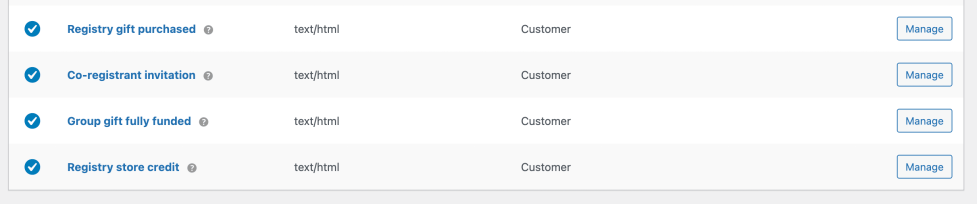
All four support WooCommerce’s email preview and can be overridden from your theme.
Store manager tools
↑ Back to topThese screens are under the WooCommerce menu and need the Manage WooCommerce capability (Administrator and Shop Manager roles).
Gift registries
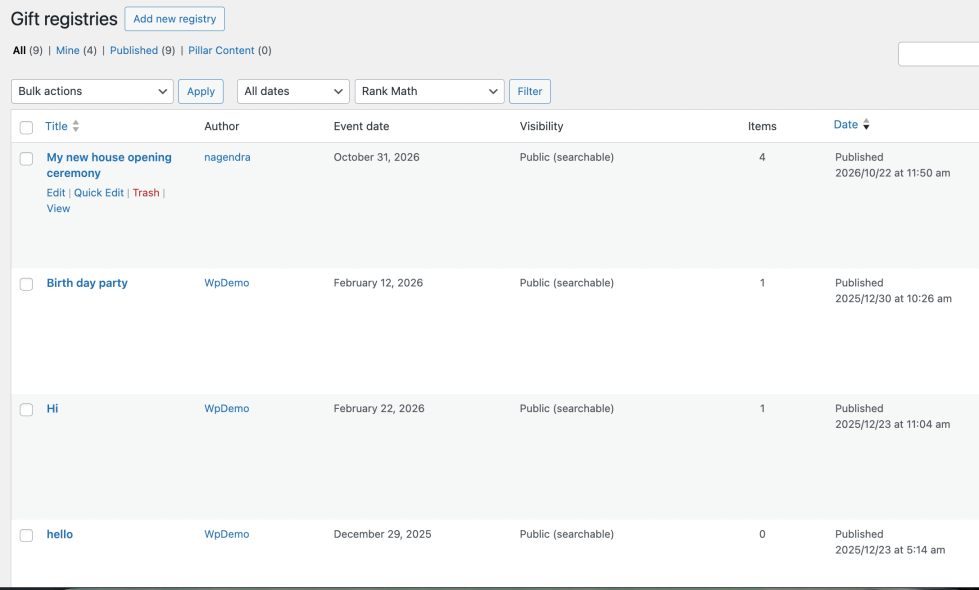
↑ Back to topWooCommerce > Gift registries lists every registry with its event date, visibility, and number of items. Open one to edit its title, welcome note, owner, banner, event details, gallery, and shipping address.
To create a registry for a customer, select Add new and set the customer as the author. They can then add items and manage the registry from their account.
Permanently deleting a registry also deletes its items and contribution records. Orders are never touched.
Registry items
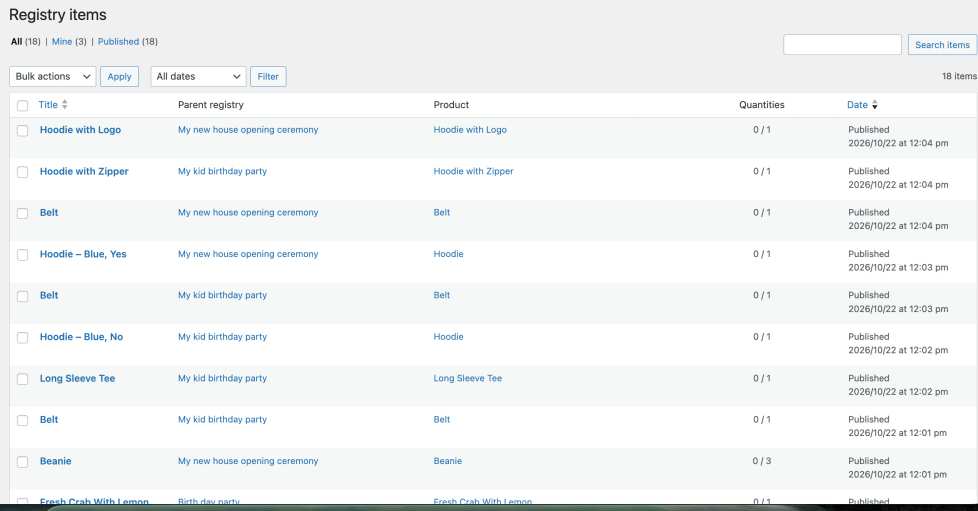
↑ Back to topWooCommerce > Registry items lists every item added to a registry. You can change the desired quantity, the owner’s note, the group gift settings, and the priority (high, medium, or low). High-priority items appear first on the registry page, marked High priority. Customers add items from product pages, so there’s no Add new button.
Registry reports
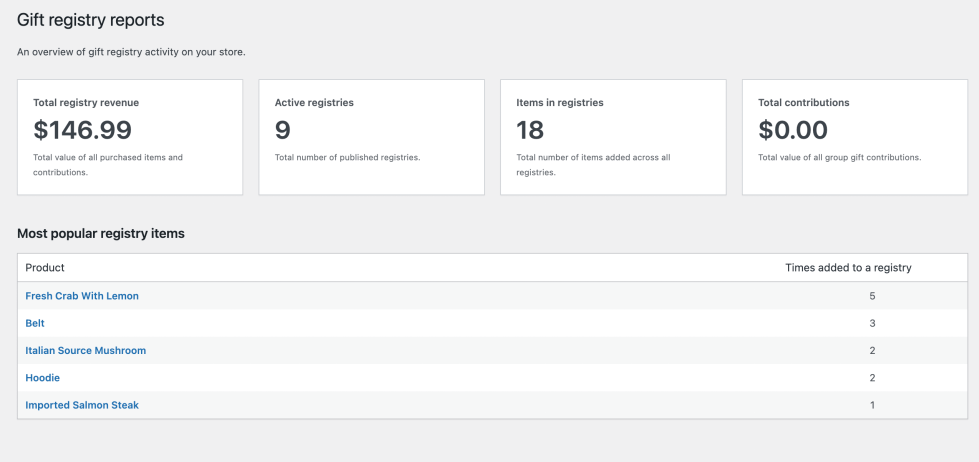
↑ Back to topWooCommerce > Registry reports shows:
- Total registry revenue: the value of all purchased registry items and contributions,
- Active registries: the number of published registries,
- Items in registries: the total items across all registries,
- Total contributions: the value of group gift contributions,
- Most popular registry items: the products added to registries most often.
Manual fulfillment
↑ Back to topUse WooCommerce > Manual fulfillment to record gifts bought in your shop or by phone.
- Choose a registry.
- Choose the item.
- Enter the quantity bought and save.
The item’s purchased quantity goes up, so guests online see the correct Needed number. This screen can only add quantities.
Customization
↑ Back to topTemplate overrides
↑ Back to topEvery front-end template and email can be overridden from your (child) theme. Copy the file from the plugin’s templates/ folder to a giftshare/ folder in your theme, keeping the same sub-folder:
wp-content/plugins/registry-and-cart-toolkit/templates/registry/single.php
→ wp-content/themes/your-child-theme/giftshare/registry/single.php| Area | Templates |
|---|---|
| Registry page | registry/single.php, registry/list-item.php, registry/private.php |
| Find a registry | shortcodes/registry-browse.php |
| My Account | myaccount/registry-list.php, registry-form.php, registry-manage.php, registry-purchases.php, registry-invitation.php, saved-carts.php |
| Sharing | share/links.php, share/registry.php |
| Product page | modal/add-to-registry.php |
| Emails | emails/owner-gift-purchased.php, co-registrant-invitation.php, group-gift-funded.php, store-credit.php, plus the same names under emails/plain/ |
Each template has a @version header. After a plugin update, compare your overrides with the new versions.
Styling
↑ Back to topThe plugin uses your theme’s buttons and WooCommerce form styles, so it fits block and classic themes. All plugin elements use classes starting with registry-and-cart-toolkit-, which you can target in Appearance > Customize > Additional CSS or the Site Editor’s custom CSS.
Developer reference
↑ Back to topAll hooks are available since 1.0.0. Add code to a small custom plugin or your child theme’s functions.php.
Filters
↑ Back to top| Filter | Default | Use it to |
|---|---|---|
registry_and_cart_toolkit_event_types | wedding, baby_shower, birthday, holiday, other | Add, rename or remove event types |
registry_and_cart_toolkit_product_can_be_added_to_registry | Published, visible simple and variable products | Change which products can go in a registry |
registry_and_cart_toolkit_paid_order_statuses | processing, completed | Count other order statuses as paid |
registry_and_cart_toolkit_offline_payment_methods | cod | Add gateways whose contributions count only once the order is Completed |
registry_and_cart_toolkit_share_links | Facebook, X, WhatsApp, email | Change the registry share links |
registry_and_cart_toolkit_max_image_size | 5 MB | Change the registry image size limit |
registry_and_cart_toolkit_co_registrant_invite_expiration | 7 days | Change how long invitations last |
registry_and_cart_toolkit_settings | The section’s fields | Add fields to the settings tab |
Actions
↑ Back to top| Action | Fired when |
|---|---|
registry_and_cart_toolkit_gift_purchased_notification | A registry order first reaches a paid status |
registry_and_cart_toolkit_group_gift_funded_notification | A group gift reaches its target and the coupon is created |
registry_and_cart_toolkit_store_credit_notification | The daily task creates a store credit coupon |
registry_and_cart_toolkit_co_registrant_invitation_notification | An invitation is sent to an existing customer |
registry_and_cart_toolkit_before_registry | At the top of the single registry template |
Examples
↑ Back to top// Add an "Anniversary" event type.
add_filter( 'registry_and_cart_toolkit_event_types', function ( $types ) {
$types['anniversary'] = __( 'Anniversary', 'your-textdomain' );
return $types;
} );
// Treat bank transfer and cheque like cash on delivery for contributions.
add_filter( 'registry_and_cart_toolkit_offline_payment_methods', function ( $methods ) {
return array_merge( $methods, array( 'bacs', 'cheque' ) );
} );
// Keep the "gift-cards" category off registries.
add_filter( 'registry_and_cart_toolkit_product_can_be_added_to_registry', function ( $can_add, $product ) {
return $can_add && ! has_term( 'gift-cards', 'product_cat', $product->get_id() );
}, 10, 2 );REST API
↑ Back to topThe namespace is giftshare/v1. Authentication works like the rest of the WordPress REST API.
| Endpoint | Access | Returns |
|---|---|---|
GET /registries | Public | Published, public registries (paginated) |
GET /registries/{id} | Public registries, or the owner, co-registrant, and store managers | One registry with its items |
POST /registries | Logged-in users | Creates a registry owned by the current user |
GET /contributions/{item_id} | Public registries, or users who can manage it | Group gift progress, without contributor names or emails |
POST /sharecarts | Logged-in users | Creates a share link from a list of items |
GET /sharecarts/{token} | Public (the token is the credential) | A share link’s contents. Expired links return 410. |
Shortcode
↑ Back to top[giftshare_registry_browse] shows the registry search form and a paginated list of public registries. It takes no attributes and pages by Settings > Reading > Blog pages show at most.
Compatibility
↑ Back to top| Area | Status |
|---|---|
| High-Performance Order Storage (HPOS) | Compatible (declared) |
| Cart and Checkout blocks | Compatible (declared) |
| Classic cart and checkout shortcodes | Supported |
| Block and classic themes | Supported |
| Product types for registries | Simple and variable |
| Payment gateways | Any. Cash on delivery contributions count once the order is Completed. |
| Translations | Translation-ready, with a .pot file and automatic translations from WooCommerce.com |
Caching: most caching plugins and hosts already exclude the cart, checkout, and My Account pages. Make sure they do, and that URLs containing giftshare_token aren’t cached, or shared-cart links may open an empty cart.
Page builders: custom cart widgets that don’t use the Cart block or the [woocommerce_cart] shortcode won’t show the Share cart and Save cart buttons.
Privacy and data
↑ Back to topAll data stays in your WordPress database. The plugin makes no outbound requests, sends nothing to Procom Ltd or third parties, and sets no cookies of its own. Social share buttons only open the chosen site when a visitor clicks one.
The plugin stores:
- registry details, images, and the recipient shipping address,
- the co-registrant’s account link and any pending invitation email,
- for each group gift contribution: the contributor’s email, customer ID, and amount,
- gift messages and gift options on orders,
- shared and saved cart contents.
The plugin doesn’t register a WordPress personal data exporter or eraser. Handle registry, contribution, and saved-cart data manually alongside Tools > Export Personal Data and Erase Personal Data. Review your privacy policy before launch to mention gift registries and shared carts.
Uninstalling
↑ Back to topDeactivating stops the plugin and its daily task. Nothing is deleted.
Deleting the plugin also keeps your data, so nothing is lost if you reinstall. Registries, items, the two database tables, settings, the Find a registry page, and the Gift contribution product all stay.
To remove everything, back up your database first, then:
- With the plugin still active, delete all registries in WooCommerce > Gift registries and empty the trash. This also removes their items and contribution records.
- Delete the registry images from the Media Library.
- Delete the Find a registry page and the hidden Gift contribution product.
- Delete the plugin from Plugins.
- Drop the tables
{prefix}giftshare_contributionsand{prefix}giftshare_sharecarts. - Delete the options whose names start with
registry_and_cart_toolkit_andwoocommerce_giftshare_.
Coupons the plugin created (GIFT-…, CREDIT-…) and gift details on past orders are kept, because they’re part of your order history.
Troubleshooting
↑ Back to topBefore contacting support, test with a default theme (Storefront or Twenty Twenty-Five) and only WooCommerce and this plugin active, ideally on a staging site.
Registry pages show “Page not found”
↑ Back to topGo to Settings > Permalinks and select Save Changes, then clear any page cache. This is most often needed after a site migration or a slug change.
“Add to gift registry” button is missing
↑ Back to top- The customer must be logged in.
- The product must be a published, visible simple or variable product.
- Your theme must use the standard WooCommerce add-to-cart form on product pages.
Share cart or Save cart buttons are missing
↑ Back to top- The cart must have at least one item.
- The cart page must use the Cart block or the
[woocommerce_cart]shortcode. - Save cart for later only shows to logged-in customers.
Find a registry page is missing or empty
↑ Back to topCheck that Registry > Registry browse page points to a published page containing [giftshare_registry_browse]. Only public registries are listed.
A guest can’t find or open a registry
↑ Back to topThe registry is probably Unlisted (never listed in search) or Private (owner only). Ask the owner to change its visibility, or to share the link of an unlisted registry.
Co-registrant didn’t get the invitation
↑ Back to top- The email must belong to an existing customer account on your store.
- Check the Co-registrant invitation email is enabled and your site sends email reliably. An SMTP plugin is recommended.
- Invitations are sent in the background. Check Tools > Scheduled Actions for pending or failed
registry_and_cart_toolkit_send_co_registrant_inviteactions. - Invitations expire after 7 days. The owner can select Send again.
Purchased quantity didn’t update
↑ Back to topThe order must be Processing or Completed. Also check that the guest added the gift from the registry page, so the order is linked to the registry.
Group gift reached its target, but no coupon arrived
↑ Back to topCash on delivery contributions count only once the order is Completed. Check the Group gift fully funded email is enabled, and look in Marketing > Coupons for a code starting with GIFT-.
Store credit wasn’t issued after the event
↑ Back to top- Unfulfilled goal action must be Convert contributions to store credit.
- The event date must have passed.
- WP-Cron must be running. Check Tools > Site Health. If your host disables WP-Cron, set up a server cron that calls
wp-cron.php.
Shared cart link is invalid, expired, or opens an empty cart
↑ Back to topThe link may be mistyped or older than the expiry setting, so ask the sender to share the cart again. An empty cart is usually caused by page caching: exclude the cart page and URLs containing giftshare_token.
Image upload rejected
↑ Back to topOnly JPG, PNG, GIF, and WebP files up to 5 MB each are accepted, and the gallery holds 12 images. Your server’s upload_max_filesize may also be lower.
Layout looks wrong after an update or theme change
↑ Back to topCheck for outdated template overrides in yourtheme/giftshare/. Temporarily rename that folder to test.
FAQs
↑ Back to top
<strong>Do customers need an account?</strong>
To create a registry or save a cart, yes. Guests can buy from a registry, contribute to a group gift and share a cart without one.
<strong><strong>Can a customer have more than one registry?</strong></strong>
Yes. All of them are listed in My Account > Gift registries.
<strong><strong><strong>Can guests buy more than the registry asks for?</strong></strong></strong>
Not from the registry. The cart is limited to the quantity still needed, but guests can still buy the product normally from the shop.
<strong><strong><strong><strong>Can a guest buy a gift and other products in the same order?</strong></strong></strong></strong>
Yes. When the gift address is chosen, it applies to the whole shipment.
<strong><strong><strong><strong><strong>What does a group gift coupon cover?</strong></strong></strong></strong></strong>
It’s a one-time fixed cart discount for the target amount, usable only with the owner’s email address. It isn’t limited to the specific product.
<strong><strong><strong><strong><strong><strong>Does loading a shared cart remove the items already in my cart?</strong></strong></strong></strong></strong></strong>
No, shared-cart items are added. Loading a saved cart from My Account does replace the current cart.
<strong><strong><strong><strong><strong><strong><strong>Will registries show up in Google?</strong></strong></strong></strong></strong></strong></strong>
Public registries can be indexed. Unlisted and private registries are excluded from sitemaps and marked
noindex.
<strong><strong><strong><strong><strong><strong><strong><strong>Can I rename “gift-registry” in the URL?</strong></strong></strong></strong></strong></strong></strong></strong>
Yes, in Registry > Registry URL slug. Do it before customers share registry links.
<strong><strong><strong><strong><strong><strong><strong><strong><strong>Is it multilingual?</strong></strong></strong></strong></strong></strong></strong></strong></strong>
It’s translation-ready. Translations are delivered automatically from WooCommerce.com where available, and you can use Loco Translate or a
.pofile for others.
Getting support
↑ Back to topIf this documentation doesn’t answer your question, open a support ticket and choose Registry and Cart Toolkit for WooCommerce. Please include:
- your System Status Report (WooCommerce > Status > Get system report),
- what you expected and what happened, with steps to reproduce,
- screenshots or a short screen recording,
- whether your cart and checkout pages use the WooCommerce blocks or the classic shortcodes,
- whether the problem still happens with a default theme and other plugins deactivated.
Feature requests are welcome through the feature request board on the product page.

