
Token Expiry Notifier allows your WooCommerce store to automatically email customers before their saved payment card expires, reducing failed subscription renewals and involuntary churn.
Installation
↑ Back to topTo start using a product from WooCommerce.com, you can use the “Add to store” functionality on the order confirmation page or the My subscriptions section in your account.
- Navigate to My subscriptions.
- Find the Add to store button next to the product you’re planning to install.
- Follow the instructions on the screen, and the product will be automatically added to your store.
Alternative options and more information at:
Managing WooCommerce.com subscriptions.

Setup and Configuration
↑ Back to topGetting started
↑ Back to topBefore you begin, make sure WooCommerce 9.0 or later is active, and that at least one customer has a saved payment card (via checkout with “Save card” enabled, or My Account > Payment Methods). No extra setup is needed for scheduling — Token Expiry Notifier uses Action Scheduler, which ships with WooCommerce.
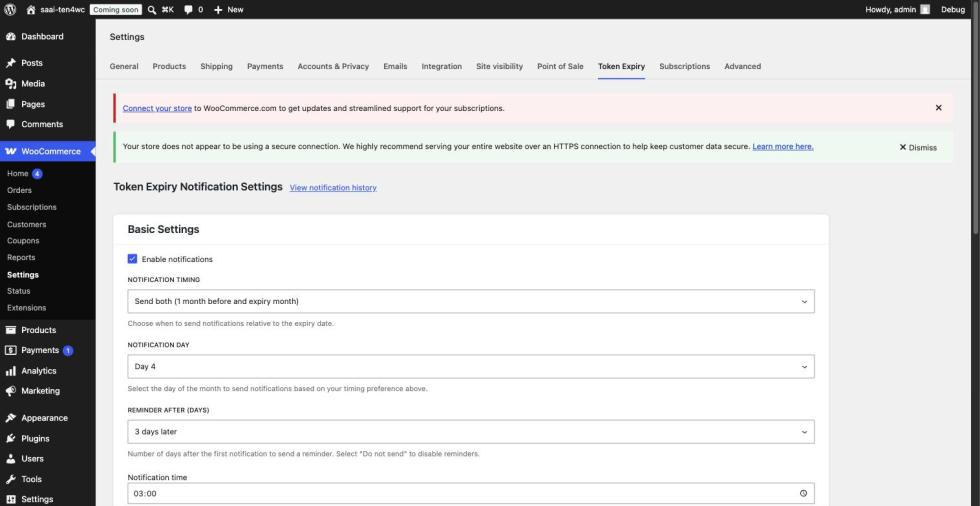
- Go to WooCommerce > Settings and open the Token Expiry tab.
- Turn on Enable notifications.
- Set Notification timing to choose whether emails go out the month before a card expires, during the expiry month, or both.
- Set Notification day (1–23) — the day of the month notifications are sent — and Notification time, in your WordPress timezone.
- Optionally set Reminder after (days) to send a second email this many days after the first (the plugin doesn’t check whether the card was updated in between — set this to “Do not send” if you’d rather not follow up automatically).
- Click Save settings.
To confirm everything is wired up, scroll to Email Settings and click Send test email — a sample notification is sent to your account email address. Then check WooCommerce > Status > Scheduled Actions for a pending saai_ten4wc_token_expiry_check action, confirming the daily check is scheduled.
Advanced configuration
↑ Back to topEmail content. The notification email’s subject, heading, and body are configured as a native WooCommerce email under WooCommerce > Settings > Emails > Payment Token Expiry, not on the Token Expiry settings tab. Use template tags like {customer_name}, {card_type}, {card_last4}, {expiry_date}, and {payment_methods_url} to personalize the message.
History settings. Enable Automatic history cleanup and set a Retention period (in months) Notification history is kept for 90 days regardless of this setting. Enable Automatic history cleanup and set a Retention period (in months) if you want records deleted sooner than that — useful for large stores where the history table can grow quickly.
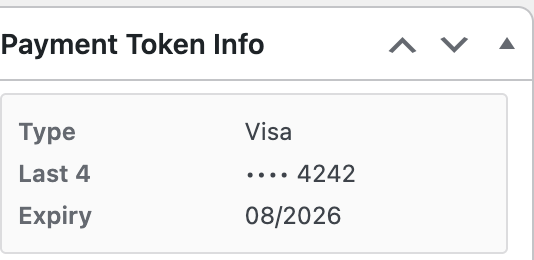
Order and subscription visibility. Turn on Show payment token info on order edit page (and, if you use WooCommerce Subscriptions, Show payment token info on subscription edit page) to display a Payment Token Info box in the sidebar of the order/subscription edit screen — card type, last 4 digits, and expiry date, so support staff can see at a glance whether an expiring card is behind a renewal issue.
For the full list of action hooks, filter hooks, REST API endpoints, and database schema, see the Developer Reference.
Usage
↑ Back to topToken Expiry Notifier runs in the background — there’s no customer-facing setting to configure. Once a saved card is due to expire, the customer receives an email like this:
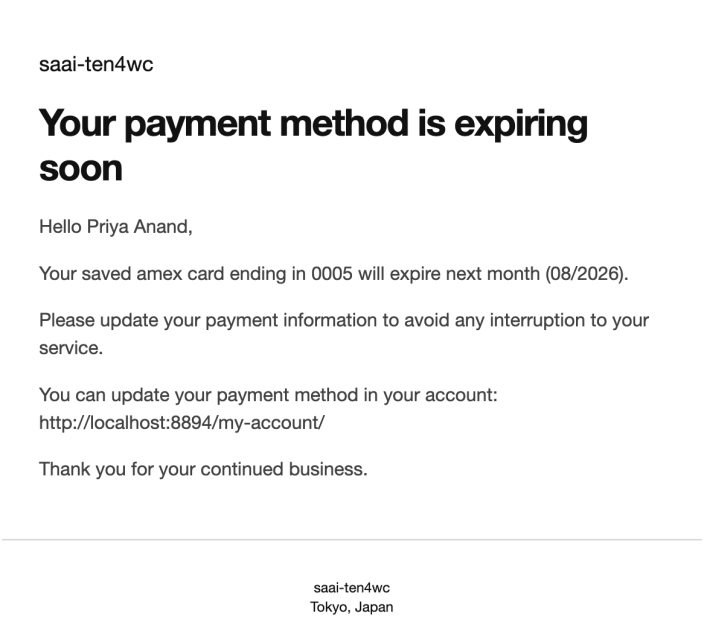
The email links to My Account > Payment Methods, where the customer can add a new card before their next renewal is attempted.
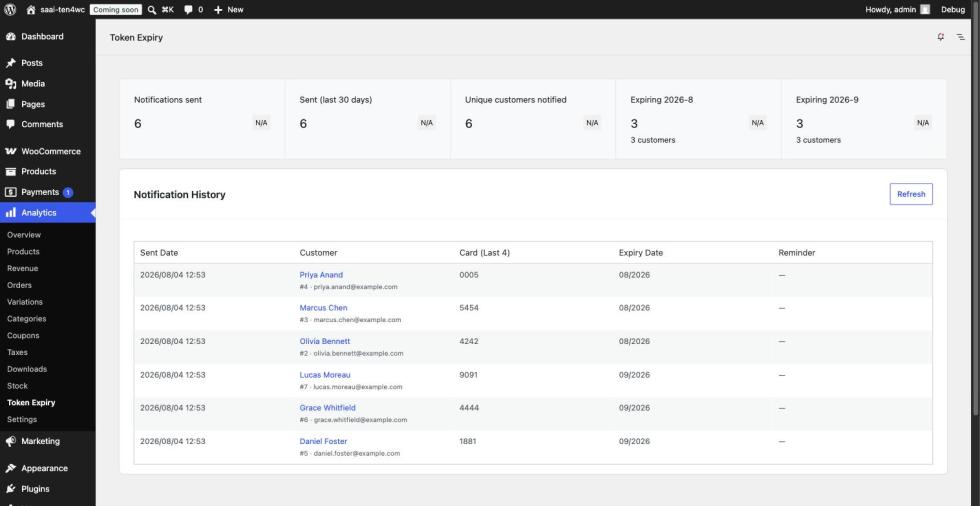
On the admin side, WooCommerce > Analytics > Token Expiry shows how many cards are expiring this month and next, plus a full history of every notification sent — who was notified, which card, and when. If the WooCommerce Analytics feature is disabled on your store, the same information is available from WooCommerce > Token Expiry in the admin menu instead.
Troubleshooting
↑ Back to topCustomers aren’t receiving notification emails.
Check, in order:
- Enable notifications is on under WooCommerce > Settings > Token Expiry;
- today matches the configured Notification day — the check only sends on that day, once per day, at the configured time;
- the customer wasn’t already notified this month — check the Token Expiry history table, since duplicate notifications for the same card/month are blocked by design;
- WooCommerce > Status > Scheduled Actions shows
saai_ten4wc_token_expiry_checkrunning without errors; - your site’s outgoing mail is working — send a test email from the Email Settings card.
No tokens are detected. This plugin reads WooCommerce’s own saved payment token records. If your payment gateway stores card details outside WooCommerce’s WC_Payment_Token system, or if no customers have saved cards yet, no tokens will appear in the summary or history.
The “Notification day” doesn’t seem to trigger. Confirm the configured Notification time has already passed for today — the check runs once per day. The maximum notification day is 23, to guarantee it fires even in February.
The Payment Token Info box isn’t showing on the order/subscription edit screen. Confirm the corresponding toggle is enabled under Order Settings, and that you’re viewing a supported screen (the order edit screen for orders, the subscription edit screen for subscriptions — on both classic and HPOS stores). The box itself doesn’t depend on the order having a token: it shows every saved card for the order’s customer, or a “no saved payment tokens” message if the customer has none.
For anything not covered here, open a support ticket from your WooCommerce.com account and include your WordPress/WooCommerce/plugin versions and, if relevant, a screenshot of the matching entries under WooCommerce > Status > Scheduled Actions.
FAQs
↑ Back to topDoes this work with the block-based checkout?
↑ Back to topYes — the plugin reads saved payment tokens directly, independent of which checkout your store uses.
Does this work with WooCommerce Subscriptions?
↑ Back to topYes. It notifies customers whenever a saved token is expiring, whether or not that token is attached to a subscription. For subscription stores, we recommend setting Notification timing to “Both” and enabling the subscription edit screen’s Payment Token Info box.
Will this work with my payment gateway?
↑ Back to topAny gateway that saves cards through WooCommerce’s own payment token system (most major gateways do) will work automatically. Gateways that store card data outside that system aren’t detected.
Can I customize the notification email?
↑ Back to topYes, fully — subject, heading, and body are editable under WooCommerce > Settings > Emails > Payment Token Expiry, with template tags for customer and card details.
Will this slow down my store?
↑ Back to topNo. The scheduled check and all notification emails run as background jobs through WooCommerce Action Scheduler, so they never add load to a page a shopper is viewing.
How do I see how many cards are expiring soon?
↑ Back to topWooCommerce > Analytics > Token Expiry shows a live count for the current and next month, plus the full notification history.

