
Show ShipStation shipping options and prices at WooCommerce checkout. Configure the rates in ShipStation, enable Checkout Rates in WooCommerce, and add the method to the shipping zones where customers should see it.
Before you begin
↑ Back to top- Install the current ShipStation for WooCommerce extension and connect your store to ShipStation.
- Use a store based in the United States or a supported US territory: Puerto Rico, Guam, US Virgin Islands, American Samoa, Northern Mariana Islands, or US Minor Outlying Islands. The feature uses the store country in WooCommerce > Settings > General, not the customer’s country.
- Use the current ShipStation layout; Checkout Rates isn’t available in Legacy. If you want live rates, configure carrier services that can quote your destinations.
- Enter accurate weights for shippable products. A missing weight is sent as zero and can produce incorrect or missing live rates.
Checkout Rates is off until you configure it in ShipStation and enable it in WooCommerce. Your existing shipping methods stay in place. You can offer ShipStation rates alongside them or disable other methods for the relevant zone.
Configure and enable rates
↑ Back to top- In ShipStation, go to Settings > Selling Channels > Store Setup, select Edit Store Details for the connected store, and open Checkout Rates.
- Select Connect to Store if Checkout Rates isn’t connected yet. ShipStation sends the required configuration to WooCommerce; there’s no rates URL to paste into WooCommerce.
- Select Add Checkout Rate and configure the options customers should see. ShipStation supports Live Rates, Flat Rate, and Free. Enable the switch beside each saved rate and select Save Changes. See ShipStation’s rate configuration guide for its carrier and pricing options.
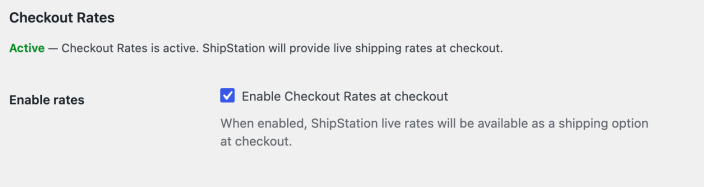
- In WooCommerce, go to WooCommerce > Settings > Integration > ShipStation. Under Checkout Rates, select Enable Checkout Rates at checkout and then Save changes.
The checkbox is unavailable while the status is Not configured. Connect Checkout Rates from ShipStation first, then reload this page. ShipStation’s broader platform availability doesn’t change the WooCommerce store-country requirement above.
Add the method to a shipping zone
↑ Back to top- Go to WooCommerce > Settings > Shipping and open the zone for the customer destinations that should receive these rates. Use shipping zones to define those destinations.
- Select Add shipping method, choose ShipStation Rates, and select Continue.
- Optionally edit Title and select Save changes. This title identifies the method in your admin; customers see the rate names configured in ShipStation.
- Confirm the method is enabled in the zone.
If ShipStation Rates isn’t offered, first check that ShipStation has configured Checkout Rates and that the WooCommerce enable checkbox is selected and saved.
| WooCommerce status | Meaning |
|---|---|
| Not configured | ShipStation hasn’t supplied the Checkout Rates configuration. |
| Disabled | Configuration is present, but the WooCommerce enable checkbox is off. |
| Connected | The feature is enabled, but no zone has an enabled ShipStation Rates method. |
| Active | The feature is enabled and at least one zone has an enabled method. Test an address in that zone to confirm rates are returned. |
Verify the customer’s checkout options
↑ Back to top- Add a shippable product with a known weight to a test cart.
- At checkout, enter a complete delivery address that matches a zone with ShipStation Rates enabled.
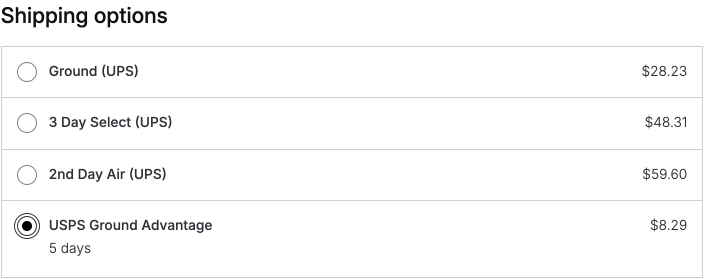
- Confirm the expected rate names and prices appear. Select a rate and check the shipping charge and order total.
- When a customer places an order, confirm the selected rate’s name and cost are included in the order imported into ShipStation.
A delivery estimate appears when ShipStation supplies one. In the Cart and Checkout blocks, a rate’s description appears when that rate is selected. An Active setting confirms configuration; it doesn’t prove a carrier has returned a quote for this cart and destination.
If rates are missing or unexpected
↑ Back to top- Checkout Rates section missing: check the store’s base country against the supported locations above.
- No rates for a customer: confirm the address matches the intended shipping zone and the ShipStation Rates method is enabled there. Check all shippable product weights.
- Active in WooCommerce, but no quote: confirm at least one rate is enabled in ShipStation. In that store’s Checkout Rates tab, select Preview and use the same destination and package weight. If Preview also shows No Rate, check the selected carrier service and account configuration in ShipStation.
- Recent pricing change isn’t visible: rate responses are normally cached for about 30 seconds, and WooCommerce also caches shipping results in the customer’s session. Wait briefly and refresh checkout; if needed, retest with a fresh cart or session.
- Unexpected customer-facing name: edit the rate’s name in ShipStation. Changing the WooCommerce shipping-method Title won’t rename the returned options.
If ShipStation Preview returns a quote but checkout doesn’t, enable ShipStation Logging, repeat the checkout request, and inspect WooCommerce > Status > Logs. Redact customer and order details before sharing logs with support and turn logging off when finished.
Turn off rates
↑ Back to top- Everywhere: clear Enable Checkout Rates at checkout and save. This keeps the ShipStation order connection and zone configuration.
- One zone: disable the ShipStation Rates method in that zone. Other zones are unaffected.
- Remove the rates connection: disconnect Checkout Rates in ShipStation. WooCommerce returns to Not configured.
These changes affect future checkout choices. Existing orders keep the shipping method they were placed with. If you turn rates back on, test a matching checkout address again.
Questions and support
↑ Back to topDo you still have questions and need assistance?
- Get in touch with a Happiness Engineer via our Help Desk. We provide support for extensions developed by and/or sold on WooCommerce.com, and Jetpack/WordPress.com customers.
- If you are not a customer, we recommend finding help in the WooCommerce support forum or hiring a Woo Agency Partner. These are trusted agencies with a proven track record of building highly customized, scalable online stores. Learn more about Woo Agency Partners.

