
QR Code Tickets & Check-in allows your WooCommerce store to:
- Automatically generate QR code tickets when a customer purchases a product
- Option to generate ticket code using prefix, length, format, separator.
- Send those tickets via Email & allows to download PDF
- Quick Check-ins and Bulk Check-ins for faster operations
- Scan and validate tickets using your mobile camera
- Front-end Check-in page using shortcode
- Track usage, Reports, and Entry Statistics
- Compatibility with WooCommerce Bookings
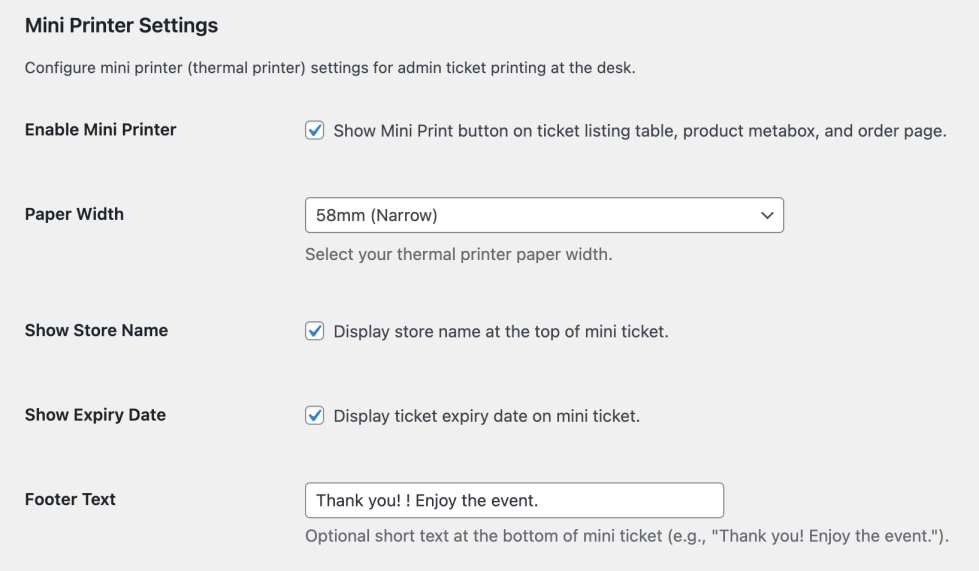
- Support for Mini Print (58mm and 80mm paper width)
It is perfect for:
- Events
- Concerts
- Workshops
- Exhibitions
- Amusement parks
- Entry-based services
Let’s set up your ticketing system step by step.
Installation
↑ Back to topTo start using a product from WooCommerce.com, you can use the “Add to store” functionality on the order confirmation page or the My subscriptions section in your account.
- Navigate to My subscriptions.
- Find the Add to store button next to the product you’re planning to install.
- Follow the instructions on the screen, and the product will be automatically added to your store.
Alternative options and more information at:
Managing WooCommerce.com subscriptions.

Configure Global Ticket Settings
↑ Back to topBefore selling tickets, you should configure how tickets behave.
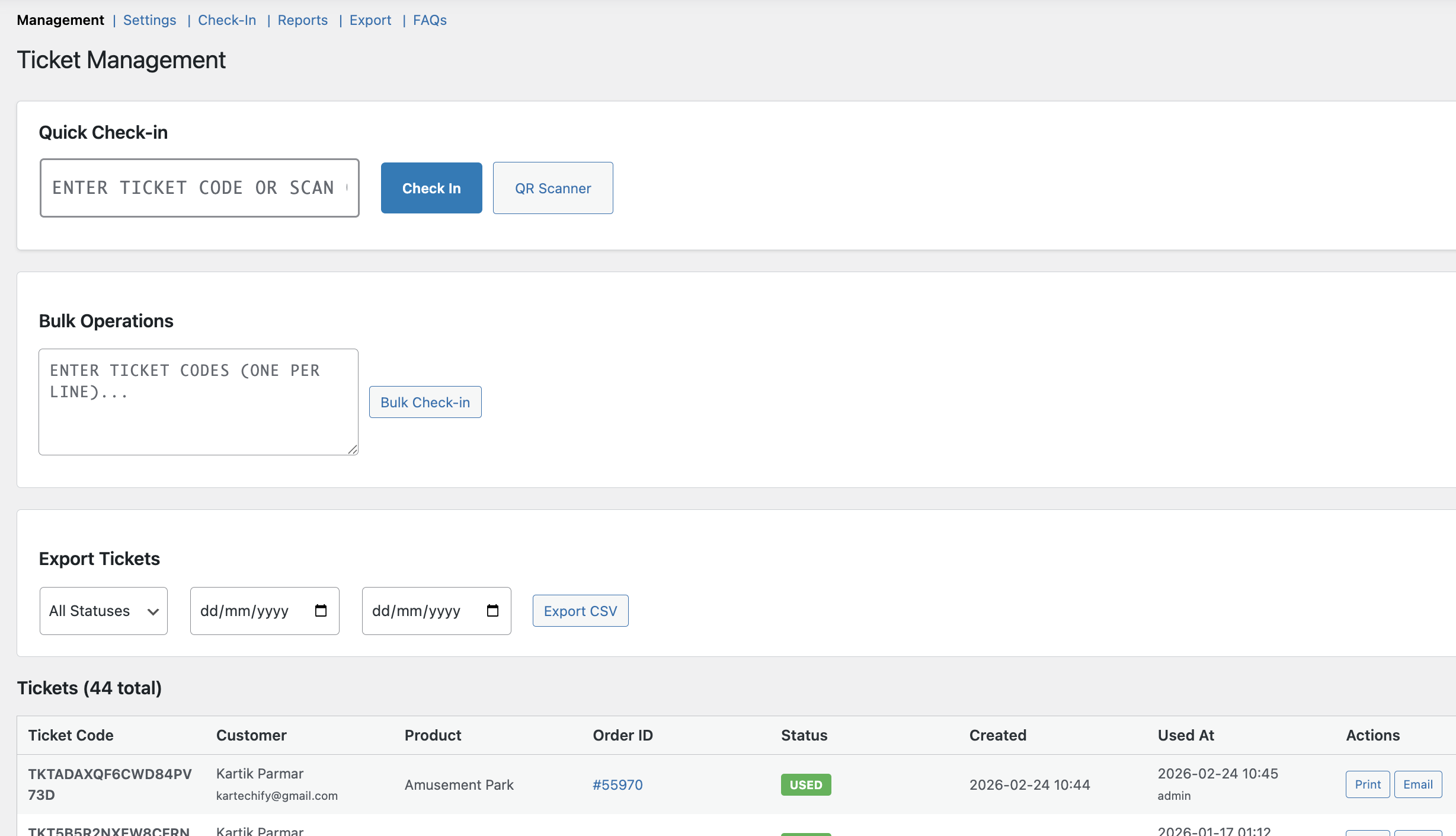
Go to: WooCommerce → Settings → Tickets
This is the central control panel for your ticket system.
Understanding How Ticket Generation Works
↑ Back to topTickets are generated automatically when:
- A product with a ticket enabled is purchased
- The order reaches a specific order status (you define this)
So first, we define how tickets should be created.
Ticket Code Configuration
↑ Back to topInside the Settings tab, you will see options to configure ticket codes.
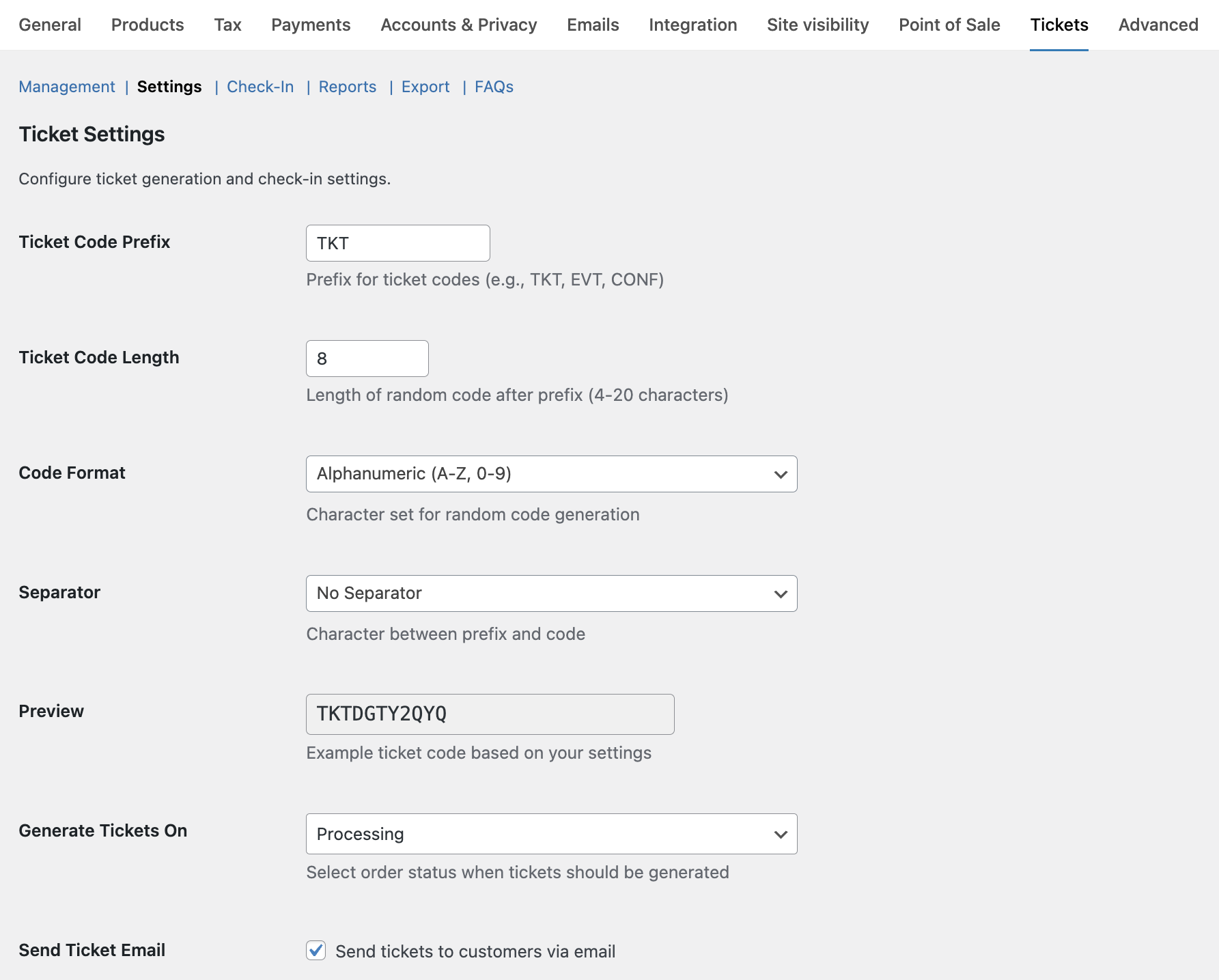
Ticket Code Prefix
This appears at the beginning of every ticket.
Example:
- EVT
- PARK
- SHOW2025
If prefix = EVT
Final code may look like:EVT-84G7K2
Ticket Code Length
Defines how many random characters are generated.
Example:
- 6
- 8
Longer codes = more uniqueness.
Code Format & Separator
Choose how your ticket code is structured and separated.
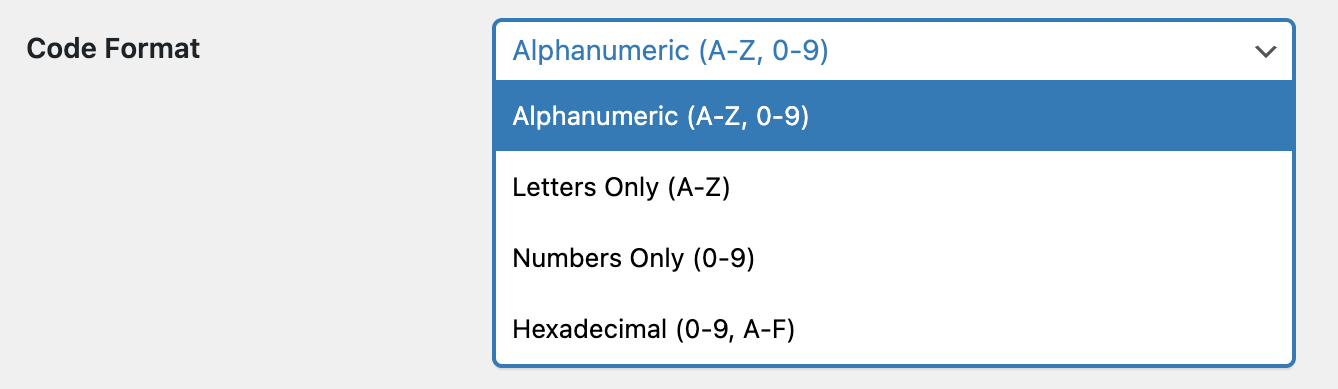
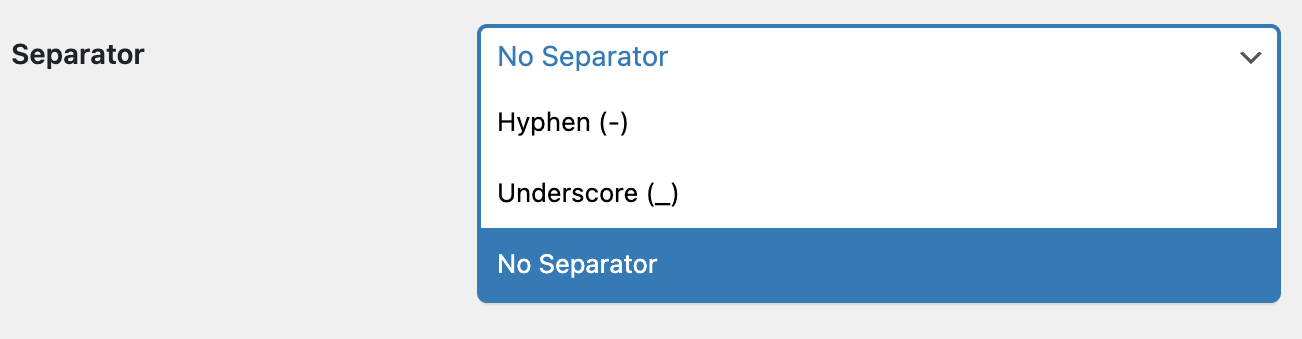
Preview is shown instantly so you know how your final ticket will look.

When Should Tickets Be Generated?
Choose the order status that triggers ticket creation. Most common choices are:
- Processing
- Completed (Default)
Example:
If you want tickets to generate only after full payment confirmation, choose Completed.

Sending Tickets to Customers
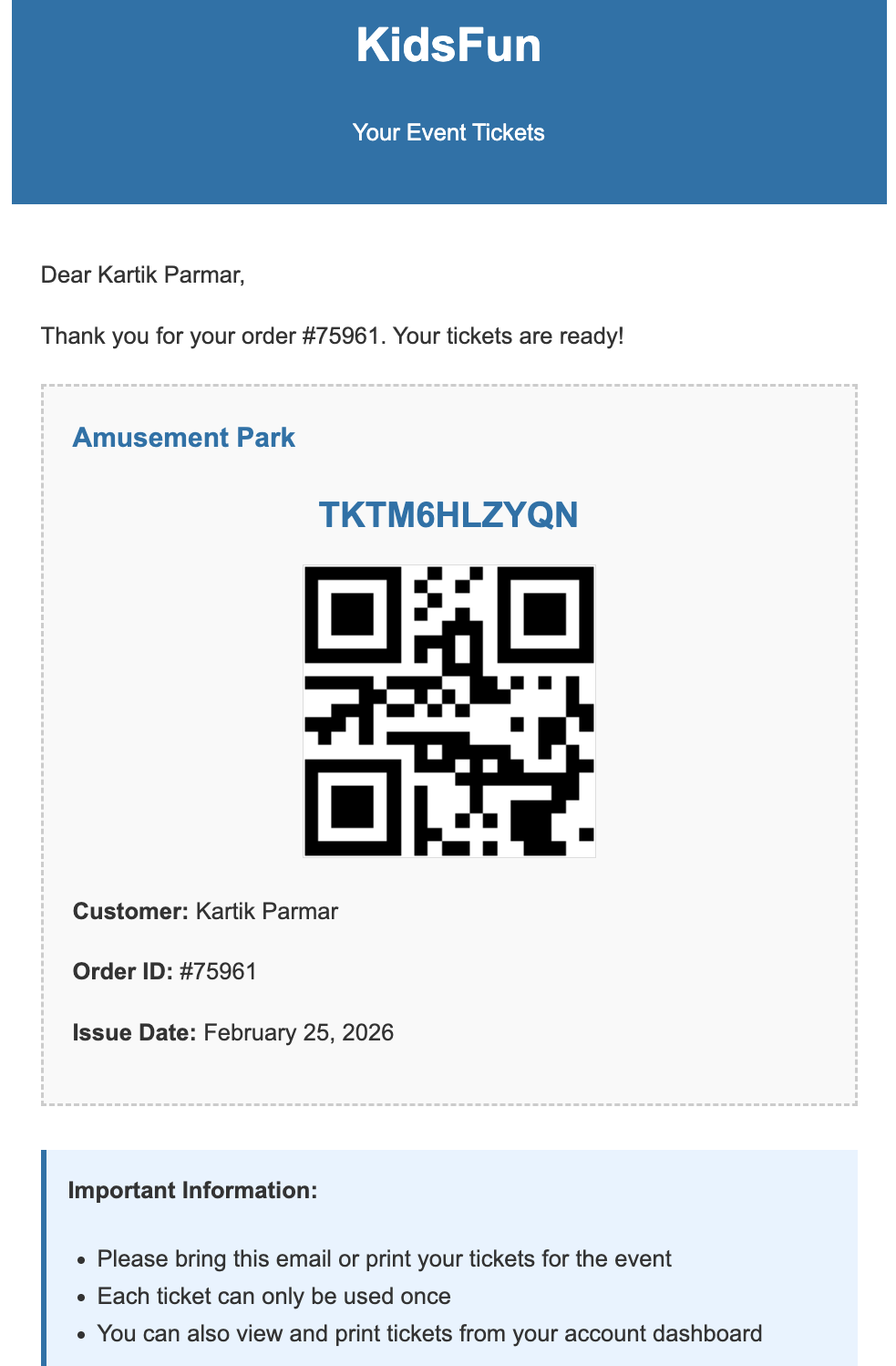
Send Ticket Email: Enable this option to automatically send ticket email.
Ticket Per Quantity
This setting defines how many tickets are created. If enabled, then the customer buys 3 quantities, and 3 separate tickets will be generated. If disabled, then only 1 ticket per product line will be generated.
Ticket Validity
You can set how many days the ticket remains valid. The Ticket expiry is calculated from the purchase date.
Example:
- Set 1 day → valid only for event day
- Set 7 days → valid for a week after purchase
Ticket Design Template
Choose from 6 predefined ticket templates.
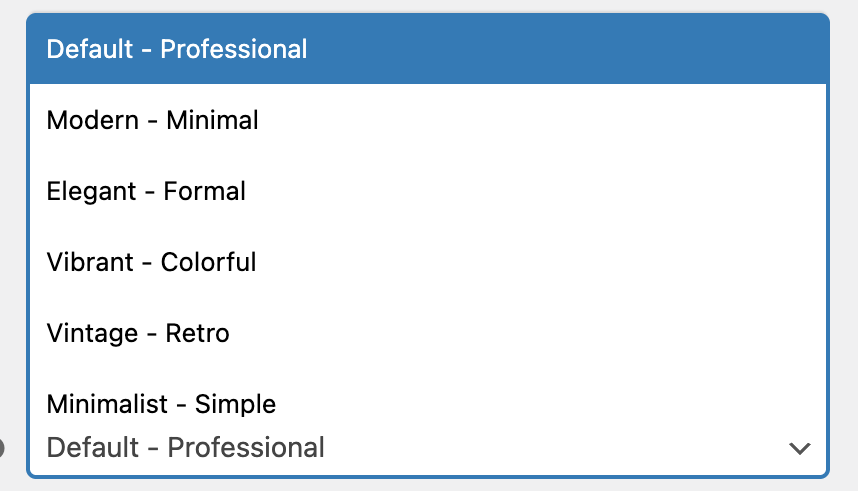
Templates are professionally designed and ready to use. Advanced users can customize via custom code if needed.
Enable Bulk Check-In & Export
- Enable Bulk Check-In for faster entry management
- Enable Export if you want CSV reports
Click Save Changes when finished.
Mini Print
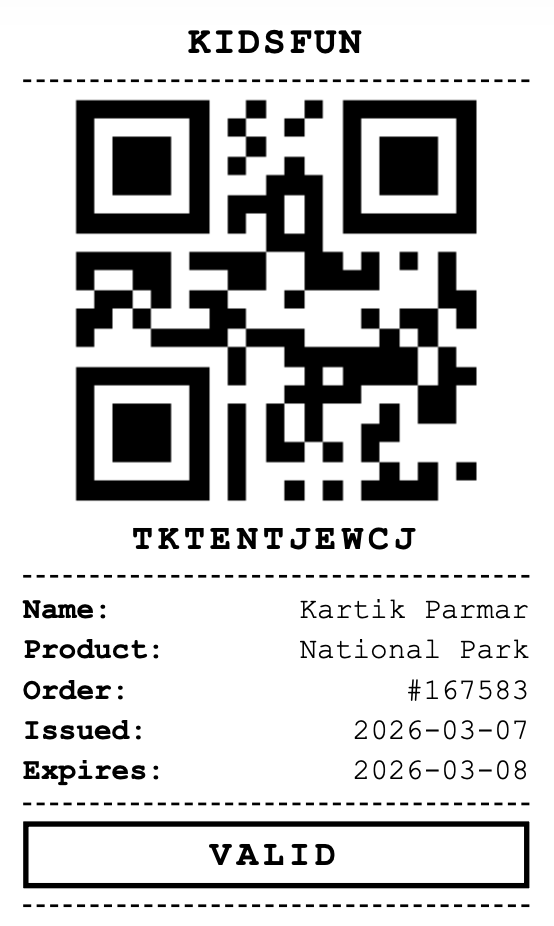
This section can be used when issuing the ticket from the desk where print can be as small as possible with sufficient information and quick process with minimum use of paper.
Example ticket as shown in the following image.
Your global setup is now complete.
Enable Tickets on a Product
↑ Back to topNow we choose which product should generate tickets.
- Go to Products → Edit Product
- Scroll to Product data Meta box
- Click on Ticket Settings Tab
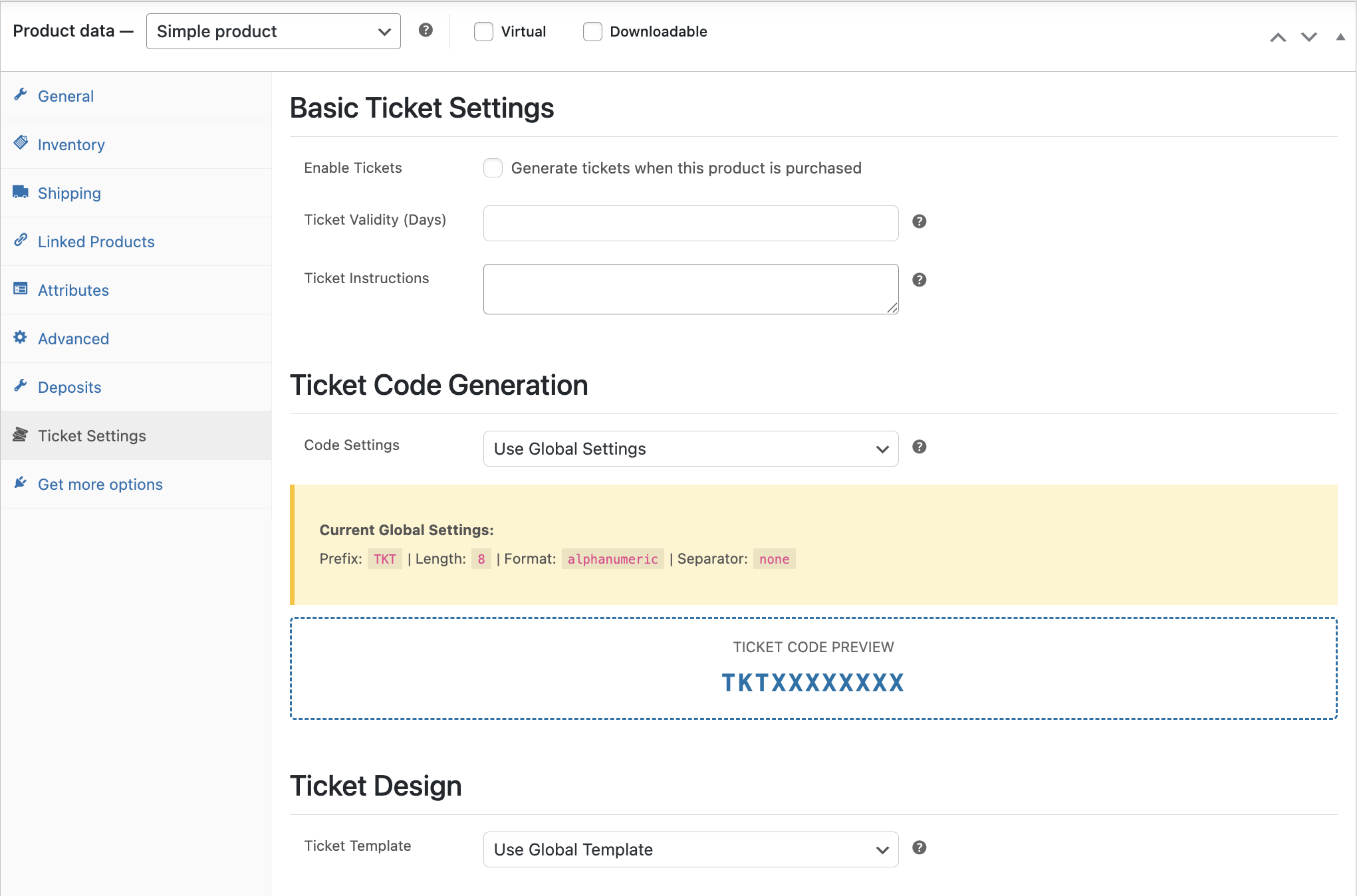
Here you can enable tickets for this product and Override global settings (if needed).
Use this when:
- Different events require different prefixes
- Different validity periods are needed
- Different templates are required
Configure the Ticket Setting according to your business requirements and Update the product.
Test Purchase
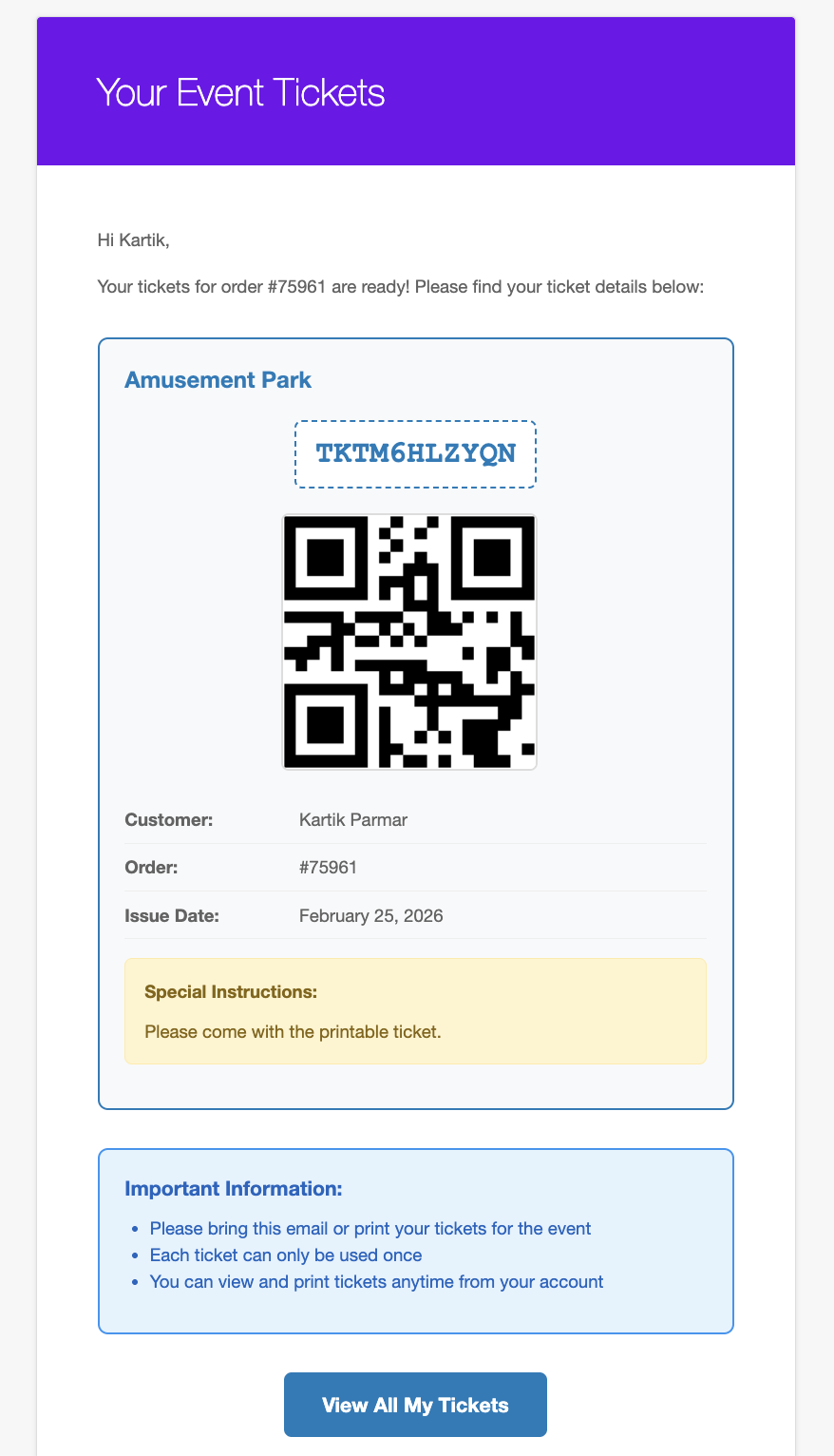
↑ Back to topNow lets perform a test by purchasing the product where ticket settings are configured. Complete the payment of it and change the order status to your configured trigger (e.g Completed).
Tickets will now be generated automatically. The customer will receive the ticket email and QR Code inside it.
Checking In Tickets at Entry
↑ Back to topBack-end Check-in
This is where your system becomes powerful.
Go to: WooCommerce → Settings → Tickets → Management
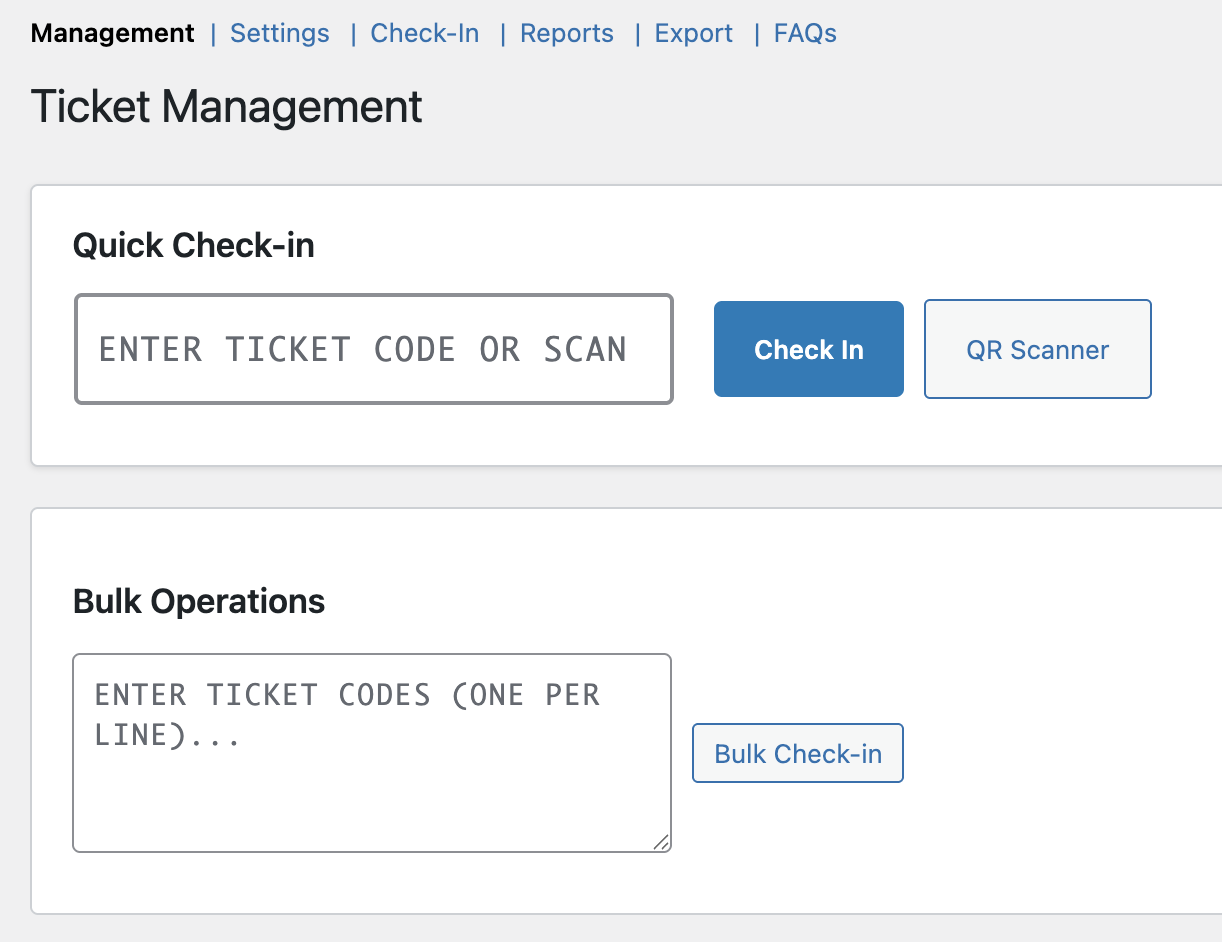
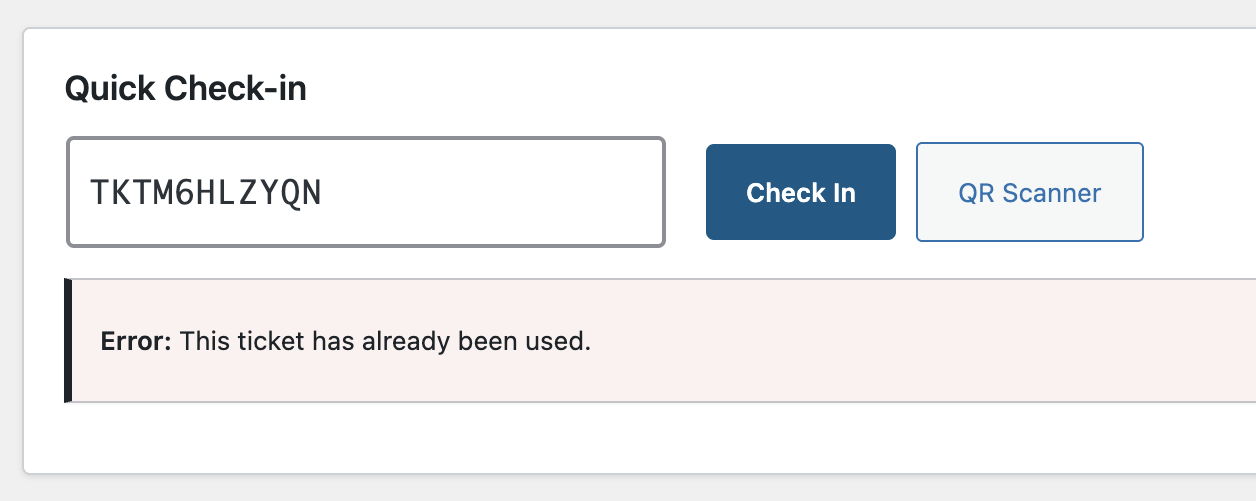
You can manually enter the ticket code or scan it using the QR Scanner, and accordingly, the result will be shown. If the ticket is valid, then it will show a success message for the check-in.
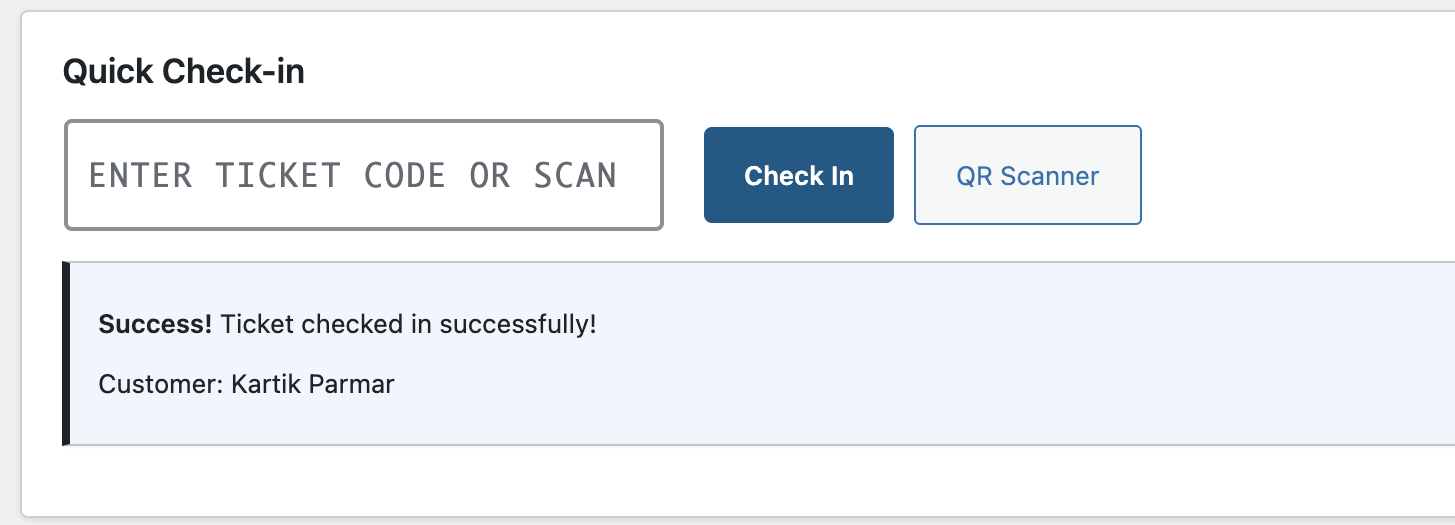
If the ticket is already used, then it will show the error message as shown in the screenshot below.
Front-end Check-in
Granting admin access to check-in staff solely for the purpose of validating tickets is not ideal, as it exposes sensitive store and customer data unnecessarily. To address this, the plugin provides two shortcodes that can be placed on any front-end page of your site. This allows check-in staff to validate tickets directly from a dedicated page without requiring any WordPress admin or WooCommerce backend access.
[ticket_checkin_form title="Event Check-in"]

[ticket_scanner show_manual="yes"]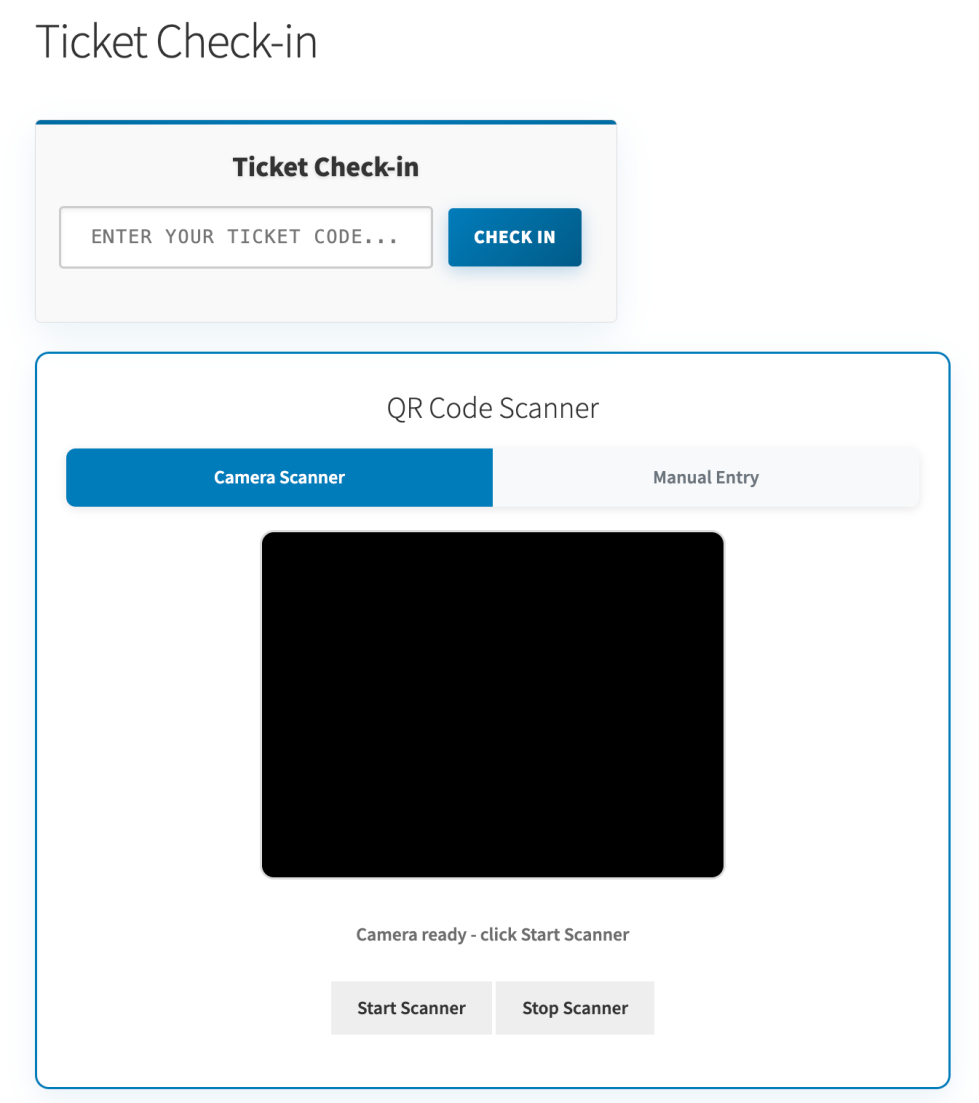
To further tighten security, the plugin includes a Check-in Allowed Roles setting available at both the global and per-product level. This setting lets you define which WordPress user roles are permitted to perform check-ins. Simply create a dedicated WordPress user role for your check-in staff, assign it as an allowed role in the plugin settings, and staff members with that role will only be able to perform check-ins — nothing more. The Administrator role is always included by default and cannot be removed.

Apart from the check-in option on the Management tab and the front end page, There are other options like downloading the Reports in the CSV format as well viewing the list of tickets currently there in the system.
Order Page Ticket Management
↑ Back to topWhen viewing an order that contains ticket products a Tickets Metabox appears.
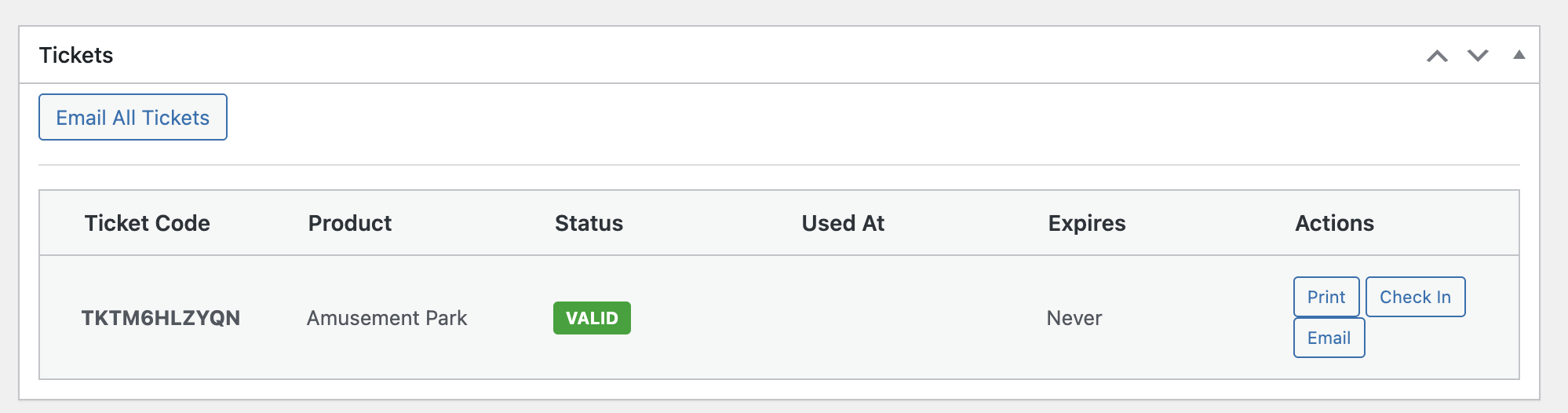
Here you can:
- View ticket codes and product
- See expiry
- Check usage status
- Check-in | Invalid | Print | Print Mini | Email Ticket
- Email all tickets again
Tickets & WooCommerce Bookings
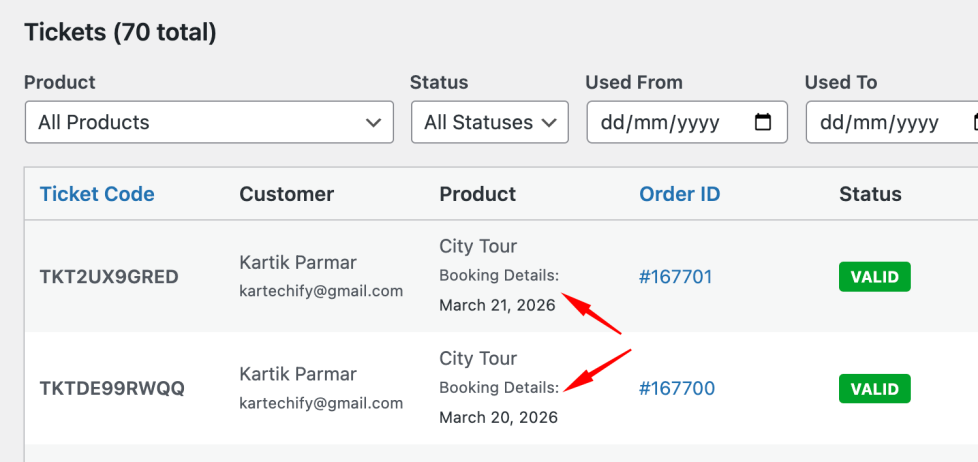
↑ Back to topThe QR Code Tickets & Check-in plugin is compatible with WooCommerce Bookings plugin. When the product is setup with the Bookable product and ticket is configured on that product then once it is booked by customer and ticket generated, the ticket listing will also show the booking details in the Ticket listing table as well in the Email Notification and PDF.
Final Setup Checklist
↑ Back to topBefore going live, confirm:
- Global settings configured
- Product has a ticket enabled
- Generate Tickets On status selected
- Email sending enabled
- Scanner tested on mobile
- Test purchase completed
Your ticketing system is now fully operational.
FAQs
↑ Back to topHelp customers by answering commonly asked questions.
How do tickets get generated?
Tickets are automatically generated when an order reaches the status you configure (default: Completed). Each product quantity creates a unique ticket.
Can I customize ticket designs?
Yes! Choose from 6 professional templates or create your own custom template using our template system.
Do customers receive tickets via email?
Yes, customers automatically receive beautiful HTML emails with embedded QR codes and ticket details.
How does check-in work?
Multiple options: manual code entry, QR code scanning via camera, or bulk check-in. All methods validate tickets in real-time.
What happens if someone orders 3 tickets?
If Ticket per Quantity option is enabled then they receive 3 unique tickets, each with its own code and QR code. Each can be checked in separately.
Can customers print their tickets?
Yes! Customers can print tickets from their My Account page anytime. Tickets are also printable from emails.
Can I export ticket data?
Yes, export to CSV with advanced filtering by status, date range, product, and more.
Where can I find my tickets?
Customers: My Account → My Tickets
Admins: WooCommerce → Settings → Tickets → Management
Can I set ticket expiration dates?
Yes, set global validity period or per-product custom expiration dates.

