
Wholesale Pricing & Inventory Control for WooCommerce lets you set custom product prices — by user role, by individual customer, or for guests — enforce minimum and maximum order quantities, and manage stock for each product and variation. Update pricing across many products at once with the built-in Bulk Editor, and create your own custom customer roles directly inside the plugin. Hide or show prices, disable the Add-to-Cart button, and display personalized messages, making it ideal for wholesale, B2B, and membership-based stores.
Installation
↑ Back to topTo start using a product from WooCommerce.com, you can use the “Add to store” functionality on the order confirmation page or the My subscriptions section in your account.
- Navigate to My subscriptions.
- Find the Add to store button next to the product you’re planning to install.
- Follow the instructions on the screen, and the product will be automatically added to your store.
Alternative options and more information at:
Managing WooCommerce.com subscriptions.

Setup and Configuration
↑ Back to topManaging Products from the Wholesale Pricing Tab
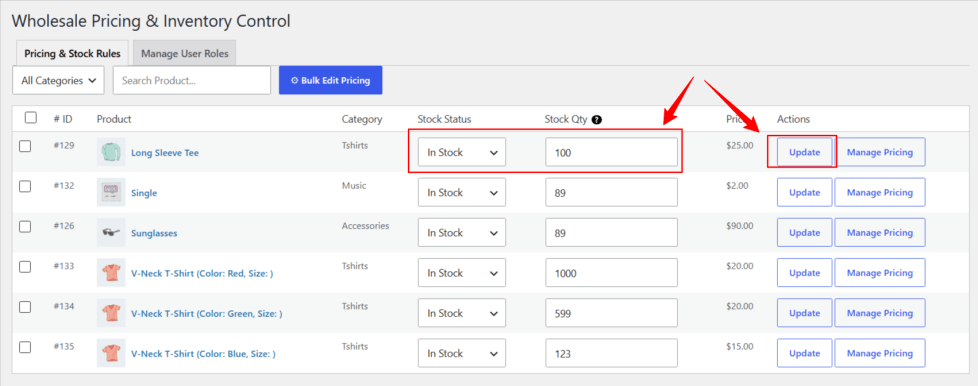
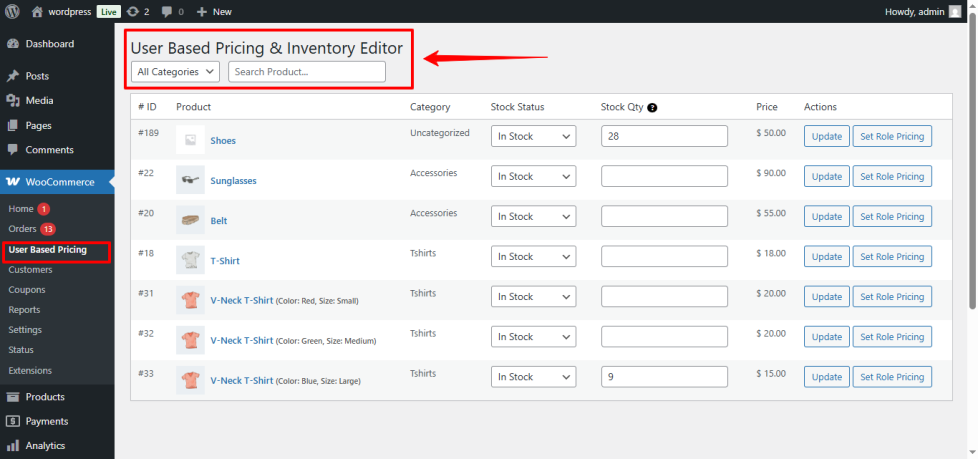
↑ Back to topThe plugin adds a new management tab inside WooCommerce → User Based Pricing, allowing you to quickly update inventory and configure user role and individual-customer pricing for all your products without opening them individually.
This tab displays a complete list of your store’s products in a clean table layout — with checkboxes next to each row for bulk actions — making it easy to manage pricing and stock efficiently from a single place.
Update Stock Status Easily
↑ Back to top- Change product stock status (In Stock, Out of Stock, On Backorder)
- Update stock quantity directly from the table
- Save all updates instantly without opening the product page
This makes stock management much faster for large WooCommerce stores.
Building a Pricing Rule
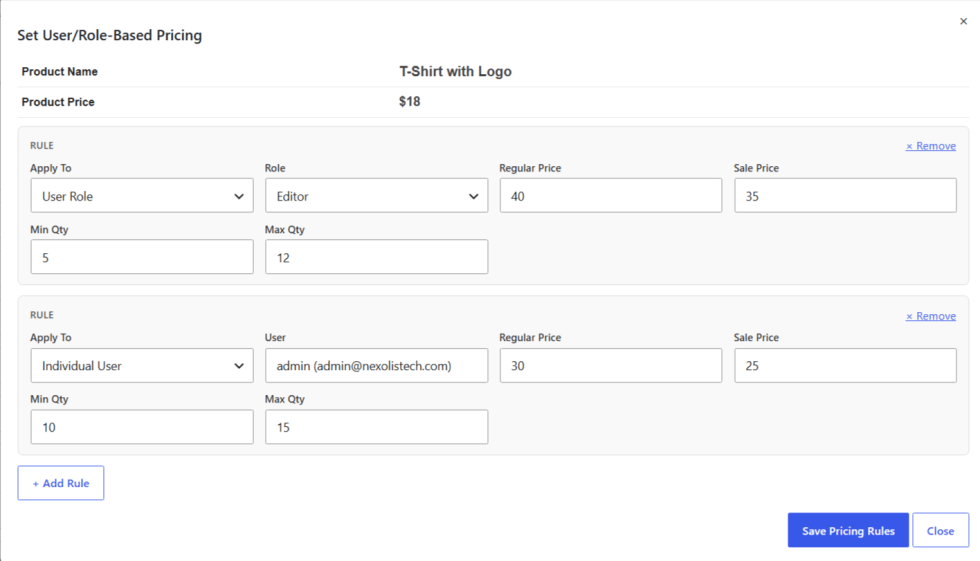
↑ Back to topEach product row includes a Manage Pricing button. Clicking it opens the pricing rule builder, where you can add one or more rules to a single product.
For each rule, choose:
- Apply To — whether this rule applies to a User Role or an Individual User.
- If User Role is selected, choose the role from the dropdown (Administrator, Editor, Author, Contributor, Customer, Subscriber, Shop Manager, or Guest — Not Logged-In, plus any custom roles you’ve created).
- If Individual User is selected, use the search box to find and select a specific customer by name or email.
- Set the Regular Price and, optionally, a Sale Price for this role or user.
- Optionally set a Min Qty and/or Max Qty to enforce order quantity limits for this role or user.
You can click + Add Rule to add as many rules as you need to the same product — for example, one rule for “Wholesale,” another for a specific VIP customer, and another for Guests.
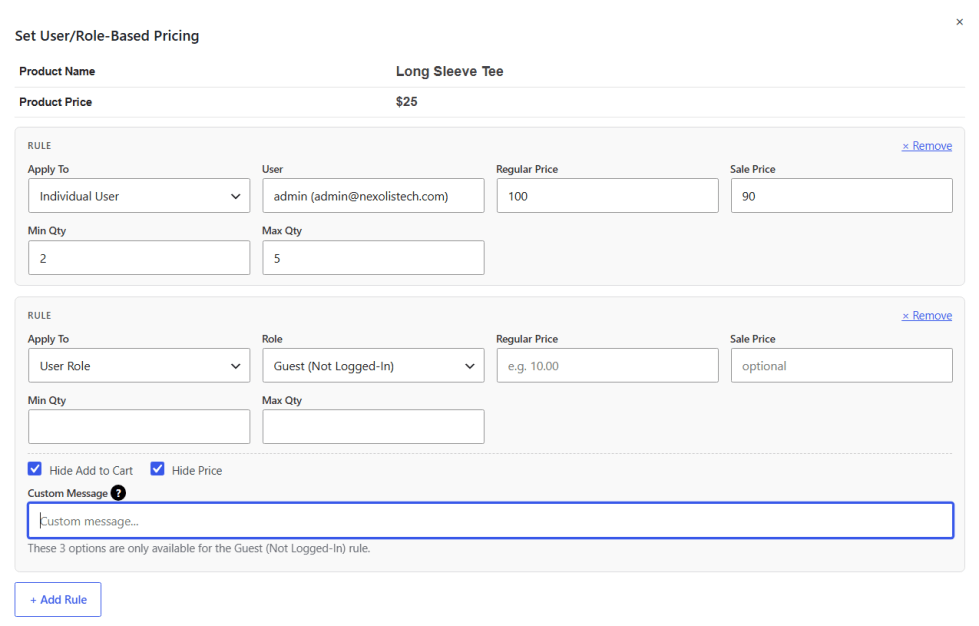
Only the Guest rule can also include:
- Hide Add to Cart — hides the Add-to-Cart button for guests.
- Hide Price — hides the price display for guests.
- Custom Message — a message shown to guests instead (e.g. “Log in to see wholesale pricing”).
After configuring your rules, click Save Pricing Rules. Wholesale Pricing & Inventory Control will automatically apply the correct pricing, quantity limits, and display settings on the frontend — matching each shopper to the most specific rule that applies to them (an individual-user rule always takes priority over a role rule).
Setting Individual Customer Pricing
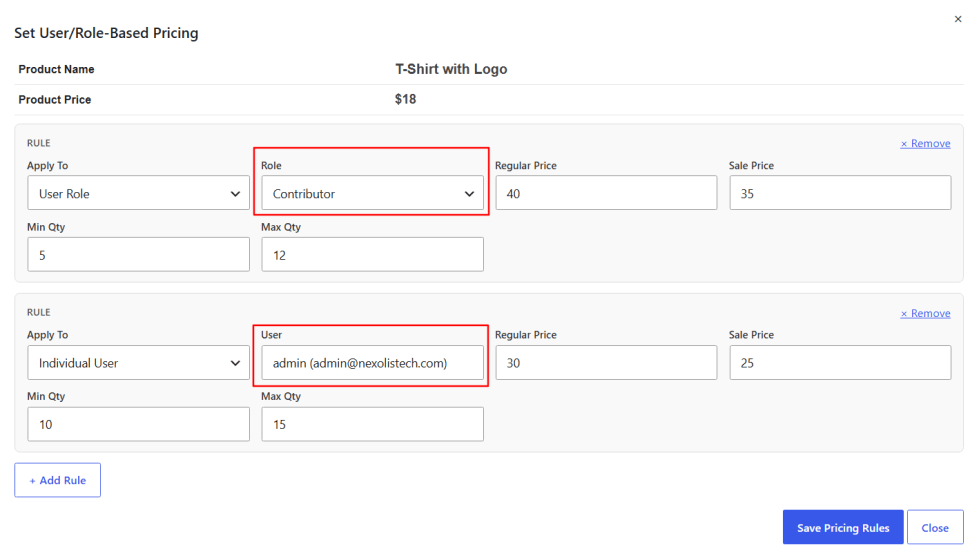
↑ Back to topIn addition to role-based pricing, you can set a special price for one specific customer — useful for VIP accounts, long-standing wholesale partners, or one-off negotiated deals. Select Individual User as the target in a rule, then search for the customer by name or email and select them from the results. The price, sale price, and quantity limits you set will apply only to that customer.
Setting Minimum & Maximum Order Quantities
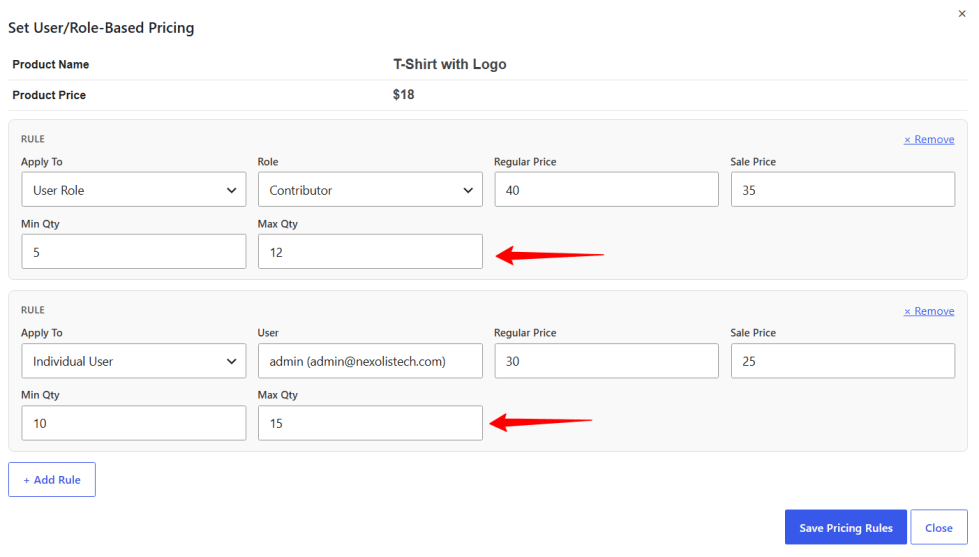
↑ Back to topEach pricing rule can include a Min Qty and/or Max Qty. This lets you require a minimum order size for wholesale roles (e.g. a case quantity), or cap how much of a product a single role or customer is allowed to buy. These limits are enforced automatically on the product page and at checkout.
Bulk Editing Multiple Products
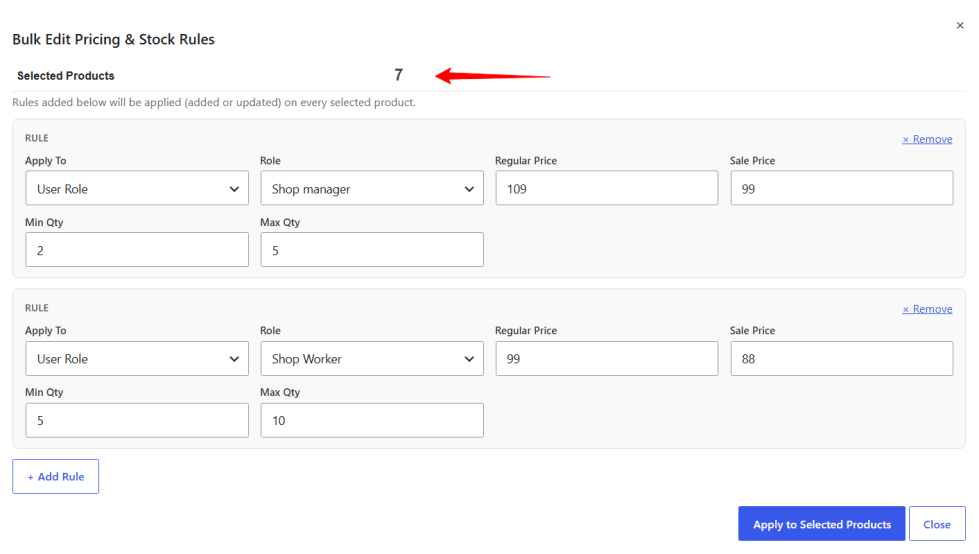
↑ Back to topTo update pricing across many products at once, select the checkbox next to each product you want to update in the products table, then click ⚙ Bulk Edit Pricing above the table. The same rule builder opens — configure your rule (role/user, price, sale price, min/max qty) and click Apply to Selected Products.
The rule is added to every product you selected. If a matching rule (same role or same individual user) already exists on a product, it’s updated rather than duplicated — so you can safely re-run a bulk update to adjust pricing later.
Creating Custom User Roles
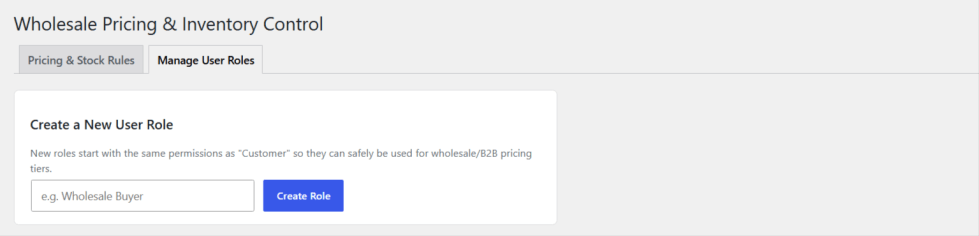
↑ Back to topFrom the Manage User Roles tab (next to Pricing & Stock Rules), you can create new customer roles specific to your business — for example, “Wholesale Buyer,” “VIP Reseller,” or “Distributor.” Enter a role name and click Create Role; the new role immediately becomes available when building a pricing rule.
Roles created through the plugin can also be deleted from the same screen. For safety, only roles created here can be deleted — WordPress and WooCommerce’s own built-in roles are never affected. Any users on a deleted role are automatically moved to the Customer role.
Manage Variations Product Easily
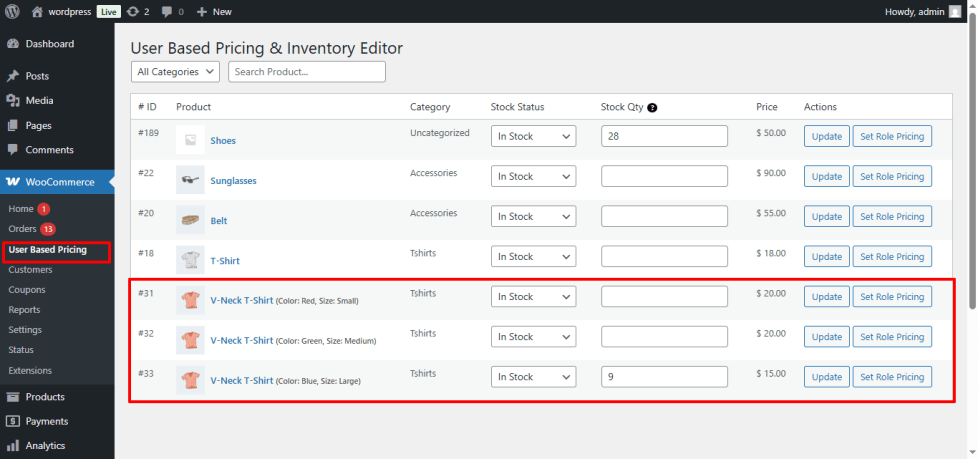
↑ Back to topWith Wholesale Pricing & Inventory Control, you can update stock status, manage stock quantities, and set role- or individual-user pricing rules for each product variation. Every variation is displayed in a clean table, allowing you to adjust stock levels and assign custom prices for each user role or customer individually.
Filter Products Quickly
↑ Back to topWith Wholesale Pricing & Inventory Control, you can easily filter products by category or search by product name. Quickly find any product and manage its stock or pricing rules without scrolling through the entire product list.
Benefits of Wholesale Pricing & Inventory Control
↑ Back to top- Set unique regular and sale prices by user role, individual customer, or guest, giving you full control over pricing in wholesale, B2B, and membership-based WooCommerce stores.
- Enforce minimum and maximum order quantities per role or per individual customer.
- Update pricing across many products at once with the built-in Bulk Editor, instead of editing each product individually.
- Create and manage custom user roles directly inside the plugin — no separate roles plugin required.
- Hide prices or Add-to-Cart buttons for guests and display custom messages, improving store flexibility and user experience.
- Update product stock globally while managing each variation separately, ensuring accurate inventory management.
- Quickly filter products by category or search by name to manage pricing and stock efficiently.
- Customers only see prices and quantity limits relevant to their role or account, providing an intuitive, personalized shopping experience.
FAQs
↑ Back to top
What is Wholesale Pricing & Inventory Control?
Wholesale Pricing & Inventory Control is a WooCommerce plugin that lets you set custom product prices by user role, by individual customer, or for guests, enforce minimum/maximum order quantities, hide prices or Add-to-Cart buttons, display personalized messages, and manage stock globally or per variation. It is ideal for wholesale, B2B, and membership-based stores.
Can I set different prices for guests and registered user roles?
Yes! You can define custom prices for every user role, including guests, and even for one specific individual customer. This ensures the correct price is displayed to the right audience, making your store flexible and personalized.
Can I hide prices or the Add-to-Cart button for certain user roles?
Absolutely! You can hide product prices, the Add-to-Cart button, or both for guests, and display a custom, role-based message to communicate clearly with your customers.
Can I set a special price for one specific customer?
Yes. When building a pricing rule, choose “Individual User” instead of “User Role,” then search for the customer by name or email. That price will apply only to them, in addition to any role-based rules on the product.
Can I require a minimum order quantity, or cap the maximum?
Yes — each pricing rule supports a Min Qty and Max Qty, enforced automatically at checkout for that role or customer.
How do I update pricing for many products at once?
Select the checkboxes next to the products you want to update in the User Based Pricing table, click ⚙ Bulk Edit Pricing, configure your rule, and click Apply to Selected Products. The rule is applied (or updated) across every product you selected.
Do I need a separate plugin to create custom customer roles?
No — use the Manage User Roles tab inside the plugin to create new roles (e.g. “Wholesale Buyer”) and start assigning pricing rules to them right away.

