
Overview
↑ Back to topCertificate of Analysis by WPRobo helps a WooCommerce store show shoppers the lab results behind the products it sells, and lets those shoppers confirm that the results belong to the exact batch they received. A certificate holds the lab data for a single batch — its results, dates, supplier, and testing lab — and once you link that certificate to a product, the results appear right on the product page. Every certificate also carries its own QR code that opens a public verification page, so a customer can scan the code on the packaging and see the same results for themselves.
The extension stays deliberately neutral about what you sell. You define your own result fields, so it fits any product that ships with a certificate of analysis or batch-level testing.
Beyond display and verification, the extension helps you manage a certificate across its whole life. Every order records the batches it shipped, so you can trace a batch to the customers who received it, and filter your Orders list by batch number. If a batch needs to be pulled, a recall shows a notice on the product and lets you email the affected customers on demand. Expiry and retest dates drive an optional daily reminder, and every certificate can be printed or saved as a branded PDF — with a matching “Certificates” tab in the customer’s account.
How stores use it
↑ Back to topThe clearest way to understand the extension is to see it in a few real situations.
A skincare brand publishes the purity and heavy-metal results for each production run of a serum. Every bottle carries a small QR code, and a returning customer scans it to confirm that the batch they bought passed testing before they reorder. The brand creates one certificate per run, links it to the serum, and prints the QR code on the label.
A specialty coffee roaster attaches cupping scores and moisture readings to each lot. The results sit in a Certificate of Analysis tab on the product page, and wholesale buyers verify a lot number from the bag before committing to a large order.
A materials supplier provides a mill certificate for each shipment of metal stock. An engineer types the heat number into the verification page and pulls the exact composition and tensile results for their own records, without emailing the supplier.
In each case the workflow is the same three steps: create a certificate, link it to a product, and let the QR code and verification page do the rest.
Installation
↑ Back to topTo start using a product from WooCommerce.com, you can use the “Add to store” functionality on the order confirmation page or the My subscriptions section in your account.
- Navigate to My subscriptions.
- Find the Add to store button next to the product you’re planning to install.
- Follow the instructions on the screen, and the product will be automatically added to your store.
Alternative options and more information at:
Managing WooCommerce.com subscriptions.
Setup and Configuration
↑ Back to topCreating your first certificate
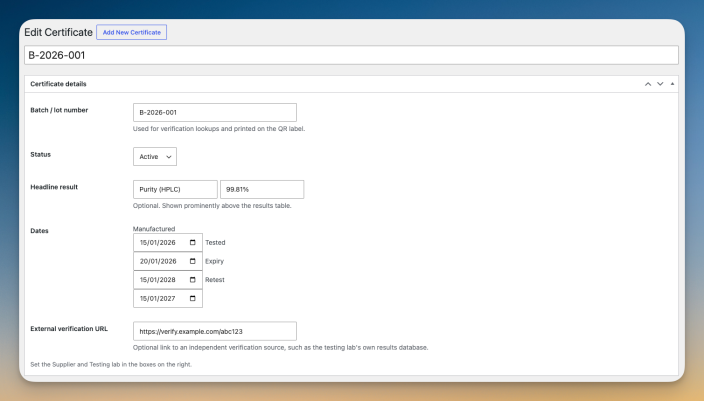
↑ Back to topStart at Certificates → Add New and give the certificate a title you will recognize later; the product name together with a lot number works well, for example “Vitamin C Serum — Lot 2026-04”.
In the Certificate details box, enter the batch or lot number, since that is what customers search for, choose a status, and add a headline result such as a purity percentage. The four date fields (manufactured, tested, expiry, and retest) are all optional, so fill in only the ones your lab actually reports.
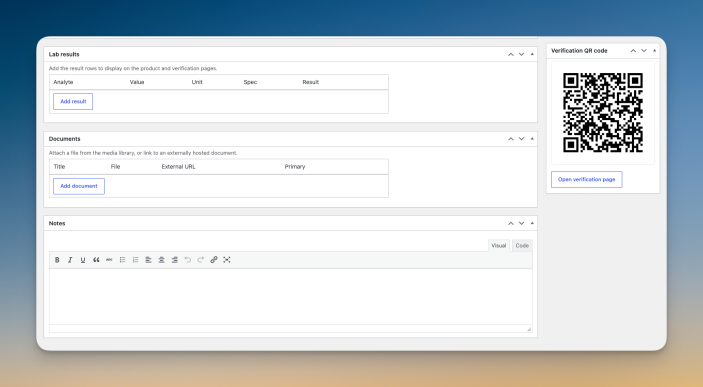
Lab results go in the Lab results box, one row per analyte, where each row takes an analyte name, a value, a unit, a spec, and a pass or fail outcome. Attach the lab’s own PDF or image under Documents — either from your media library or as a link — and set a supplier and a testing lab in the sidebar. When you publish, a QR code for the certificate appears in the sidebar, ready to download or print for your labels.
Linking a certificate to a product
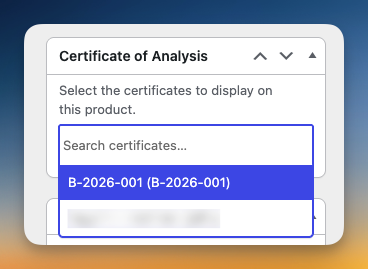
↑ Back to topOpen the product you want to attach results to. In the Certificate of Analysis box in the product sidebar, search for and select one or more certificates, then update the product. The results now appear on that product’s page for shoppers to see.
Choosing how results appear
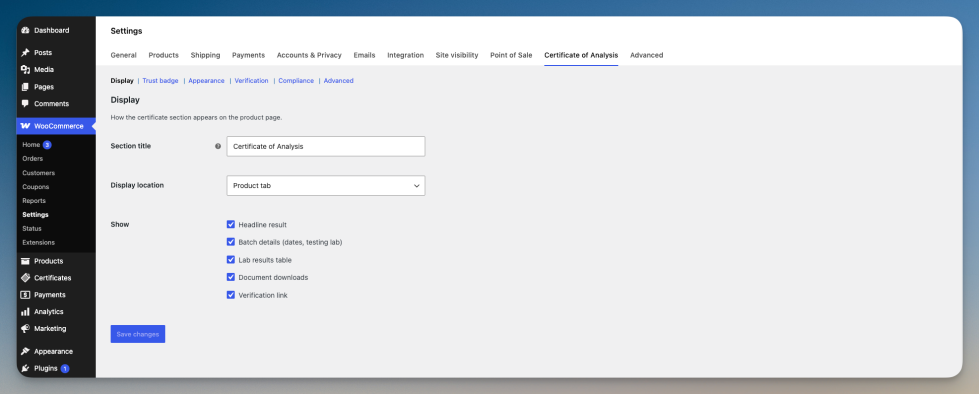
↑ Back to topEverything about the storefront display lives under WooCommerce → Settings → Certificate of Analysis. There you decide whether the certificate shows as its own product tab or below the product summary, which parts appear (the headline result, the table, the documents, and the verification link), whether linked products carry a “lab verified” badge, and which colors the section uses so it matches your brand.
Verification and QR codes
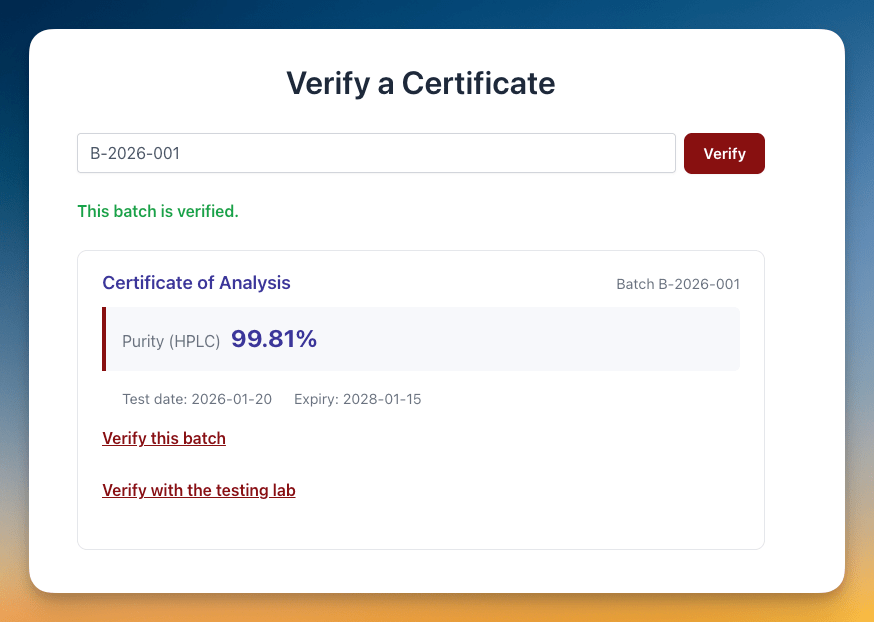
↑ Back to topA certificate’s QR code points to the verification page with the batch already filled in, so a customer who scans it lands straight on the matching results. Customers can also type a batch number into the search box on the verification page when they do not have the code to hand. The page created for you on activation is already selected under Settings → Verification, and you can switch it to any published page that contains the verification block or the [wprobo_coa_verify] shortcode.
Importing certificates from a spreadsheet
↑ Back to topWhen you are migrating existing records or adding many certificates at once, Certificates → Import saves you from creating each one by hand. Prepare a CSV with a header row using these columns:
batch_number, title, status, headline_label, headline_value,
manufactured_date, test_date, expiry_date, retest_date,
external_url, supplier, lab, notes, results
Only batch_number is required; leave any column you do not need empty. The one column that needs a moment of explanation is results, which holds several lab-result rows at once. Separate the fields of a single result with semicolons, and separate one result from the next with a pipe. For example, this value:
Purity;99.2;%;>=98;pass | Lead;<10;ppm;<20;pass
creates two result rows on the certificate — a purity result and a lead result, both marked as a pass.
A ready-to-edit template is attached as follows: sample-certificates.csv.
Download it, replace the example rows with your own data, and upload it on the Import screen.
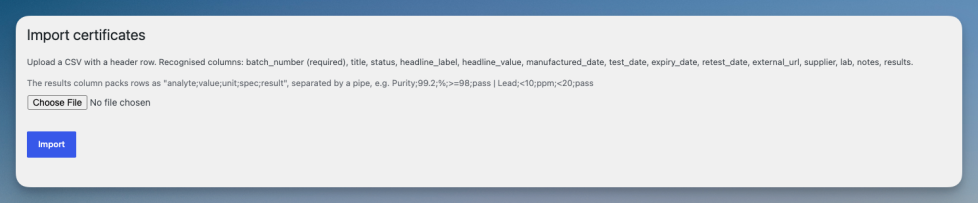
You can also go the other way. Certificates → Export downloads every certificate as a CSV in the same column layout, so you can back them up or edit them in a spreadsheet. When you re-import, tick “Update existing certificates” to update matching batch numbers in place instead of creating duplicates.
Optional compliance tools
↑ Back to topSome stores need to show a disclaimer, confirm a visitor’s age, or capture an acknowledgement at checkout. The Compliance settings provide all three, each with wording you control, and every one is turned off by default, so they never appear unless you switch them on.
Blocks and shortcodes
↑ Back to topThree blocks are available in the editor — Certificate of Analysis, Verify a Certificate, and the trust badge — for placing the certificate, the verification search, or the badge anywhere you like. If you prefer shortcodes, [wprobo_coa product="123"] shows a specific product’s certificate and [wprobo_coa_verify] renders the verification search on a page.
Troubleshooting
↑ Back to topIf a certificate is not appearing on a product, confirm that it is published rather than left as a draft, that it is selected in the product’s Certificate of Analysis box, and that the display location in settings is set to a tab or below the summary rather than to manual.
If a QR code or verify link goes nowhere, choose a verification page under Settings → Verification; the page created on activation is usually the right one.
If the Certificates menu is missing for a particular user, that user needs permission to edit posts, which administrators and shop managers have by default.
FAQs
↑ Back to topHelp customers by answering commonly asked questions.
What kinds of products is this for
Any product that comes with a certificate of analysis or batch-level lab results, for example cosmetics, food and beverage, raw materials, or industrial supplies. You define your own fields, so it adapts to whatever your lab reports.
Where do the lab results appear?
On the product pages you link a certificate to, as a Certificate of Analysis tab or below the product summary. You can also place them anywhere with a block or shortcode.
How do customers verify a batch?
Each certificate has a QR code and a public verification page. Customers scan the code on the product or packaging, or enter a batch number on the verification page, to see that batch’s lab results.
Does it work with variable products and High-Performance Order Storage?
Yes. Simple and variable products are supported, and the extension declares High-Performance Order Storage (HPOS) and block cart and checkout compatibility.
Will it slow down my store?
No. Certificates use native WordPress storage and load only on the product and verification pages, so there is no impact on the rest of your store.
What if I need help?
Our support team is happy to help. Reach out through your WooCommerce.com account and we will get you sorted.
Can I trace which order shipped a batch, or recall one?
Yes. Every order records the batches it shipped, and you can filter the Orders list by batch number. Setting a certificate to Recalled shows a notice on the linked product, lists the affected orders, and lets you email those customers on demand — recall emails are never sent automatically.
Can I be reminded before certificates expire?
Yes. Turn on reminders and the extension emails you a daily digest of certificates due to expire within a window you choose, and it can mark past-date certificates as expired automatically.
Can customers download a certificate as a PDF?
Yes. Each certificate has a branded print / save-as-PDF view, and logged-in customers get a Certificates tab in their account listing the batches they purchased.

