
TopLayer/LEO – Variation Generator helps WooCommerce stores create organized sub-SKUs with images, price changes, and swatches in bulk with ease.
Installation
↑ Back to topTo start using a product from WooCommerce.com, you can use the “Add to store” functionality on the order confirmation page or the My subscriptions section in your account.
- Navigate to My subscriptions.
- Find the Add to store button next to the product you’re planning to install.
- Follow the instructions on the screen, and the product will be automatically added to your store.
Alternative options and more information at:
Managing WooCommerce.com subscriptions.

Setup and Configuration
↑ Back to topCreating Product Swatches
↑ Back to topSwatches can be added to the product catalog to display a products variables. Swatches appear as a small square below the products image and can be configured in 4 types of display:
- Single color, (choose from pallet, hex color, eye-dropper)
- 2-color, (shown as 2 solid colors in a diagonally separated square)
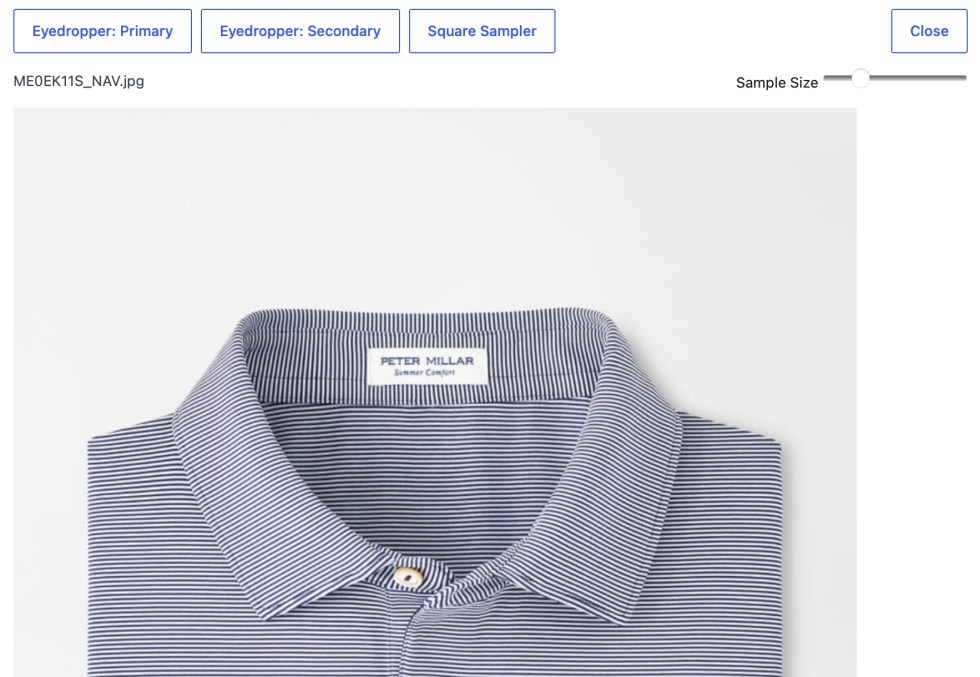
- Sampled image, (sample product image to show pattern or texture)
- Text, (a simple 1-3 character text can be used, good for showing sizes)
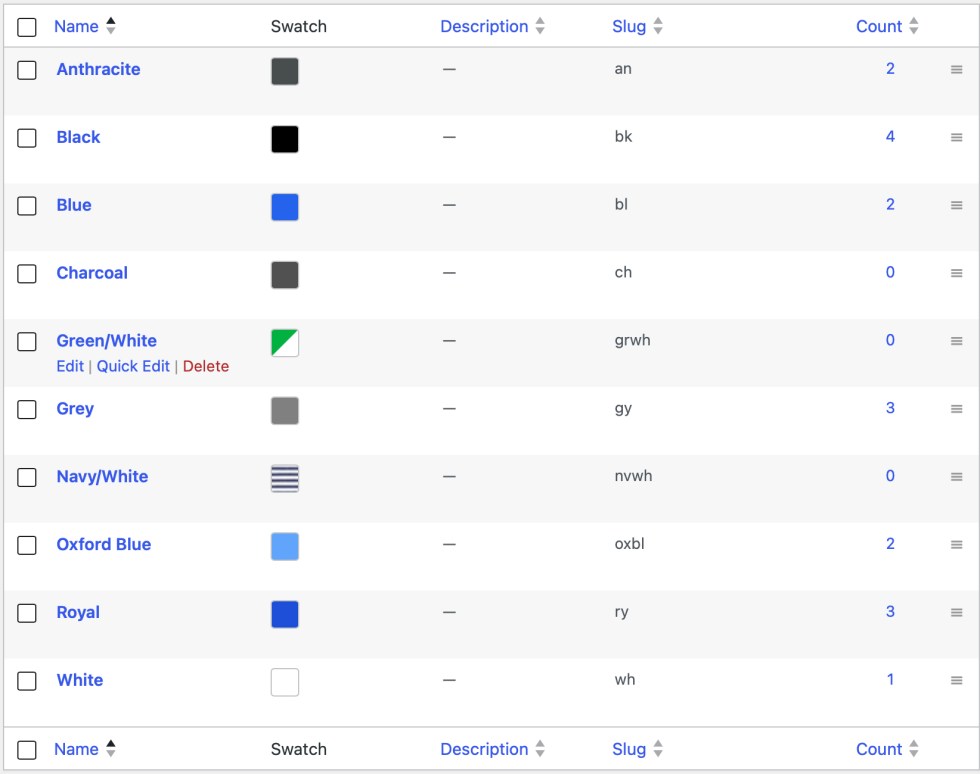
Creating a new attribute with swatches:
- Go to: Products > Attributes
- Enter name for attribute, i.e. “Color”
- Enter slug or leave blank to automatically assign
- Check box for “Enable Swatches”
Enabling swatches on an existing attribute:
- Go to: Products > Attributes
- Hover over the attribute name on the table
- Choose “edit”
- Check box for “Enable Swatches”
- Click ‘Update”
To configure product swatches:
- Go to: Products > Attributes
- Click on attribute to configure terms
- Choose an existing term or create a new one
- Choose display mode, (color, sampled image, text)
- For “Color”, add primary color for single color, add secondary color for split-swatch
- For “Sampled Image”, click on “show media files”, selecting an image thumbnail square sampling to capture an image swatch
- For “Text”, enter characters in “Swatch Text” field
Tips:
- Colors can be selected with and eye-dropper tool by clicking on “show media files”, selecting an image, use eye-dropper tool for primary or secondary colors, or switch to square sampling to capture an image swatch
- Variation Generator will use a term’s slug in the SKU generation as a default, i.e. PROD-001-BK, PROD-002-WH
- Image sampling square can be enlarged to show better detail
- Configuring swatches and slugs before generating variables can save time by automating your variation’s SKU
Using the Variation Generator
↑ Back to topThe Variation Generator has three modes of operation:
- Create new variable product
- Edit existing simple product
- Update existing variable product
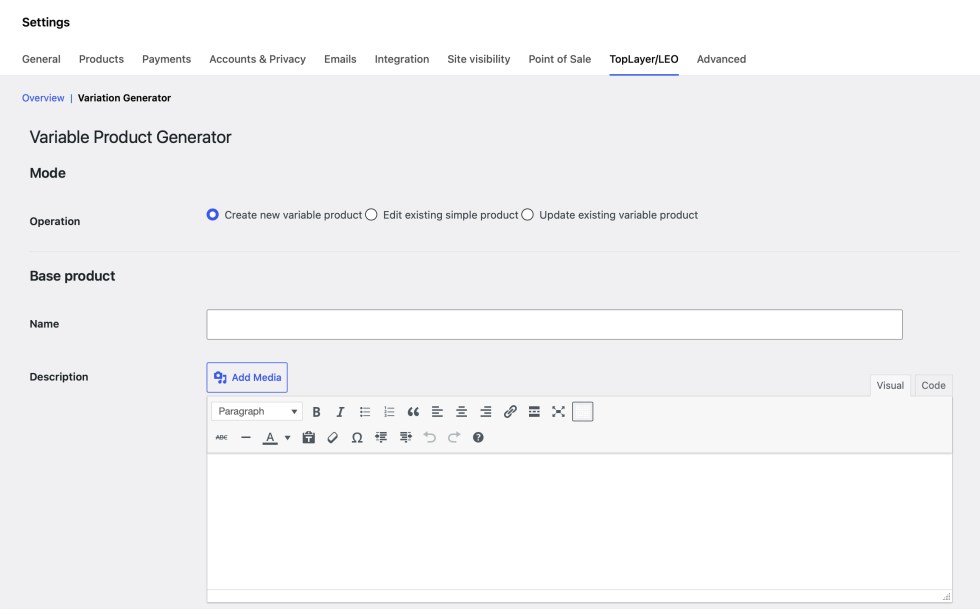
Create a new variable product
- Go to WooCommerce > Settings > TopLayer/LEO > Variation Generator
- Choose Create new variable product
- Complete the Base product fields
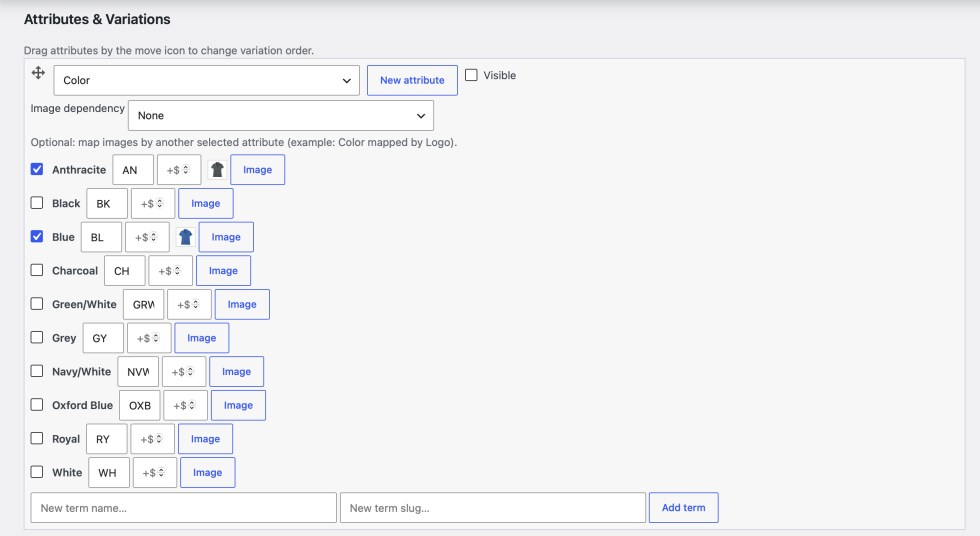
- Add attributes and select terms
- Configure Sub-SKUs, upcharges, images, and optional linked image mappings
- Click Generate product
Convert a simple product
- Choose Edit existing simple product
- Select the simple product from the dropdown
- Review the loaded product fields
- Add attributes and selected terms
- Click Generate product
The selected simple product is converted to a variable product and receives the generated variations.
Update an existing variable product
- Choose Update existing variable product
- Select the variable product from the dropdown
- Review the loaded product fields and attributes
- Select the final attributes and terms you want on the product
- Unselect any terms that should no longer be part of the product
- Click Generate product
When updating an existing variable product, the plugin deletes and rebuilds that product’s variations from the current selection. It also syncs selected product attribute term relationships and removes unselected product attribute term relationships.
Build price adjustments
Use Base price for the parent variation starting price and add per-term upcharges where needed.
For example:
- Base price: 20.00.
- Size XL upcharge: 3.00
- Premium finish upcharge: 5.00
A variation with Size XL and Premium finish receives a regular price of 28.00.
If a sale price is set, the same selected term upcharges are applied to the sale price.
Tips:
- Importing as simple products and adding variations with Variation Generator is an efficient order of operations
- Deleting a products variations before generating new variations keeps the workflow clean
Troubleshooting
↑ Back to topNo attributes appear in the dropdown
Variation Generator uses global WooCommerce product attributes. Go to Products > Attributes and create at least one global attribute, then return to the generator.
No variations are created
Check that at least one term is selected for each attribute row. The generator requires selected terms before it can build combinations.
A generated SKU conflicts with another product
WooCommerce requires unique SKUs. Change the parent SKU, SKU separator, or one of the term Sub-SKUs, then generate again.
A quick-created term fails
Make sure both the term name and slug are filled in. The slug must be unique within that attribute taxonomy.
My updated variable product still has old options
When updating a variable product, confirm that the unwanted terms are unselected in the generator before clicking Generate product. The plugin will rebuild the product from the selected terms.
Swatches do not show on the frontend
Check the following:
- Swatches are enabled for the global attribute under Products > Attributes.
- The attribute terms have saved swatch settings.
- Attribute swatches are enabled on the generated product.
- The product is a variable product with selected terms for that attribute.
Variation images are not what I expected
Review the image priority:
- Linked image dependency match.
- First available selected term image.
- Parent product image.
If you use linked image dependencies, confirm that the dependency attribute is also selected in the product configuration.
FAQs
↑ Back to topHelp customers by answering commonly asked questions.
<strong>Does this extension support custom per-product attributes?</strong>
Not currently. Variation Generator is built for WooCommerce global product attributes.
<strong>Will it delete all products or all variations in my store?</strong>
No. It only works on the product you select or create. When updating a variable product, it deletes and rebuilds variations for that selected product only.
<strong>Can I edit the generated product afterward?</strong>
Yes. The result is a standard WooCommerce variable product. You can edit it in WooCommerce or load it back into Variation Generator for another rebuild.
<strong><strong>Can I use my own SKU pattern?</strong></strong>
Yes. Set the parent SKU, choose a SKU separator, and edit any term Sub-SKU values before generating.
<strong><strong><strong>Do sale prices work with term upcharges?</strong></strong></strong>
Yes. If sale price is provided, selected term upcharges are added to both the regular price and sale price for generated variations.
<strong><strong><strong><strong>Can I use Variation Generator on a live store?</strong></strong></strong></strong>
Yes, but for large catalogs or products with many combinations, test the workflow on staging first and back up the database before bulk-generating or rebuilding products.
<strong><strong><strong><strong><strong>Does the extension require HPOS?</strong></strong></strong></strong></strong>
No. The extension works with products and variations, not order storage. It declares compatibility with WooCommerce custom order tables.

