
Two rule types react to choices the shopper makes at checkout rather than to what is in the basket: Payment discount rewards paying a particular way, and Shipping discount reduces delivery. Merchants use the first to steer customers towards a cheaper payment method, and the second to offer free or reduced delivery over a spend threshold.
Because both depend on a decision made at the end of the journey, neither changes a price in your catalog. The fields every rule shares are described in Discount Rule Fields.
Payment Discount
↑ Back to topTakes an amount off when the shopper selects a particular payment method. Bank transfer costs you less than a card, so a small discount for choosing it can pay for itself, and the same rule type builds a cash on delivery discount where COD suits your margins. PricePulse only ever discounts a payment method — it never adds a surcharge or extra fee for choosing one.
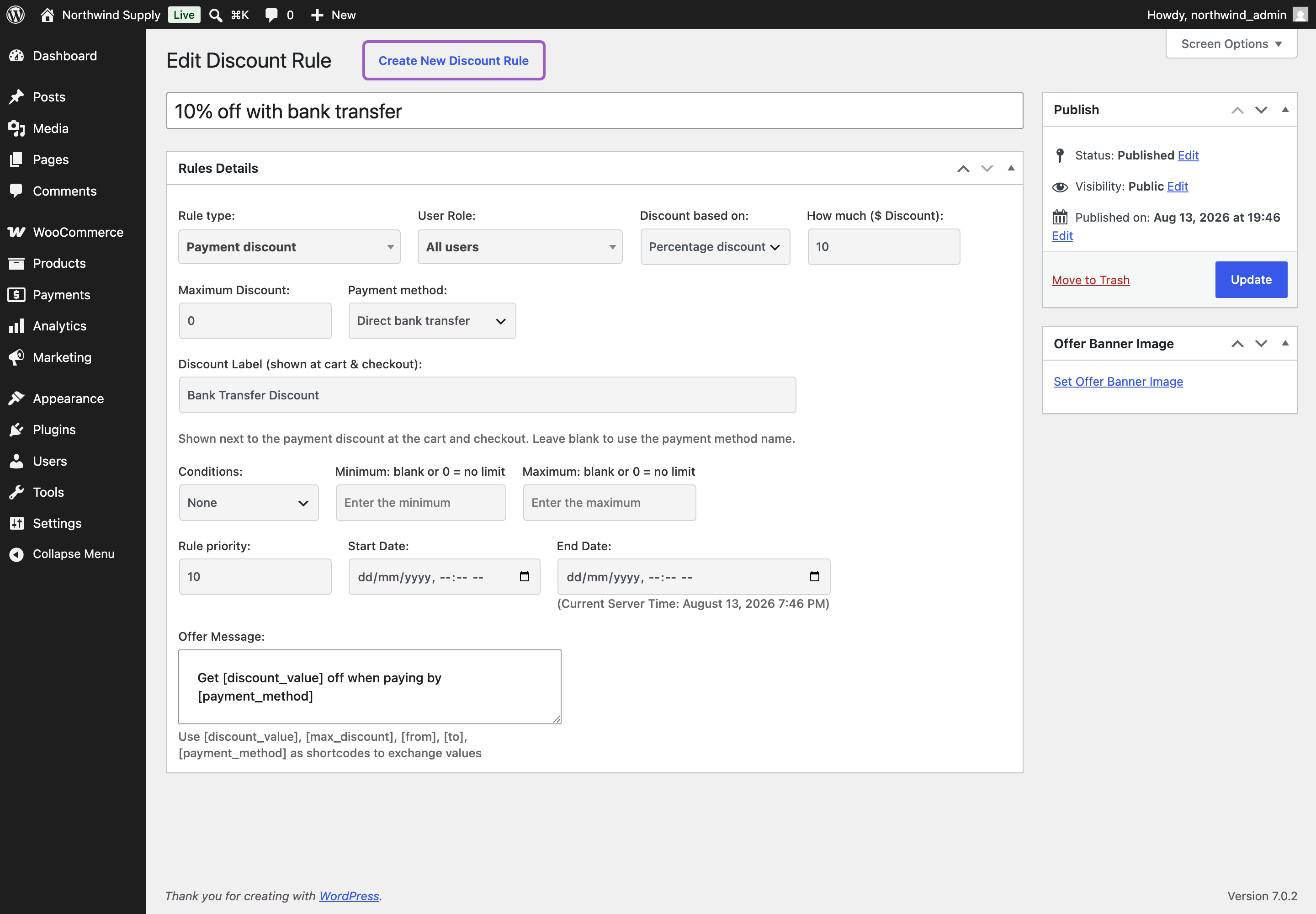
- Payment method – the gateway that earns the discount, listed from the gateways you have enabled in WooCommerce.
- Discount based on – Percentage discount or Fixed discount. This rule type has no flat option.
- Discount Label (shown at cart & checkout) – the wording next to the discount line. Leave blank to use the payment method’s own name.
- Conditions – Cart Total Quantity or Cart Total Value, so the offer can be limited to larger orders.
To set one up:
- Go to: WooCommerce > PricePulse > Dynamic Rules and choose +Add New Rule.
- Rule type: choose Payment discount.
- Payment method: choose the gateway, for example Direct bank transfer.
- Discount based on: choose Percentage discount and enter 10.
- Discount Label: type something the shopper will understand on the order, such as Bank Transfer Discount.
- Publish your rule.
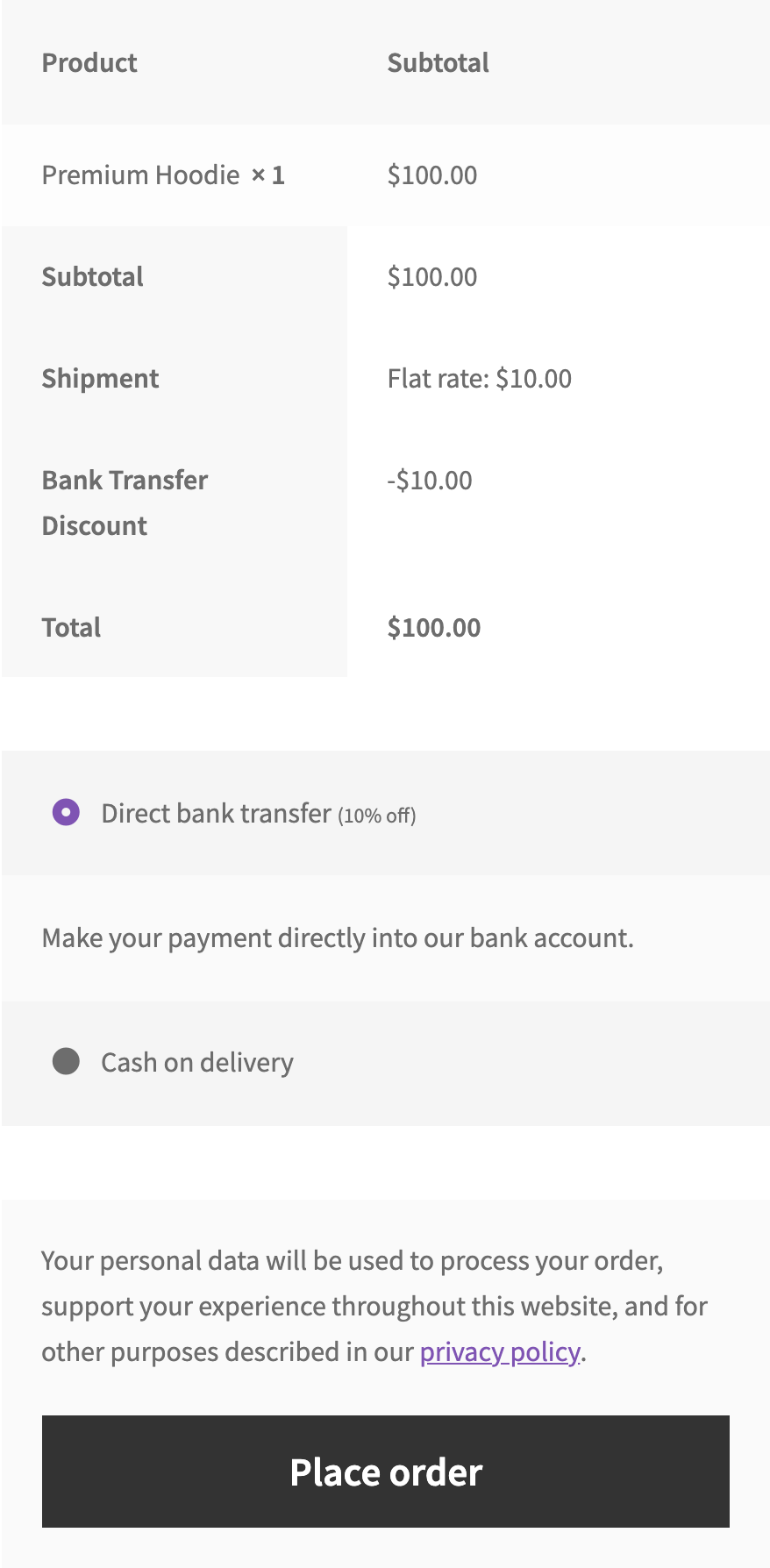
Example. A 10% rule on Direct bank transfer, with a $100 Premium Hoodie in the basket. Choosing bank transfer at checkout adds Bank Transfer Discount −$10.00. Switching to Cash on delivery removes the line, and the total returns to the full amount. A Maximum Discount of 5 would cap the line at −$5.00; a Fixed discount of 15 would make it −$15.00 regardless of basket size.
What the shopper sees. The gateway’s own name at checkout gains a short suffix describing the offer — Direct bank transfer (10% off) — so the choice is visible at the moment it is made. Selecting it adds the discount line to the order summary; selecting another gateway removes it again. Catalog and product pages are unaffected.
A payment discount cannot be advertised on a product page, because it depends on something the shopper has not chosen yet. The offers page is where it can be found in advance: the offer appears as a Payment Method Offer card, and its View details panel names the qualifying gateway, the saving, the steps to claim it and the dates it runs between.
Shipping Discount
↑ Back to topReduces the cost of delivery for shoppers who qualify — half-price shipping over $100, or free shipping on a particular method. You choose which shipping methods and zones it covers, and how much has to be spent.
- Discount based on – Percentage discount or Flat discount. This rule type has no fixed option. Enter 100 as a percentage for free shipping.
- Discount Label (shown at cart & checkout) – the wording next to the discount line. Leave blank to use the default, Shipping Discount.
- Allowed Shipping Methods – the methods the offer applies to, such as Flat rate.
- Allowed Shipping Zones – the zones it applies in. Choose Any to cover them all.
- Minimum Amount Spend – the basket total required before the offer applies.
This rule type has no Conditions section; Minimum Amount Spend is its threshold.
Set Allowed Shipping Zones deliberately and check the value took before you leave the page. A rule saved with no zone matches nothing, which looks exactly like a rule that is not working.
How the Shipping Saving Is Shown
↑ Back to topOne setting decides how the reduction appears. Go to: WooCommerce > PricePulse > Rules Configuration:
- Show as Shipping Discount – delivery keeps its full price and the saving is subtracted on a separate line. The shopper sees what shipping normally costs and what they saved.
- Directly Apply – the shipping rate itself is reduced, with no separate line. Tidier, but the shopper cannot see that a discount happened.
Example. A 50% rule on Flat rate delivery in all zones, with a Minimum Amount Spend of 100 and $10 flat-rate shipping:
- A $20 basket does not qualify. Delivery is $10.00 and the total is $30.00.
- A $100 basket in Show as Shipping Discount keeps delivery at $10.00 and adds Shipping Discount −$5.00, for $105.00 to pay.
- The same basket in Directly Apply shows delivery at $5.00 with no separate line, and the same $105.00 to pay.
What the shopper sees. Nothing in the catalog. In the cart and at checkout the change appears once a covered shipping method is selected — either as a discount line or as a lower rate, depending on the setting above. Shoppers do not always land on the method your rule covers, so it is worth naming it in the offer message.
Both rule types can use [shipping_method], [shipping_zone] and [payment_method] in their offer messages. See Offer Message Tokens.

