
The Affiliate Referral Discount in Affiliate and Referral Program for WooCommerce gives customers who arrive through an affiliate’s referral link an automatic discount at checkout, while the affiliate still earns commission on the order. The feature was previously called Two-Way Commission. This guide covers turning it on, setting the discount store-wide or per product, and what the customer sees. Part of the Affiliate and Referral for WooCommerce documentation.
What the discount does
↑ Back to topIt adds a discount line to the cart of anyone who arrived through an affiliate referral link. That turns a referral link into an offer the affiliate can promote — “use my link and save” — and gives customers a reason to use the link. Two points decide whether it suits your margins:
- The affiliate’s commission is not reduced by the discount. They earn on the product totals as usual; the store funds the discount.
- It is a discount, not a second commission. Nothing is credited to the customer’s account and no extra commission record is created.
Turn it on and set a store-wide discount
↑ Back to top- Go to: WooCommerce > Affiliate & Referral > Commission and open the Settings tab.
- Under Enable/ Disable settings, turn on Affiliate Referral Discount.
- Under Affiliate Referral Discount amount, choose a Discount Type — Fixed or Percentage — and enter the Discount Amount.
- Click Save Changes.
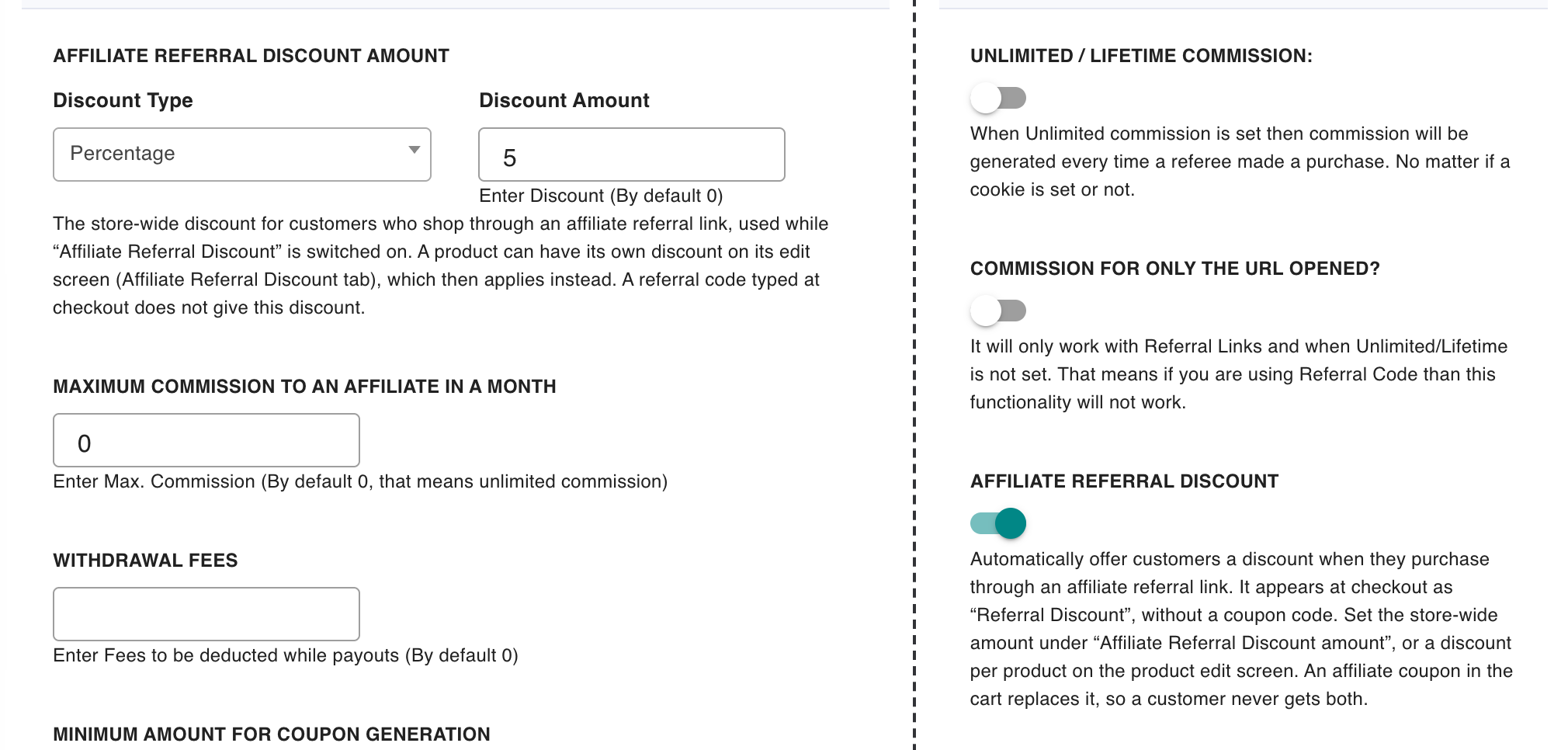
A percentage is taken from the cart’s product subtotal; a fixed amount is taken off the cart once. The discount can bring a cart down to zero but never below it.
Set a different discount on individual products
↑ Back to topWith the feature on, each simple product has an Affiliate Referral Discount tab in its Product data panel. If the tab is missing, reload the product editor after saving the Commission settings.
- Discount type – Fixed or Percentage.
- Discount amount – a fixed amount per unit, or a percentage of the line. Leave empty to use the store-wide discount.
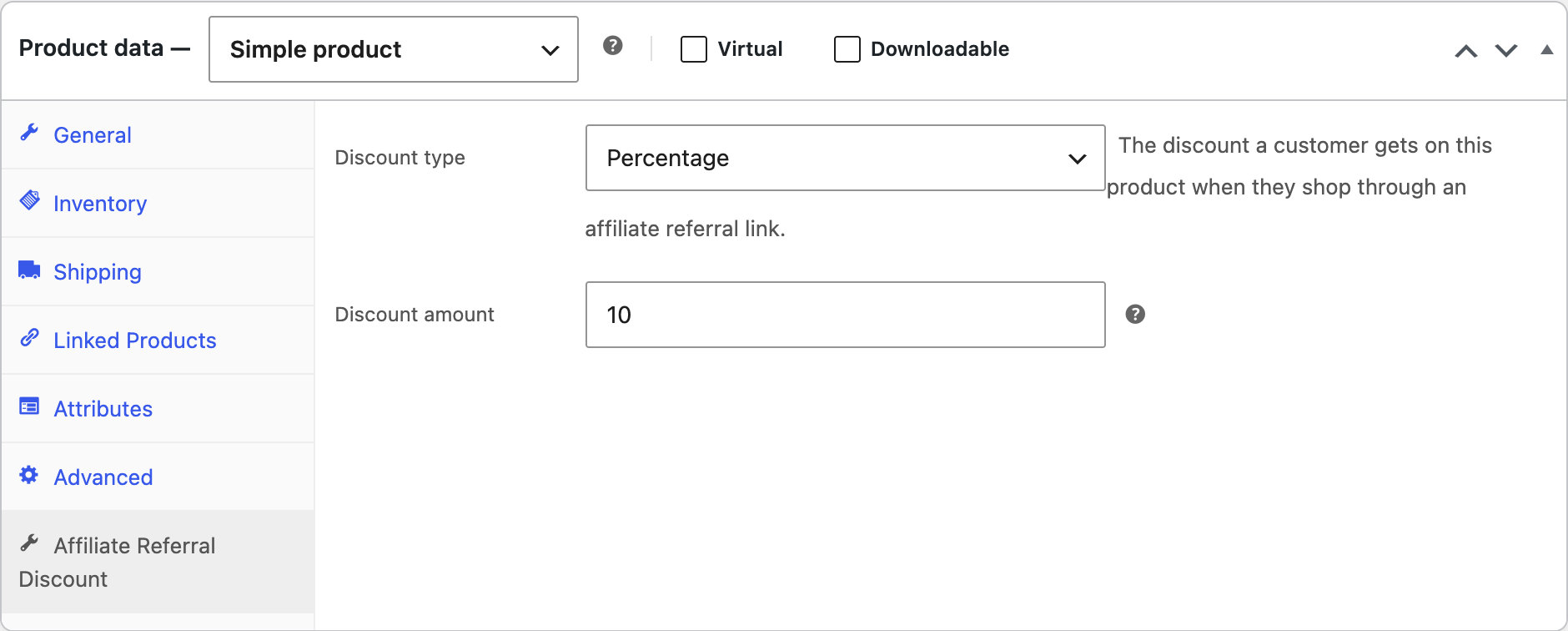
Product discounts take priority. When a referred cart holds any product with its own discount, the cart discount is the total of those product discounts and the store-wide amount is not used. If no product in the cart has its own discount, the store-wide amount applies.
The product tab is available on simple products. For variable, grouped or external products, use the store-wide discount — it applies to referred carts containing any product.
What the customer sees
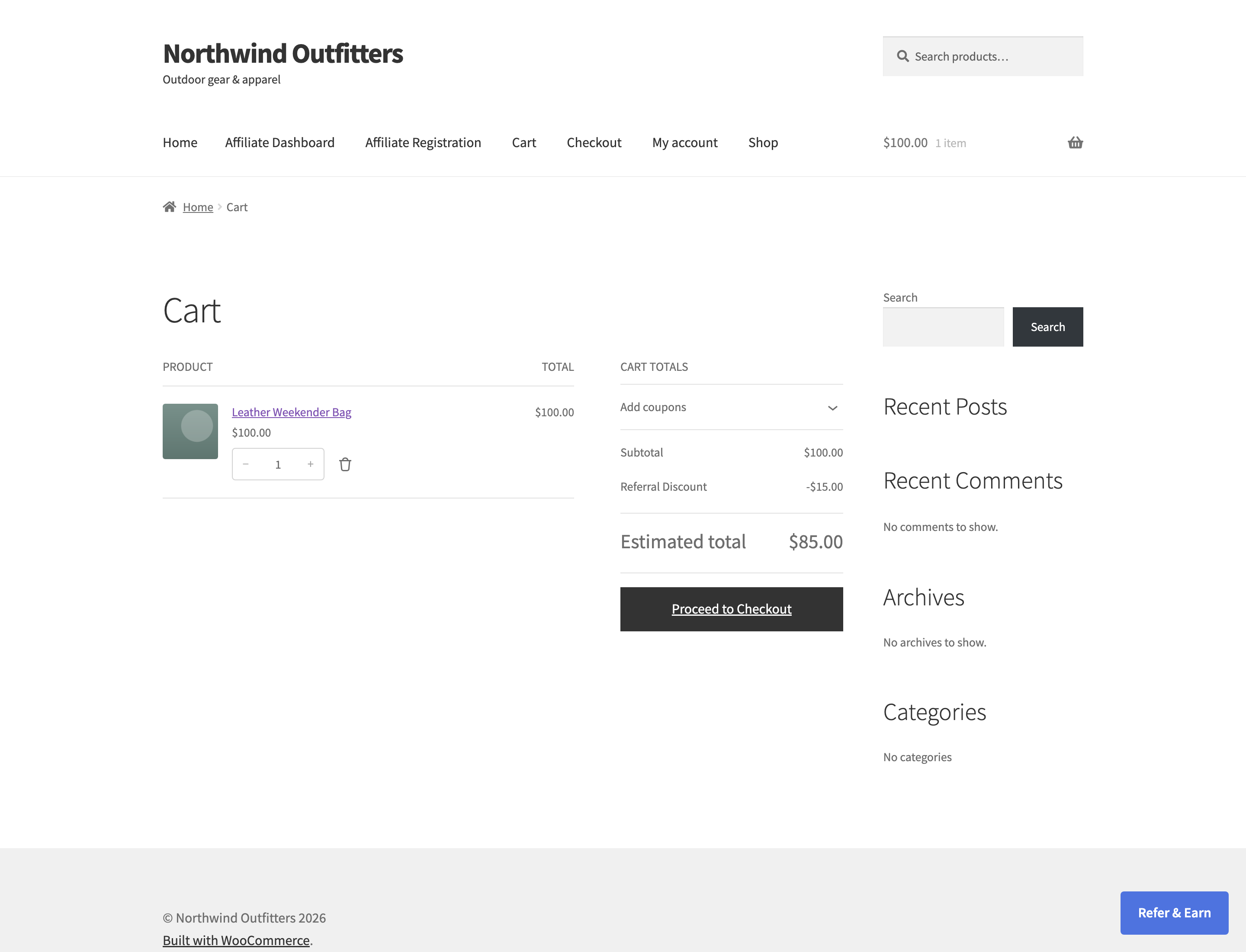
↑ Back to topOn the cart and at checkout, a referred customer gets a line called Referral Discount, applied automatically — there is no code to enter. It applies while the referral is attached to the visit, so a customer who arrives through a link and buys in the same visit sees it, including guests. With lifetime commission on, a signed-in customer who is tied to an affiliate also gets it on later orders; see How to Set Up Lifetime Commissions for Affiliates.
When an affiliate coupon is used instead
↑ Back to top- An affiliate’s coupon in the cart replaces the Referral Discount, so a customer never gets both. The coupon’s own discount applies instead. See How to Track Affiliate Sales with Coupon Codes.
- A referral code typed into the checkout’s referral field credits the affiliate but does not give this discount.
This is the affiliate program’s customer discount. If you want ordinary customers — not affiliates — to refer friends and earn store credit, that is the separate customer referral module: see Set Up a Refer a Friend Program in WooCommerce. The two run independently and have their own rewards.
FAQ
↑ Back to topDoes the discount come out of the affiliate’s commission?
↑ Back to topNo. The affiliate is paid on the product totals as usual, and the store funds the discount. Budget for both when you set the two amounts.
Do referred customers need a coupon code?
↑ Back to topNo — the discount is applied automatically to a referred cart. That is the practical difference from an affiliate coupon, which the customer has to enter.
Why is the Affiliate Referral Discount tab missing from my product?
↑ Back to topUsually because the Affiliate Referral Discount switch is off, or the product editor was open before you saved it — reload the product editor after saving the Commission settings. The tab also appears on simple products only.
Can the discount make an order free?
↑ Back to topIt is capped at the cart subtotal, so a cart can reach zero but never a negative total. Keep percentages sensible and check fixed amounts against your cheapest products.

