
WooCommerce affiliate coupon tracking lets an affiliate be credited without a referral link: each affiliate gets a coupon code in Affiliate and Referral Program for WooCommerce, and every order that uses it earns them commission — no click needed. This guide covers automatic coupons for every affiliate, assigning a coupon by hand, how a coupon decides the credit, and where affiliates find their codes. Part of the Affiliate and Referral for WooCommerce documentation.
What coupon tracking is for
↑ Back to topReferral links work when a visitor follows them. A coupon code works where a link cannot go: read aloud in a podcast, printed on a flyer, spoken in a video, or typed by a customer who found your store on their own. The code carries the attribution, so the affiliate is credited even if the customer never touched their link. It also gives the customer a reason to use it, since a coupon is a discount in its own right.
Affiliate coupons are ordinary WooCommerce coupons with an owner. You can create one for every affiliate automatically, assign existing coupons by hand, or both.
Create a coupon for every affiliate automatically
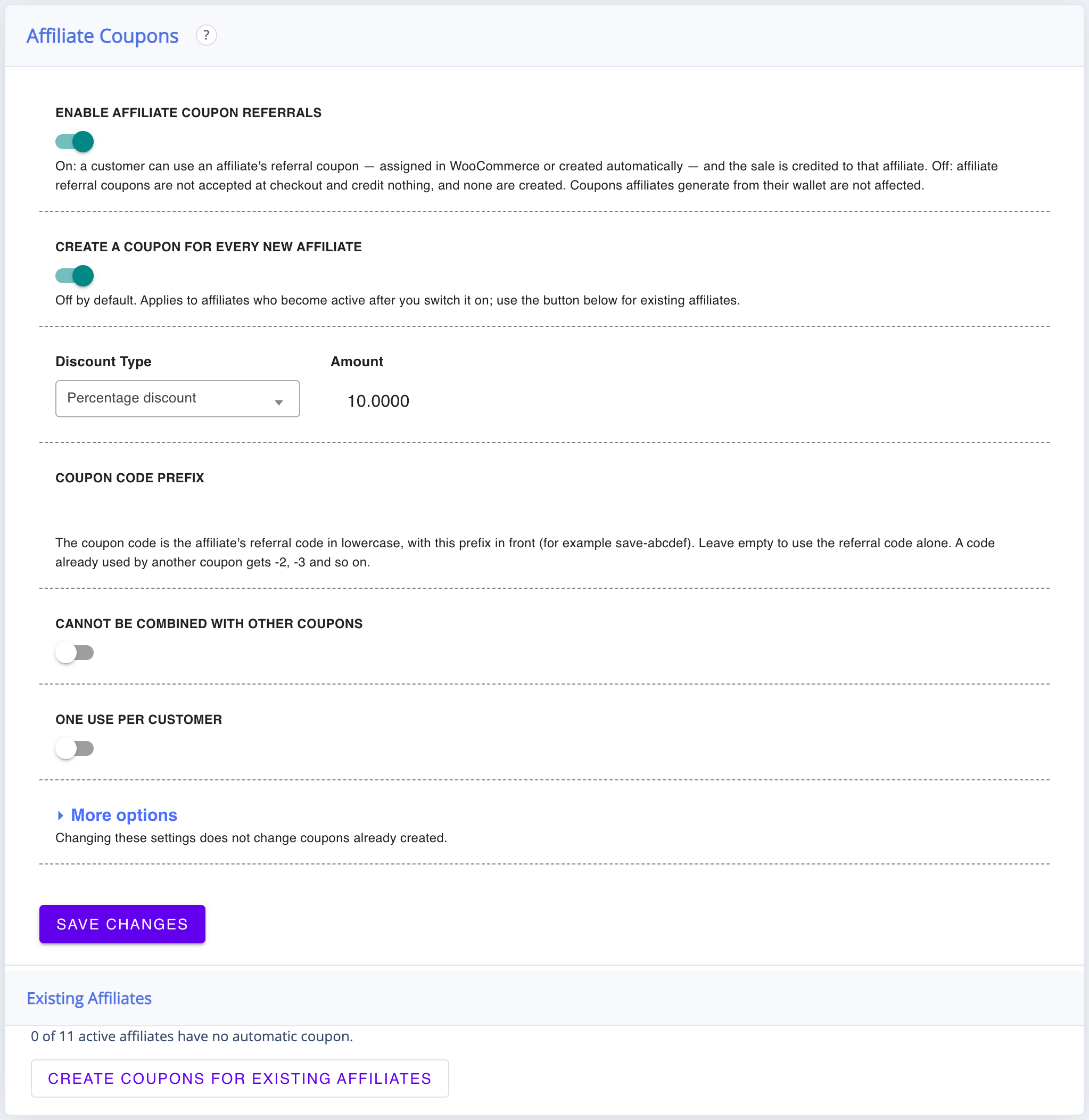
↑ Back to topGo to: WooCommerce > Affiliate & Referral > Advanced Features > Coupons. The Affiliate coupons card holds the settings:
- Enable affiliate coupon referrals – the master switch, on by default. Off, no affiliate coupon is accepted at checkout or credits anyone, and none are created. Coupons affiliates generate from their wallet are not affected.
- Create a coupon for every new affiliate – off by default. Applies to affiliates who become active after you switch it on. With Affiliate Verification on, the coupon is created when you approve the affiliate.
- Discount type and Amount – a Percentage discount or a Fixed cart discount.
- Coupon code prefix – the code is the affiliate’s referral code in lowercase, with this prefix in front, for example save-ab12cd. Leave it empty to use the referral code alone. A code already taken by another coupon gets -2, -3 and so on.
- Cannot be combined with other coupons and One use per customer – the usual WooCommerce restrictions.
- More options – Expires after (days, 0 = never), Total uses (0 = unlimited), Minimum spend, Maximum spend, Exclude sale items and Free shipping.
Click Save Changes. Changing these settings later does not change coupons already created. An affiliate who already has a coupon assigned in WooCommerce is skipped.
For affiliates who joined before you switched it on, use the Existing affiliates card: Create coupons for existing affiliates works through them in the background, with Pause, Resume and Retry failed while it runs.
Assign a coupon by hand
↑ Back to top- Go to: Marketing > Coupons and add a coupon, or open an existing one.
- Set it up as you normally would — code, Discount type, amount and usage limits.
- In the Coupon data box, on the General tab, choose the affiliate in Select Affiliate. Only approved affiliates are listed.
- Publish or Update the coupon.
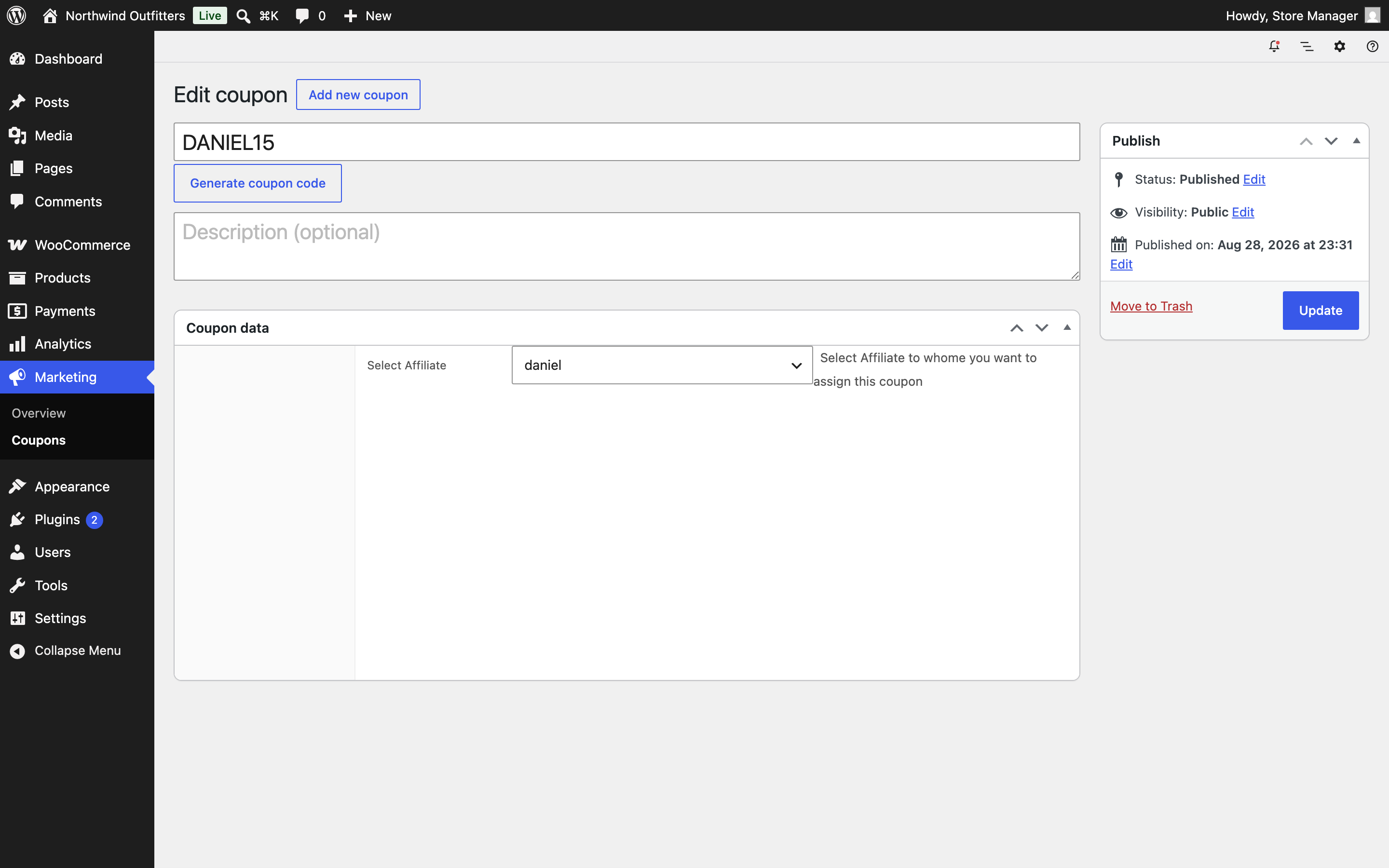
You can rename a coupon’s code in WooCommerce and it stays with its affiliate. Changing Select Affiliate on an automatic coupon moves it to another affiliate, and the plugin does not recreate the original.
Manage one affiliate’s coupon
↑ Back to topOpen the affiliate under Users. The Affiliate coupon row in the Affiliate commission section shows whether their coupon is Manual (assigned in WooCommerce) or Automatic, with Edit in WooCommerce. For an automatic coupon, Regenerate trashes it and creates a new one from the current referral code. When something went wrong, the row says what happened and offers Retry.
How the credit is decided
↑ Back to topThe coupon on the order decides who is credited; the amount comes from your commission rules, as for any other order — see How to Set Up Referral Commission Rules. These rules apply to every affiliate-owned coupon, automatic or assigned by hand:
- The coupon beats a referral link. If a customer arrived through one affiliate’s link and uses another affiliate’s coupon, the coupon’s owner is credited, whichever happened first.
- One affiliate coupon per order. A second one is refused with a message naming the coupon to remove.
- Only while the owner is an active affiliate. A deactivated affiliate’s coupon stops working and starts again if they are reactivated.
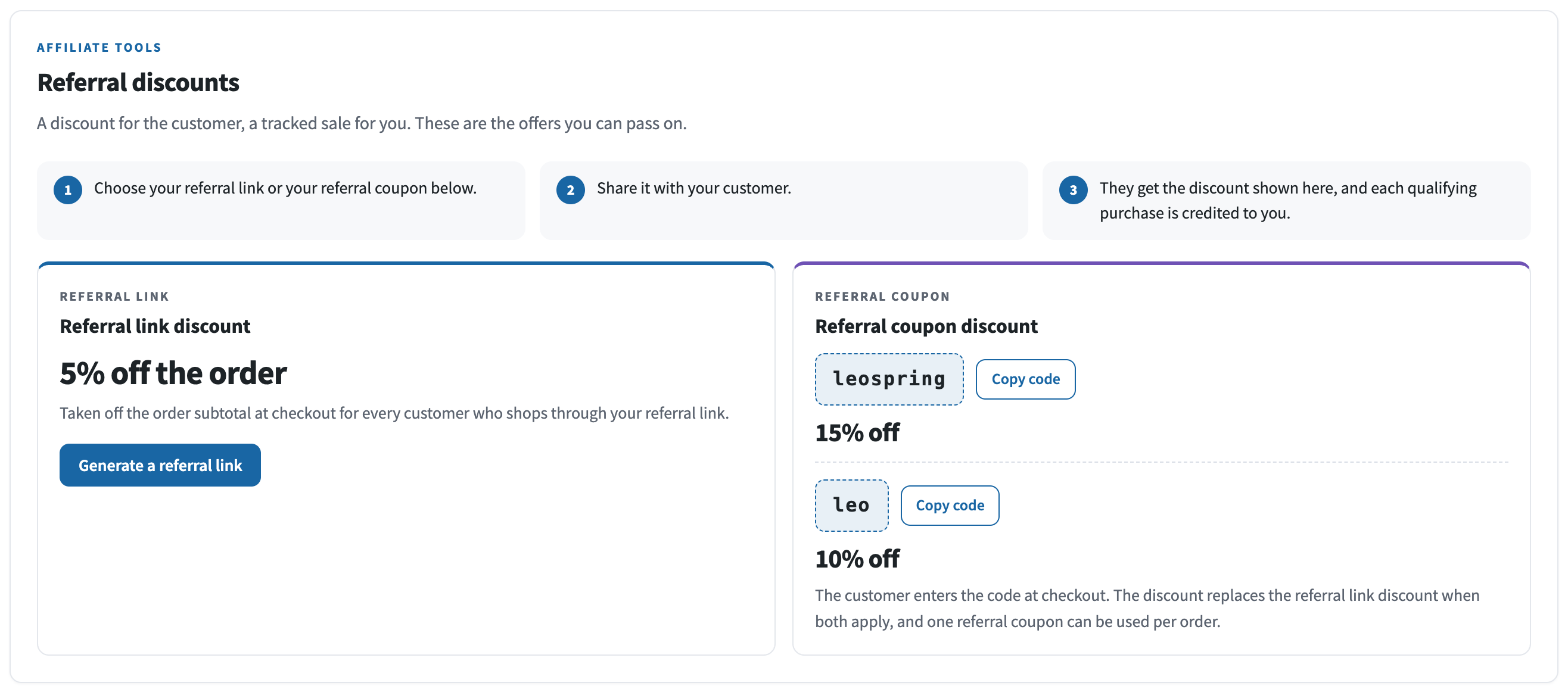
- It replaces the Affiliate Referral Discount. A customer never gets both; see Affiliate Referral Discount for Referred Customers.
One rule sits above the coupon: with Unlimited / Lifetime Commission: on, a signed-in customer who is already tied to an affiliate credits that affiliate whatever code they use. See How to Set Up Lifetime Commissions for Affiliates. To pay a different rate on coupon sales, add a commission rule with Referral medium set to Coupon.
Where the affiliate sees their code
↑ Back to topOn their dashboard, under Affiliate Tools > Referral Discounts. The Referral coupon discount card lists every usable coupon they own, each with its discount, its terms and a Copy code button. Expired or used-up coupons are left out, and the card says so. Until a coupon exists, it explains that the store owner creates it.
Check that a coupon sale was credited
↑ Back to topGo to: WooCommerce > Affiliate & Referral > Manage Referrals. A coupon sale appears like a link sale — same affiliate, order and amount, waiting for your approval — so nothing changes about how you review it. See Approve, Reject and Manage Referrals.
These referral coupons are not the coupons an affiliate generates from their own earnings. Those are a way to spend a wallet balance and never credit anyone — see Pay Affiliates with Store Credit and Wallets.
FAQ
↑ Back to topDoes the customer have to click a referral link first?
↑ Back to topNo — that is the point of a code. Applying it at the cart or checkout is enough to credit the affiliate, which is what makes codes work for offline, audio and video promotion.
Can an affiliate use their own coupon?
↑ Back to topYes, unless you prevent it. With Restrict commission on own referral on, on the Settings tab of the Commission screen, an affiliate’s own coupon is refused for them at checkout. Consider turning it on if you hand out codes.
Can I give one affiliate several codes?
↑ Back to topYes. Each coupon you assign credits them, and all of their usable codes appear under Referral Discounts. A customer can still use only one affiliate coupon per order.
What happens to a coupon when its affiliate is deactivated?
↑ Back to topIt stops working at checkout but is not deleted. If you reactivate the affiliate, it works again. More questions are answered in the Affiliate and Referral Program: FAQ.

