
In Affiliate and Referral Program for WooCommerce, commission is set with an ordered list of commission rules — the commission side of this WooCommerce affiliate plugin, where every rate the program pays is set. For every product in a referred order, the first rule that matches decides what the affiliate earns, and the Store default rule catches everything else. This guide shows how to add rules, narrow them with conditions and dates, put them in the right order, and test them before an order comes in. Part of the Affiliate and Referral for WooCommerce documentation.
Go to: WooCommerce > Affiliate & Referral > Commission. The screen has two tabs: Rules, covered here, and Settings, for everything that is not a rule.
How commission is calculated
↑ Back to topCommission is worked out per order line, from the line’s item total after discounts and excluding tax and shipping. A coupon the customer uses therefore lowers the commission with it — affiliates are paid on what the store actually earned. Each rule pays in one of four ways:
- Percentage of item total – a percentage of the line’s item total.
- Fixed amount per unit – a fixed amount for every unit sold. Three units pay it three times.
- Fixed amount per order – a fixed amount paid once per order, however many matching products the order contains.
- Percentage + fixed amount per unit – both added together.
The Store default rule
↑ Back to topThe Store default rule is your store-wide rate. It is pinned at the bottom of the list, it is always on, and it cannot be deleted, so every referred product earns something unless a rule above it says otherwise. A new store starts with the store default at 0 — open it from the Actions column, set your rate, and click Save rule.
Add a commission rule
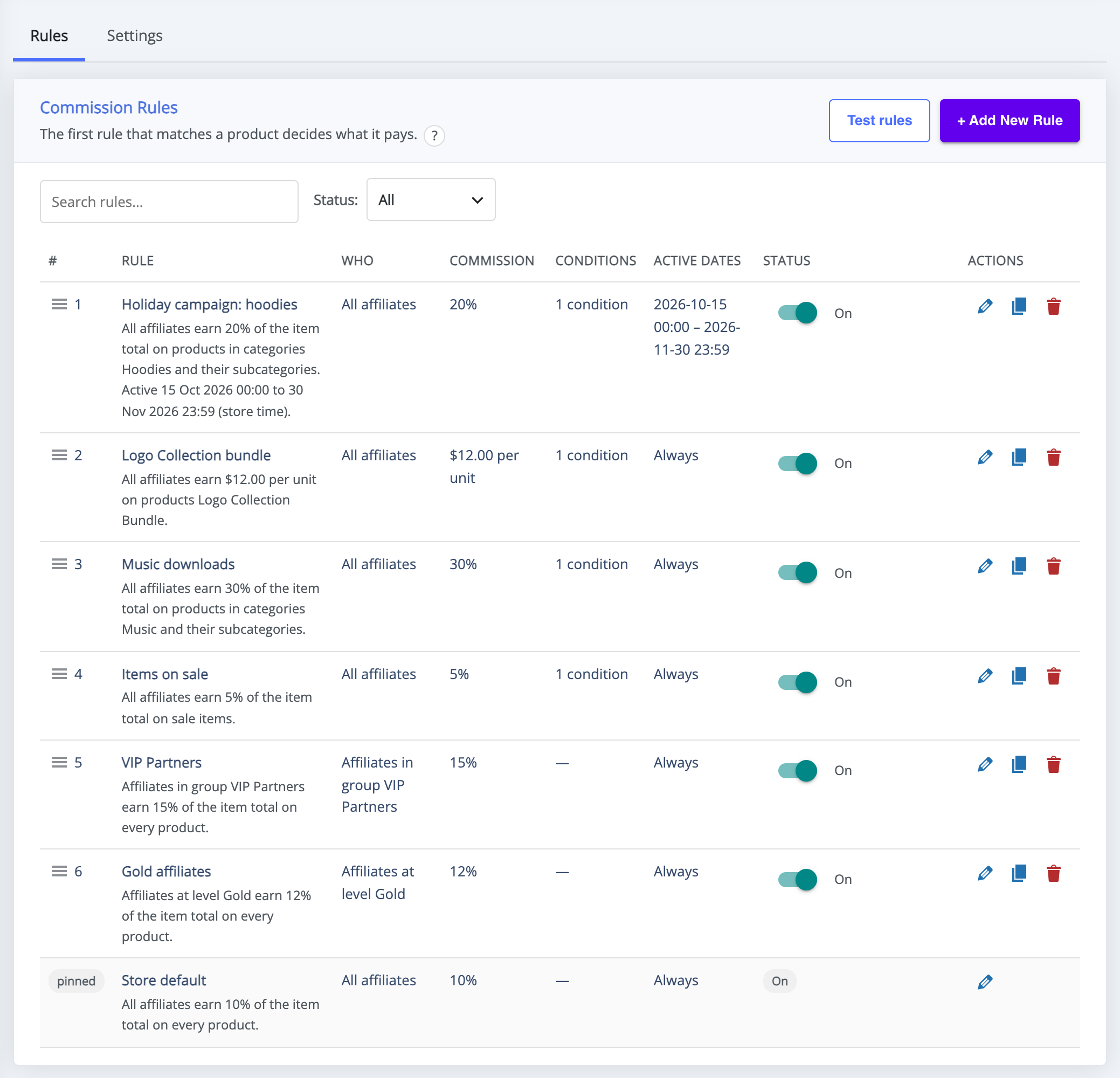
↑ Back to topThe Commission Rules list shows every rule in the order it is checked, with who it pays, the rate, its conditions, its active dates and an on/off switch.
- On the Rules tab, click + Add New Rule.
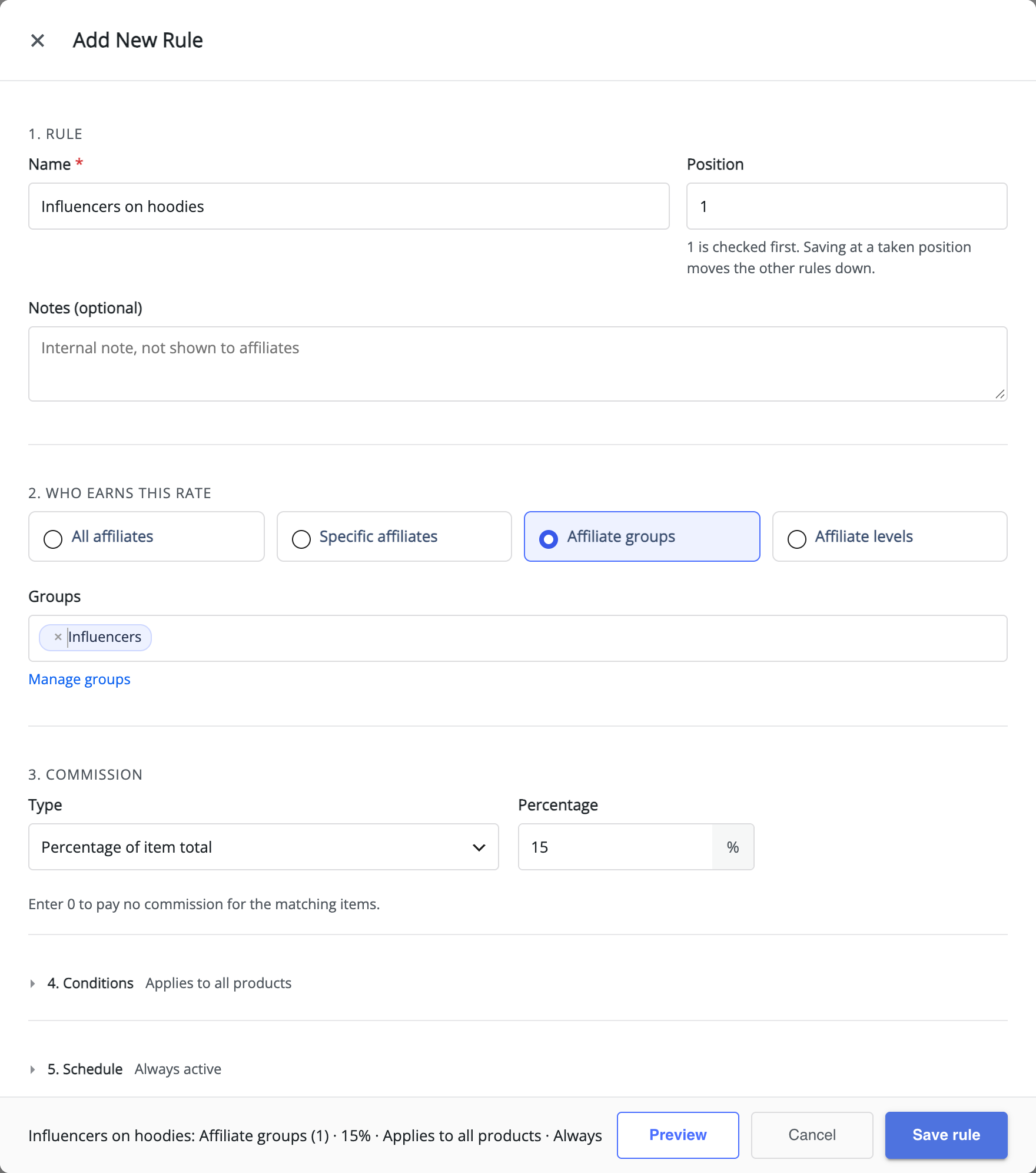
- Under Rule, enter a Name and a Position. Position 1 is checked first; saving at a position that is taken moves the other rules down. Notes (optional) are for you and are never shown to affiliates.
- Under Who earns this rate, choose All affiliates, Specific affiliates, Affiliate groups or Affiliate levels, then pick the affiliates, groups or levels.
- Under Commission, choose the Type and enter the Percentage or Fixed amount. Enter 0 to pay no commission for the matching items.
- Optionally add Conditions and a Schedule, described below.
- Click Save rule.
When the list is empty, three starting points fill in a new rule for you: Rate for everyone, Rate for a group and Promo with dates. Groups are created on the Affiliates screen — see How to Approve and Manage Your Affiliates — and levels on the levels screen — see Performance-Based Affiliate Commission with Affiliate Levels.
Narrow a rule with conditions
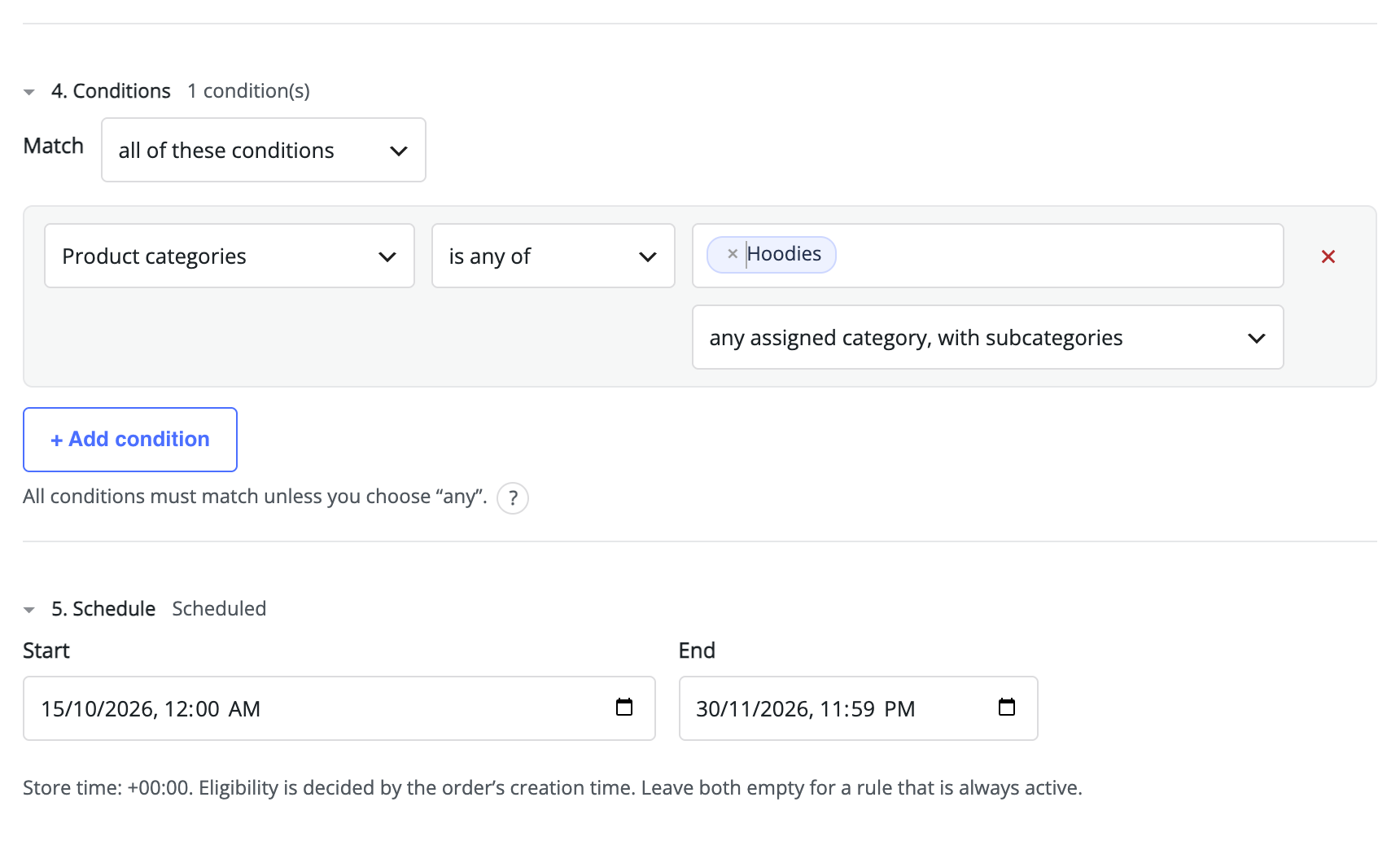
↑ Back to topA rule without conditions applies to all products. Click + Add condition to narrow it, and under Match choose whether the rule needs all of these conditions or any of these conditions. Conditions come in three groups:
- Product – Products, Product categories, Product tags and On sale. These are checked for each product in the order, so one order can match different rules. Product, category and tag rates are explained in Commission per Product, Category or Tag.
- Order and customer – Order subtotal, Order kind (Referred order, Lifetime repeat order or Subscription renewal), Referral medium (Link or Coupon), Customer’s first order and Customer role (the buyer), where guest means the buyer checked out without an account.
- Affiliate – Affiliate total referred sales, Affiliate successful referral count and Affiliate role.
Lists use is any of and is none of, amounts and counts use at least and at most, and yes-or-no conditions use is. Order kind lets one rate apply to referred orders and another to lifetime orders or subscription renewals — see How to Set Up Lifetime Commissions for Affiliates and Recurring Commissions on Subscription Renewals.
Is none of leaves the selected items out of that one rule only — a later rule can still pay them. To pay no commission on some products anywhere, put a rule that pays 0 for those products at the top of the list.
Run a promotion with dates
↑ Back to topUnder Schedule, enter a Start and an End to make a rule active only for that window. Dates use your store’s time, and the order’s creation time decides whether it falls inside the window. Leave both empty for a rule that is always active. When the window ends, orders fall back to the next matching rule automatically.
Which rule wins
↑ Back to topRules are checked from top to bottom for every product in a referred order. The first rule that matches the affiliate and the product decides that product’s commission, and checking stops. Rates never stack.
- A rule that is switched off, or outside its dates, is skipped.
- A matching rule that pays 0 still wins its product, which is how exclusions work.
- A Fixed amount per order rule pays once per order, even when it matches several products.
- The Store default is always checked last.
So put specific rules above general ones. For example, with these three rules:
- Influencers on hoodies – the Influencers group, product category Hoodies, 15%.
- Hoodies – all affiliates, product category Hoodies, 5%.
- Store default – 10%.
A customer buys two hoodies at $40 each through Jane’s link and uses a 10% coupon, so the line’s item total is $72. If Jane is in the Influencers group, rule 1 matches first and she earns 15% of $72 = $10.80. If she is not, rule 2 matches and she earns 5% = $3.60. A cap in the same order matches neither rule and earns the store default of 10%. Had rule 2 been placed first, it would pay every affiliate 5% on hoodies, Influencers included — position decides.
When a rule for an affiliate level and a product rule both match, the same top-to-bottom order decides; see Performance-Based Affiliate Commission with Affiliate Levels.
Test your rules
↑ Back to topTo see which rule wins and what an order would pay before a real order comes in, click Test rules on the Rules tab. It uses your saved rules and changes nothing in your store. See How to Test Affiliate Commission Rules in WooCommerce.
Switch off, edit or delete a rule
↑ Back to top- Status – the switch on each row turns a rule on or off without deleting it. Filter the list by All, Active or Inactive.
- Edit – opens the rule. A change applies to commission worked out after you save.
- Delete – removes the rule. Commission already earned keeps its own copy of the rule.
See which rule paid an order
↑ Back to topOpen the order under WooCommerce > Orders. The Affiliate Referral Details box shows the commission processing result and, for each product, the rule that paid it and the amount. If processing did not finish, a Retry commission processing button appears; see Troubleshooting: Referrals Not Tracking.
Settings that are not rules
↑ Back to topThe Settings tab holds the program settings that apply alongside your rules:
- Affiliate Referral Discount amount – the discount a referred customer receives; see Affiliate Referral Discount for Referred Customers.
- Maximum commission to an Affiliate in a month – a monthly ceiling per affiliate; 0 means unlimited. A commission that would cross it is reduced to fit, and anything past the ceiling is recorded as capped instead of paid. Turn on Include MLM commission in monthly cap if multi-tier commission should count towards it.
- Withdrawal Fees, the withdrawal limits and Minimum amount for Coupon generation – see Pay Affiliates via PayPal, Stripe and Bank and Pay Affiliates with Store Credit and Wallets.
- Affiliate Referral Automation – approves commission automatically when an order reaches the status you choose; see Approve, Reject and Manage Referrals.
- Commission handling on refund and Return period – see Refunds, Return Periods and Commission Recovery.
- Unlimited / Lifetime Commission – keeps paying the affiliate who introduced a customer; see How to Set Up Lifetime Commissions for Affiliates.
- Commission for only the URL opened? – pays only for the product whose link the affiliate shared. A rule can still pay other products if it has Pays even when the affiliate shared a different product link ticked.
- Restrict commission on sale items – no commission on products that are on sale.
- Restrict commission on own referral – stops affiliates earning on their own purchases. Off by default; consider turning it on before you launch.
Click Save Changes after editing the Settings tab.
Stores not yet converted
↑ Back to topA store updated from an earlier version keeps its previous commission settings until it runs the one-time conversion. Until then the Commission screen shows those settings with an Upgrade to commission rules card at the top. See Upgrading to Version 3.0.0 and Converting to Commission Rules.
Related commission features
↑ Back to top- Commission per Product, Category or Tag – different rates for chosen products, categories or tags.
- Performance-Based Affiliate Commission with Affiliate Levels – better rates as affiliates reach their targets.
- Affiliate Referral Discount for Referred Customers – a checkout discount for the customer while the affiliate earns.
- How to Set Up Lifetime Commissions for Affiliates – keep paying for a customer’s later orders.
- Recurring Commissions on Subscription Renewals – commission on each renewal.
- Performance Bonuses and Rank Rewards for Affiliates – one-time bonuses for reaching a target.
FAQ
↑ Back to topIs commission calculated on the order total?
↑ Back to topNo — per product line, on the item total after discounts and excluding tax and shipping. An order with three products can match three different rules. Only an Order subtotal condition looks at the whole order, to decide whether a rule applies.
Can I combine a percentage and a fixed amount?
↑ Back to topYes. Choose Percentage + fixed amount per unit as the rule’s type, and the rule pays both on each matching product.
What happens when two rules match the same product?
↑ Back to topThe higher one in the list pays, and the other is ignored for that product. Change a rule’s Position to change which wins, and use Test rules to confirm.
How do I stop some products earning commission?
↑ Back to topAdd a rule for those products that pays 0, and give it position 1. It wins those products before any other rule is checked.
Does a refund take the commission back?
↑ Back to topIt depends on Commission handling on refund on the Settings tab: Off changes nothing, Automatic recovers the affected commission, and Manual lists the refund for your decision. See Refunds, Return Periods and Commission Recovery.

