
To pay a different affiliate commission on particular products, categories or tags in Affiliate and Referral Program for WooCommerce, add a commission rule with a Products, Product categories or Product tags condition. Products the rule does not cover keep earning your store-wide rate. This guide covers one product, several products, a whole category, a tag, and products that should earn nothing. Part of the Affiliate and Referral for WooCommerce documentation.
How product rates fit the rule list
↑ Back to topA product rate is an ordinary commission rule with a product condition. Rules are checked from top to bottom for every product in a referred order, and the first rule that matches decides what that product earns. Place product rules above the Store default, which is always checked last. The rule list and the rule editor are explained in How to Set Up Referral Commission Rules.
A product rule can pay everyone, or only Specific affiliates, Affiliate groups or Affiliate levels — so one product can carry a standard rate for everyone else and a higher one for a chosen group, with the group’s rule placed first.
Set a rate for one product
↑ Back to top- Go to: WooCommerce > Affiliate & Referral > Commission and click + Add New Rule.
- Enter a Name, such as “Trail jacket 12%”, and a Position above any broader rule.
- Under Who earns this rate, keep All affiliates or choose who should earn it.
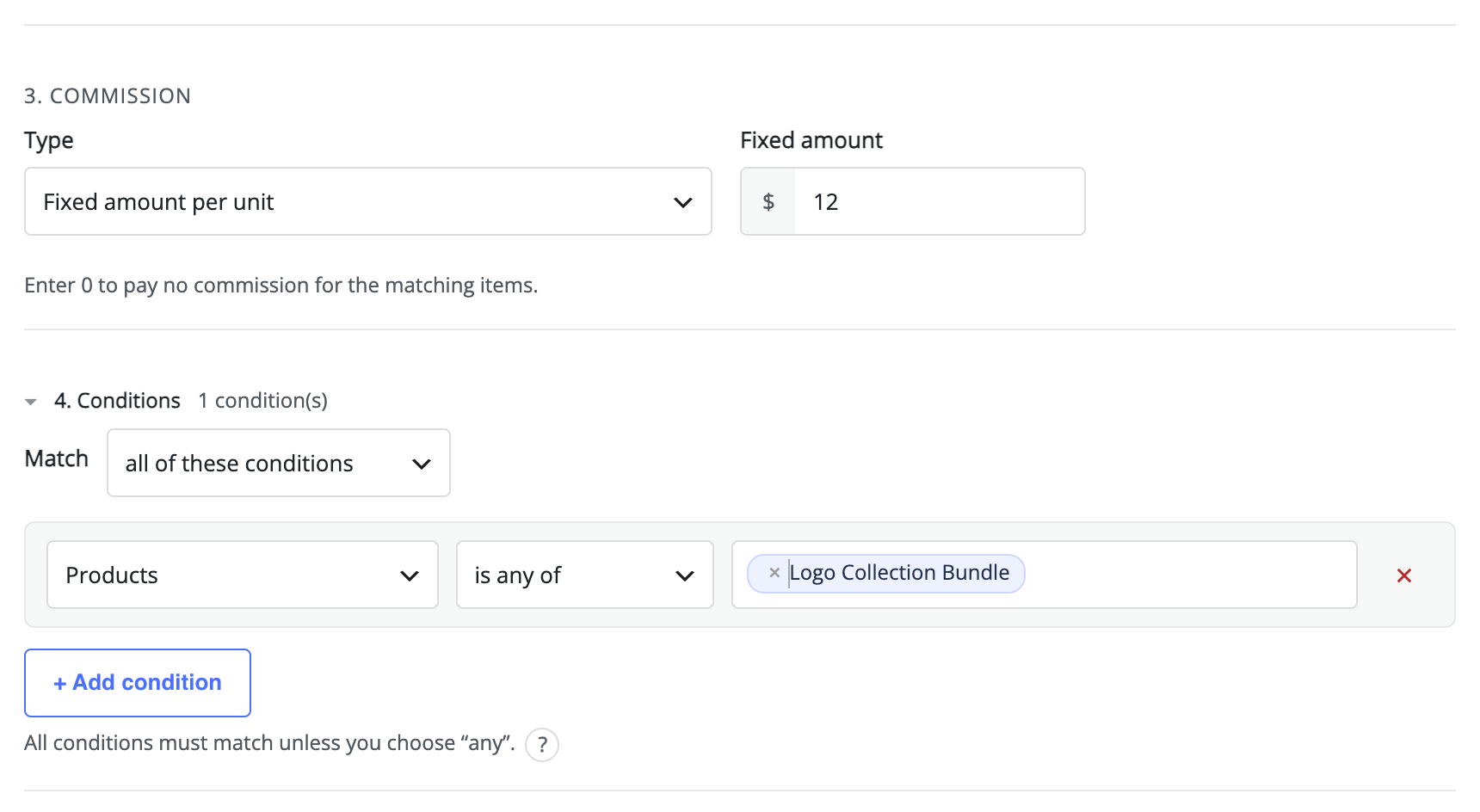
- Under Commission, choose the Type and enter the amount.
- Under Conditions, click + Add condition, choose Products, keep is any of, and search for the product. Add more products to the same condition to give them all the same rate.
- Click Save rule.
For a variable product, choose the product itself to cover all of its variations, or a single variation to give only that one its own rate.
Pay a fixed amount per unit or per order
↑ Back to top- Fixed amount per unit – the amount is paid for every unit. Three of the product in one order pay it three times.
- Fixed amount per order – the amount is paid once per order, however many matching products the order contains.
- Percentage + fixed amount per unit – a percentage of the item total plus a fixed amount for every unit.
Pay nothing on some products
↑ Back to topTo stop products earning commission — gift cards or heavily discounted lines, for example — add a rule with a Products condition for them, enter 0 as the amount, and give it position 1. A matching rule that pays 0 still wins those products, so no rule below it is checked.
Choosing is none of in a condition leaves those products out of that one rule only. A later rule can still pay them. Use a 0 rule at the top when they should earn nothing anywhere.
Set a rate for a category
↑ Back to topAdd a Product categories condition instead of Products, choose one or more categories, and choose how the product’s categories are matched:
- any assigned category, with subcategories – matches products in the category or any of its subcategories. This is the usual choice.
- any assigned category, exact – matches products assigned to the chosen category itself, whichever other categories they are in.
- first assigned category only, exact (kept from the previous version) – looks only at the product’s first category. Converted rules use it so commission stays exactly as it was.
A dated category rate is the same rule with a Start and End under Schedule; outside those dates the products fall back to the next matching rule.
Set a rate for a tag
↑ Back to topAdd a Product tags condition and choose the tags. Tags are useful for rates that cut across categories, such as a “new-season” tag on products from several ranges. To combine conditions — products in one category that also carry a tag — add both and keep Match set to all of these conditions.
See which rules pay on a product
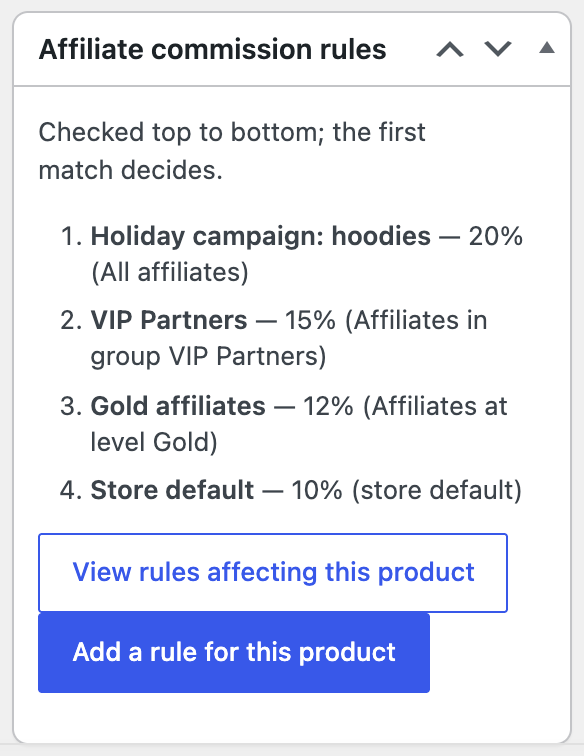
↑ Back to topOpen the product under Products. The Affiliate commission rules box lists the active rules that match the product, in the order they are checked — the first match decides. When none matches, it says the store default applies. Use View rules affecting this product to open the rule list, or Add a rule for this product to start a new rule for it.
Which rate applies
↑ Back to topRates never stack: each product earns from the first matching rule only. If a hoodie matches a 15% rule for the Influencers group at position 1, a 5% Hoodies category rule at position 2 and a 10% store default, an Influencers affiliate earns 15%, every other affiliate earns 5%, and products outside the category earn 10%. Click Test rules on the Rules tab to check any combination before an order comes in.
Stores not yet converted
↑ Back to topA store updated from an earlier version keeps its previous product, category and per-affiliate commission settings until it runs the one-time conversion, which writes them as rules in the same order. See Upgrading to Version 3.0.0 and Converting to Commission Rules.
FAQ
↑ Back to topCan one product pay different affiliates different rates?
↑ Back to topYes. Add a rule for the product that targets the affiliates, group or level with the special rate, and place it above the rule that pays everyone else.
Does a category rate include subcategories?
↑ Back to topYes, with any assigned category, with subcategories, the usual setting. Choose an exact option when only products in the category itself should match.
Can I set a product’s commission on the product screen?
↑ Back to topNo — rates live in commission rules. The Affiliate commission rules box on the product screen shows which rules apply and links straight to a new rule for the product.
Why does a product still earn the store-wide rate?
↑ Back to topBecause no rule above the store default matches it. Check that the rule is switched on, inside its dates, and lists the product, its category or its tag — the product’s Affiliate commission rules box shows what matches.

