
Updating Affiliate and Referral Program for WooCommerce to version 3.0.0 from an earlier version, such as 2.5.0, keeps every setting, affiliate, referral and wallet balance. Your commission calculator does not change on its own: it changes only when you run the one-time conversion that turns your current commission settings into commission rules. This page explains what the update does by itself, how to preview and run the conversion, and what your previous settings become. Part of the Affiliate and Referral for WooCommerce documentation.
New stores do not need this page. A fresh installation of version 3.0.0 starts on commission rules straight away — see How to Set Up Referral Commission Rules.
What the update changes on its own
↑ Back to topAfter updating, open any screen in your WordPress admin once. That first admin visit finishes the update; nothing else is needed before you carry on trading.
- Database – the plugin adds the tables the new features use. If that ever fails, an admin notice says so, commissions keep working with your previous settings, and the update is tried again on every admin page load.
- Ranks and sales-threshold bonuses – they are transferred into the Performance bonuses list under Bonuses, with the awards already made. Until the transfer completes, the previous bonus paths keep working, and the list shows a notice with a Retry transfer button. See Performance Bonuses and Rank Rewards for Affiliates.
- Refund handling – the old Reject commission on refund switch becomes the Commission handling on refund setting. A store that had the switch on starts on Automatic; a store that had it off starts on Off.
Check your refund setting after updating. The old switch only rejected commission that was still waiting for approval. Automatic also takes back commission that is already in an affiliate’s wallet. See Refunds, Return Periods and Commission Recovery.
Features that do not depend on the commission calculator are available immediately: refund reviews, the return period, automatic affiliate coupons and the new bank details form. Affiliate Groups and the new Affiliate Levels screen arrive with the conversion, because both work through commission rules.
What stays as it is until you convert
↑ Back to top- Commission is worked out exactly as before. The Commission screen still shows your previous settings — Commission Based On:, the product, category and affiliate rates, and the special offers.
- The User Levels screen still works the way it did, including the requirement to choose Users under Commission Based On: before levels pay.
- Affiliates, referrals, wallet balances, payout requests and your commission settings are untouched. Nothing is converted automatically.
The Upgrade to commission rules card
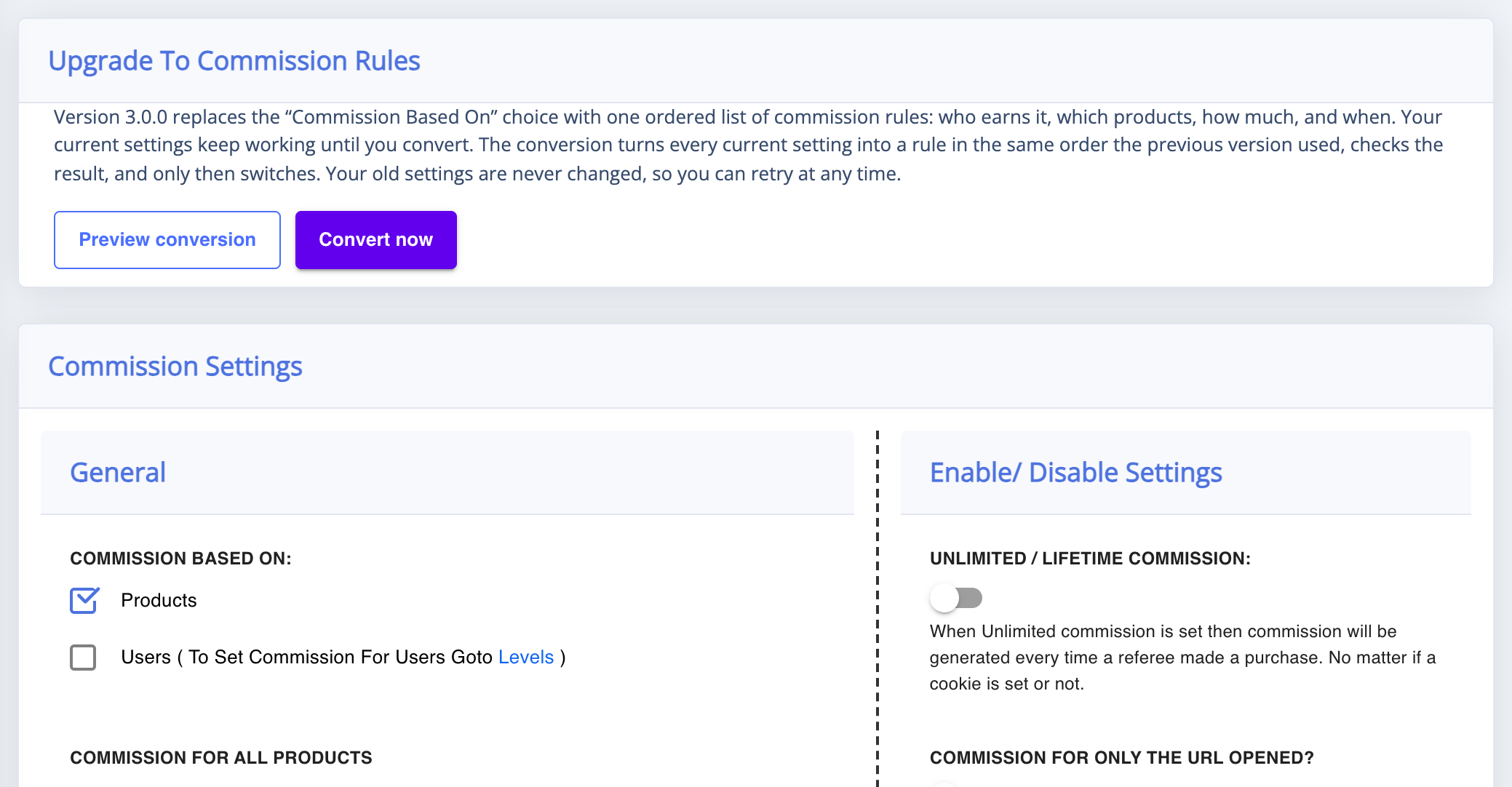
↑ Back to topGo to: WooCommerce > Affiliate & Referral > Commission. On a store that has not converted yet, the screen opens with an Upgrade to commission rules card above your previous settings. It explains that one ordered list of commission rules replaces the Commission Based On: choice, and it carries two buttons:
- Preview conversion – shows what would be created. Nothing is saved.
- Convert now – runs the conversion, checks the result, and switches the store to commission rules only if the check passes.
Preview the conversion
↑ Back to topClick Preview conversion first. The card lists every commission rule that would be created, in the order they would be checked, with the amount each one pays. Rules that would be created switched off are marked inactive. The preview ends with the amount the Store default rule would pay, how many levels and products were found, and any notes about settings the previous version never used.
Read the notes before converting. A note such as “Category rates existed but the product commission mode was not set” means those rates never paid anything, so they are converted as inactive rules rather than being switched on by surprise.
Convert now
↑ Back to top- Finish any edits to your commission settings first. If they change while the conversion runs, it starts again, and it stops with a message if they keep changing.
- Click Convert now and confirm. Your previous settings stay untouched while the conversion runs.
- Keep the screen open while the card shows its progress: it reads the product commissions, writes the levels and rules, maps each affiliate’s level, publishes the rules and verifies them.
- Wait for the comparison. The conversion works out your 200 most recent referred orders with both the previous calculator and the new rules, and switches only when they agree.
The card then shows one of three results:
- Complete – the store now uses commission rules. Reload the screen to see them.
- Needs review – some of the compared orders would be paid differently, and the card lists them. Nothing has switched yet. Click Retry after adjusting your previous settings, or Convert as written to accept the listed differences and switch anyway.
- Failed – the card shows why, and the WooCommerce log has the detail. Click Retry: because your previous settings were never changed, retrying is always safe.
After converting
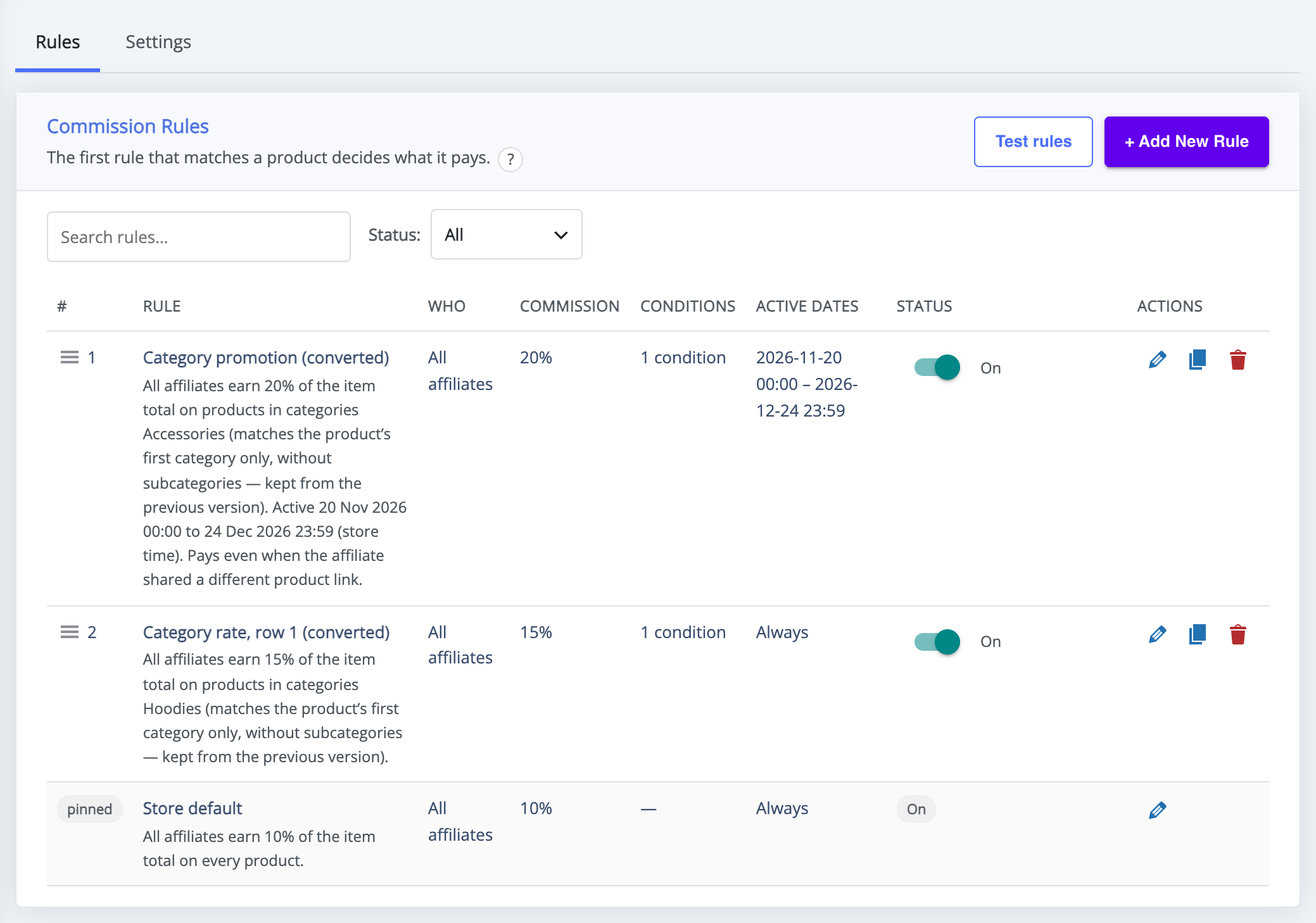
↑ Back to top- The Commission screen has two tabs: Rules, with your converted rules in the order your previous settings were applied, and Settings, with everything that is not a rule. Converted rules carry “(converted)” in their names; rename them as you like.
- Your store-wide rate is now the Store default rule, pinned at the bottom of the list.
- The Affiliates screen gains an Affiliate Groups tab, and User Levels opens the new Affiliate Levels screen with your existing levels.
- Use Test rules on the Rules tab to check a familiar order before you change anything.
The conversion is one-way
↑ Back to topThere is no button to switch back. After converting, the previous settings stay stored but are no longer used or shown, and running the conversion again is refused because the store already uses commission rules. From then on, change commission by editing the rules. That is why the preview and the order comparison come first.
What your previous settings become
↑ Back to topThe previous version applied its settings from the most specific to the most general, stopping at the first that applied to a product. Commission rules are also checked from top to bottom, first match wins, so the conversion writes your settings as rules in that same order:
- Exclude products from affiliate commission → Excluded products (converted), a rule that pays 0 at the top of the list.
- Commission per Affiliate rows, including any Product Tag → Affiliate rate, row 1 (converted) and so on.
- Commission per Affiliate per Category rows → Affiliate category rate, row 1 (converted) and so on.
- Special offers per Category → Category promotion (converted), with the same start and end dates.
- The commission saved on individual products → one rule per distinct amount, named after it, such as Product commission 15% (converted), plus Products with no commission (converted) for products set to 0.
- Commission per Category rows → Category rate, row 1 (converted) and so on. Category rules keep the previous matching: the product’s first assigned category only.
- Commission for All Products → the Store default rule.
Each level becomes an Affiliate Level with one rule that pays its rate. If your store paid by affiliate level (Commission Based On: Users), the level rules are active and come right after the exclusions, the product, category and affiliate rates are converted as inactive rules, and the store default is 0 — exactly how the store paid before. If your store paid by products, the level rules are converted as inactive rules instead. Either way, switch a rule on or off later from the Rules tab.
FAQ
↑ Back to topDo I have to convert?
↑ Back to topNo. Your store keeps paying commission with the previous calculator for as long as you like. You need the conversion only for features that work through commission rules, such as Affiliate Groups, the Affiliate Levels screen, Order kind conditions and dated promotions for groups.
Can I go back to the previous settings after converting?
↑ Back to topNo. The conversion is one-way. Preview it, let the order comparison run, and use Test rules afterwards to check familiar orders.
Why are some converted rules switched off?
↑ Back to topBecause the previous version never used those settings in your store. Level rates do not pay on a store that paid by products, and product and category rates do not pay on a store that paid by level. Converting them as inactive rules keeps every order paid exactly as before, and leaves the values ready if you want them later.
Why does a converted category rule match fewer products than I expected?
↑ Back to topBecause it keeps the previous matching, which looked only at a product’s first assigned category. To include every assigned category, or subcategories, open the rule and change how its Product categories condition matches.
What happens to commissions that were already earned?
↑ Back to topNothing. Commission already recorded, wallet balances and payout requests are not recalculated. The rules apply to commission worked out after the switch.

