
Affiliate Levels in Affiliate and Referral Program for WooCommerce give affiliates a better commission rate as they perform — for example 10% when they join, 12% after ten approved referrals and 15% after $5,000 in referred sales. A level controls the commission an affiliate earns on their own referred orders. It is separate from MLM network commission, which pays sponsors from the sales of the affiliates they recruited. Part of the Affiliate and Referral for WooCommerce documentation.
You can pay commission with Affiliate Levels alone, with product, category and tag rules alone, or with both together. This guide explains each approach, how affiliates move between levels, and which rule pays when a level rule and a product rule both apply.
Affiliate Levels are not MLM levels. An Affiliate Level changes what an affiliate earns on their own referred orders. Multi-tier (MLM) commission is a separate stream paid to sponsors from their recruits’ sales, and it never changes an affiliate’s own rate. The two run independently.
How Affiliate Levels work
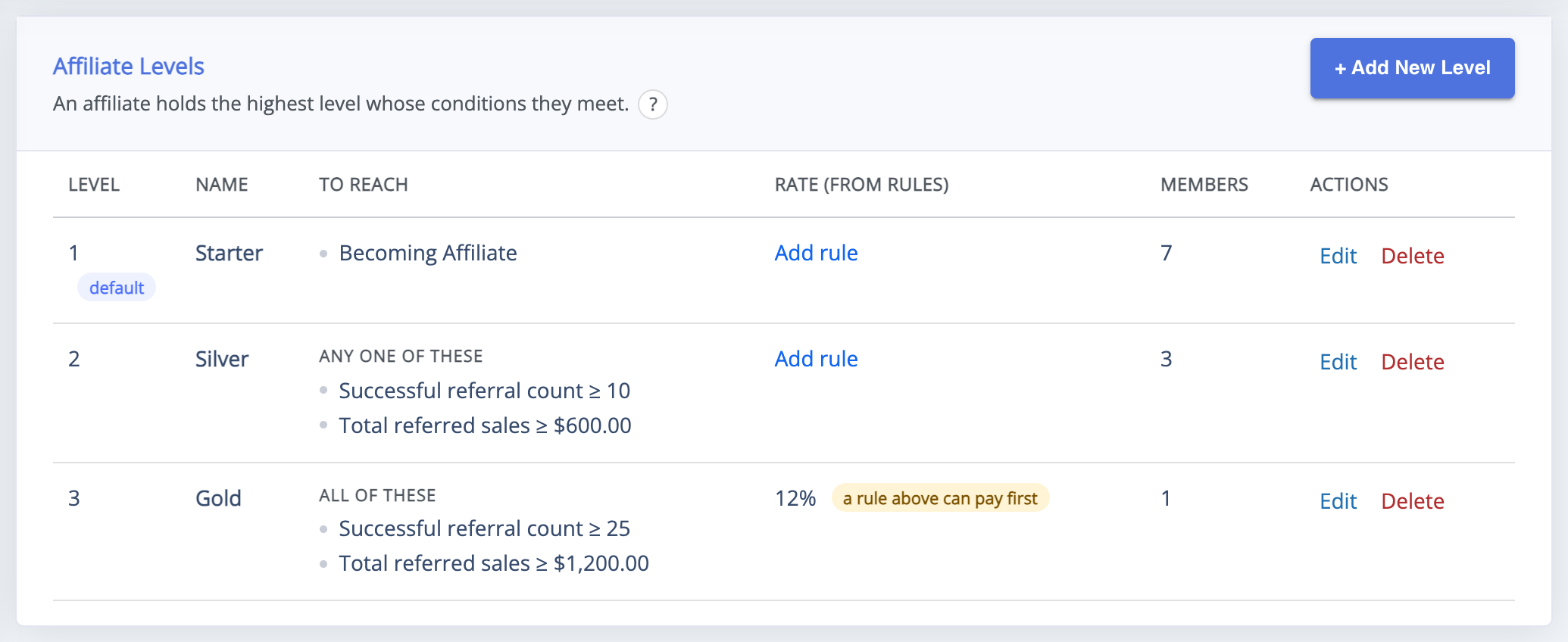
↑ Back to top- Each level has conditions, such as a number of approved referrals or a referred sales total. An affiliate holds the highest level whose conditions they meet.
- One level can be the default level, held by affiliates who meet no other level.
- Sales, counts and earnings count once a referral is approved. Later payouts and coupons never change them.
- A level earns through a commission rule that targets it. The Rate (from rules) column on the levels screen shows what each level is paid.
Build your level ladder
↑ Back to top- Go to: WooCommerce > Affiliate & Referral > User Levels.
- Click + Add New Level and enter the Level Name affiliates will see.
- For your starting level, tick Default level for affiliates that meet no other level.
- Under To reach this level, click + Add condition and choose what earns the level: Becoming Affiliate, Total referred sales, Successful referral count or Total earned commissions. With several conditions, choose under Match whether all or any of them must be met.
- Keep After saving, open a new commission rule for this level ticked, and click Save Changes.
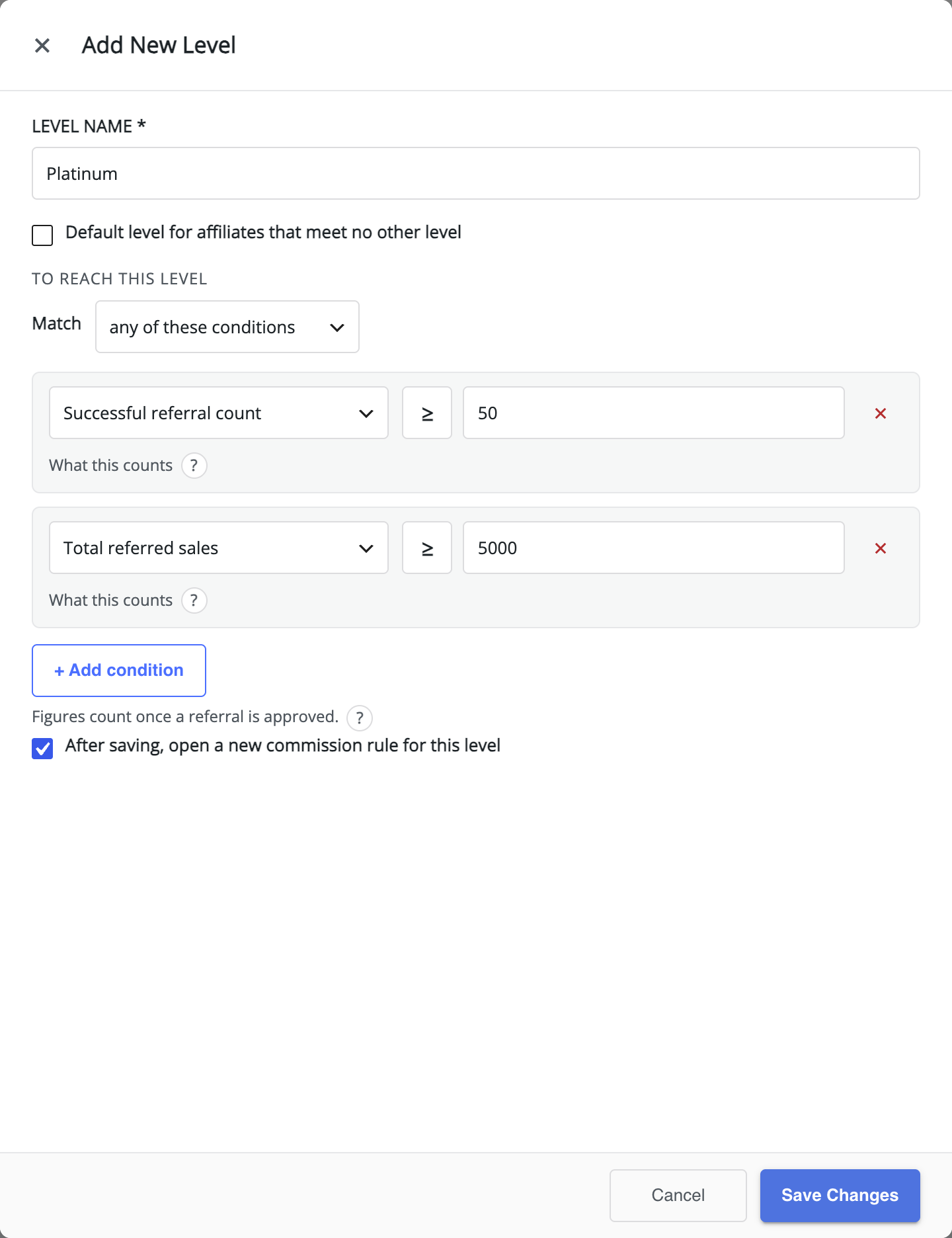
Conditions marked Requires MLM count team members, such as recruited affiliates or team sales. They are offered only while Multi-tier (MLM) is switched on; when it is off, team conditions saved earlier stay visible and count as not met.
Pay a level through a commission rule
↑ Back to topAfter saving a level, the new commission rule opens with the level already chosen. Otherwise, add a rule on the Commission screen: under Who earns this rate, choose Affiliate levels, pick the level, set the rate, and click Save rule. A level with no rule does not change anyone’s commission. Rules are explained in How to Set Up Referral Commission Rules.
Use Affiliate Levels alone
↑ Back to topTo pay commission by level only, give each level one rule that applies to all products, and add no product, category or tag rules. Every affiliate then earns their level’s rate on everything they sell. The Store default rule, always checked last, pays affiliates whose level has no rule — set it to your starting rate, or to 0 if every affiliate should hold a level that pays.
Use product, category and tag rules alone
↑ Back to topTo pay by what is sold, create rules with product, category or tag conditions for all affiliates, and add no rules for levels. Levels can still exist — for example as milestones for performance bonuses — but they do not change commission. See Commission per Product, Category or Tag.
Use both together: which rule pays
↑ Back to topLevel rules and product rules are rules in the same list. For every product in a referred order, rules are checked from top to bottom, and the first rule that matches both the affiliate and the product pays; the rest are skipped. The Store default is always checked last. So when a level rule and a product rule both match, the one with the lower Position number pays.
Say a Gold affiliate refers an order containing a sale item and a full-price jacket:
- Sale items 3% – all affiliates, condition On sale.
- Gold affiliates 12% – affiliate level Gold, no conditions.
- Store default – 10%.
The sale item matches rule 1 first, so it pays 3%. The jacket does not match rule 1, matches rule 2, and pays 12%. An affiliate without the Gold level earns 3% on the sale item and the store default of 10% on the jacket. To give Gold affiliates 12% on sale items too, move their rule to position 1. To give a level a special rate on certain products only, put the level and a product condition in one rule. Click Test rules to check any combination.
How affiliates move between levels
↑ Back to top- Automatically – an affiliate’s level is re-checked when one of their commissions is approved and when they join; levels with team conditions are also re-checked when their team changes. They move to the highest level they now meet.
- By hand on the Affiliates screen – choose a level in the affiliate’s Level column, or Automatic to let the plugin decide. A level chosen here is not locked, so it is re-checked after the affiliate’s next approved referral.
- Locked on the profile – under Users, open the affiliate and find the Affiliate commission section. Choose the Affiliate level and tick Level lock; automatic level changes on commission approval are then skipped.
To remove a level, click Delete level in its row and choose under Move its members to which level its affiliates should hold instead.
Where affiliates see their level
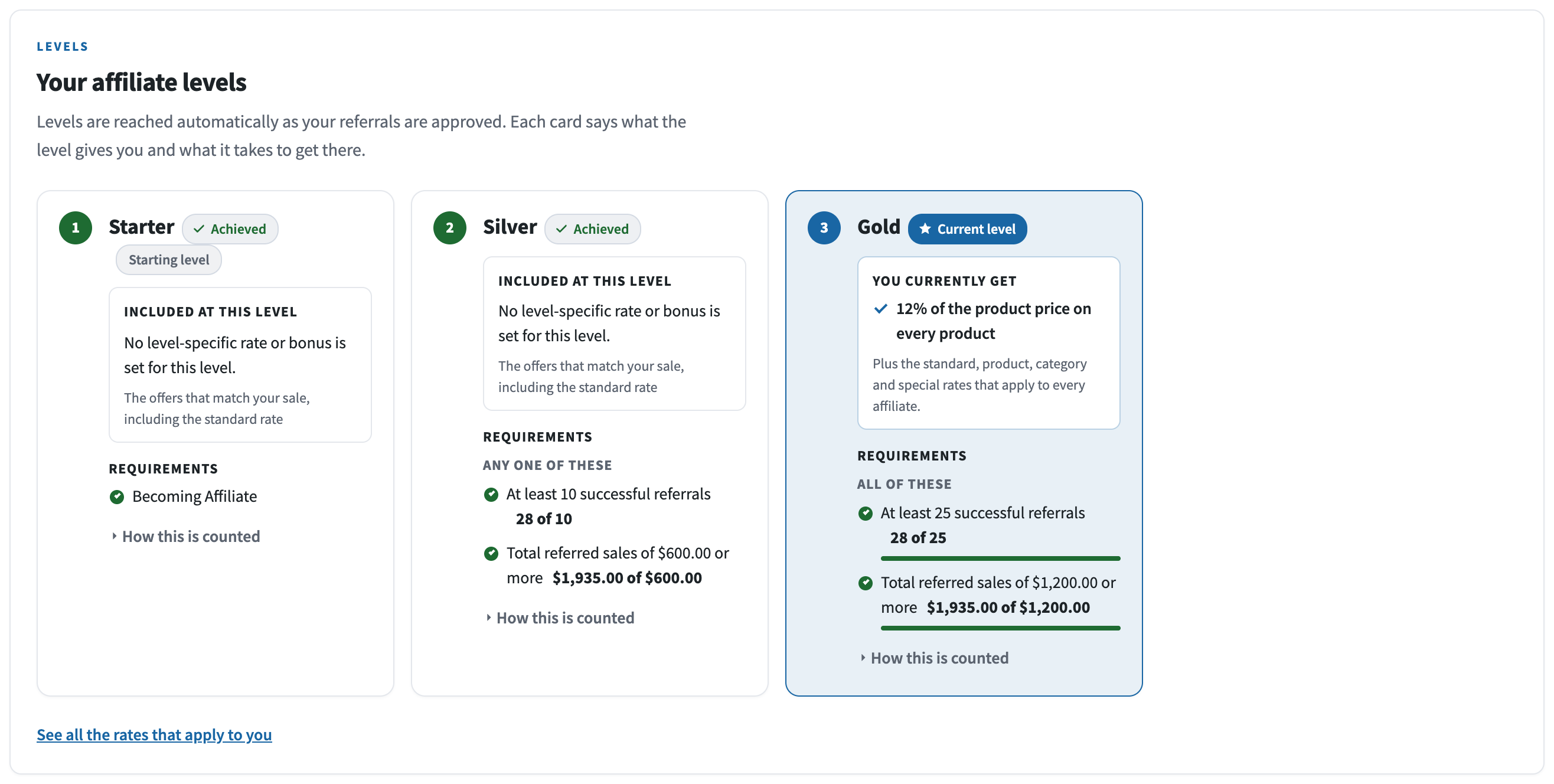
↑ Back to topThe affiliate dashboard shows the current level as an Affiliate level badge in the header. The Your affiliate levels block on the Commissions tab shows each level as a card: the Current level, the Next level, what each level gives and what it takes to get there.
Stores not yet converted
↑ Back to topOn a store updated from an earlier version, the levels screen keeps its previous form until the one-time conversion: levels pay only when Commission Based On: is set to Users, and then they replace the product rates. The conversion turns each level into an Affiliate Level with its own rule. See Upgrading to Version 3.0.0 and Converting to Commission Rules.
FAQ
↑ Back to topIs an Affiliate Level the same as an MLM level?
↑ Back to topNo. An Affiliate Level sets what an affiliate earns on their own referred orders. MLM commission is paid to sponsors from their recruits’ sales and never changes the affiliate’s own rate. An affiliate can hold an Affiliate Level and take part in a multi-tier network at the same time.
Do my product rates still work when I use levels?
↑ Back to topYes. Level rules and product rules are checked in one list, and the first matching rule pays each product. Order them so the rule you want to win comes first.
Can I give an affiliate a level by hand?
↑ Back to topYes — choose it on the Affiliates screen, or on the affiliate’s profile with Level lock ticked so it stays.
Can an affiliate lose a level?
↑ Back to topYes, if their figures fall below the level’s conditions — for example after refunds — and the level is not locked. The next re-check moves them to the highest level they still meet.
How does a fixed level rate count quantities?
↑ Back to topIt depends on the rule’s type: Fixed amount per unit pays for every unit, and Fixed amount per order pays once per order.
More questions are answered in the Affiliate and Referral Program: FAQ.

