
Address Autocomplete for Google Maps adds Google address autocomplete to WooCommerce. As customers type, it suggests addresses from Google Maps Platform and fills the street, house number, city, ZIP or postcode, state, and country in WooCommerce’s own fields, on the Checkout block, the classic checkout, My Account, and the order screen. It’s for stores that want faster checkout and fewer failed deliveries from mistyped addresses. View the product page.
Quick start
↑ Back to topGet address suggestions on your checkout in five steps:
- In Google Cloud Console, create a project with billing enabled and turn on the Maps JavaScript API, Places API (New), and Geocoding API.
- Create a browser API key restricted to your store’s website.
- Go to WooCommerce > Settings > Address Autocomplete, paste the key into Browser API key, and select Save changes.
- Select Test keys to check the key and its APIs.
- Open your checkout and start typing an address.
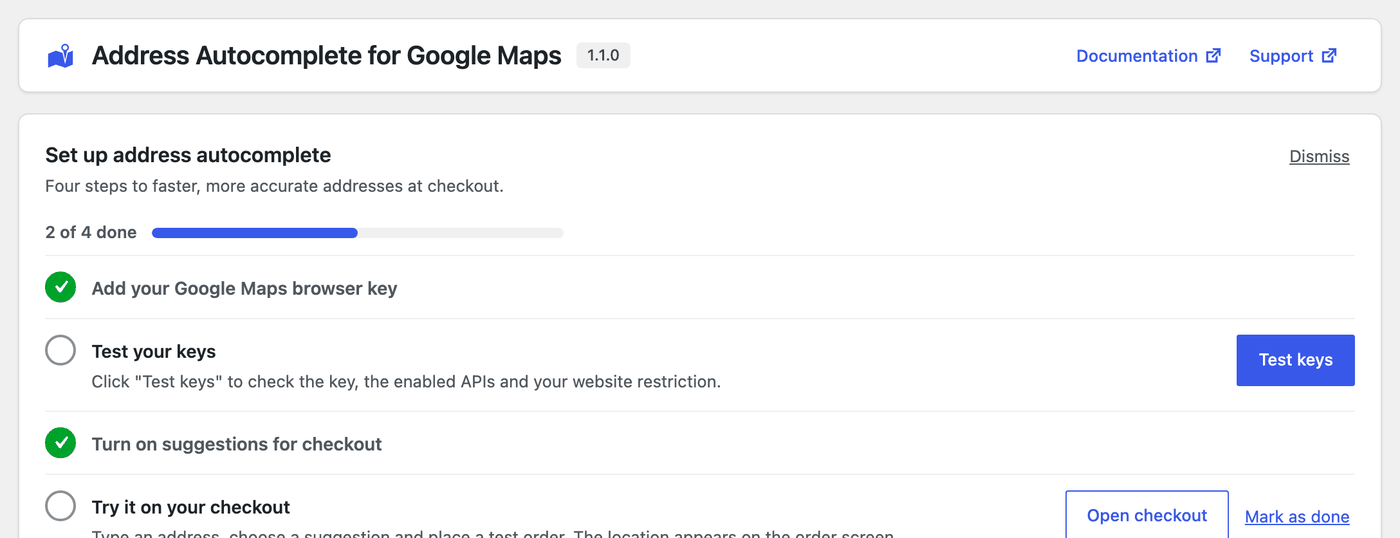
The Set up address autocomplete checklist at the top of the settings tracks the same steps. Select Dismiss to hide it.
Installation
↑ Back to topTo start using a product from WooCommerce.com, you can use the “Add to store” functionality on the order confirmation page or the My subscriptions section in your account.
- Navigate to My subscriptions.
- Find the Add to store button next to the product you’re planning to install.
- Follow the instructions on the screen, and the product will be automatically added to your store.
Alternative options and more information at:
Managing WooCommerce.com subscriptions.
Requirements
↑ Back to top- WordPress 6.5 or later.
- WooCommerce 8.5 or later.
- PHP 7.4 or later.
- A Google Maps API key from a Google Cloud project with billing enabled, with these APIs turned on: Maps JavaScript API, Places API (New), and Geocoding API.
- A browser API key restricted to your website. Optionally, a server API key restricted to your server’s IP address, used only for Locate on map on orders.
Keys created before 2025 that only have the legacy Places API keep working: the plugin detects this and uses the legacy API. The plugin works with the Checkout block, the classic checkout, and High-Performance Order Storage (HPOS). A wpml-config.xml file is included, and the map language can follow the page language with WPML or Polylang.
How to restrict your keys
↑ Back to top- Browser key: Application restriction Websites with your store domain (for example example.com/*). API restrictions: Maps JavaScript API, Places API (New), and Geocoding API.
- Server key (optional): Application restriction IP addresses with your server’s IP. API restriction: Geocoding API.
Google rejects website-restricted keys on server requests, which is why there are two keys.
Setup and configuration
↑ Back to topAll settings are in WooCommerce > Settings > Address Autocomplete, in five sections: General, Address fields, Map, Address mapping, and Privacy & performance.
General
↑ Back to top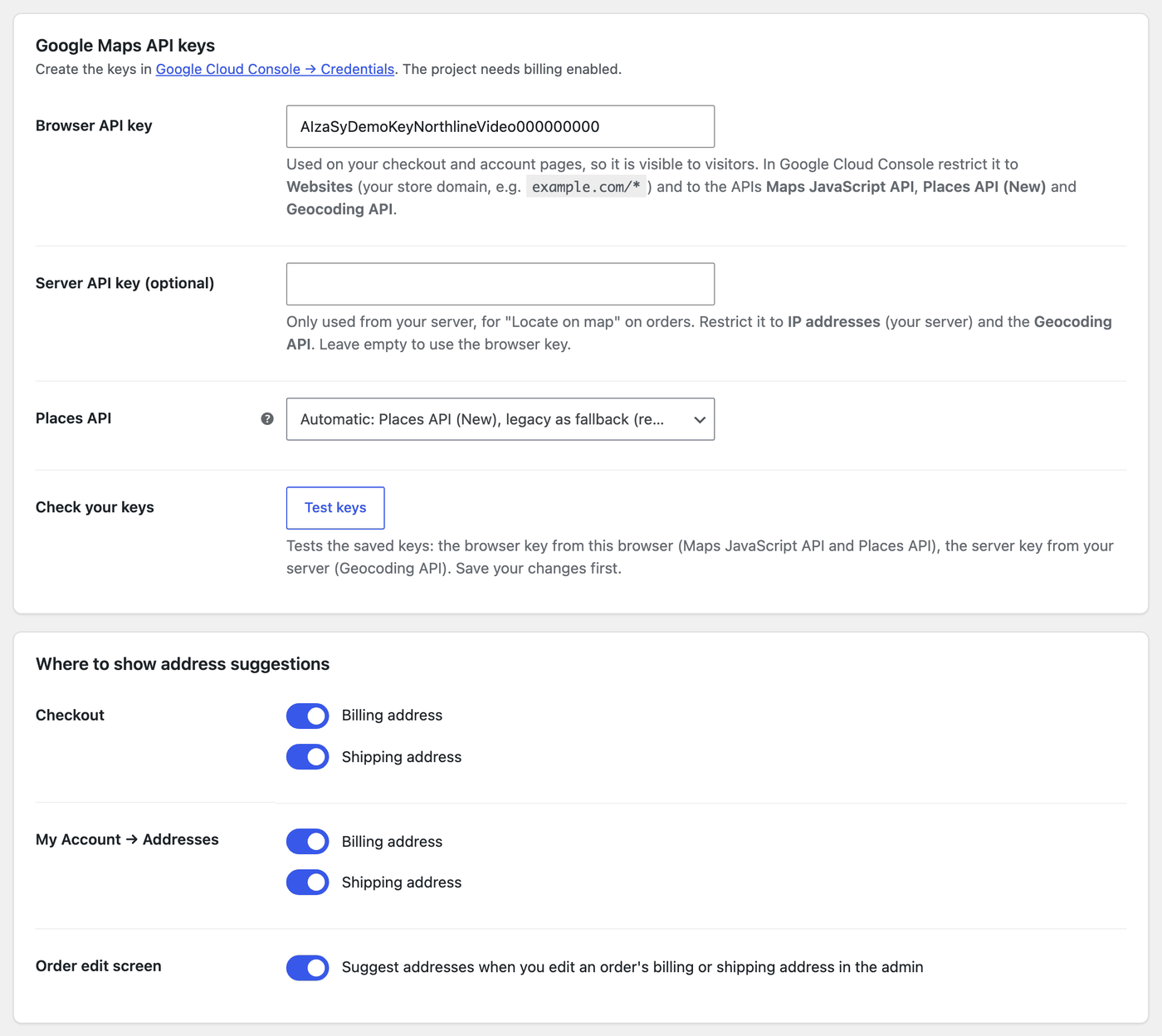
Google Maps API keys:
- Browser API key: Used on your checkout and account pages, so visitors can see it. Restrict it to your website.
- Server API key (optional): Only used from your server, for Locate on map on orders. Leave it empty to use the browser key.
- Places API: Automatic: Places API (New), legacy as fallback (recommended), Places API (New) only, or Legacy Places API only.
- Check your keys: Select Test keys to test the saved browser key from your browser (Maps JavaScript API and Places API) and the server key from your server (Geocoding API). Save your changes first.
Where to show address suggestions:
- Checkout: Billing address and Shipping address.
- My Account → Addresses: Billing address and Shipping address.
- Order edit screen: Suggest addresses when you edit an order’s billing or shipping address in the admin. On by default.
Address fields
↑ Back to top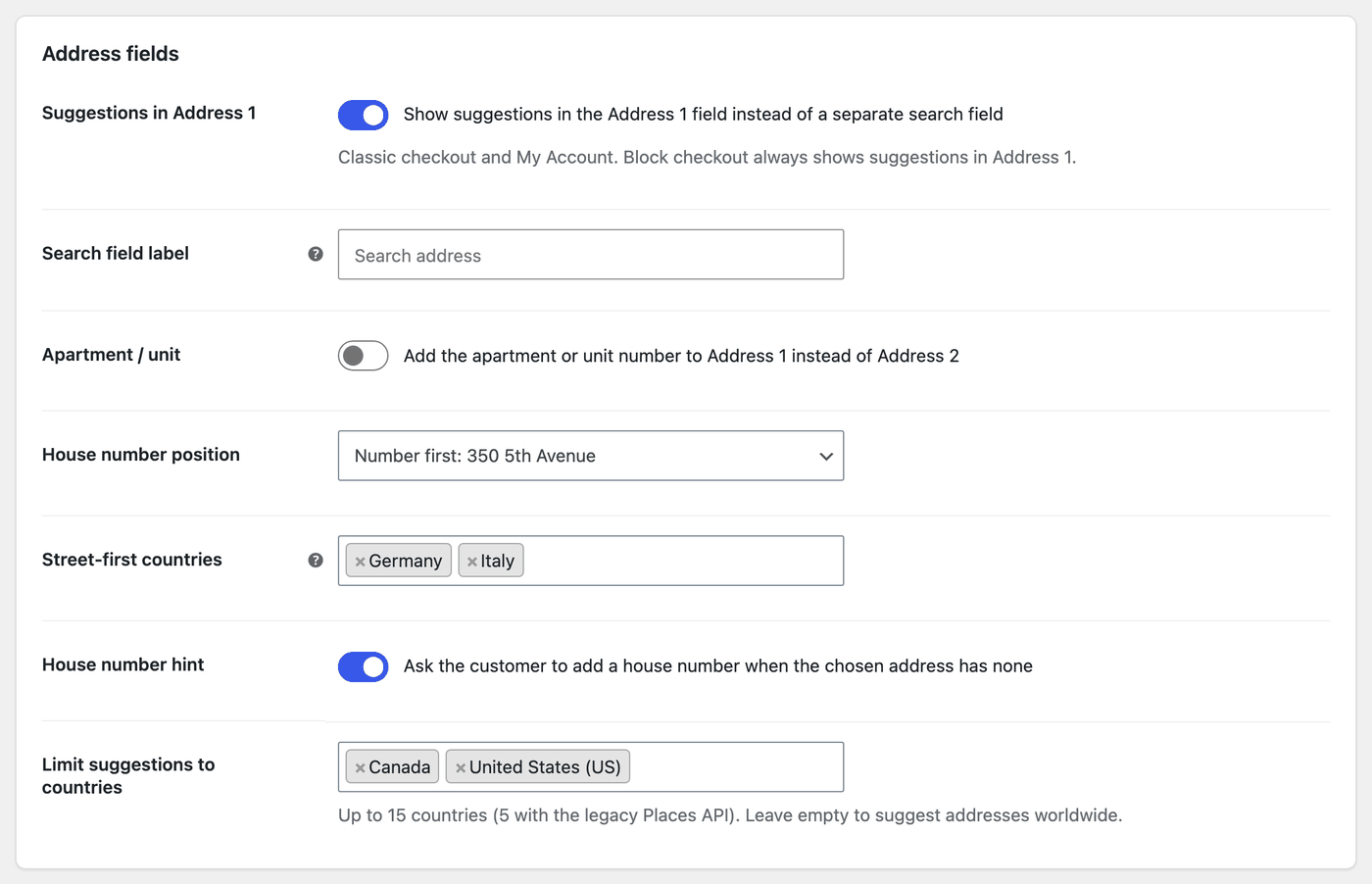
- Suggestions in Address 1: Show suggestions in the Address 1 field instead of a separate search field. This applies to the classic checkout and My Account. The Checkout block always shows suggestions in the Address field.
- Search field label: The label of the separate search field. Empty means “Search address”.
- Apartment / unit: Add the apartment or unit number to Address 1 instead of Address 2.
- House number position: Number first: 350 5th Avenue or Street first: Via Roma 12.
- Street-first countries: With “Street first”, only these countries use it. None selected means all countries.
- House number hint: Ask the customer to add a house number when the chosen address has none. Off by default.
- Limit suggestions to countries: Up to 15 countries (5 with the legacy Places API). Leave it empty to suggest addresses worldwide.
Map
↑ Back to top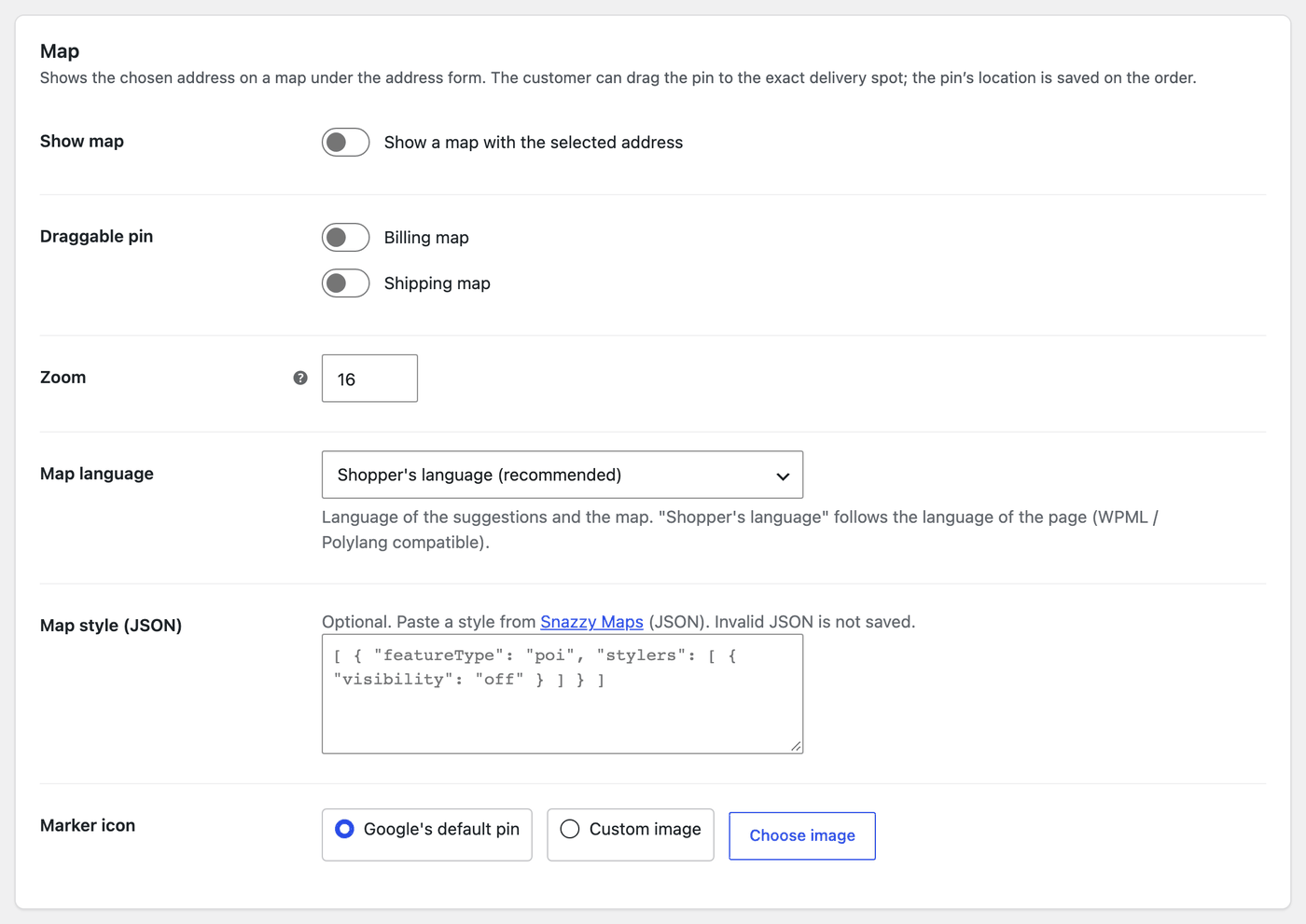
The map shows the chosen address under the address form. The customer can drag the pin to the exact delivery spot, and the pin’s location is saved on the order.
- Show map: Show a map with the selected address.
- Draggable pin: Billing map and Shipping map.
- Zoom: From 1 (world) to 21 (buildings). 15 shows streets.
- Map language: The language of the suggestions and the map. Shopper’s language (recommended) follows the language of the page, including with WPML and Polylang.
- Map style (JSON): Optional. Paste a map style in JSON format. Invalid JSON isn’t saved.
- Marker icon: Google’s default pin or a Custom image from your Media Library (select Choose image).
Address mapping
↑ Back to top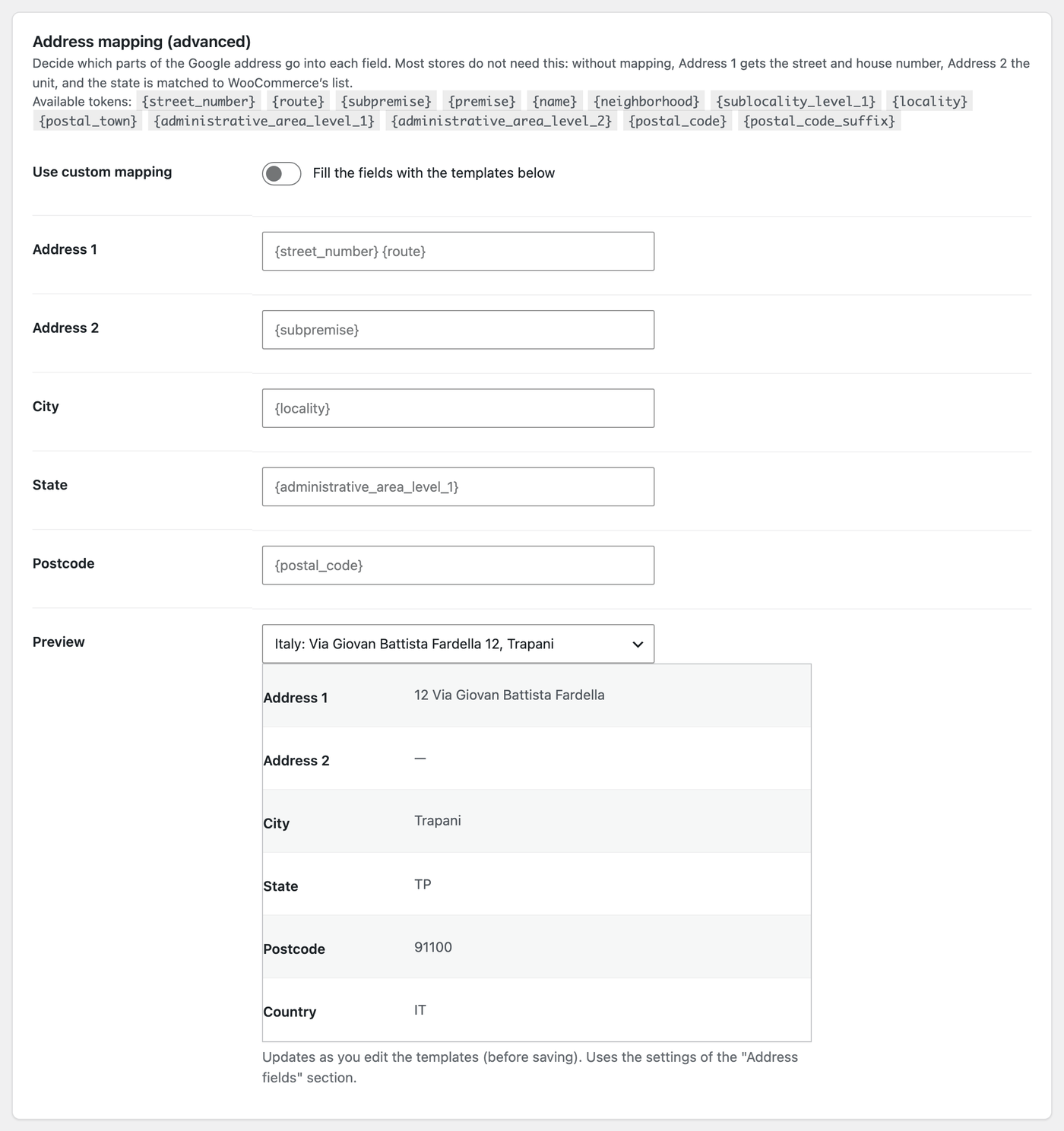
Most stores don’t need this. Without mapping, Address 1 gets the street and house number, Address 2 the unit, and the state is matched to WooCommerce’s list.
- Use custom mapping: Fill the fields with the templates below.
- Address 1, Address 2, City, State, and Postcode: A template for each field, built from tokens such as {street_number}, {route}, {subpremise}, {premise}, {name}, {neighborhood}, {sublocality_level_1}, {locality}, {postal_town}, {administrative_area_level_1}, {administrative_area_level_2}, {postal_code}, and {postal_code_suffix}.
- Preview: Choose a sample address to see the result as you edit the templates, before saving. It uses the settings of the Address fields section.
Privacy & performance
↑ Back to top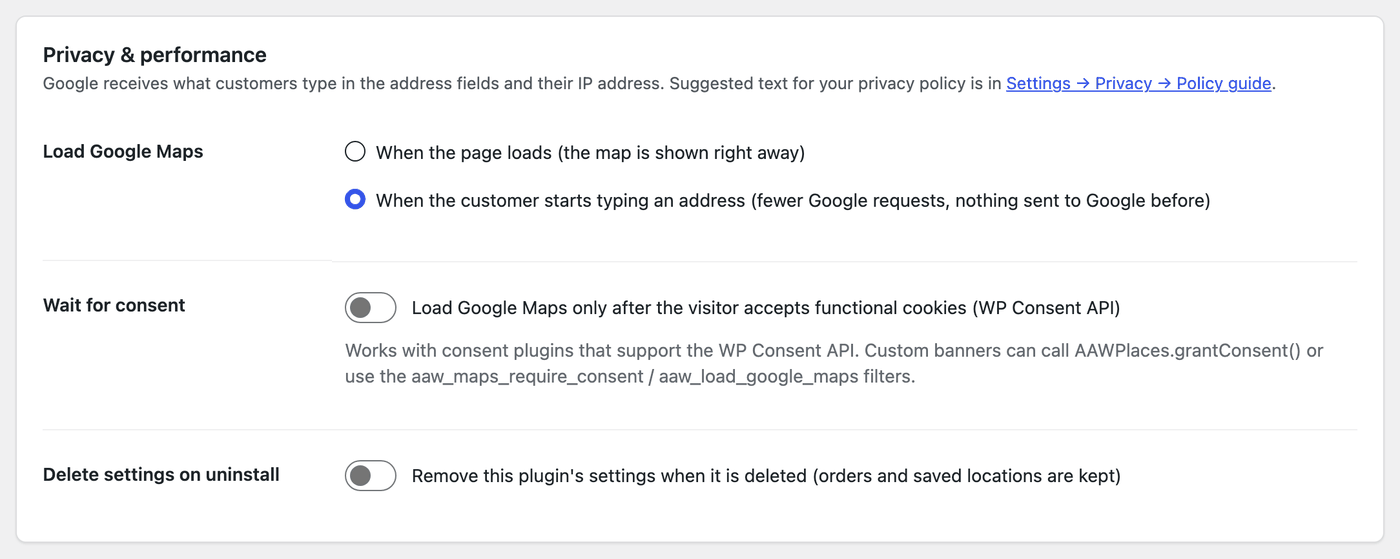
Google receives what customers type in the address fields and their IP address. Suggested text for your privacy policy is added to Settings > Privacy > Policy guide, and saved locations are included in WordPress’s personal data export.
- Load Google Maps: When the page loads (the map is shown right away), the default, or When the customer starts typing an address, which means fewer Google requests and nothing is sent to Google before.
- Wait for consent: Load Google Maps only after the visitor accepts functional cookies. It works with consent plugins that support the WP Consent API.
- Delete settings on uninstall: Remove the plugin’s settings when it’s deleted. Orders and saved locations are kept.
How-to guides
↑ Back to topHow to add address autocomplete to the WooCommerce checkout
↑ Back to top- Add your browser key in General and select Test keys.
- Under Checkout, turn on Billing address and Shipping address, then select Save changes.
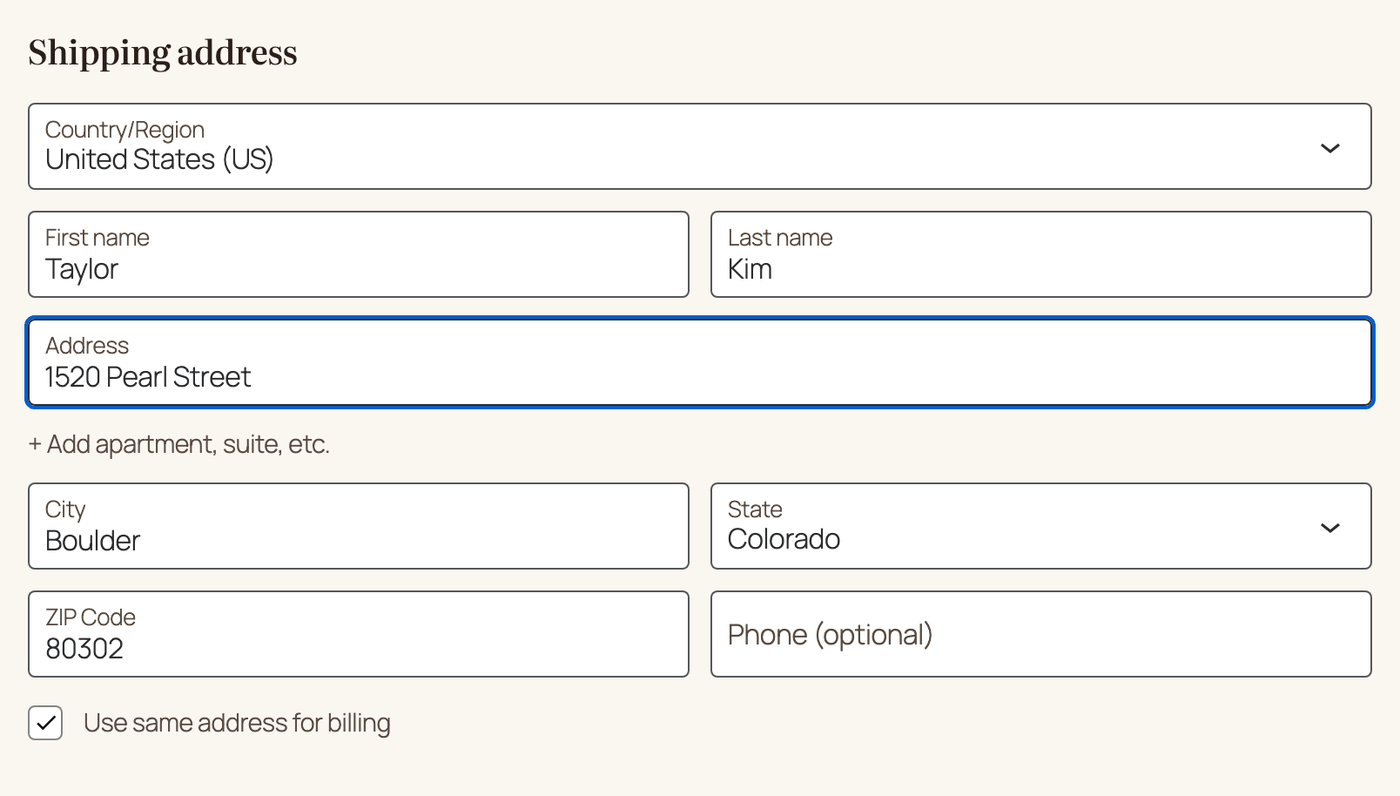
- On the checkout, customers type their address and choose a suggestion.
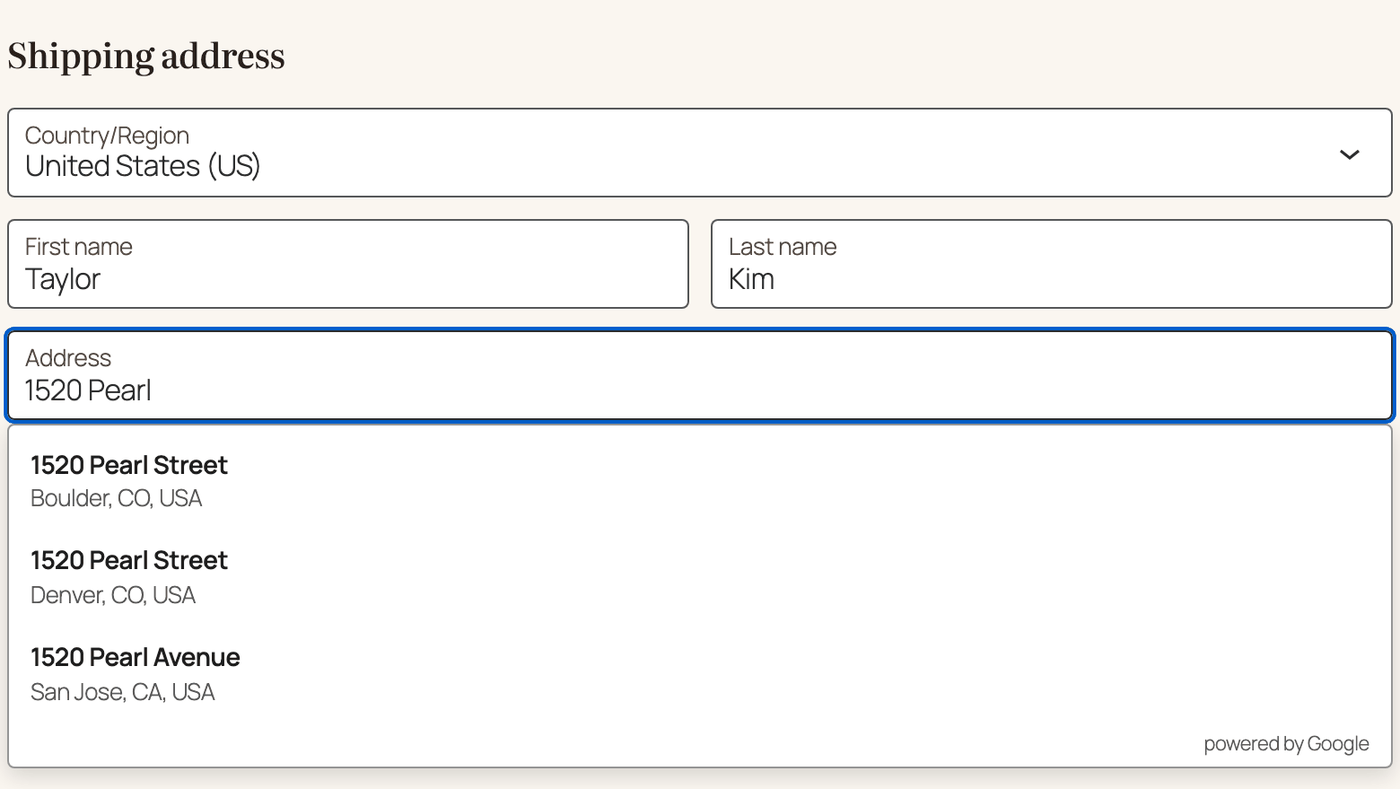
Choosing a suggestion fills the address, city, state, and ZIP code in the right format for the country.
How to autofill addresses in My Account
↑ Back to top- Under My Account → Addresses, turn on Billing address and Shipping address.
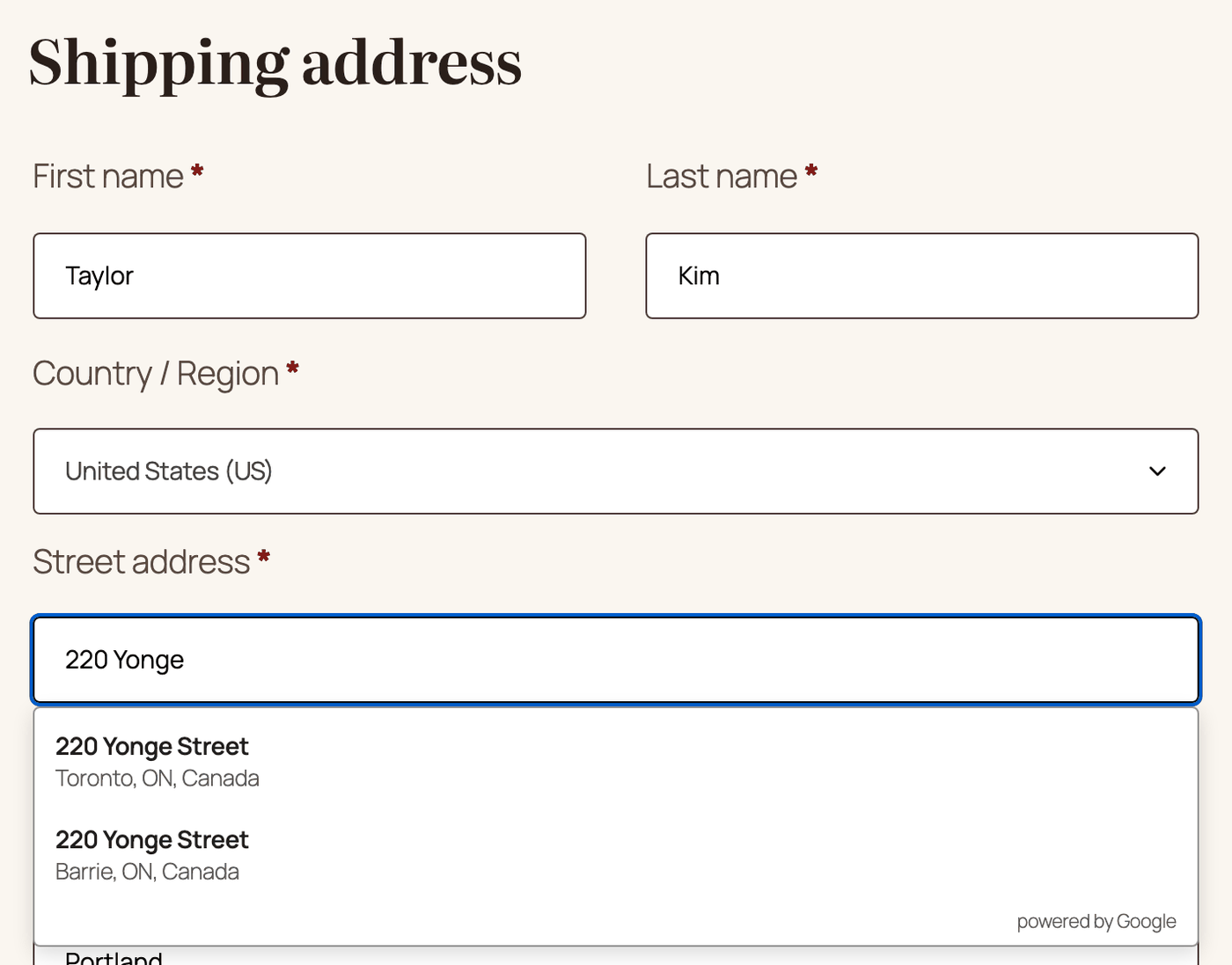
- Customers editing their address in My account > Addresses get the same suggestions. Choosing one also switches the country when needed.
How to limit Google address suggestions to the countries you ship to
↑ Back to top- Go to Address fields.
- Choose up to 15 countries in Limit suggestions to countries.
- Select Save changes.
Limiting countries also keeps Google requests and costs down.
How to show a delivery location map with a draggable pin
↑ Back to top- Go to Map and turn on Show map.
- Turn on Draggable pin for the billing map, the shipping map, or both.
- Set the Zoom, and optionally a Map style (JSON) and a Marker icon.
Customers can move the pin to the exact delivery spot, such as a back entrance. The location is saved on the order.
How to find an order’s delivery location
↑ Back to topOpen the order. Under the billing and shipping address, you’ll see the latitude, longitude, and a View on Google Maps link.
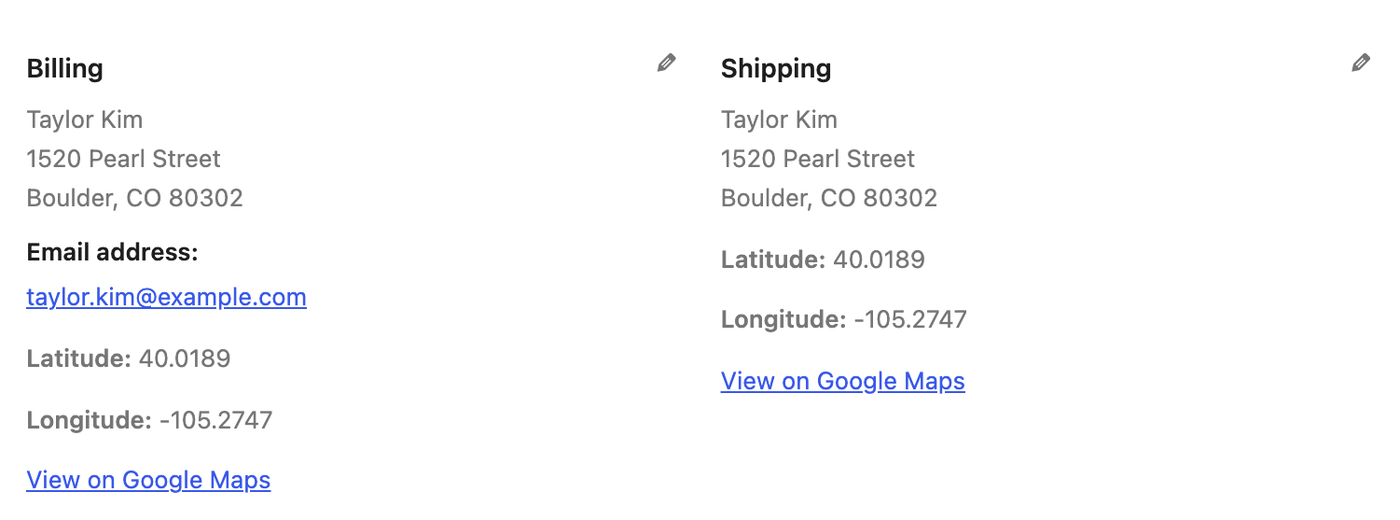
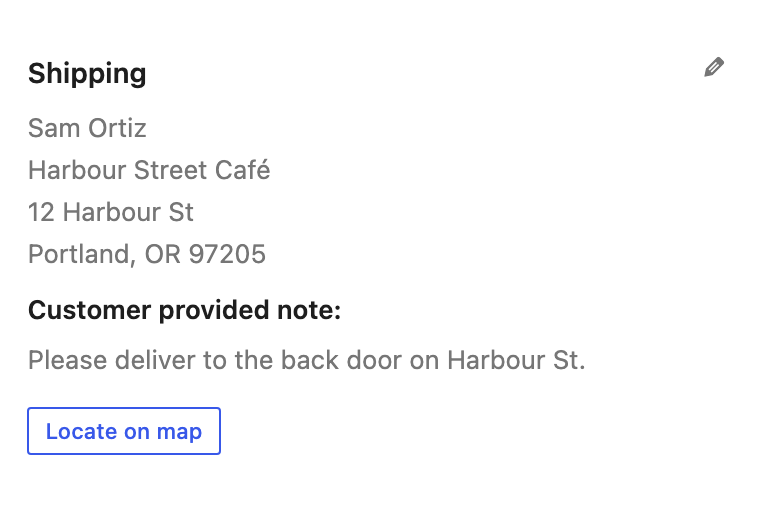
For orders placed without choosing a suggestion, select Locate on map to look up the address with the Geocoding API.
Video
↑ Back to topFrequently asked questions
↑ Back to topWhich Google APIs do I need for address autocomplete?
↑ Back to topThe Maps JavaScript API, Places API (New), and Geocoding API, on a Google Cloud project with billing enabled.
Does it work with the WooCommerce Checkout block?
↑ Back to topYes. On the Checkout block, suggestions appear in the Address field itself, also after “Edit address” or switching countries. The map and the house number hint show under the address form.
How much does Google charge?
↑ Back to topGoogle bills autocomplete per session and maps per load, and most small stores stay inside Google’s monthly free usage. To reduce requests, set Load Google Maps to load when the customer starts typing and limit suggestions to the countries you ship to.
Can I keep Google off the page until the visitor consents?
↑ Back to topYes. Turn on Wait for consent, which works with consent plugins that support the WP Consent API. Developers can also use the filters and JavaScript in Developer notes.
Does it validate addresses that customers type by hand?
↑ Back to topNo. The plugin suggests and fills addresses. If a customer ignores the suggestions and types the address, it’s saved as typed.
Is it compatible with HPOS?
↑ Back to topYes. It declares compatibility with High-Performance Order Storage.
Troubleshooting
↑ Back to topNo suggestions appear
↑ Back to top- Select Test keys in General. It checks the key, the enabled APIs, and your website restriction.
- Make sure billing is enabled on the Google Cloud project and the three APIs are turned on.
- Check the website restriction of the browser key: it must include your store domain, for example example.com/*.
- If Limit suggestions to countries is set, suggestions only come from those countries.
- If Wait for consent is on, suggestions only load after the visitor accepts functional cookies.
The order can’t be placed and asks for a billing ZIP code on the Checkout block
↑ Back to topIn version 1.1.0, when Use same address for billing is ticked on the Checkout block, choosing a suggestion fills the shipping address but may not copy it to the billing address. WooCommerce then rejects the order with “ZIP Code is required”. The customer can untick Use same address for billing and tick it again, which copies the full address, and then place the order.
Locate on map doesn’t work
↑ Back to topLocate on map runs from your server. Add a Server API key restricted to your server’s IP address with the Geocoding API, because Google rejects website-restricted keys on server requests.
The street name differs from the suggestion
↑ Back to topAddress 1 gets Google’s full street name, for example “1200 Northwest Lovejoy Street” for the suggestion “1200 NW Lovejoy Street”. Customers can edit the field after choosing the suggestion.
Known limitations
↑ Back to top- On the admin order screen, the suggestion list shows unstyled under the page footer instead of under the field. You can still choose a suggestion with the keyboard, or type the address.
- On the Checkout block, the billing address may not be updated from a suggestion when Use same address for billing is ticked (see above).
- The plugin doesn’t validate addresses typed by hand.
Developer notes
↑ Back to topFilters
↑ Back to topaaw_load_google_maps($load, $context): Whether Google Maps loads on a page.aaw_maps_require_consent($required, $context): Whether loading waits for consent.aaw_maps_consent_category($category): The WP Consent API category. Default functional.aaw_places_config($config, $context): The configuration passed to the autocomplete script.aaw_settings_fields($fields, $section): The settings fields of a section.
JavaScript
↑ Back to topAAWPlaces.attach( input, { onSelect } ): Add suggestions to any address input.AAWPlaces.grantConsent(): Load Google Maps from your own consent banner.- jQuery events
aaw_custom_bindandaaw_place_selected.
Works great with
↑ Back to top- Restrict Checkout: block checkout for regions, states, or postcodes you can’t ship to, with a clear message.
- PDF Invoice, Packing Slips & Credit Notes: packing slips with the shipping address for your warehouse.
- Multistep Product Bundles: build-your-own gift boxes that need a correct delivery address.
- Donations & Fundraising: collect donations through the same checkout.
Support
↑ Back to topNeed help? Contact WooCommerce.com support for Address Autocomplete for Google Maps. Include your WordPress, WooCommerce, and plugin versions and the result of Test keys.

