
The WooCommerce Square extension is designed to bridge the gap between your WooCommerce store and Square. The extension serves a dual purpose, functioning seamlessly as both a product inventory sync and a payment gateway for receiving payments from customers. You have the flexibility to use either feature independently or both.
The extension offers SAQ-A PCI-compliant payment integration, including 3D Secure verification, and a variety of payment methods, including credit/debit cards, digital wallets (Apple Pay & Google Pay), Square Gift Cards, and more, to meet diverse customer preferences. In this document, we’ll cover on how to set up WooCommerce Square as your payment gateway, making it easy for your customers to make payments.
Requirements for Setting Up Square Payments
↑ Back to top- The shop location must be in a supported country: Square can only accept transactions from the following countries: US, CA, UK, AU, IR, ES, FR, and JP.
- Square account connected to WooCommerce: Make sure you have a Square account created (if you don’t have one yet) and the Square connection has been established with your WooCommerce store.
- Site currency must match your Square account currency: Square and WooCommerce must be set to the same currency to use the gateway.
- SSL certificate: To use the Square payment gateway, you must have an SSL certificate installed on your site. Click here to learn more about SSL certificates.
- Technical Requirements: To ensure WooCommerce Square payment works flawlessly, your site needs to meet the following technical specifications:
- PHP version 7.4 or higher
- WordPress 5.8 or higher
- WooCommerce 6.8 or higher
Payment Options with WooCommerce Square
↑ Back to topWooCommerce Square allows online stores to accept payments in various forms, making it a versatile option for merchants looking to cater to a wide range of customer payment preferences. The four specific payment forms that WooCommerce Square supports are:
Use Square Discount Codes
↑ Back to topAs of version 5.3.0, discount codes created in Square are supported and can be applied to the Cart and Checkout pages.
See WooCommerce Square: Discount Codes for the full details.
Payment Settings
↑ Back to topFrom WooCommerce > Settings > Payment > Square, you can configure the following settings for the Square payment gateway:

- Enable / Disable: Enable or disable Square as a payment option for customers. Check the box to enable credit card payments using Square on the checkout page.
- Title: Determine how the gateway should be labeled for customers at checkout and on the order received page.
- Description: The text added here appears below the Title field on the Checkout page. Limited HTML is allowed inside the description field.
- Transaction Type: This setting lets you choose how to handle payments with Square on your WooCommerce website. By selecting “Charge,” payments from customers are taken immediately. However, if you opt for “Authorization,” you’ll need to manually confirm each payment. It’s important to note that payments that are only authorized (but not completed yet) won’t appear in your Square transaction list. The system is set to use “Charge” as the default method.
- Charge Virtual-Only Orders: This option handles payments for orders containing only virtual products. If you’ve set your payment method to “Authorization,” turning this on will automatically process payments for these orders with virtual products.
- Capture Paid Orders: This setting is for when you choose “Authorization” as your payment method. By turning it on, payments will automatically be processed as soon as orders are marked as paid, which includes orders that are being Processed or have been Completed. This means you won’t have to manually confirm payments for these orders later.
- Accepted Card Logos: This option lets you choose which credit card logos to display at checkout. It’s only about the logos you show to your customers; it doesn’t change the types of cards you can accept. For information on what cards are accepted, see Square’s accepted cards list.
- Customer Profiles: This feature allows customers to save their payment information for easier checkout in the future. Customer Profiles must be enabled if you use WooCommerce Subscriptions or WooCommerce Pre-Orders, which require tokenized (saved) payment methods to charge customers in the future.
- Digital Wallet Settings: This feature allows you to turn on or off, and make changes to, how Square digital wallets (like Apple Pay and Google Pay) work in your store. You can use these settings if your store is located in the US, UK, Canada, Ireland, France, Spain, or Australia, and your store’s main currency is USD, GBP, CAD, EUR, or AUD.
Capturing Authorized Payments
↑ Back to topImportant: Square authorizations expire after 6 days. If you have not captured an authorization within 6 days, it cannot be captured, and you must obtain a new one from the customer.
When payment is authorized for an order, the order status will be set to “on hold”. You can edit the order by going to WooCommerce > Orders, then clicking the order number to open it for editing.
In the order, you’ll see a “Capture Charge” button as shown below:
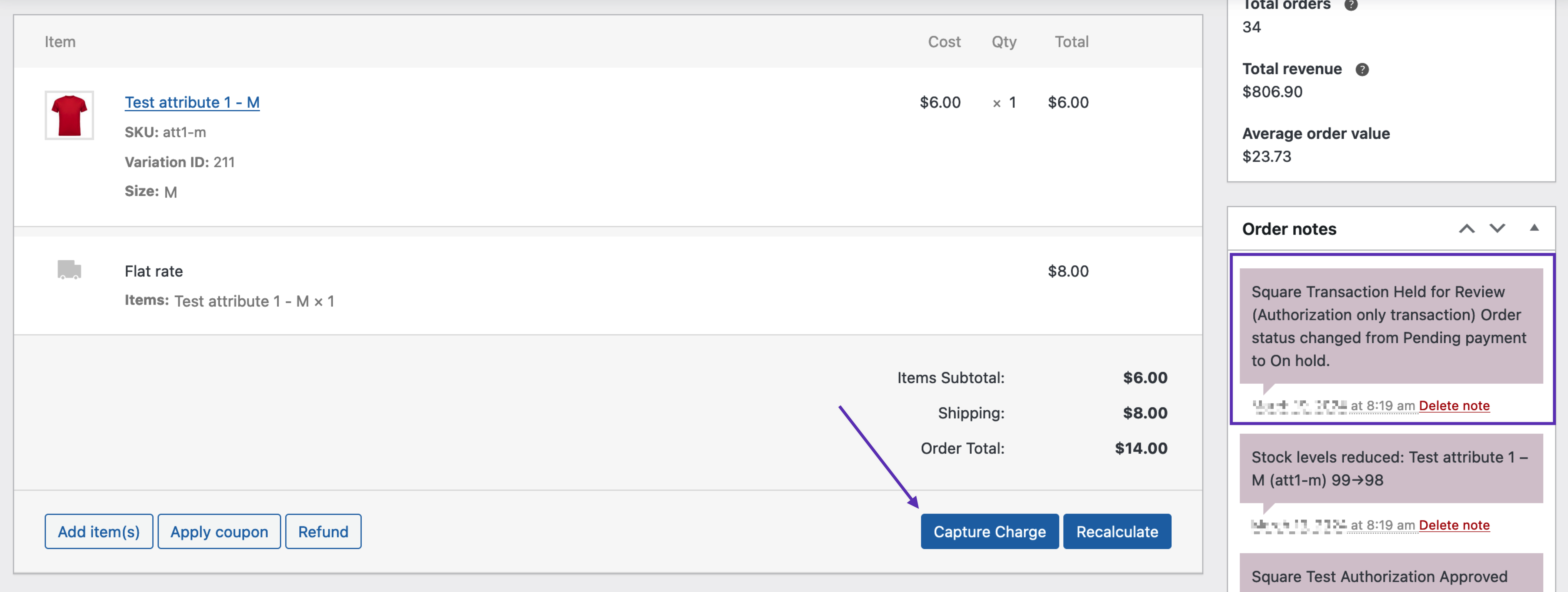
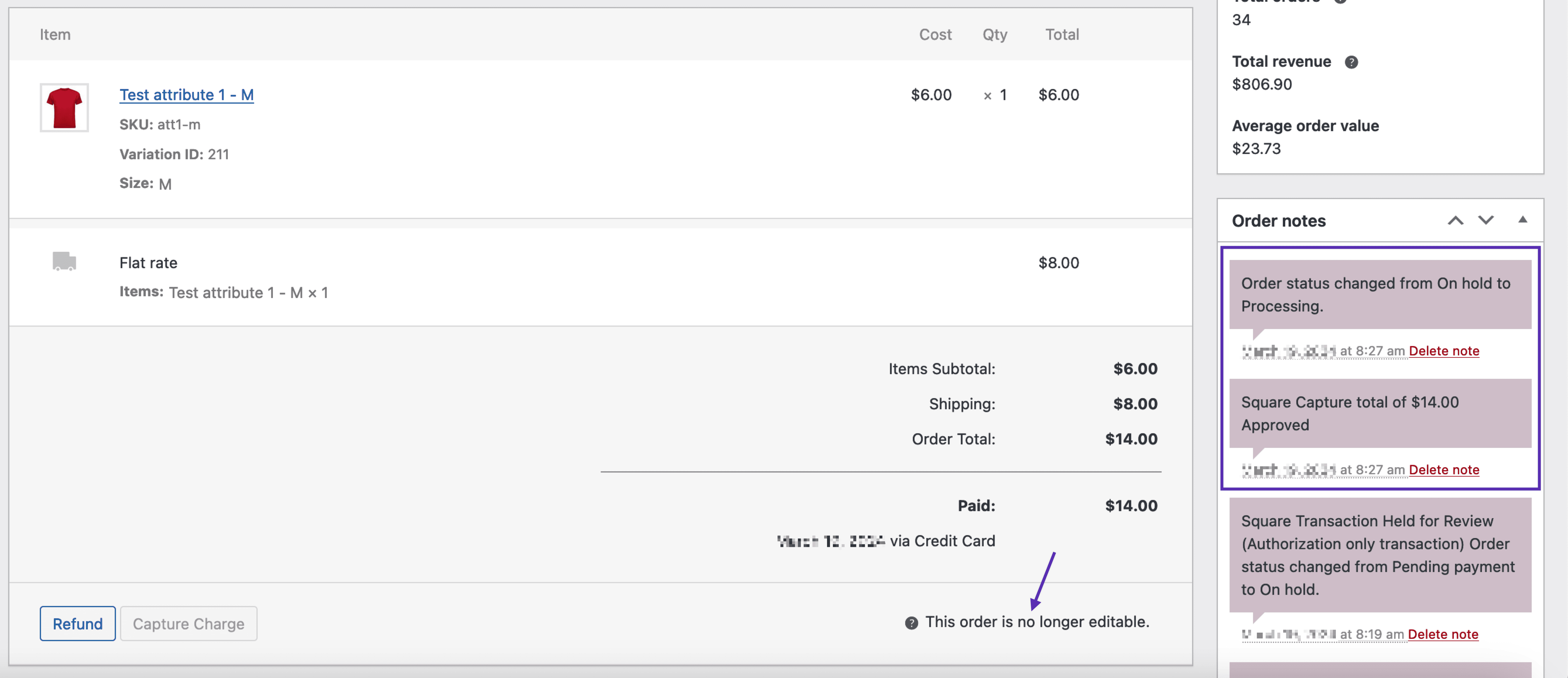
Once you’ve selected “Capture Charge” and saved the order, payments will be captured via the payment gateway, the order will no longer be editable, the order status will update to “processing” or “completed” for virtual and downloadable products, and the Order notes will be updated to reflect these changes.
Manage orders with WooCommerce Square
↑ Back to topSee the Managing Orders with WooCommerce Square page for the full information on what Square adds to your orders, Order Statuses, and how to refund an order.
Customer experience with Card payments
↑ Back to topAccepted card logos
↑ Back to topThese card logos would be displayed to customers as accepted during checkout.
Here’s how the card logos would appear on the checkout page when using the Classic checkout:
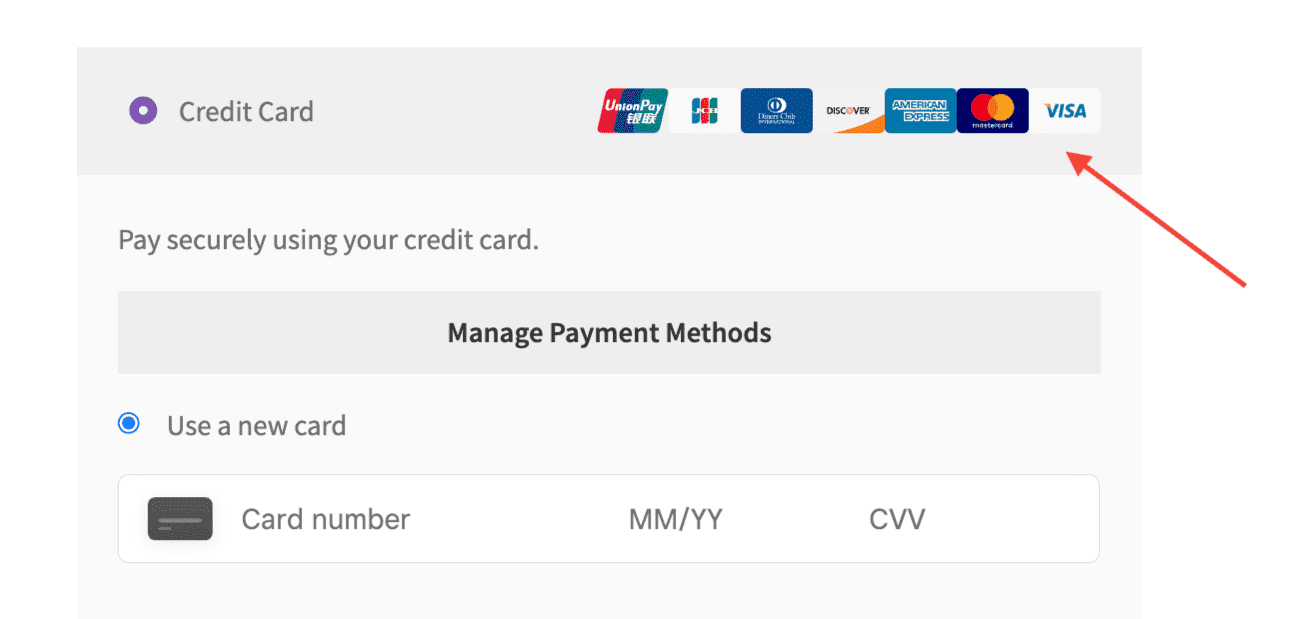
Accepted card logos are not supported in block Checkout.
Customer profiles enabled
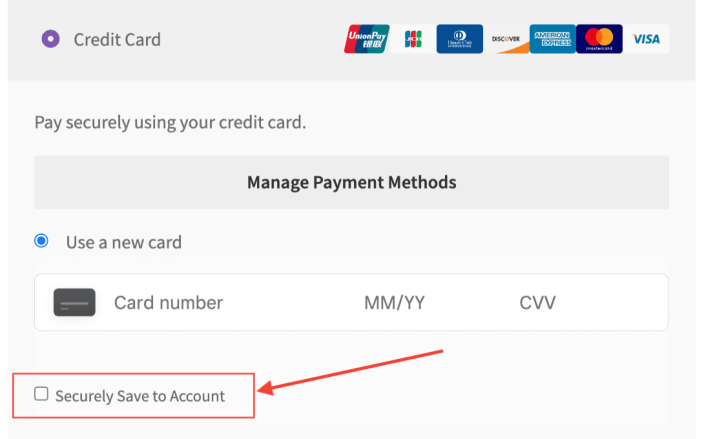
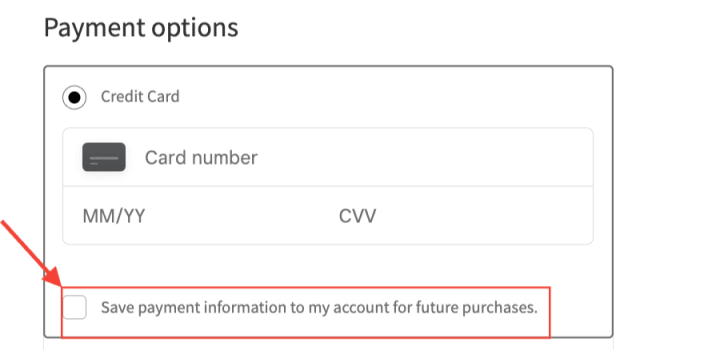
↑ Back to topWhen this feature is enabled in the payment settings, a checkbox will appear under the credit card field area that customers can use to securely save their card in Square. Once customers save their card, they can use it to make purchases without re-entering their card data.
Here’s what the option the customer would see looks like on the Checkout page using the Classic Checkout and block Checkout:
Paying with a saved card
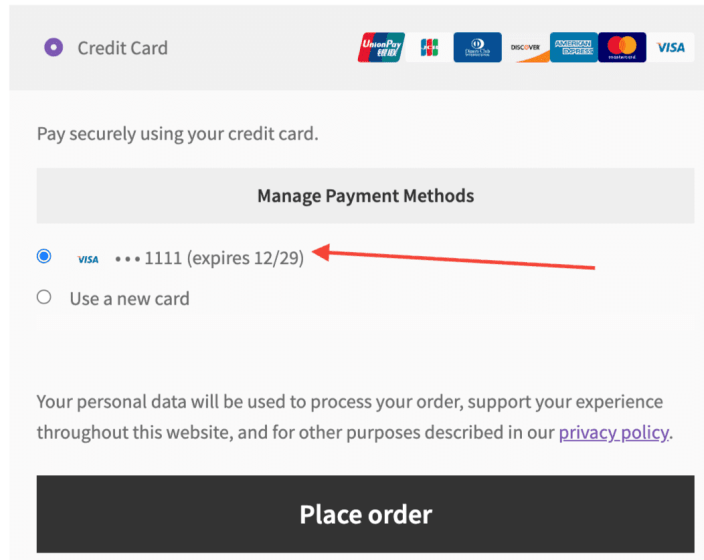
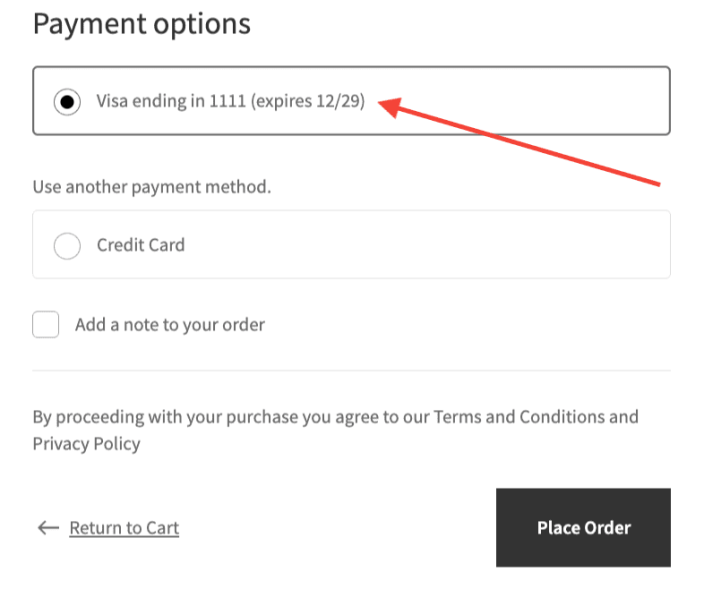
↑ Back to topOnce customers save their payment information, they can use the saved payment information to pay for future purchases.
Here’s what the saved payment information would look like on the checkout page using the Classic Checkout and block Checkout:
Subscriptions and Pre-Orders
↑ Back to topWooCommerce Square supports recurring payments via the WooCommerce Subscriptions extension, and supports pre-orders via the WooCommerce Pre-Orders extension.
To enable these features, the Customer Profiles option must be enabled in the WooCommerce Square settings:

Known limitations: Cash App or Square Gift Cards cannot be used for subscription or pre-order products that require future charges. When these products are in the cart, the Gift Card and CashApp Pay options are hidden at checkout.
Square Error Codes
↑ Back to topShould you encounter any Square-related error codes within Error Logs, Checkout Page, or elsewhere, please refer to the common error codes returned by Square in this document.
If you are receiving messages about invalid telephone numbers, you may need to add a telephone number verification check to your checkout. International customers must enter their dialing prefix to ensure their number is valid. For example, if you are based in the US, a customer from the US does not need to add a dialing prefix, but a customer from the UK will need to add +44 when entering their number.
FAQs
↑ Back to topCheck the FAQs page for payment-related FAQs.
Troubleshooting Square Payment Issues
↑ Back to topCheck the Troubleshooting page for steps to resolve common payment issues.

