
This guide covers what happens to your WooCommerce orders when Square is your payment gateway, including what data Square adds to orders, how order statuses work, how to issue refunds, and how to use subscriptions.
What Square Adds to Your Orders
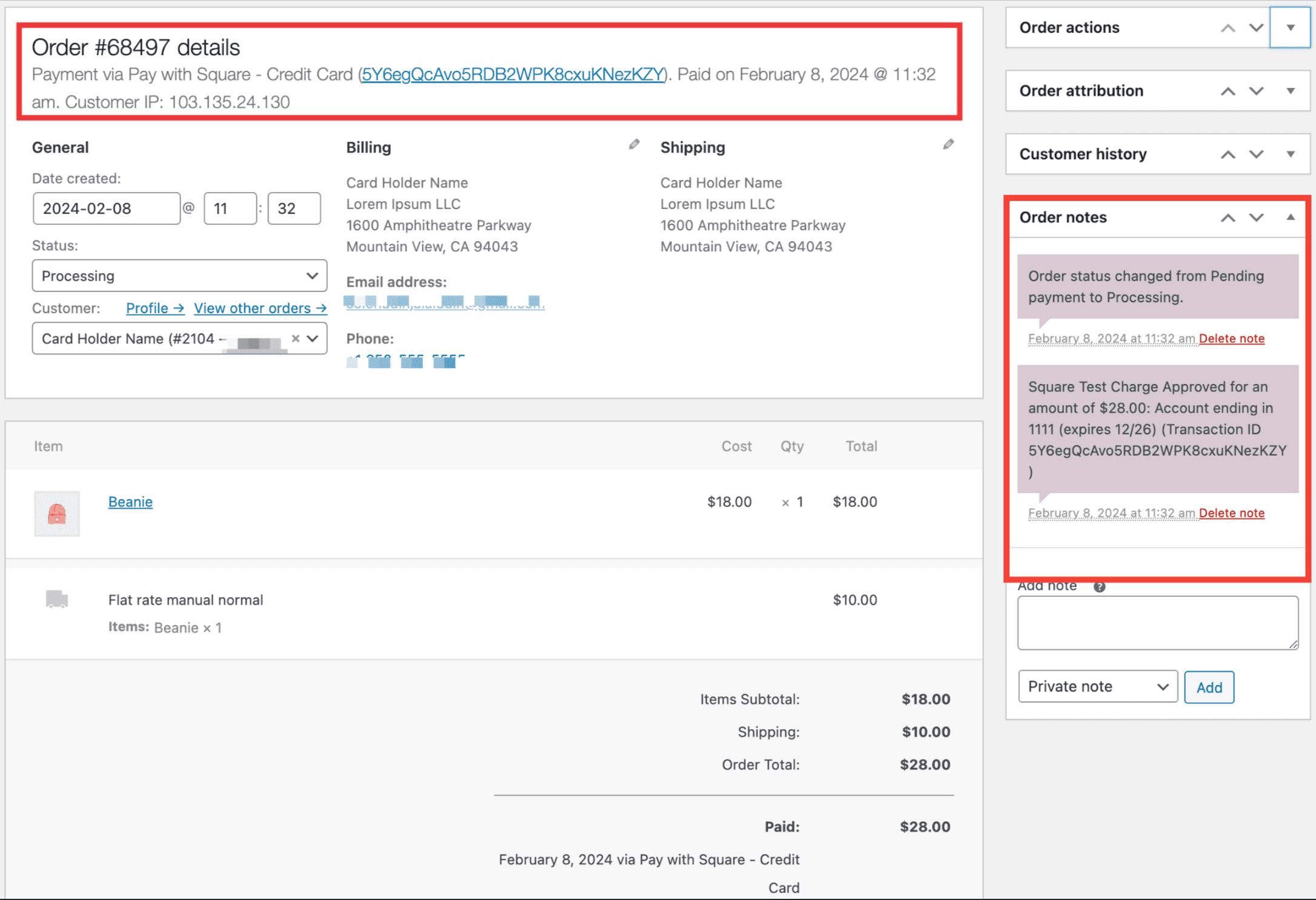
↑ Back to topAfter a customer completes checkout using Square, WooCommerce adds the following information to the order:
- Square Transaction ID (for tracking the transaction in your Square Dashboard)
- Payment method label (Square Credit Card, Square Gift Card, CashApp Pay, etc.)
- Authorization or capture status (if applicable)
- Any payment error details (in order notes, if a payment issue occurred)
Order Statuses with Square
↑ Back to topThe WooCommerce plugin provides different order statuses that indicate an order’s life cycle. WooCommerce Square also applies some of these statuses to an order automatically based on information from the Square servers. Here is how each payment scenario maps to a WooCommerce order status, depending on whether the Capture Paid Orders setting is either Authorization or Charge:
| Setting | Status Description |
|---|---|
| Payment captured (Charge mode) | Processing or Completed (only for products that are both virtual and downloadable) |
| Payment authorized (Authorization mode) | On Hold – awaiting manual capture |
| Authorization captured | Processing or Completed |
| Authorization expired (after 6 days) | Remains On Hold — you must void and re-authorize |
| Payment failed | Failed |
| Refund issued | Refunded (full) or Partially Refunded |
How to Refund an Order
↑ Back to topYou can issue refunds for Square orders directly from WooCommerce. Please see more info on our WooCommerce Refunds documentation page on processing refunds. Refunds are processed through Square and reflected in your Square Dashboard.
When a refund is issued, it typically takes 5–10 business days to be reflected in your customer’s bank statement. If the refund occurs very soon after the payment is captured, it may be processed in the form of a reversal; in these cases, the initial charge will “drop off” from their transaction history, and it will be as though the payment never occurred.
Refund an Uncaptured Payment
↑ Back to topWhen Capture Paid Orders setting is set to Authorization, which is not recommended as generally merchants want to avoid manually capturing the payment at a later time, if you refund an authorized order that has not yet been captured, it will cancel the authorization and change the order status to Cancelled.


If you need to partially refund the order, then first capture the full authorized amount by changing the order status to Processing and click Update and process your partial refund as usual.
Note: For orders paid with a split payment (Square gift card + credit card), the refund is applied to the gift card first, then the credit card.

