
Payment Gateway Based Fees and Discounts for WooCommerce Pro plugin allows you to set fees or discounts based on the payment gateway that the customer selects at Checkout. You can add fees and discounts for all standard WooCommerce payment gateways (Direct Bank Transfer (BACS), Cheque Payment, Cash on Delivery and PayPal) as well as any custom payment gateways added. With this plugin, you can set fixed or percentage-based fees, apply region-specific charges, and even skip fees for specific order subtotals. It also provides the flexibility to display transparent fee details on product pages, helping you build customer trust and reduce cart abandonment.
Installation
↑ Back to topTo start using a product from WooCommerce.com, you can use the “Add to store” functionality on the order confirmation page or the My subscriptions section in your account.
- Navigate to My subscriptions.
- Find the Add to store button next to the product you’re planning to install.
- Follow the instructions on the screen, and the product will be automatically added to your store.
Alternative options and more information at:
Managing WooCommerce.com subscriptions.
Setup and Configuration
↑ Back to topYou can add fees or discounts on checkout page based on the payment gateway option that the customer selects. Say you want to charge a fee of $10 when customer selects Cash on Delivery payment option on Checkout. This is possible by adding various settings in Payment Gateway Based Fees and Discounts for WooCommerce Pro plugin. Let us discuss General settings in this post.
General Settings
↑ Back to topOnce your plugin is active, you will find a new tab named Payment Gateway Based Fees under WooCommerce -> Settings. To go to the General settings page, go to WooCommerce -> Settings -> Payment Gateway Based Fees -> General.
The default General page appears as shown below:
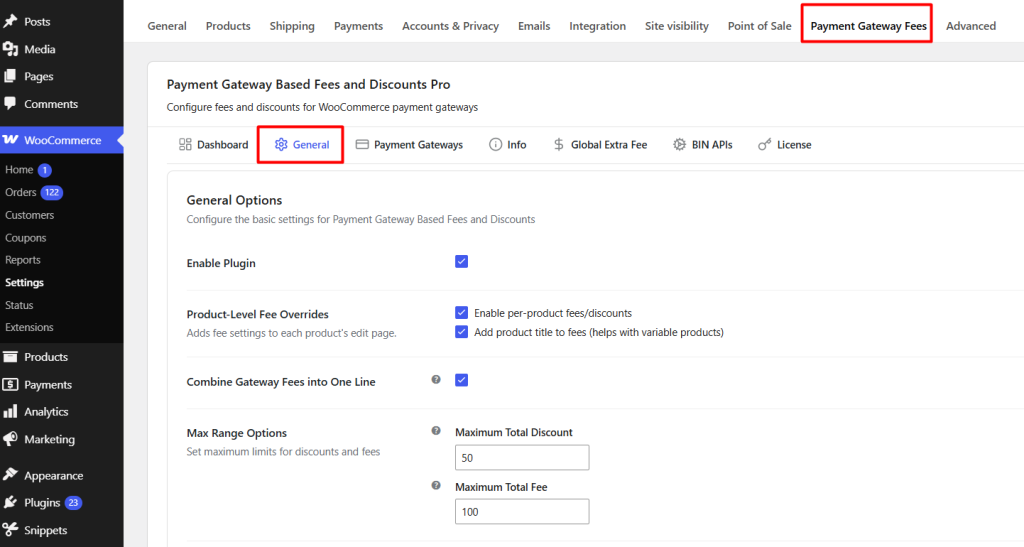
The General tab allows you to configure the plugin’s core settings, including plugin activation, product-level fee overrides, fee display options, maximum fee and discount limits, cart page visibility, and plugin data management.
When you tick the Enable plugin checkbox of the Payment Gateway Based Fees and Discounts setting, you will be able to add extra fees or discounts for WooCommerce payment gateways.
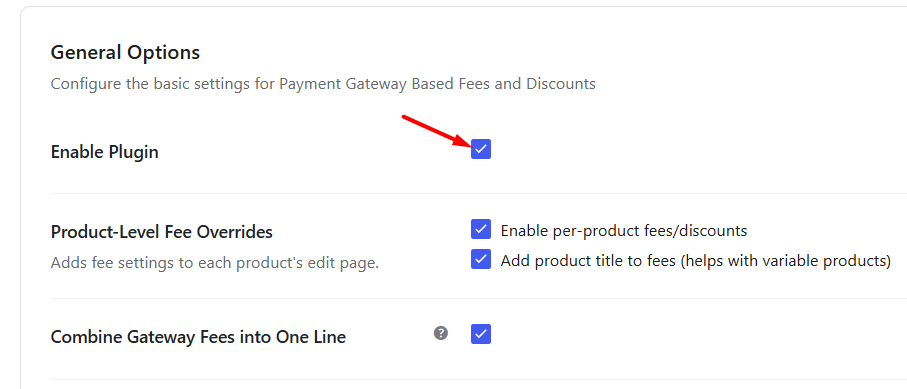
Enable this setting to activate the plugin. When disabled, any fee or discount rules configured within the plugin will not be applied.
This setting must remain enabled for configurations under the Payment Gateways and Global Extra Fee tabs to take effect.
By default, this option is enabled.
Fees/Discounts per Product
↑ Back to topUnder this section, you can add fees and discounts for payment gateways on per product basis.
Payment gateways fees and discounts on per product basis
↑ Back to top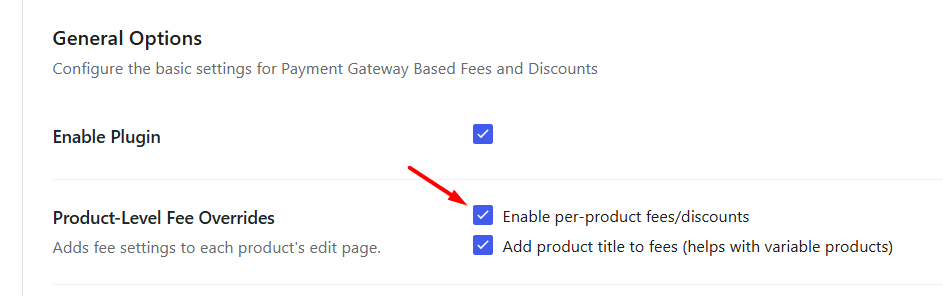
Enabling the setting
By default, this setting is disabled. When you tick the Enable checkbox, Payment gateways fees and discounts on per product basis settings will add a meta box with fees settings to Edit page of all WooCommerce products. When enabled, additional fee settings are added to the WooCommerce product edit page, allowing you to override or define payment gateway-specific fees and discounts for individual products.
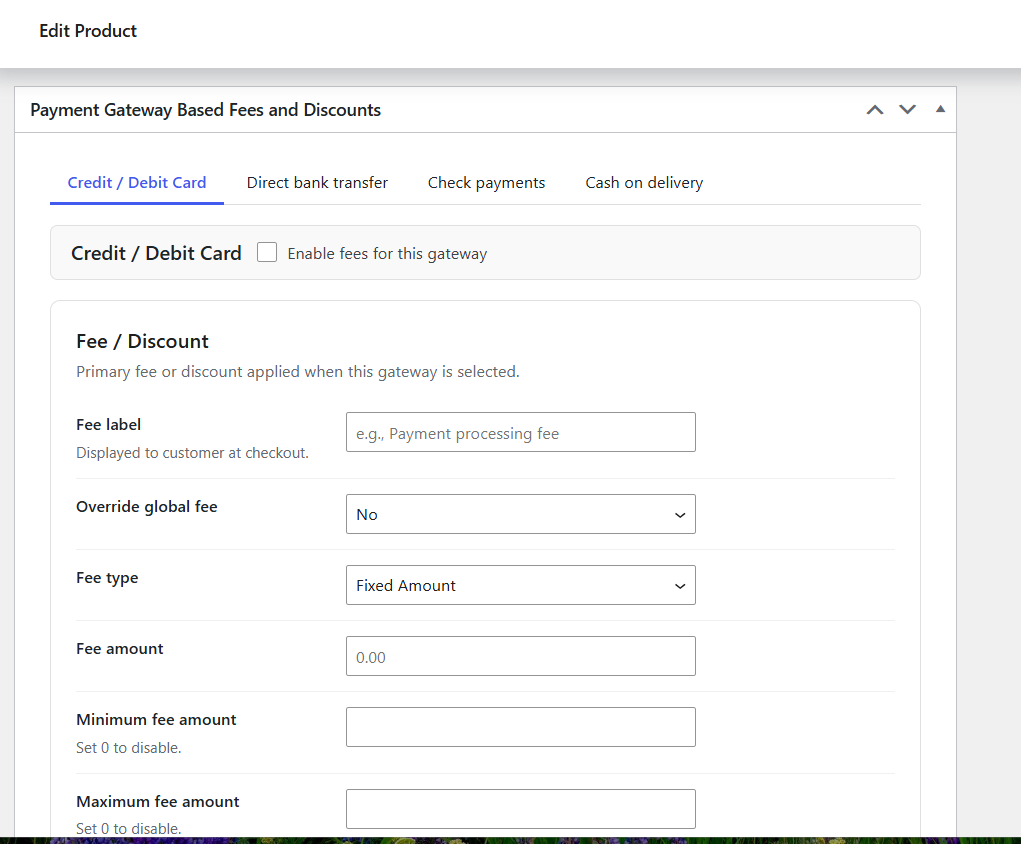
Meta box with settings
This meta box will list all the WooCommerce payment gateways and custom added payment gateways. The different payment gateways available on your store will appear in tabs form as shown above. Each tab will have Fees/Discounts section, Secondary Fee section and General section.
Different settings under each sections are explained in detail in Payment Gateway settings post.
Add Product Title to Fees (Helps with Variable Products)
↑ Back to topThe Add product title to fees (helps with variable products) option adds the product title to the fee or discount label displayed on the checkout page.
This is particularly useful when applying payment gateway fees or discounts to variable products, as it helps customers identify which product the fee is associated with.
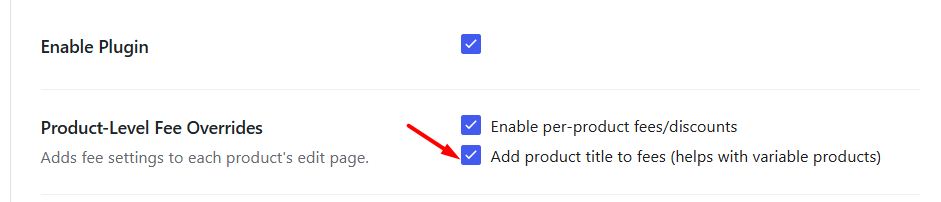
Default settings
Let us understand this using an example. Consider a variable product Mint Orange Juice – Two where you charge an additional fee of 5% for Direct bank transfer payment gateway. So when this setting is disabled, only fee/discount title which is Additional 5% Fee will be displayed on the Checkout page when Direct bank transfer payment gateway is selected.
Fee/discount title on the Checkout page
Now when you enable this setting, a product title which is Mint Orange Juice – Glasses: Two will also appear with the fee/discount title – Additional 5% Fee.
Checkout page display
This way adding a product title can be useful while adding fees/discounts for variable products.
Combine Gateway Fees into One Line
↑ Back to topThe Combine Gateway Fees into One Line option controls how payment gateway fees and global extra fees are displayed on the cart and checkout pages.
By default, payment gateway fees and global extra fees appear as separate fee lines.
But if you enable this option, it will merge both payment gateway fee & global extra fee and display the total as a single fee on the front end.
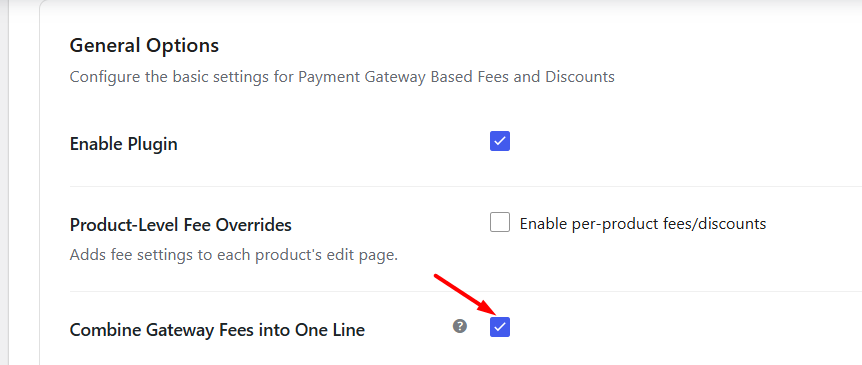
Enabling Merge all fees option
Let us understand this with an instance. Say you add Payment gateway fee of $10 for Cash on delivery option and Global extra fee of $10 additionally. So when you add a product Choco lava cake in the cart and select Cash on Delivery option on Checkout page, both these fees will be displayed separately.
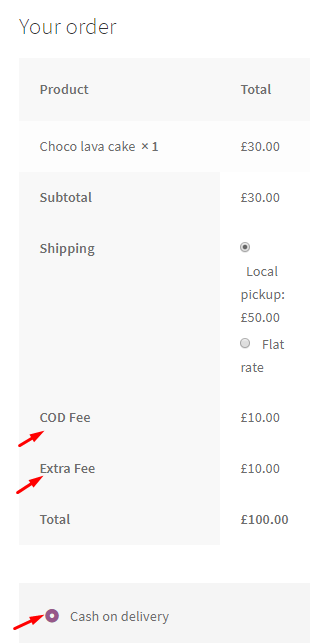
Displaying both fees separately
Now when you enable the Combine Gateway Fees into One Line option under General options section, it will combine both these fees and display a total fee on the Checkout page. Hence, it will charge total COD fee of $20 on the order and is displayed on a single line and will show the Fee title which is saved for individual payment gateway.
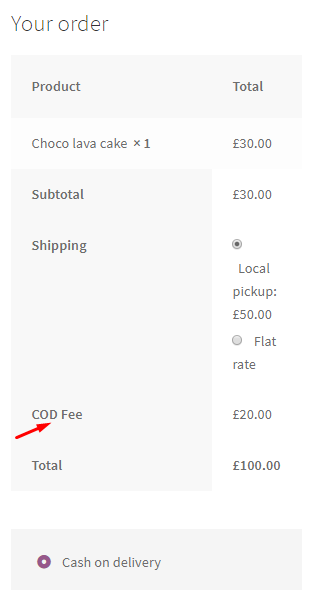
Display of Total fee on Checkout page
The Combine Gateway Fees into One Line setting is disabled by default.
Max Range Options
↑ Back to topThis option allows you to set maximum total discount and maximum total fee that you can apply on the order. This means if you want to give a discount or charge a fee to the customer then it should not exceed the amount you add in this option.
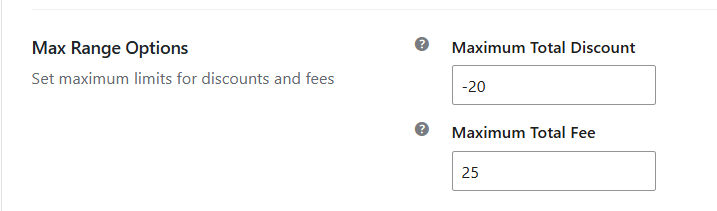
Max Range options
Let us understand both these options using an instance.
Max total discount
You can add maximum discount amount that you want to give to your customer in this setting. To add discount amount, use a negative sign (-). For instance, say you want to give maximum of $20 discount, hence you will add -20 in the Max total discount field.
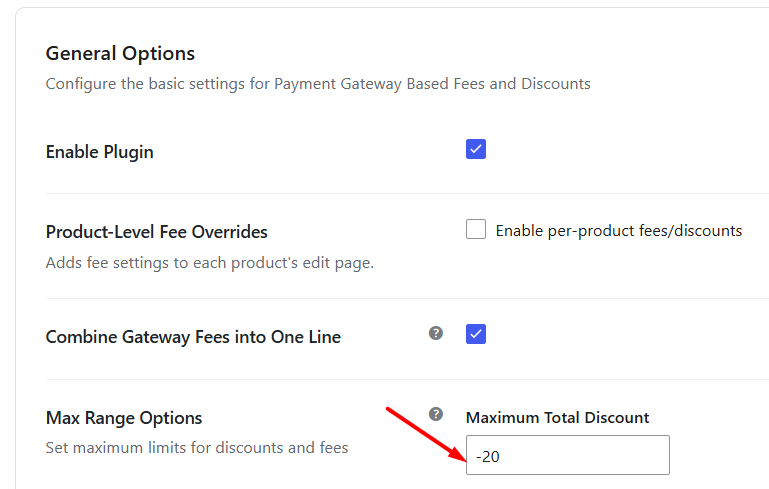
Adding maximum discount amount
So when you add payment gateways discount, it should not exceed $20. If it exceeds $20, then the applicable discount will be $20 which is set in the Max total discount setting. So say if you add COD discount of $30 and set the Max total discount to $20.
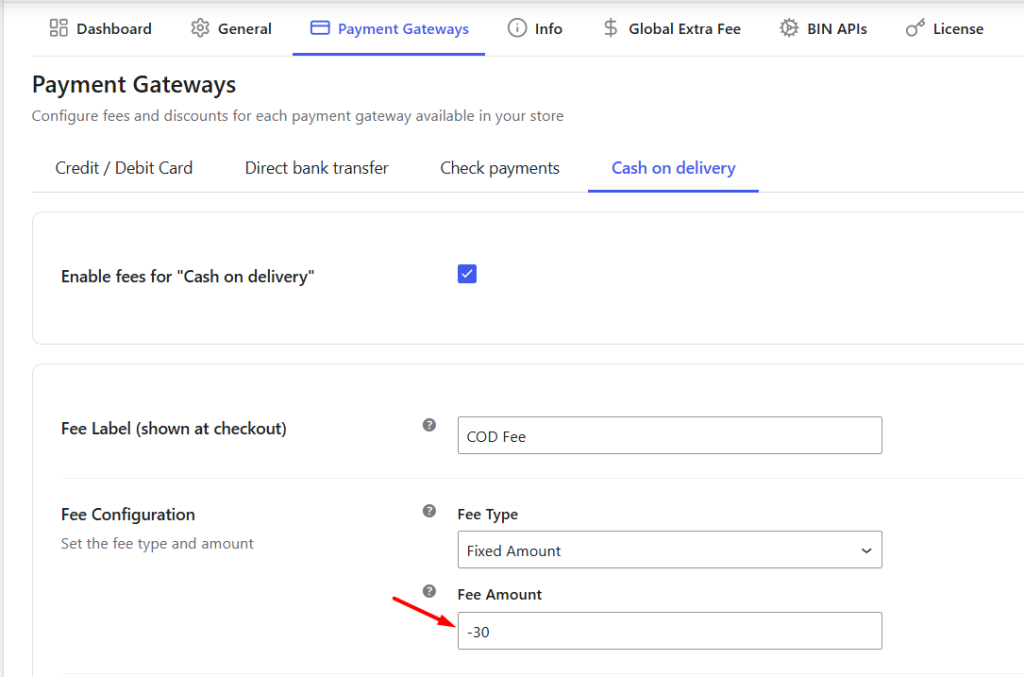
COD discount of $30
This means the COD discount added is more than Max total discount. So on Checkout page, you will see COD discount given is $20 which is maximum, even when you have set COD discount to $30.
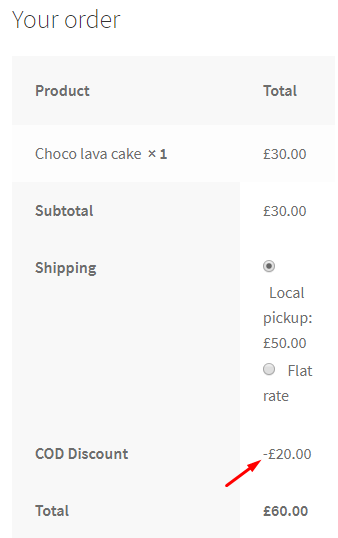
Max discount display
By default this option is set to 0. When it is 0, this setting is disabled.
Note – This setting is applicable only when any discount is added in the individual payment gateway otherwise it will not be considered.
Max total fee
You can add maximum fee amount that you want to apply, in this setting. This fee amount cannot exceed the amount that you add in Max total fee setting. If it exceeds then the amount added in Max total fee field will be applicable.
For instance, say we set the Max total fee to $20. This means maximum of $20 can be charged on an order at Checkout.
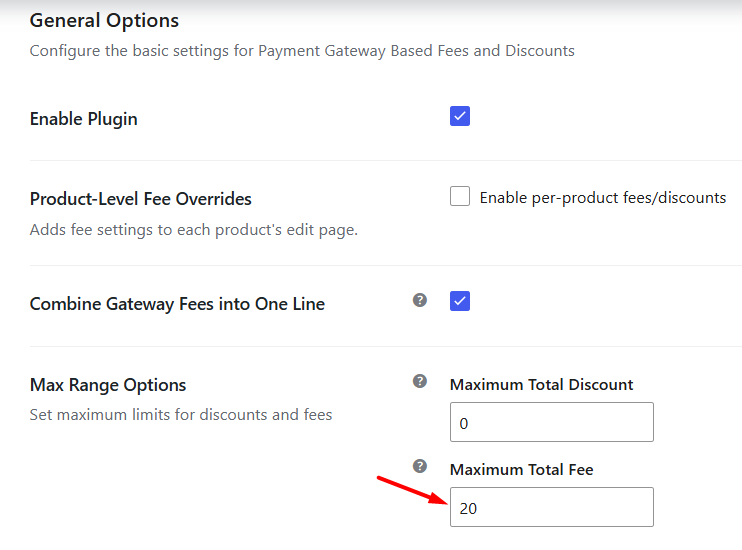
Now say you add Cash on delivery fee as $30 in the backend.
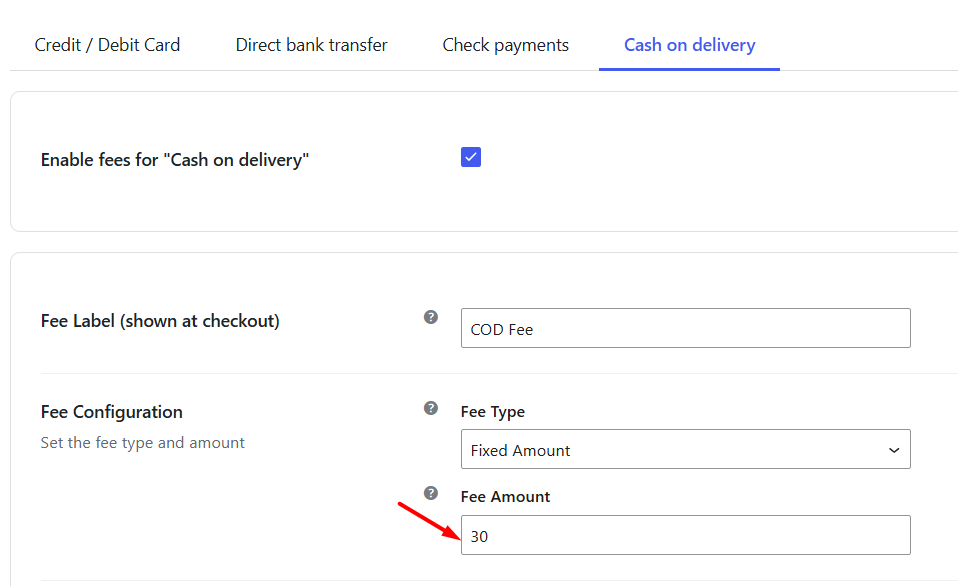
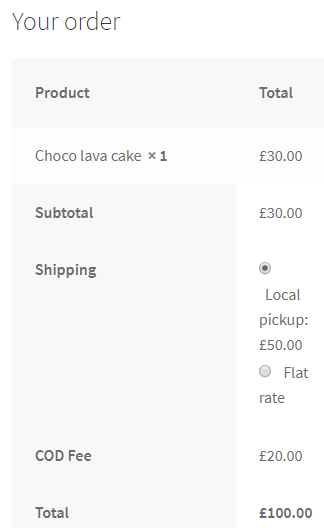
So when a customer selects Cash on delivery option for placing the order, he will be charged a COD fee of $20, even when it is set to $30. This is because the maximum fee to be charged is set to $20 under General settings.
COD fee charged is $20
By default, this is set to 0 and when it is 0, this setting is disabled.
Cart Options
↑ Back to topThe Hide Fees on Cart Page option controls whether payment gateway fees and discounts are displayed on the WooCommerce cart page.
When enabled, payment gateway fees and discounts are hidden on the cart page and are only calculated and displayed during checkout after a payment method is selected.

Let us understand this using an instance. Say a COD fee of $30 is applied on the order and displayed on the Cart page for Choco lava cake.
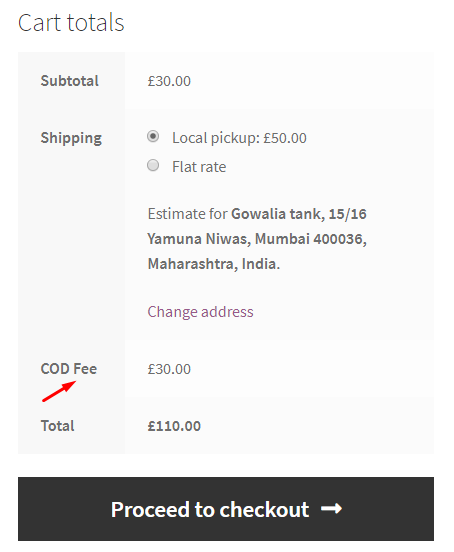
COD fee of $30 on Cart page
Now if you wish to hide the COD fee on Cart page, enable the settings. You will see the Cart page displays no COD fee and hence the total amount is $80.
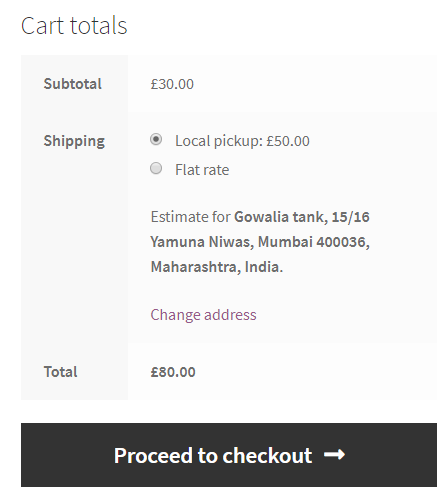
This way you can choose to not display the payment gateway fee on the Cart page but instead calculate the fees on the Checkout page when the customer places the order.
Advanced Options
↑ Back to topThis option allows you to delete all the data stored in the plugin. So when you click the Delete all plugin data button, all your plugin’s options and products meta will be deleted.

Delete all plugin’s data option
This option will delete all the data permanently which you will not be able to retrieve using any undo action. Hence take utmost care while using this option.
Reset Usage Tracking
↑ Back to topThe Reset Usage Tracking option resets the plugin’s usage tracking data.
This option only affects analytics and usage-tracking information collected by the plugin and does not remove your payment gateway fee configurations or plugin settings.

Reset Settings
↑ Back to topThis setting allows you to reset all the settings on the General settings page. Tick the Reset section settings checkbox to reset the settings.
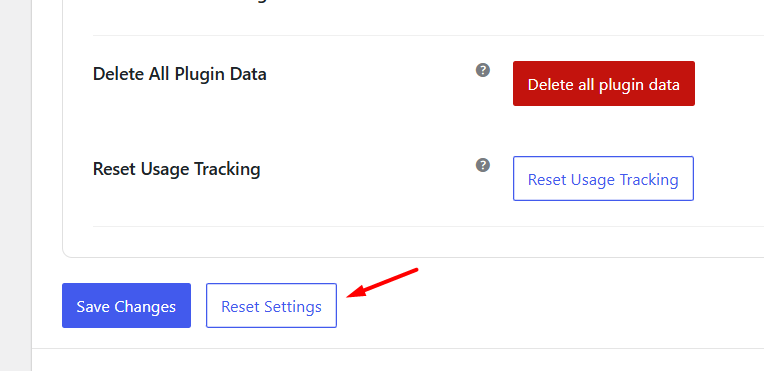
When you reset the settings, it will enable Payment Gateway Based Fees and Discounts option and set Max Range options to 0. Here when you reset the settings, there is an impact on the front end.
For instance, you add COD Fee of $20 and Extra Fee of $10 in the backend and enable the ‘Merge all fees’ setting. This will merge both fees and display it as COD Fee of $30 on the Checkout page. Now say you reset the General settings, this will disable the Merge all fees setting and hence the front end will display both COD Fee and Extra Fee separately.
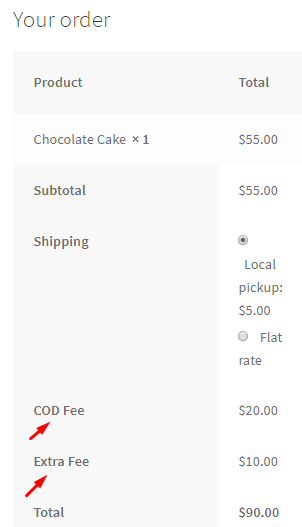
Both fees displayed separately
This way Reset setting option has impact on the front end behaviour.
Additional Settings
↑ Back to top- Info Settings
- Global Extra Fee Settings
- Configure Fees and Discounts for Payment Gateways
- Fees/Discounts based on Card Issuer Country (BIN) and Issuing Bank
- Adding payment gateway fees on WooCommerce Order page
Can I charge payment method fees only for specific products?
Yes. You can configure fees or discounts per product, giving you full control over how payment method charges apply to each product in your store.
Can I charge different fees for gateways like Cash on Delivery, Stripe, PayPal, or other third-party payment gateways?
Yes. You can charge different fees or offer discounts for each payment method. For example, you could add a small fee for Cash on Delivery or offer a discount for Stripe or PayPal payments.
Does it work with Variable Products?
Yes, the plugin works with variable products.
Can I display payment gateway fees or discounts on the product page?
Yes. You can show the payment gateway fees or discount details right on the product page, so customers know exactly what to expect at checkout.
Can I add fixed payment gateway fees or percentage-based payment gateway fees?
Yes! You can charge payment gateway fees either as a fixed amount or as a percentage of the order total.
Can I exclude shipping charges when calculating the total fees?
Yes! You can choose to calculate fees based only on the product total, excluding shipping costs, giving you full control over how fees are applied.
Can I apply taxes to payment gateway fees?
Yes. You can make fees taxable by selecting a tax class. The applicable tax will be automatically added to the payment gateway fees at checkout.
Can I add different fees for different countries for the same payment gateway?
Yes. You can configure different fees for the same payment gateway based on the customer’s billing country. This allows you to charge country-specific fees automatically at checkout.
Can I add more than one fee for the same payment gateway?
Yes. You can create multiple rules for the same payment gateway. For example, one fee can be based on the order total, and another can be based on the customer’s card type. If the conditions for both rules are met, both fees will be applied automatically at checkout.
Can I apply fees based on card type, bank, or issuing country?
Yes! With the Card Rules feature, you can automatically apply fees or offer discounts based on the customer’s card type (Visa, MasterCard, Amex, etc.), bank, or even the card’s issuing country.
Will the fee update automatically when the payment method changes?
Yes! If a customer changes their payment method at checkout, the fee updates automatically. For example, if a fee is added for a credit card and the customer switches to Cash on Delivery, the credit card fee is removed and any fee set to Cash on Delivery payment method, is applied.
Can I avoid charging fees for certain payment gateways?
Yes! You can exclude specific payment methods from adding the extra fees. For example, customers could pay via PayPal without any added charges, while fees would still apply to all other payment gateways.
Can I charge gateway fees only when a coupon is used?
Yes. Fees can be applied only when a coupon is used, allowing you to have more control over discounts and promotions.
Can I apply gateway fees based on shipping method?
Yes! Fees can be applied depending on the shipping method selected by the customer. For example, you could add a small fee for Express Shipping while keeping Standard Shipping fee-free.
Can I apply payment gateway fees based on order total?
Yes. You can set fees only for orders above or below a certain total. This gives you flexibility for small and large orders.
Can I set minimum and maximum fee amounts for payment gateway fees?
Yes. You can define minimum and maximum payment gateway fees to ensure they don’t get too low or too high, keeping pricing predictable.
Is the plugin compatible with the WooCommerce Block Checkout?
Yes! The plugin works seamlessly with WooCommerce Block Checkout, so you can apply fees or discounts even when your store uses the new checkout blocks page.
Is the plugin compatible with multi-lingual plugins such as WPML?
Yes, our Payment Gateway Based Fees and Discounts Pro plugin is compatible with the WPML translation plugin.
Does your plugin comply with GDPR guidelines?
Yes, We have made every effort to make our plugin compliant to the GDPR guidelines. As a part of compliance, we do not capture any data of end-users and customers without consent.the WPML translation plugin.
Does your plugin comply with GDPR guidelines?
Yes, We have made every effort to make our plugin compliant to the GDPR guidelines. As a part of compliance, we do not capture any data of end-users and customers without consent.the WPML translation plugin.
Questions & Support
↑ Back to topHave a question before you buy? Please fill out this pre-sales form.

