
This page explains top-ups: how customers add money to their wallet from My Account > Wallet > Add funds, which settings control it, when the wallet is credited, and how to handle a top-up refund. It is for store owners and shop managers.
How top-ups work
↑ Back to topA top-up is an ordinary WooCommerce order paid with your normal payment methods. No product is added to your catalog. The customer:
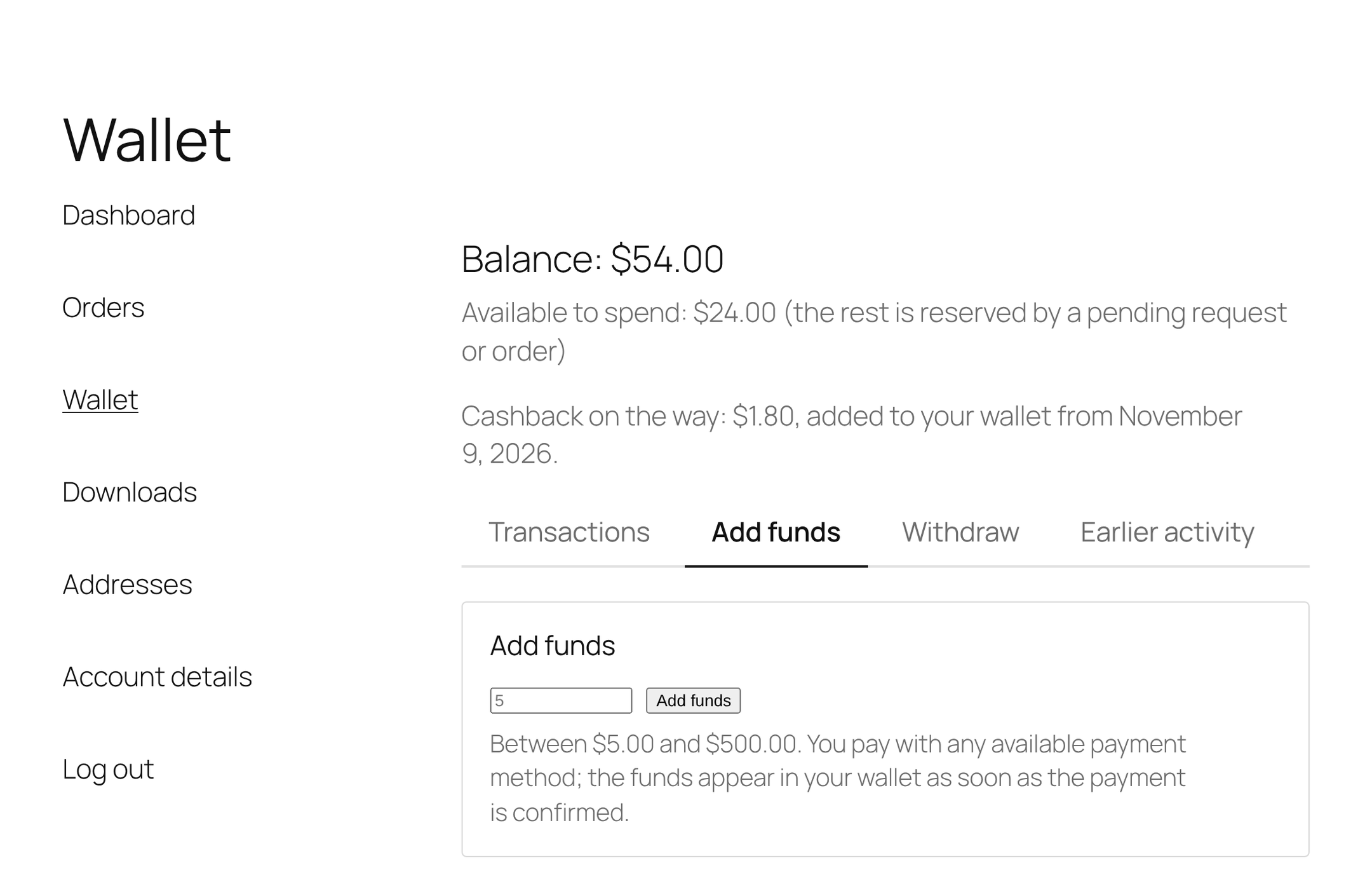
- Opens My Account > Wallet and clicks the Add funds tab.
- Enters an amount between your minimum and maximum, then clicks Add funds.
- Lands on WooCommerce’s Pay for order page for a new order with a single Wallet top-up line for that amount (status Pending payment).
- Chooses a payment method and pays.
- Sees the money in the wallet as soon as the payment is confirmed.
The form tells the customer the limits: “Between $5.00 and $500.00. You pay with any available payment method; the funds appear in your wallet as soon as the payment is confirmed.”
If the amount is not accepted, the customer returns to the form with one of these messages:
- “Please enter a valid amount to add.”
- “Top-up amounts must be between $5.00 and $500.00.” (with your limits)
- “Top-ups are not available right now.” (top-ups were switched off while the page was open)
- “The top-up could not be started. Please try again.”
Settings
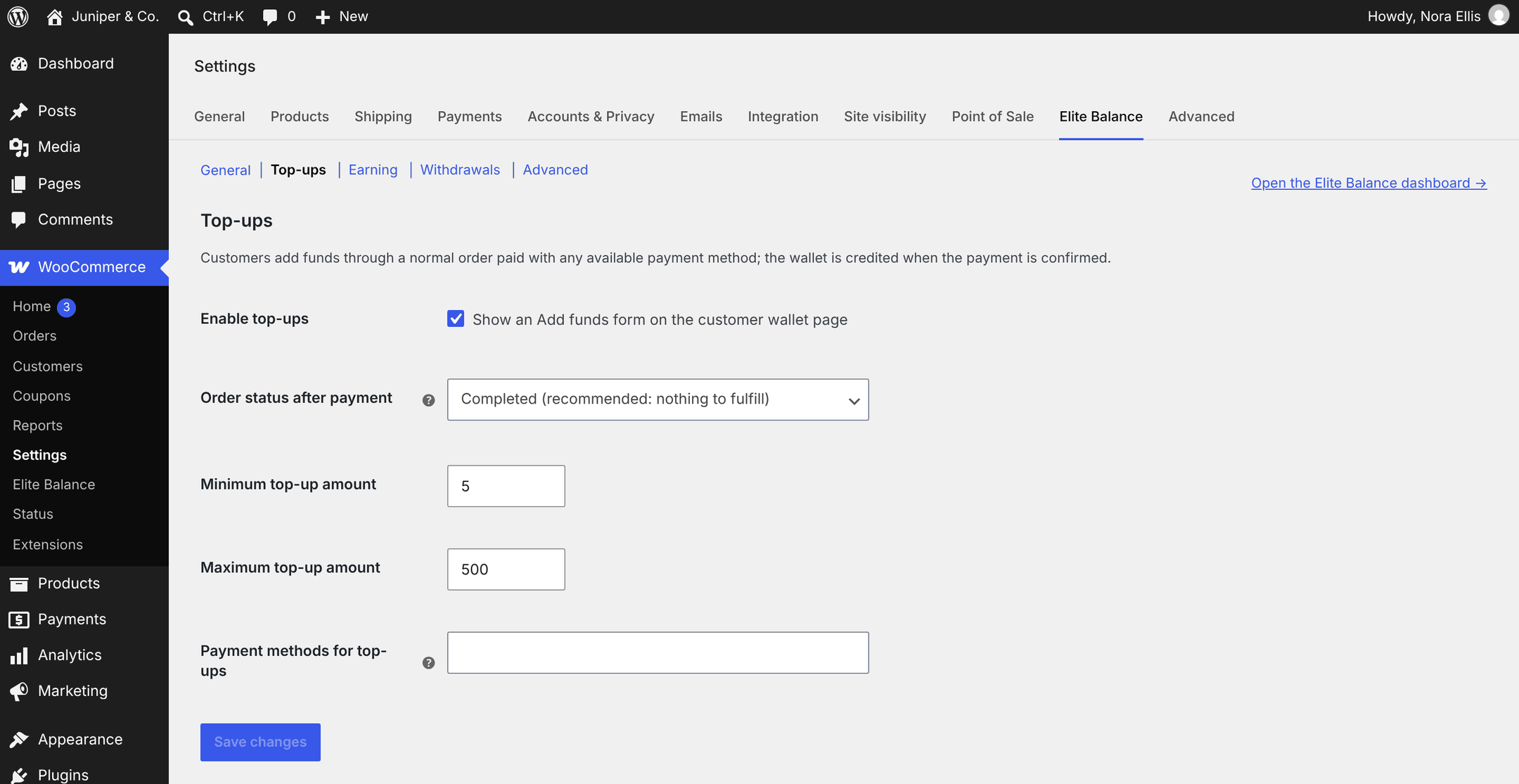
↑ Back to topTop-up settings are on WooCommerce > Settings > Elite Balance > Top-ups.
| Setting | Default | What it does |
|---|---|---|
| Enable top-ups (Show an Add funds form on the customer wallet page) | On | Shows the Add funds tab on the customer wallet page. Untick it to remove the tab and stop new top-ups. |
| Order status after payment | Completed (recommended: nothing to fulfill) | The status a top-up order moves to when its payment method reports a completed payment. The other choice is Processing (the WooCommerce default for paid orders), for stores that review every order by hand. |
| Minimum top-up amount | 5 | The smallest amount a customer can add, in the store currency. The form enforces it and the server checks it again. |
| Maximum top-up amount | 500 | The largest amount per top-up. If the minimum is set higher than the maximum, the minimum is used for both. |
| Payment methods for top-ups | Empty (every enabled payment method) | Limits which payment methods are offered when paying for a top-up. Leave it empty to allow all enabled methods. The wallet itself is never offered. |
Note: Top-ups are on by default, so the Add funds tab is live as soon as the plugin is activated. Review the limits and payment methods before you tell customers about it.
Payment methods for top-ups
↑ Back to topOn the Pay for order page of a top-up, the customer sees your enabled payment methods, narrowed to Payment methods for top-ups when you have picked any. The Wallet balance payment method is always removed (a wallet cannot fund itself), and the Use my wallet balance checkbox is not offered on that page either.
Important: Leave Cash on delivery out of Payment methods for top-ups. WooCommerce puts cash on delivery orders straight into Processing, and a top-up order in Processing credits the wallet at once, before any cash is received.
Methods such as Direct bank transfer and Check payments put the order On hold. The wallet is credited when you confirm the money arrived and change the order to Processing or Completed.
When the wallet is credited
↑ Back to topThe wallet is credited when either of these happens:
- the payment method reports a completed payment (card and other online payment methods), or
- the order moves to Processing or Completed in any way, including when you change the status by hand.
The credit happens once per top-up order. Repeated payment notifications, status changes back and forth, or webhook retries never credit it again.
Order status after payment only applies when the payment method reports a completed payment. With methods that do not (bank transfer, check), the order keeps the status you set.
What the customer and you see:
- A Top-up transaction in the customer’s wallet history, with the note “Top-up via order #39” and a link to the order.
- The order note “Elite Balance: $150.00 credited to the customer’s wallet. Balance is now $169.00.”
- The Wallet credited email, if it is enabled (see Wallet Emails), next to WooCommerce’s usual order emails for the order.
A cancelled, failed or never-paid top-up order credits nothing. If crediting fails for a technical reason, the order gets the note “Elite Balance: crediting the top-up failed: …” and the error is logged; changing the order to Processing or Completed again retries it without any risk of a double credit.
Note: A locked wallet can still receive top-ups. Locking stops spending, not credits.
The top-up order
↑ Back to top- It appears in WooCommerce > Orders and in the customer’s My Account > Orders like any order.
- It has one line, Wallet top-up, for the amount. It is not taxed and has no shipping. When it is created it gets the note “Elite Balance: wallet top-up order for $150.00. The wallet is credited when payment is confirmed.”
- Unpaid top-up orders stay in Pending payment. WooCommerce’s automatic cancellation of unpaid orders (the Hold stock timer) only applies to orders placed through the checkout, so it does not cancel them. Customers can pay later from My Account > Orders, and you can cancel or delete old ones.
- Top-up orders never earn order cashback. They have their own reward, the top-up bonus (see below).
Refunding a top-up
↑ Back to topRefunding a top-up order does not remove the money from the wallet by itself. The customer may already have spent it, and Elite Balance never takes money out of a wallet without a person deciding to. To refund a top-up:
- Open the customer’s wallet (the Open wallet link in the order’s Elite Balance box) and check that the available balance covers the amount.
- Debit the wallet with Adjust balance and a reason. See Managing Wallets.
- Refund the order to the original payment method with WooCommerce’s own button (for example Refund $150.00 via Card), or Refund $150.00 manually if you send the money another way.
Important: Do not click Refund to wallet on a top-up order. That button is meant for store credit on regular orders; on a top-up it credits the same amount to the wallet a second time.
If a top-up bonus is attached to the order, a bonus still pending under the cashback release delay is cancelled when the top-up order is set to Cancelled or Refunded. A partial refund leaves it unchanged, and a bonus that was already credited is not taken back automatically; debit it by hand if needed.
Top-up bonuses
↑ Back to topYou can reward top-ups with an earning rule that uses the Top-up bonus trigger, on the Earning tab under WooCommerce > Elite Balance:
- The bonus is a fixed amount or a percentage of the credited top-up amount.
- Minimum base sets the smallest top-up that earns it. Example: a rule “Top-up bonus: 10% on $100 or more” uses 10% with a minimum base of 100, so a $150.00 top-up earns $15.00.
- Roles and the Campaign window also apply.
- The bonus follows the cashback release delay (30 days by default): it is pending first, and the customer sees “Top-up bonus on the way: …” on their wallet page until it is added.
- Once added, it appears as a Cashback transaction with the note “Top-up bonus on order #39”.
The full rules are on Earning Rules and Cashback.
For developers
↑ Back to top- Top-up orders carry the order meta
_rb_elbal_topup_order(the amount) and are created withcreated_viaset toelite-balance-topup. - The credit uses the transaction type
topup_creditand the idempotency keytopup_order:{order_id}:credit. rb_elite_balance_topup_amount_limits(filter): the minimum and maximum, as an array withminandmax.rb_elite_balance_topup_credited(action): fires after a top-up is credited, with the transaction and the order. It never fires for replays.- The form uses the template
myaccount/topup-form.php. Override it inyourtheme/elite-balance/myaccount/topup-form.php.
See Developer Reference for the full API.