
With WooCommerce Pre-Orders, you can sell pre-orders for products and services in your WooCommerce store.
Pre-orders can be charged upfront or when the pre-order is available by setting an optional date and time when the pre-order will be available.
Requirements
↑ Back to top- WooCommerce version
10.9or higher - WordPress version
6.9or higher - PHP version
7.4or higher
Installation
↑ Back to topTo start using a product from WooCommerce.com, you can use the “Add to store” functionality on the order confirmation page or the My subscriptions section in your account.
- Navigate to My subscriptions.
- Find the Add to store button next to the product you’re planning to install.
- Follow the instructions on the screen, and the product will be automatically added to your store.
Alternative options and more information at:
Managing WooCommerce.com subscriptions.

Setup and Configuration
↑ Back to topGeneral settings
↑ Back to topGo to: WooCommerce > Settings > Pre-Orders.
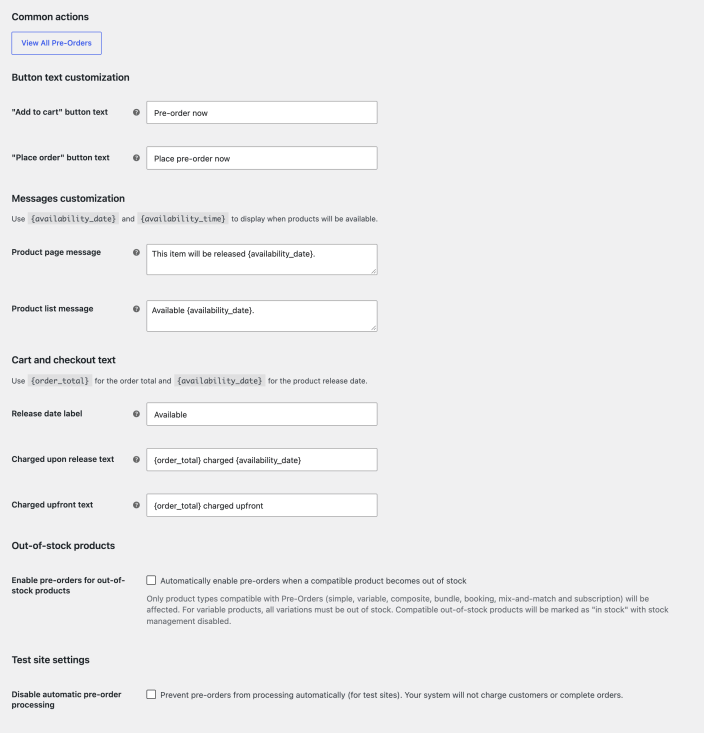
- View All Pre-Orders – Opens the list of all your pre-orders.
- “Add to Cart” Button Text – This controls the Add to Cart button text on single product pages for products that have pre-orders enabled.
- e.g., “Pre-Order Now” rather than “Add to cart”
- “Place Order” Button Text – This controls the place order button text on the checkout when an order contains pre-orders.
- e.g., Place Pre-Order Now rather than “Place Order”
- Product Page Message – Add an optional message to the single product page below the price. Use this to announce when the pre-order will be available by using
{availability_date}and{availability_time}. Limited HTML is allowed. Leave blank to disable. - Product List Message – Add an optional message to each pre-order enabled product on the shop loop page above the add to cart button. Use this to announce when the pre-order will be available by using
{availability_date}and{availability_time}. Limited HTML is allowed. Leave blank to disable. - Release date label – This controls the title of the availability date section on the cart/checkout page, on the “thank you”, view order, order email templates, and order details tables. Leave blank to disable display of the availability date in the cart.
- Charged Upon Release text – This controls the order total format when the cart contains a pre-order charged upon release. Use this to indicate when the customer will be charged for their pre-order by using
{availability_date}and{order_total}. - Charged Upfront text – This controls the order total format when the cart contains a pre-order charged upfront. Use this to indicate how the customer is charged for their pre-order by using
{availability_date}and{order_total}. - Enable pre-orders for out-of-stock products: this option allows pre-orders when a compatible product goes out of stock. Compatible product types include simple, variable, Composite Products, Product Bundles, WooCommerce Bookings products, Mix and Match Products, and WooCommerce Subscriptions products. For variable products, all variations must be out of stock.
Compatible out-of-stock products will be marked as “in stock” with stock management disabled. - Disable automatic pre-order processing – Use this when you’re on a staging/testing site and don’t want any pre-orders processed automatically.
Product settings
↑ Back to topPre-orders can be enabled for either simple or variable product types by editing the product and opening the Pre-orders tab in Product data:
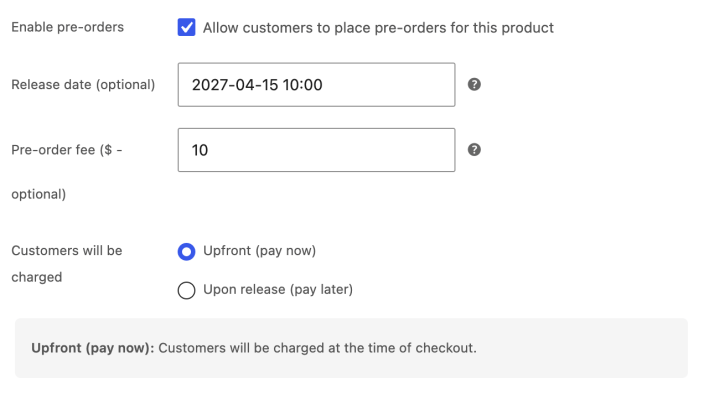
As shown in the above image, the following fields are available for configuration:
- Enable pre-orders – Select Allow customers to place pre-orders for this product.
- Release date (optional) – Set an optional release date and time for when the pre-order product is “available” for purchase as a regular product (only future dates/times are valid). If set, this availability date and time will be displayed in a number of places on the frontend, and once the date/time is reached, the product will cease to be a “pre-order” product and behave as a normal product.
- Pre-order fee (optional) – This allows you to charge an optional pre-order fee on top of the regular product price in whichever currency you set for your store.
- Customers will be charged – This determines when a pre-order product is charged for. The options include:
- Upon release (pay later) – A pre-order product charged “upon release” isn’t charged until the product is made available for purchase; that is to say, it stops being a pre-order product. This can happen either by the optional Availability Date/Time being met, or by a shop admin manually completing a pre-order. Supported gateways will automatically charge a saved credit card for pre-order customers, while any gateway can be supported by a “Pay Now” email being dispatched to the pre-order customer to collect payment.
- Upfront (pay now) – A pre-order product charged “upfront” is charged at checkout as would be a normal product.
Note:
Pre-Orders applies to the product-level, meaning all variations will be marked as pre-order items. This allows users to choose which variation they want to pre-order, but doesn’t allow you to set individual variations as pre-order items. For that scenario, you can use the Backorders functionality built into WooCommerce core.
Updating product pre-order configuration
↑ Back to topThe Pre-Orders section can be edited and updated with different limitations.
When a product has active pre-orders, you can’t change its pre-order settings:
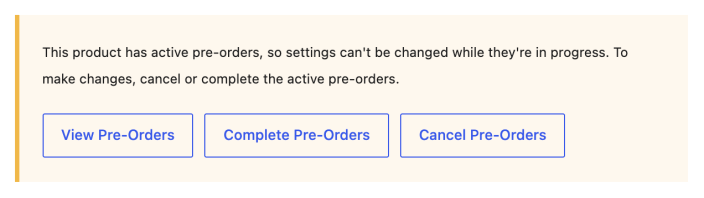
To change the release date while pre-orders are active, use Change release date on the Actions tab. To change any other pre-order setting, cancel or complete the active pre-orders first.
Displaying pre-order countdown timer
↑ Back to topTo show customers how long until a pre-order product is released, add a Shortcode block to the product page with [woocommerce_pre_order_countdown]. The timer counts down to the product’s release date. When it reaches that date, the page refreshes and the product shows as a normal product.
To change what the timer shows, add options inside the shortcode, for example [woocommerce_pre_order_countdown until="15 March 2027" format="dHM"]:
| Option | What it does | Example |
|---|---|---|
product_id or product_sku | Counts down to a specific product’s release date, so you can put the timer on any page. Without it, the timer uses the product whose page it’s on. | product_sku="WRAP-01" |
until | Counts down to a date you choose instead of the release date. Use a date, such as 15 March 2027, or a relative time, such as +1 month or next Friday. | until="15 March 2027" |
format | Chooses which units to show: Y years, O months, W weeks, D days, H hours, M minutes, S seconds. A capital letter always shows. A lowercase letter shows only when its value isn’t zero. The default is yodHMS. | format="dHM" |
compact | Set to true to show short labels, such as d instead of days. The default is false. | compact="true" |
before and after | Text to show before or after the timer. | before="Ships in " |
Product inventory
↑ Back to topProduct inventory is enabled/disabled and managed as for any normal product. This allows you to set stock, mark as “out of stock”, and otherwise manage inventory for your pre-order product like normal. If stock management is enabled, the product inventory will be reduced with each pre-order placed, meaning you can easily and effectively limit the stock of items available for pre-order. If an item is out of stock and backorders aren’t allowed, then users will see the message “No longer available for pre-ordering”.
Pay Later payment gateway
↑ Back to topThe Pre-Orders plugin includes a “Pay Later” gateway, which is used to provide support for any and all payment gateways for pre-order products that are paid for “upon release.” The Pay Later gateway will only be displayed as an option during checkout if there is a pre-order in the cart and the pre-order amount is charged “upon release,” alongside any available supported gateways:
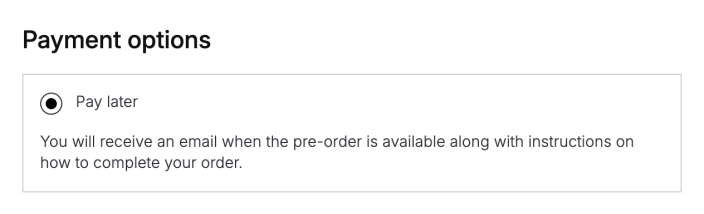
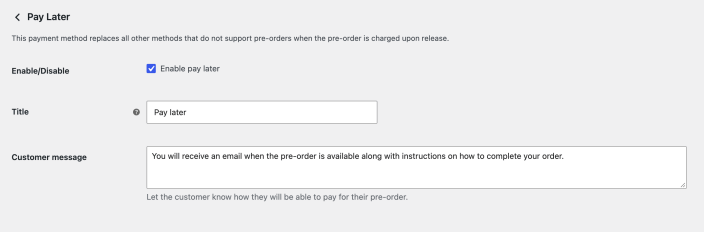
The Pay Later gateway can be configured by going to WooCommerce > Settings > Payments > Pay Later, where you can turn it on or off and change the Title and Customer message customers see.
Emails admin
↑ Back to topThe Pre-Orders plugin includes a number of Pre-Order specific emails (described below), which can be configured and customized like any of the WooCommerce core emails from the WooCommerce > Settings > Emails tab.
Managing pre-orders
↑ Back to topManage
↑ Back to topA pre-order is managed very similarly to a standard order, with an additional “pre-ordered” stage in which the pre-order is active and can either be cancelled (order processing terminates) or completed (order processing continues as normal). The Pre-Orders plugin adds a new Order status named “pre-ordered”. An order with this status indicates that a pre-order has been placed for a product that isn’t yet available for fulfillment, and a “Pre-Order” record is created and associated with the order (referred to as the “Parent Order”). A “Pre-Order” may have one of the following statuses, which are distinct from the regular Order status:
- Active – A pre-order status of “active” indicates that a product has been pre-ordered and isn’t yet available for fulfillment. The parent Order should have a status of “pre-ordered”. The product may have been paid for already (for pre-orders that are configured to be paid “upfront”) or may require payment “upon release”.
- Completed – A pre-order status of “completed” indicates that a product has been pre-ordered and is now available for fulfillment. The parent Order should have a status of “Pending”, “Processing”, “Failed”, or “Completed”, depending on the pre-order configuration, payment status, and order handling process. The product may have been paid for already, or may still require payment. Once a pre-order status is set to “Completed,” the parent Order is no longer considered to be “pre-ordered” and should be managed as would any other order.
- Cancelled – A pre-order status of “cancelled” indicates that a pre-order has been cancelled. When a pre-order is cancelled, the parent Order status will transition to “cancelled” as well, and the order is no longer considered “pre-ordered” and should be managed as would any other order in terms of managing refund, etc.
To view and manage pre-orders, go to WooCommerce > Pre-orders. The Manage tab lists every pre-order:
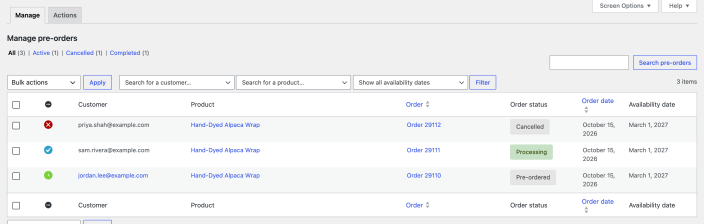
On the Manage tab, you can:
- See each pre-order’s status and its order’s status.
- Show only one pre-order status with the Active, Cancelled, and Completed views.
- Search pre-orders, or filter them by customer, product or availability date.
- Cancel an active pre-order from its row with Cancel.
- Apply a bulk action to the pre-orders you select:
- Complete – Completes the pre-orders. For pre-orders charged upon release, customers are charged automatically by a supported gateway, or sent a “Payment Required” email so they can pay. The order then moves to Pending payment, Processing, Failed or Completed, depending on the pre-order’s settings and payment status, and you manage it like any other order. Pre-orders whose release payment was already taken are skipped.
- Cancel – Cancels the pre-orders and their orders. Charges for pre-orders paid upfront aren’t reversed automatically, so refund them as you would any WooCommerce order.
- Customer message – Emails the customers of the selected pre-orders without changing their status.
Pre-order Actions
↑ Back to topTo act on all the pre-orders for one product at once, use the Actions tab in WooCommerce > Pre-orders.
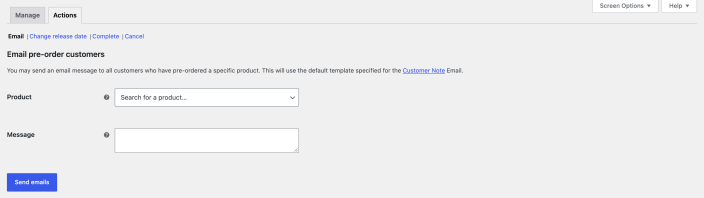
These actions allow you to select a pre-order product and perform an action upon all pre-orders for a given product, optionally send an email notification to the affected customers, and supply an optional customer message. The following actions are supported:
Email customers
Allows you to send a custom email to a group of pre-order customers based on their product. This won’t change the pre-order status.
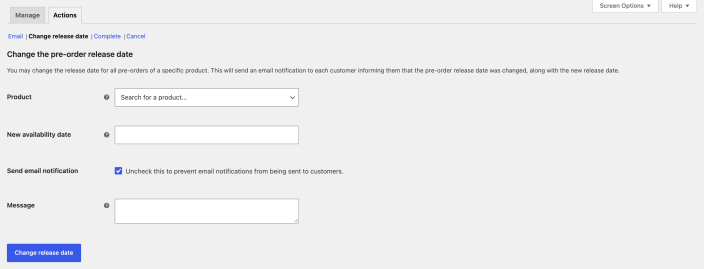
Change release date
This action allows you to change the Availability Date/Time for a pre-order product, and updates and optionally notifies all affected customers. This won’t change the pre-order status. If you change the date to a date in the past or “now,” it’s no longer a pre-order; it becomes a past/current order, no functionality is triggered, and orders don’t complete.
Complete pre-orders
Completes all active pre-orders for the given product, charging customers who used a supported gateway and optionally sending all affected customers a notification informing them their pre-order is available, or requires payment, depending on the pre-order configuration and order payment status. The parent order status will move to “Pending”, “Processing”, “Failed”, or “Completed” depending on the configuration of the pre-order, and the payment status. Regardless, once a pre-order is “Completed,” order management is handled in the normal WooCommerce way.
Cancel pre-orders
Cancels all active pre-orders, optionally sending an email notification along with a customized message. Note that for “upfront” payment pre-orders, any charges will not be automatically reversed and must be done so manually, as with a normal WooCommerce refund. This action will set the parent order status to “Cancelled” as well.
Order management
↑ Back to topOnce a pre-order is cancelled or completed, the parent Order status changes from “Pre-ordered” to one of “Pending,” “Processing,” “Failed,” “Cancelled” or “Completed” depending on the action, pre-order configuration, and order payment status. Once the pre-order status is no longer “Active” and the order status is no longer “Pre-ordered,” the parent Order can be managed as would be any regular order, in terms of completing payment, issuing refunds, etc.
Putting an order with an “active” pre-order into the trash will cause the pre-order status to change to “cancelled.” The associated customer will not be emailed in this case.
Pre-orders work with downloadable products too. When the pre-order is completed, the customer gets an email with the download links.
Customer experience
↑ Back to topTo provide the best and most satisfactory customer experience, pre-order products are modified in the shop/category catalog pages, product page, cart and checkout pages, and order detail tables on the “thank you,” view order and email notifications, to show text indicating that the product is available for “pre-order” and what its release date/time is, if configured.
Add to cart
↑ Back to topDue to the complexity of the pre-order checkout process, each order may contain only one pre-order product, and no other products, pre-order or otherwise.
If a customer adds a pre-order product to a non-empty cart, the cart will be automatically emptied and the pre-order product added:

Only one product for pre-order can be in the cart at a time. Customers wanting to pre-order several different products will need to place different orders for each. If a customer attempts to add a second pre-order product to a cart already containing a pre-order, an error message will be shown advising them of the need to make the pre-orders separately.
Checkout
↑ Back to topDuring Checkout, there are two main “modes” of collecting payment: “upfront” and “upon release.”
- Pre-order products that are configured to require payment “upfront” can be purchased with any gateway except Cash on delivery, as payment is collected at the time of checkout, as with a normal product.
- Pre-order products that are configured to collect payment “upon release” are handled differently, as payment isn’t authorized/settled during the checkout process, but rather later when a pre-order is completed.
Pre-orders that are paid for “upon release” can be paid for “automatically” when the pre-order is completed by a supported gateway that collects and saves (in a PCI-compliant manner) payment details during checkout, or “manually” with any gateway by the sending of a “Payment Required” email to the customer to collect payment details when a pre-order is completed.
Of course, a “manual” payment requires extra actions/steps by the customer for the transaction to be finalized, so using a supported gateway is preferable whenever possible, as it should increase customer satisfaction and reduce the rate of customers failing to complete their pre-order transaction. Manual payment is made possible by the special Pay Later Payment Gateway added by this plugin.
Customer account
↑ Back to topCustomers can view past and current pre-orders in the Pre-orders section of My account:

Completed, active, and canceled pre-orders are displayed, and customers have the ability to cancel active pre-orders.
Pre-order emails
↑ Back to topThe Pre-Orders plugin adds a number of pre-order emails to allow for notifications for the new pre-order and order statuses. They are:
| Name | Sent to | Description |
|---|---|---|
| New pre-order | Admin | Sent to the store admin when a pre-order is placed. It’s the pre-order version of the standard New order email. |
| Pre-ordered | Customer | Sent to the customer when they place a pre-order, with their order details. It’s the pre-order version of the Processing order email. |
| Pre-order release date changed | Customer | Sent when you change a product’s release date, with the new date and any message you add. You can turn it off in the Change release date action. |
| Pre-order available | Customer | Sent when a pre-order is completed, telling the customer their product is available. If payment is still needed, for example with the Pay Later gateway or after a failed charge, it includes a link to pay. You can add a message. |
| Pre-order cancelled | Customer | Sent to the customer when their pre-order is cancelled, with any message you add. |
| Pre-order Cancelled (Admin) | Admin | Sent to the store admin when a pre-order is cancelled. |
All of the above emails may be customized and configured in the WooCommerce Email settings: WooCommerce > Settings > Emails
Order completion
↑ Back to topWhen you change the status of an order that contains a pre-order product, the pre-order status updates to match. Orders without a pre-order product aren’t affected.
Updating the order status will change the pre-order status as follows
| New order status | Resulting Pre-order status | Note |
| Pre-ordered | Active | Not if the pre-order’s release payment was already charged |
| On-hold | Active | Not if the pre-order’s release payment was already charged |
| Processing | Completed | |
| Completed | Completed | |
| Pending Payment | Completed | This transition only takes place if the pre-order status is active. No transition is made for completed or canceled pre-order statuses. |
| Cancelled | Cancelled | |
| Refunded | Cancelled | |
| Failed | Cancelled |
Supported gateways for automatic payments
↑ Back to topThere are several payment gateways that support automatic payments for pre-orders. This means that a customer can provide credit card information upfront during checkout, and their card will be automatically charged when the pre-order is available.
Building a payment gateway?
Add automatic pre-order payments to your gateway with the Pre-Orders Payment Gateway Integration Guide.
Pre-Orders and WooCommerce Subscriptions
↑ Back to topYou can make a WooCommerce Subscriptions product available for pre-order.
Pre-orders are charged upon delivery
↑ Back to topWooCommerce Subscription products to be charged upon delivery can use the Pay Later gateway built into WooCommerce Pre-Orders or a gateway that supports automatic payments. The subscription will start from the date of the pre-order completion and follow the WooCommerce Subscriptions renewal process from that date onwards.
Pre-orders charged up-front
↑ Back to topWooCommerce Subscription products with a pre-order enabled to be charged upfront will charge your customers for the first subscription period as they check out. Once the pre-order is completed, the renewal fees will be charged based on the renewal schedule defined in the WooCommerce Subscriptions settings.
As with other WooCommerce Pre-Orders products, canceling a pre-ordered WooCommerce Subscription product charged upfront will require the merchant to refund the purchase manually.
Synchronized Renewals and Subscription trial periods
↑ Back to topWooCommerce Pre-Orders isn’t compatible with the synchronized renewals or trial periods features of WooCommerce Subscriptions. A subscription product with these features can’t have pre-orders enabled on the product; conversely, enabling pre-orders on a subscription product will prevent you from making use of these features within the WooCommerce Subscriptions settings.
Note: This applies on a product-by-product basis. If you wish to use these WooCommerce Subscriptions features on standard, non-pre-ordered subscription products, you may continue to do so.
Questions and support
↑ Back to topSomething missing from this documentation? Still have questions and need assistance?
- If you have a question about a specific extension or theme you’d like to purchase, contact us to get answers.
- If you already purchased this product and need some assistance, get in touch with a Happiness Engineer via our support page and select this product’s name from the Product dropdown.

